How to create ClickView Administrator users
In this article
Last updated by
2 min readClickView9th February, 2026
Summary
- An Administrator manages ClickView settings for the school.
- Administrators have access to Analytics, Library Editor, and integrations.
- Admin can manage accounts, group rollover, and video access settings.
- To enable administrator privileges for staff, use ‘Settings’ and ‘Staff manager’.
star icon
Quick tip
When should a school assign more than one ClickView Administrator?
Assigning multiple Administrators helps ensure continuity when staff are unavailable and allows responsibilities to be shared. This can be especially useful during busy periods like term start, year rollovers, or when managing integrations and content access changes.
What is the Administrator role?
An Administrator in ClickView configures and manages the platform for your school. The administrator role can be enabled or disabled for any user in the staff management screen.
- Access to Analytics
- Access to Library Editor
- Ability to create a school library
- Ability to manage shared libraries
- Ability to add new teacher/student accounts
- Enable administrator privileges for other staff
- Ability to perform an annual year rollover
- SSO Configuration
- Ability to manage video access and content restrictions
- Manage content permissions and year level ratings
- Manage school integrations
- Access to the local cache
- Access to video playback settings like default resolution and subtitles
How to grant administrator access
If you have administrative rights, follow these steps to enable the Administrator role for staff accounts:
- Sign in to ClickView using an account with administrative rights.

- Click your initials at the top right, select ‘Settings’, then choose ‘Staff manager’ under User Management.

- The ‘Staff manager’ window will open.

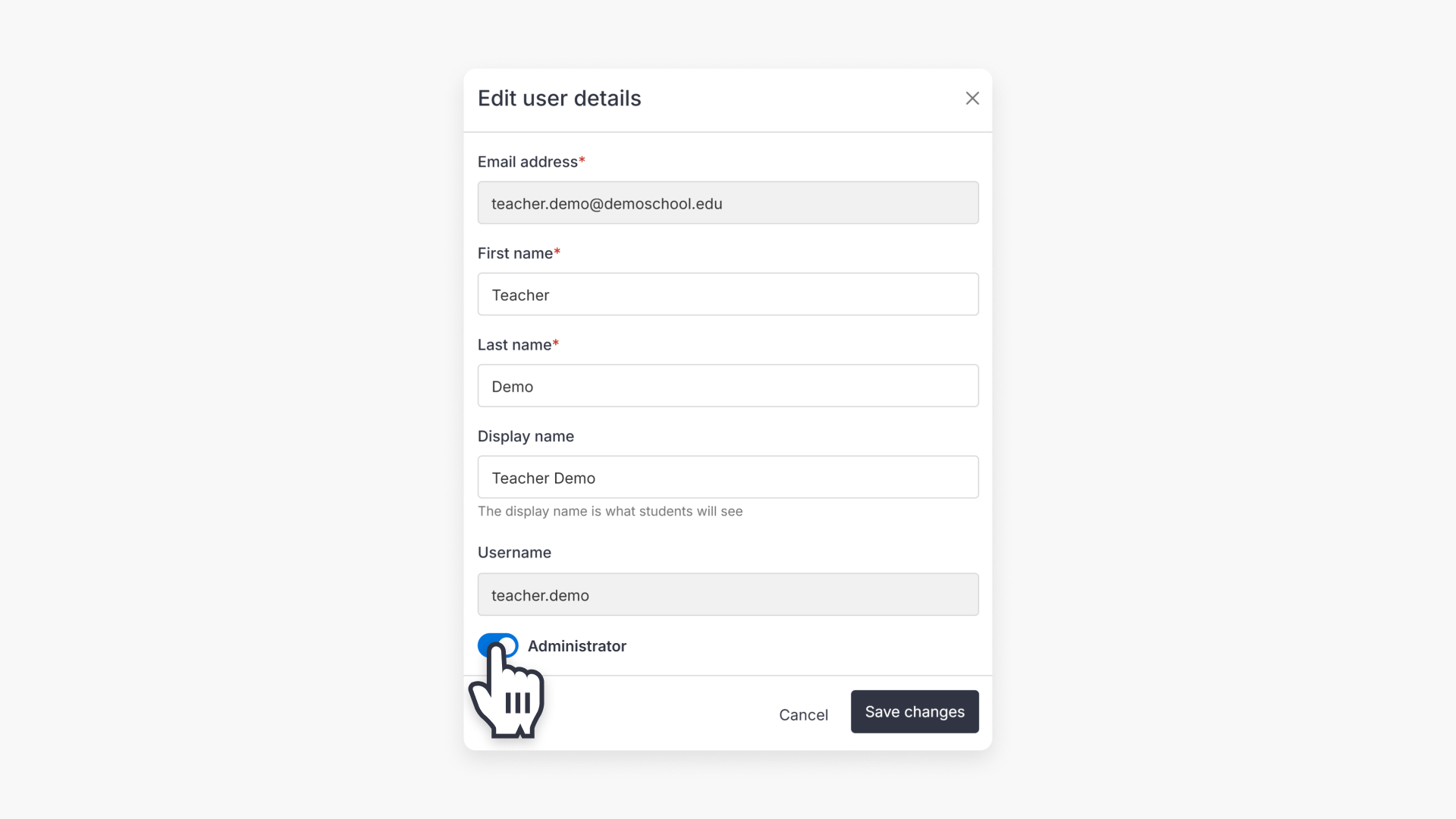
- Find the desired staff account and click the pencil icon to edit.

- Toggle the ‘Administrator’ option.

- Click ‘Save changes’ to confirm.
Frequently asked questions
Administrators manage settings, accounts, video access, integrations, and analytics for your school.
Yes, an existing Administrator can enable admin privileges for any staff account using ‘Staff manager’.
Contact Product Support for assistance with administrator access.
Get in touch
If you’re having trouble finding the right topics or videos, just reach out! Our team - 


 Andrew, Nisch, Janice, Pfreya, or any of us at ClickView - will be happy to help you get sorted.
Give feedback
Was this guide helpful?
Up Next
Managing user accounts in your school
This article guides ClickView Administrators through the creation, management, and bulk updating of staff and student accounts, including manual, bulk, and Single Sign On methods.