Perform an annual year level rollover for students
In this article
Last updated by
2 min readClickView30th January, 2026
Summary
- Sign in as an Administrator.
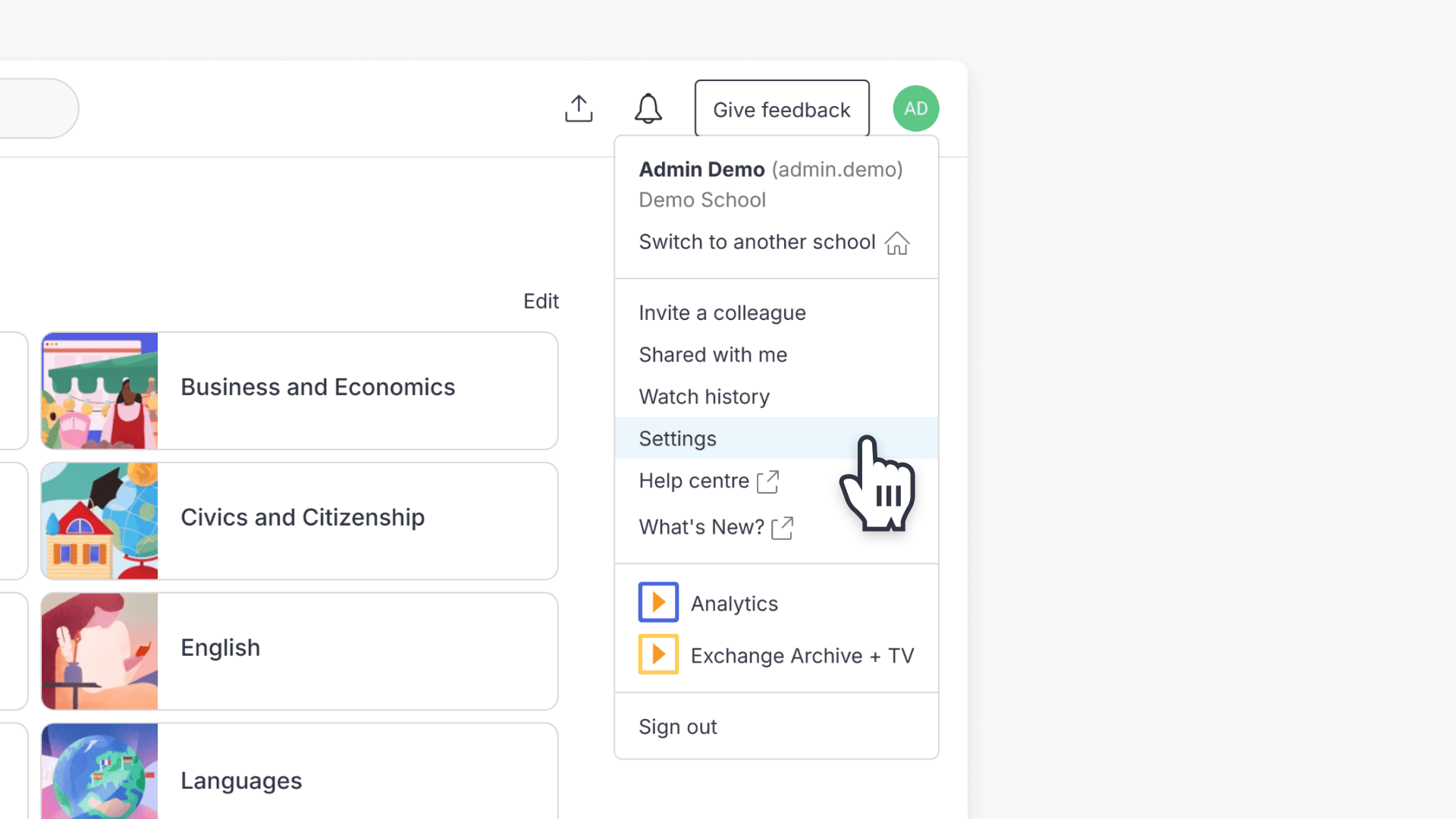
- Click your initials, then select ‘Settings’.
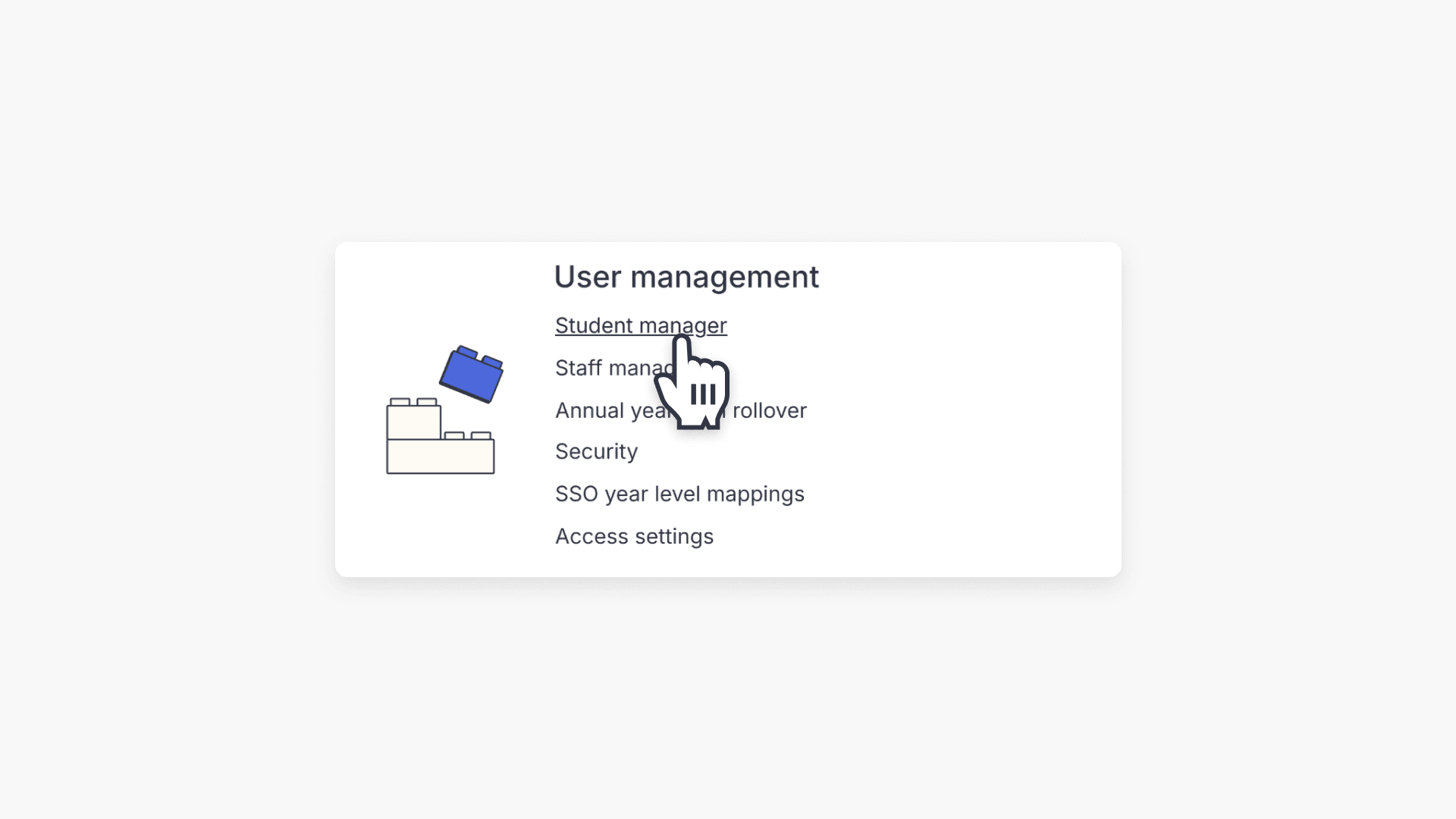
- In ‘User management’, click ‘Student Manager’ to export students.
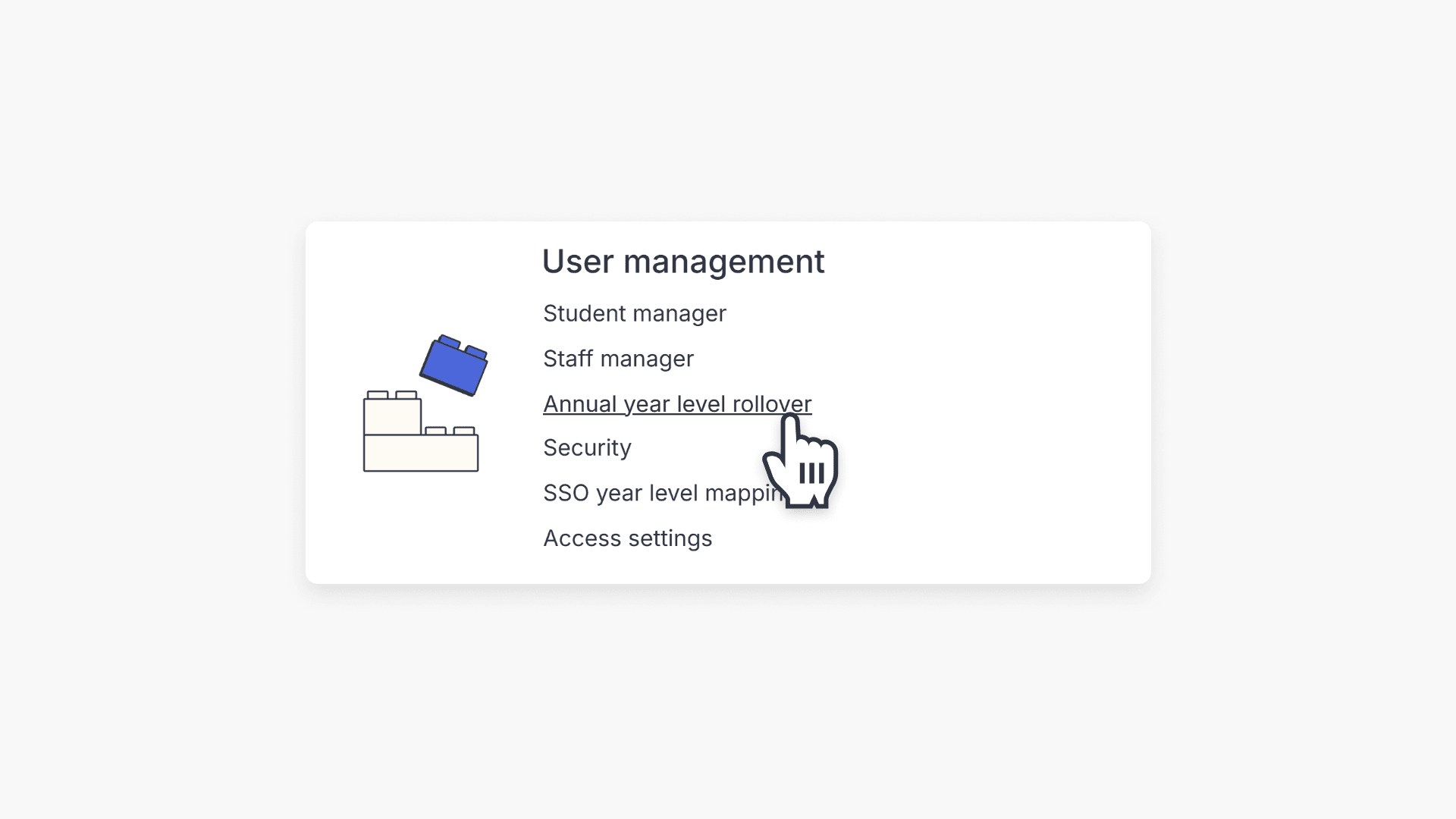
- Click ‘Annual year group rollover’ under ‘User Management’.
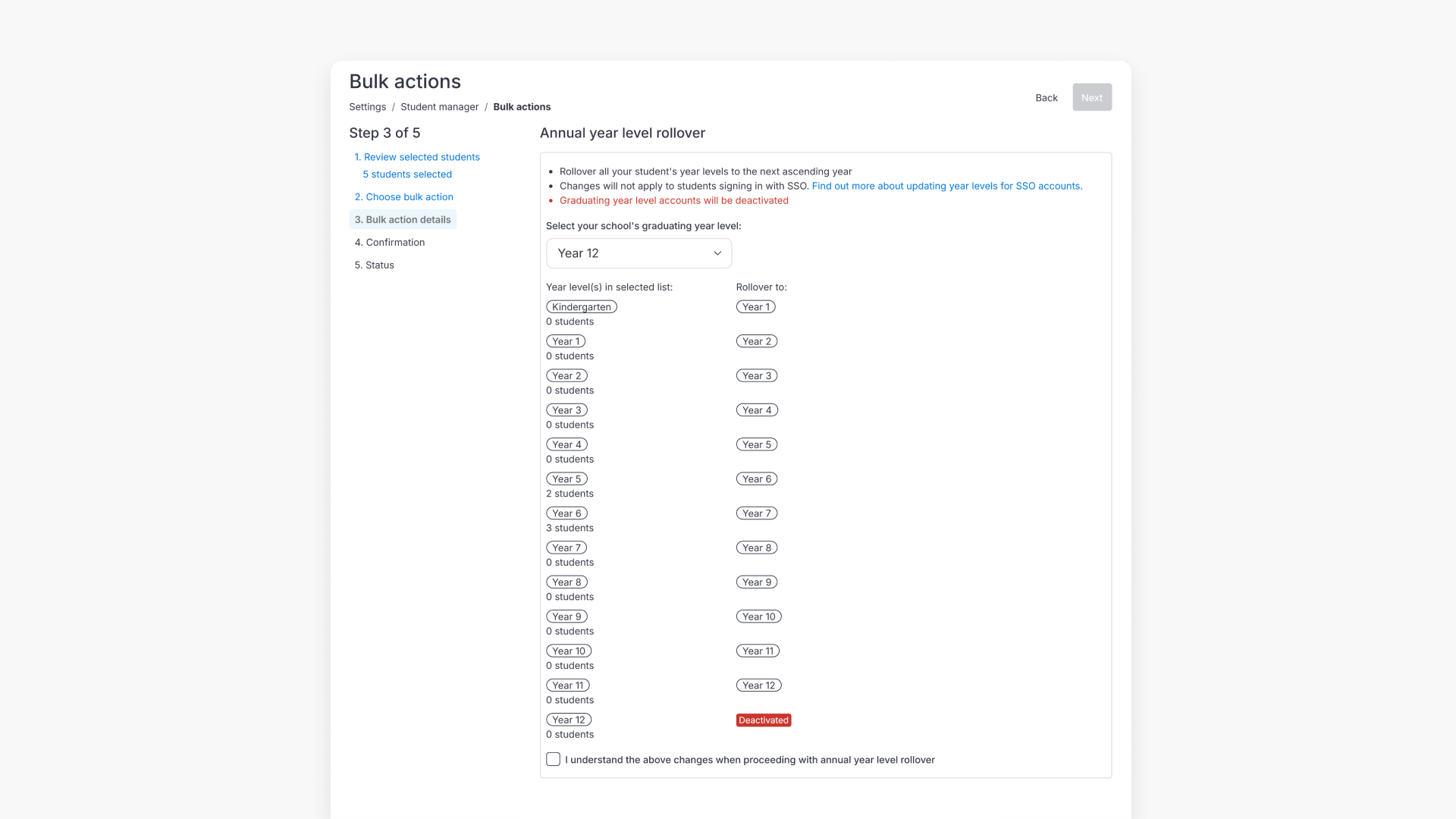
- Select the graduation year, check the warning box, and click ‘Next’.
Preparing for year rollover
Before beginning the year rollover process, it’s recommended to back up all student accounts. This backup allows you to restore student data if a mistake is made during rollover.
- Sign in to ClickView as an Administrator.
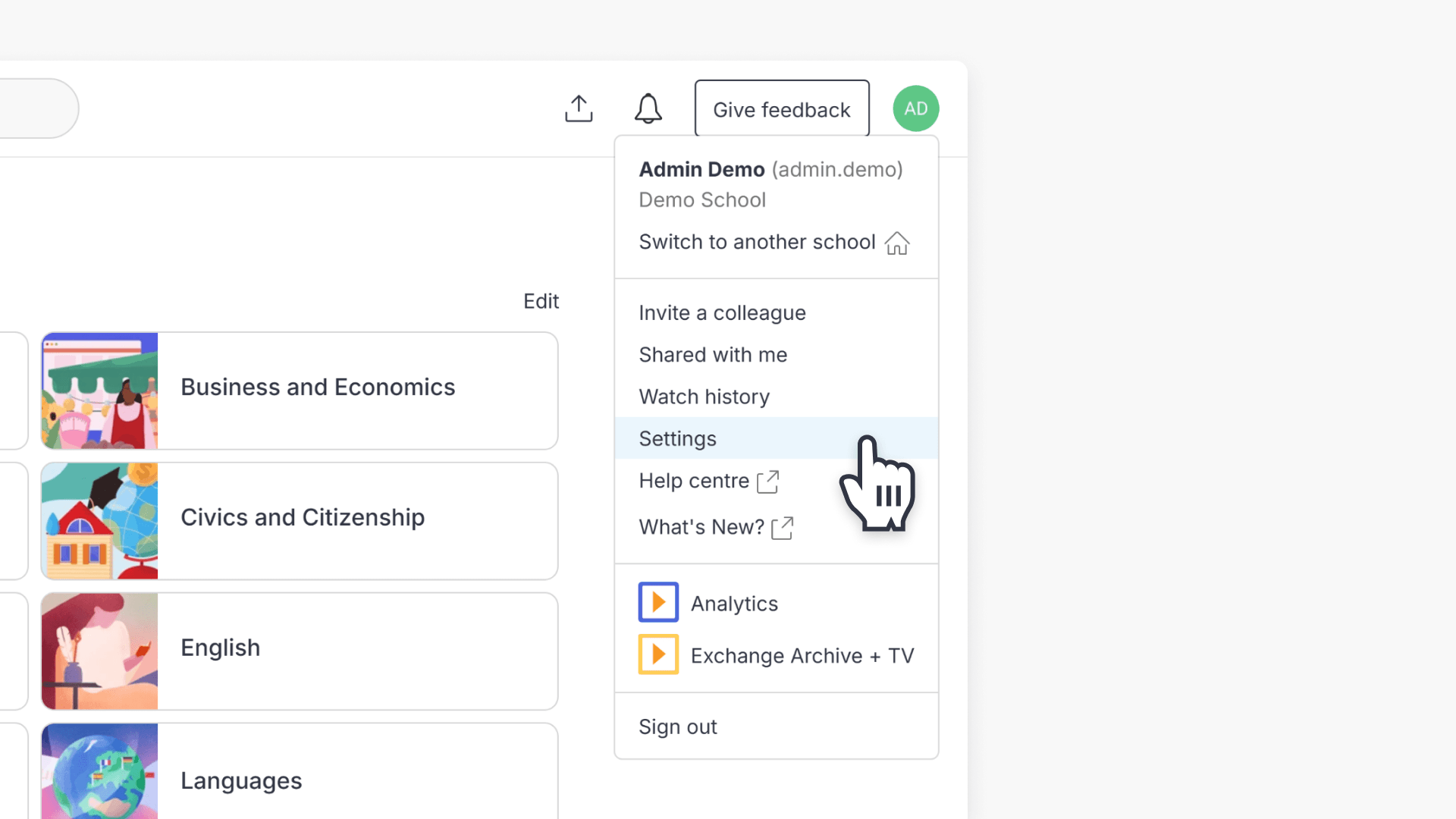
- Click your initials in the screen’s top right corner. Select Settings from the dropdown menu.
- Click Student Manager under the User management heading.
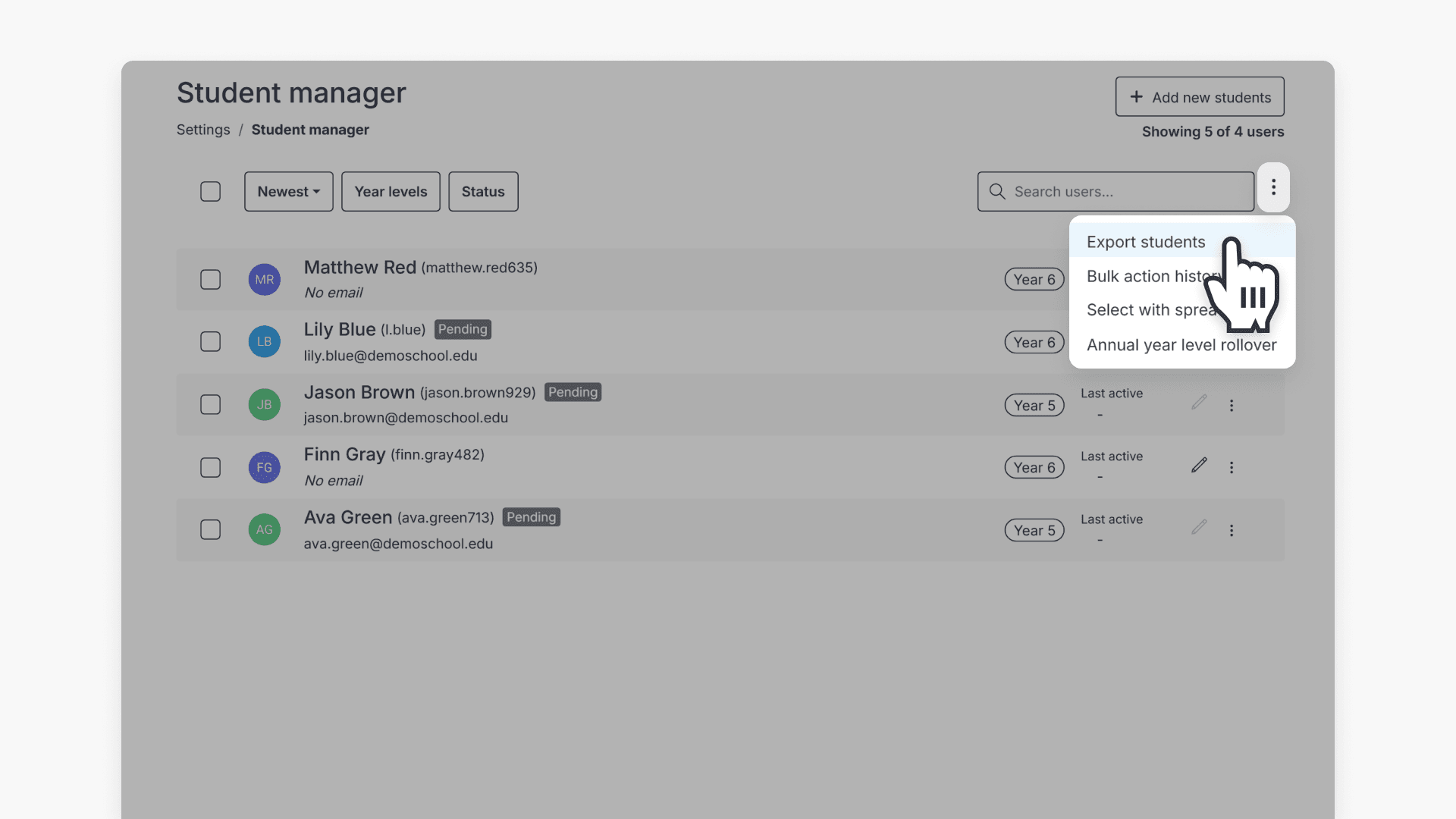
- Click the three vertical dots and select Export students to save a .CSV file of student accounts to your computer.
Accessing annual year rollover
- Sign in to ClickView as an Administrator.
- Click your initials, then select Settings from the dropdown menu.
- Click Annual year level rollover within User management.
Starting the year rollover process
- Click the Annual year level rollover.
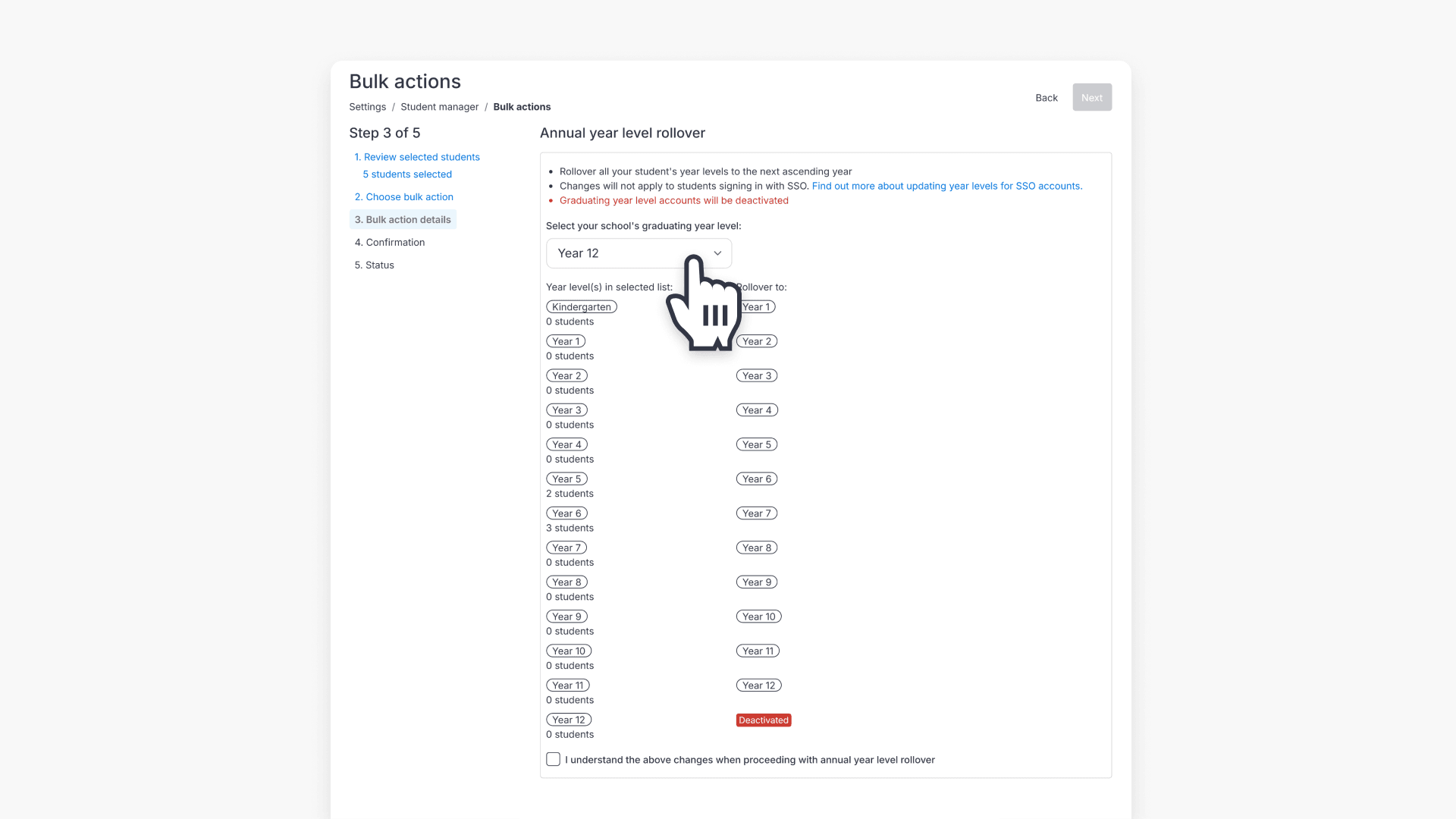
- Select your institution’s graduation year (example: Year 6).
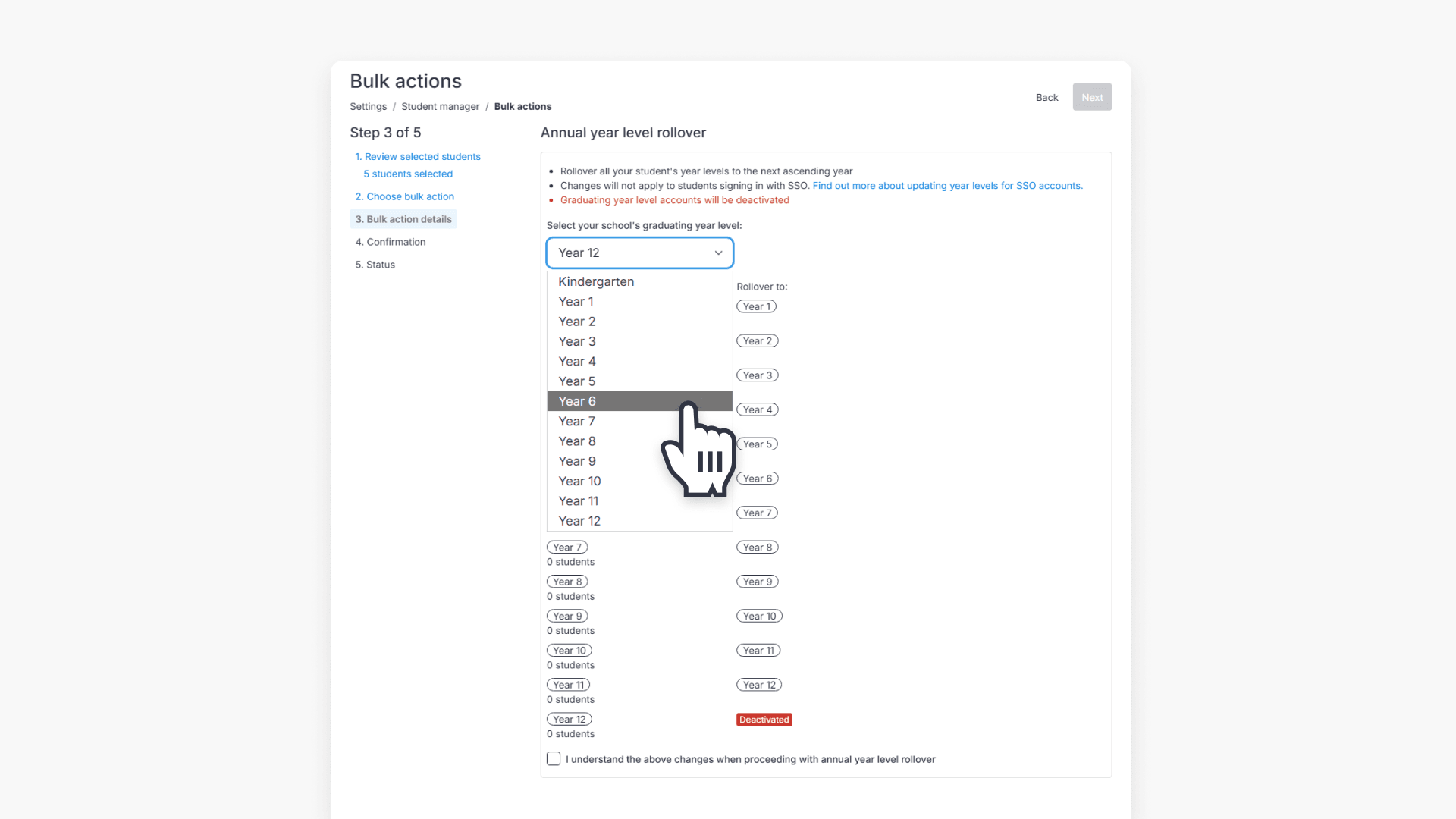
- Check the warning box and click Next to proceed.
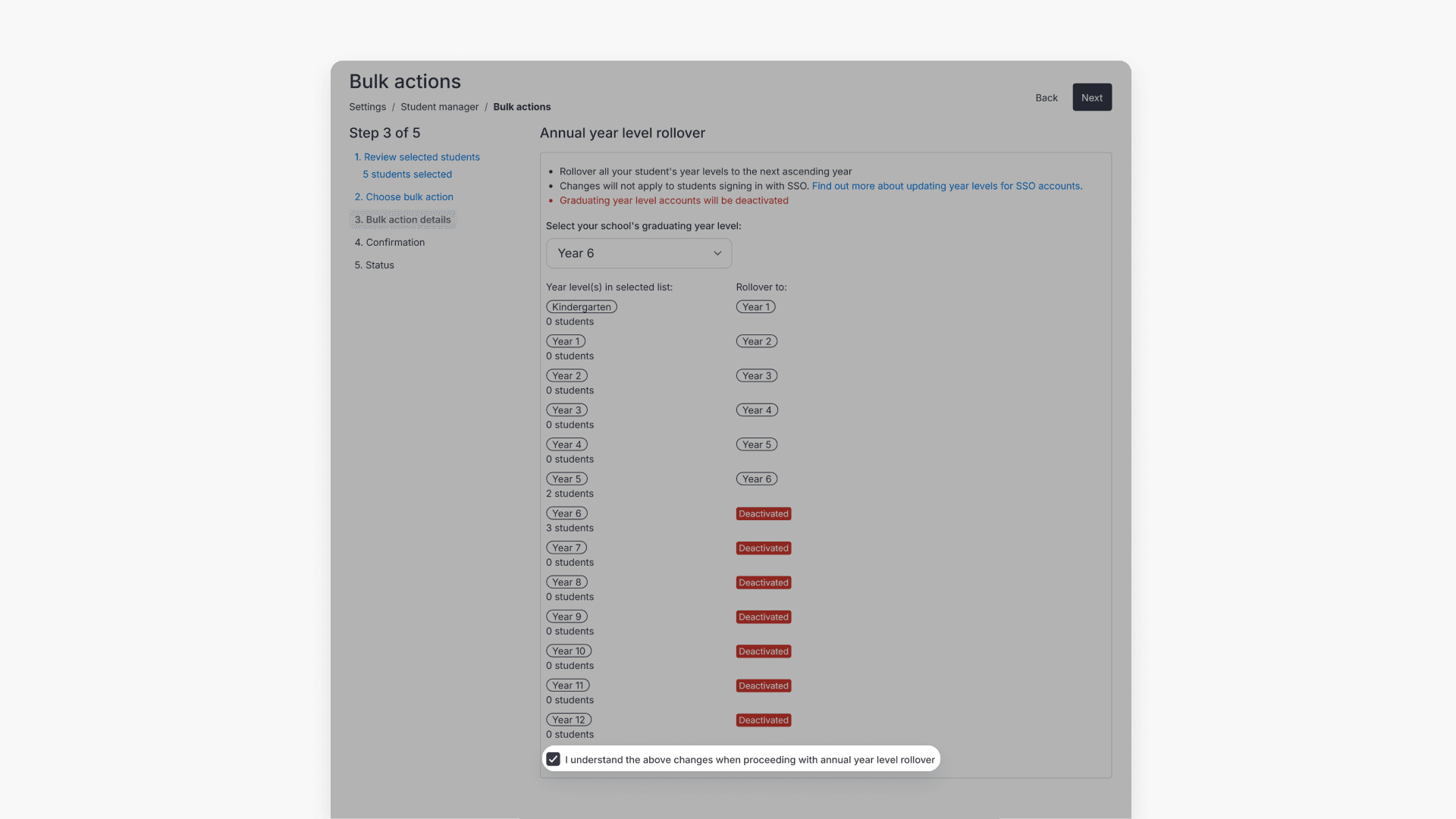

- All students’ year levels will be updated to the next ascending year.
Note:
- Accounts in a higher year than the graduation year are not updated or removed.
- Only accounts of the graduating year are removed from ClickView.
- Accounts in the ‘Unknown’ or ‘Staff’ group are not included in the rollover.
- If your institution uses Single Sign On (SSO), a manual year rollover may not be needed. See How to manage year level rollover with SSO for more information.
Frequently asked questions
You can restore student accounts by re-uploading the backup CSV file created before rollover.
If your institution uses SSO, manual year rollover may not be necessary. Reference the SSO Year Group Mapping Rollover article for details.
Get in touch
If you’re having trouble finding the right topics or videos, just reach out! Our team - 

 Akhil, Daniel, Jalaj, or any of us at ClickView - will be happy to help you get sorted.
Give feedback
Was this guide helpful?
Up Next
Managing user accounts in your school
This article guides ClickView Administrators through the creation, management, and bulk updating of staff and student accounts, including manual, bulk, and Single Sign On methods.