How to enable the Microsoft Teams and Google Classroom integrations
In this article
Last updated by
1 min readClickView2nd February, 2026
Summary
- Sign in to ClickView with Administrator access.
- Click your avatar in the top right corner.
- Select Settings from the drop-down menu.
- Go to the Integrations section.
- Toggle the Microsoft Teams or Google Classroom integration on or off.
star icon
Quick tip
Do I need special permissions to adjust integrations?
Administrator access to ClickView is required to change integration settings.
How to enable Microsoft Teams or Google Classroom integration
Administrators can enable the Microsoft Teams integration to allow teachers to easily share ClickView video content with students. Follow these steps to turn the integration on or off.
- Sign in to ClickView using an Administrator account.
- Click your avatar in the top right of the screen and select Settings from the drop-down menu.
- Select Integrations from the integrations section:

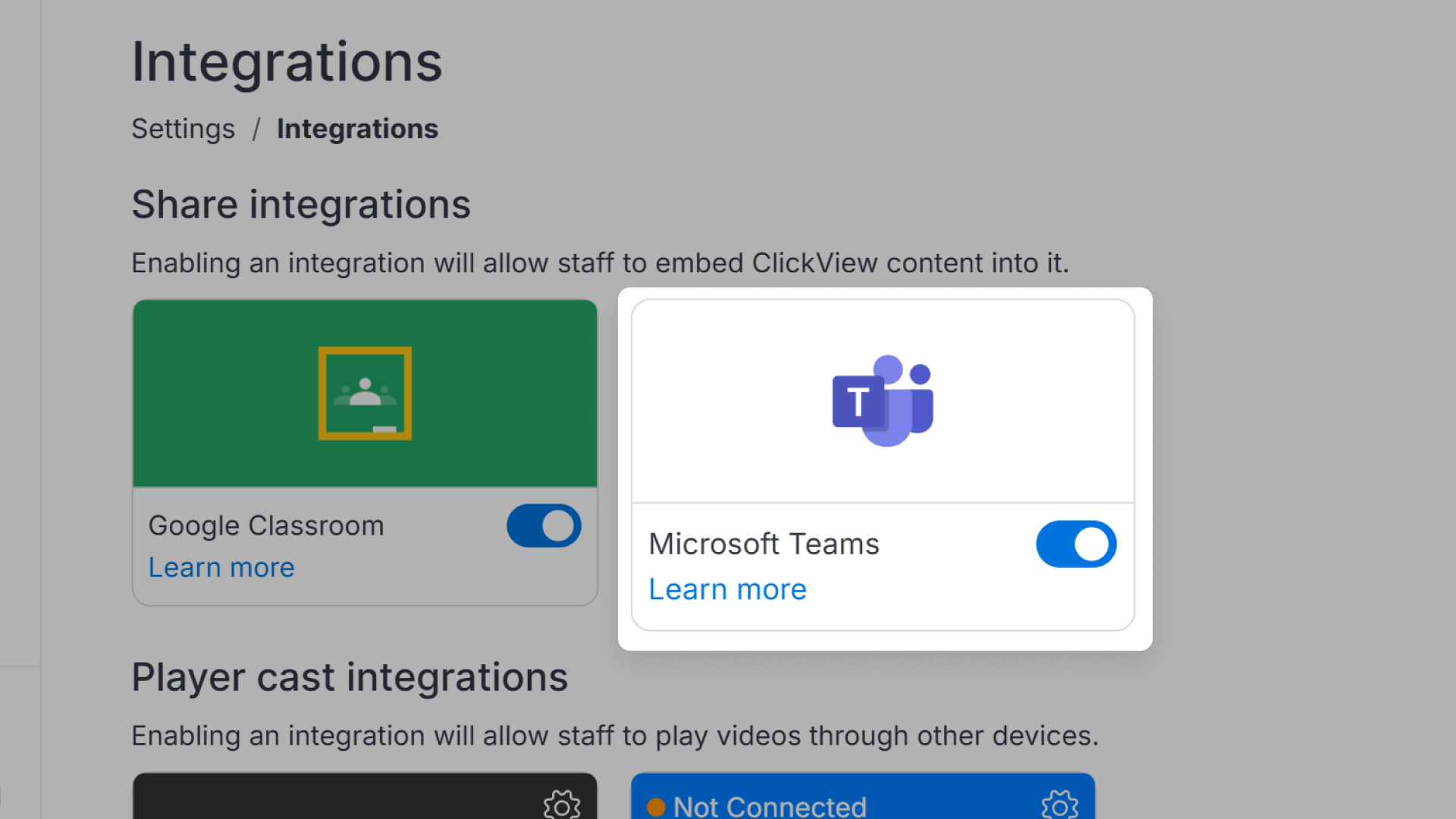
- Toggle the Microsoft Teams or Google Classrooms integration on or off:

Once enabled, teachers can share video titles with learners directly through Microsoft Teams or Google Classrooms.
Frequently asked questions
Only ClickView Administrators can enable or disable the Microsoft Teams integration.
Get in touch
If you’re having trouble finding the right topics or videos, just reach out! Our team - 

 Akhil, Daniel, Jalaj, or any of us at ClickView - will be happy to help you get sorted.
Give feedback
Was this guide helpful?
Up Next
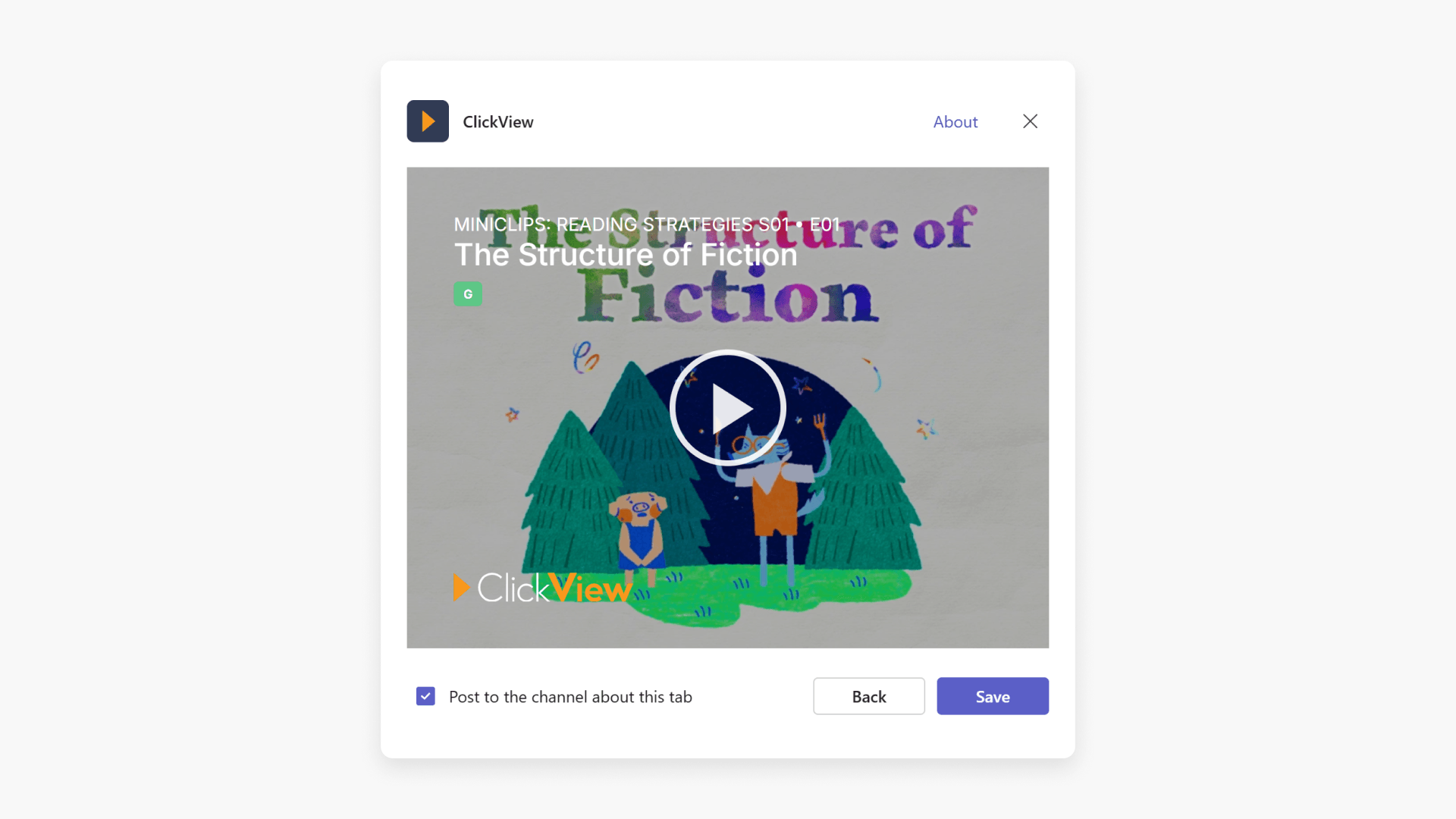
Embed videos with the ClickView app in Microsoft Teams
Discover how to set up the ClickView integration for Microsoft Teams, allowing educators to add and play ClickView videos directly within Teams chats or as dedicated tabs.