

ClickView Help
Sign inRequest pricingGet started FREEGet started FREE
Sign in
  1. Helpchevron right icon
  2. Using ClickViewchevron right icon
  3. Accessibility & equity
    • Discover
    • Watch videos
    • Create & manage
    • Interactive videos
    • Share
    • Classrooms
    • Analytics
    • Student View
    • Profile & preferences
    • Apps
    • Accessibility & equity
    • Feedback
Using ClickView

Using ClickView

Accessibility & equity

Make videos inclusive for all learners. Learn about captions, screen-reader compatibility, and accessibility settings.

Immersive Reader icon in ClickView

Using the Immersive Reader for video text

Learn how to access and use the Immersive Reader in ClickView to read video descriptions and interactive questions aloud, adjust text settings, and support all learners.
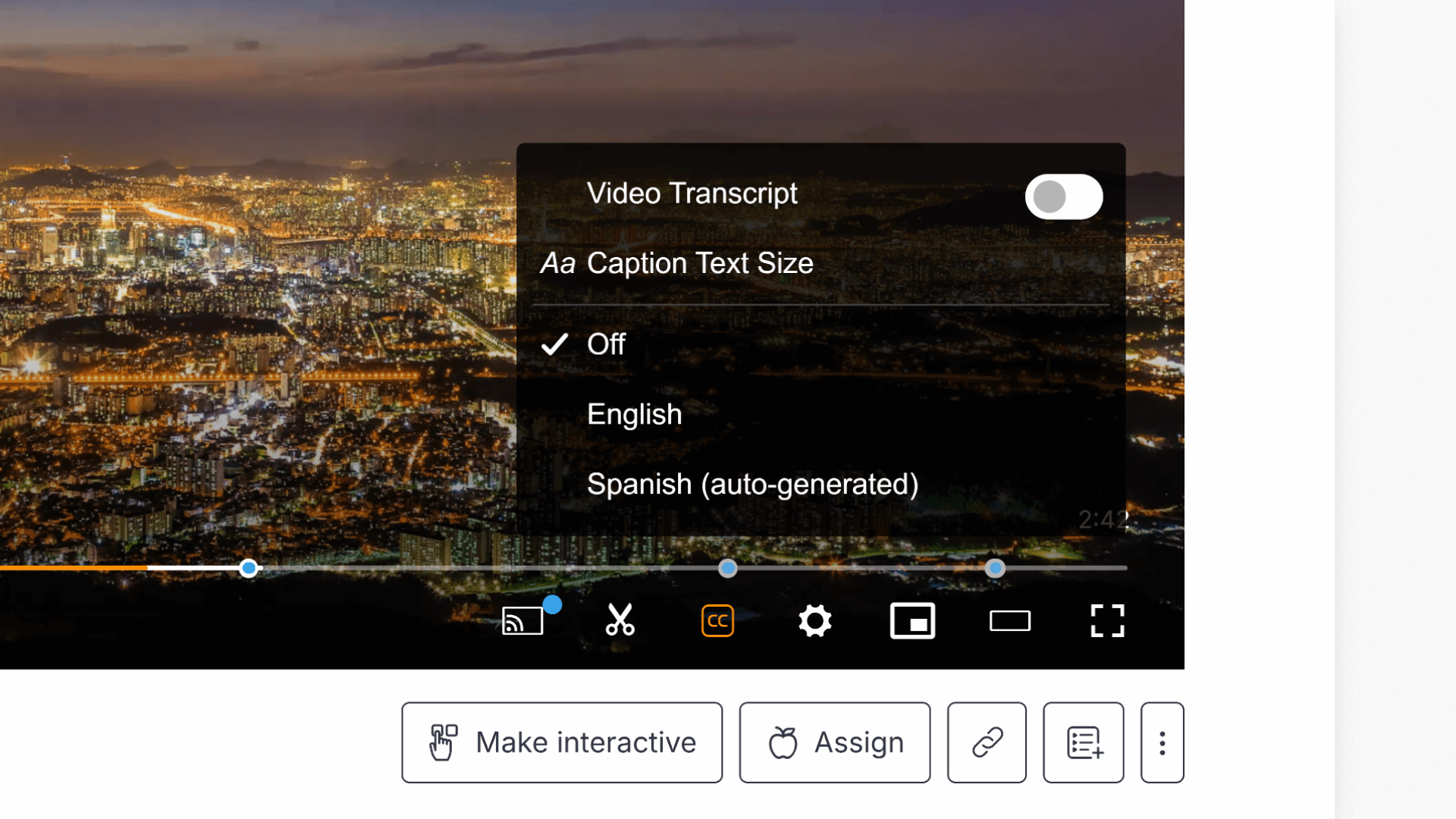
Caption button navigation

How to use subtitles and closed captions

This article explains how to enable subtitles and closed captions in ClickView videos, adjust caption text size, use the subtitle search feature, and set default subtitle preferences as an administrator.

Still have questions?

Email Support

Email us

support@clickvieweducation.com

Phone Support

Phone

(02) 9509-2600

Ticket Support

Send us a ticket

Fill out support formarrow right icon

Primary schools
OverviewPrimary teachersPrimary school leaders
Secondary
OverviewSecondary teachersSecondary leaders
K-12
OverviewK-12 leaders
Governing bodies
OverviewGoverning body analyticsShared Libraries
Product
OverviewDiscoverEngageUnderstand
Features
Upload videosInteractive videosShare videosIntegrationsAccessibility and equityClassroom analyticsSchool analyticsMovies and TVClickView TV
Company
AboutBlogBrandContact usSupportGet started FREE
Sign up for new release videos, trending topics, and more.
By subscribing you agree to our Privacy Policy.
Letter with heart
USAUSA
UKUK
CANCAN
NZLNZL
Privacy PolicyTerms and ConditionsOnline Terms