Introduction to the video player

Summary
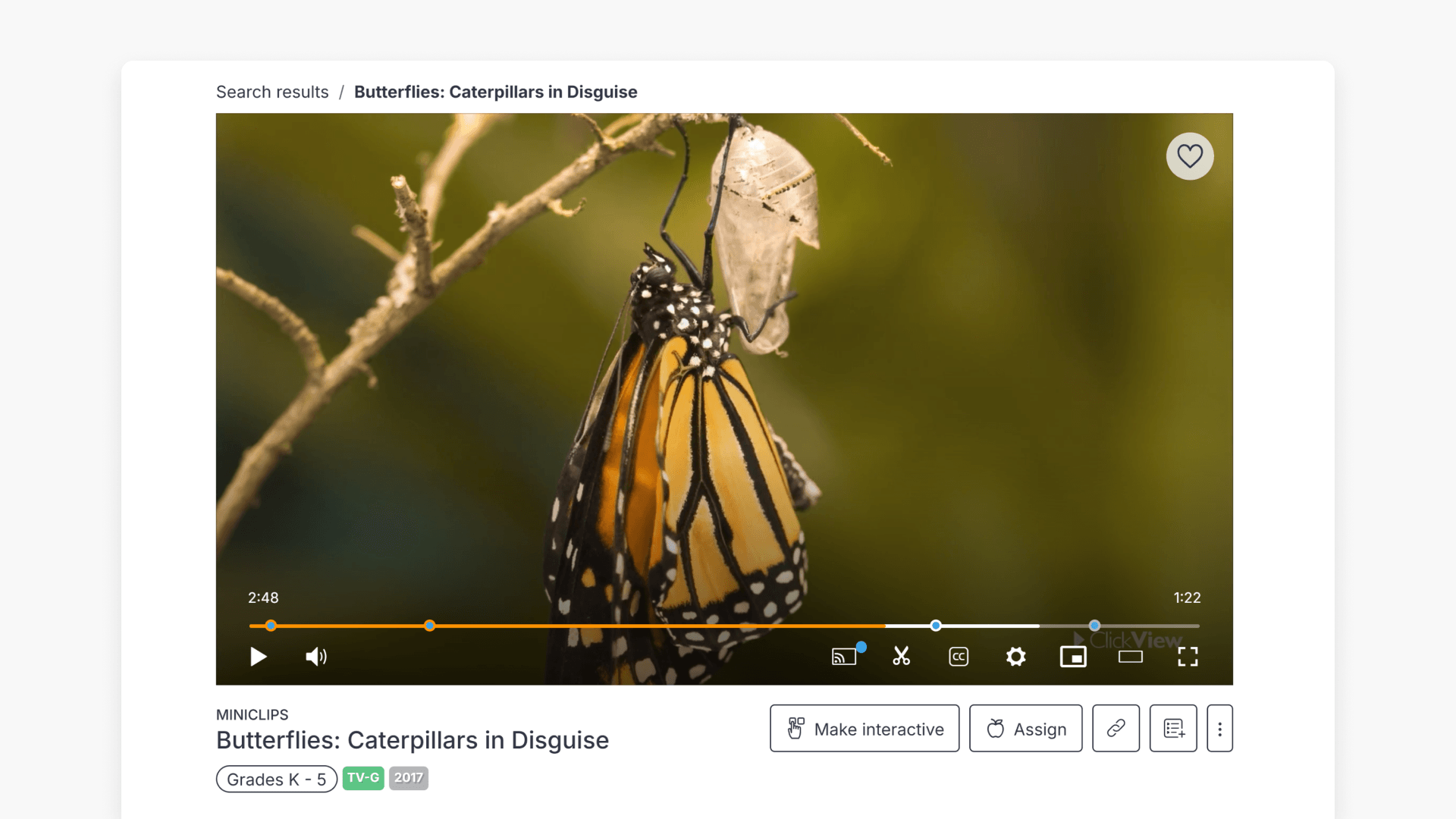
- The Video Player is used to play classroom videos.
- Adjust volume, subtitles, text size, and playback speed.
- Use whiteboard mode to improve classroom presentations.
- Change video quality to suit internet or screen needs.
- Display picture-in-picture mode to view videos while browsing.
- Mark videos as Favorite for easy access later.
Features of the video player
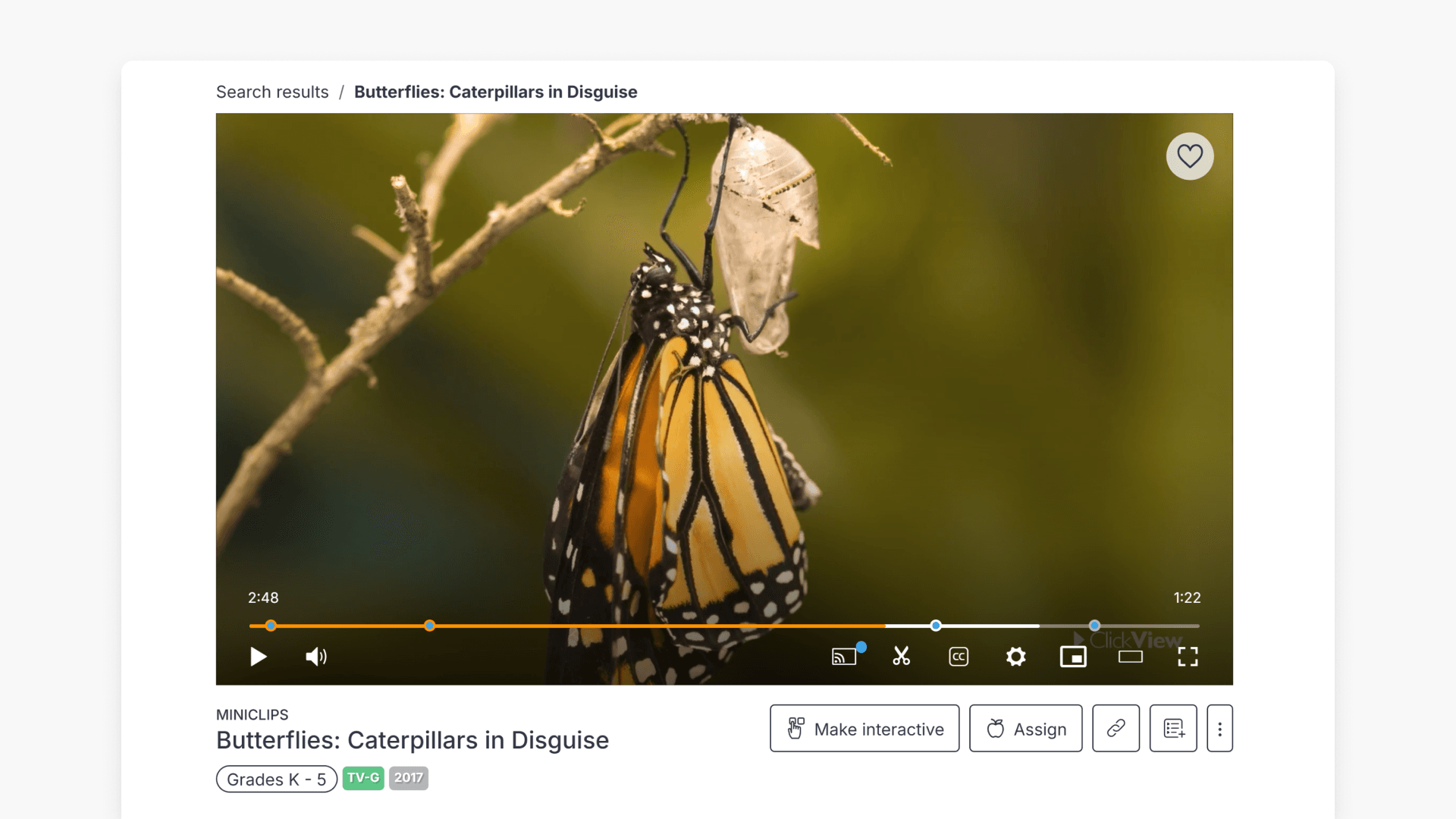
The Video Player is the main window in ClickView for playing educational videos. It is designed for simple and intuitive classroom use. Along with basic play and pause functions, you can quickly adjust the volume directly in the player so you do not need to search for a remote control during your lesson.
- Subtitles and text size: Display subtitles and change the text size to support visually impaired students.
- Whiteboard mode: Present videos at the front of the classroom via whiteboard mode with playback controls that move to avoid obstruction.
- Playback speed: Adjust video speed with up to seven speed options, including slow motion or double speed.
- Video resolution: Change the video resolution to suit your bandwidth or screen size.
Additional features for lesson preparation
- Clips: Make clips from any ClickView video to focus learning on specific sections.
- Picture in Picture: Overlay a smaller video screen with picture-in-picture mode to view content while browsing or reviewing details.
- Favorite content: Mark videos as Favorite that you want to quickly access later from your Playlists.
Frequently asked questions
Get in touch
If you’re having trouble finding the right topics or videos, just reach out! Our team - 


 Andrew, Nisch, Janice, Pfreya, or any of us at ClickView - will be happy to help you get sorted.
Give feedback
Was this guide helpful?
Up Next
How citations work in ClickView
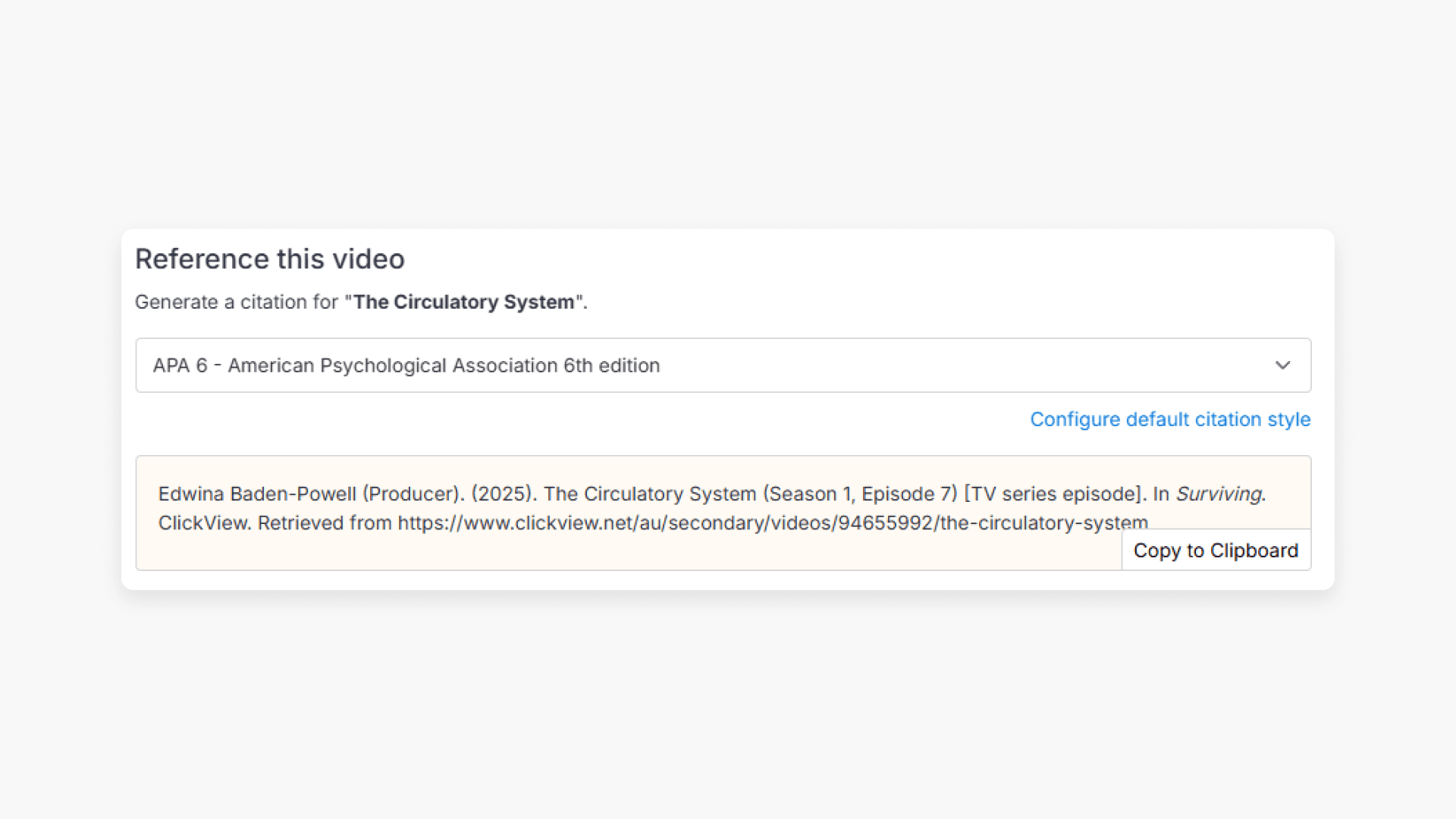
Summary How do I find citations for videos in ClickView? Every video in ClickView includes a citation. Open a video, scroll below the player, and find the Reference this video section. Select a citation style from the dropdown, and ClickView will generate the citation automatically, copy it to your clipboard, and use it anywhere. Every […]