How to use picture-in-picture mode

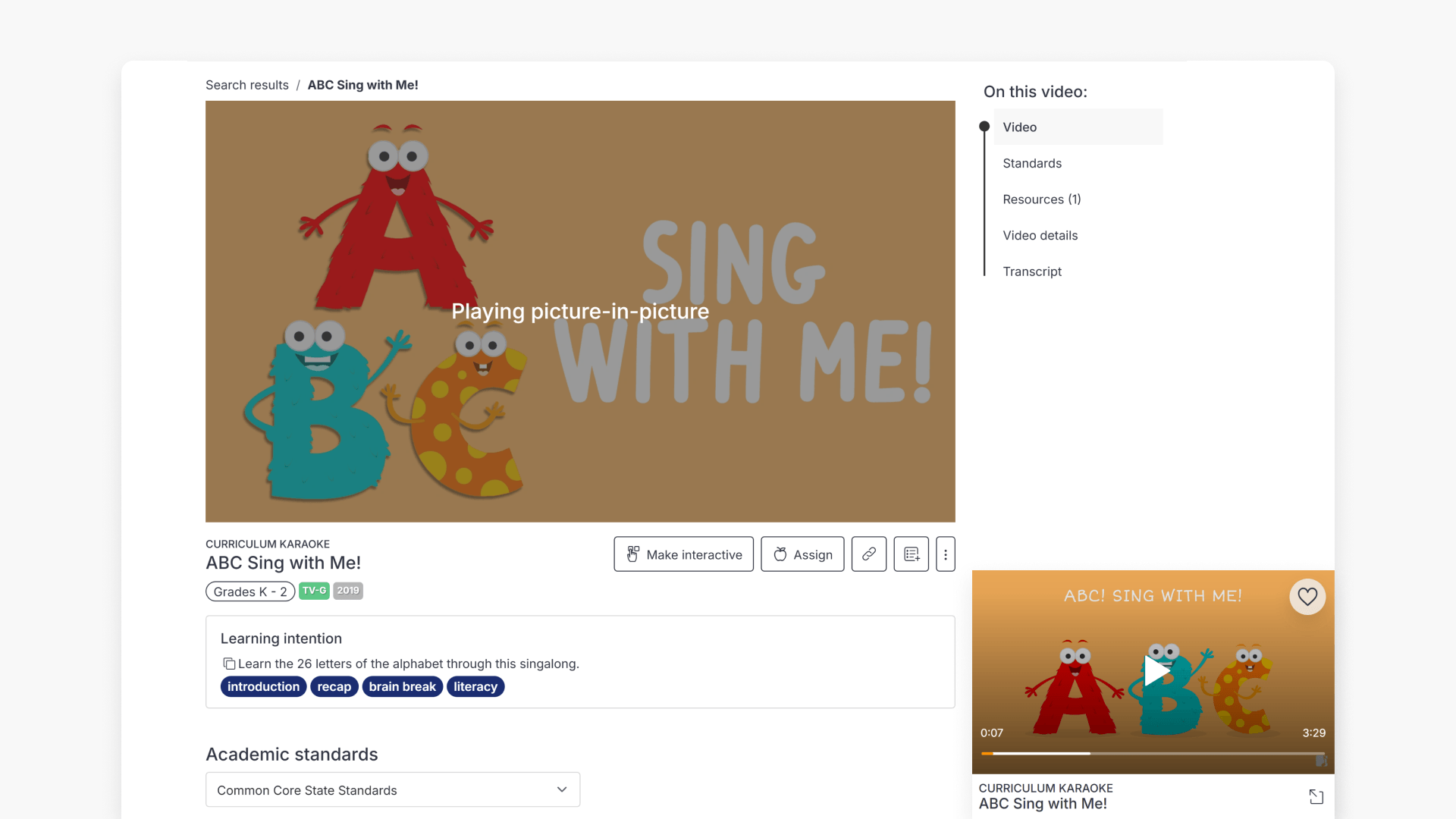
Summary
- Play any video to start using picture-in-picture.
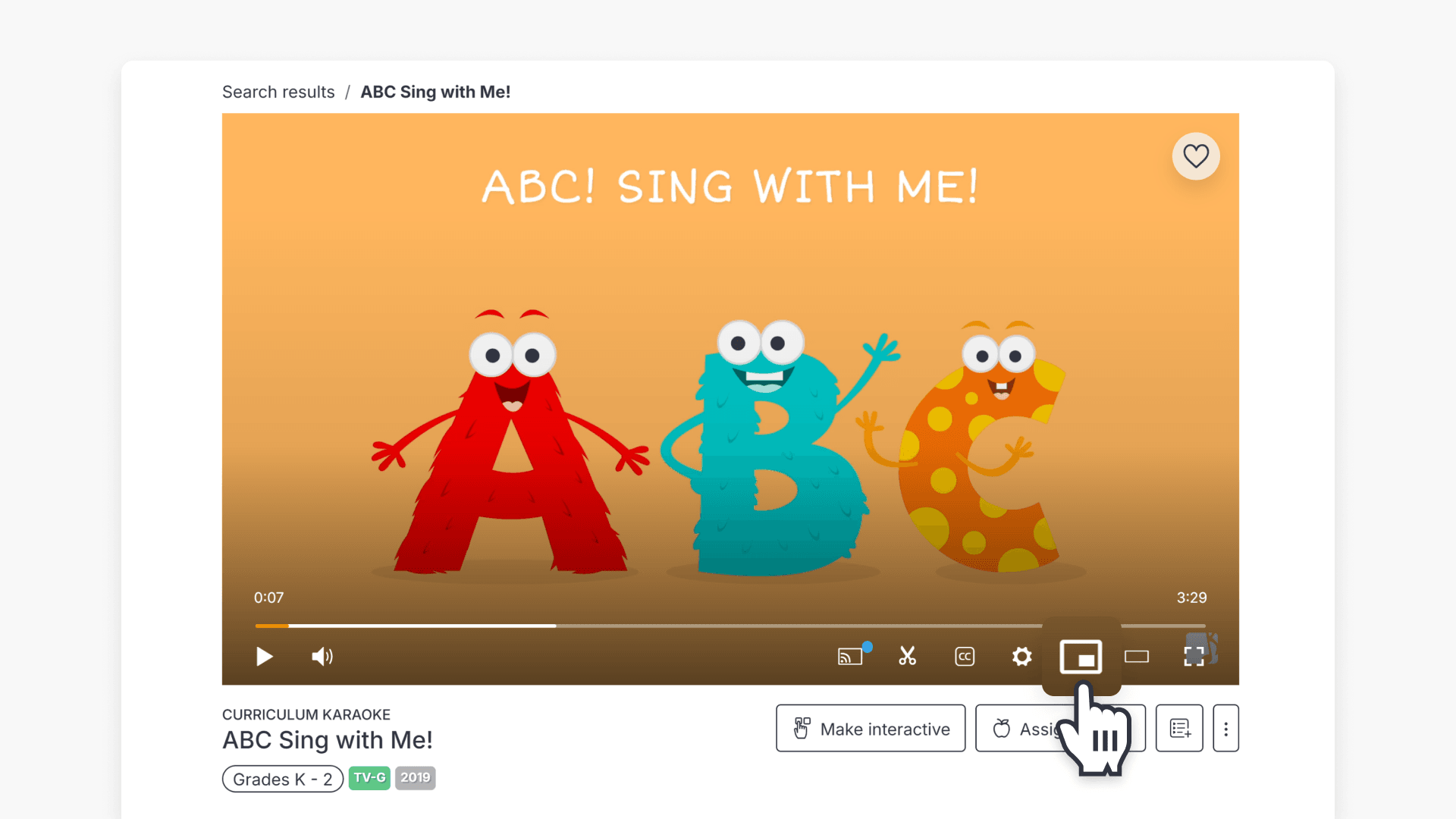
- Click the picture-in-picture icon in the video player.
- Video appears in a floating window on top of other content.
- Continue browsing ClickView while watching.
- Click the maximize button to refocus the video.
What is picture-in-picture mode?
Picture-in-picture (PiP) mode allows you to watch videos in a floating window that stays on top of other screen content, letting you continue exploring ClickView or reading supplementary information while your video remains visible.
Enable picture-in-picture mode
- Play any video in ClickView.
- On the video player, click the picture-in-picture icon.
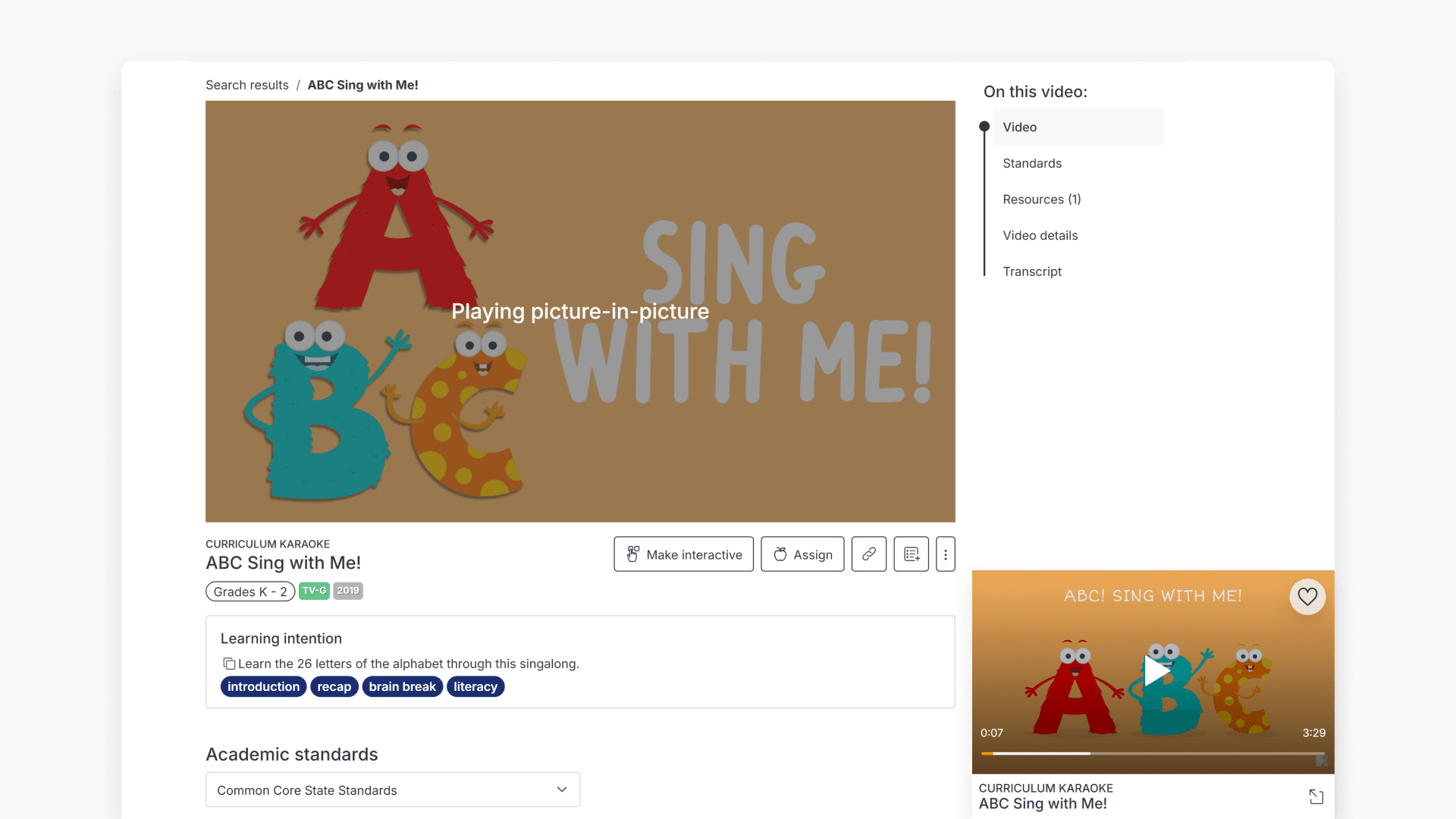
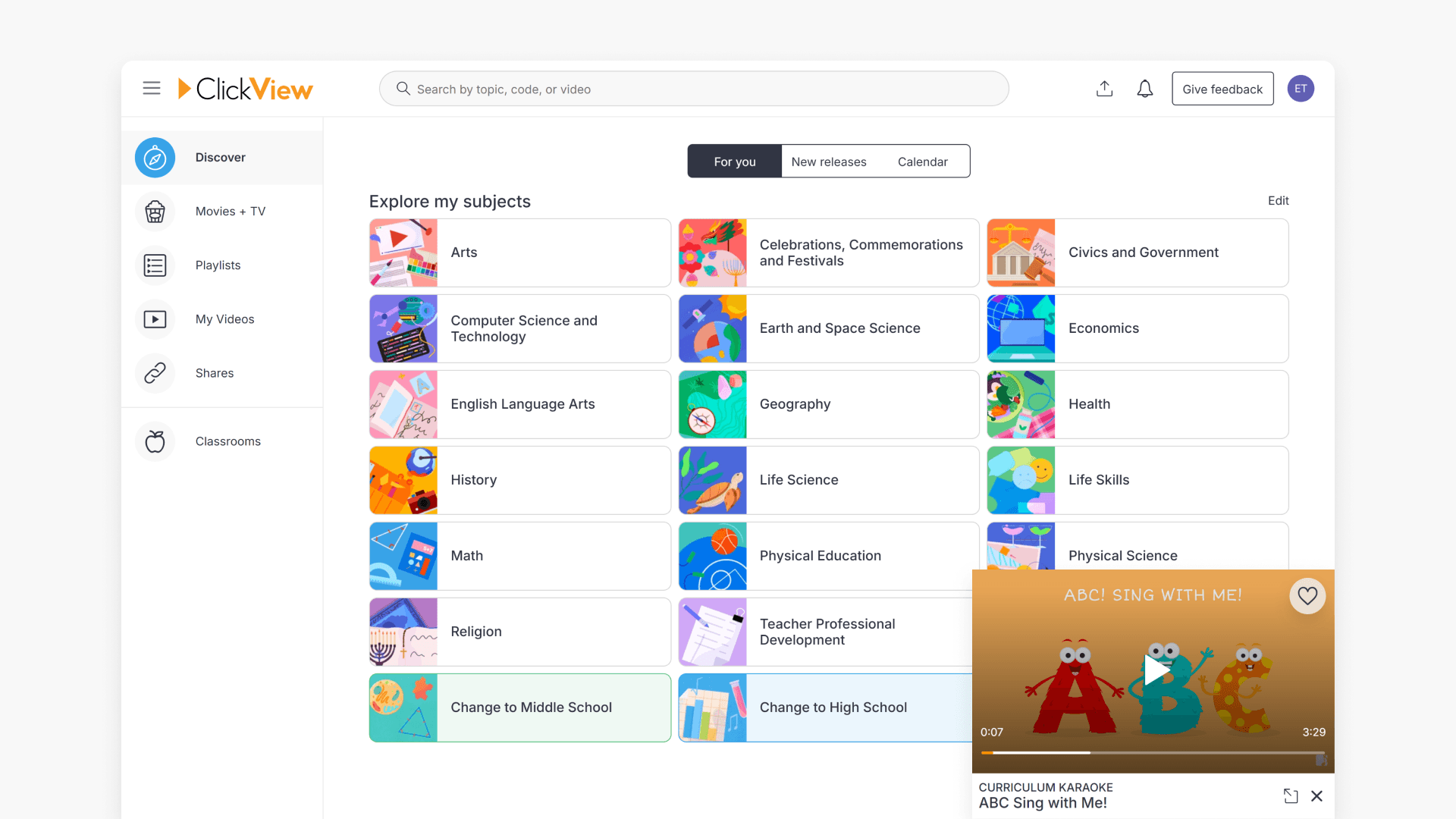
- The video will display in a smaller floating window. You can now navigate ClickView and interact with other resources while the video continues to play.
Note: If you play another ClickView video, it will take control of the picture-in-picture feature.
Exit picture-in-picture mode
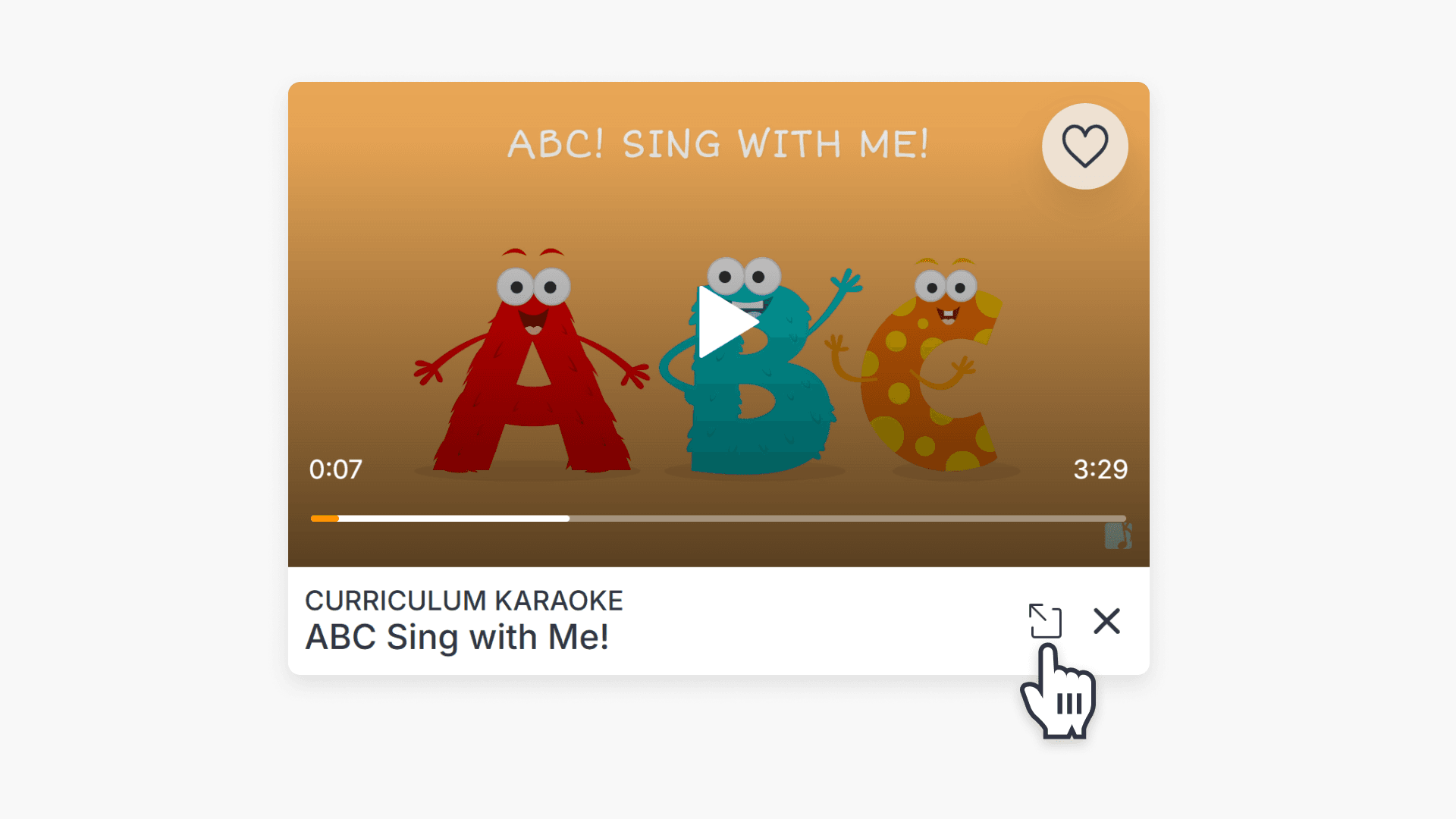
- To close the picture-in-picture window, click the ‘X’ in the bottom right-hand corner of the PiP window.
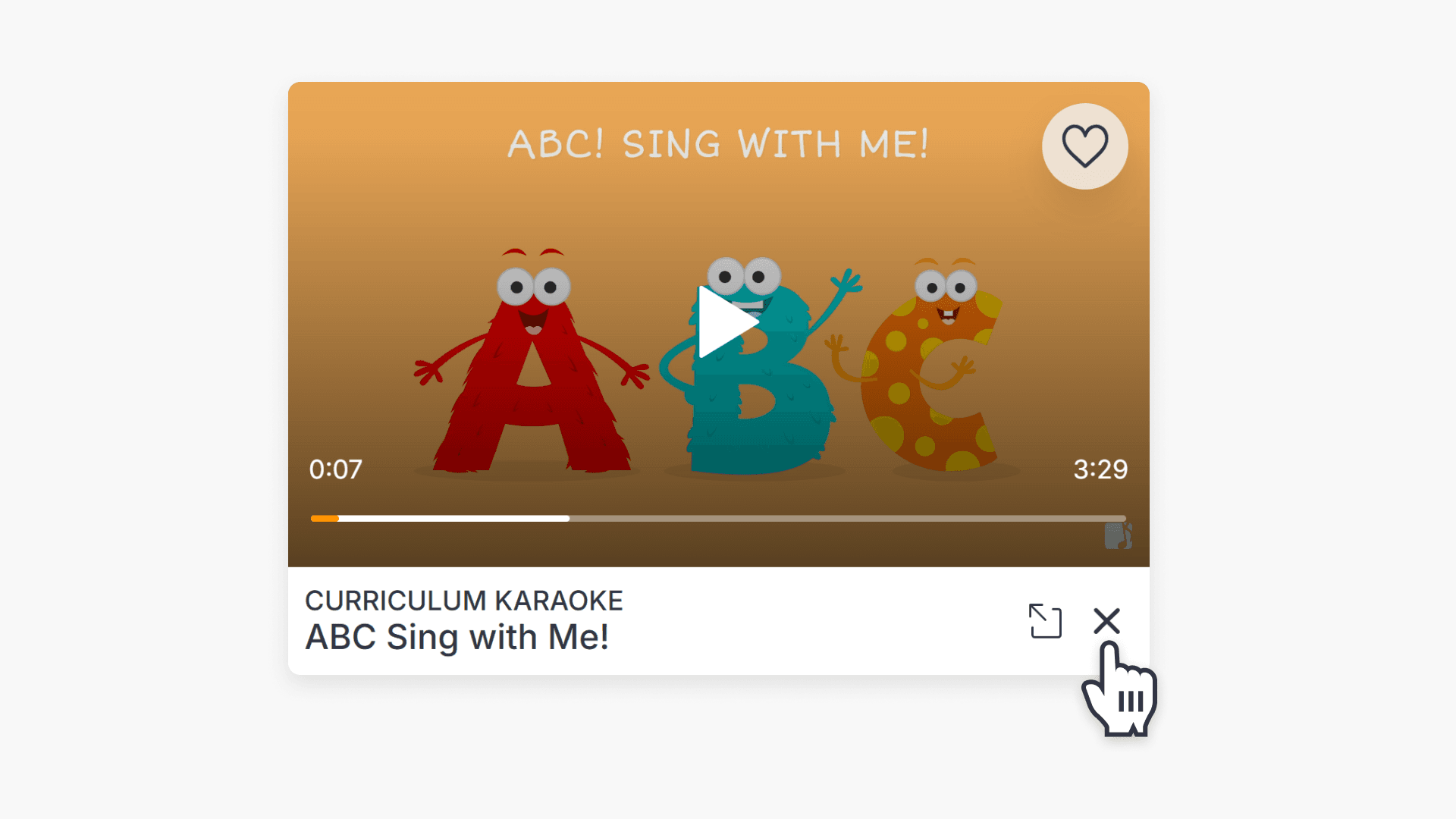
- To make the video the focus again, click the maximize button.
Frequently asked questions
Get in touch
If you’re having trouble finding the right topics or videos, just reach out! Our team - 

 Akhil, Daniel, Jalaj, or any of us at ClickView - will be happy to help you get sorted.
Give feedback
Was this guide helpful?
Up Next
How citations work in ClickView
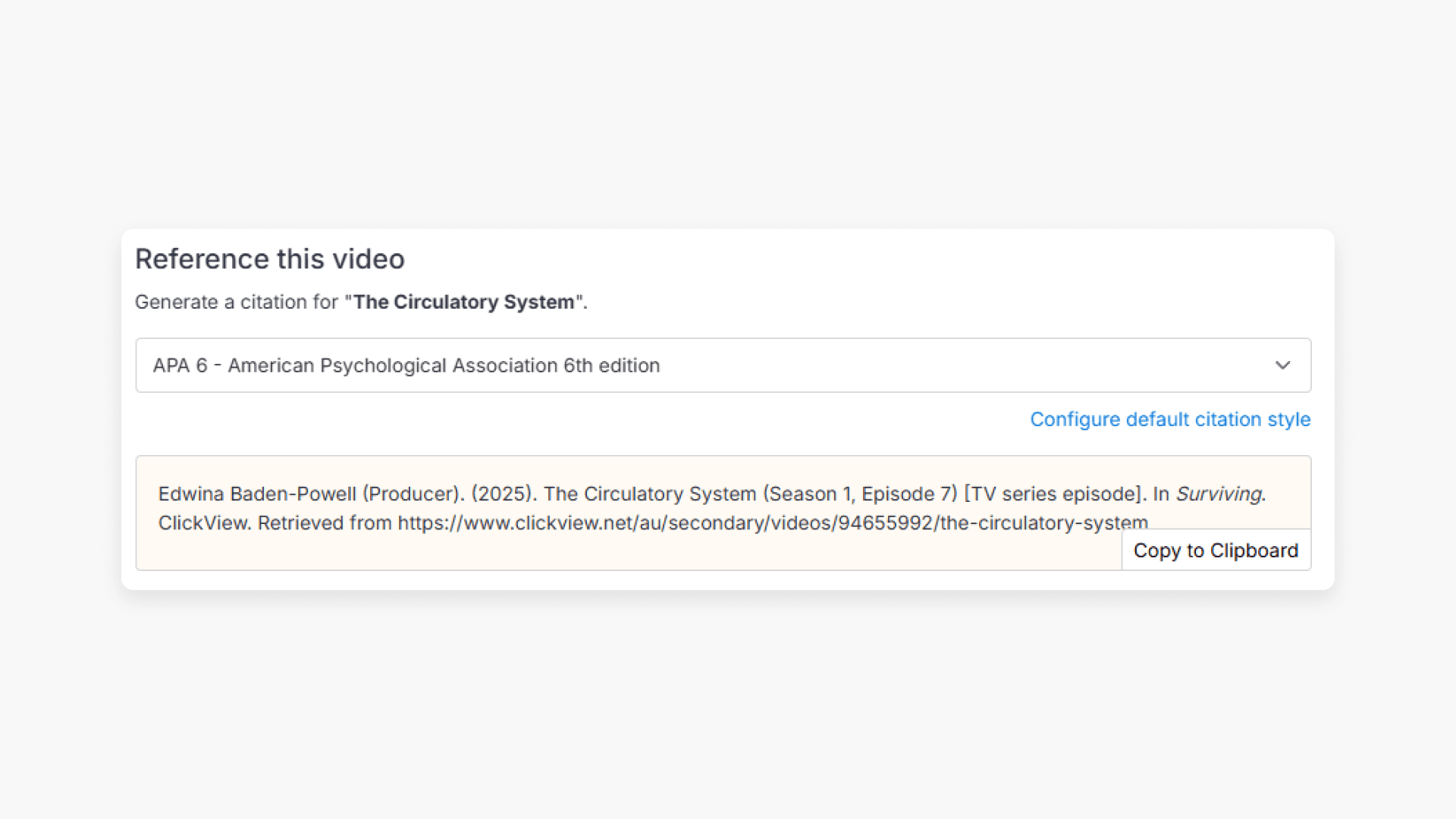
Summary How do I find citations for videos in ClickView? Every video in ClickView includes a citation. Open a video, scroll below the player, and find the Reference this video section. Select a citation style from the dropdown, and ClickView will generate the citation automatically, copy it to your clipboard, and use it anywhere. Every […]