How to create and manage video clips

Summary
- Teachers can create clips from any video in their ClickView Libraries.
- Create clips using the options menu, navigation bar, or scissors icon.
- Adjust clip start and end points using duration fields or the timeline.
- Add a required title and optional description for your clip.
- Share clips via the ‘Share’ button as a link or embed.
- Clips are saved in ‘My Videos’ for future management.
- Additional actions: make interactive, view usage, edit, and manage grade levels.
What is a clip?
A clip is a shorter segment taken from a longer ClickView video. Clips allow teachers and students to focus on specific moments that are most relevant to a lesson, discussion, or activity, without needing to share or watch the entire video.
Clips are saved as their own items in My Videos, where they can be shared, embedded, made interactive, or reused in future lessons.
Access the clipping feature
There are three ways to create a clip in ClickView:
- Use the options menu (three dots) next to the video title.
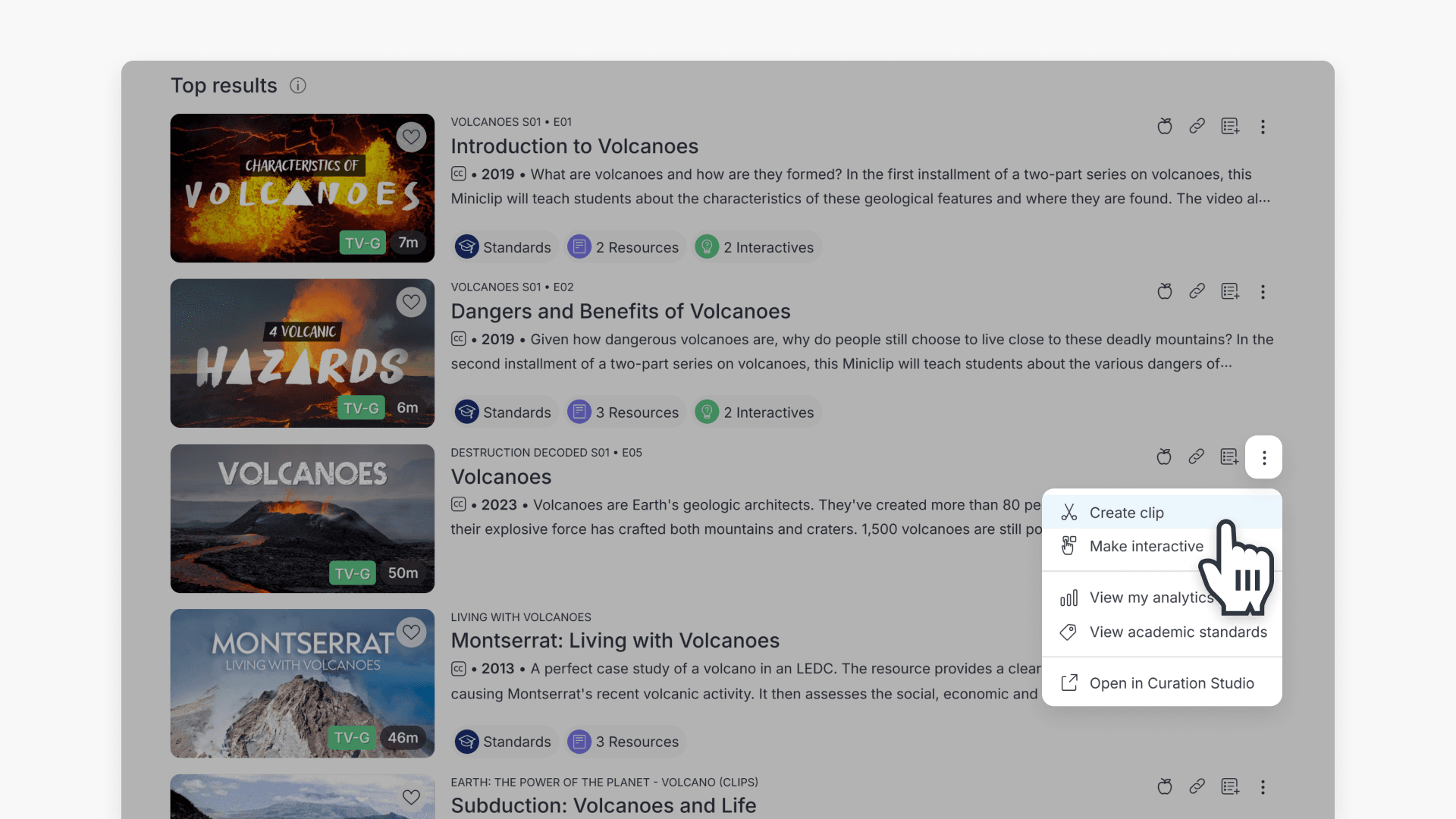
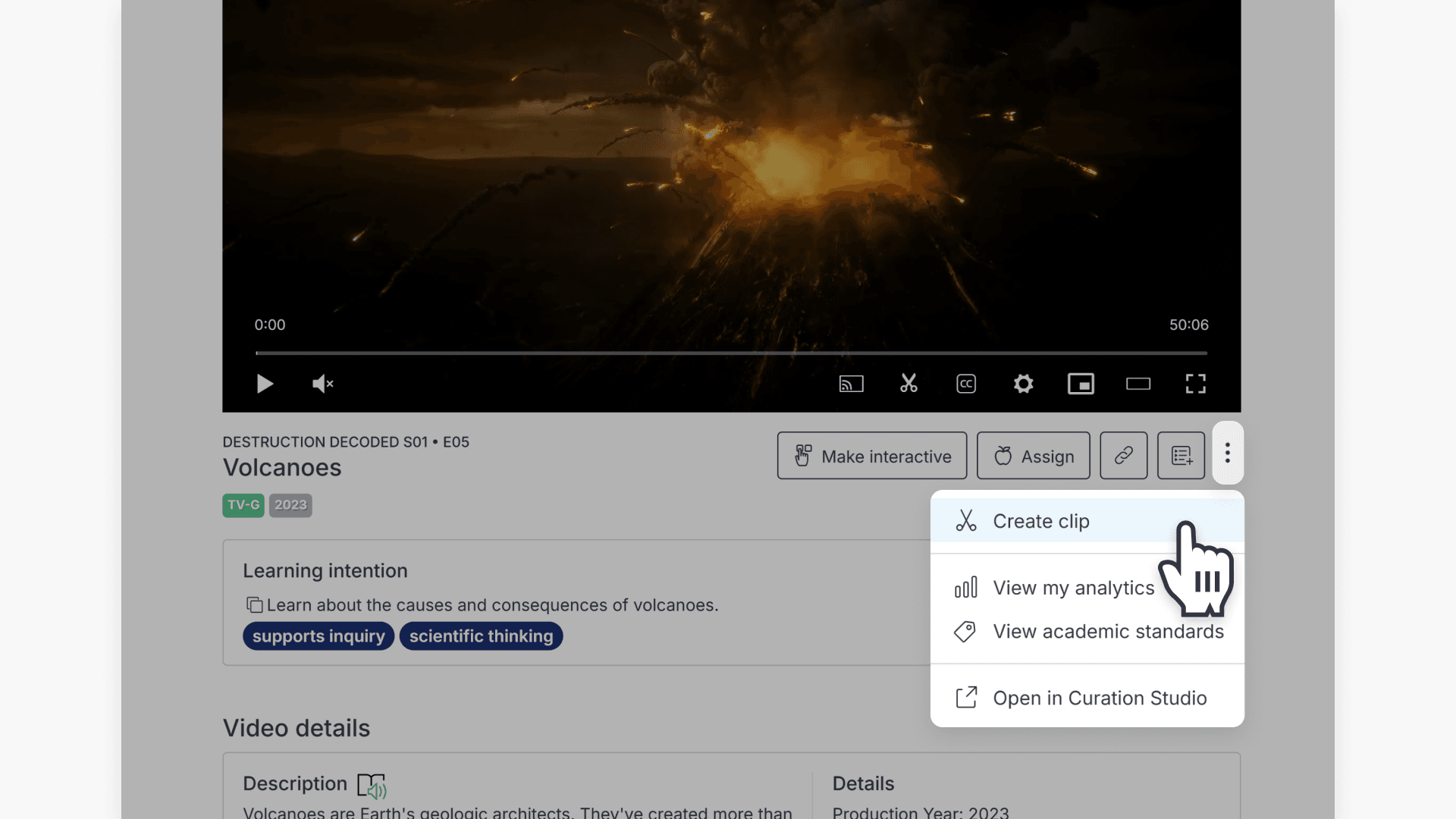
- Click the three-dot menu in the navigation bar below the video player and select Create clip.
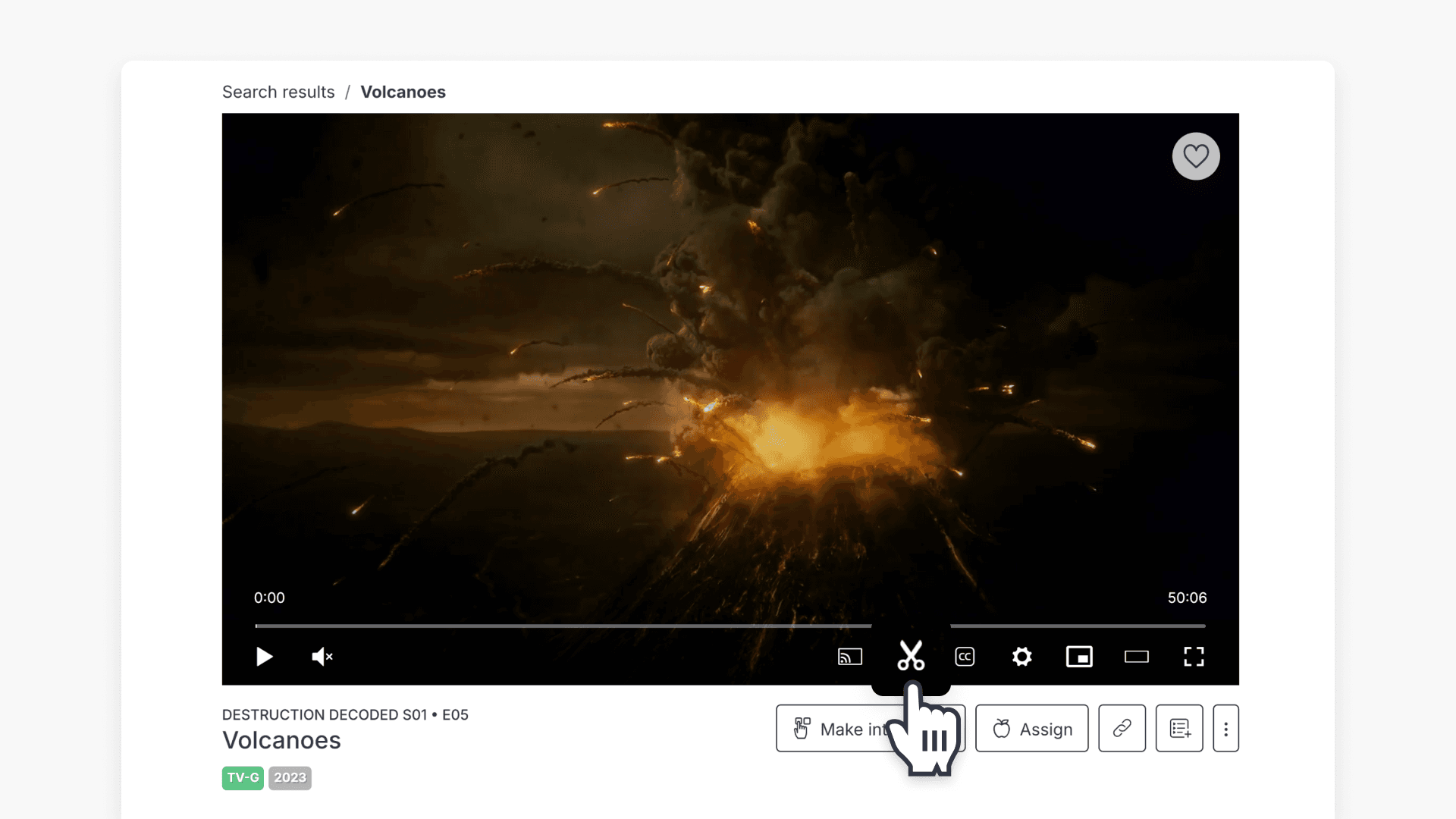
- Select the scissors icon displayed directly on the video.
How to create a clip
- Open the clipping feature using one of the methods above.
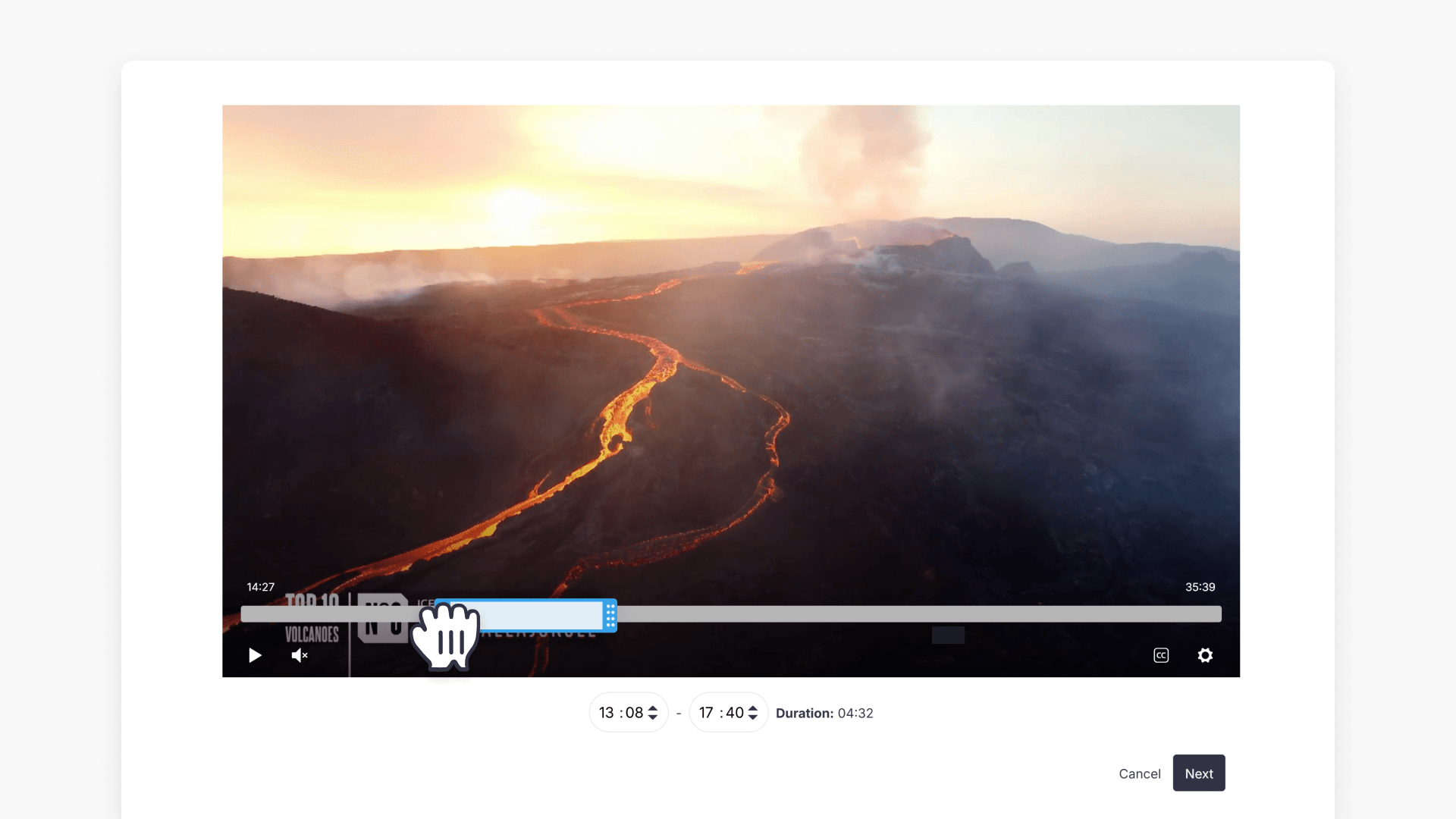
- Set the start and end points of your clip by entering values in the Duration fields below the video or by dragging the blue bar in the timeline.
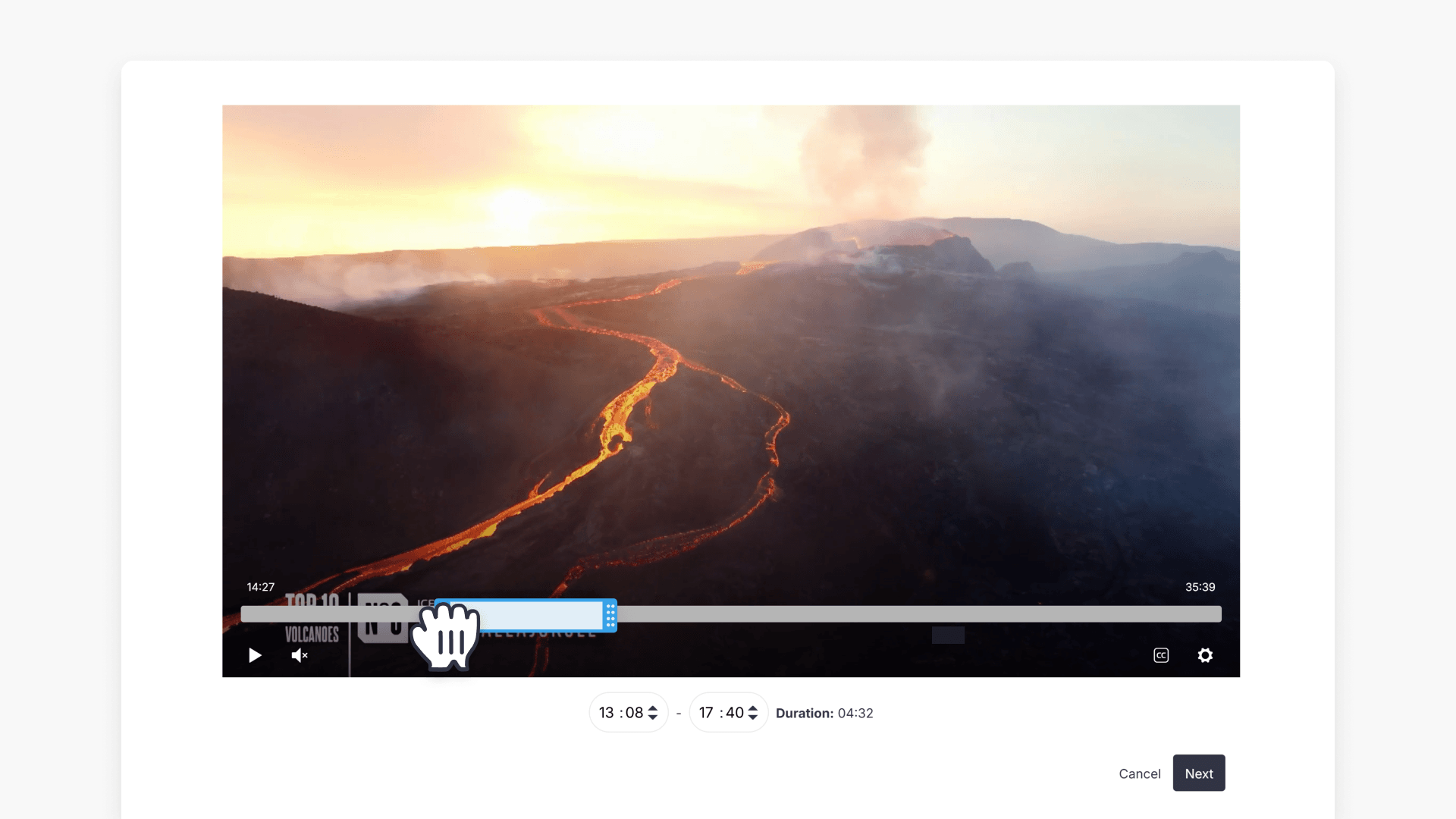
- Click Next once your clip range is selected.
- Enter a title for your clip (required) and add a description or other optional metadata if needed.
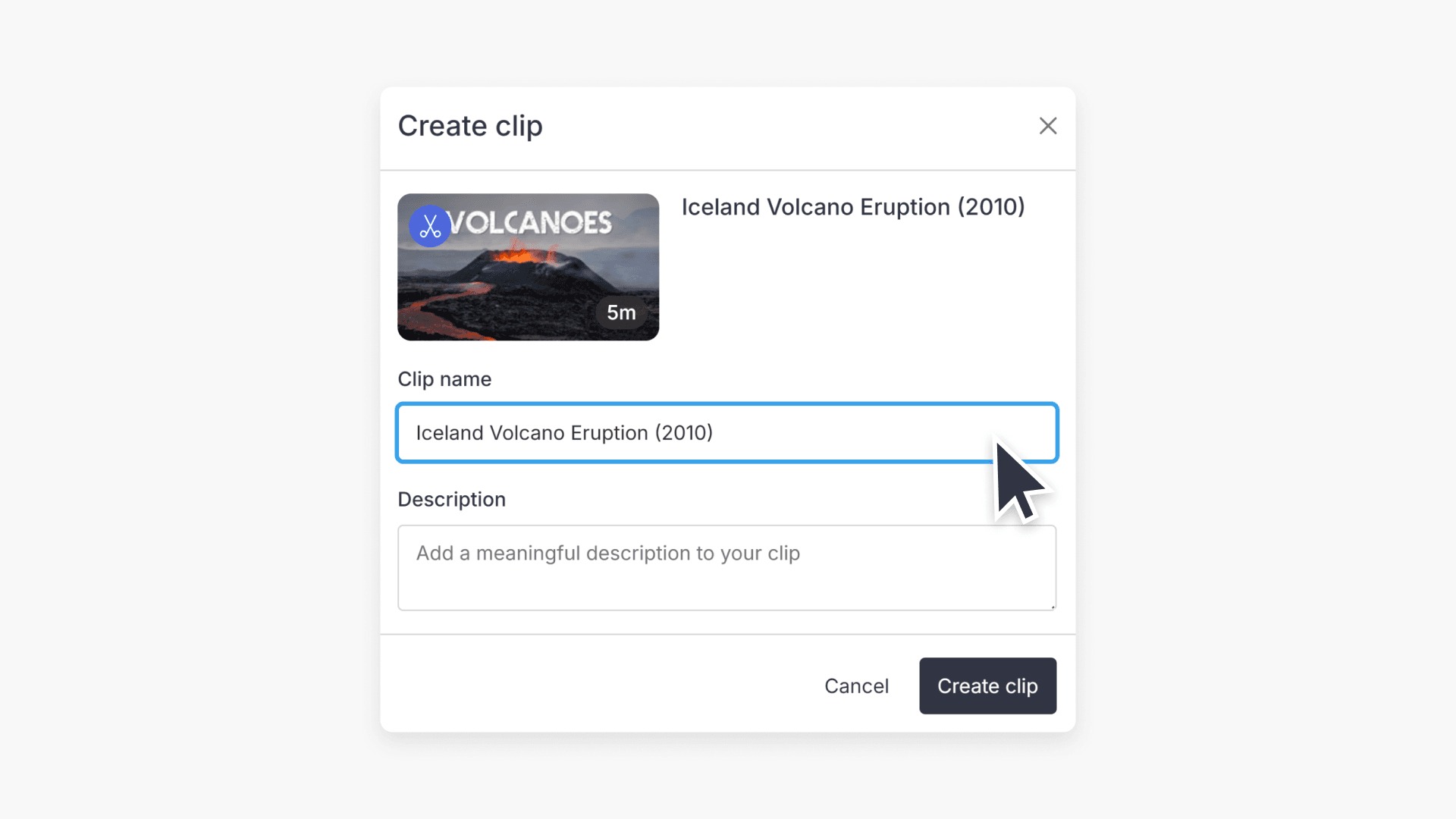
- Click Create clip to finalize.
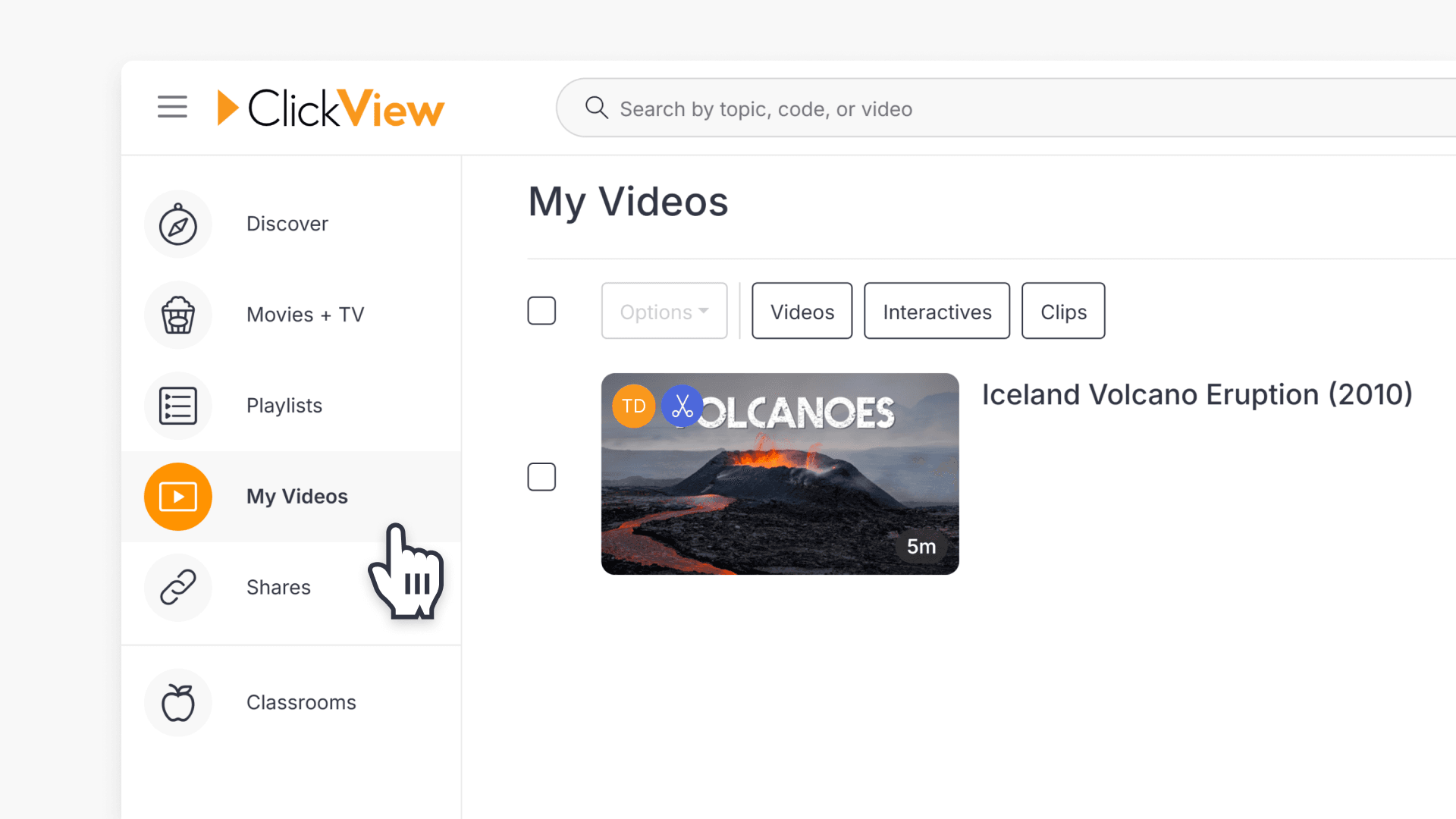
After creation, you will be redirected to the new clip, which is automatically saved in My Videos.
How to share your clip
You can now share the clip, generate a link or embed code, or adjust sharing and access settings.
- Share your clip by clicking the Share link button below the video player.
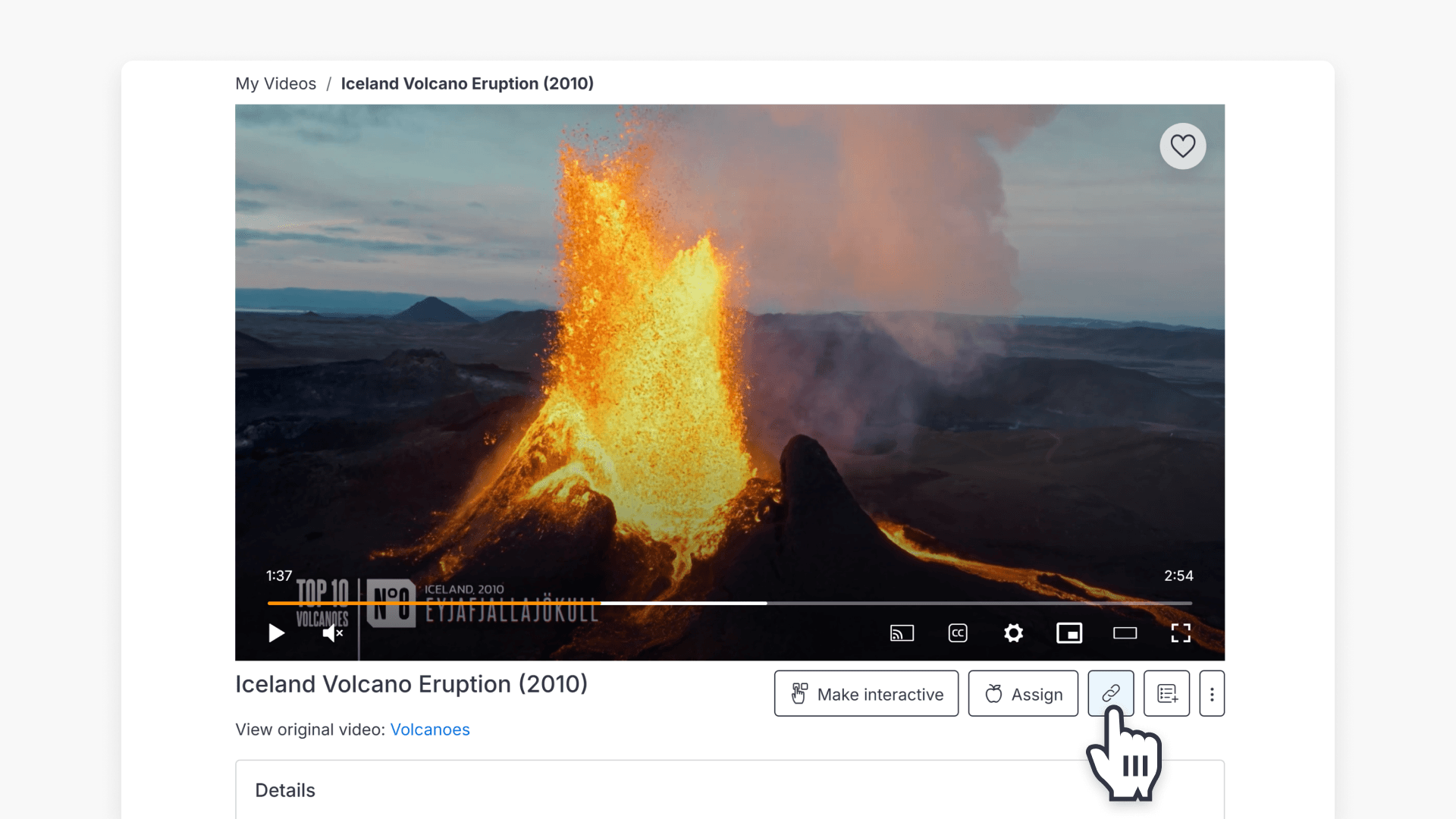
- Choose recipients from the search field, or share your clip via a link or embedded page.
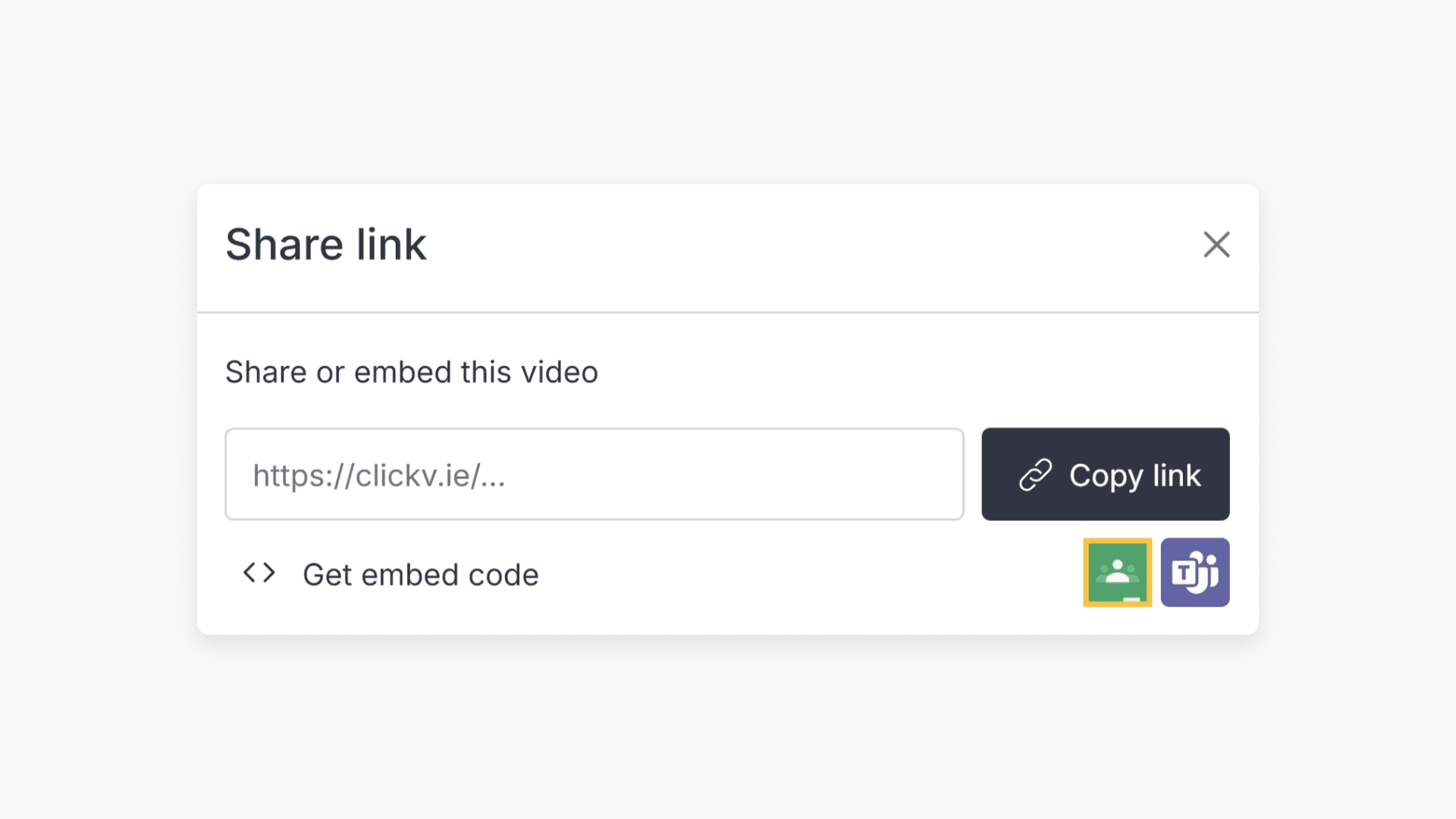
For more information on this process, see our guide How to share video clips.
Managing your video clips
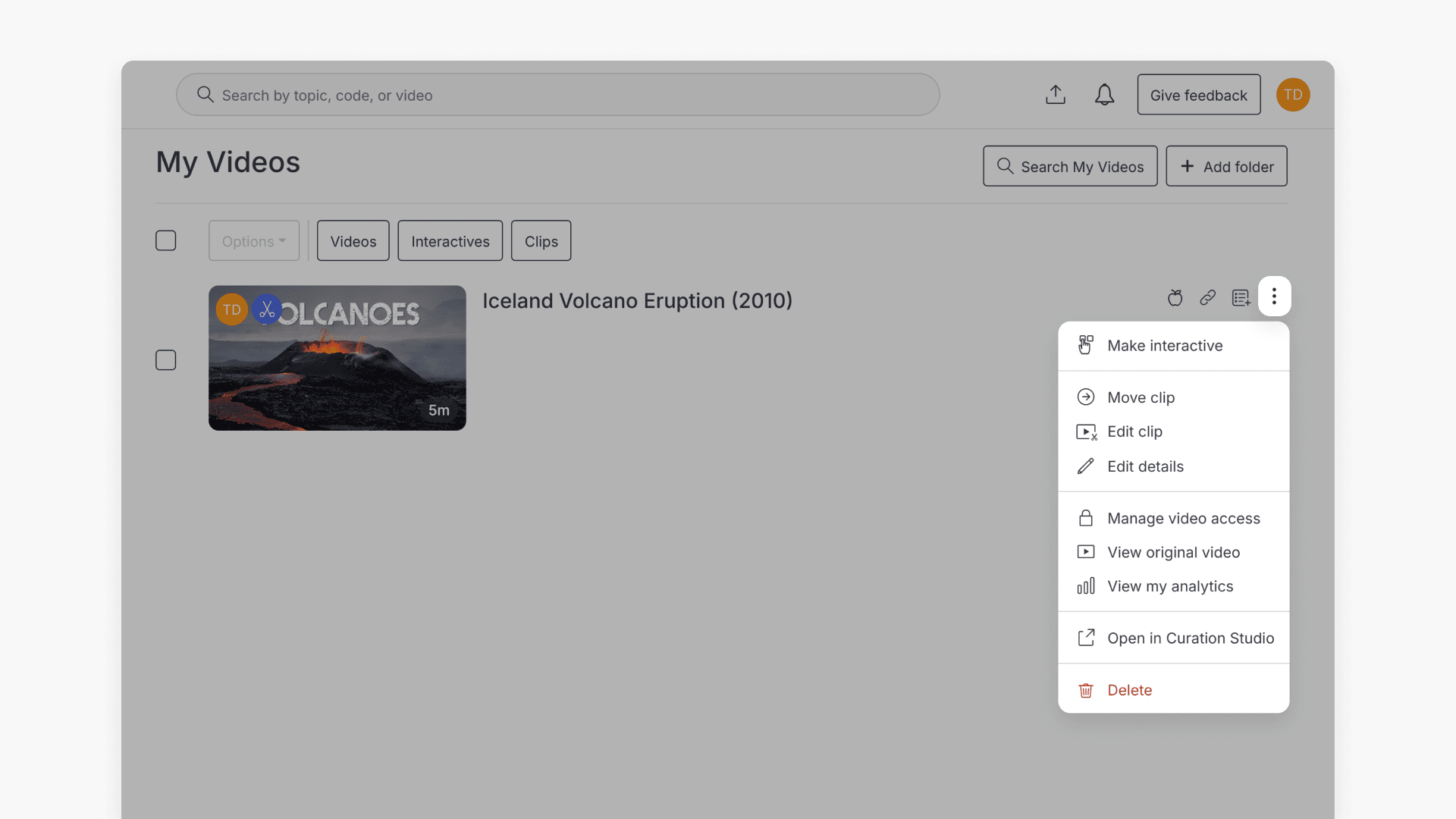
All created clips are saved in My Videos under the Clips filter. From here, you can locate, share, and manage your clips at any time.
Select the three-dot menu next to a clip to access additional actions, including:
- Move clip to a different location within My Videos.
- Add your clip to a playlist or share it again.
- Make interactive to convert the clip into an interactive video.
- View the original video the clip was created from.
- View my analytics to see usage and engagement data.
- Edit clip to adjust the clip’s start and end points.
- Edit details to update the clip’s title or description.
- Manage grade-level access to restrict who can view the clip
- Delete the clip if it is no longer needed.
Frequently asked questions
Get in touch
If you’re having trouble finding the right topics or videos, just reach out! Our team - 


 Andrew, Nisch, Janice, Pfreya, or any of us at ClickView - will be happy to help you get sorted.
Give feedback
Was this guide helpful?
Up Next
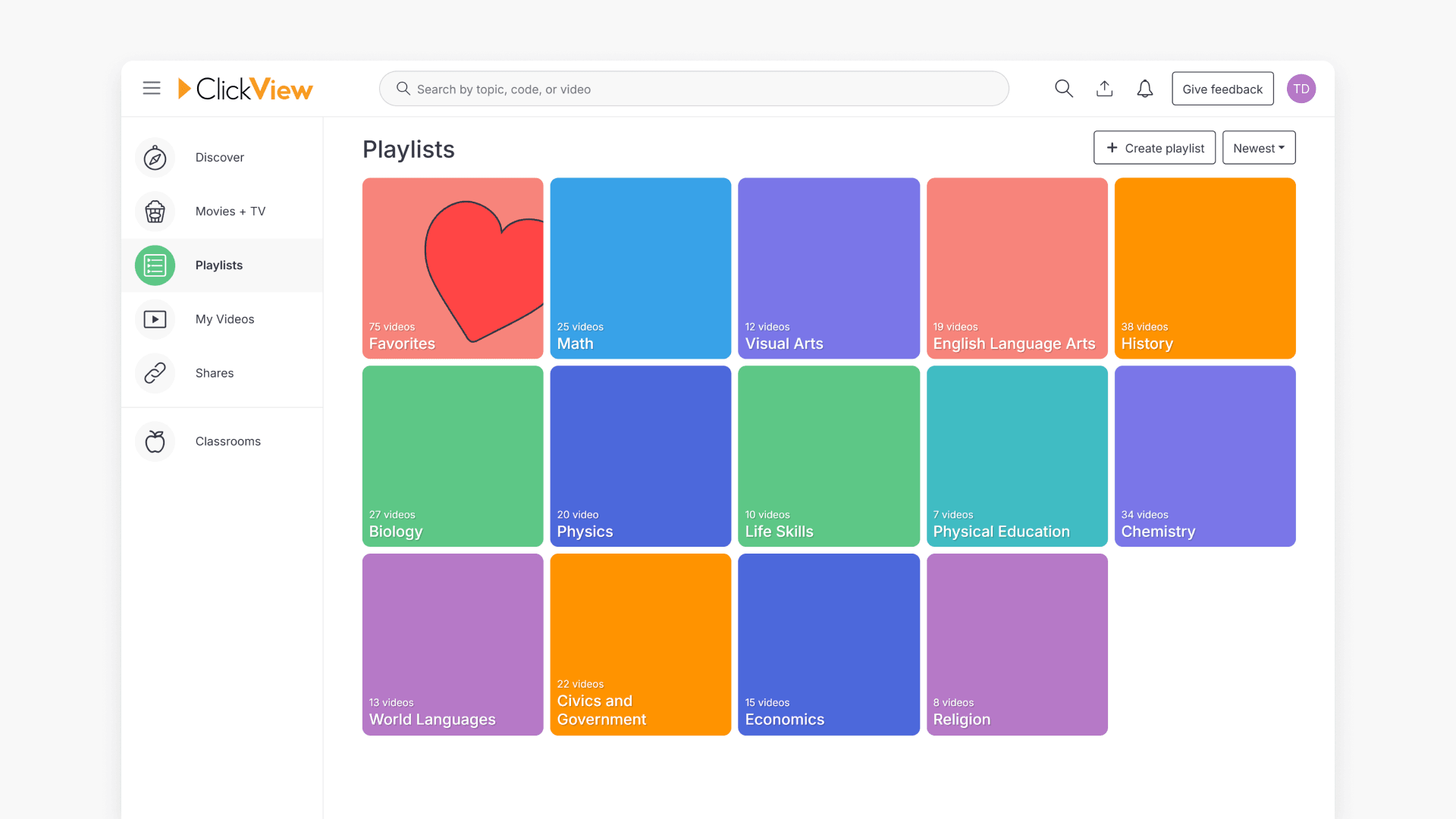
How to use playlists for video organization
This article explains how to create, manage, and share playlists in ClickView. Discover how to organize videos, follow shared playlists, and streamline classroom content sharing with colleagues and students.