How to use playlists for video organization

Summary
- A playlist plays videos in a chosen order automatically.
- Videos can be from ClickView Libraries, the School Library, or your own uploads.
- Name playlists by topic for easier access later.
- Share playlists by copying the link or adding it to your LMS.
- Add videos using the “Add to Playlist” button.
- You can follow playlists using the “Follow” icon.
- Followed playlists that appear under the Playlists tab cannot be edited.
What is a playlist?
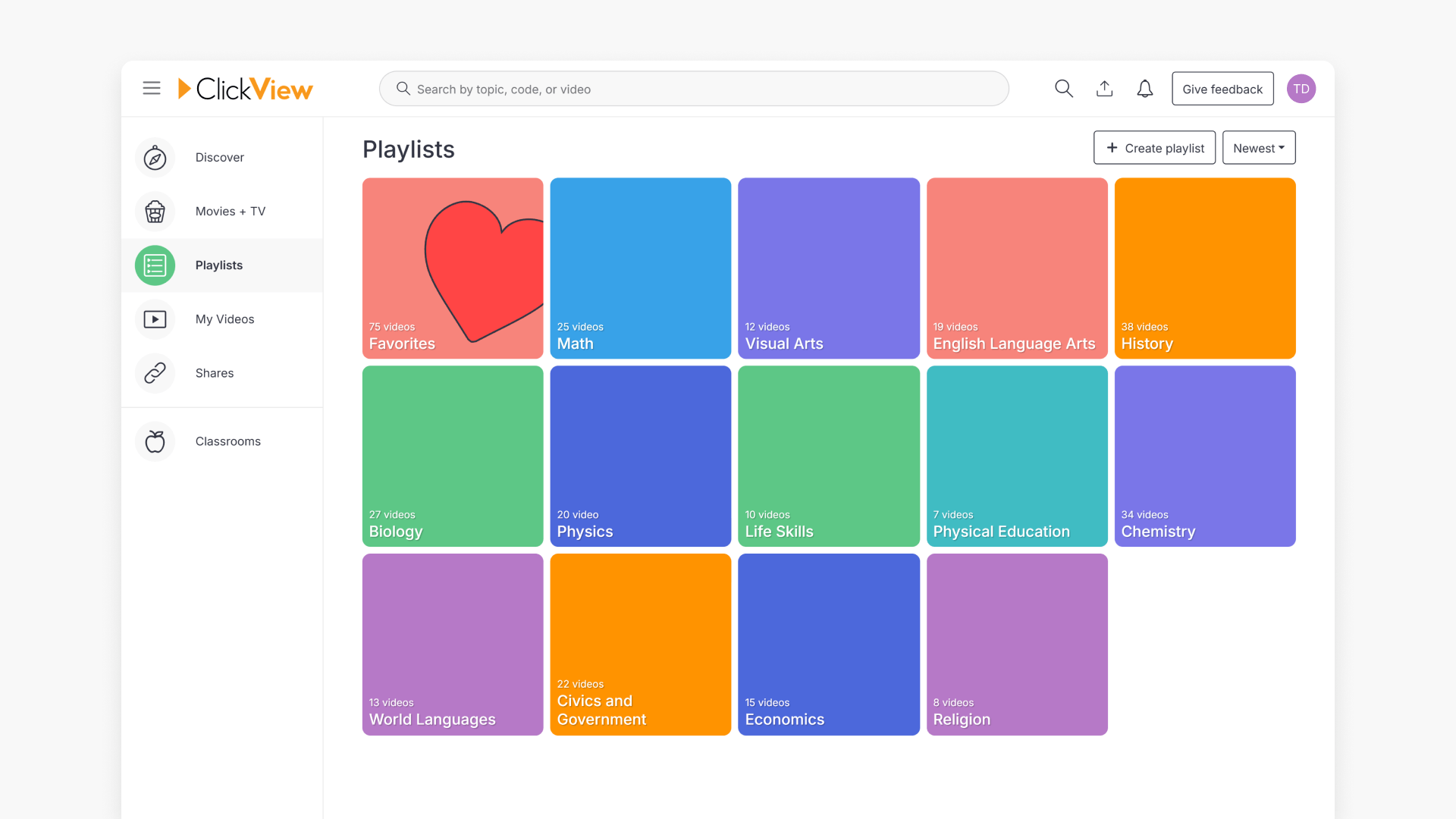
A playlist is a collection of videos in ClickView that play one after another in a preset order. You can include videos from ClickView Libraries, your School Library, or your own uploaded content. Playlists help organise videos for lessons or review and can be shared with other staff and students.
How to create and name playlists
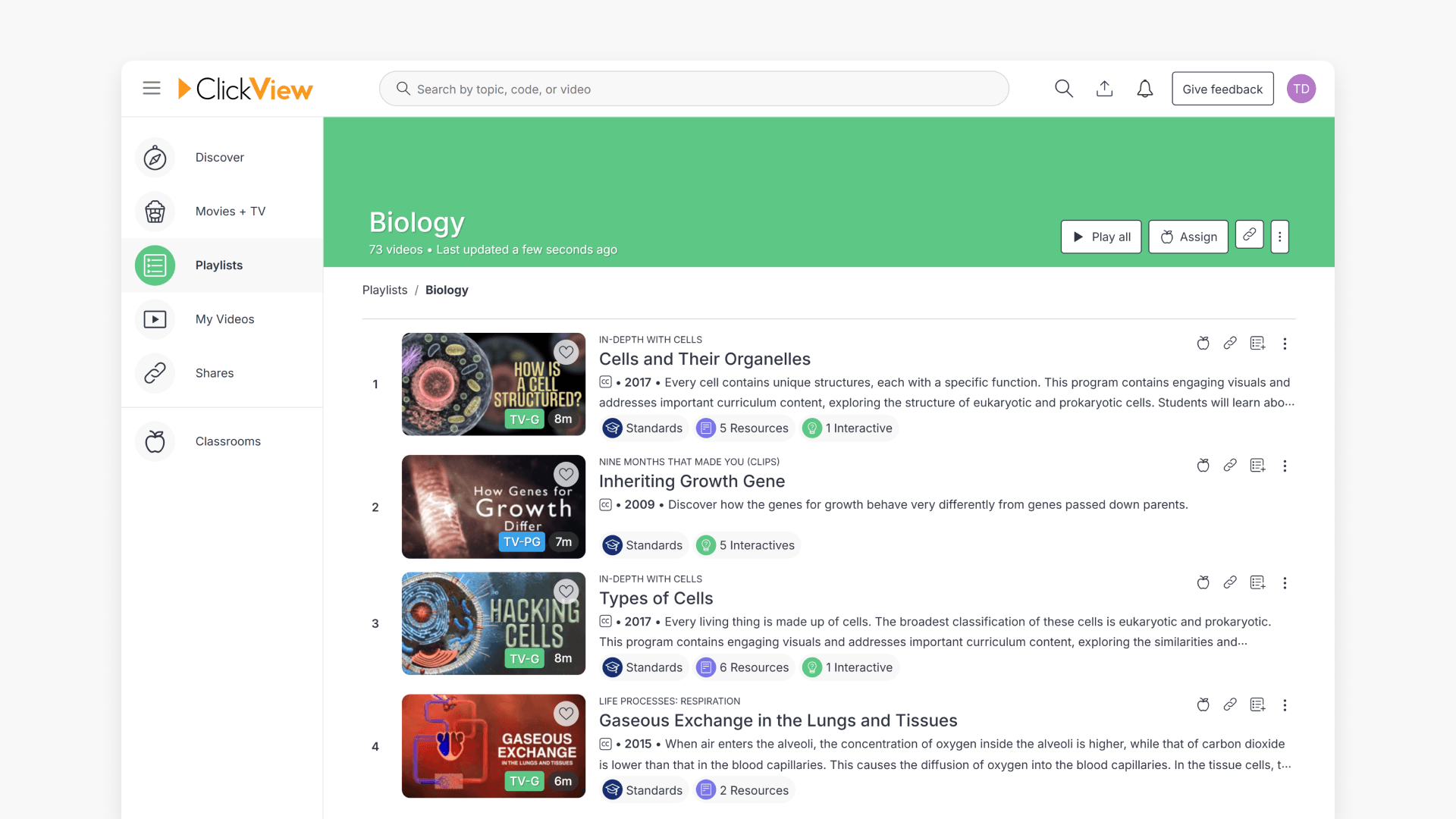
You can create as many playlists as you need. Naming playlists by topic helps you locate them quickly.
For detailed, step-by-step instructions on creating and naming playlists, see How to create a playlist.
How to share playlists
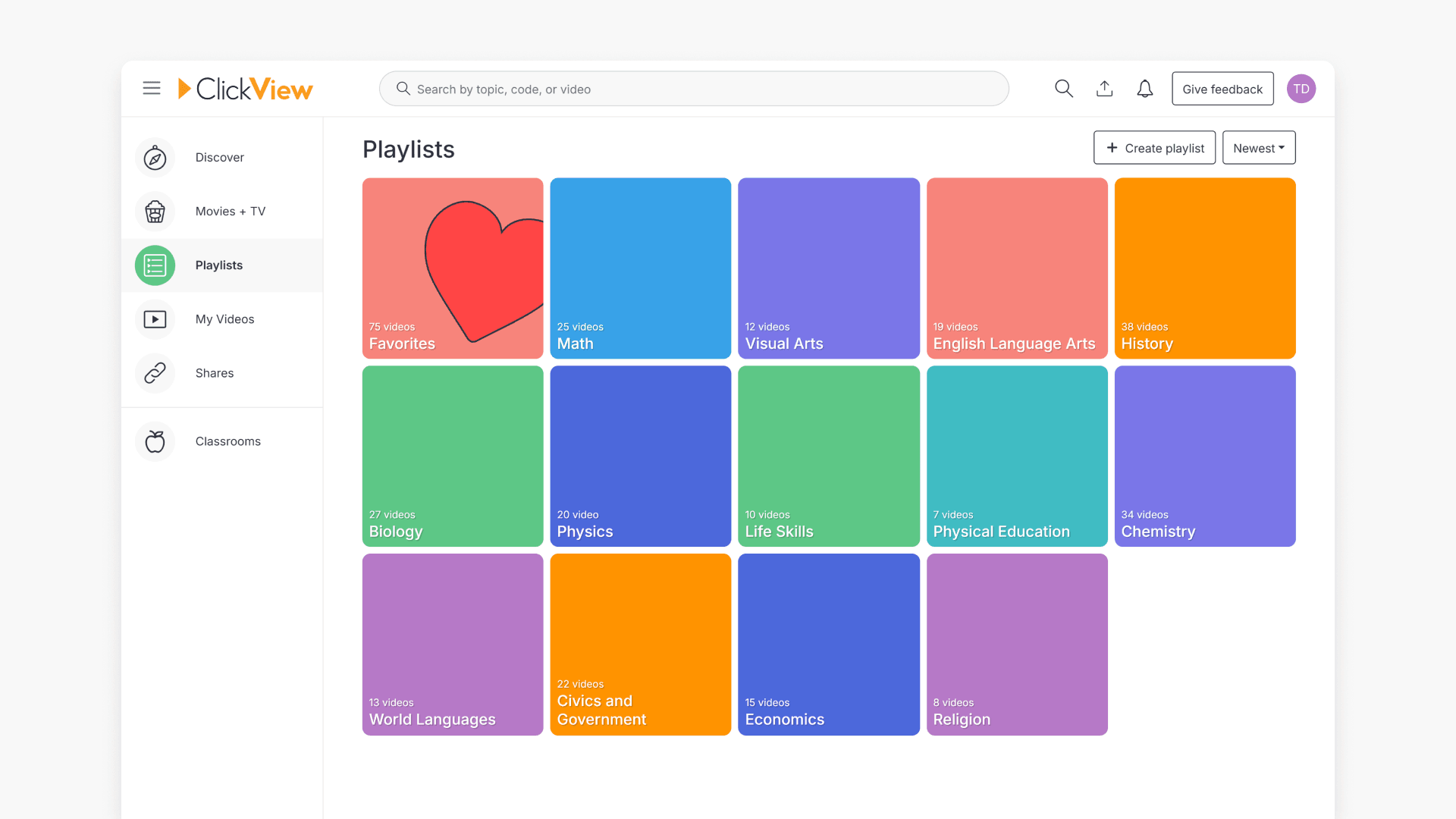
Share playlists by copying the playlist link and providing it to students or staff, or by adding it to your LMS. This enables others to access curated video resources easily.
For more information on sharing playlists with students or staff, including different sharing options, see How to share a playlist.
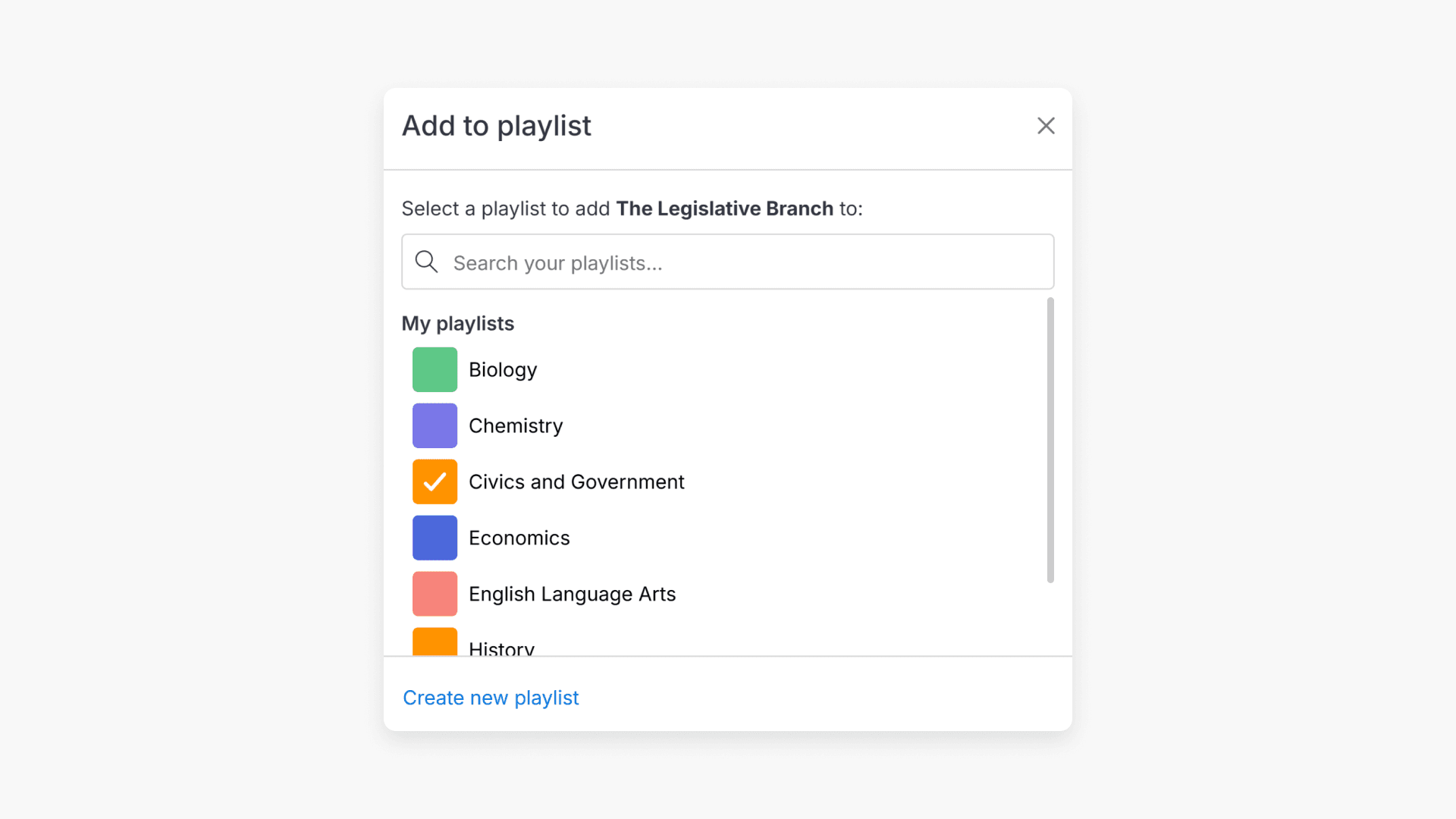
How to add videos to a playlist
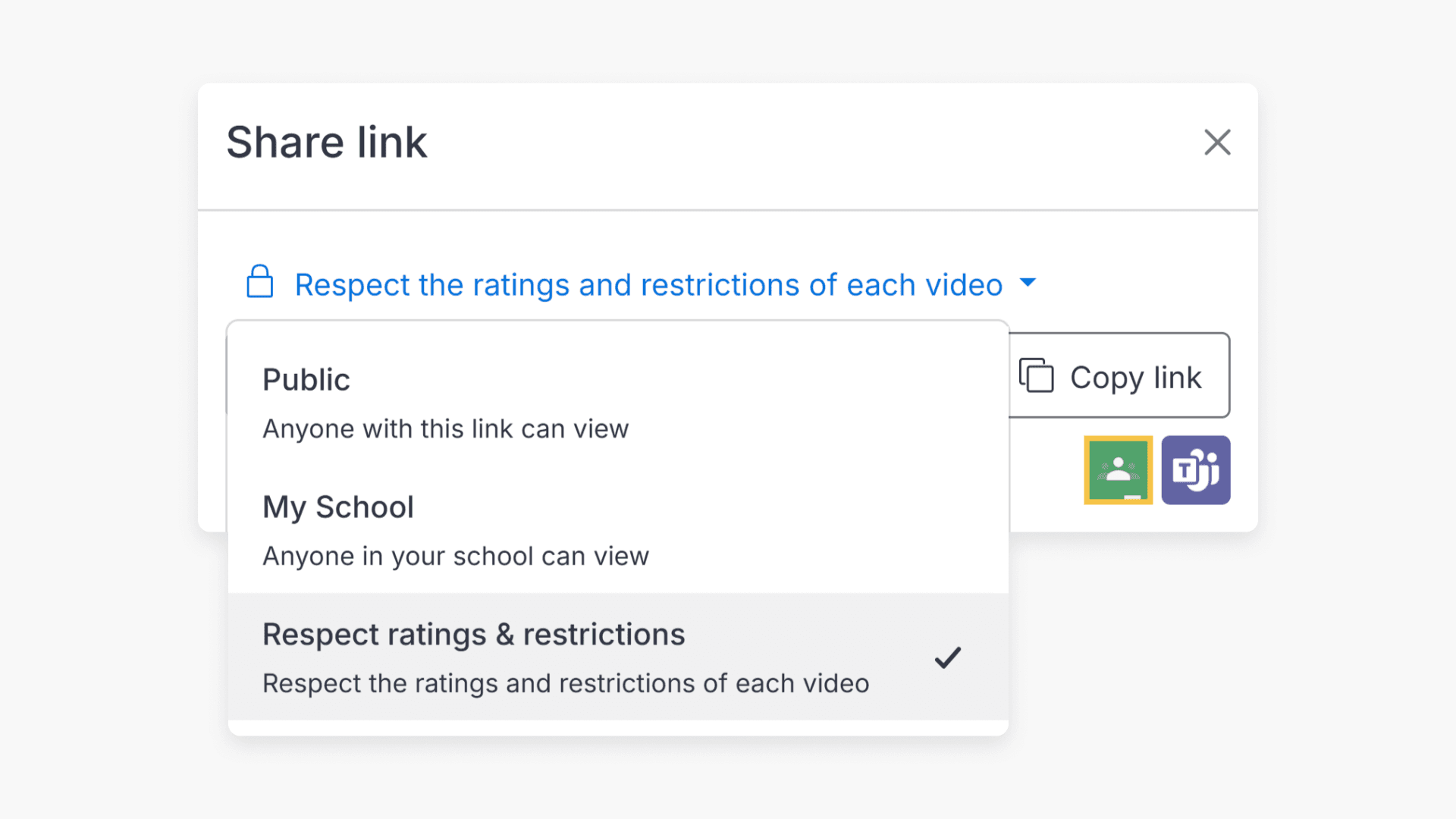
- Browse and select the video you wish to add.
- Click the “Add to Playlist” button at the bottom right corner.
- Choose the playlist you want to add the video to.
For a full walkthrough of adding videos from different libraries to a playlist, see How to add videos to a playlist.
How to follow a playlist
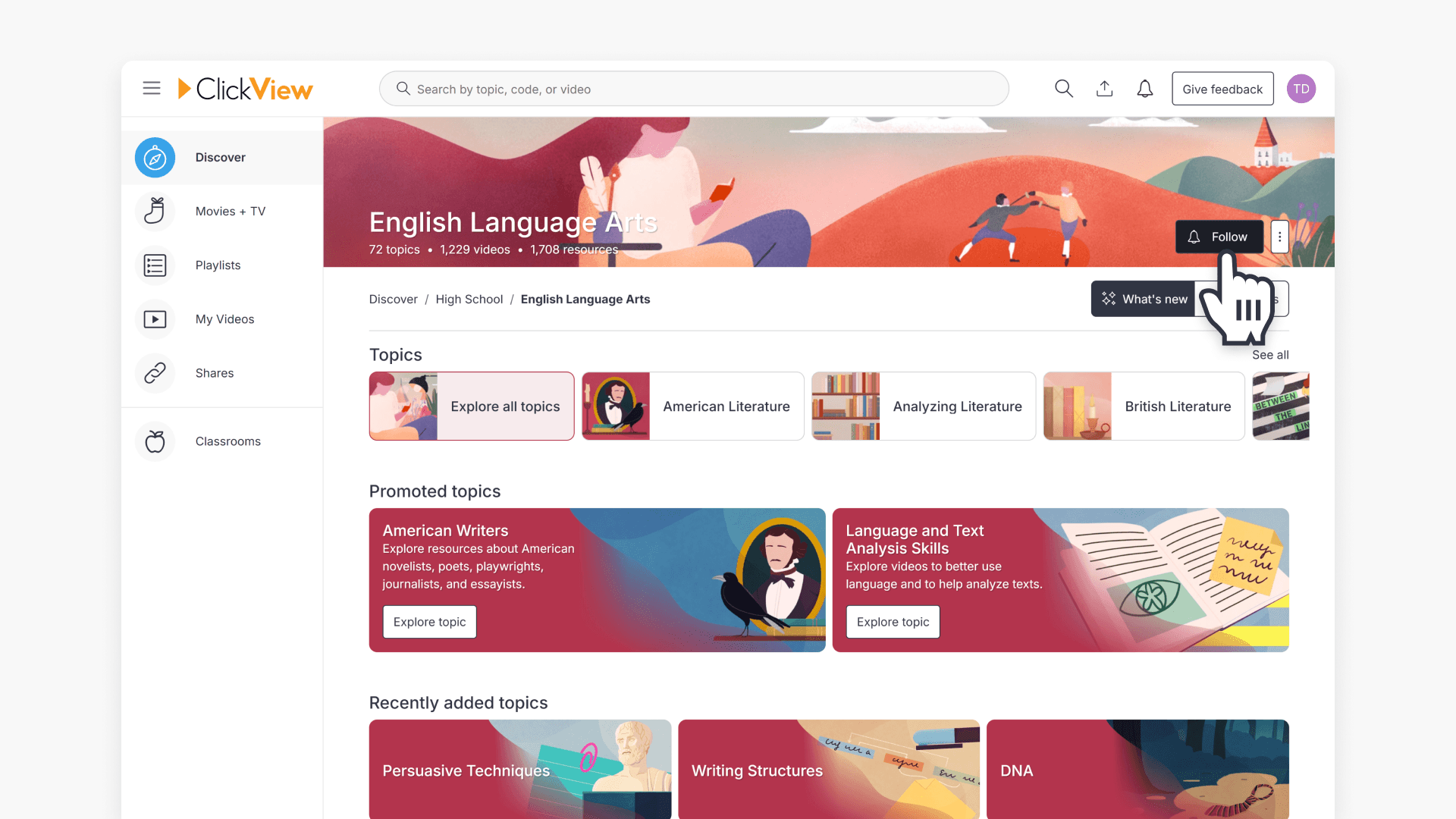
When a playlist is shared, you can follow it using the “Follow” icon. Following lets you see any updates made by the playlist curator and keeps the playlist in your account for easy access.
To learn more about following playlists and how updates work, see How to follow a playlist.
Where to find the followed playlists
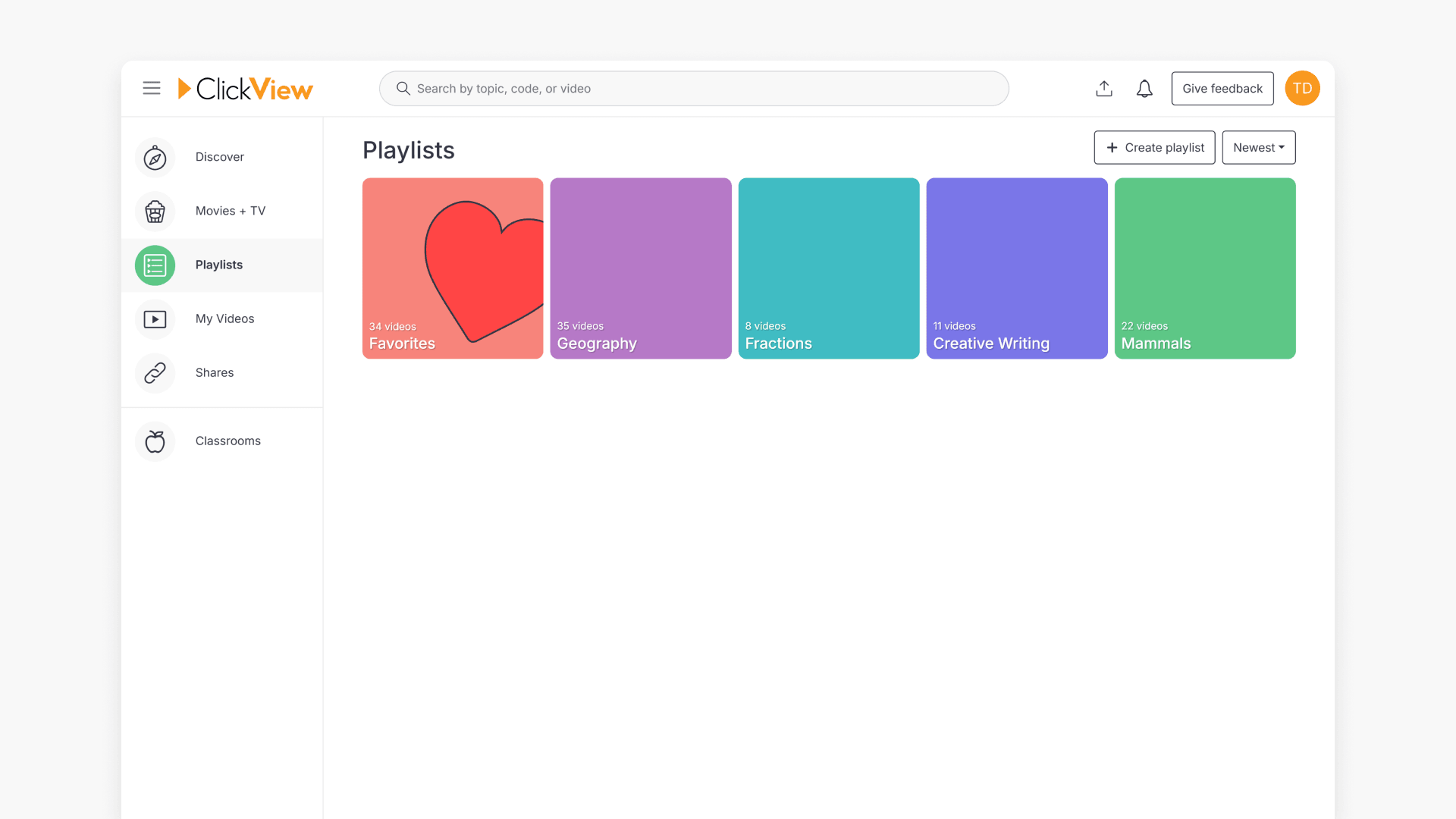
Followed playlists appear with your own playlists under the Playlists tab. You can use the following playlists for viewing, but cannot add, reorder, or delete videos from them.
Frequently asked questions
Get in touch
If you’re having trouble finding the right topics or videos, just reach out! Our team - 


 Andrew, Nisch, Janice, Pfreya, or any of us at ClickView - will be happy to help you get sorted.
Give feedback
Was this guide helpful?
Up Next
How to create a playlist
This article guides educators through the steps to create a playlist in ClickView, including naming and organizing videos by grade or subject.