How to create a playlist
In this article
Last updated by
2 min readClickViewJanuary 30, 2026
Summary
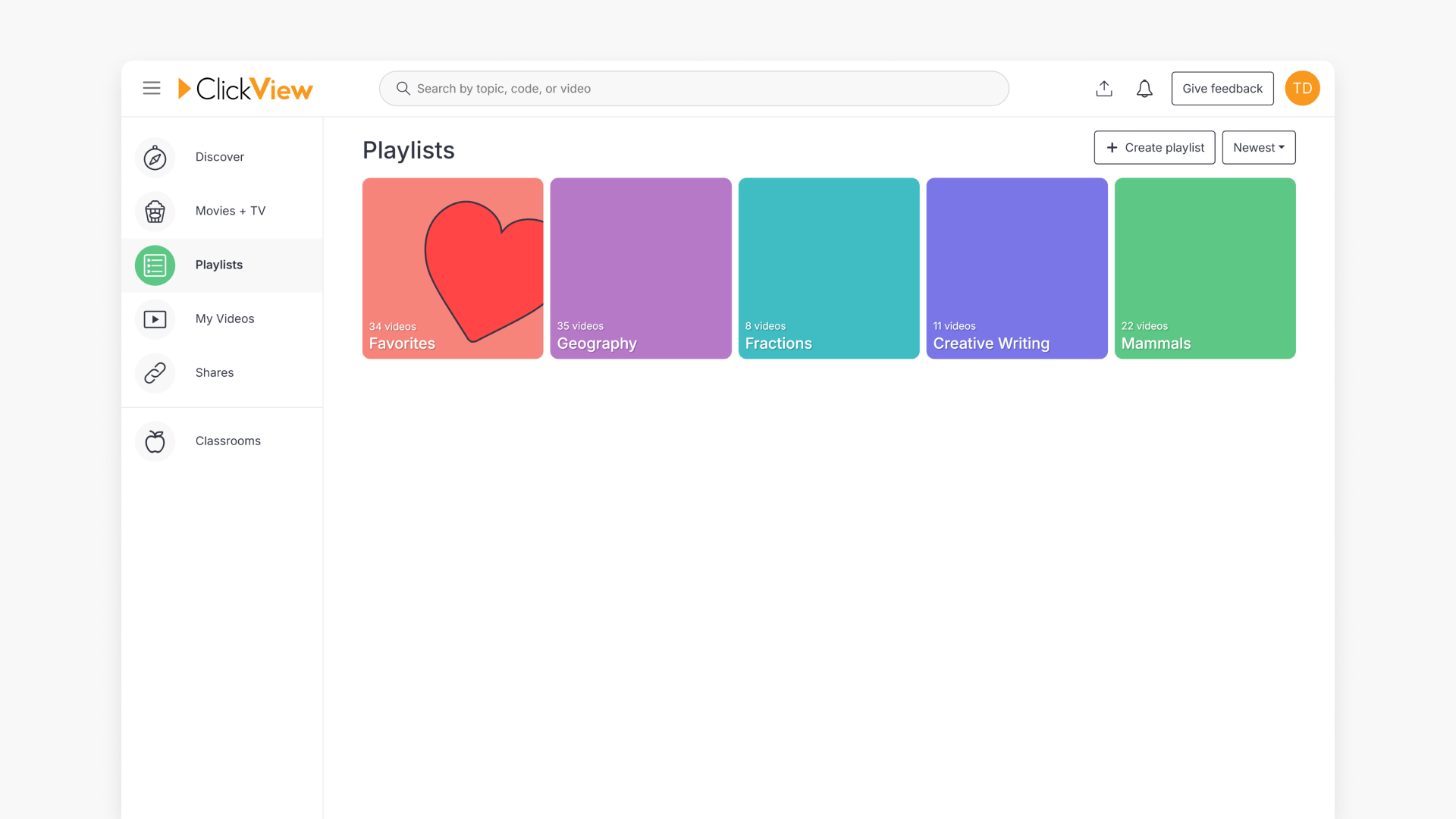
- Click on ‘Playlists’ in the Discover screen left menu.
- Click the ‘Create Playlist’ button on the Playlists page.
- Name your playlist to match your resource theme or grade level.
- Click the ‘Create new playlist’ button to save your new playlist.
- Your playlist is now available to organize videos.
star icon
Quick tip
How should I name playlists so they stay useful over time?
Including both the subject and purpose in the playlist name, such as the topic, grade level, or unit focus, makes playlists easier to reuse year after year. Clear naming also helps you quickly identify the right playlist when sharing with colleagues or adding new videos later.
What are playlists used for?
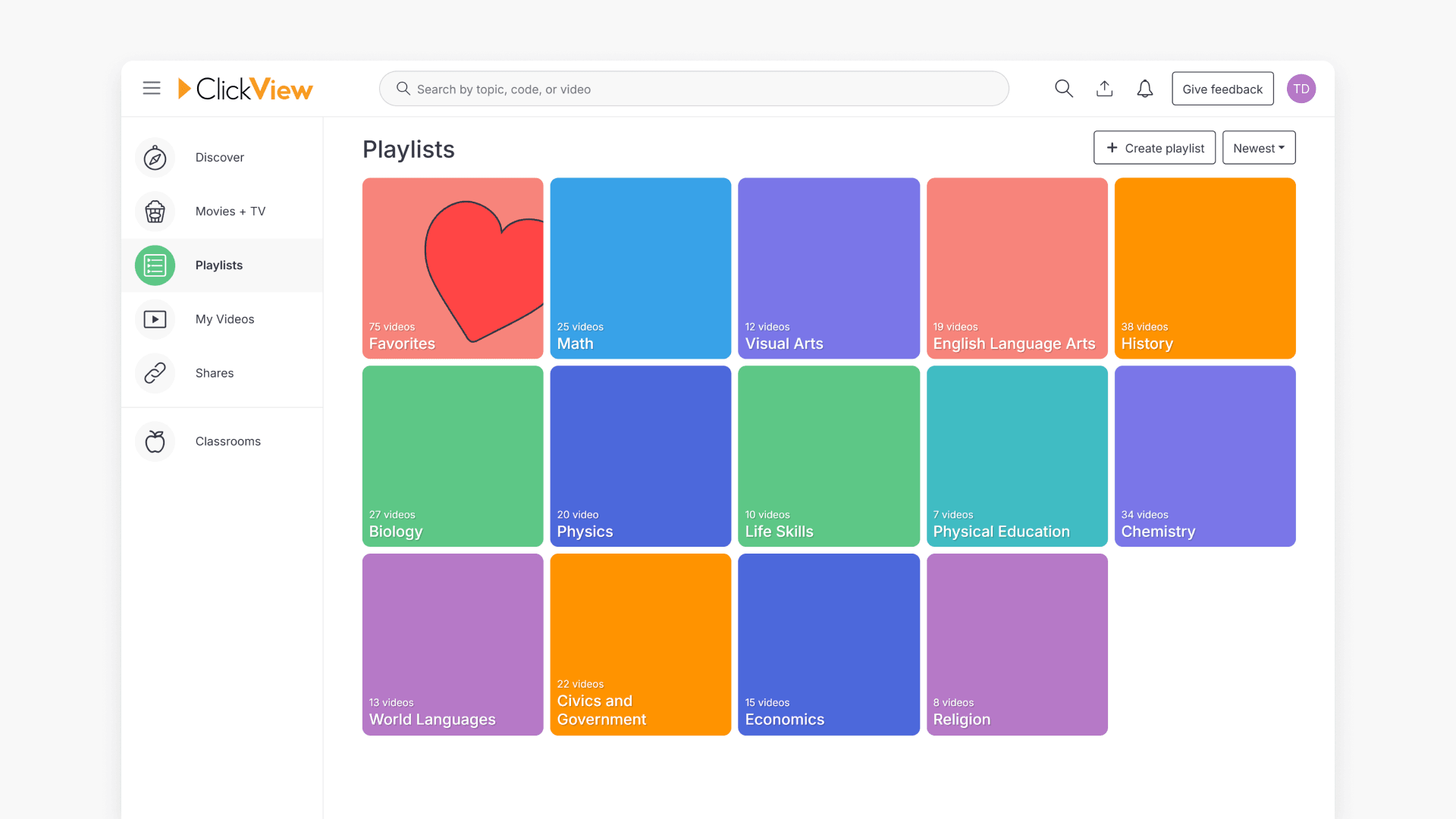
Playlists let you group videos together so they are easier to find, reuse, and share. They work well for organizing content by subject, grade level, topic, or teaching purpose, such as a unit of work or revision materials.
How to create a playlist
Follow these steps to create a new playlist in ClickView:
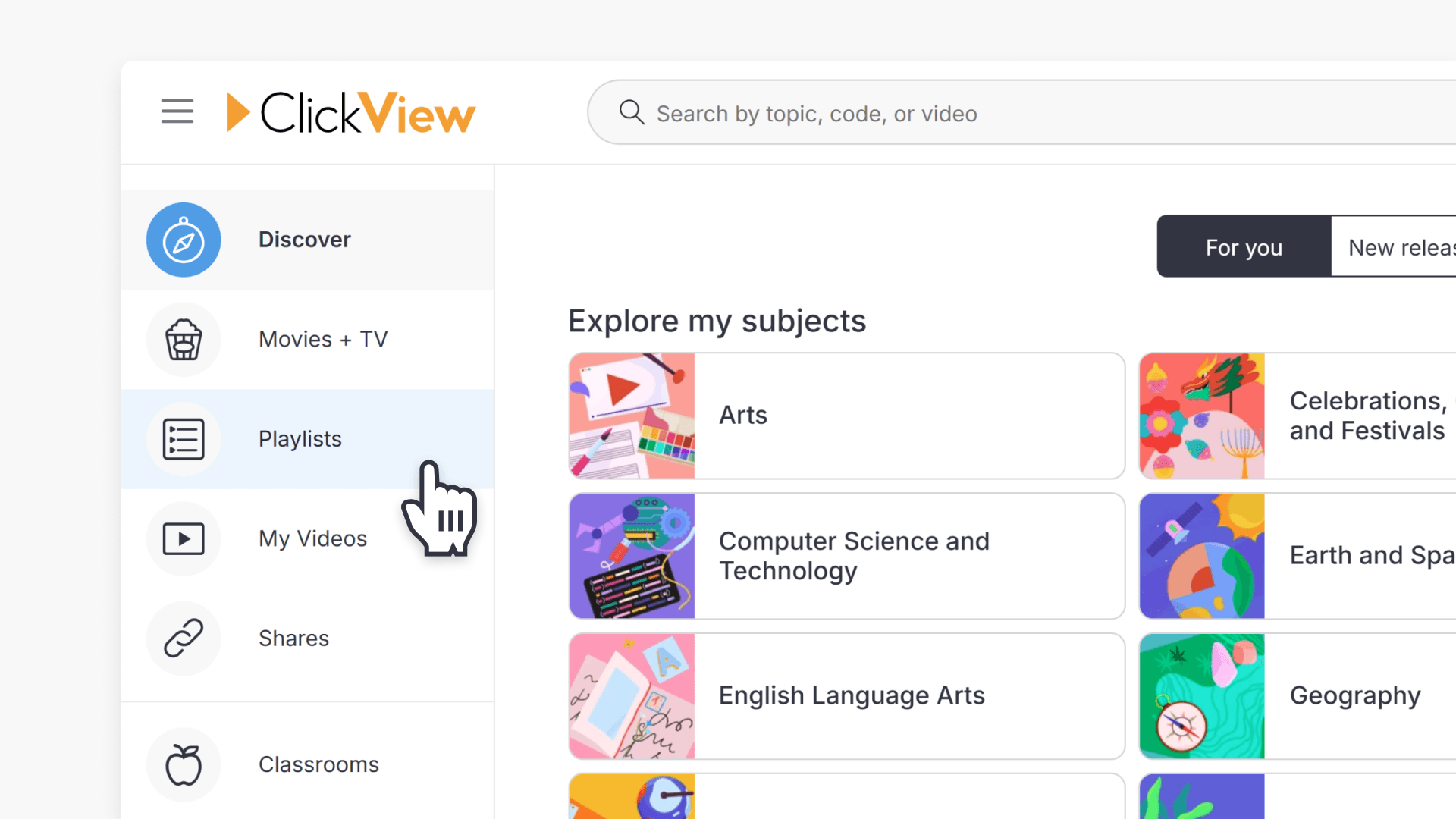
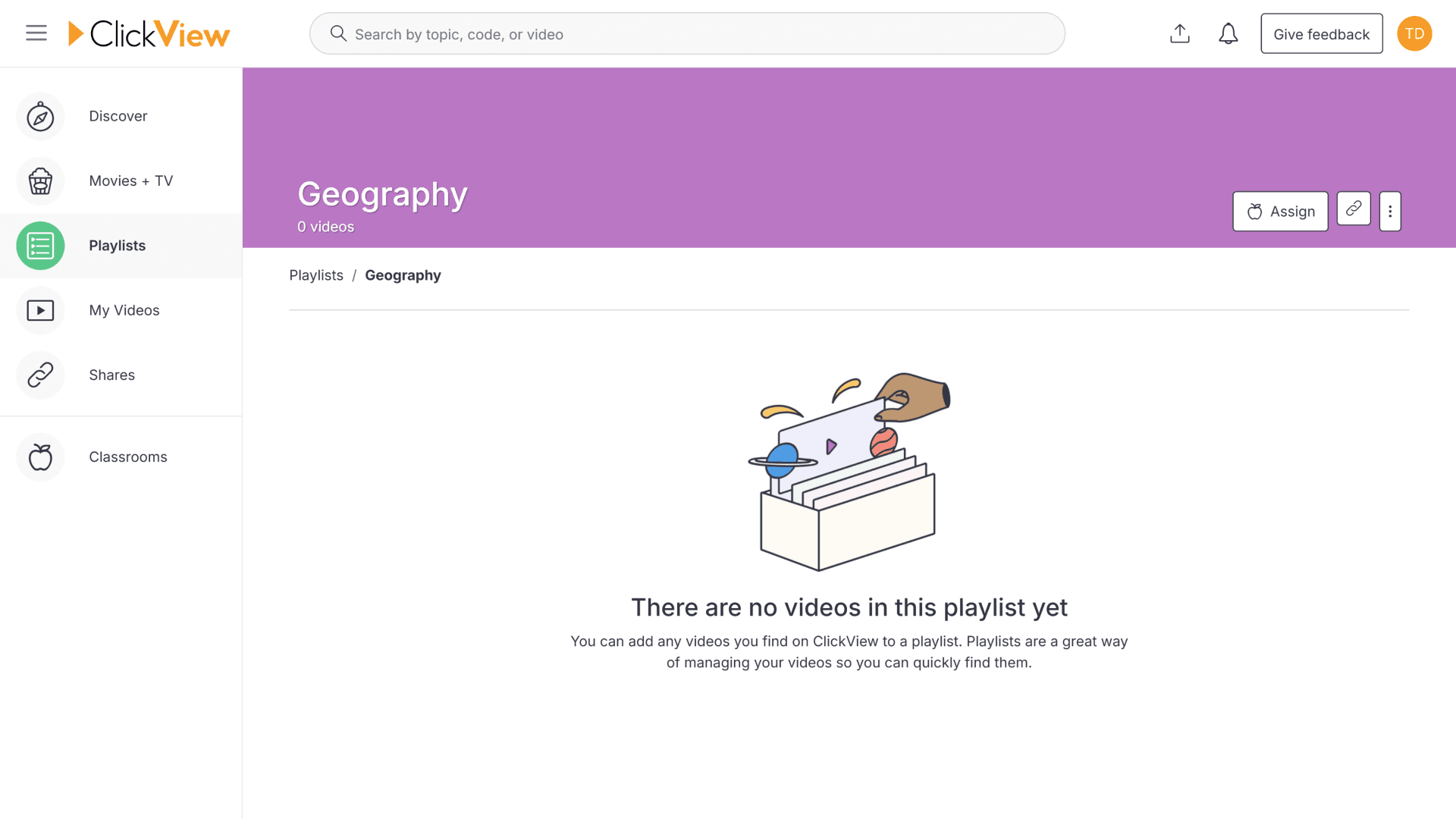
- Click on ‘Playlists’ in the left-hand menu while in the Discover screen.
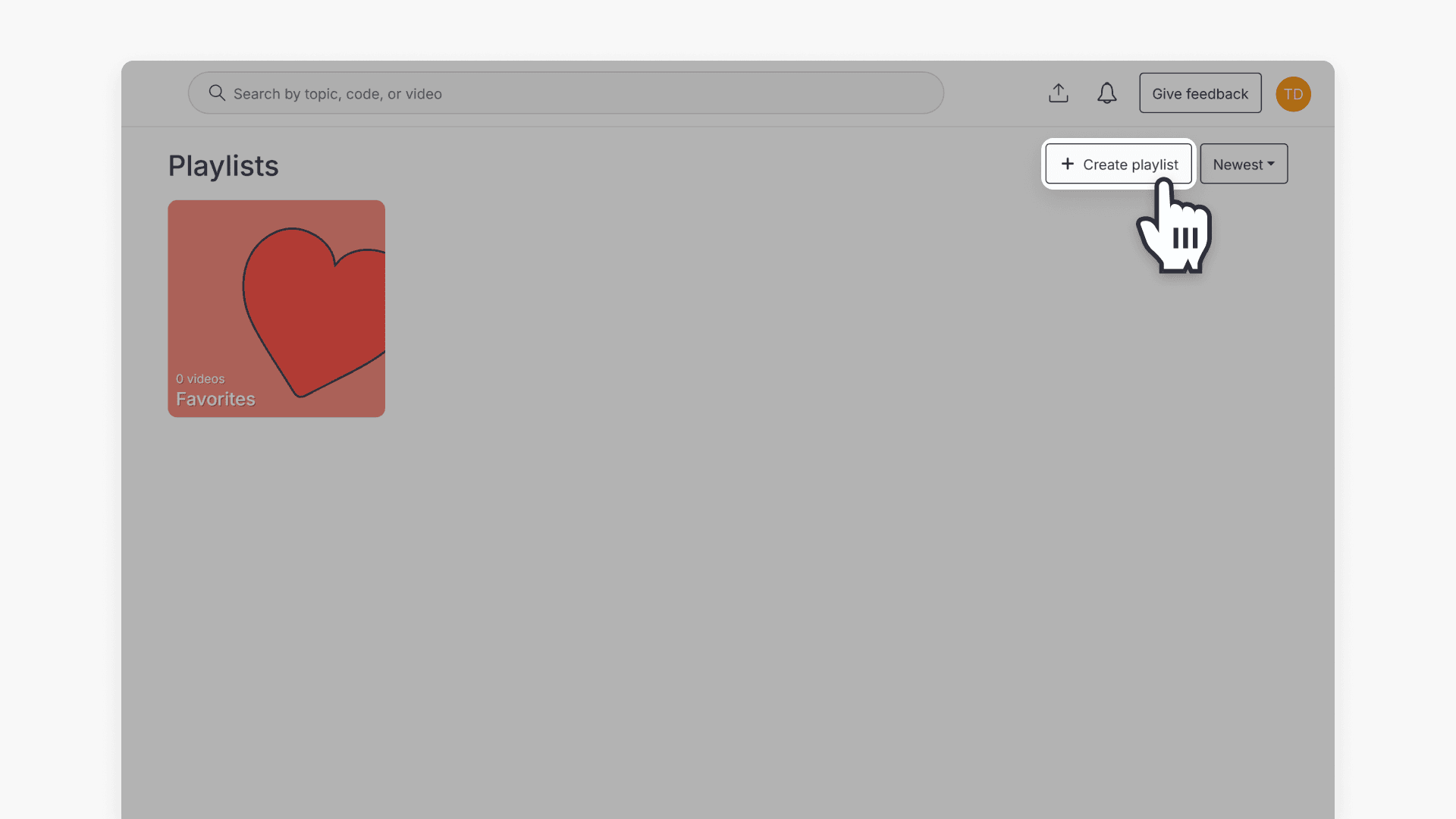
- Click on the ‘Create Playlist’ button in the top right corner of the Playlists page.
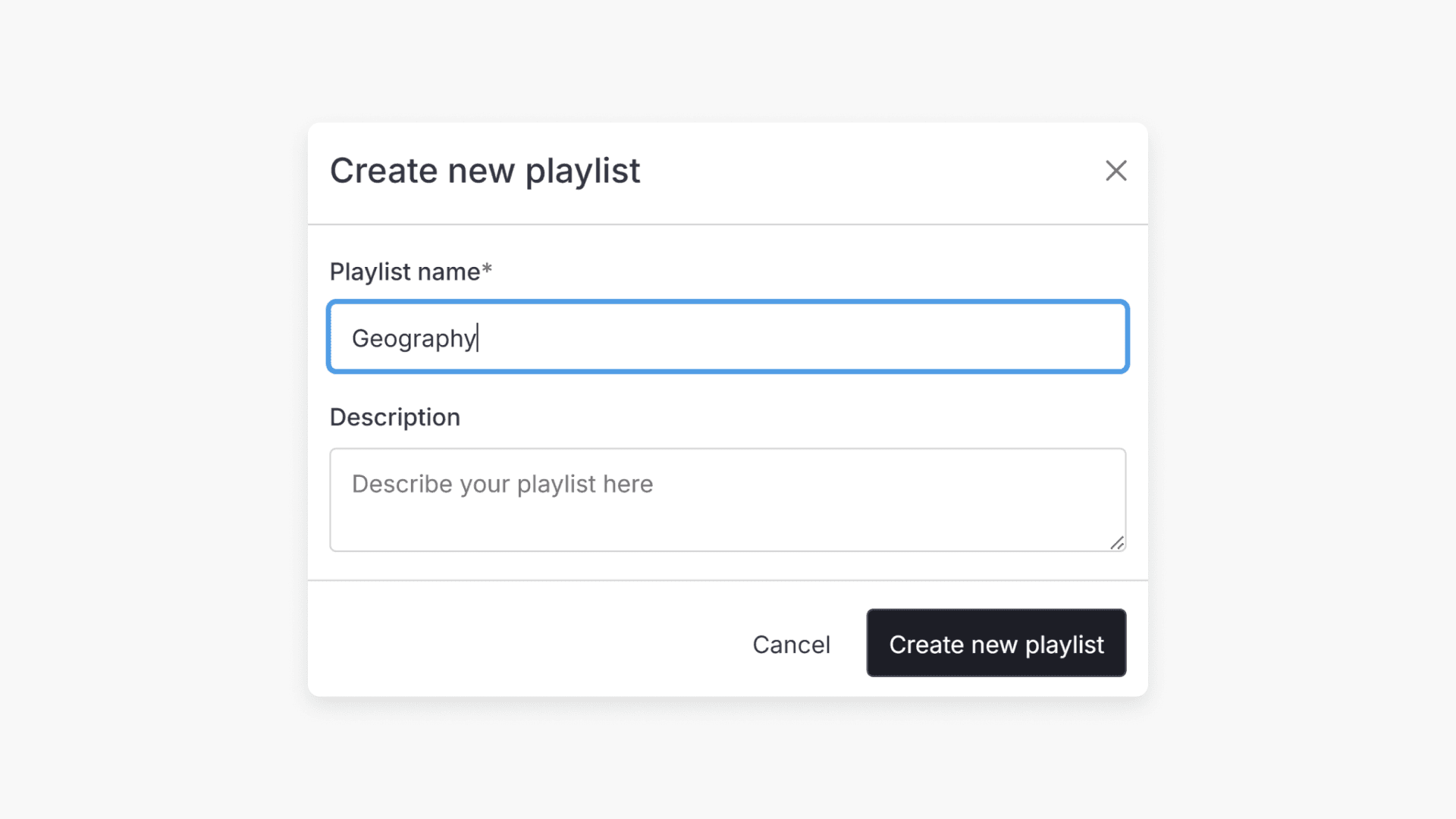
- Enter a playlist name that relates to the videos you want to include, such as ‘Geography Grade 10’ for geography resources intended for Grade 10 students. When ready, click the ‘Create’ button.
- Your playlist is now created and ready for you to add videos.
Frequently asked questions
Yes, you can name playlists by grade, such as ‘Math Grade 8’ to group content for specific grade levels.
The source does not specify a limit to the number of playlists you can create.
Get in touch
If you’re having trouble finding the right topics or videos, just reach out! Our team - 

 Akhil, Daniel, Jalaj, or any of us at ClickView - will be happy to help you get sorted.
Give feedback
Was this guide helpful?
Up Next
How to use playlists for video organization
This article explains how to create, manage, and share playlists in ClickView. Discover how to organize videos, follow shared playlists, and streamline classroom content sharing with colleagues and students.