How to share a playlist

Summary
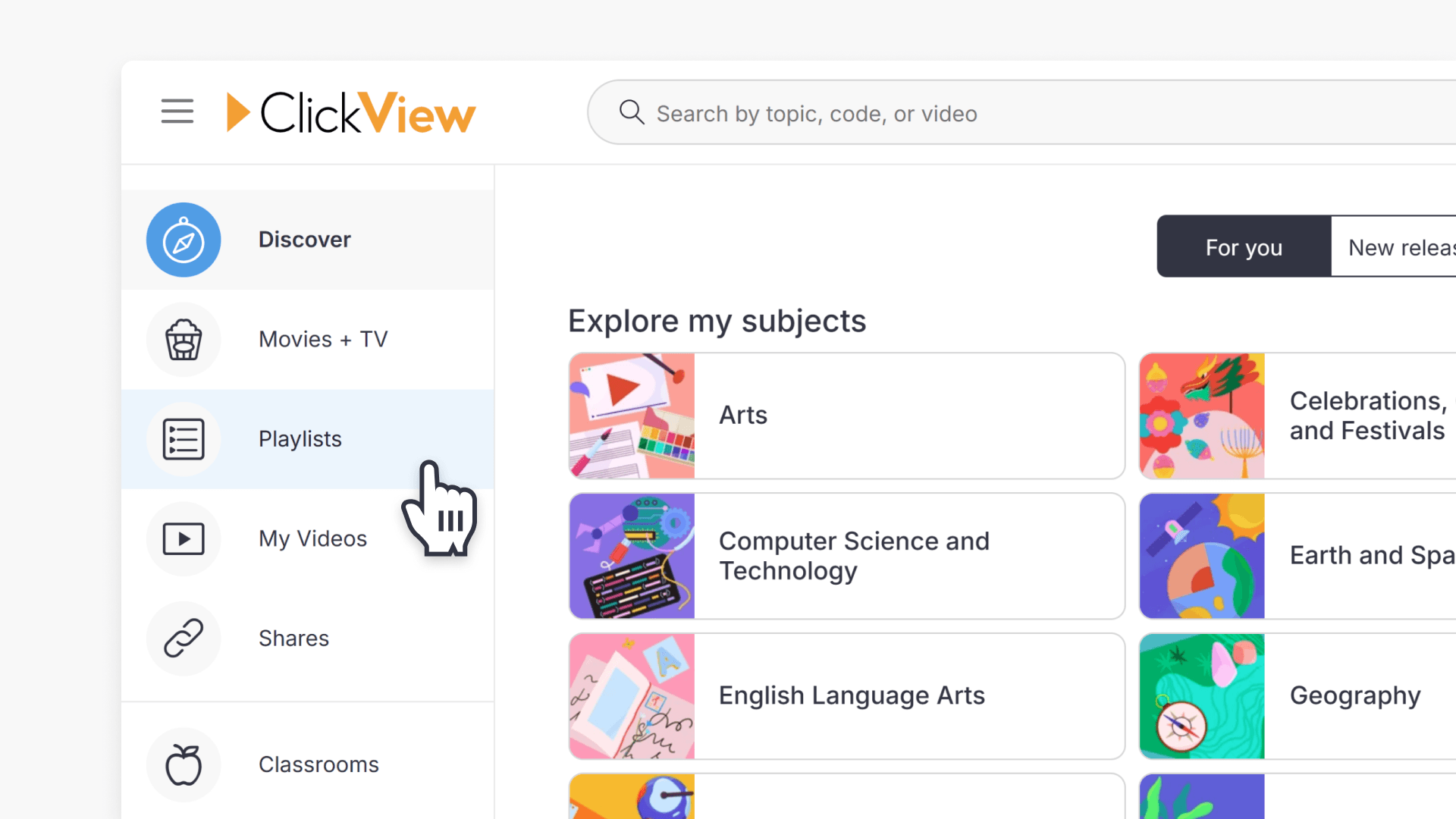
- Click the ‘Playlists’ icon from the left-hand menu.
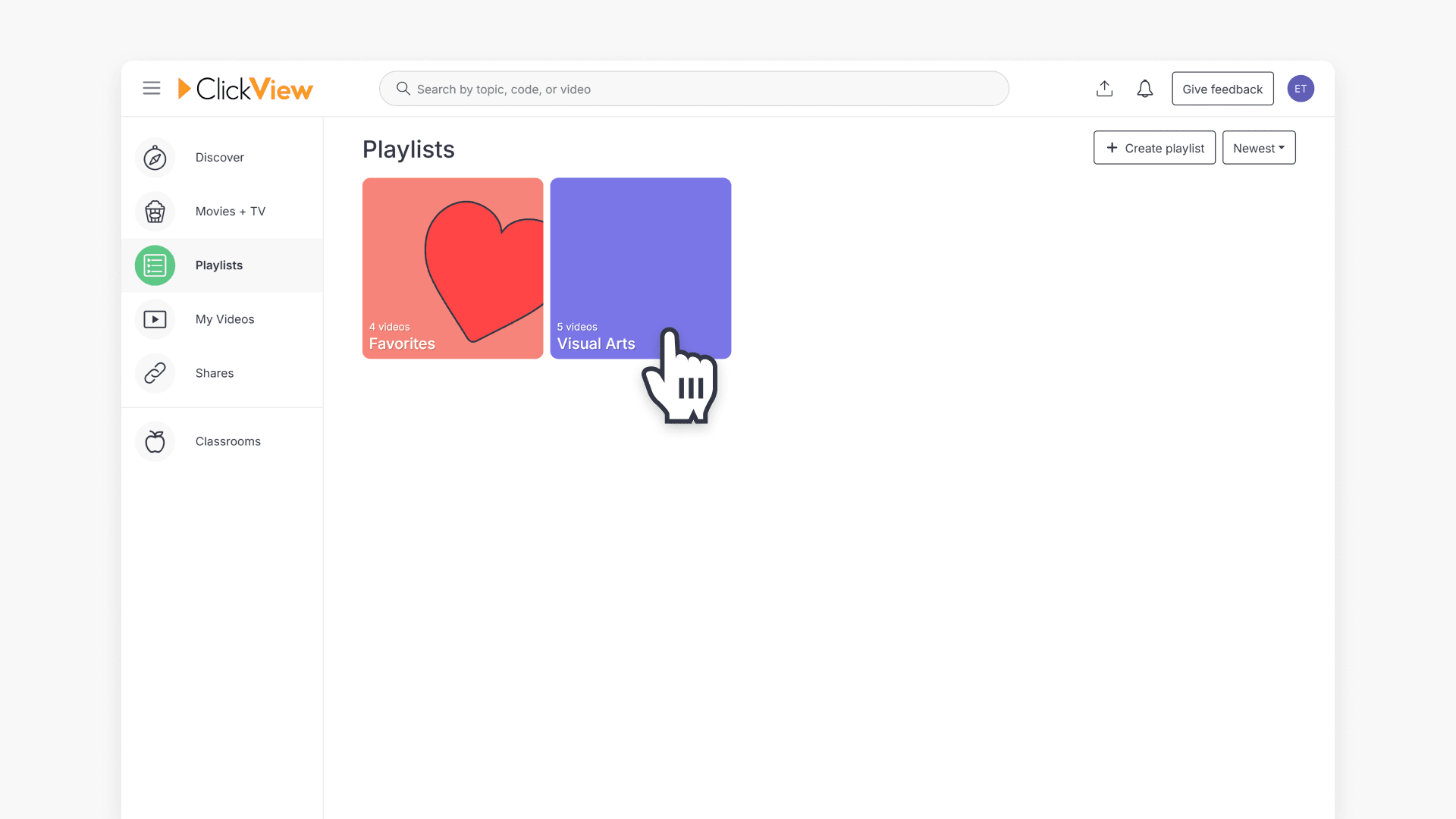
- Select the playlist you want to share.
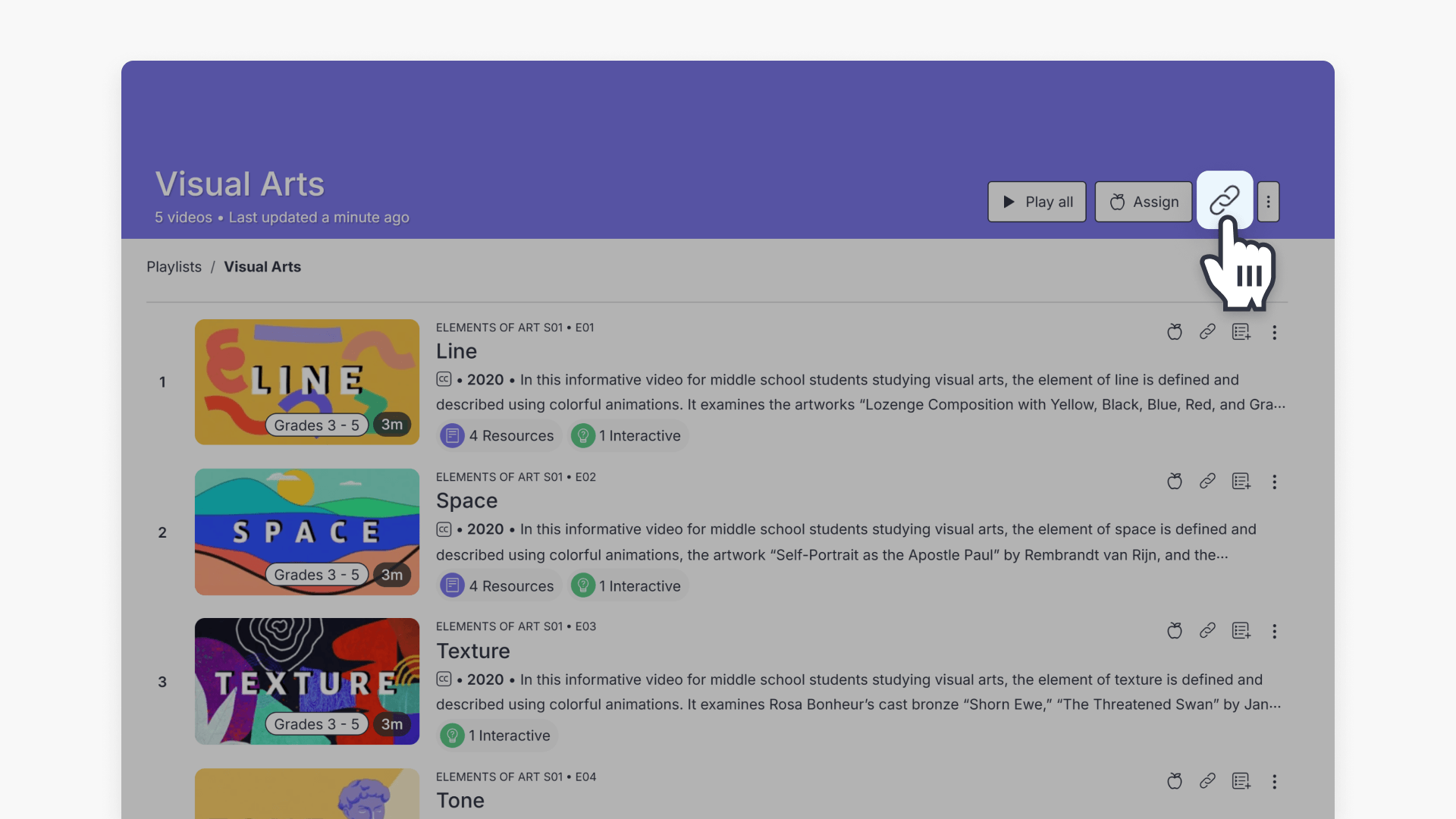
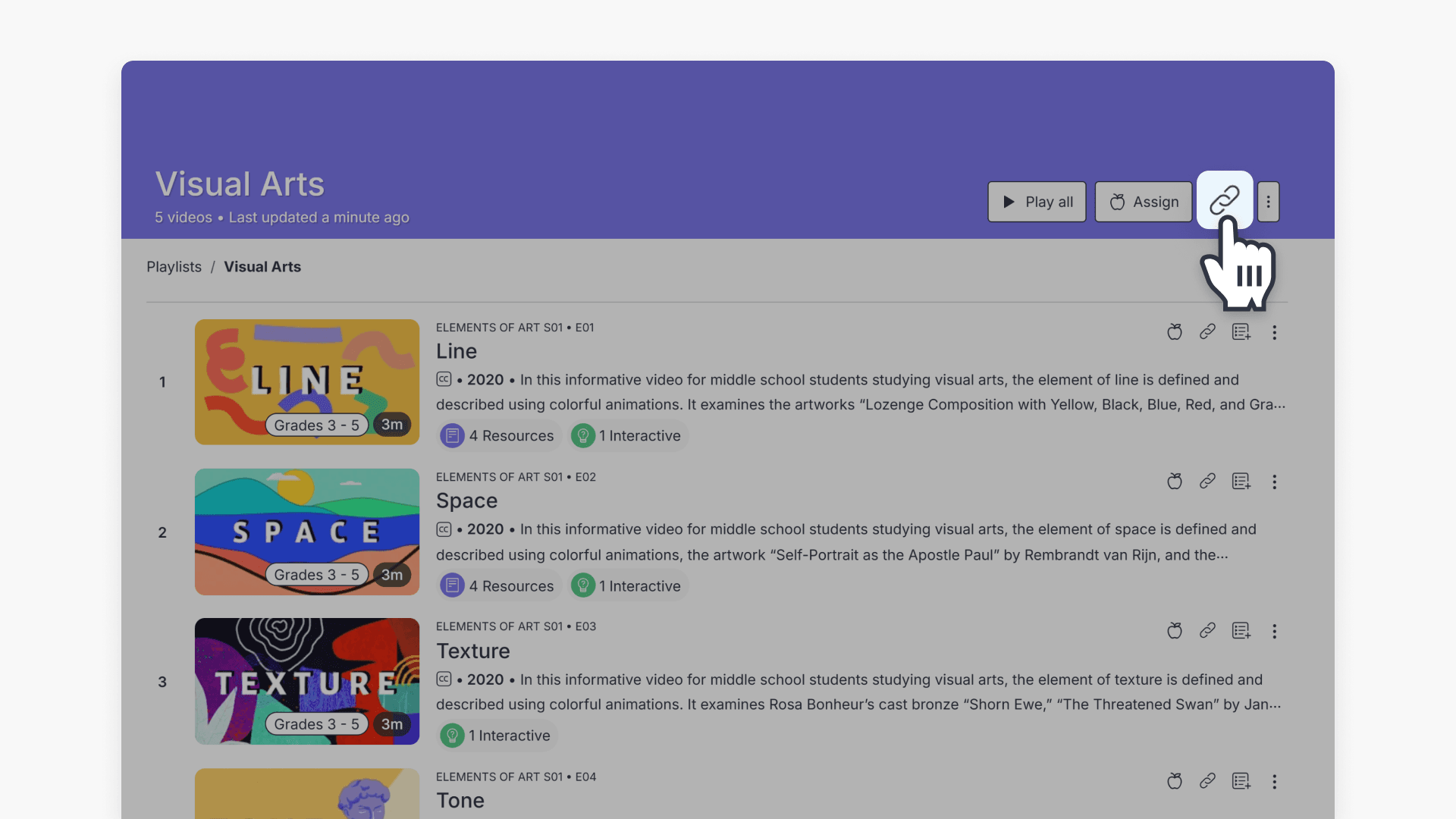
- Click the ‘Share’ button at the top of the page.
- Choose to create a share link, assign to a classroom, or to Google Classroom or Microsoft Teams.
- Review & adjust link privacy settings.
Sharing playlists with staff and students
You can share playlists with other teachers and with students. The best method depends on how you want others to access the playlist:
- Share link: Best for sharing with teachers, or sharing with students when you want to post or message a single link.
- Assign to a classroom: Best for sharing with students through a classroom workflow.
Share a playlist using a link
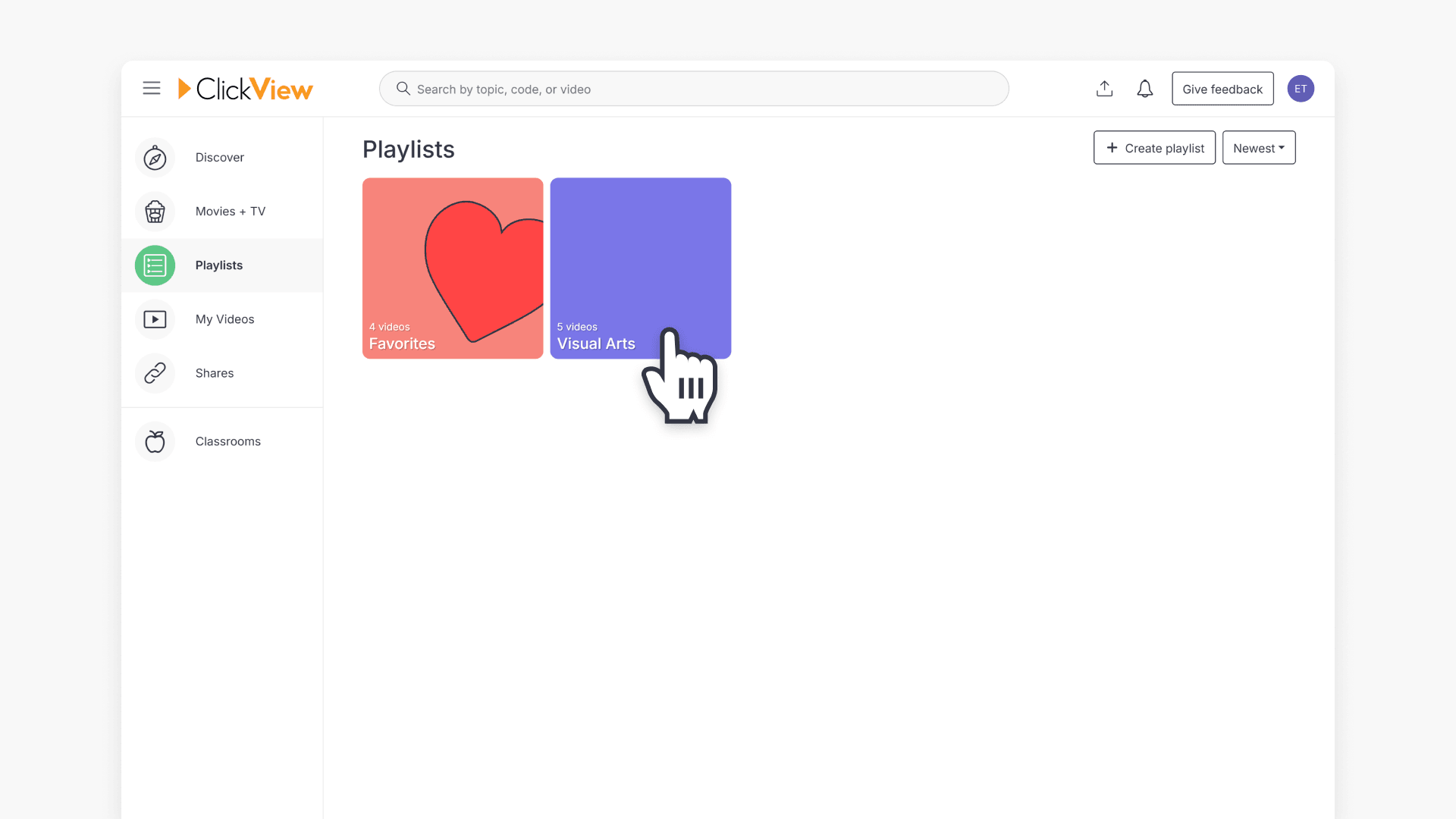
- Click “Playlists” in the left-hand menu of your screen.
- Select the playlist you want to share.
- Click the ‘Share’ button at the top of the playlist page.
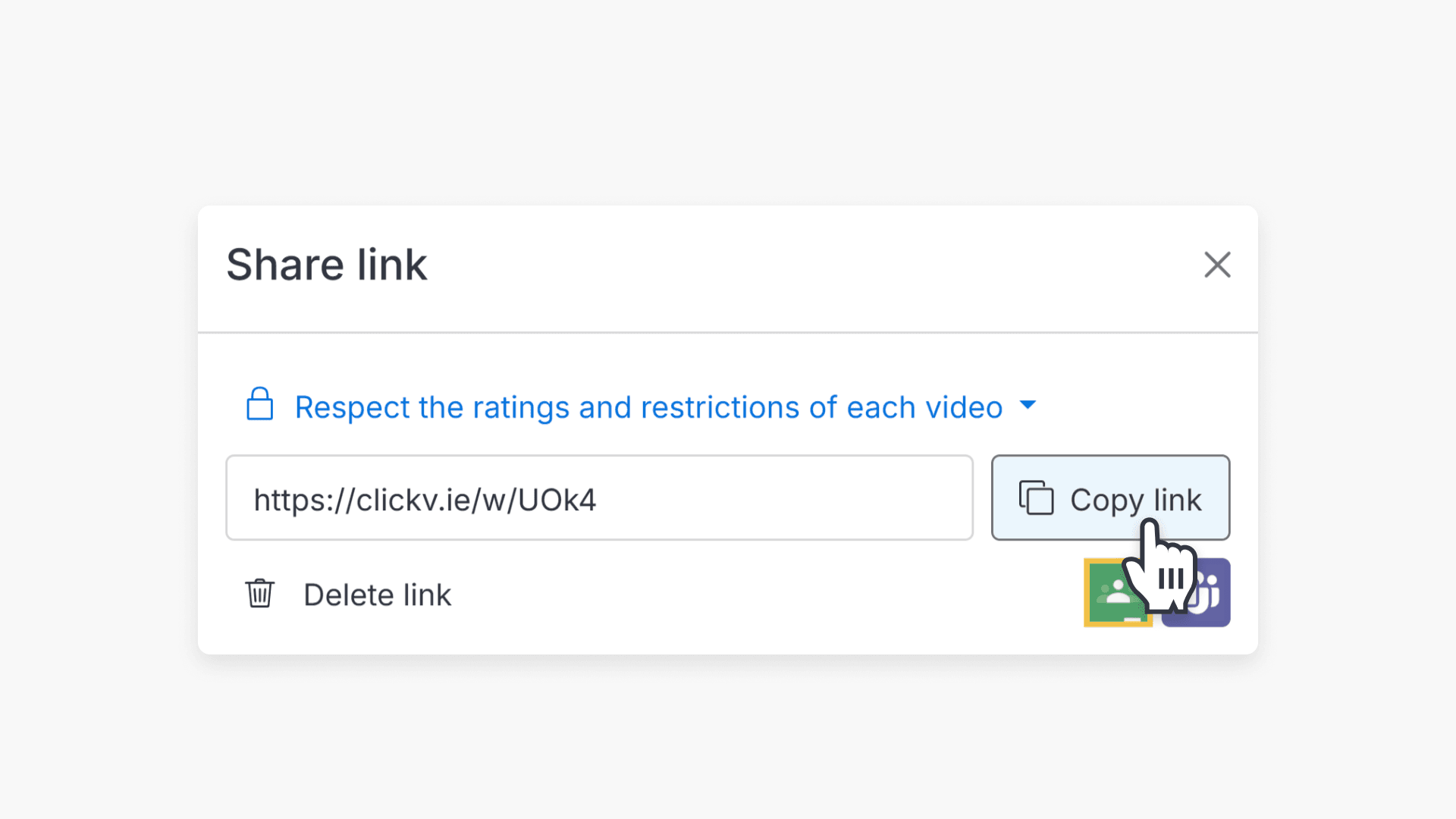
- In the share link pop-up window, select “Copy link” to generate a share link.
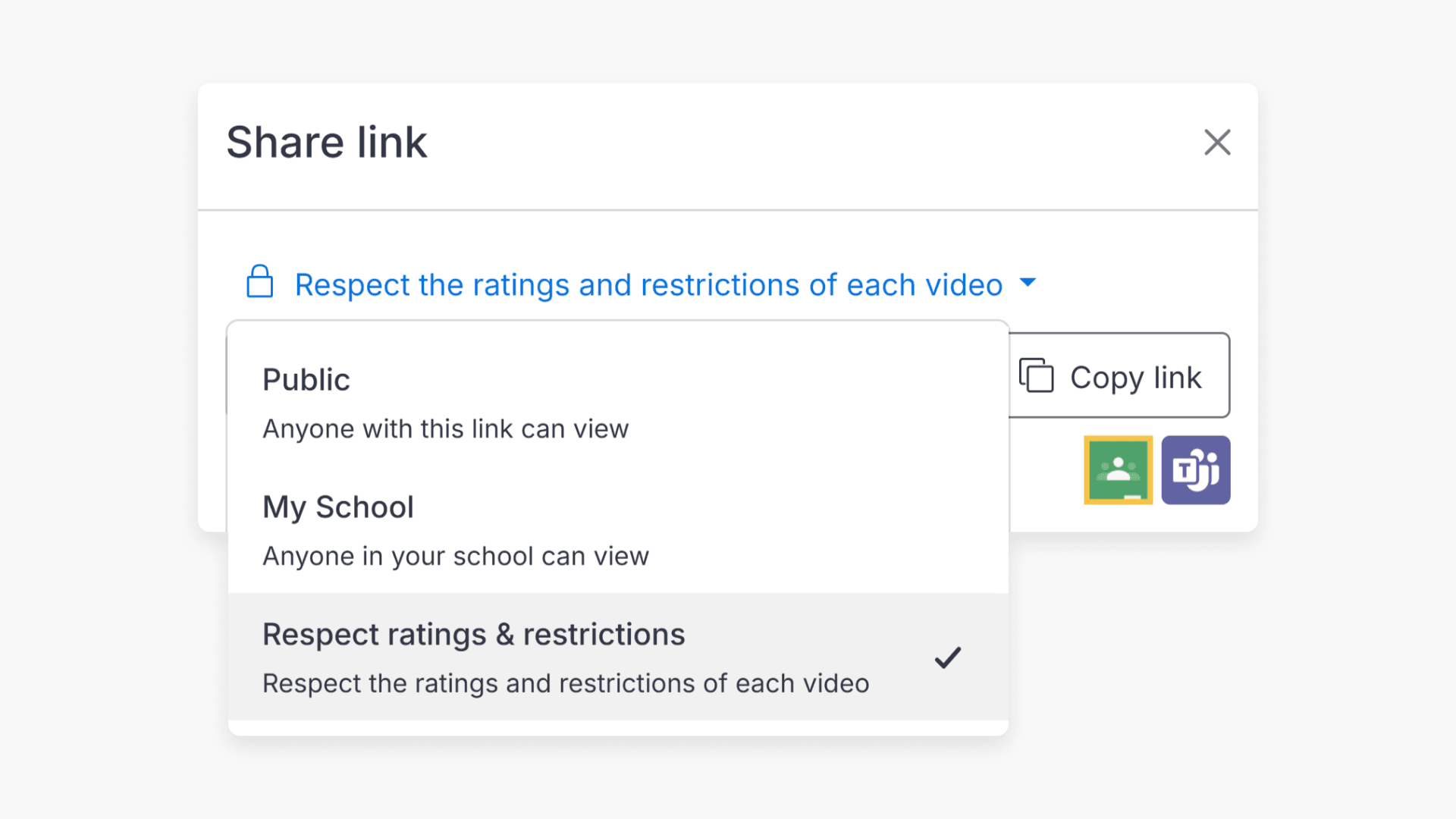
- Use the privacy dropdown to choose one of the following options:
- “Public”: Anyone with the link can view (no sign-in required).
- “My School”: Only people signed in to your school can view.
- “Respect ratings and restrictions”: Viewers can only watch videos allowed by each video’s rating and restrictions.
- “Private”: Only you can access the link.
- Select “Copy link” to copy the URL, then send it to your intended staff or students.
Notes about ratings and restrictions
- If you select “Respect ratings and restrictions”, students may not be able to view every video in the playlist if a video’s rating is not allowed for them.
- If a student cannot access a playlist you shared, confirm the link privacy setting and whether the student is required to sign in.
Assign a playlist to a classroom (for students)
Use this option when you want students to access the playlist through a classroom.
- Click “Playlists” in the left-hand menu.
- Select the playlist you want to share.
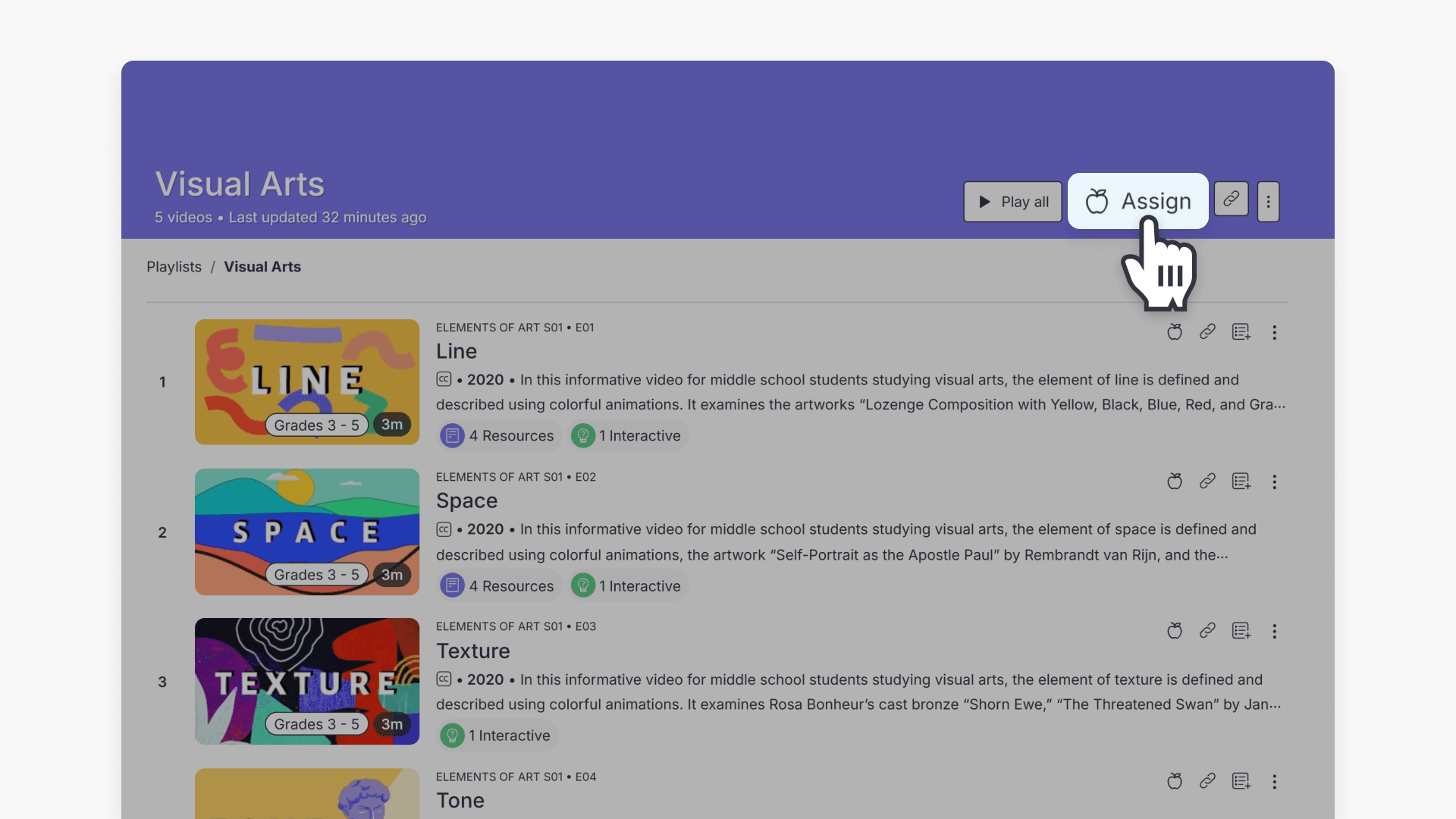
- Click the ‘Assign’ button at the top of the playlist page.
- Choose the classroom you want to share with, then complete the assignment steps shown on screen.
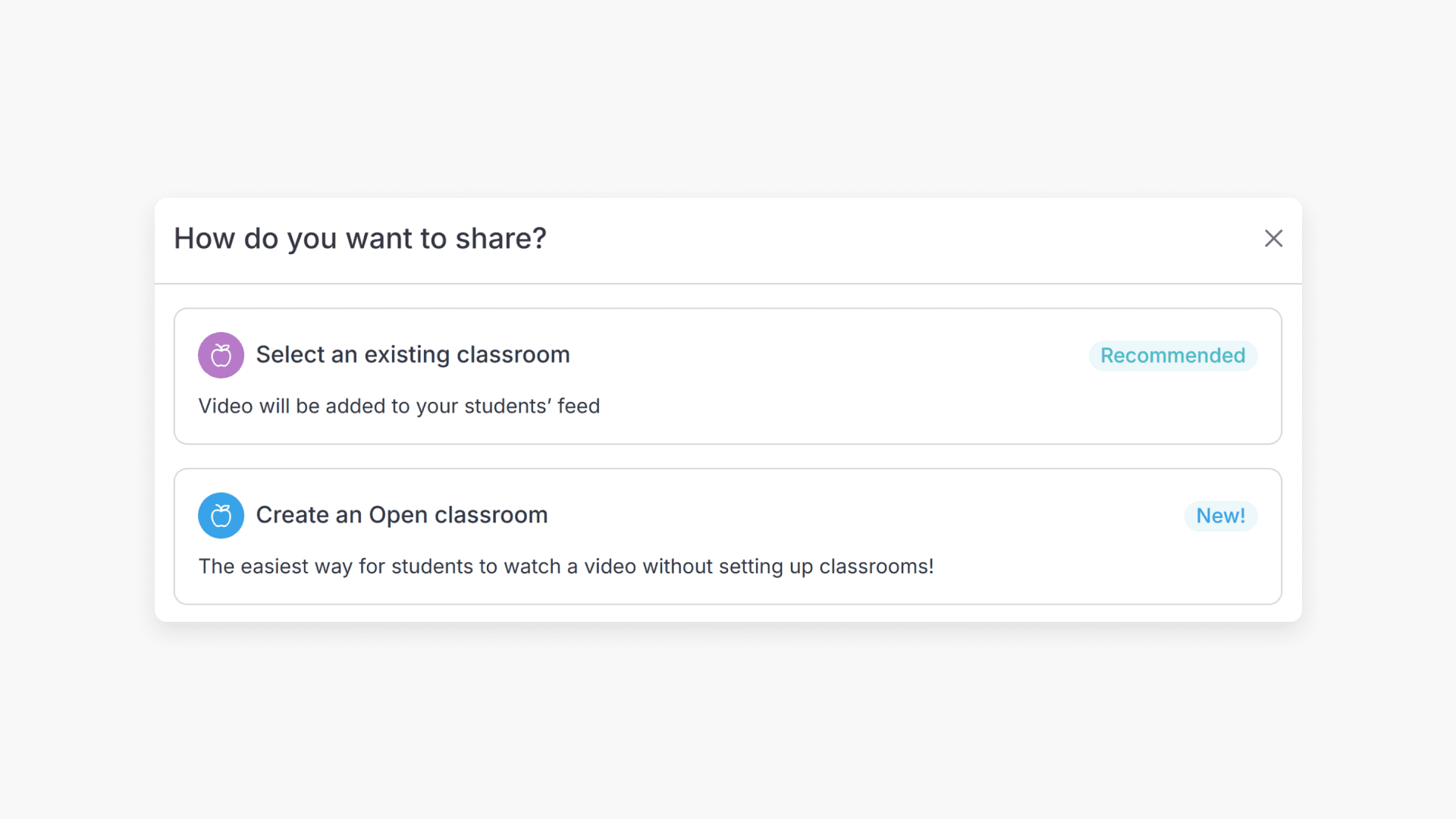
Existing classroom vs Open classroom
When you assign a playlist, you may have the option to share it to an existing classroom or create an Open classroom.
- Existing classroom: A virtual classroom in ClickView where students can be assigned and grouped for teaching and sharing content.
- Open Classroom: A quicker way to let students watch assigned videos without needing a full classroom setup, with optional settings like requiring students to sign in and respecting ratings/restrictions.
Share to Google Classroom or Microsoft Teams
If your school has enabled these integrations, you can share a playlist directly from the playlist Share link window.
If you don’t see the Google Classroom or Microsoft Teams icons, your ClickView Administrator may need to enable integrations in Settings.
Share a playlist to Google Classroom
- Open Playlists and select the playlist you want to share.
- Click the ‘Share’ button at the top of the playlist page.
- In the Share link window, click the Google Classroom icon.
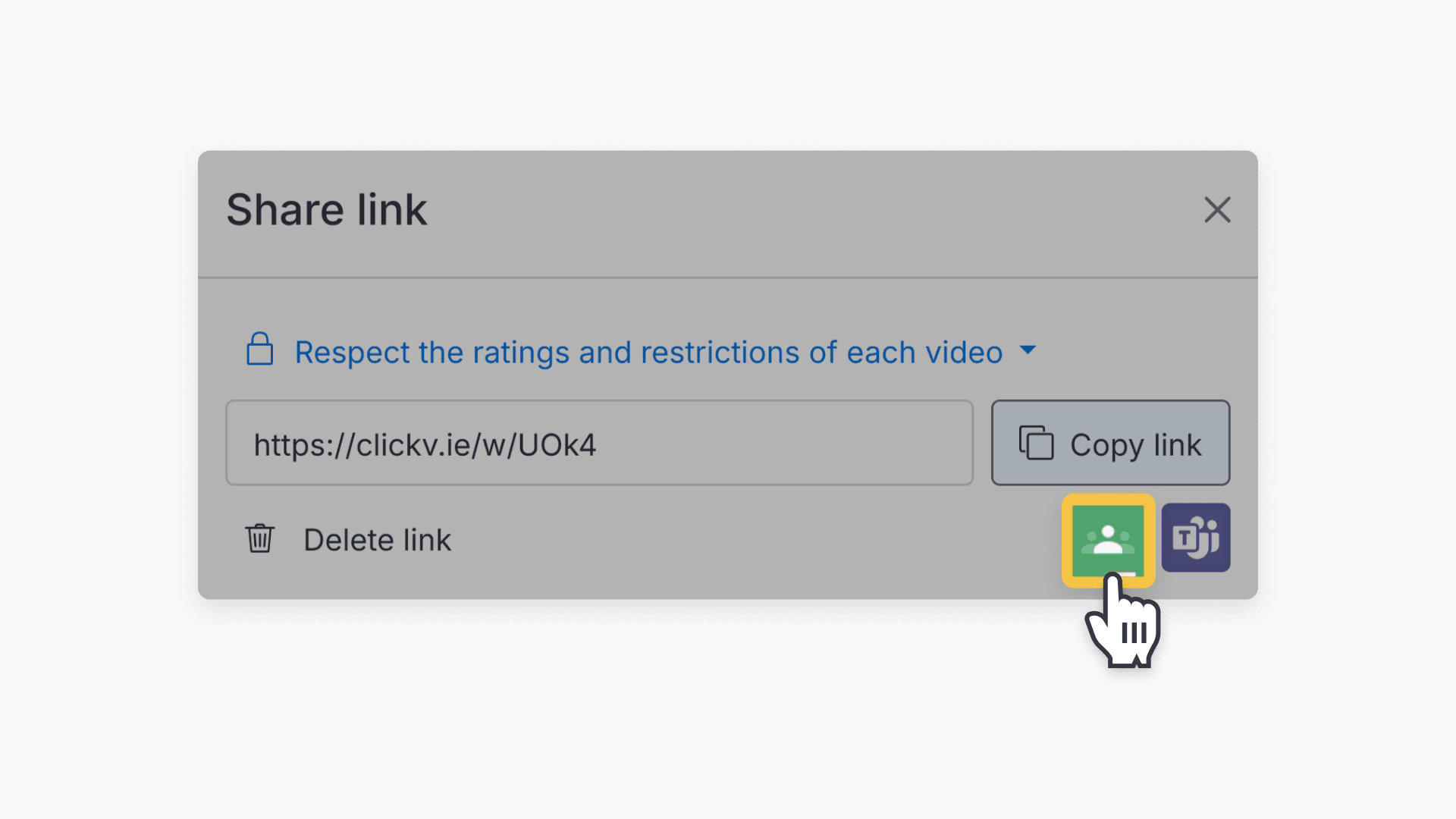
- Choose the Classroom you want to share to.
- Choose what you want to do (for example, create an assignment), then click Go.
- Follow the prompts in Google Classroom to complete the post.
Share a playlist to Microsoft Teams
- Open Playlists and select the playlist you want to share.
- Click the ‘Share’ button at the top of the playlist page.
- In the Share link window, click the Microsoft Teams icon.
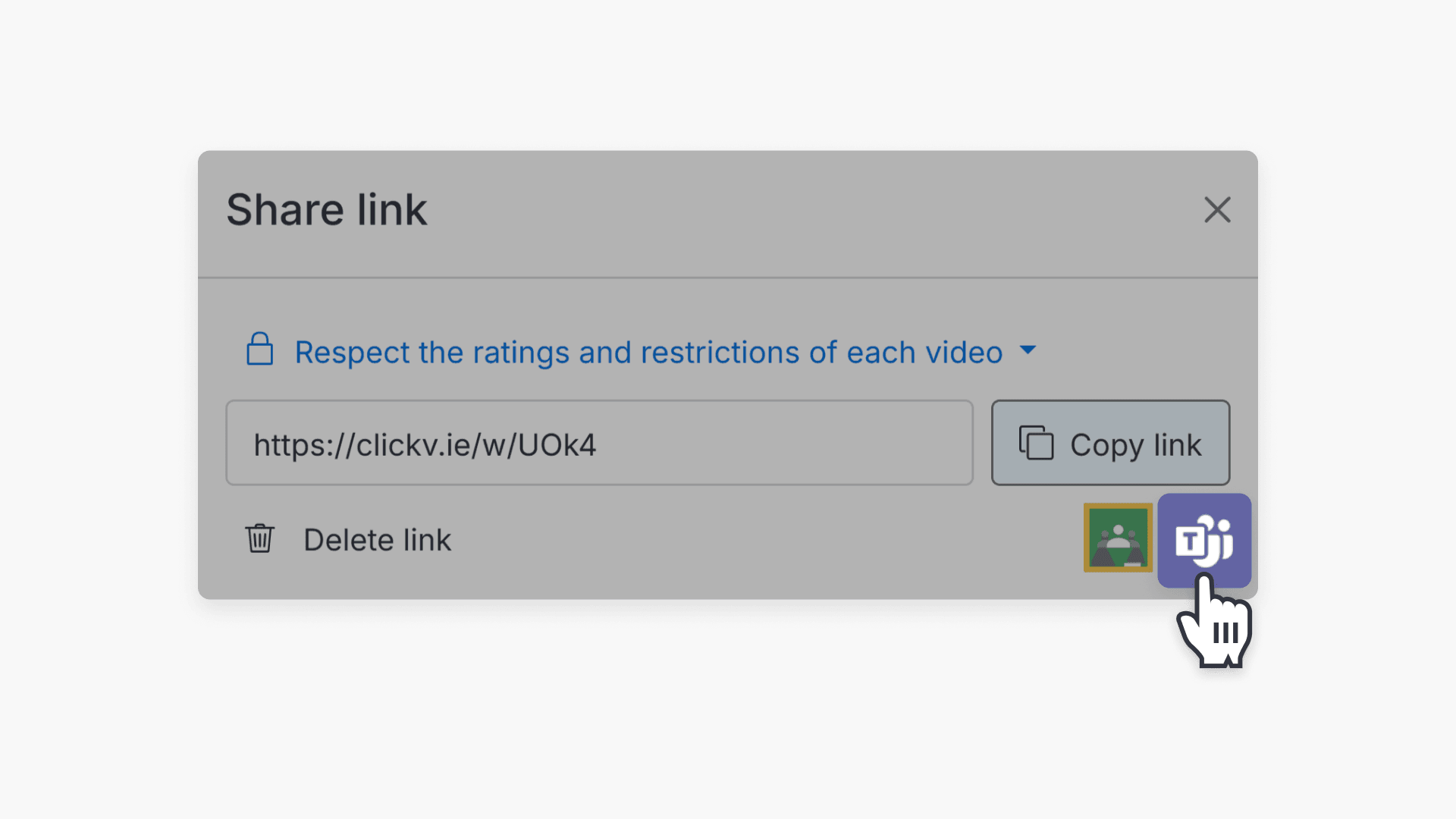
- In Share to, search for and select the chat or channel you want to share to (you can share to one chat/channel at a time).
- Optionally add a message, then click Share to send the playlist link in Teams.
Tip: Your playlist link privacy (including Respect ratings & restrictions) can affect what students can view after you post it to Google Classroom or Teams.
Frequently asked questions
Get in touch
If you’re having trouble finding the right topics or videos, just reach out! Our team - 

 Akhil, Daniel, Jalaj, or any of us at ClickView - will be happy to help you get sorted.
Give feedback
Was this guide helpful?
Up Next
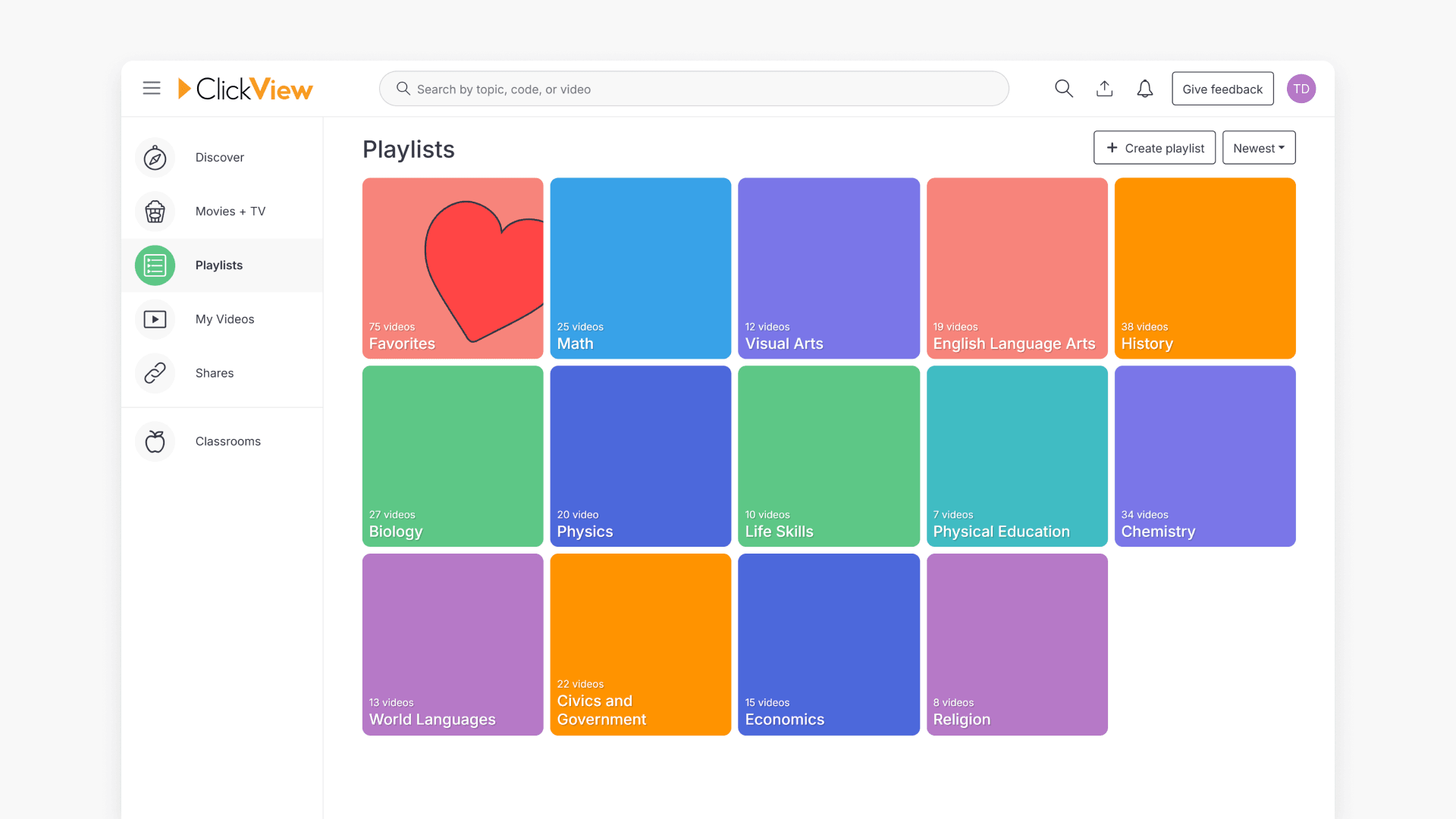
How to use playlists for video organization
This article explains how to create, manage, and share playlists in ClickView. Discover how to organize videos, follow shared playlists, and streamline classroom content sharing with colleagues and students.