How to share video clips
In this article
Last updated by
2 min readClickViewJanuary 30, 2026
Summary
- Access My Videos from the main menu.
- Select the ‘Clips’ filter at the top of the page.
- Click the ‘Share’ icon beside the clip you wish to distribute.
- Use the ‘Copy link’ button to get the video URL link.
- Optionally, assign the clip directly to your classroom.
star icon
Quick tip
When should I assign a clip instead of sharing it with a link?
Assigning a clip is best when you want students to access it inside ClickView, where it appears in their classroom and supports structured viewing. Sharing a link works well for quick distribution, but assigning keeps the clip tied to your teaching workflow and makes it easier for students to find in one place.
Steps to share clips from My Videos
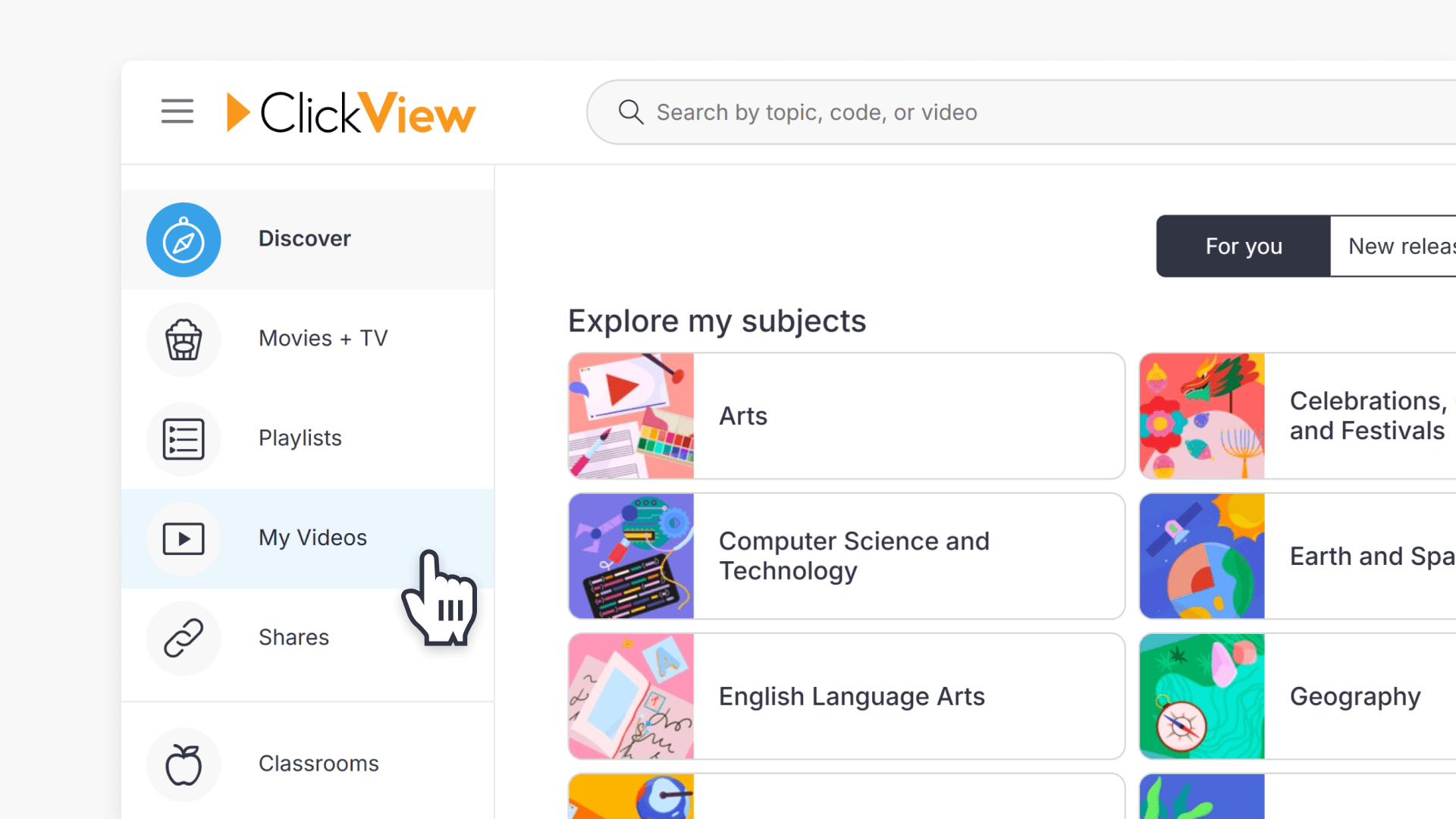
- Click on My Videos in the main menu on the left of your ClickView screen.
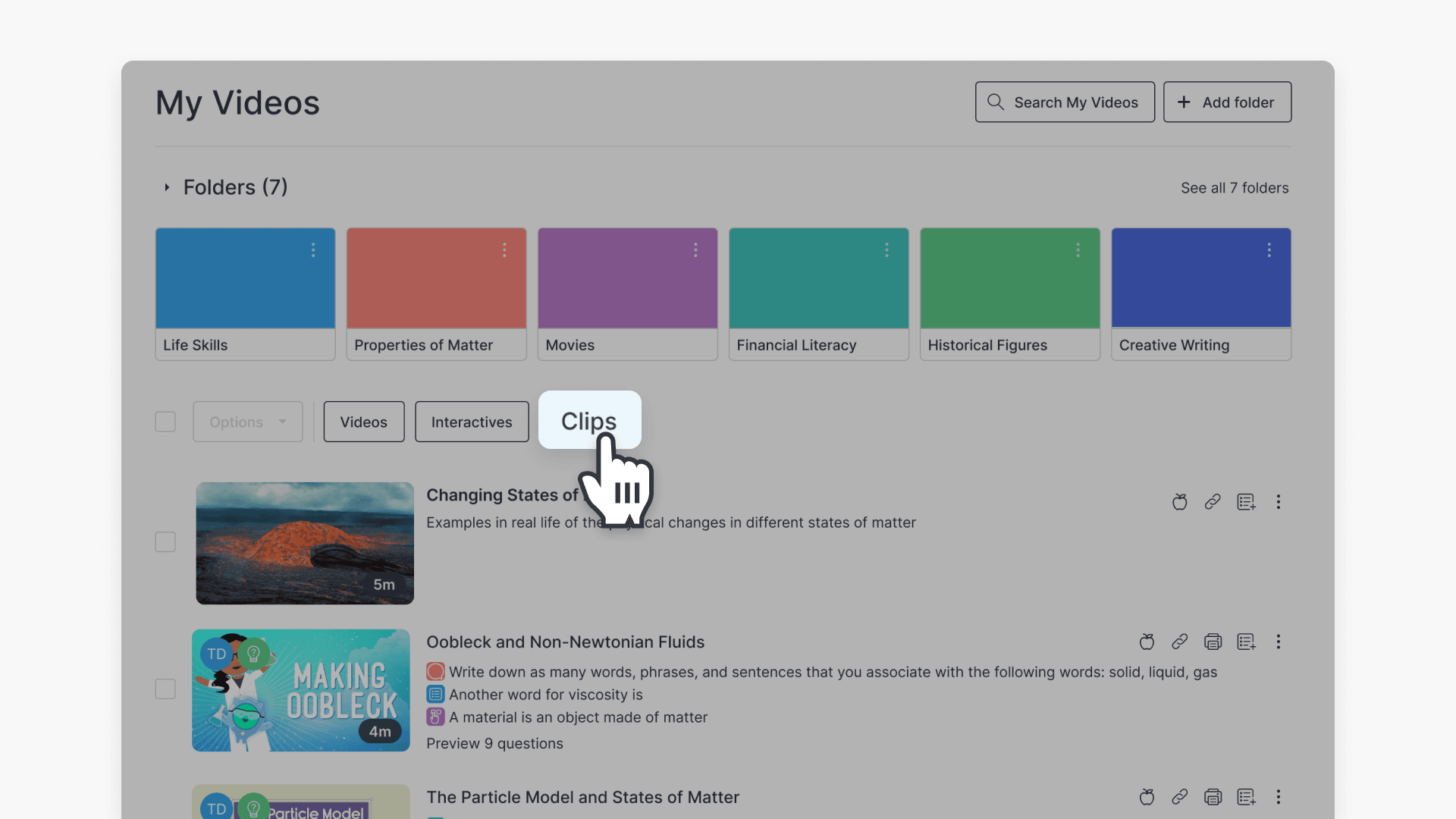
- Click the ‘Clips’ filter at the top of the page to view your saved clips.
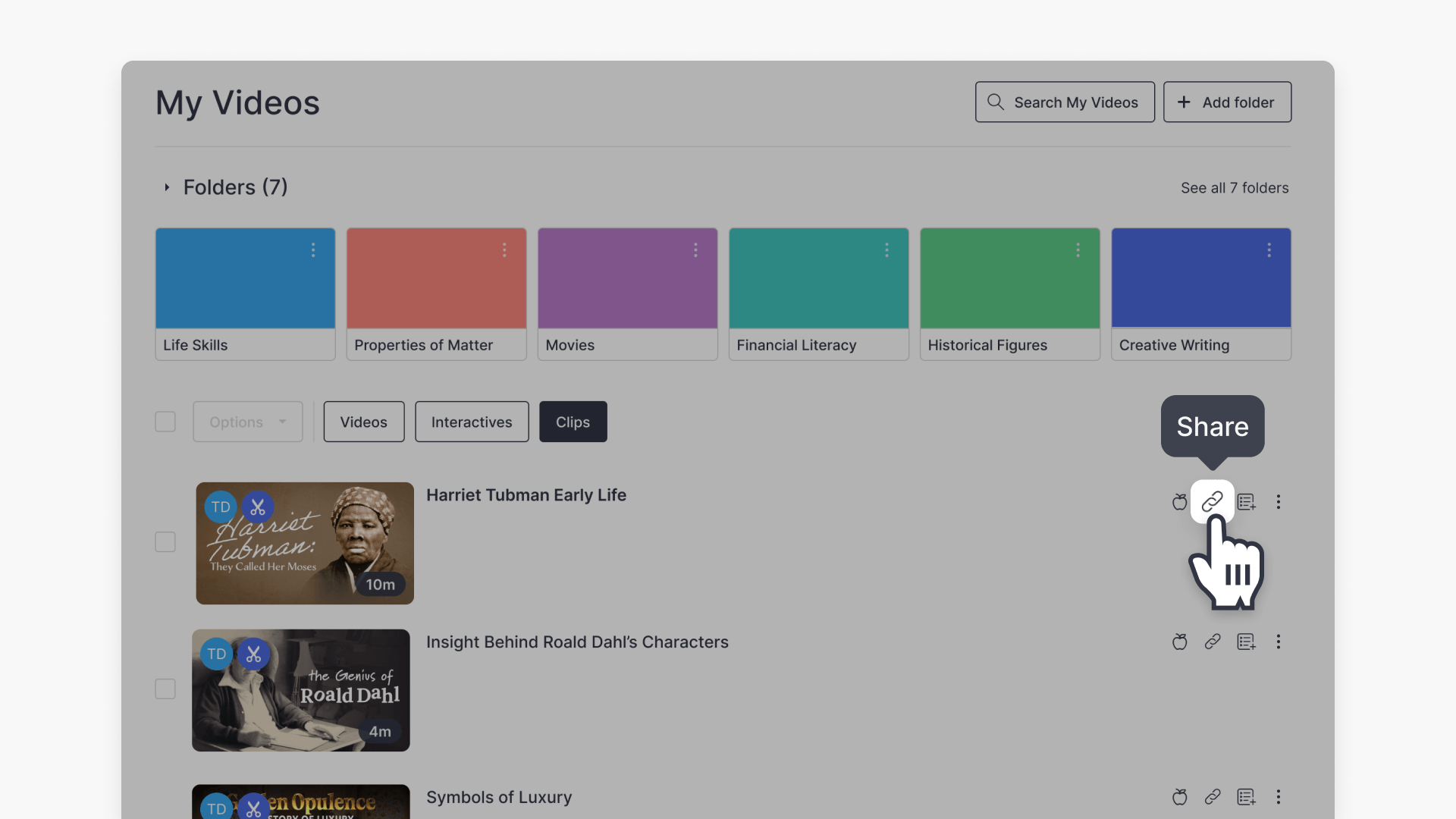
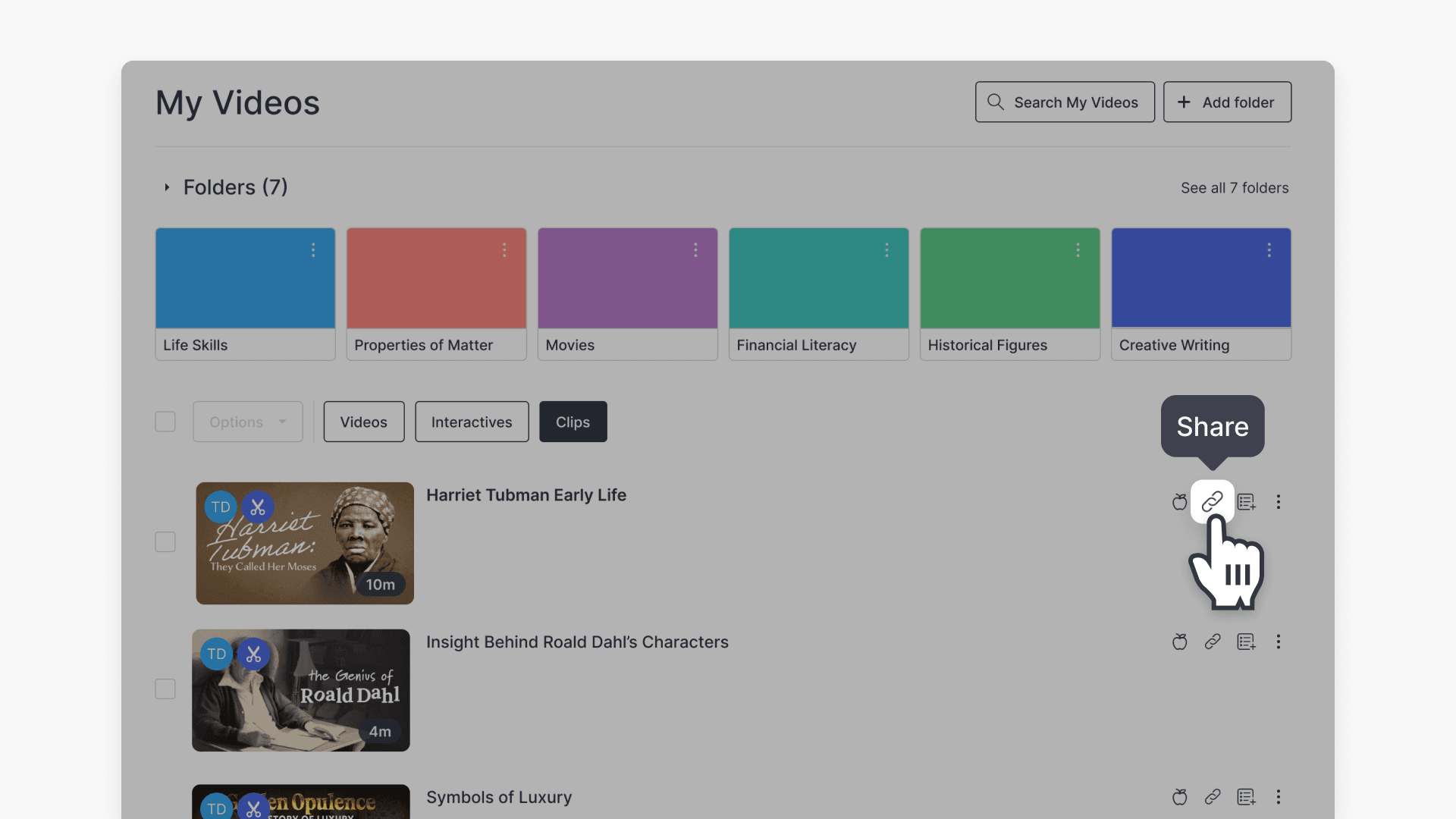
- Find the clip you want to share and click the ‘Share link’ icon to its right.
- To share, click the ‘Copy link‘ button to copy the video clip URL.
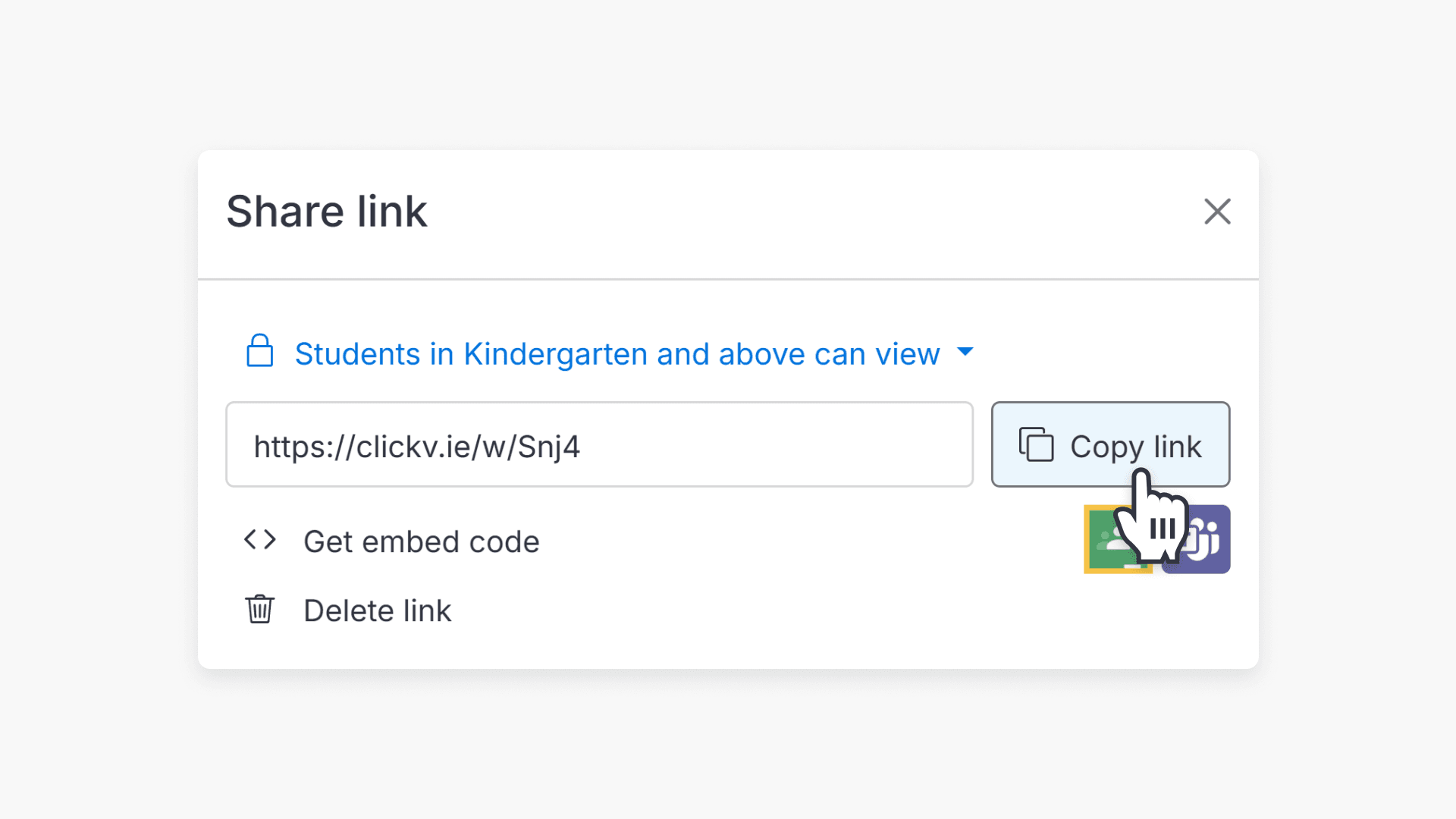
- The link is now copied to your clipboard. Paste the copied link into an email, message, or LMS post to share with your students or staff.
Assign a clip to your classroom
Alternatively you can assign the clip directly to your classroom.
- Navigate to My Videos, find the clip you want to share, and click the ‘Assign’ icon to its right.

- In the classroom assignment pop-up window, click on ‘Select an existing classroom’.
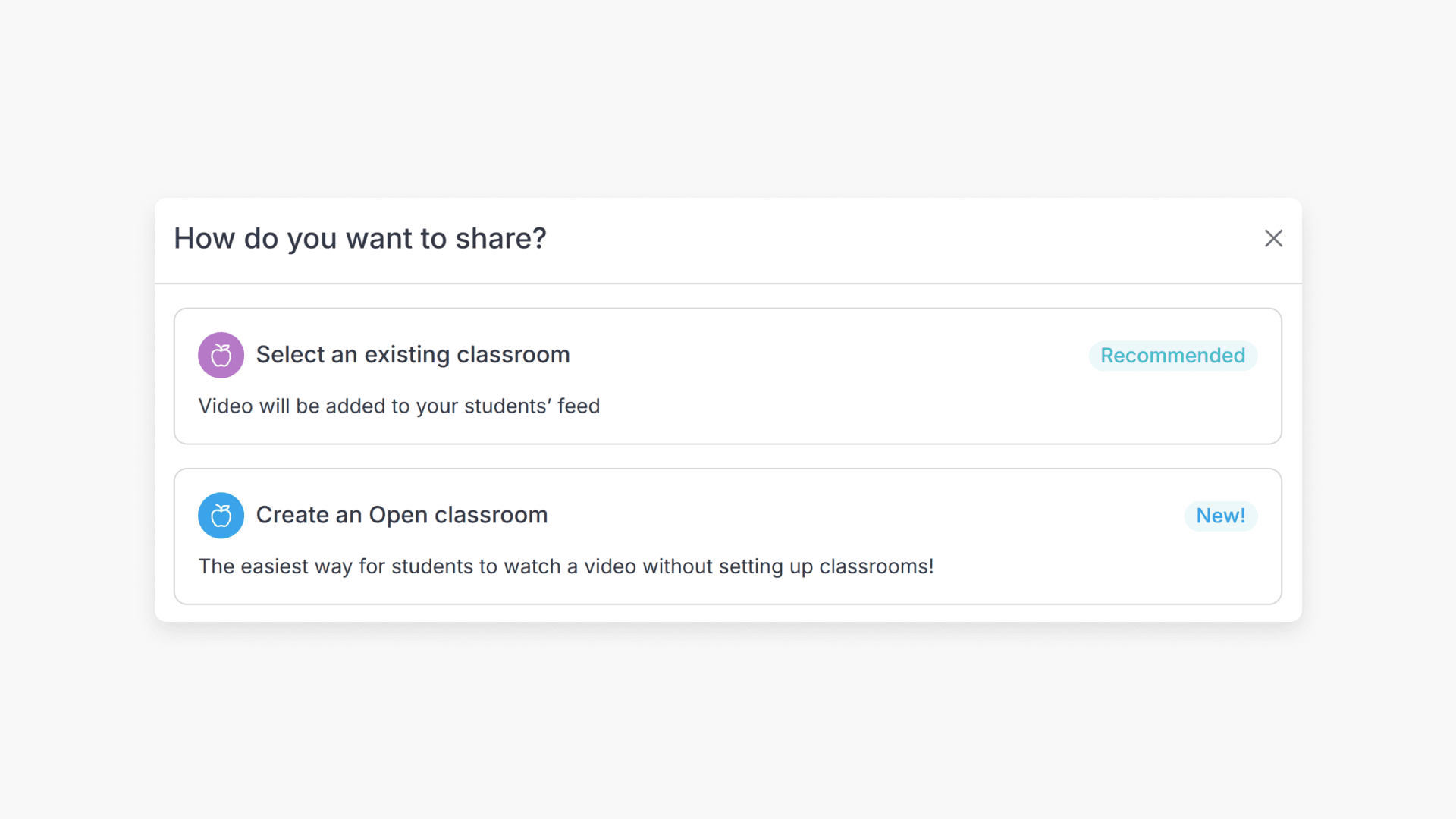
- Select the classroom where you want to share the clip, and click Next.
- You can then choose to add an optional message for students when they receive the shared clip. Then click Assign.
- Alternatively you can share the clip via an Open classroom. Read this article for more information on using Open classrooms.
Students can then watch the shared clip when they next sign in to ClickView.
Frequently asked questions
No, all educators with access to My Videos can share clips as described above.
Clips can be shared with other educators and students depending on your school’s sharing permissions in ClickView.
Get in touch
If you’re having trouble finding the right topics or videos, just reach out! Our team - 


 Andrew, Nisch, Janice, Pfreya, or any of us at ClickView - will be happy to help you get sorted.
Give feedback
Was this guide helpful?
Up Next
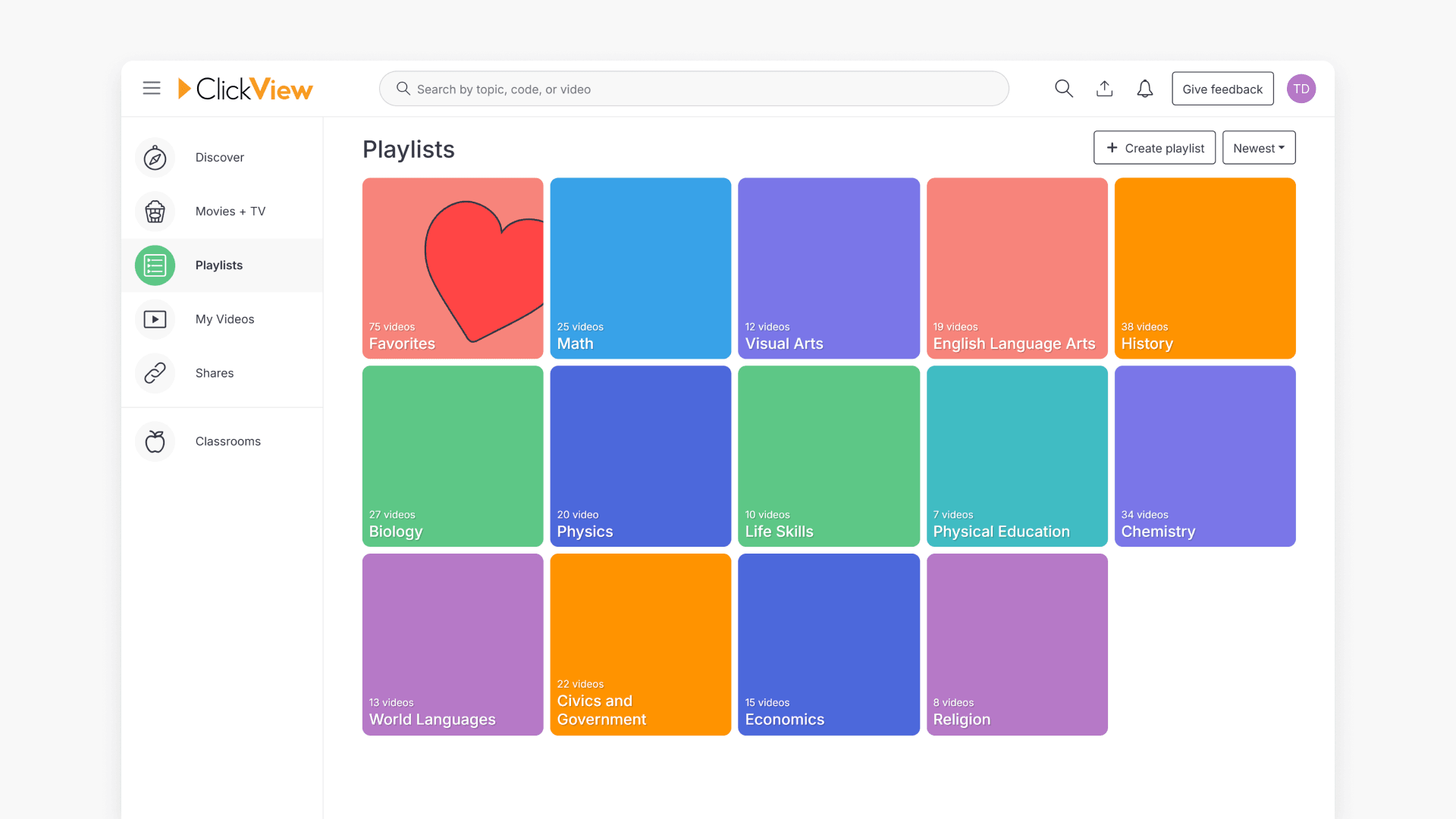
How to use playlists for video organization
This article explains how to create, manage, and share playlists in ClickView. Discover how to organize videos, follow shared playlists, and streamline classroom content sharing with colleagues and students.