How to use Whiteboard Mode in the classroom

Summary
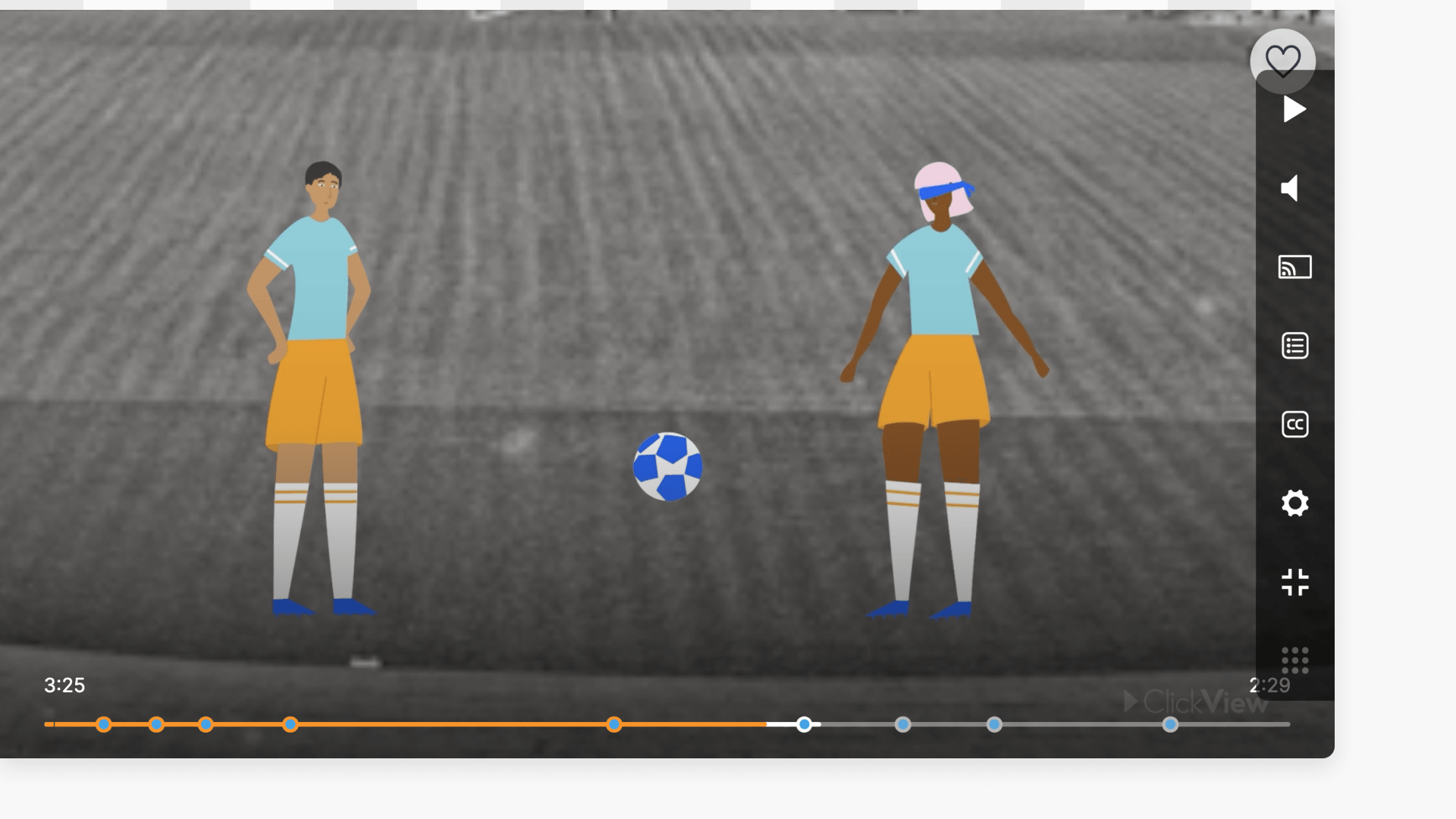
- Select your video and enter full screen mode.
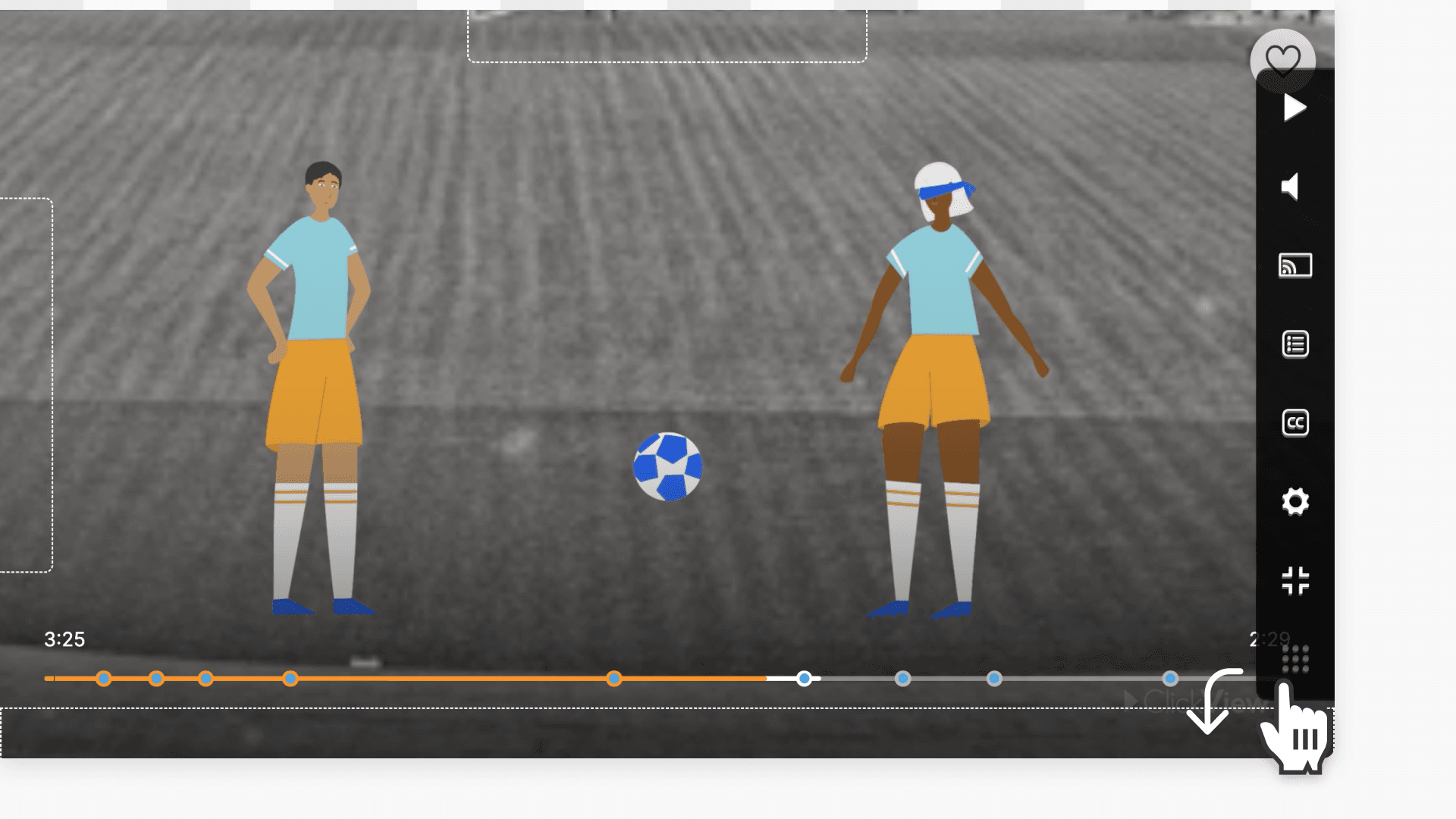
- Look for the navigation control icon (9 dot icon).
- Hold and drag the icon to either side to dock player controls.
- Video player controls will appear on the chosen side.
- To exit, drag the icon back to the bottom of the screen.
Enable Whiteboard Mode
Whiteboard Mode in ClickView helps educators easily access video player controls without blocking the whiteboard during lessons. When Whiteboard Mode is active, the video controls dock on either side of the video, allowing seamless interaction and adjustment.
How to enable Whiteboard Mode
- Select the video you want to view and enter full screen mode. This will reveal the navigation control icon, shown as a 9 dot icon.
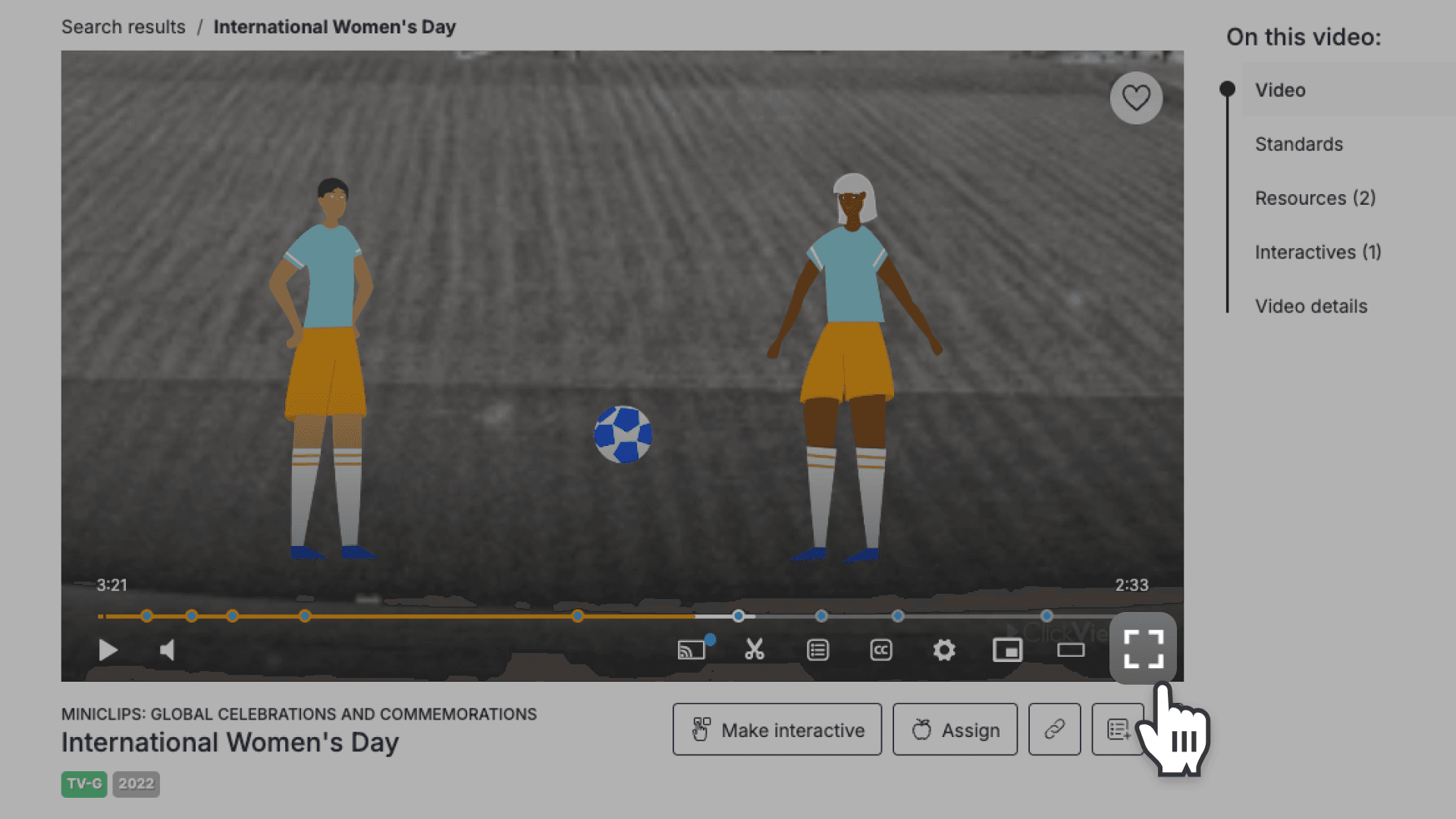
- In full screen mode, hold and drag the navigation control icon to either side of the video player.
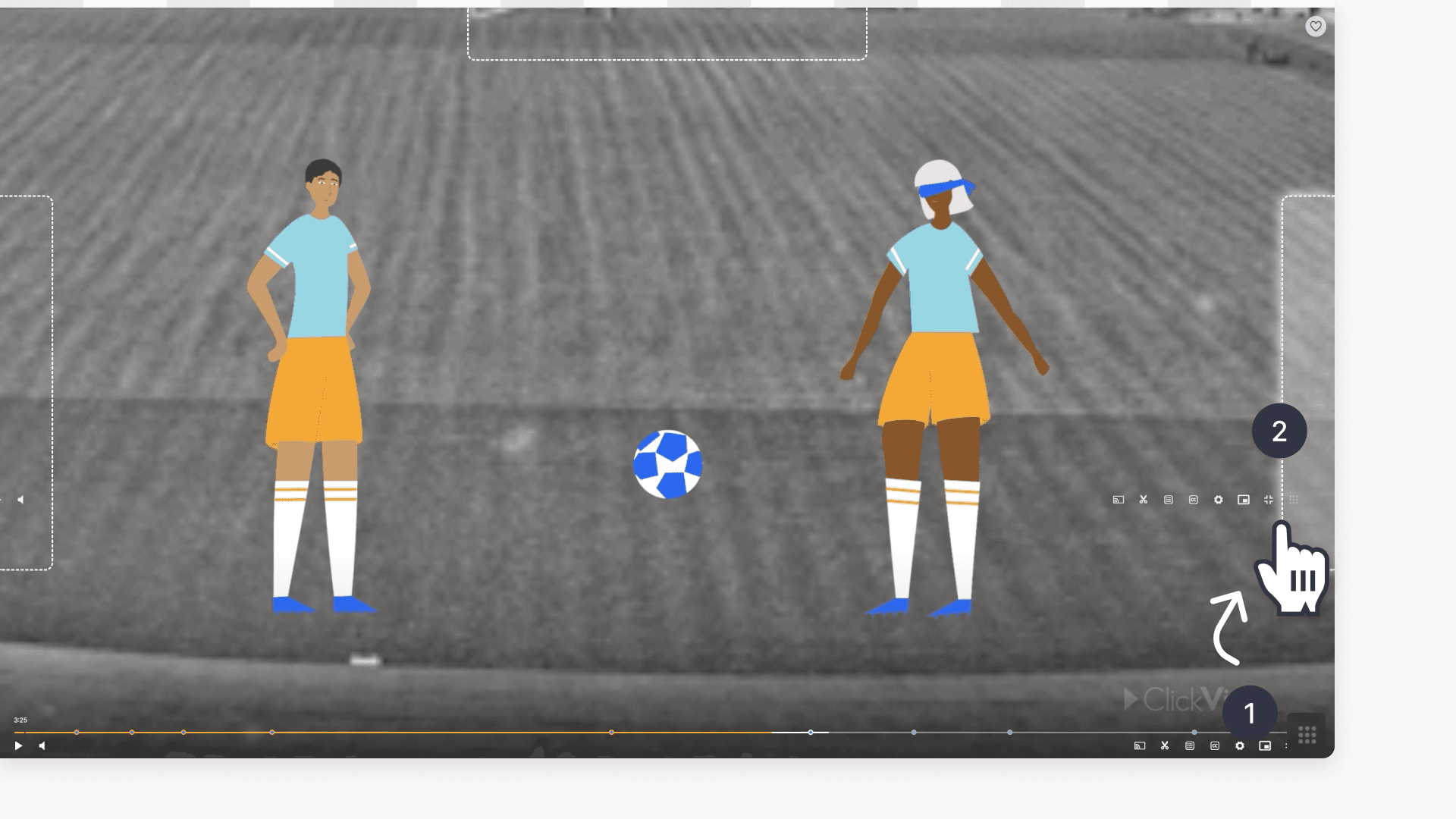
- Once Whiteboard Mode is enabled, the video player controls will be docked on the side of the video. You can easily adjust video settings from here.
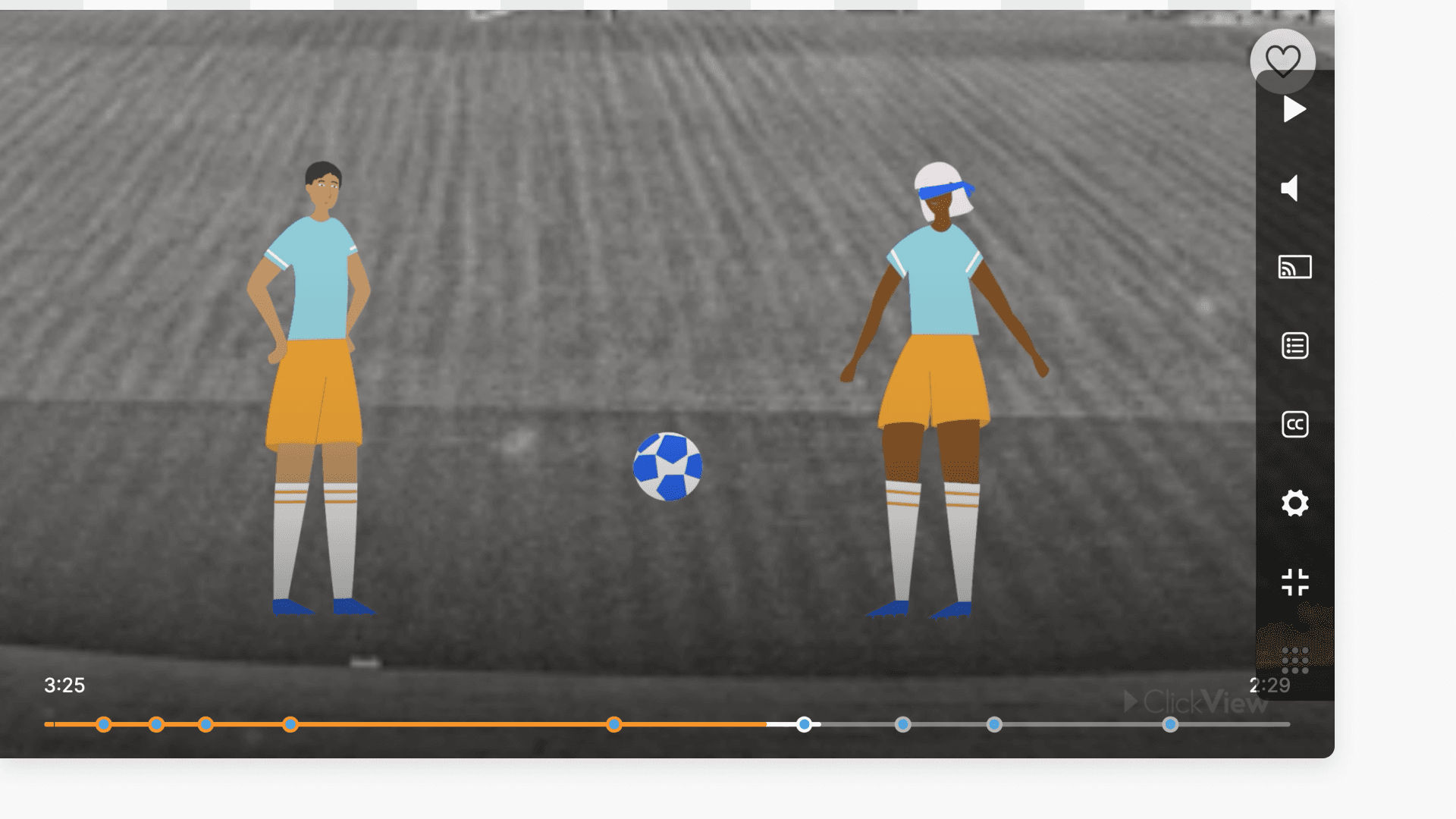
- To exit Whiteboard Mode, drag the navigation control icon back to the bottom of the screen.
Frequently asked questions
Get in touch
If you’re having trouble finding the right topics or videos, just reach out! Our team - 


 Andrew, Nisch, Janice, Pfreya, or any of us at ClickView - will be happy to help you get sorted.
Give feedback
Was this guide helpful?
Up Next
How citations work in ClickView
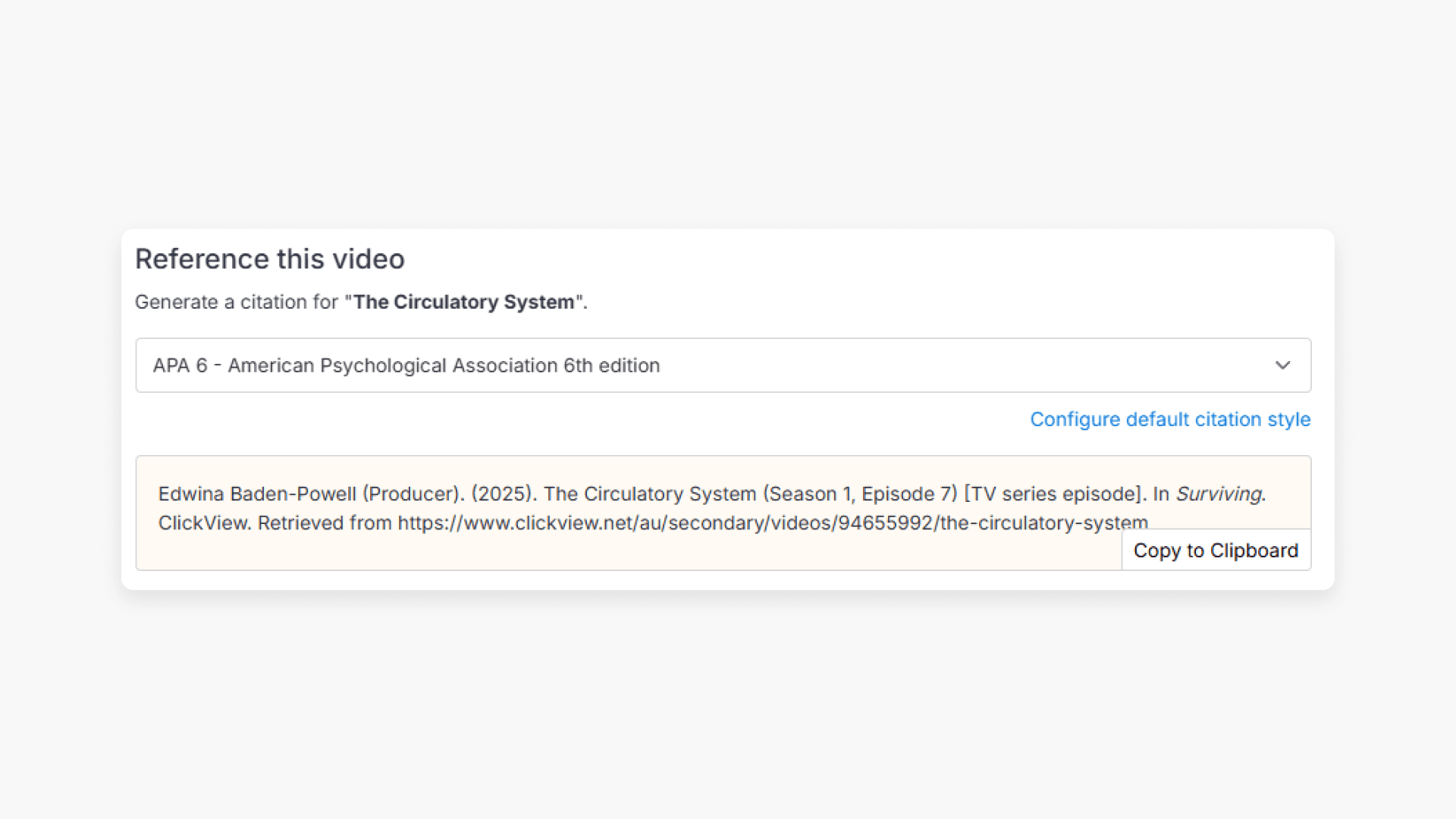
Summary How do I find citations for videos in ClickView? Every video in ClickView includes a citation. Open a video, scroll below the player, and find the Reference this video section. Select a citation style from the dropdown, and ClickView will generate the citation automatically, copy it to your clipboard, and use it anywhere. Every […]