How to use Auto-translate

Summary
- Auto-translate turns a video’s reviewed English captions into captions in other languages
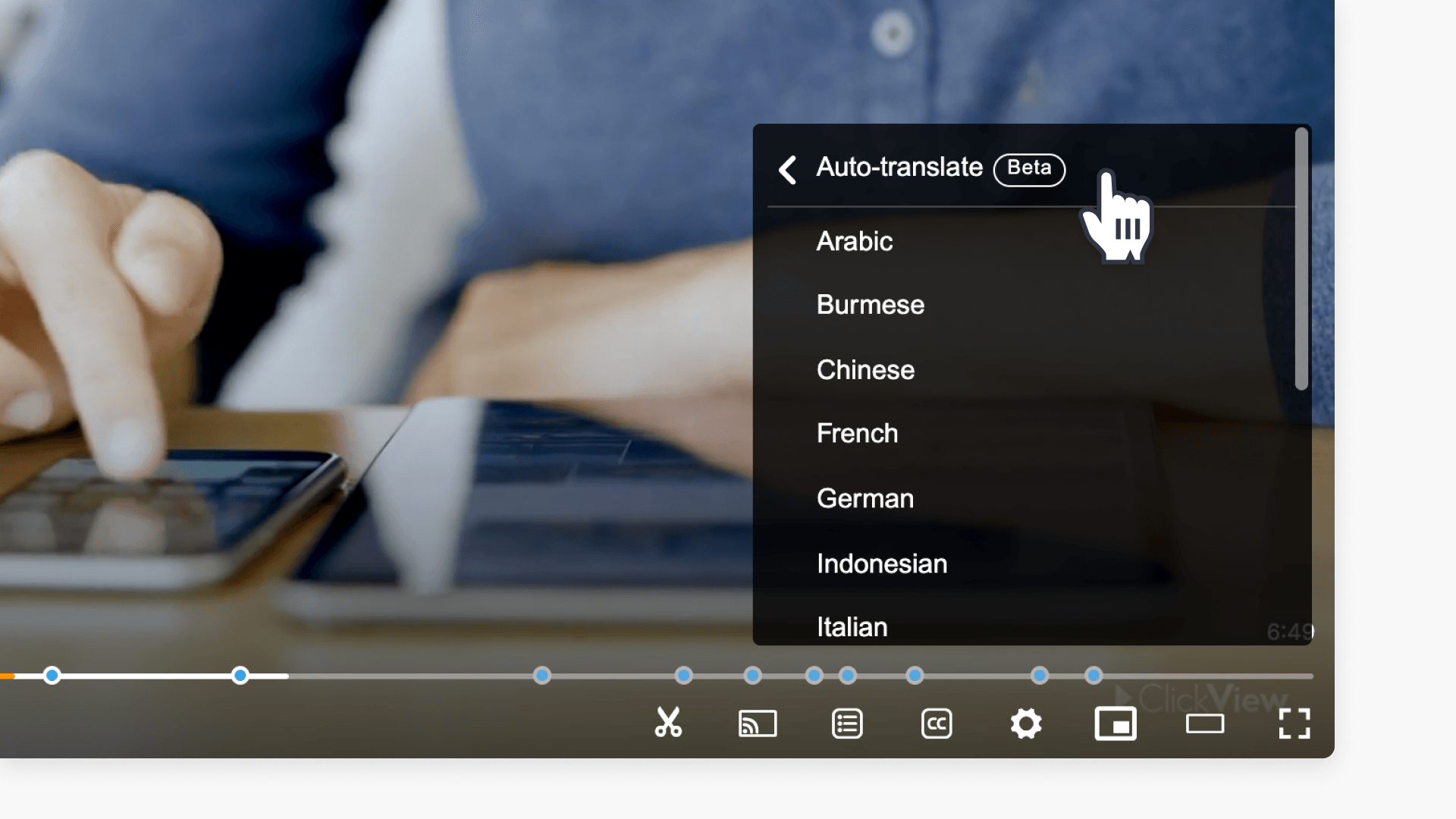
- To turn it on, select the CC icon in the video player, then Auto-translate, then a language
- Teachers set a caption language for students using Show subtitles when sharing or assigning a video
- To report a translation error, select Report translation in the CC menu
- Administrators turn the feature on or off for their school in Settings > Video playback
How to use Auto-translate
Auto-translate helps every student follow along in their language. Students choose a language in the ClickView video player and see auto-translated captions, translated from the video’s reviewed English captions. It’s a simple way to support students learning English and students who are deaf or hard of hearing.
This article covers which videos support Auto-translate, how to turn it on, how to set a caption language when you share or assign a video, how to report a translation error, and how administrators manage the feature for their school.
Understanding Auto-translate
Auto-translated captions start from a video’s reviewed English captions, so subject vocabulary comes through accurately. They also reuse the English caption timing, so they stay in sync with the video.
The first time anyone chooses a language for a video, translated captions take a few seconds to appear. After that, captions in that language load instantly for everyone.
Which videos support Auto-translate
Auto-translate works on videos with reviewed English captions. This includes:
- ClickView videos: our team reviews every English caption file
- School-uploaded and content partner videos: when their English captions aren’t marked as auto-generated
If a video has no English captions, or only auto-generated English captions, you won’t see Auto-translate in the CC menu.
Supported languages
Auto-translate is available in these languages:
- Arabic
- Burmese
- Chinese
- French
- German
- Indonesian
- Italian
- Japanese
- Nepali
- Persian
- Polish
- Russian
- Spanish
- Ukrainian
The same languages are available in all regions, and we’re adding more over time.
Where you can use Auto-translate
- ClickView’s web player, including in mobile web browsers
- Interactive videos: We translate the captions, but not the interactive questions
On a phone or tablet, open ClickView in your web browser to use Auto-translate. It isn’t part of the ClickView iOS and Android apps yet.
Turn on Auto-translate
- With the video open, select the CC icon in the player controls.
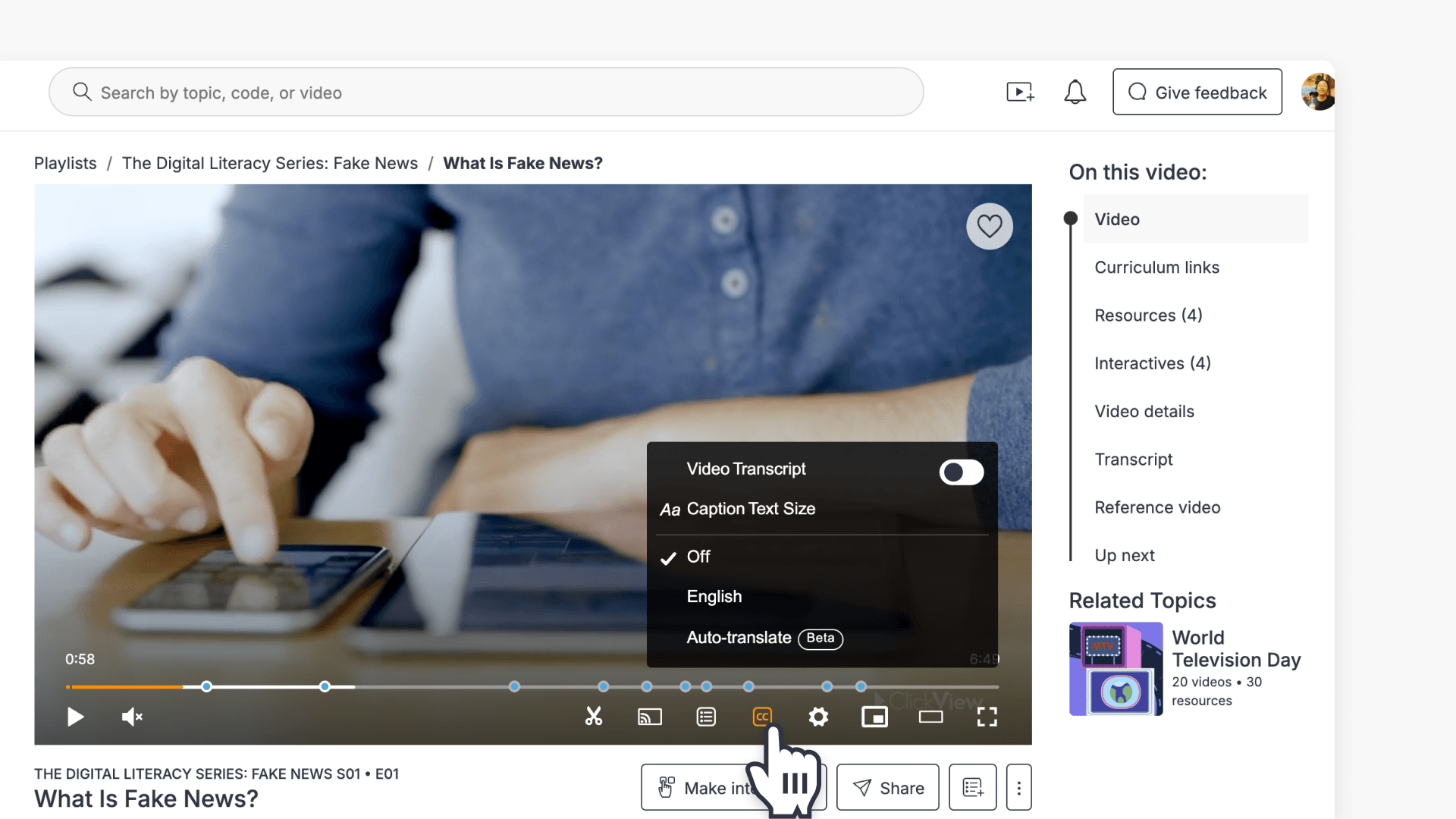
- Select Auto-translate.
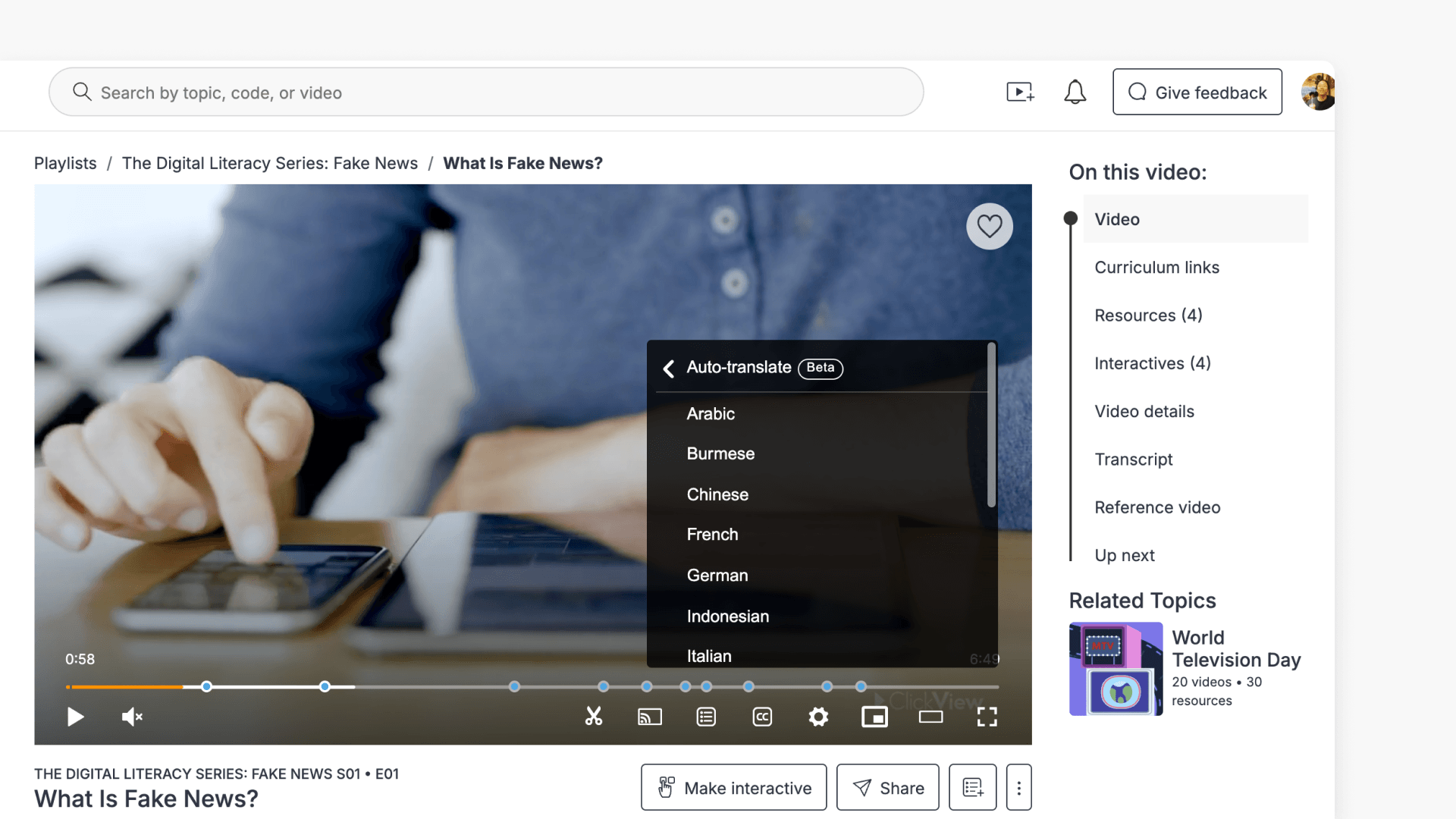
- Select a language from the list.
- Check the CC menu shows your language, then close the menu.
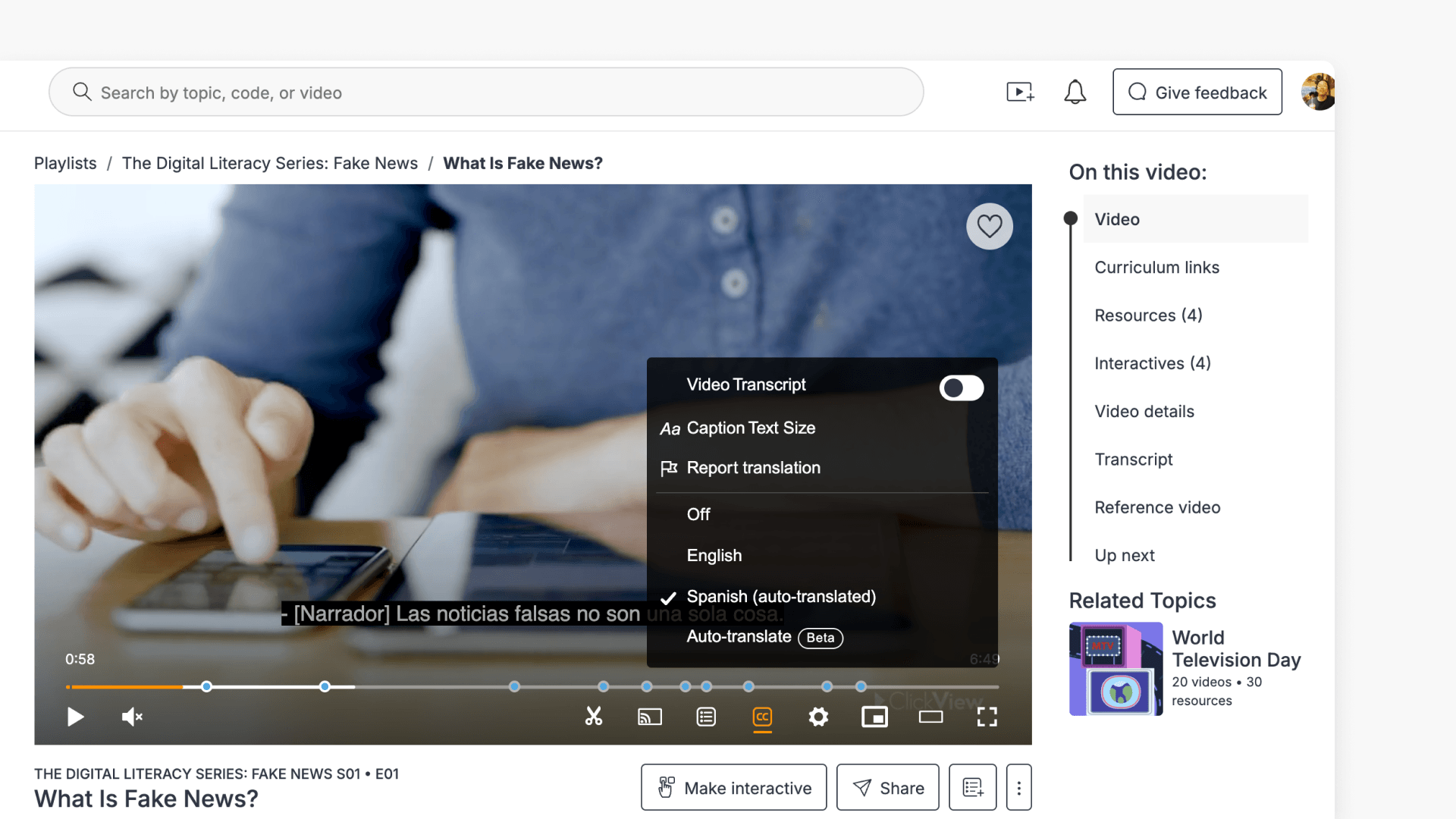
- Auto-translated captions now appear on the video. If you’re the first person to choose that language for the video, give it a few seconds while we translate the captions.
Choose a language each time you open a video. If your teacher has set a caption language when sharing or assigning the video, captions appear in that language straight away.
Switch back to English or turn captions off
- Switch back to English: Select the CC icon, then select English
- Turn captions off: Select the CC icon, then select Off
If you don’t see translated captions
Sometimes translated captions don’t load on the first try. The language still shows as selected in the CC menu, so select it again to reload the captions, or choose a different language.
Set a caption language when sharing or assigning a video
When you share or assign a video, you choose whether you’d like students to see captions immediately when watching the video in the selected language. This works for any video with at least one caption file, even if Auto-translate is turned off for your school. It works for Interactive videos too
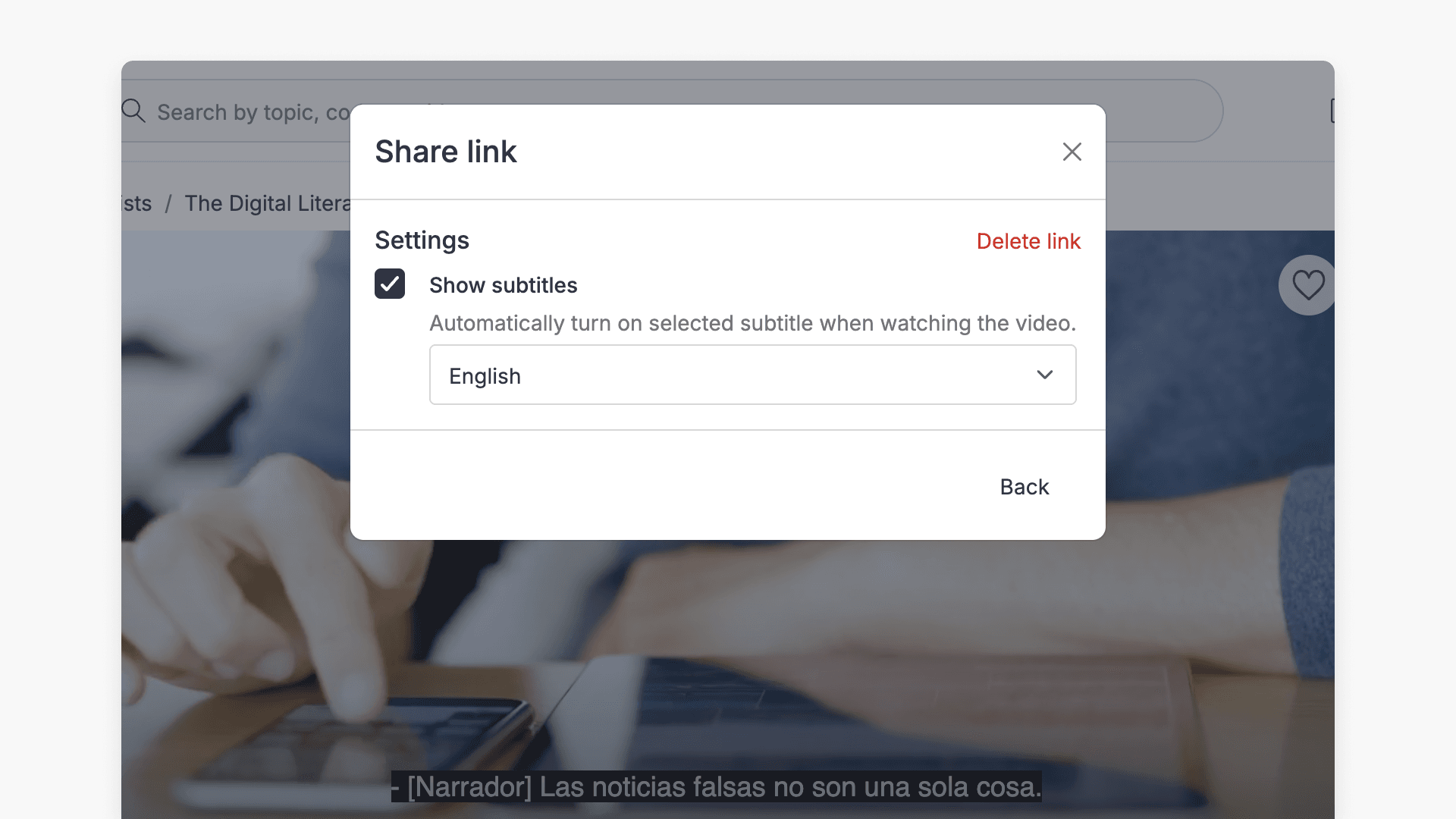
When sharing a video
- Create a share link for the video.
- In the share pop-up, select Edit settings.
- Select a language from the Show subtitles dropdown.
When assigning a video
- In Assign settings, select a language from the Show subtitles dropdown.
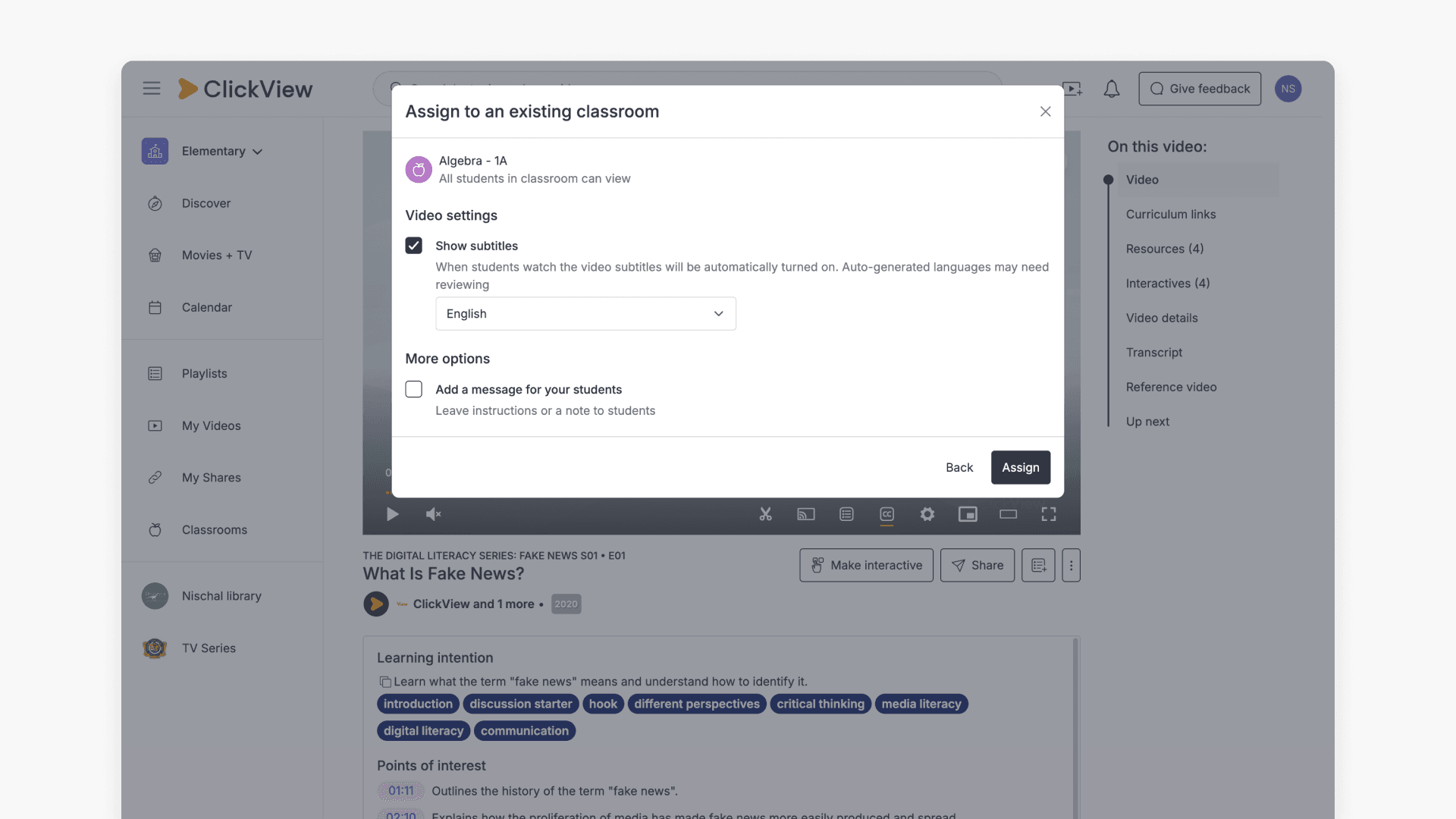
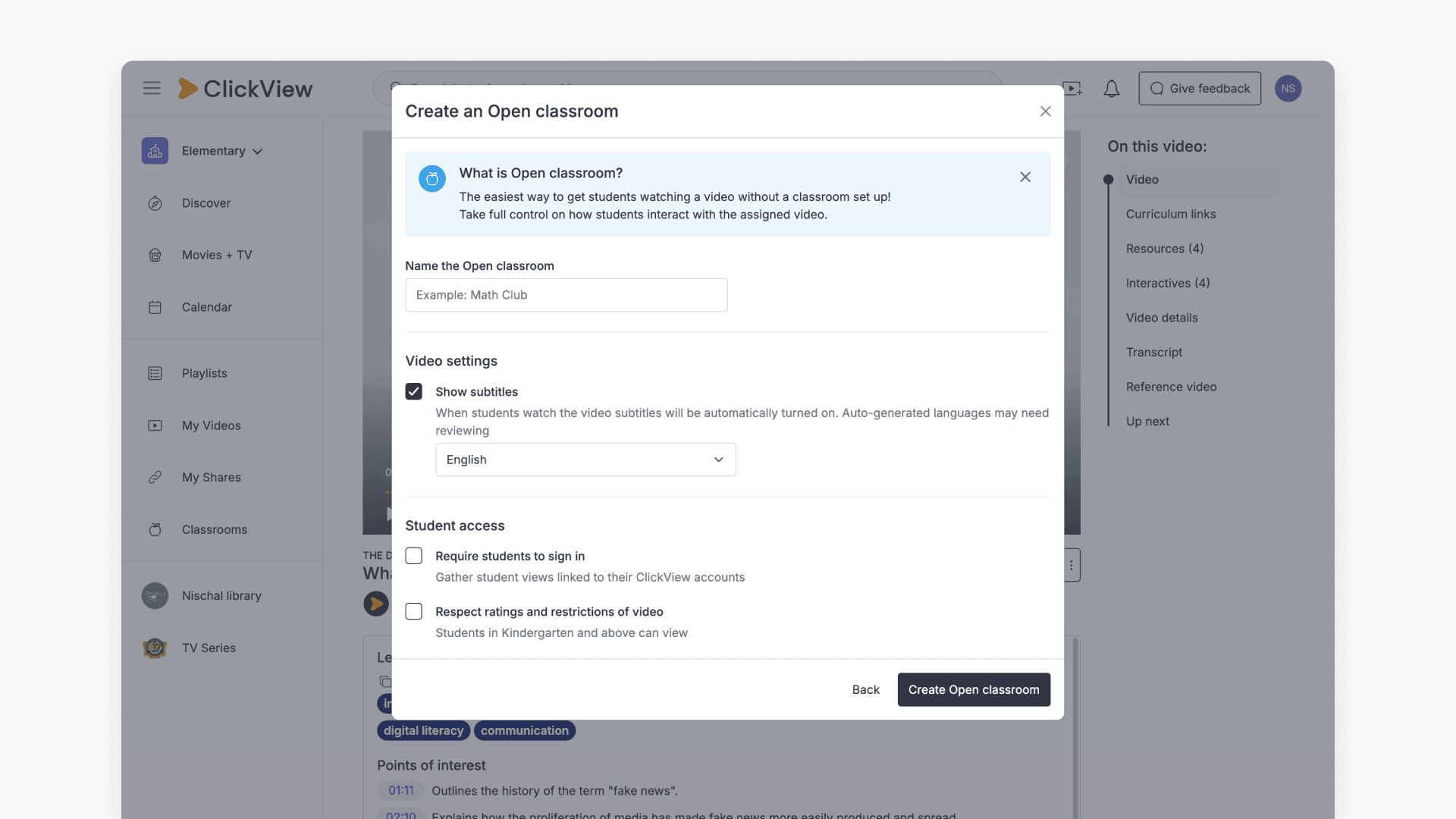
The Show subtitles dropdown lists the video’s existing captions, such as English. If Auto-translate is turned on for your school, it also lists every supported Auto-translate language.
When your students open the video, captions appear in the language you set. Students can still change the language or turn captions off.
Report a translation error
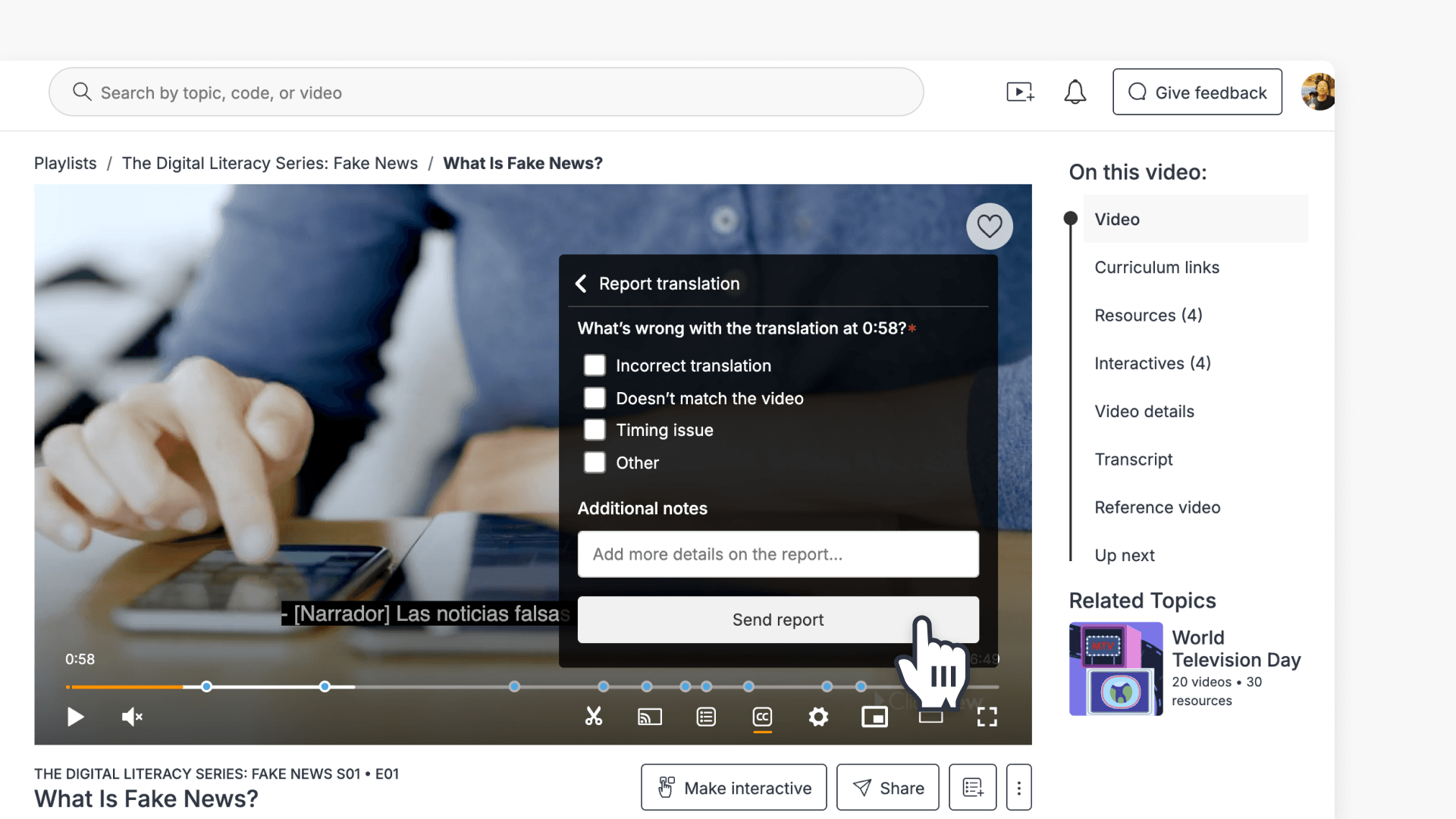
Spotted a caption that doesn’t look right? Let us know from the video player. You’ll see Report translation in the CC menu when an auto-translated language is selected.
- Select the CC icon in the player controls.
- Select Report translation.
- Under What’s wrong with the translation? select one or more options. The time shown is the point in the video where you opened the report.
- Incorrect translation
- Doesn’t match the video
- Timing issue
- Other
- Add any details in Additional notes (optional).
- Select Send report.
 You’ll see Your report has been sent with a green tick (✅). The message closes after five seconds.
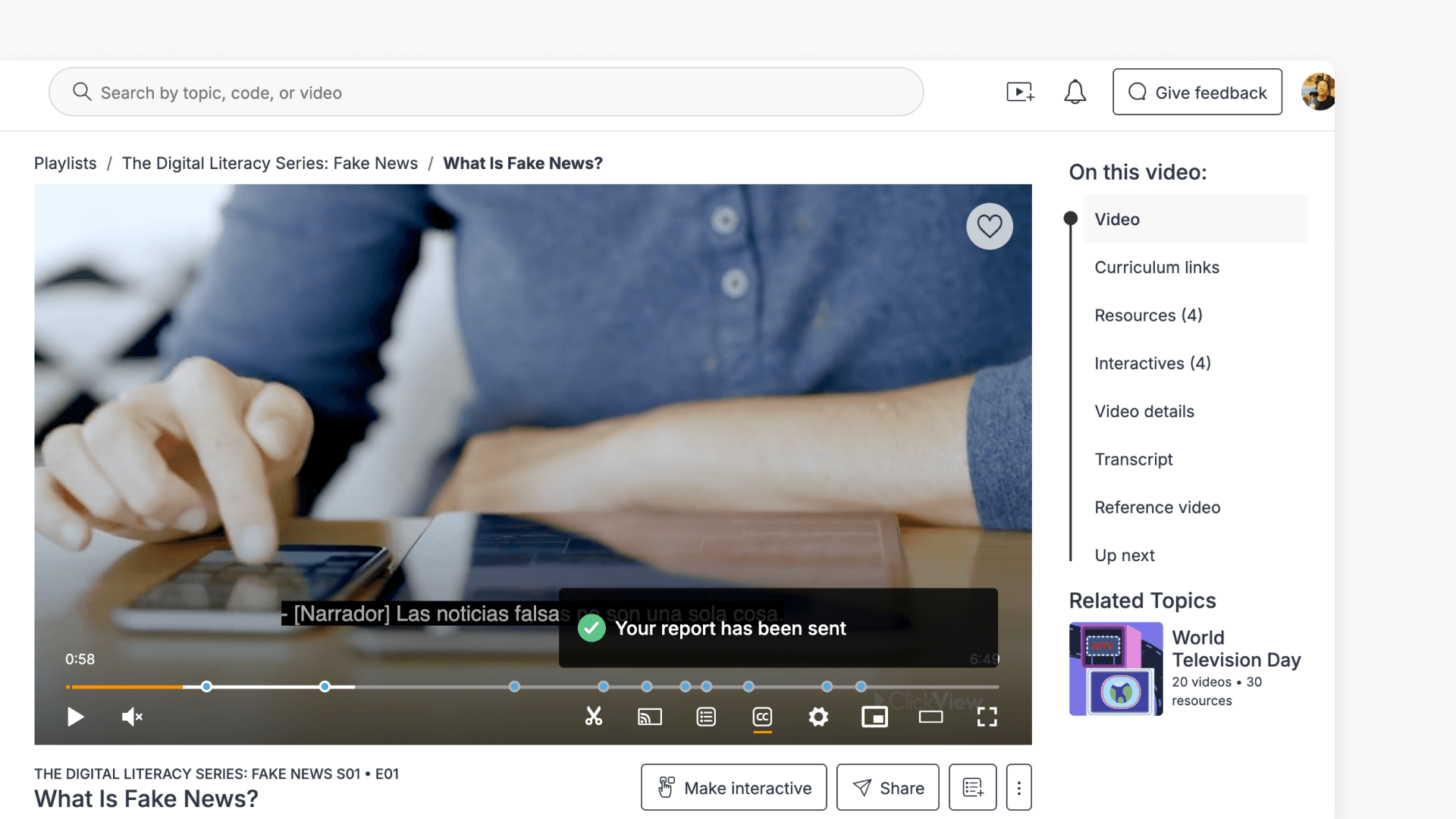 Check the CC menu shows your language, then close the menu.Our team monitors every report. We don’t reply to individual reports, but once we fix a translation, the fix applies to everyone.
Turn Auto-translate on or off for your school
Auto-translate is on by default for every school. Only administrators can change this setting.
- Go to Settings.
- Under School management, select Video playback.
- Under Subtitles, turn the Allow auto-translate captions toggle on or off.
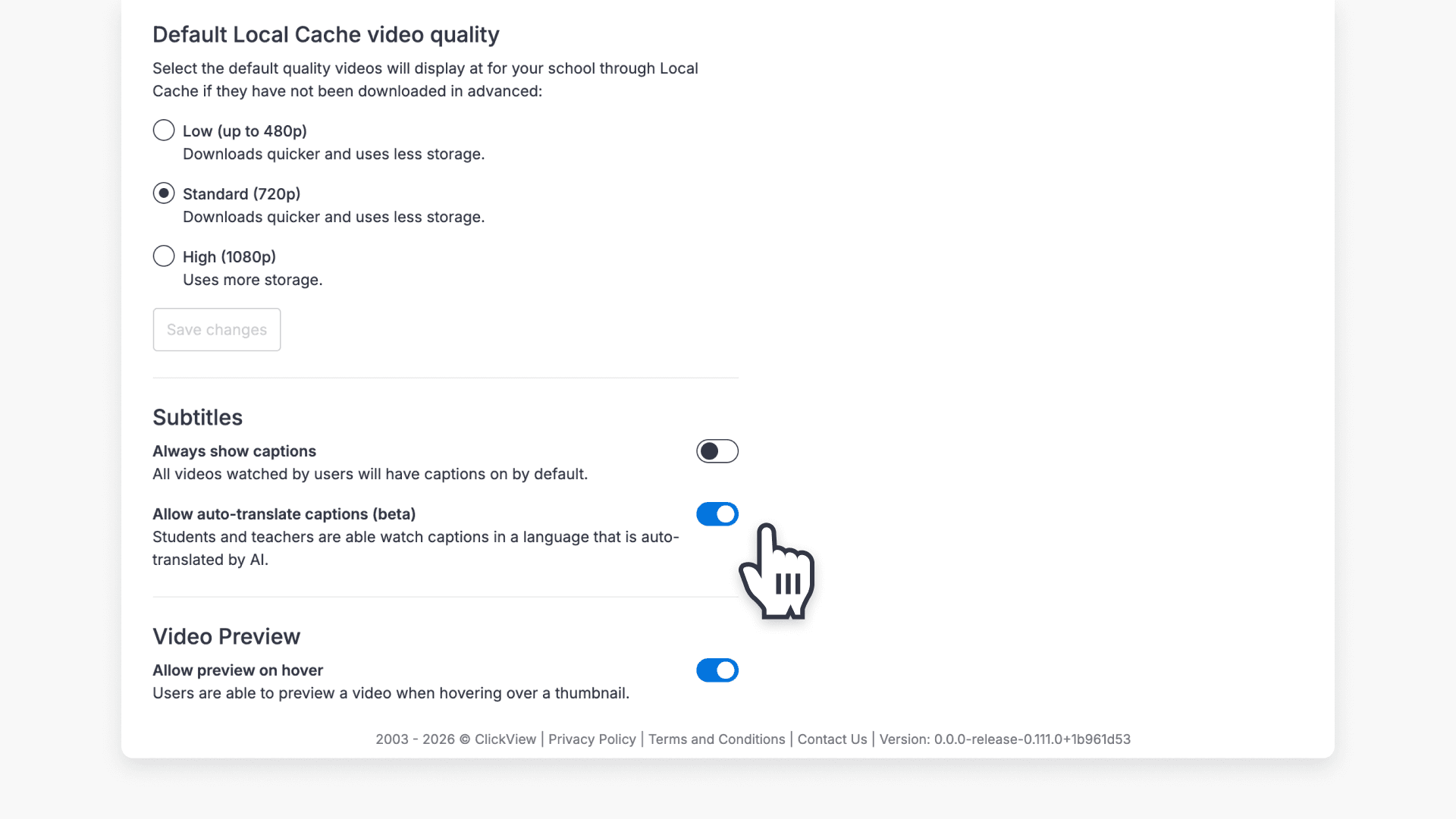 We save your change automatically.
When the setting is off, auto-translated languages no longer appear in the Show subtitles dropdown when teachers share or assign a video.
Things to know
- Translations are automatic: We don’t check them line by line, so if you spot an error, use Report translation
- Works in your web browser: Use Auto-translate in the ClickView web player on computers, tablets, and phones
Frequently asked questions
Get in touch
If you’re having trouble finding the right topics or videos, just reach out! Our team - 


 Andrew, Nisch, Janice, Pfreya, or any of us at ClickView - will be happy to help you get sorted.
Give feedback
Was this guide helpful?
Up Next
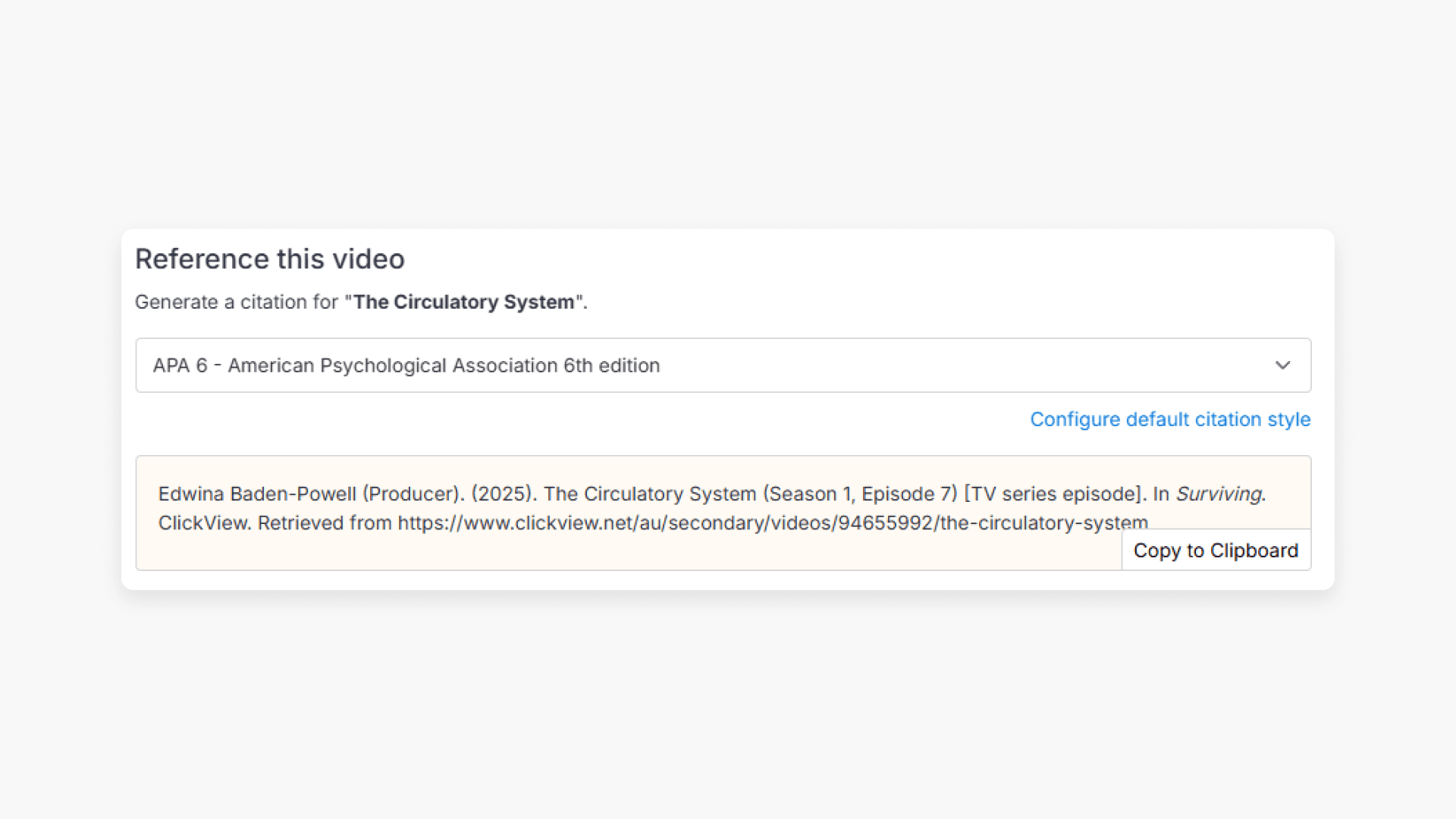
How citations work in ClickView
Summary How do I find citations for videos in ClickView? Every video in ClickView includes a citation. Open a video, scroll below the player, and find the Reference this video section. Select a citation style from the dropdown, and ClickView will generate the citation automatically, copy it to your clipboard, and use it anywhere. Every […]