How to change video resolution settings

Summary
- Change video resolution using the ‘Settings’ button in the video player.
- Lower resolutions can be used for institutions with limited bandwidth.
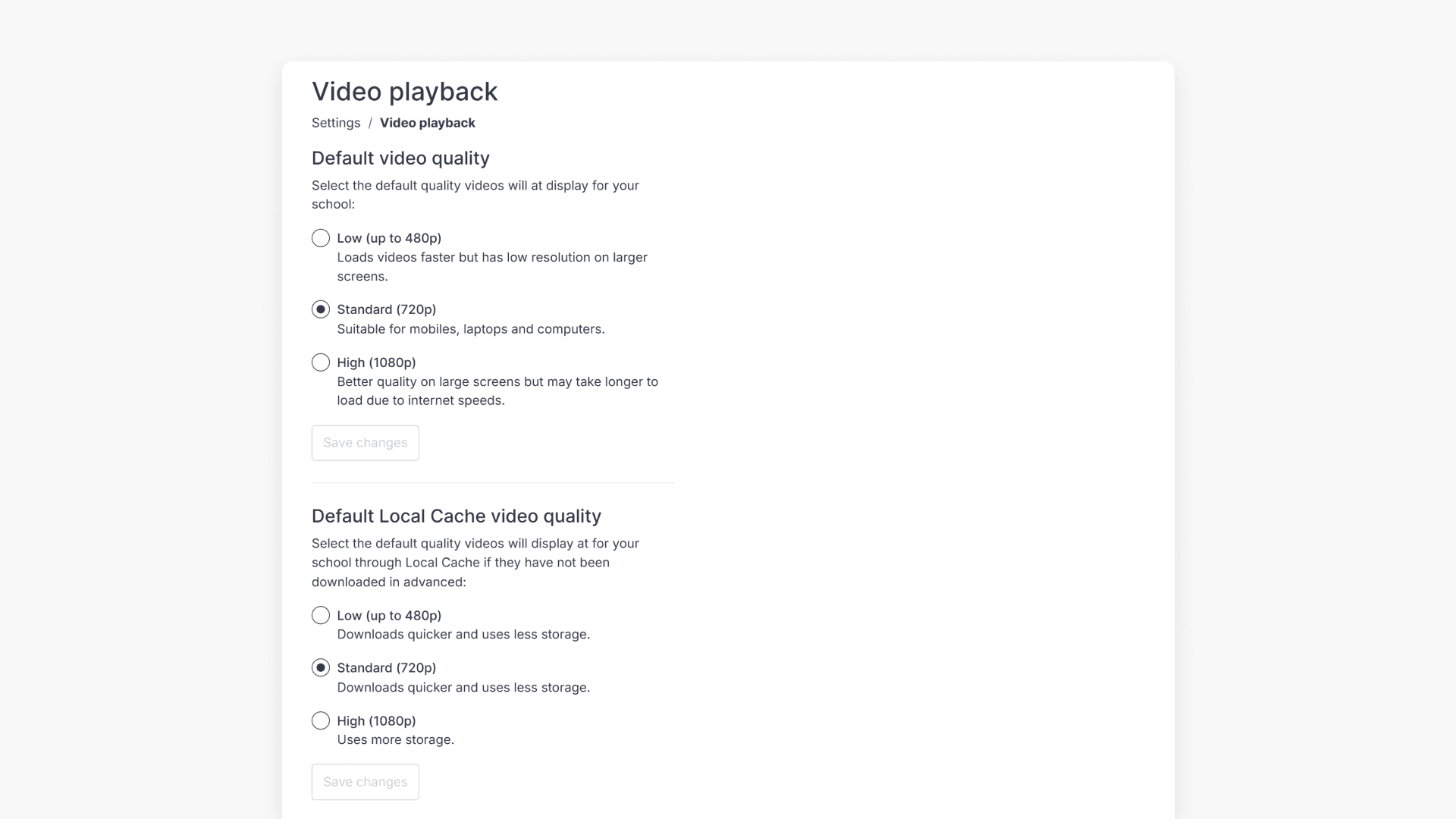
- Administrators set the default resolution in ‘Settings’ > ‘School management’ > ‘Video playback’.
- Default options are ‘Low’ (up to 480p), ‘Standard’ (720p), or ‘High’ (1080p).
- Local Cache helps achieve seamless playback at the highest resolution.
Adjusting video resolution in ClickView
ClickView allows users and administrators to customise video playback resolution for optimal streaming and bandwidth management. Use the following options to change or set the video resolution for your account or institution.
Changing video resolution in the player
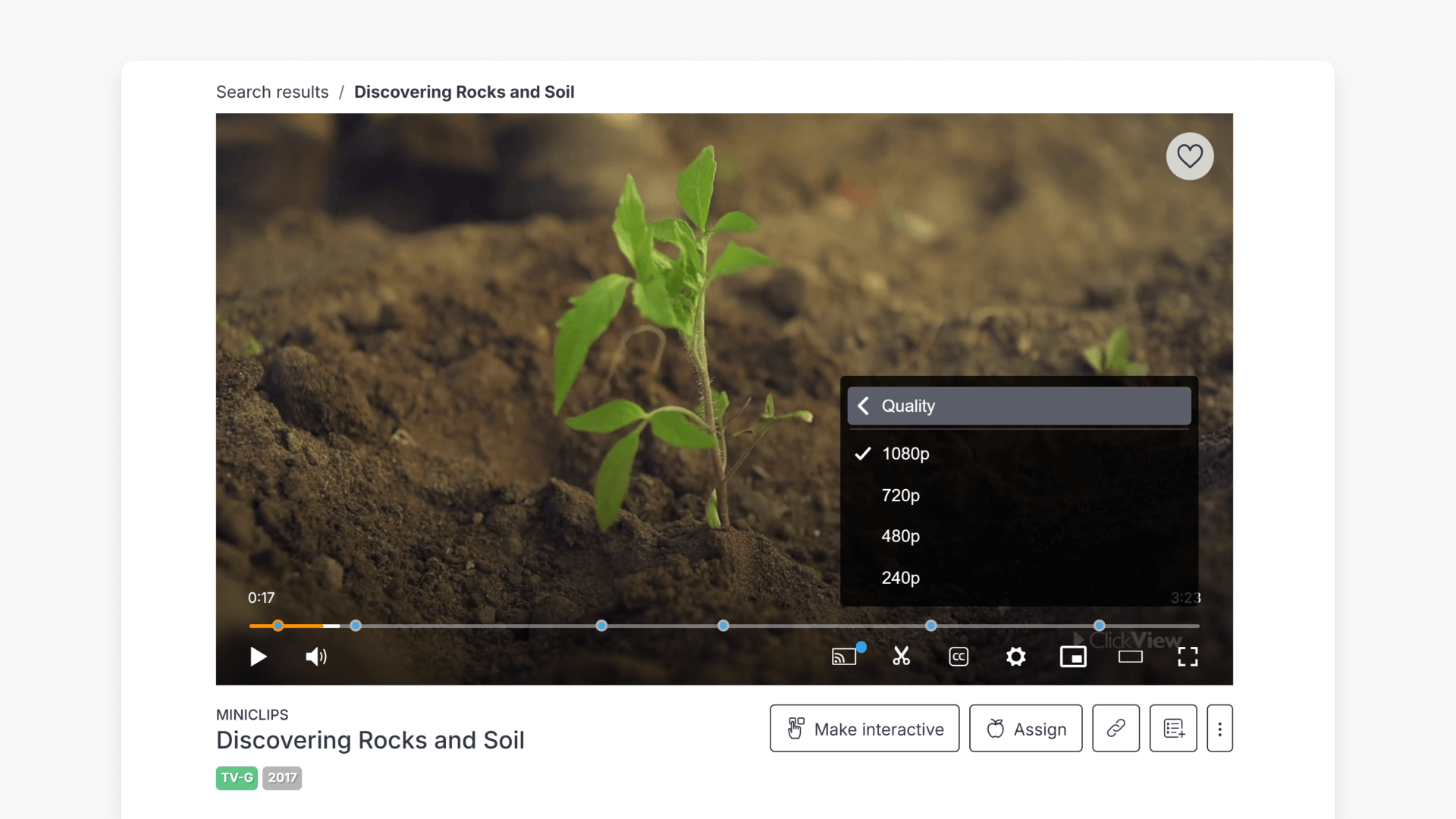
- While watching a video, click the Settings button in the video player, followed by Quality.

- Select your preferred resolution based on your internet connection. Lower resolutions may be preferable for limited bandwidth.

- Resolution options include Low (up to 480p), Standard (720p), and High (1080p).

Set the default video resolution
- Sign in to ClickView with an administrator account.
- Choose Settings from the profile drop-down menu.

- Go to School management and select Video playback.

- Set your institution’s default video resolution to either Low (up to 480p), Standard (720p), or High (1080p).
Using Local Cache for improved playback
If your institution wants seamless playback at the highest video resolution, Local Cache can help.
Frequently asked questions
Get in touch
If you’re having trouble finding the right topics or videos, just reach out! Our team - 

 Akhil, Daniel, Jalaj, or any of us at ClickView - will be happy to help you get sorted.
Give feedback
Was this guide helpful?
Up Next
How citations work in ClickView
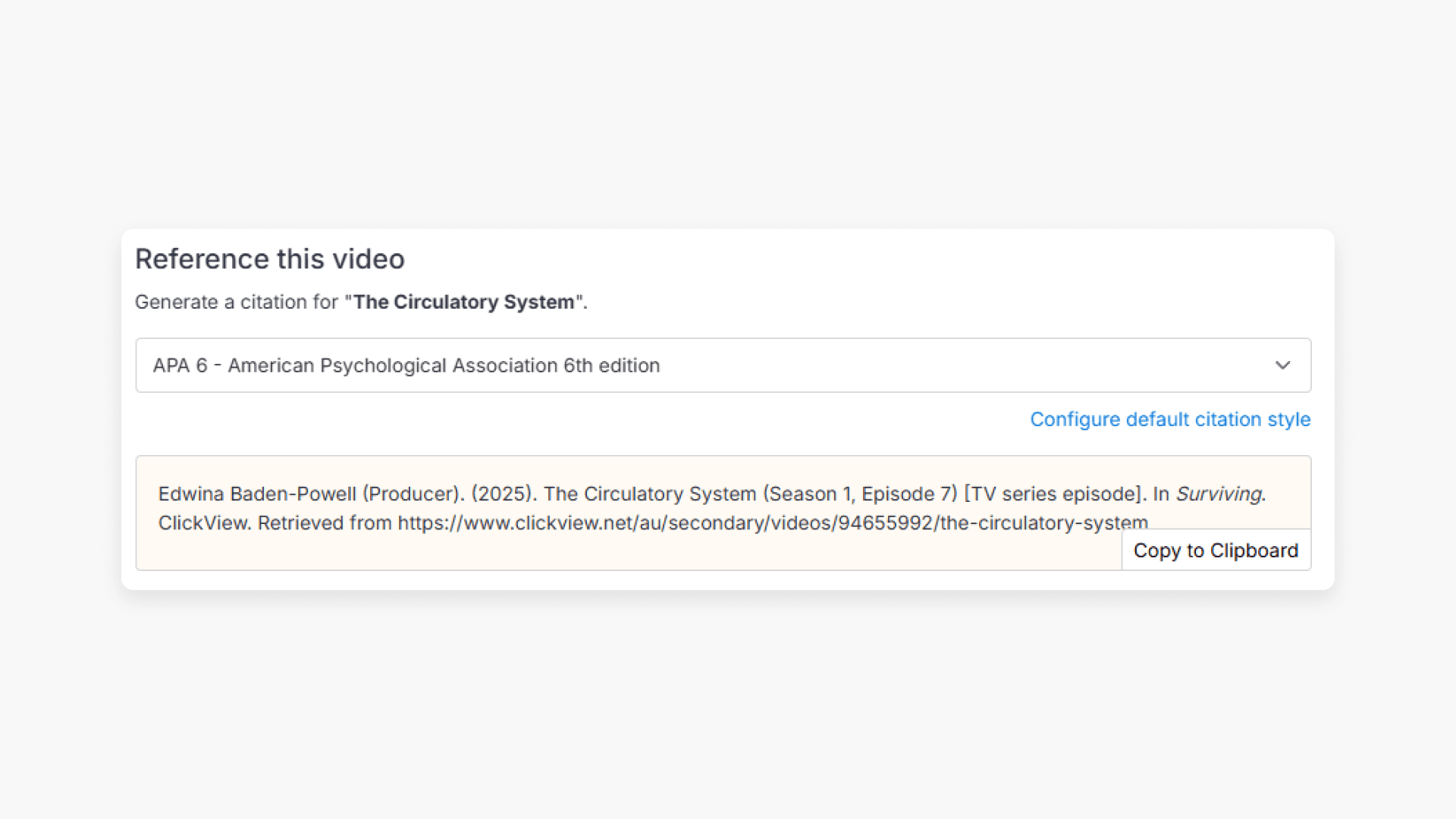
Summary How do I find citations for videos in ClickView? Every video in ClickView includes a citation. Open a video, scroll below the player, and find the Reference this video section. Select a citation style from the dropdown, and ClickView will generate the citation automatically, copy it to your clipboard, and use it anywhere. Every […]