How to use subtitles and closed captions

Summary
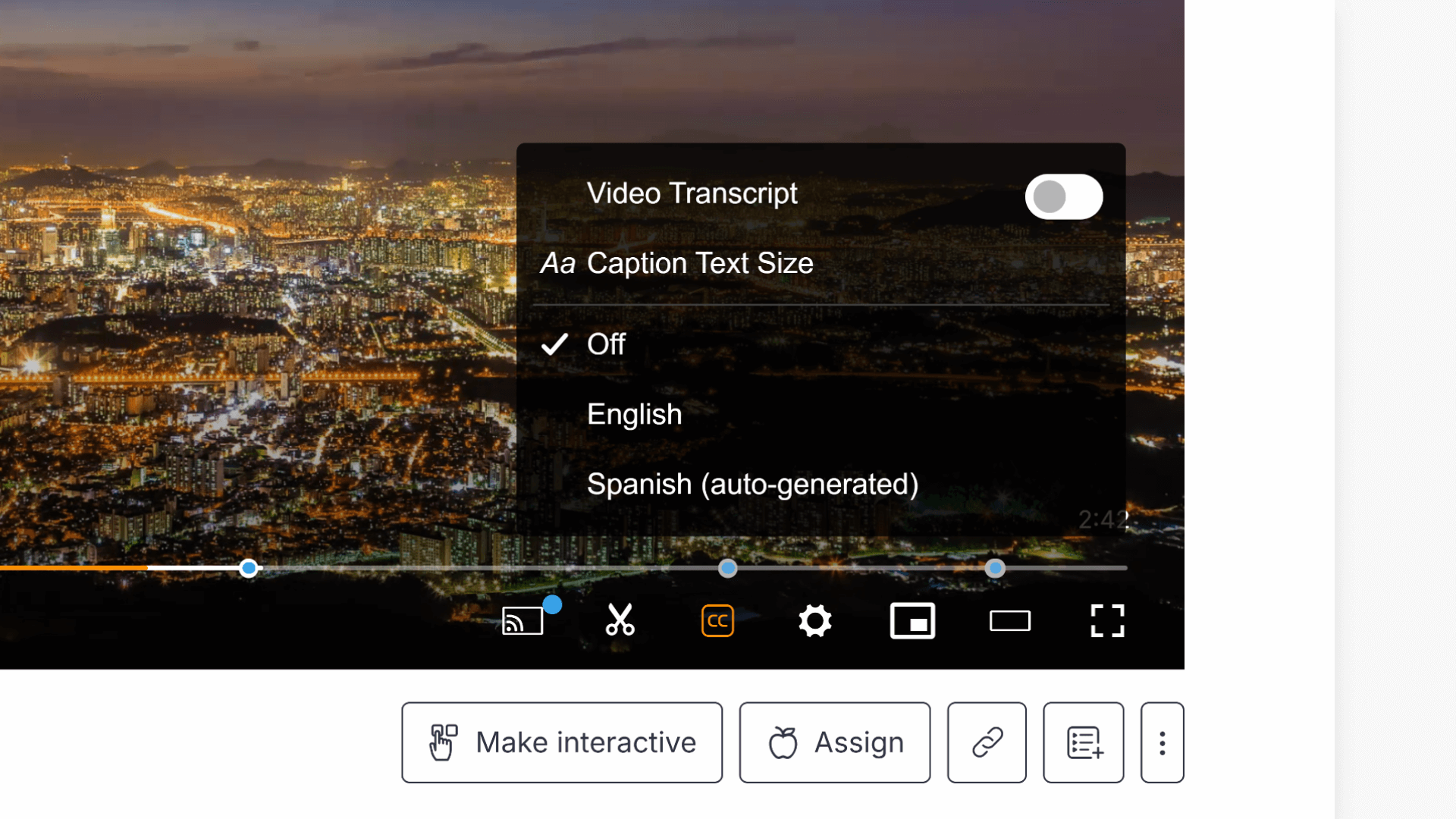
- Select CC on the video player to turn subtitles on.
- Choose an available subtitle language.
- Use Caption Text Size to change subtitle text to small, medium, or large.
- Use Video Transcript to search caption text and jump to matching moments.
- ClickView Administrators can set the default subtitle setting in Settings under Video playback.
Enable subtitles and search captions
Subtitles and closed captions help make ClickView videos more accessible. You can also use caption text to quickly find the part of a video you need.
Enable subtitles
- Select CC on the video player.

- Select your preferred language from the available options.

Adjust caption text size
‘Caption Text Size’ lets you select small, medium, or large subtitle text sizes. Choose the size that best suits your classroom:
- Small text subtitles

- Medium text subtitles

- Large text subtitles

Search captions
ClickView’s subtitle search lets you locate relevant content quickly:
- Click CC in the video player and toggle on the Video Transcript option.

- Enter a word or phrase in the search box to find matches in the subtitles.

- Select a result to jump to that part of the video.
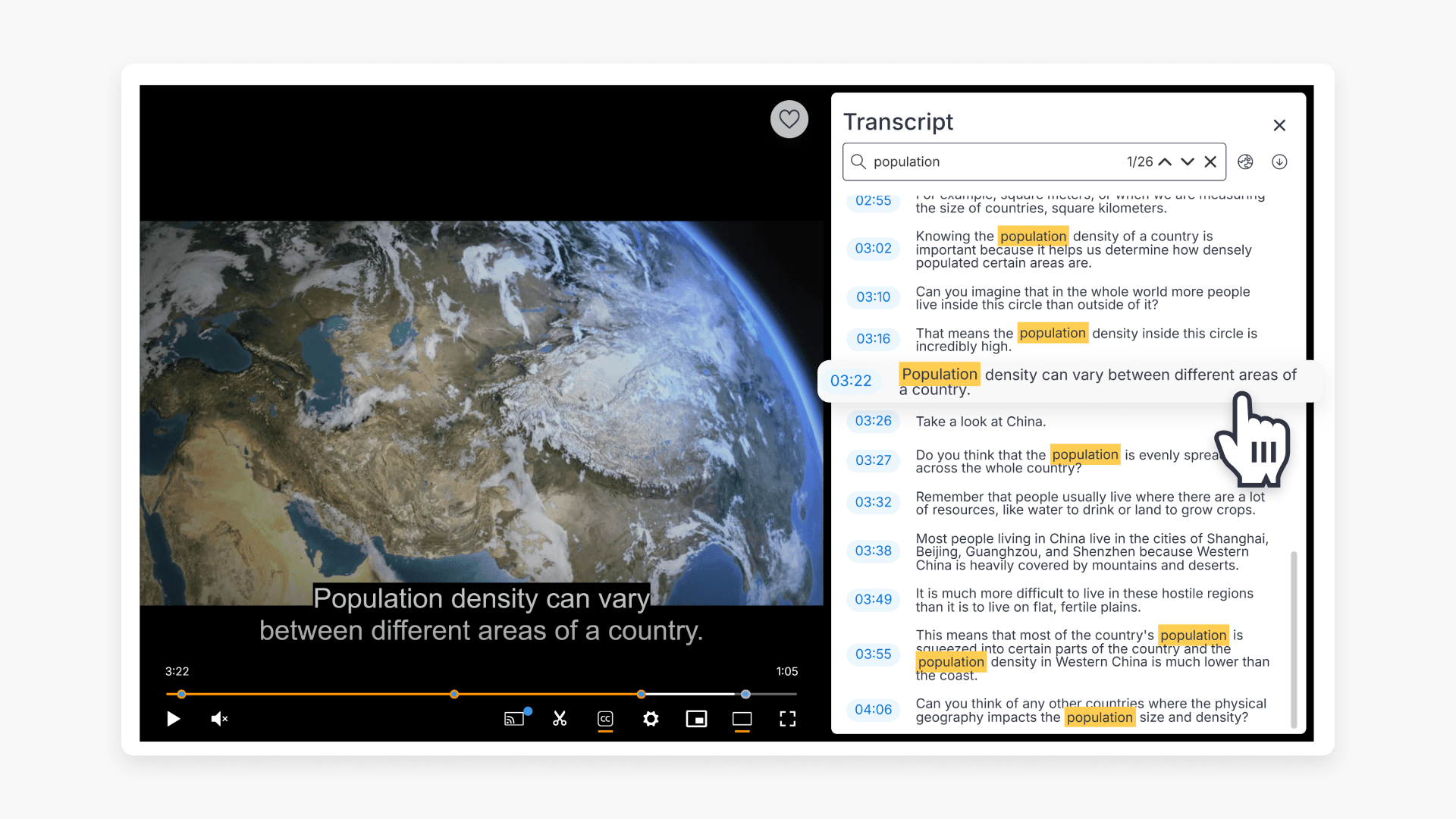
For more information about ClickView video transcripts, see this article: How to use transcripts for lessons
Set default subtitle options
ClickView Administrators can set default subtitle preferences for all users:
- Select your initials or avatar in the top right, then select Settings.

- On the Settings screen, click ‘Video playback’ under School management.

- At the bottom, use the toggle to set the default subtitle value on or off.

Upload your own subtitle files
If you need subtitles that aren’t available on a video, you can upload your own subtitle file for videos you’ve added to ClickView. This is supported for videos in My Videos and for videos uploaded to your school or district library via Library Editor. Follow the steps in these articles:
- How to add resources, subtitles and links to your videos
- Add resources, subtitles, and links to a video with Library Editor
Frequently asked questions
Get in touch
If you’re having trouble finding the right topics or videos, just reach out! Our team - 

 Akhil, Daniel, Jalaj, or any of us at ClickView - will be happy to help you get sorted.
Give feedback
Was this guide helpful?
Up Next
Using the Immersive Reader for video text
Learn how to access and use the Immersive Reader in ClickView to read video descriptions and interactive questions aloud, adjust text settings, and support all learners.