Add resources, subtitles, and links to a video with Library Editor
In this article
Last updated by
2 min readClickViewFebruary 9, 2026
Summary
- Open Library Editor from your account menu.
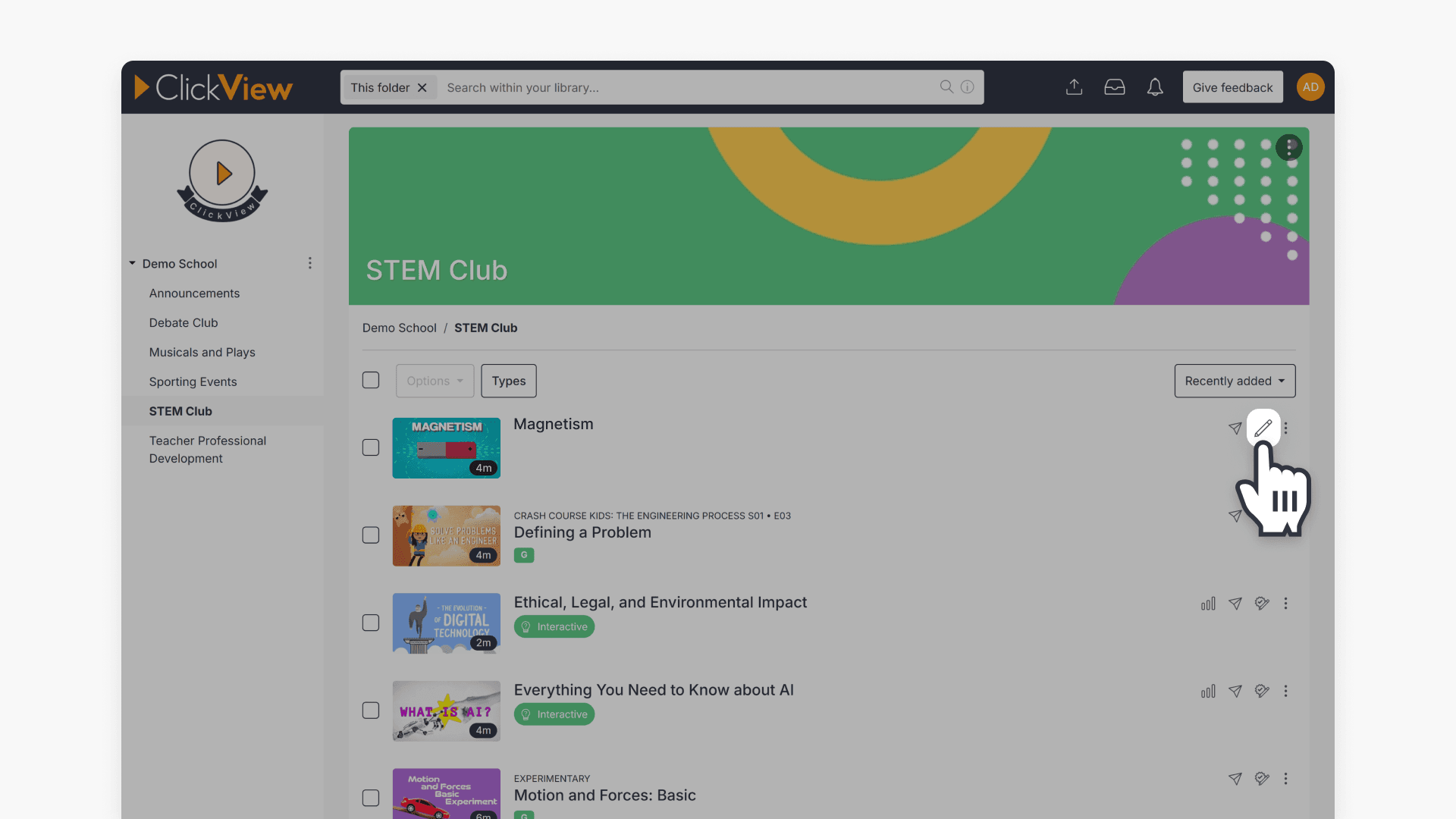
- Select the pencil icon next to the video you want to update.
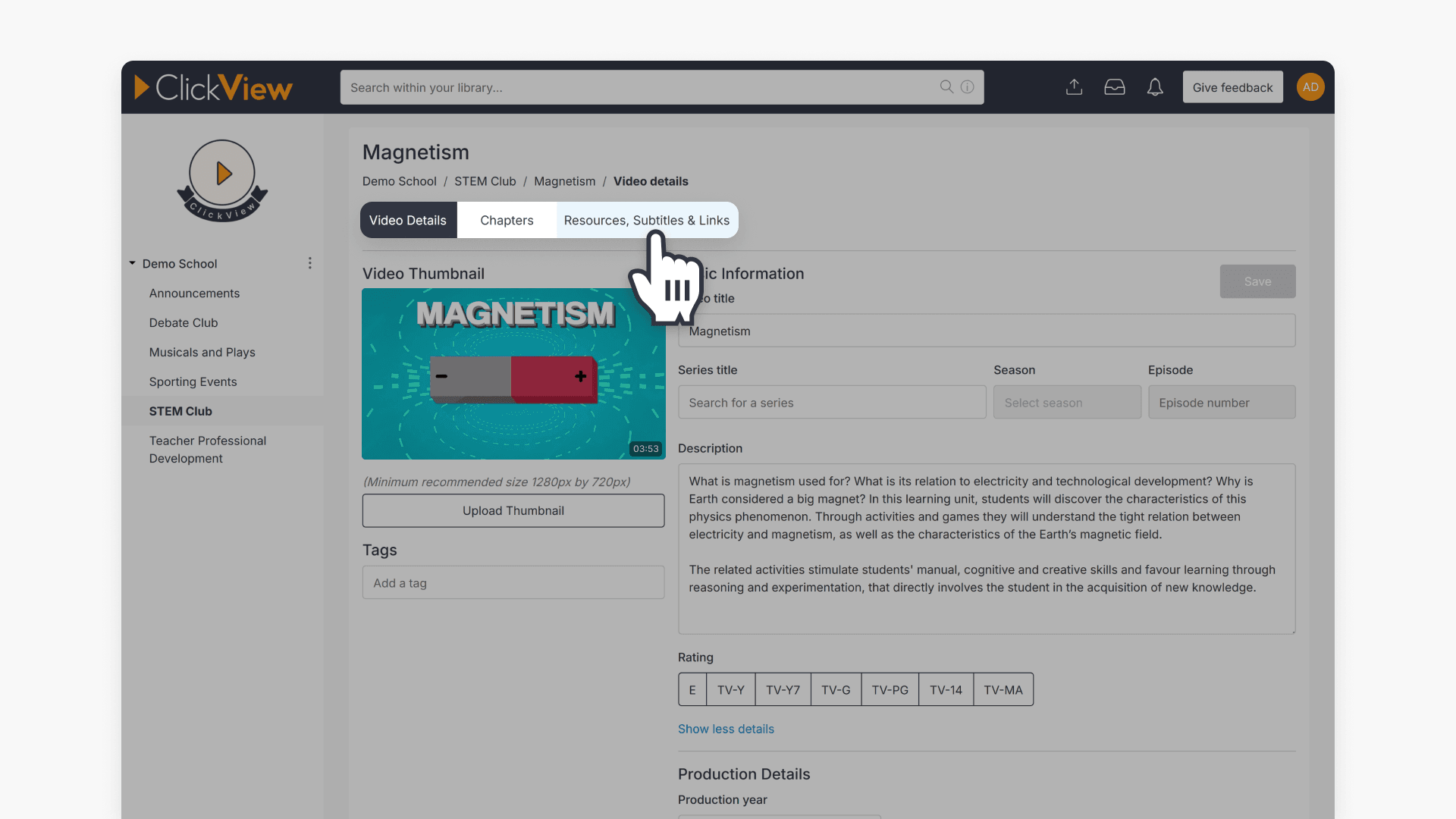
- Open “Resources, Subtitles & Links” to manage files.
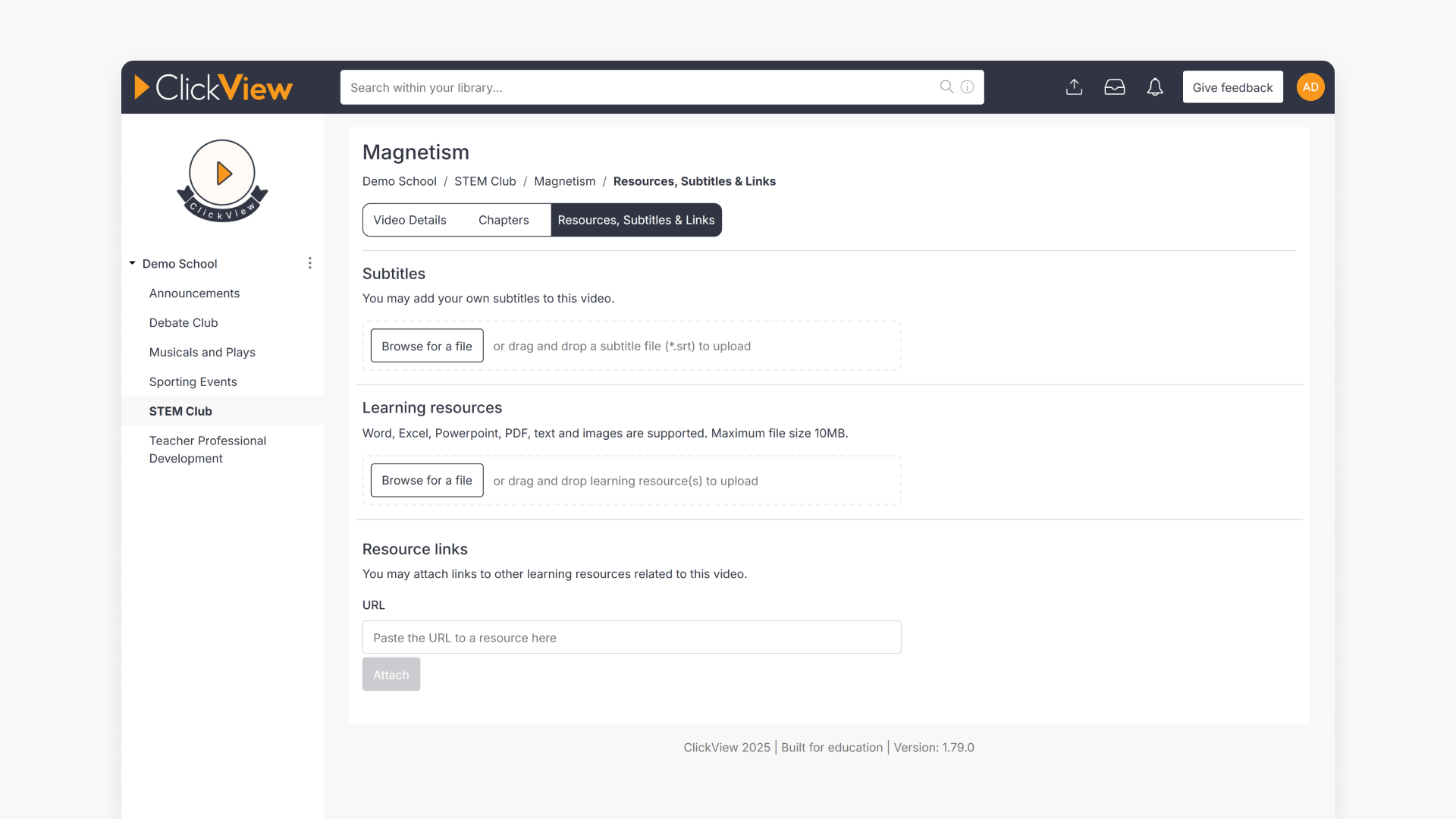
- Select “Browse for a file” to upload a resource or subtitles.
- Add a supporting link to attach it to the video.
What you can add to a video
The “Resources, Subtitles & Links” feature in Library Editor lets you attach supporting materials directly to a video, including:
- Resources: Files viewers can access alongside the video (for example, lesson materials or printable handouts).
- Subtitles: Uploaded subtitle files to support accessibility and comprehension.
- Links: URLs to supporting content that viewers can open while using the video.
Once added, these items are available with the video.
When to use resources vs subtitles vs links
- Use resources when you want to provide downloadable materials that support instruction.
- Use subtitles when you need to add or update subtitle files for the video.
- Use links when the supporting material is hosted elsewhere and you want viewers to access it from the video.
How to add resources, subtitles, and links
- Sign in to ClickView
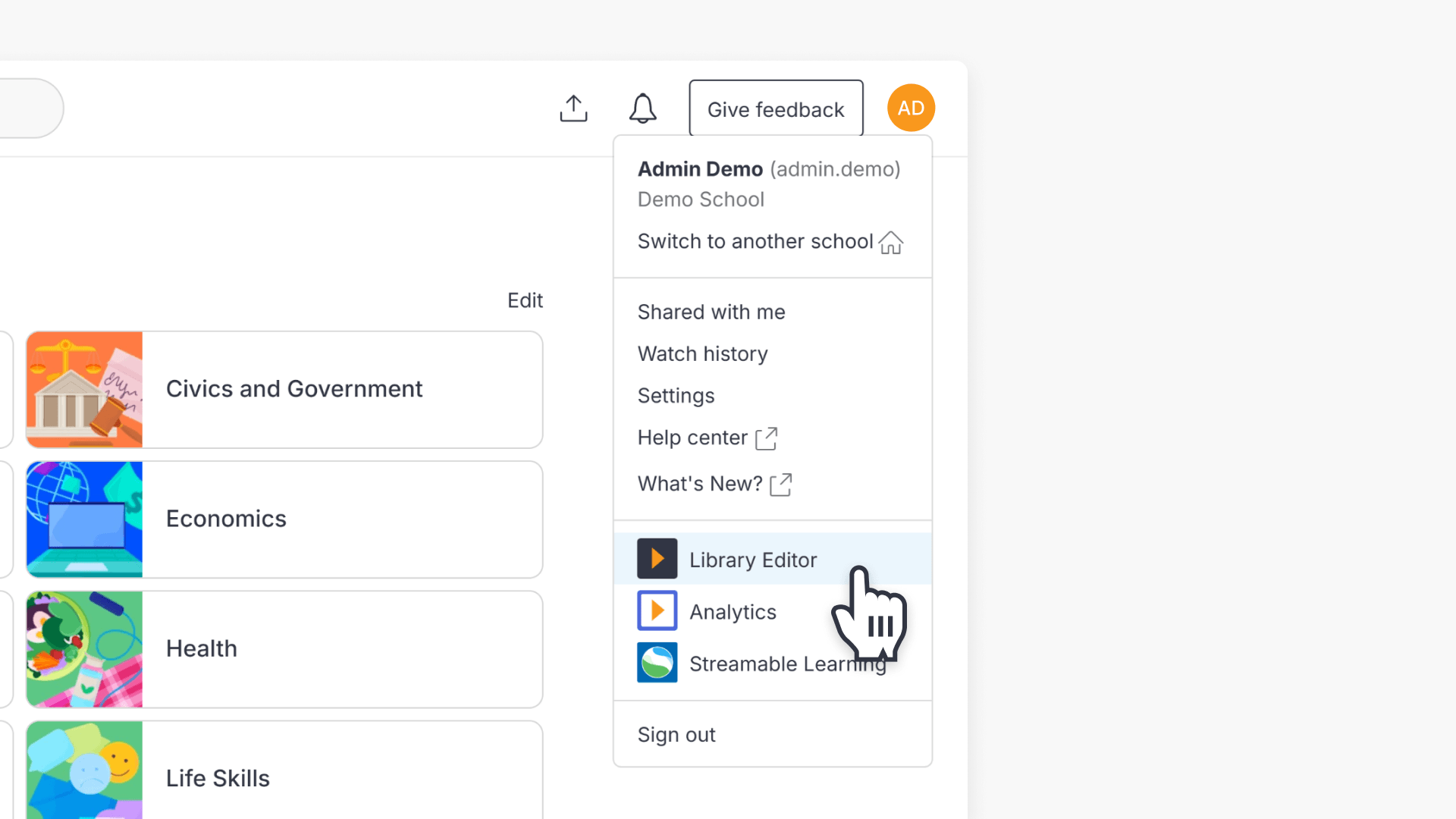
- Click your name at the top right of the screen and select Library Editor.
- Locate the video you want to add resources, subtitles or links to and select the pencil icon to edit.
- Click the Resources, Subtitles & Links tab.
- Do one of the following:
- To upload subtitles or a resources file: select Browse for a file and choose the file you want to upload.
- To add a link: enter the link URL and attach it to the video.
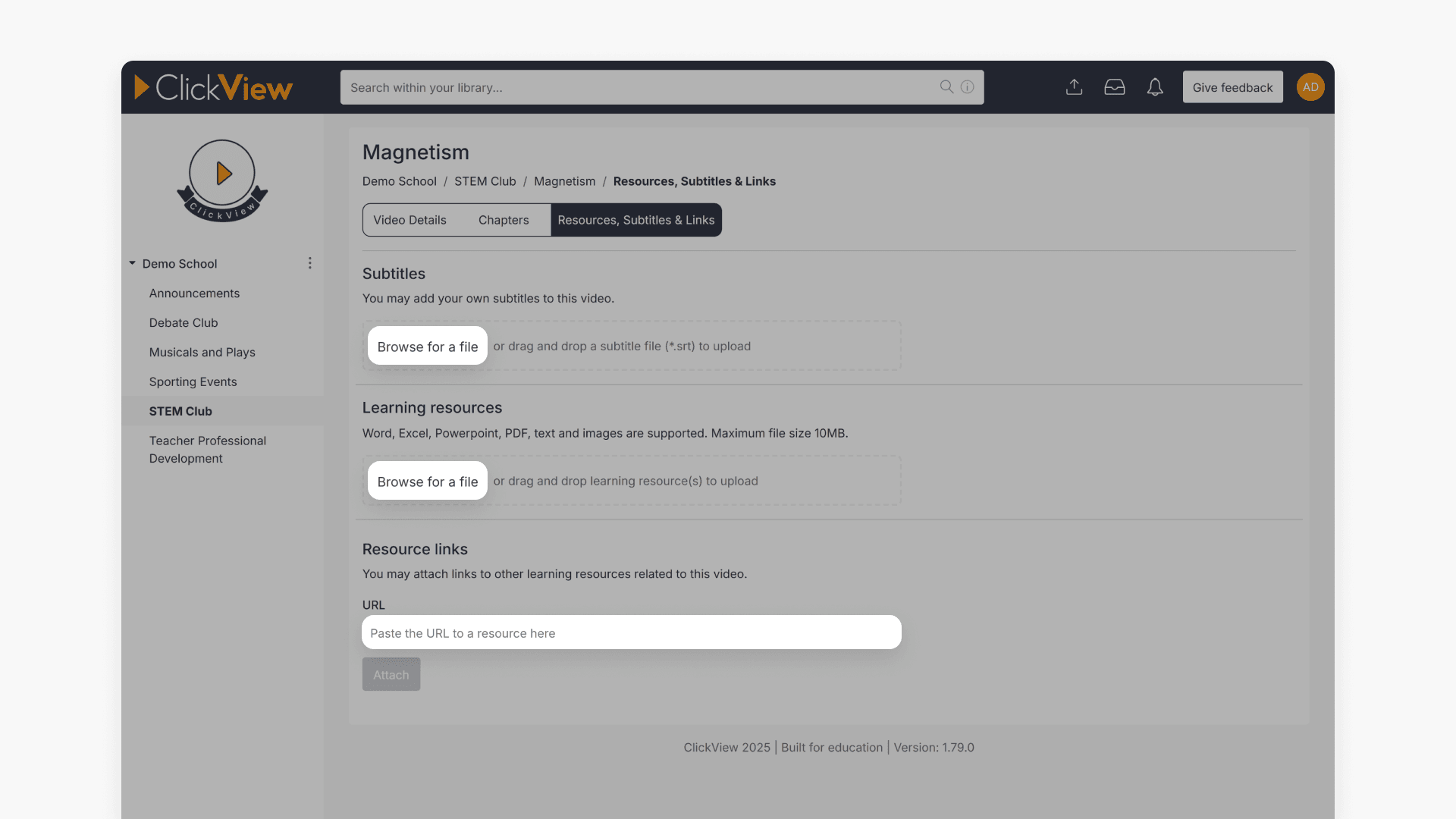
- Once your upload or link is attached, your resources will be available with the video.
Frequently asked questions
Once attached, they are available directly on the video page in ClickView.
Yes. Use “Resources, Subtitles & Links,” then select “Browse for a file” to upload the subtitle file.
Staff can upload Word, Excel, PowerPoint, PDF, text, and image files as resources. The maximum file size is 10 MB per file.
Get in touch
If you’re having trouble finding the right topics or videos, just reach out! Our team - 

 Akhil, Daniel, Jalaj, or any of us at ClickView - will be happy to help you get sorted.
Give feedback
Was this guide helpful?
Up Next
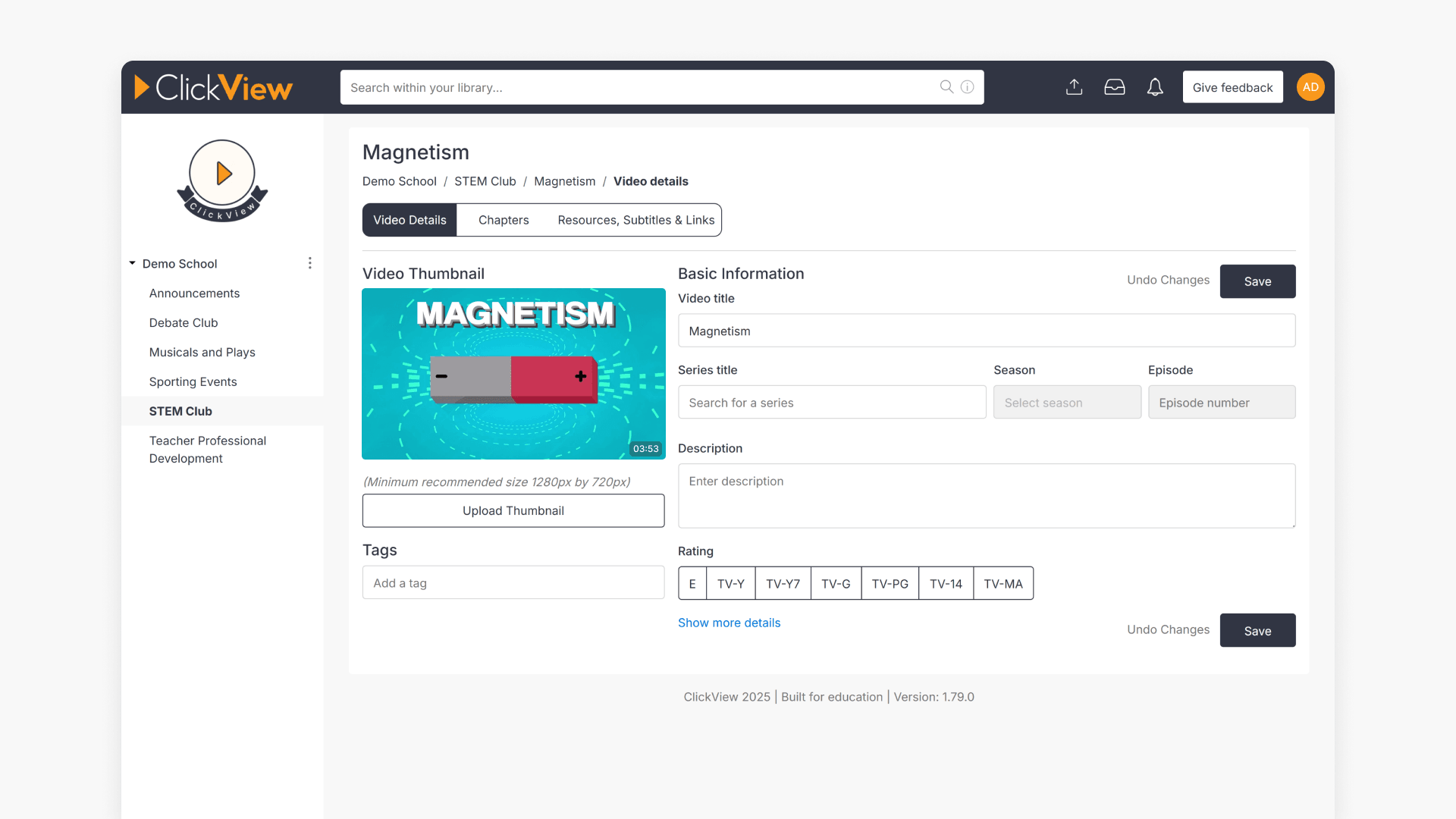
How to edit video metadata
This guide explains how to edit video metadata in ClickView’s Library Editor, covering program titles, advanced fields, and saving changes.