How to use Transcripts for lessons

Summary
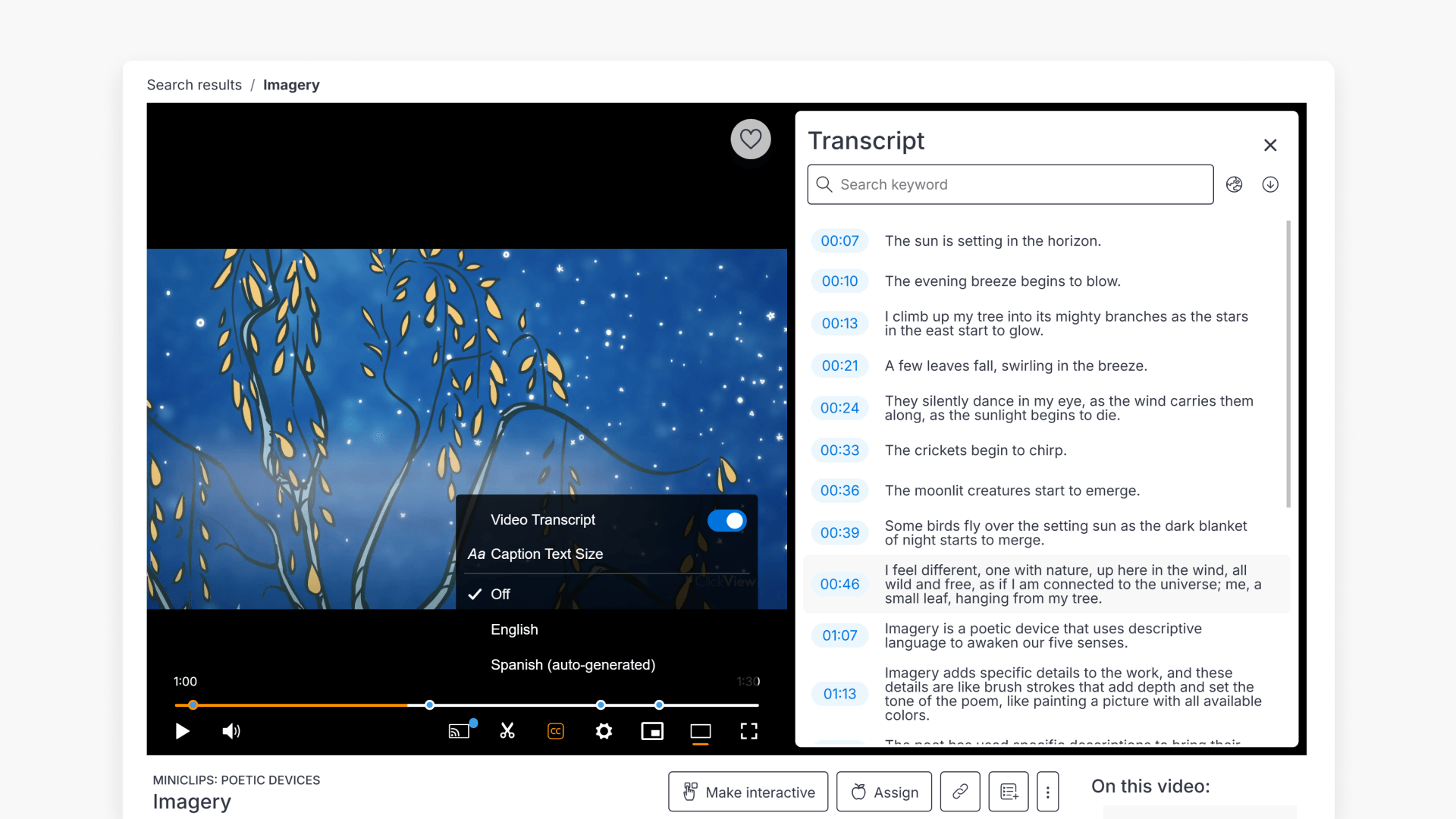
- Transcripts show video dialogue in real time alongside the video.
- To open ClickView Transcripts, click the captions icon in the video player.
- View Transcripts in a side-by-side panel or beneath the video.
- Search for keywords within the transcript for precise navigation.
- Click any transcript line to jump directly to that moment in the video.
- Download the transcript for lesson planning or sharing.
What are Transcripts?
Transcripts in ClickView provide a full-text version of the video’s dialogue, displayed in real time next to the video. Every sentence highlights as spoken, making it easy to follow along or review content quickly. This feature is available for all videos that include captions.
Accessing and using Transcripts
Side-by-side panel view
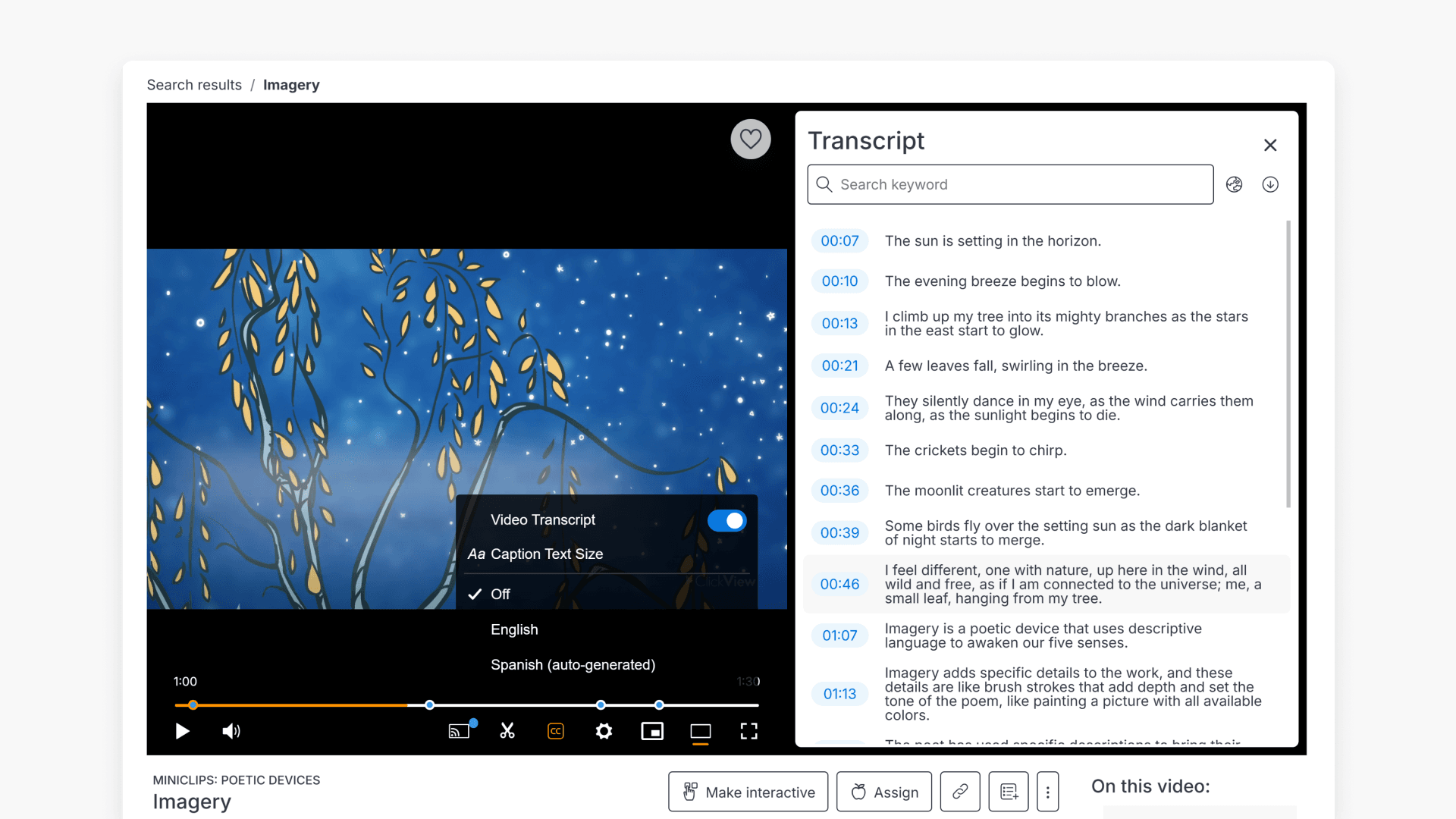
- Open a video with captions in ClickView.
- Click the Captions icon in the video player and toggle on ‘Video Transcript’. This will open the transcripts panel next to the video.
Beneath the video view
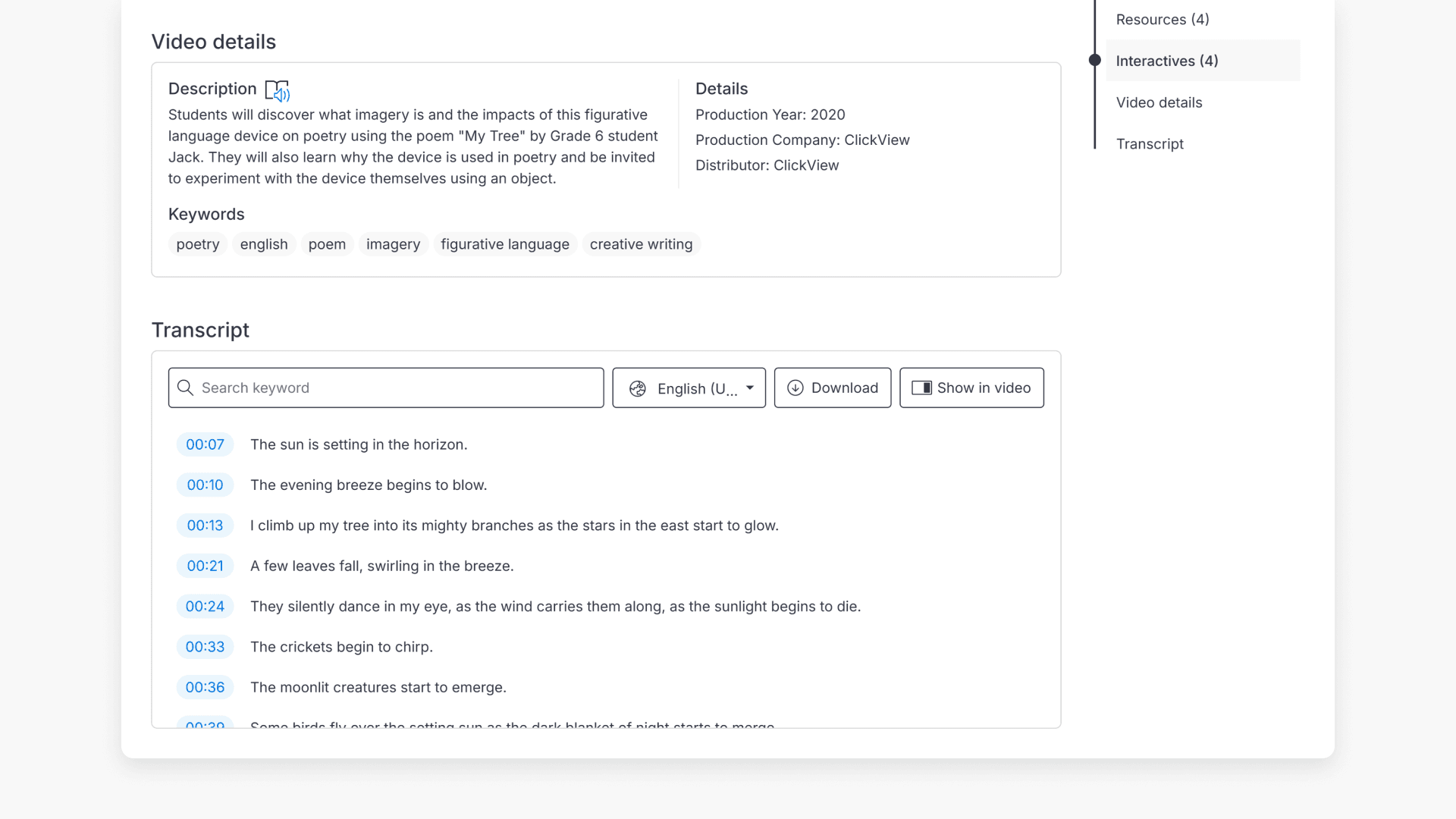
- Open a video with captions in ClickView.
- Scroll below the video to see the full transcript displayed on the play page.
Key features of Transcripts
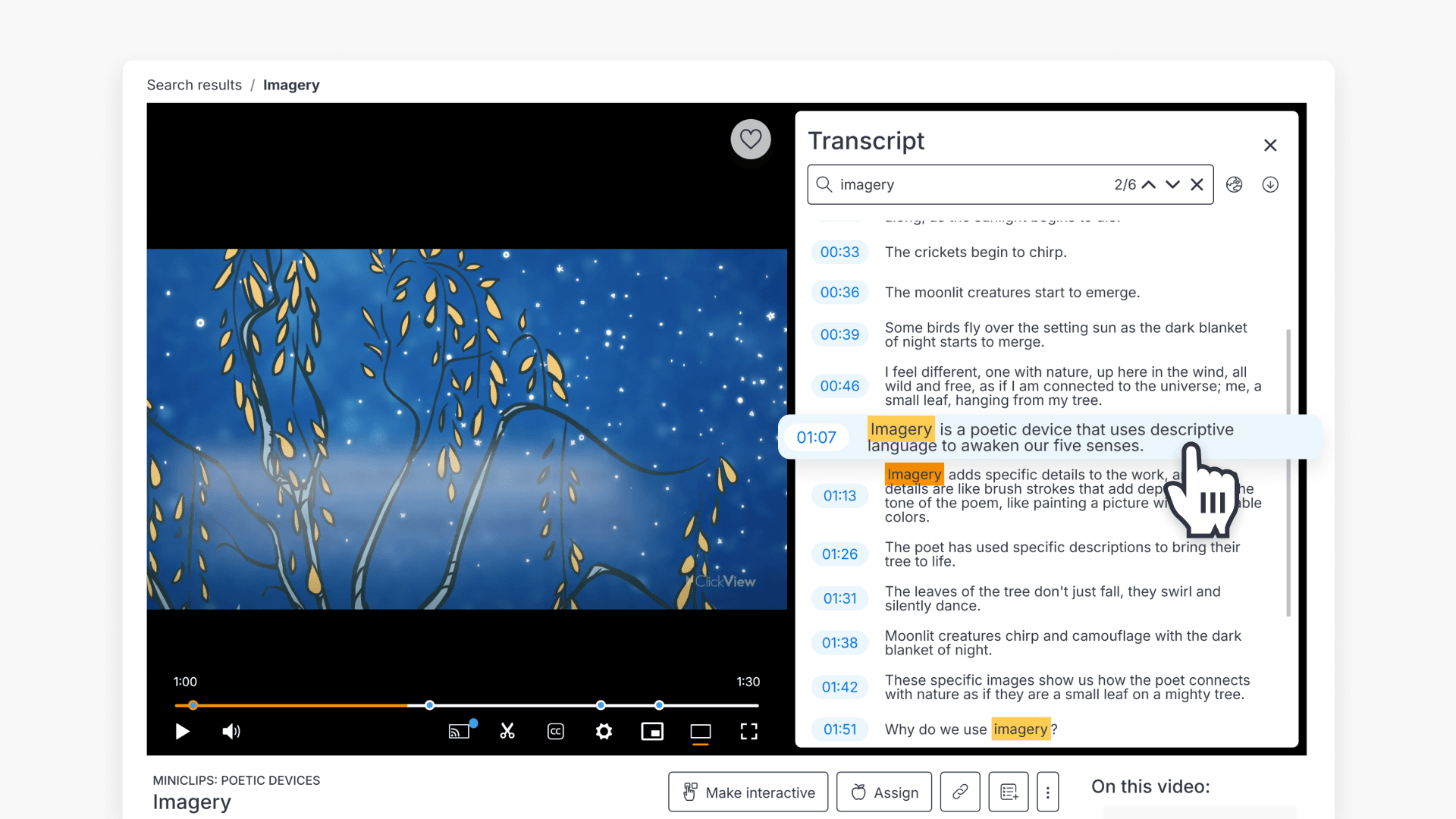
- Search for keywords in the transcript to find and jump to relevant video moments.
- Click on any line in the transcript panel to skip directly to that exact moment in the video.
- Switch between supported languages for diverse classroom needs.
- Download the transcript for lesson planning, sharing, or adapting activities.
How Transcripts help educators
- Quickly review video content for lesson relevance.
- Streamline lesson planning with instant access to full dialogue text.
- Adapt transcripts into classroom exercises or materials.
Transcripts are available on all ClickView videos with captions, supporting flexible lesson preparation and student engagement.
Frequently asked questions
Get in touch
If you’re having trouble finding the right topics or videos, just reach out! Our team - 

 Akhil, Daniel, Jalaj, or any of us at ClickView - will be happy to help you get sorted.
Give feedback
Was this guide helpful?
Up Next
How citations work in ClickView
Summary How do I find citations for videos in ClickView? Every video in ClickView includes a citation. Open a video, scroll below the player, and find the Reference this video section. Select a citation style from the dropdown, and ClickView will generate the citation automatically, copy it to your clipboard, and use it anywhere. Every […]