ClickView Administrator permissions

Summary
- Administrators can also grant admin access to other users by selecting a checkbox in user management.
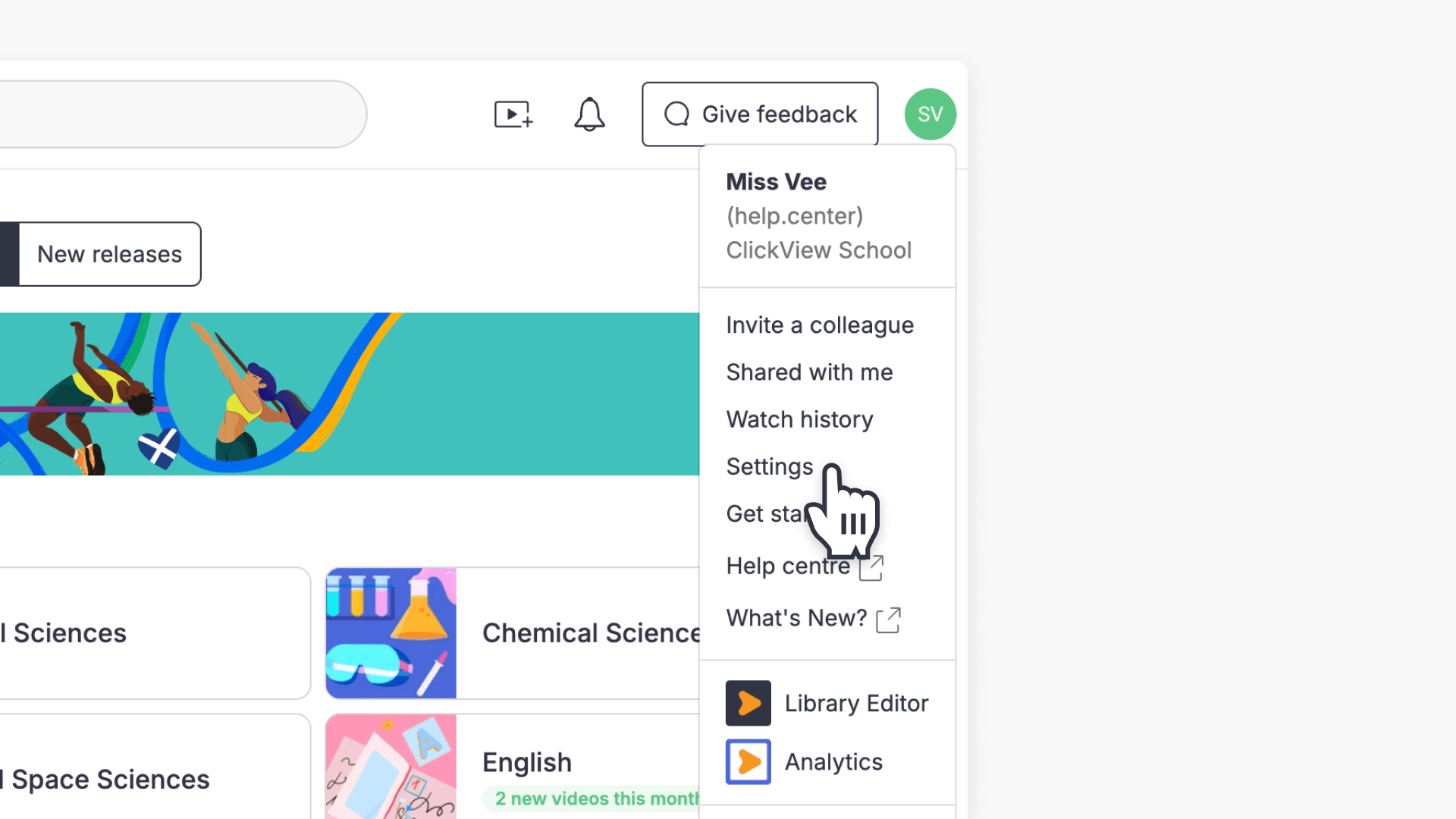
- Select your name and click ‘Settings’ to view admin options.
- Manage users, year levels, and age ratings with user management.
- Set up LTI and 3rd party applications with ‘Integrations’.
- Set default video playback resolution and manage Local Cache.
- Control video privacy and sharing with ‘Video Security’.
- Access Library Editor if enabled at your school.
Administrator roles and access
Users with an elevated permission set are designated as administrators in ClickView. Admin access is granted through a tick box in the user management screen or by Single Sign-On (SSO) if supported by your school or governing body. If your organisation does not currently have a ClickView administrator and you would like more information, please contact Product Support.
How to access administrator options
- Sign in to your ClickView account.
- Select your name in the top right corner of the screen.
- Click on ‘Settings’ to open the admin options panel.
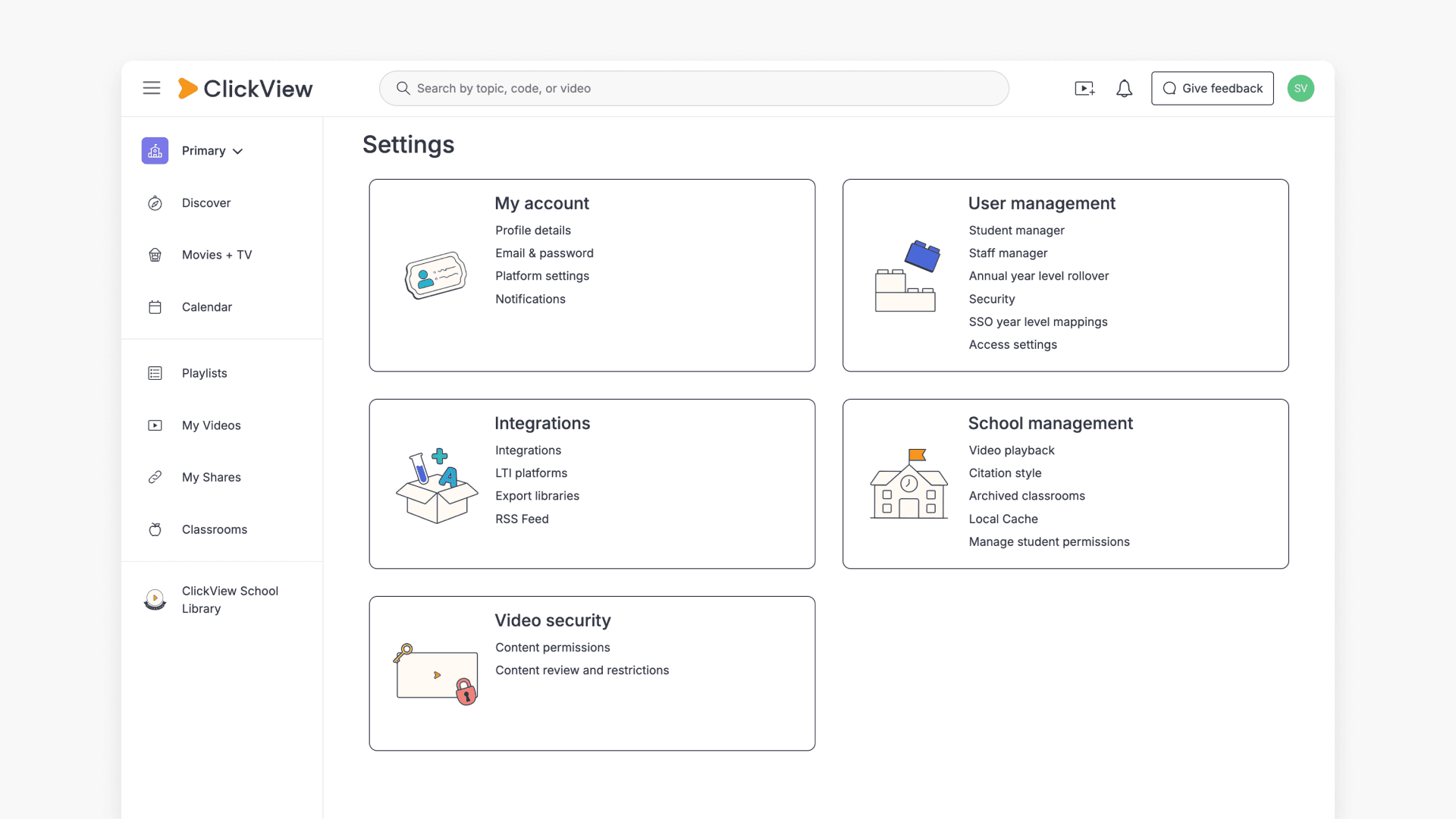
Overview of administrator controls
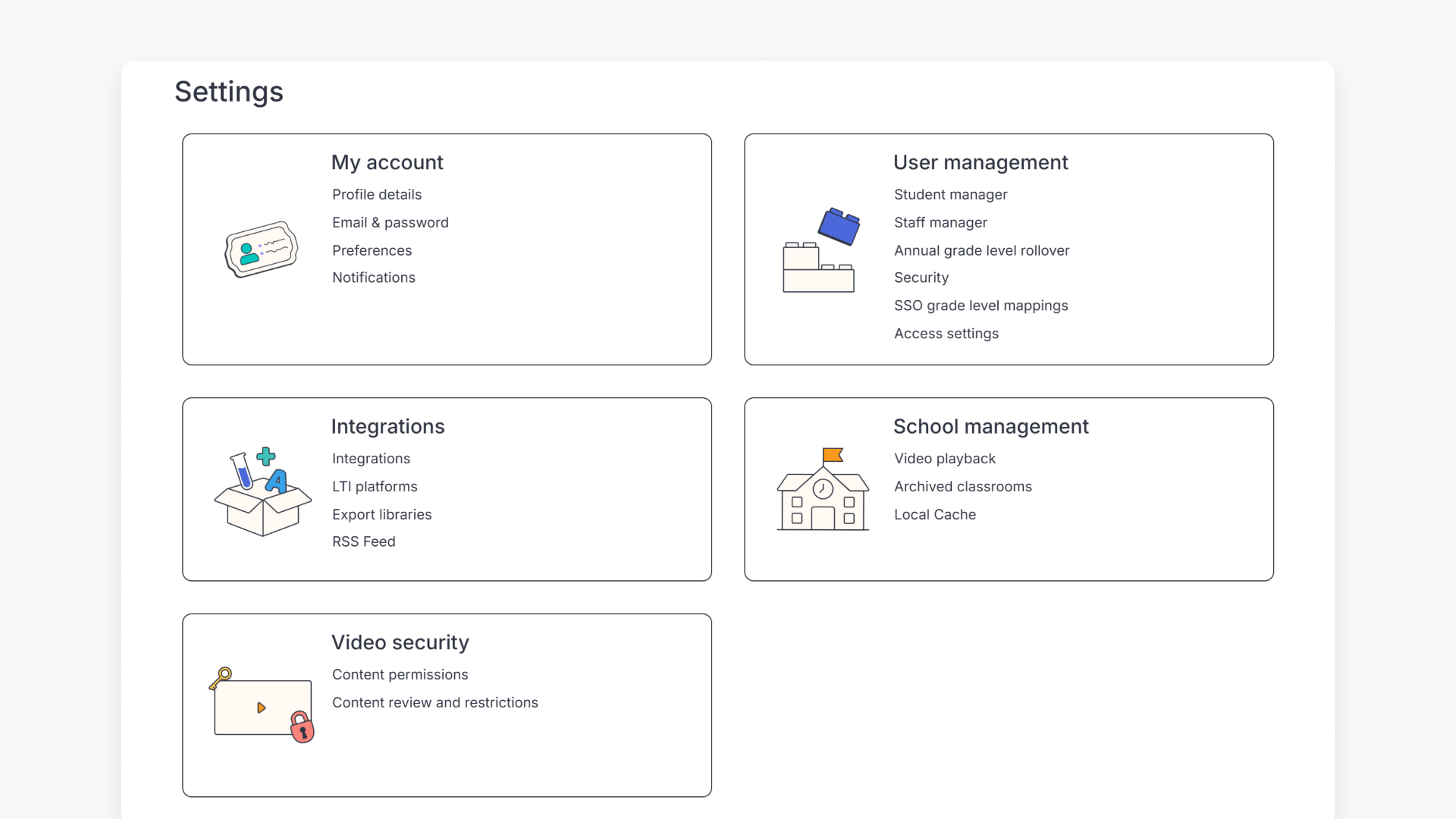
The admin options panel provides access to several key features:
User management
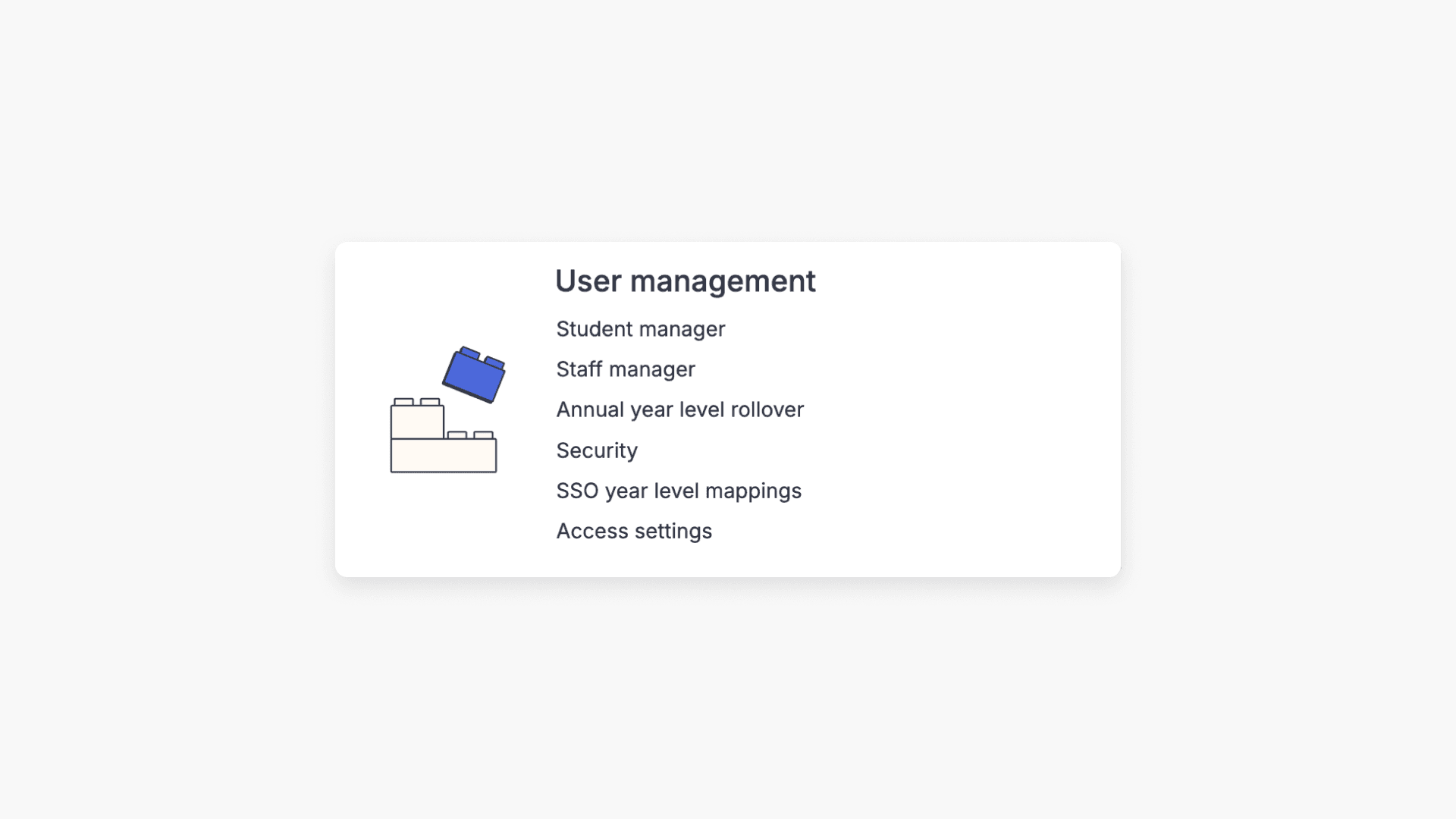
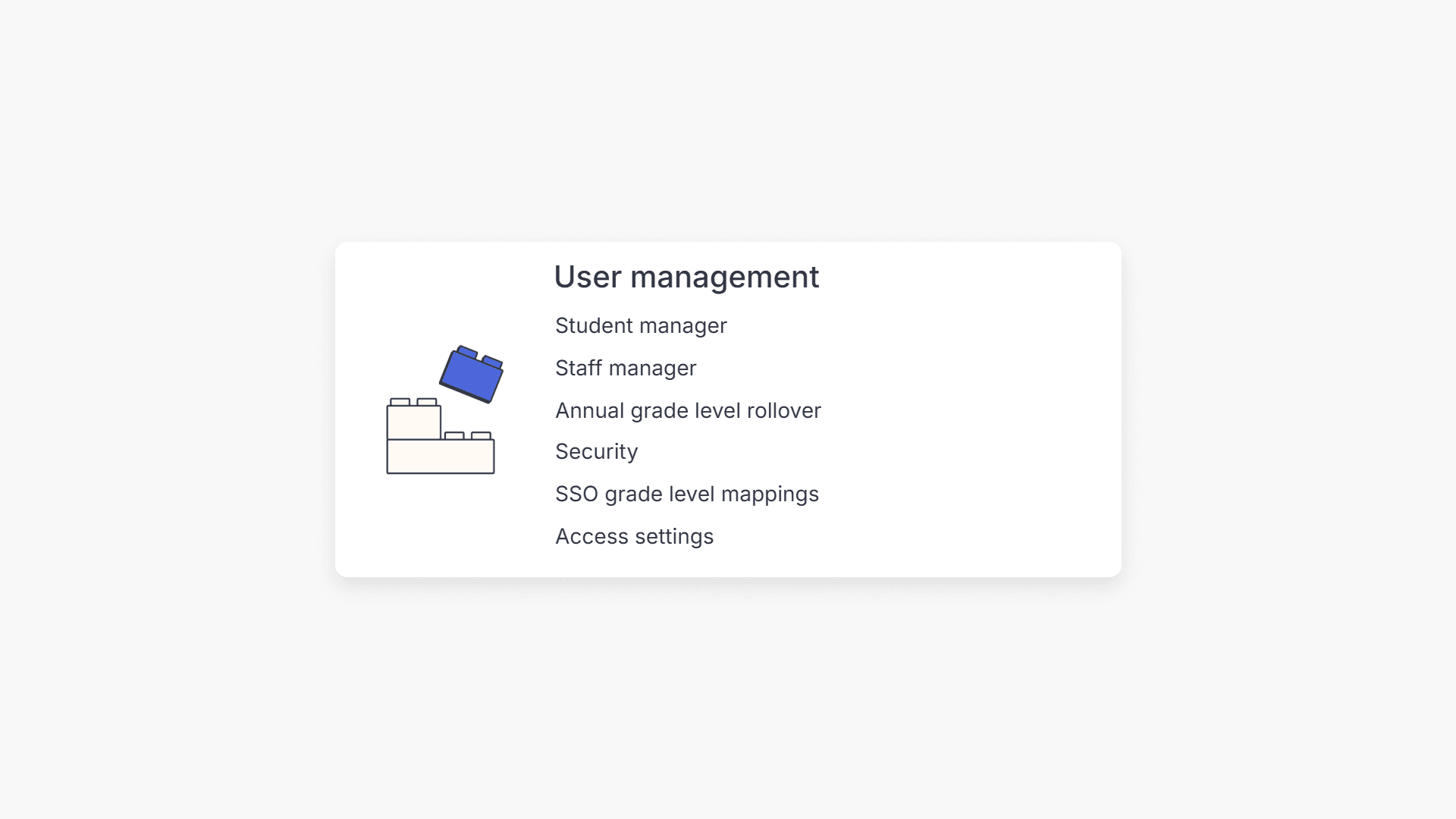
The user management suite enables administrators who do not use SSO to manage users, assign year levels, and perform bulk actions. You can also control SSO year level mapping settings for each year level.
School management

Administrators can choose the default video playback resolution (from 480p to 1080p). This option is typically set up once.
My account

The ‘My Account’ menu lets users update personal details, manage security, notifications, privacy settings, subscriptions, billing, and linked accounts.
Integrations (including Single Sign-On)

If your organisation uses SSO, administrators can review and update specific year level codes as needed—for example, when year mappings change. ClickView integrates with a variety of learning management systems and library cataloguing tools via LTI, RSS, and custom apps.
Video security

The ‘Video Security’ menu allows you to manage who can view videos, restrict content to specific groups, and review content and restrictions to maintain security.
Library Editor
In addition to the admin options panel, schools can create and curate a custom video library using Library Editor. Administrators have access to Library Editor if this feature is enabled at your school.
Frequently asked questions
Get in touch
If you’re having trouble finding the right topics or videos, just reach out! Our team - 

 Akhil, Daniel, Jalaj, or any of us at ClickView - will be happy to help you get sorted.
Give feedback
Was this guide helpful?
Up Next
Managing user accounts in your school
This article guides ClickView Administrators through the creation, management, and bulk updating of staff and student accounts, including manual, bulk, and Single Sign On methods.