



Using ClickView
Watch videos
Master playback controls, captions, transcripts, and quality settings. Learn tips for using playback features effectively in class.
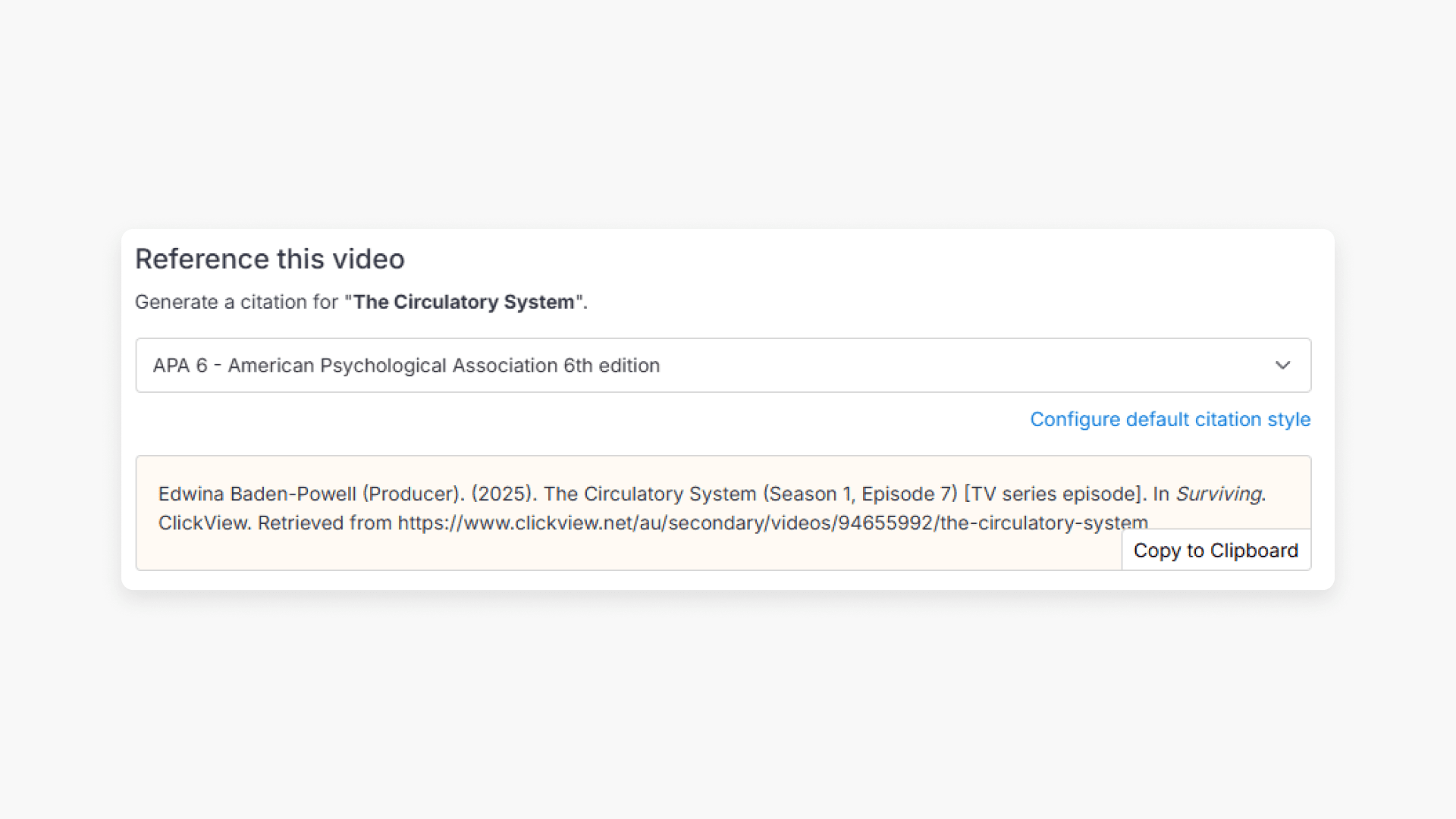
How citations work in ClickView
Summary How do I find citations for videos in ClickView? Every video in ClickView includes a citation. Open a video, scroll below the player, and find the Reference this video section. Select a citation style from the dropdown, and ClickView will generate the citation automatically, copy it to your clipboard, and use it anywhere. Every […]
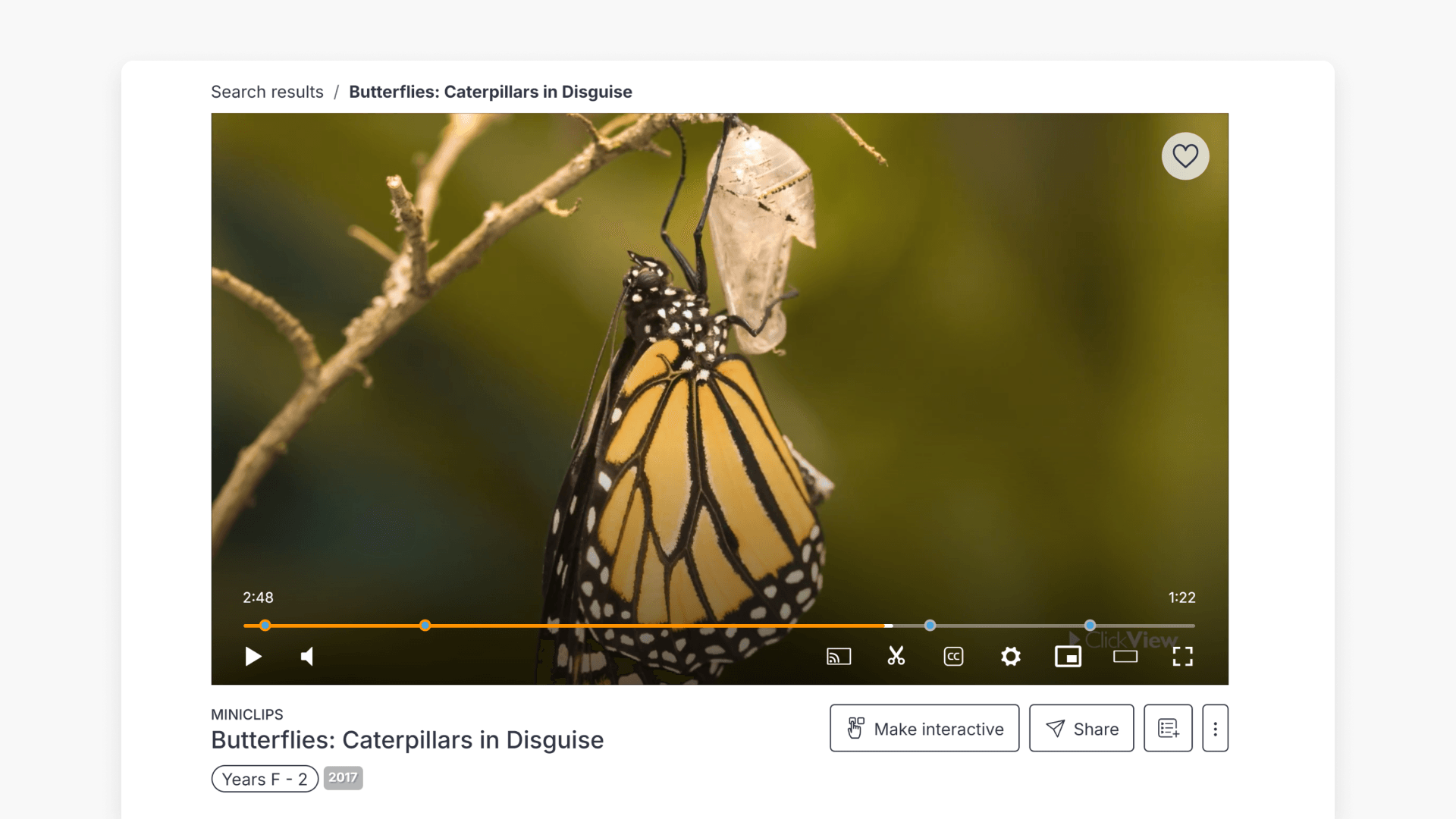
Introduction to the video player
Discover the key features of the ClickView video player. Learn about subtitles, playback options, whiteboard, clips, picture-in-picture, and marking content as favourite to enhance your classroom experience.
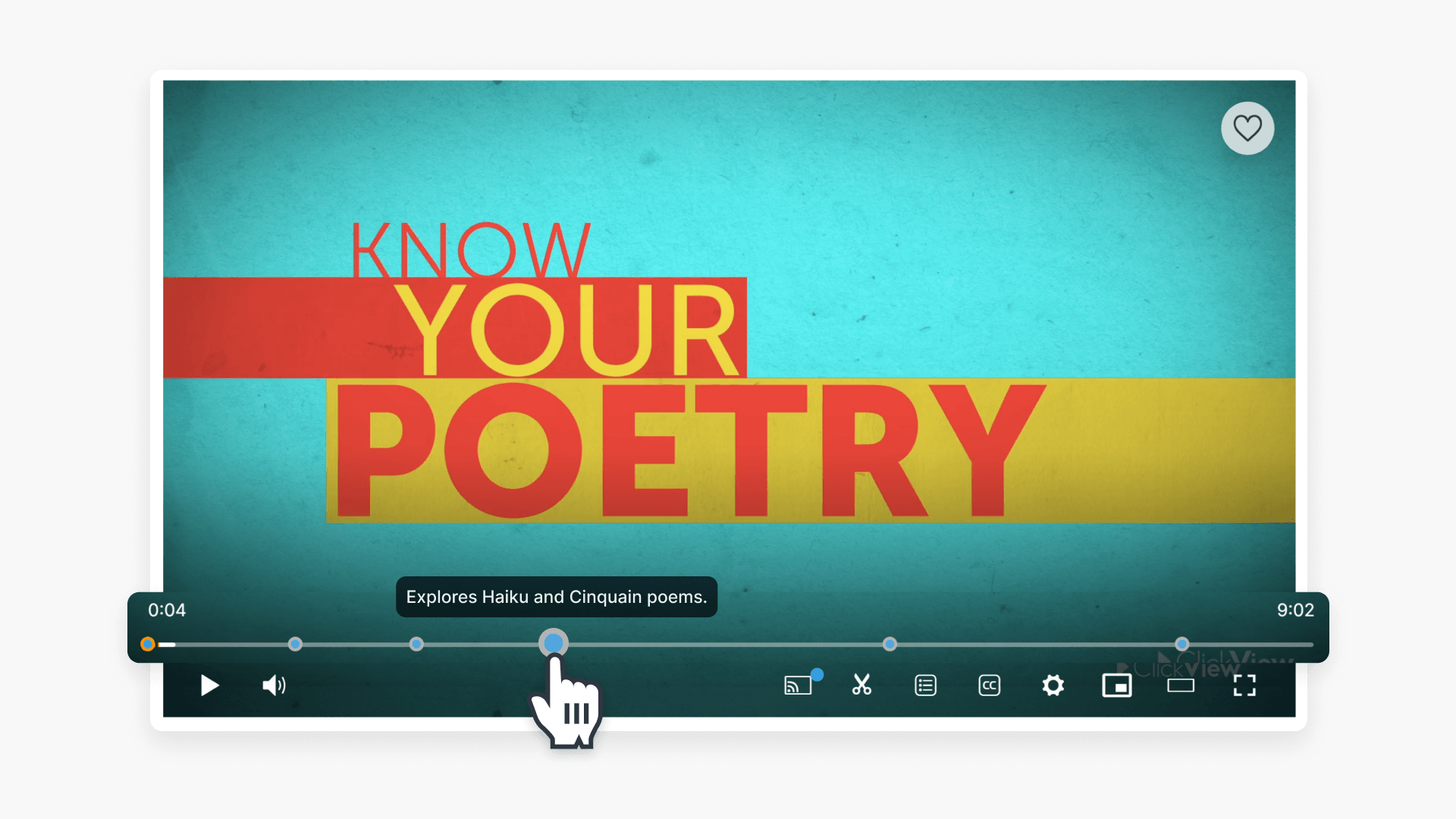
Understanding video points of interest
This article explains how points of interest and time stamps within ClickView videos highlight key learning moments and allow students to easily access important parts of each video.
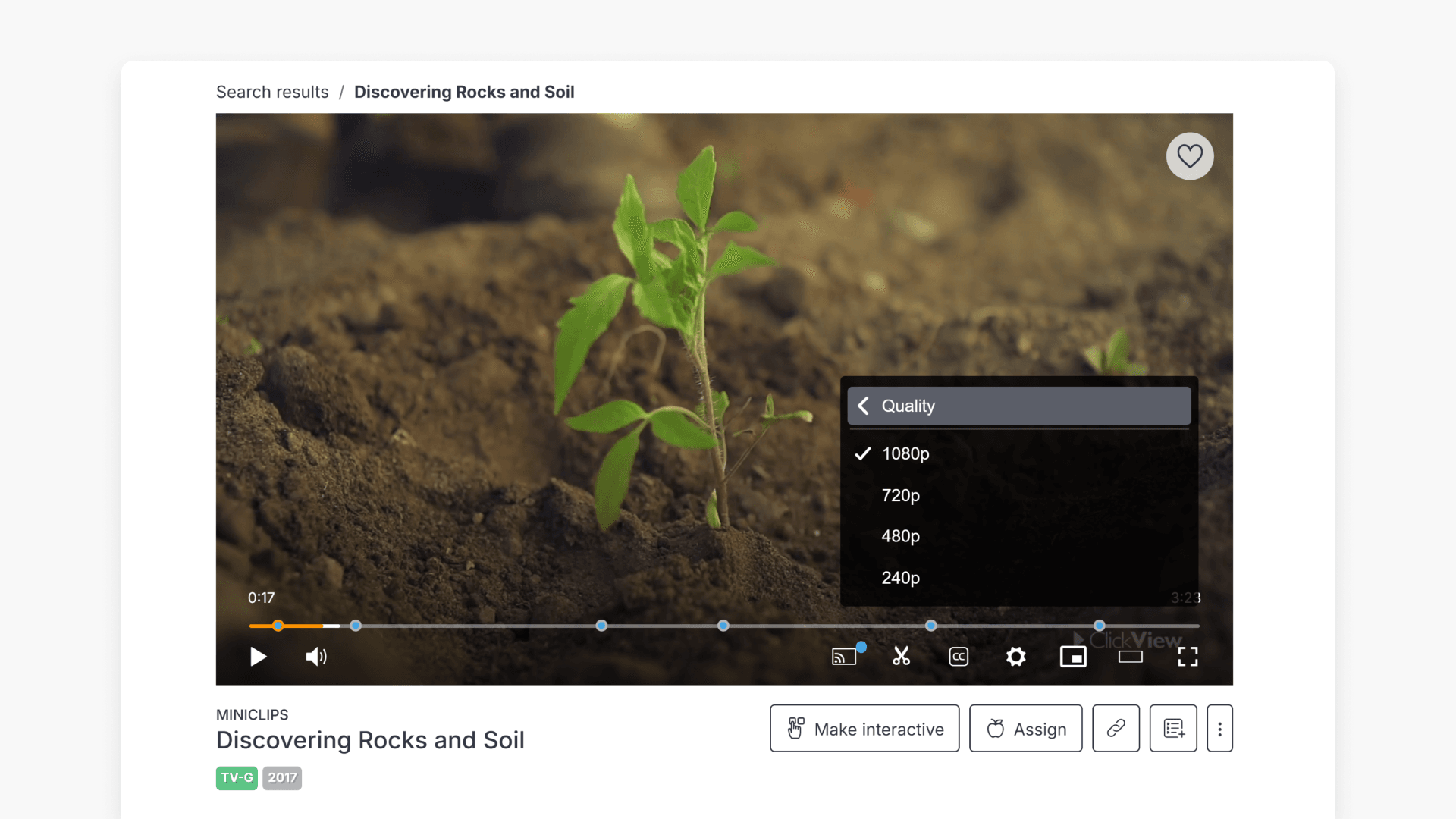
How to change video resolution settings
This guide explains how to change and set video resolution options in ClickView, including user and administrator steps for improving video playback and addressing low bandwidth needs.
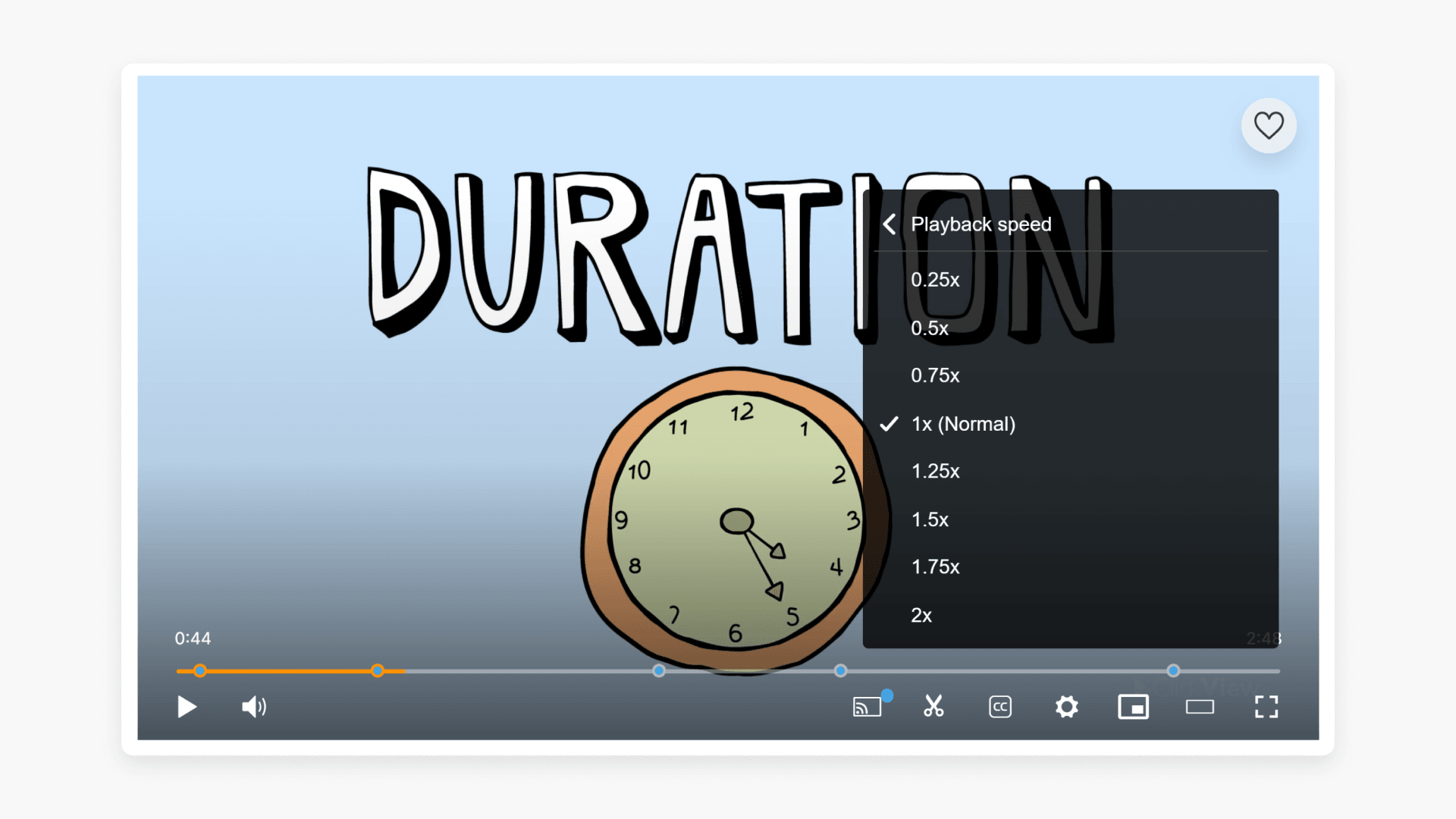
How to adjust video playback speed
This article explains how to adjust the playback speed of videos in ClickView, helping educators tailor viewing for student engagement and lesson relevance.
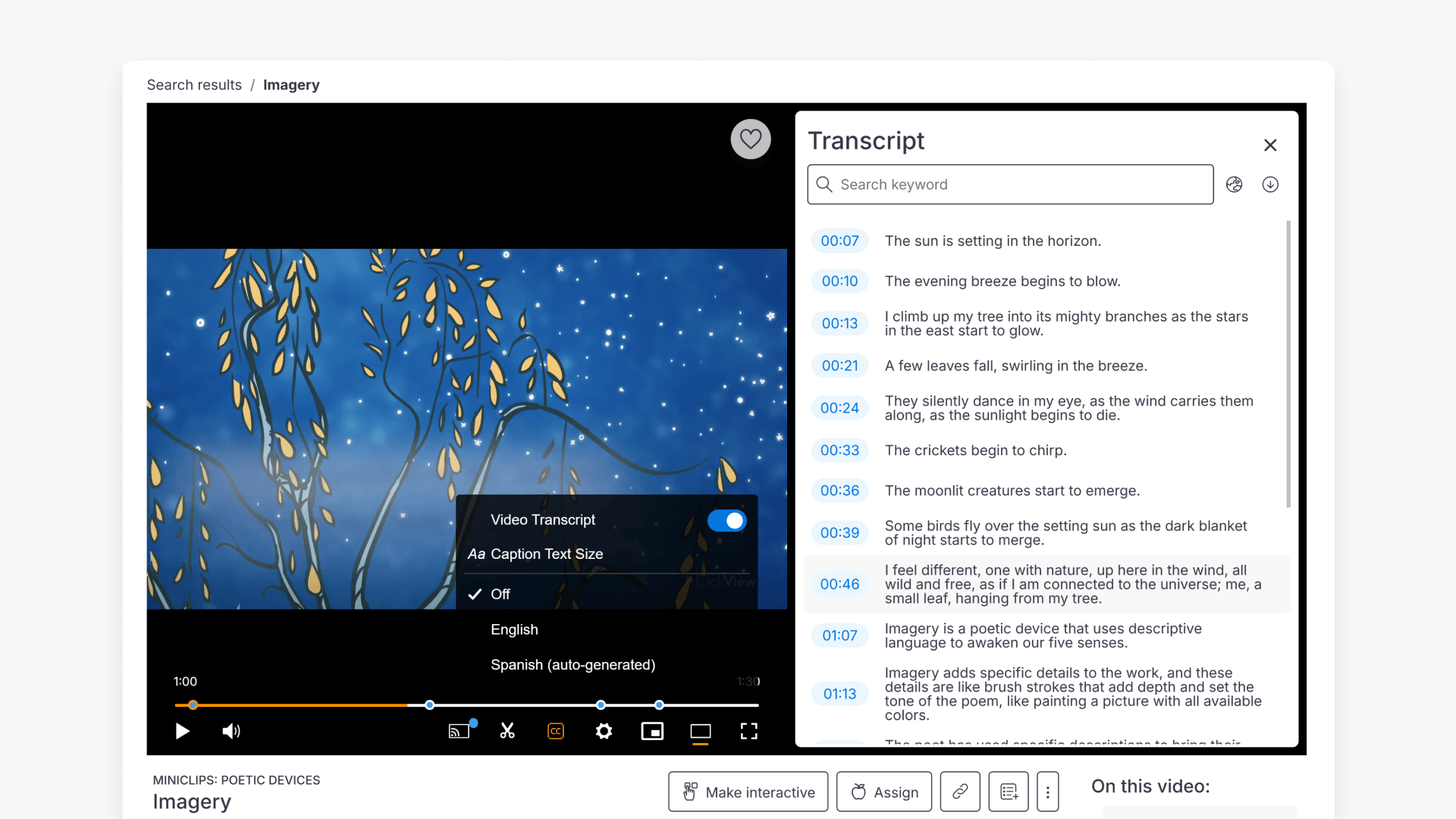
How to use Transcripts for lessons
Discover how to use Transcripts in ClickView videos to search, download, and streamline your lesson planning with real-time dialogue text.

How to find videos with downloadable resources
This guide explains how to quickly filter ClickView videos to show only those with downloadable teaching resources, including Teacher Packs, Q&A, and Activities.
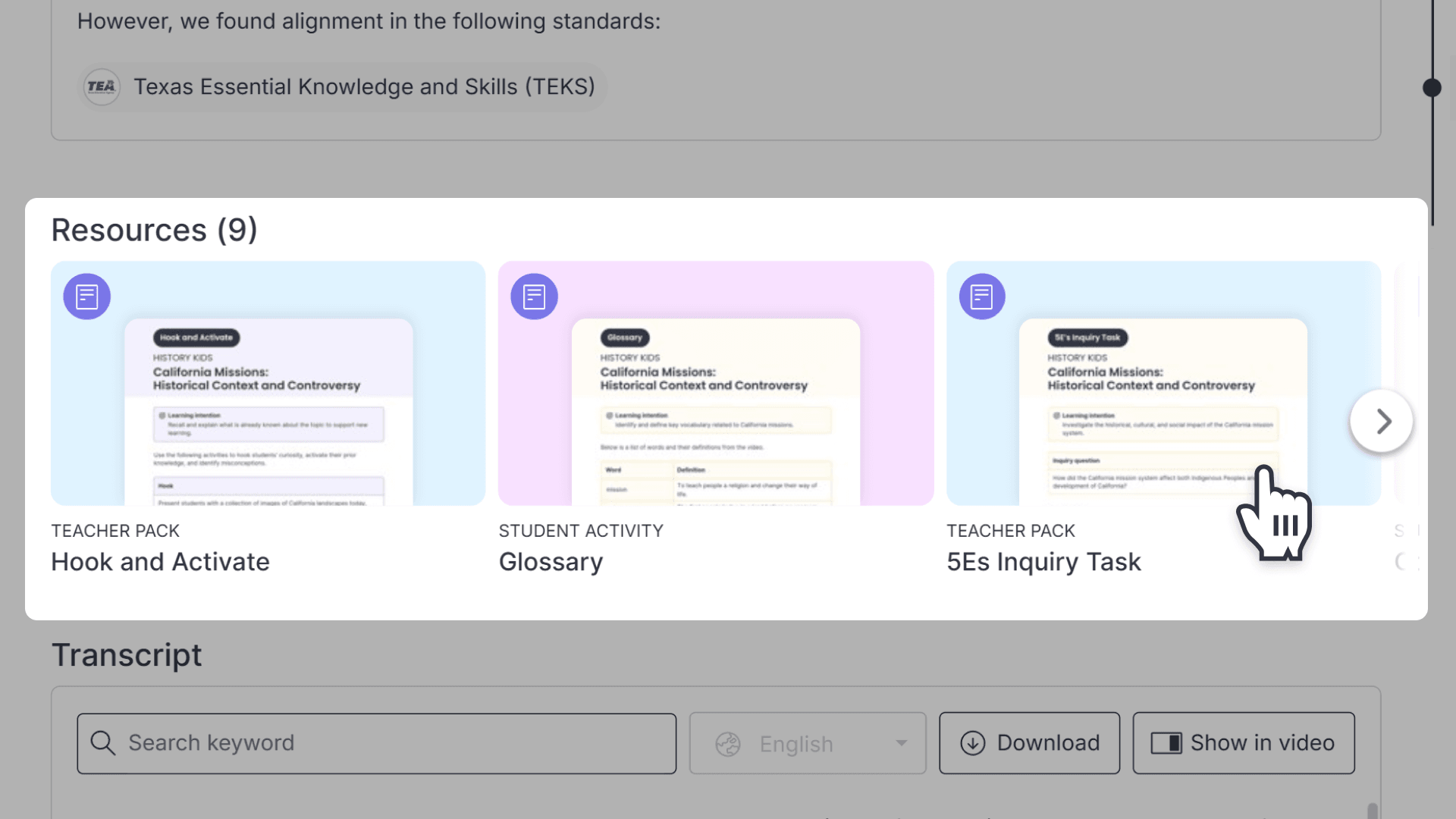
How to download printable resources
This article explains how teachers can locate and download lesson resources—including teacher packs and Q&A activities—from videos in ClickView for use in their instruction.
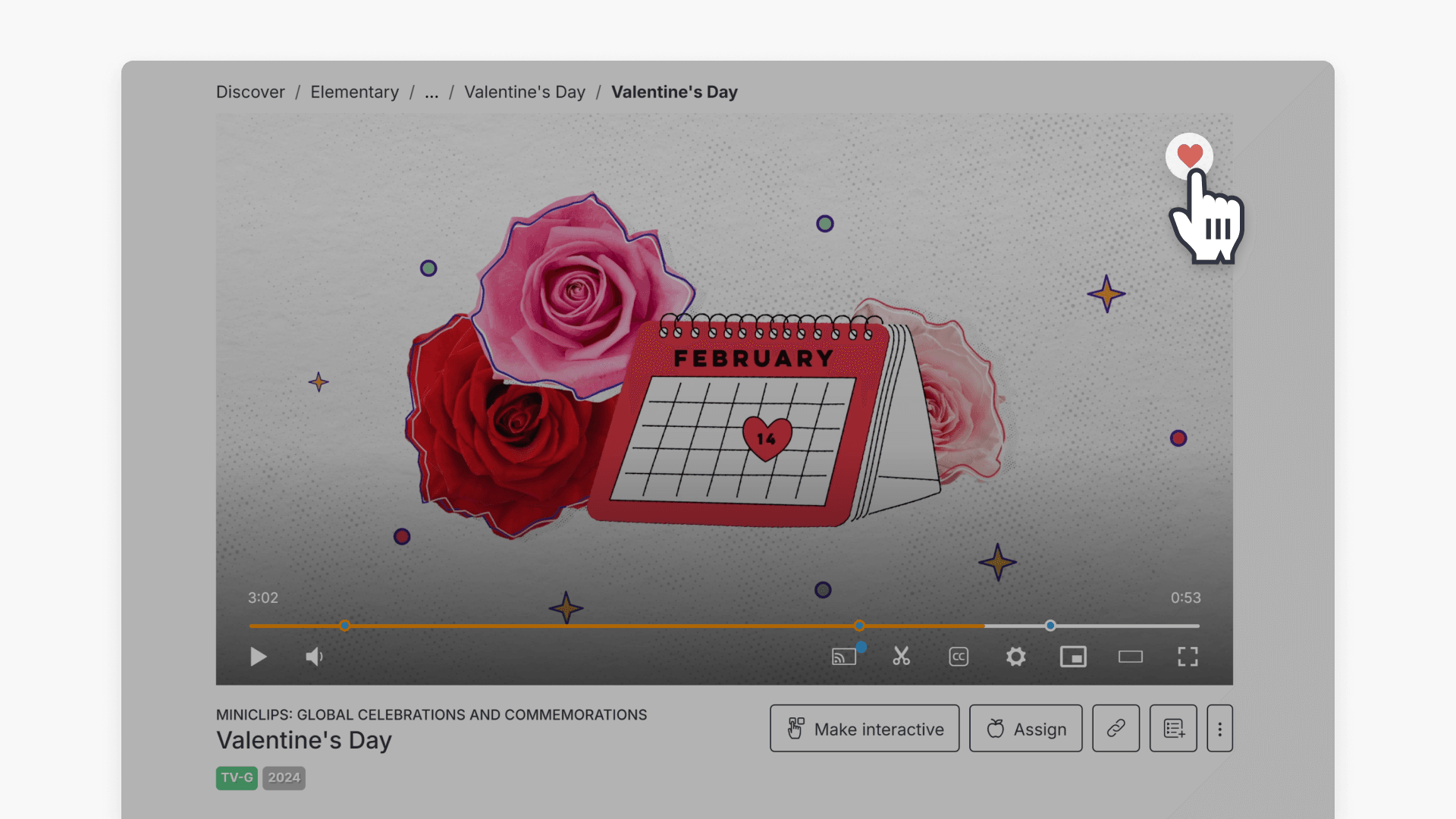
How to add or remove a favourite video
Discover how to use the heart icon in ClickView to add or remove favourite videos, and learn where to find your Favourites playlist for quick access.
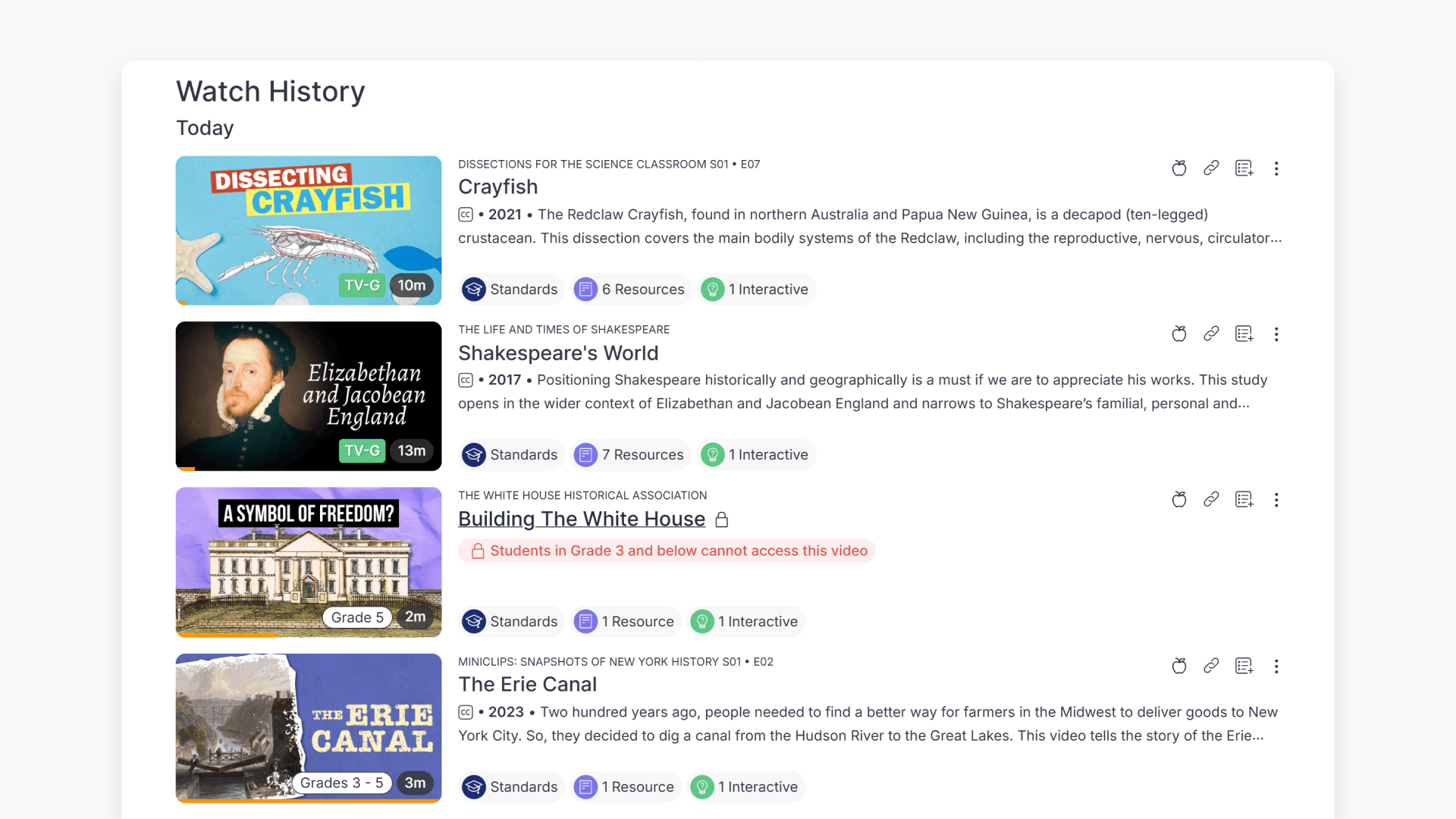
How to view your ClickView Watch History
Discover how to access and manage your Watch History and Continue Watching section in ClickView, making it easy to find, resume, and organise previously watched content.
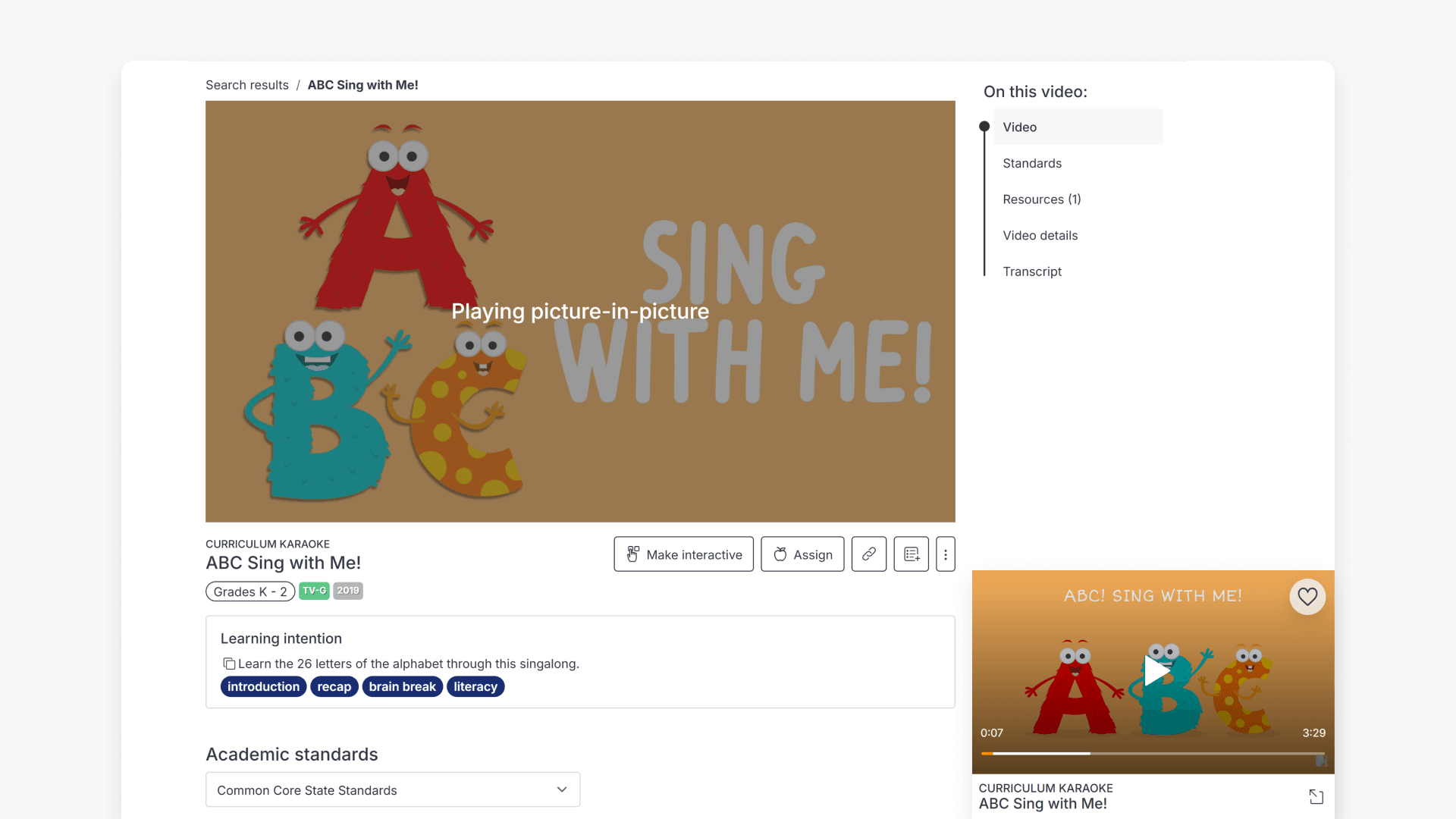
How to use picture-in-picture mode
This article explains how to enable and exit picture-in-picture mode in ClickView, allowing you to watch videos in a floating window while navigating the platform.
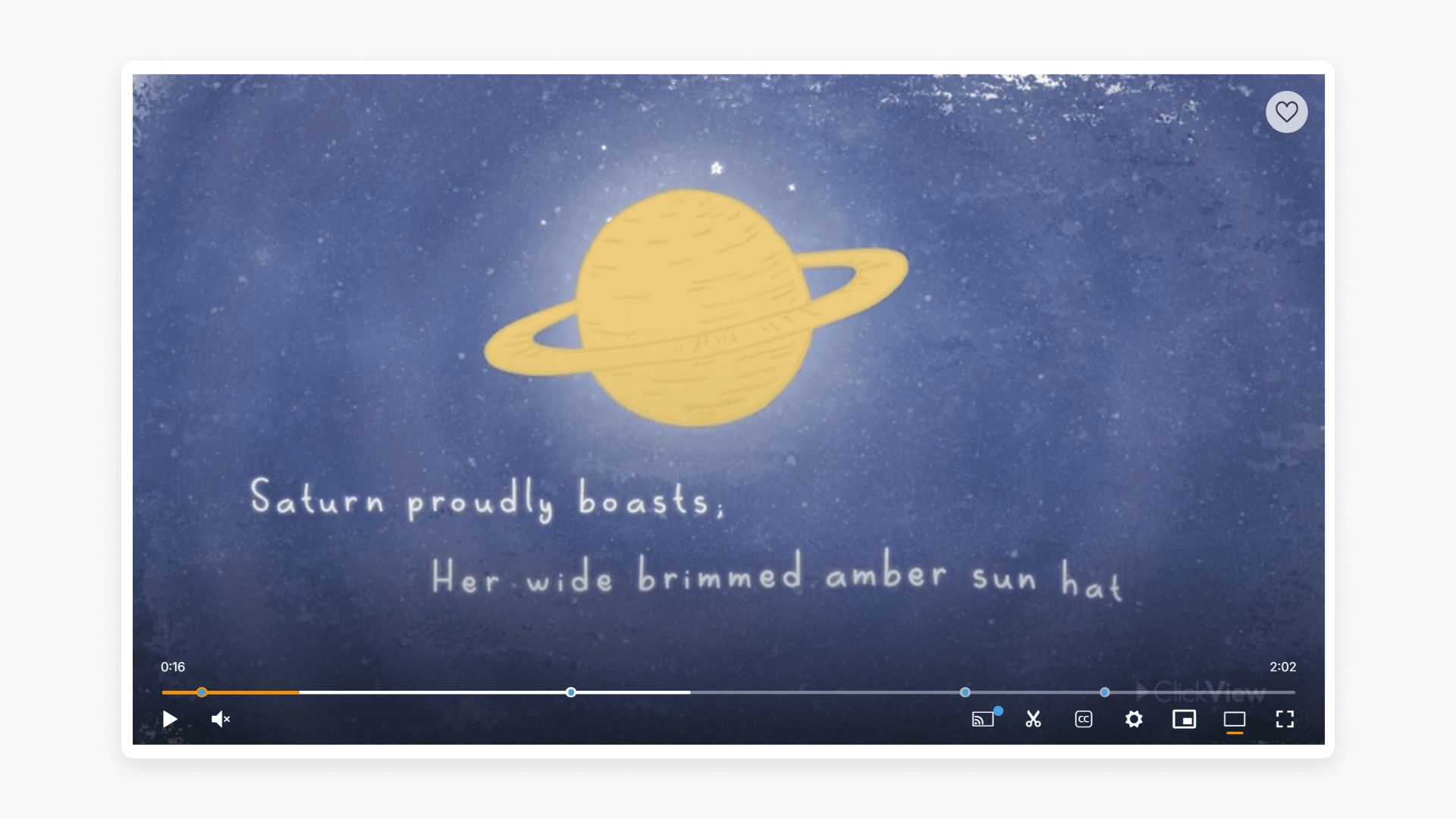
How to enable Theatre Mode
Discover how Theatre Mode in ClickView provides an expanded, distraction-free viewing experience for all videos and clips. This guide explains how to activate Theatre Mode and its benefits for both small and large screens.
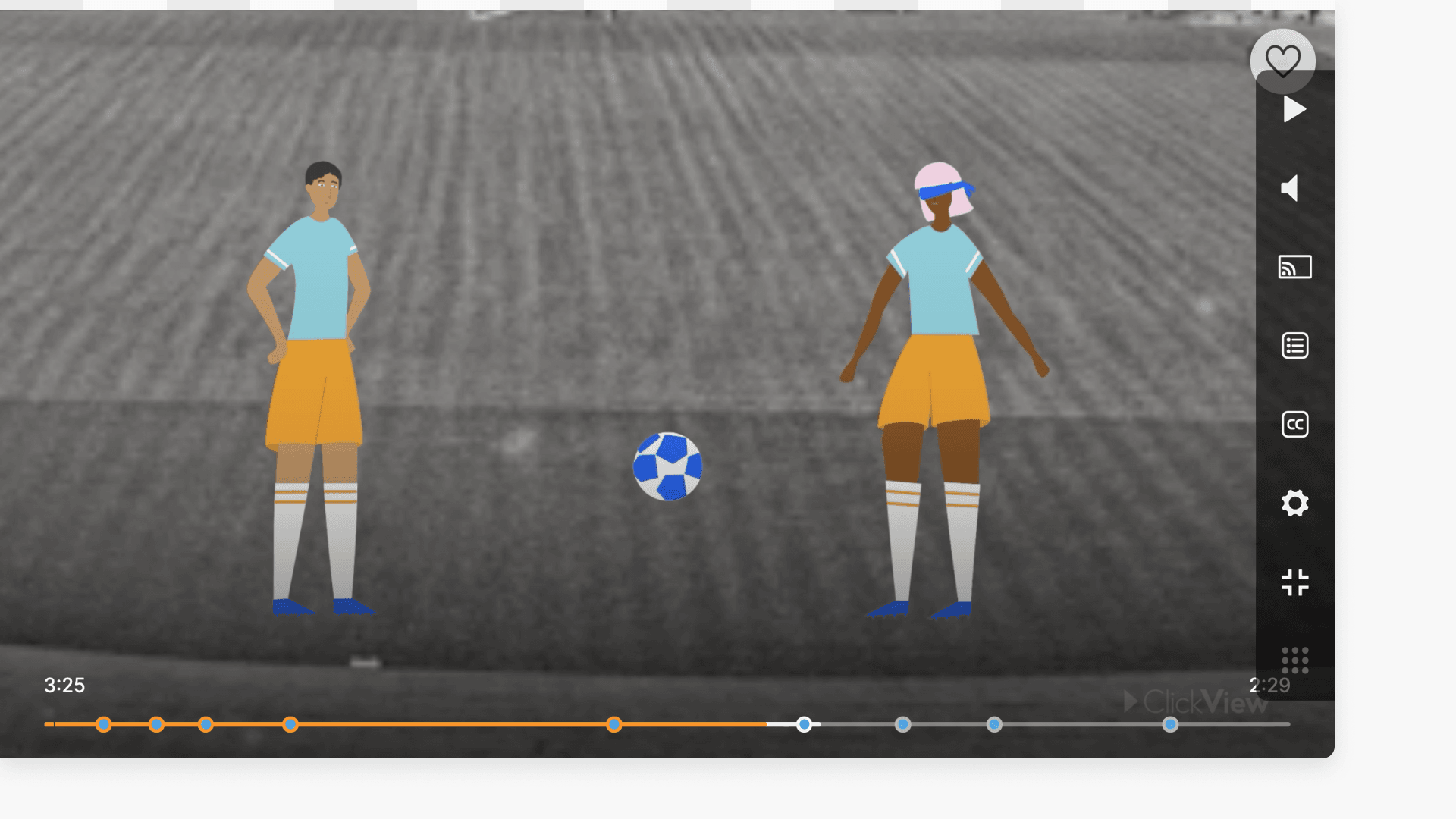
How to use Whiteboard Mode in the classroom
Discover how to activate Whiteboard Mode in ClickView, making video controls more accessible during lessons with a whiteboard. This guide explains step-by-step how to enable and exit the feature for seamless teaching.