How to view your ClickView Watch History

Summary
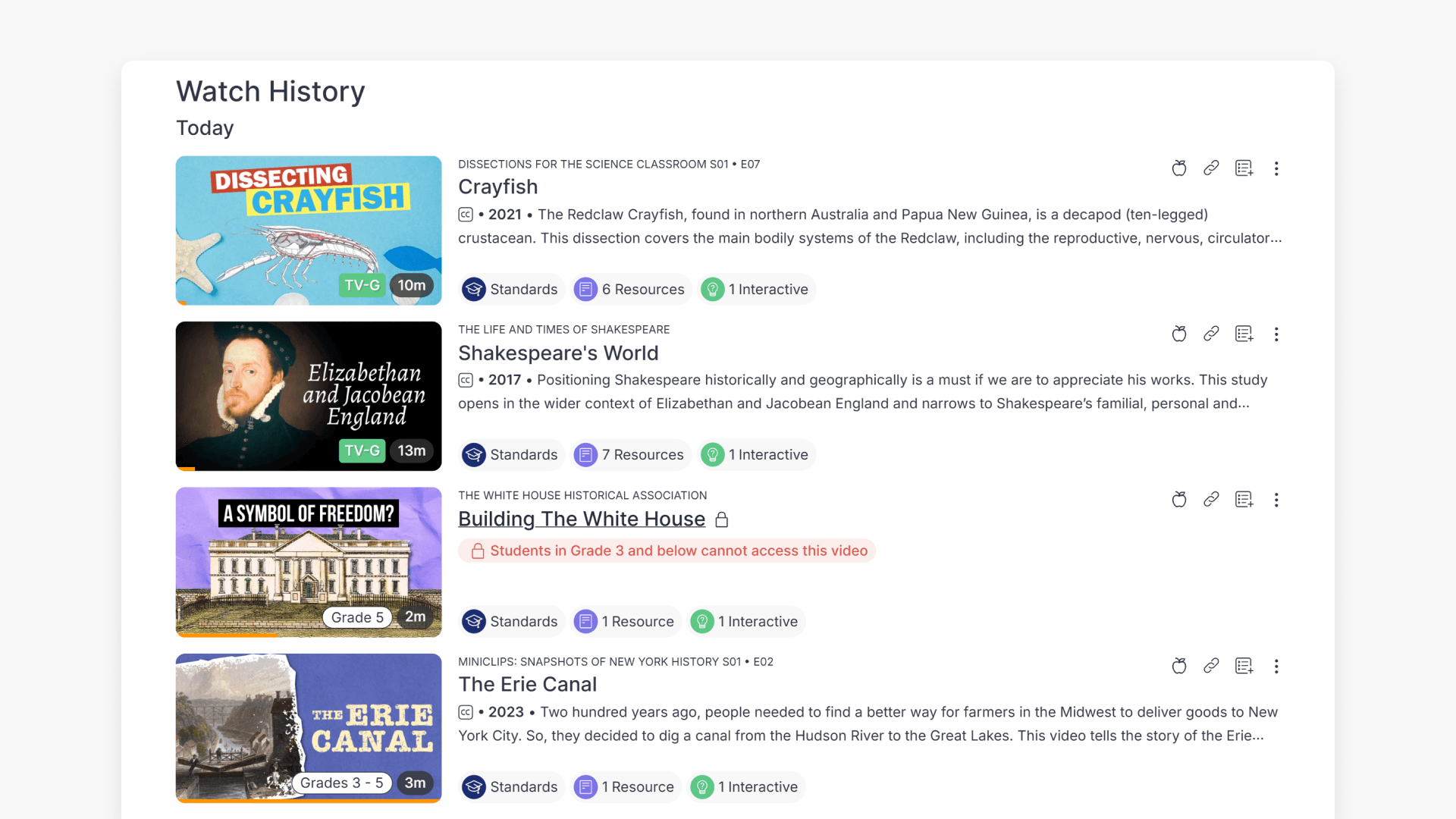
- Watch History tracks all previously viewed videos.
- Play videos again by clicking the video thumbnail or title.
- Add videos to playlists, share, create interactives, or clips.
- Access recent watch history in the “Continue watching” section on the Discover dashboard.
- View your full chronological history by clicking “Continue watching”.
Access your viewing history
ClickView makes it easy to find and revisit videos you have watched. Your Watch History helps you resume unfinished videos, organise content, and monitor your viewing activity.
View your complete Watch History
There are two ways to access your Watch History in ClickView:
- Scroll down your Discover dashboard and locate the “Continue watching” section.
- Click your avatar in the top-right corner and select ‘Watch history‘.

Using the Continue watching section
- Go to the Discover dashboard.
- Scroll down to the “Continue watching” section.
- Cycle through your most recent history using the left and right arrow.
- To open your full Watch History, click the “Continue watching” title.

Play and share watched videos
- On your Watch History page, find your desired video.
- Click the video thumbnail or title to play it again.
- Use the icons to the right of the video to assign to a classroom, share as a link, add to a playlist, create an interactive, or make a clip.

Frequently asked questions
Get in touch
If you’re having trouble finding the right topics or videos, just reach out! Our team - 

 Akhil, Daniel, Jalaj, or any of us at ClickView - will be happy to help you get sorted.
Give feedback
Was this guide helpful?
Up Next
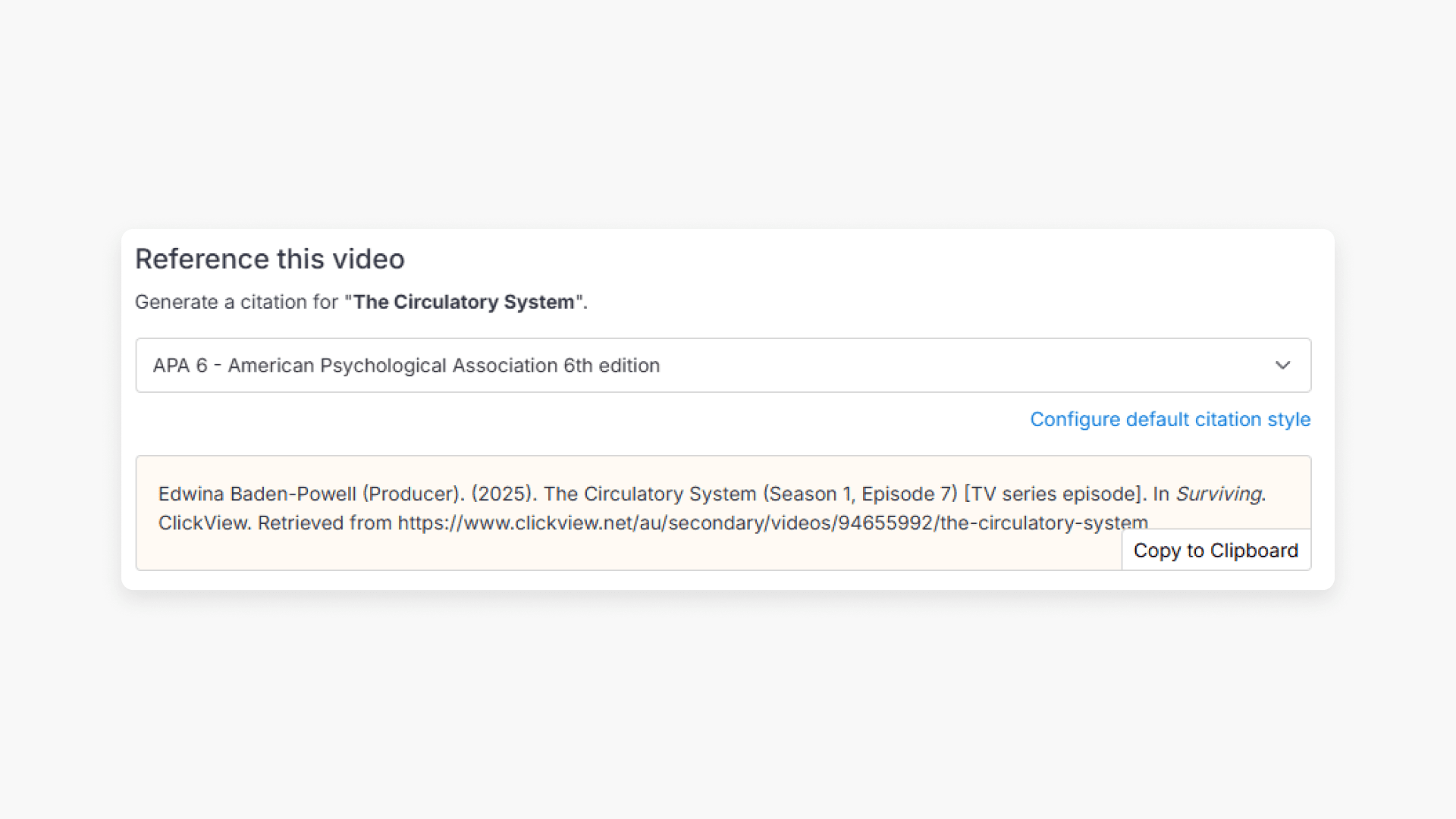
How citations work in ClickView
Summary How do I find citations for videos in ClickView? Every video in ClickView includes a citation. Open a video, scroll below the player, and find the Reference this video section. Select a citation style from the dropdown, and ClickView will generate the citation automatically, copy it to your clipboard, and use it anywhere. Every […]