Introduction to ClickView Discover

Summary
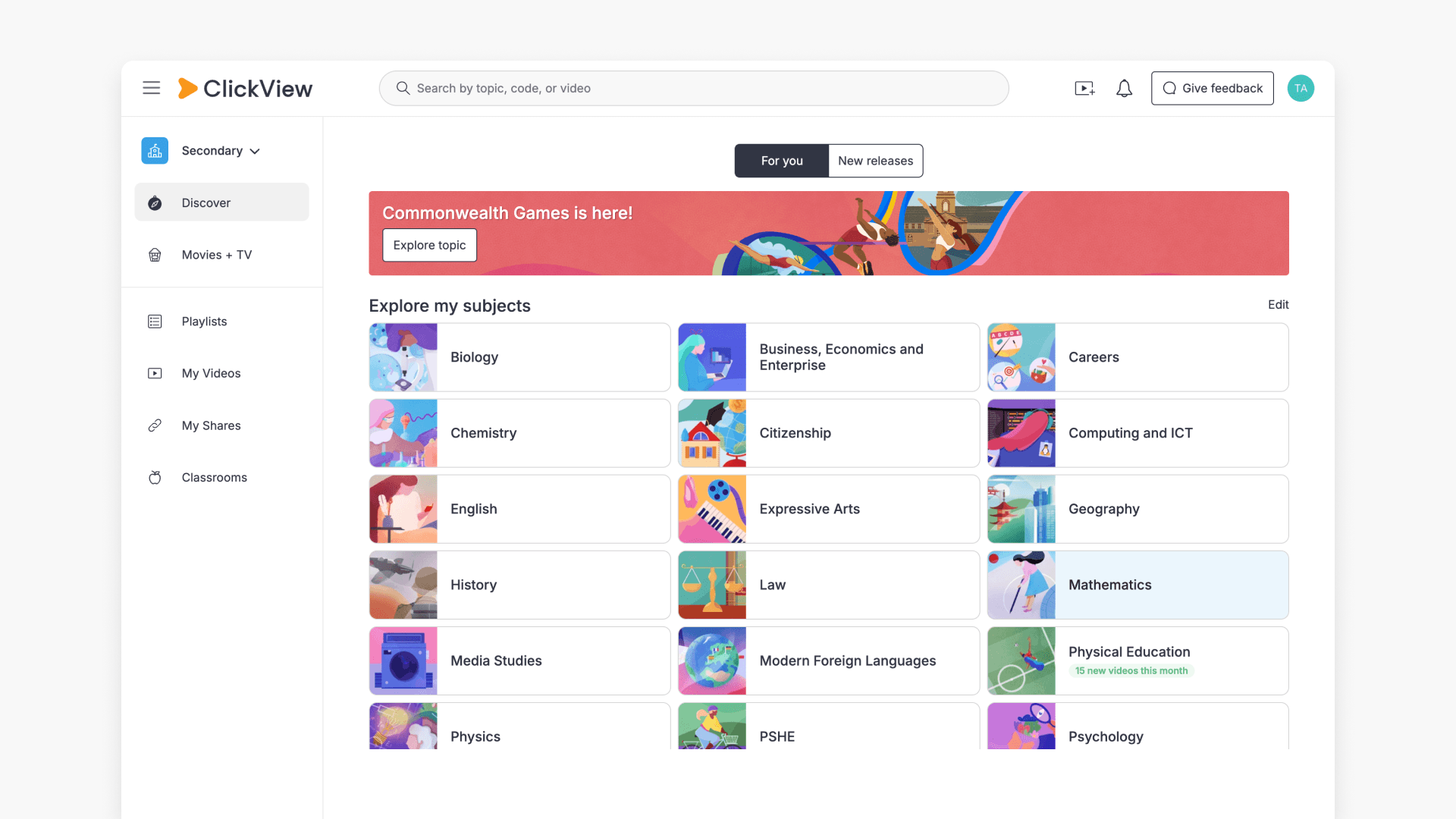
- Discover is the main home page for exploring ClickView content.
- Personalisation prioritises content by your chosen topics.
- Quick links to Playlists, My Videos, My Favourites, and Watch History.
- View new releases in the New Releases section of Discover.
- Access Libraries and upload your own videos.
Overview of the Discover screen
The Discover page in ClickView is designed to help educators easily explore and access educational video content tailored to their interests and year groups. Discover features new releases, personalised suggestions, and easy navigation.
How personalisation works
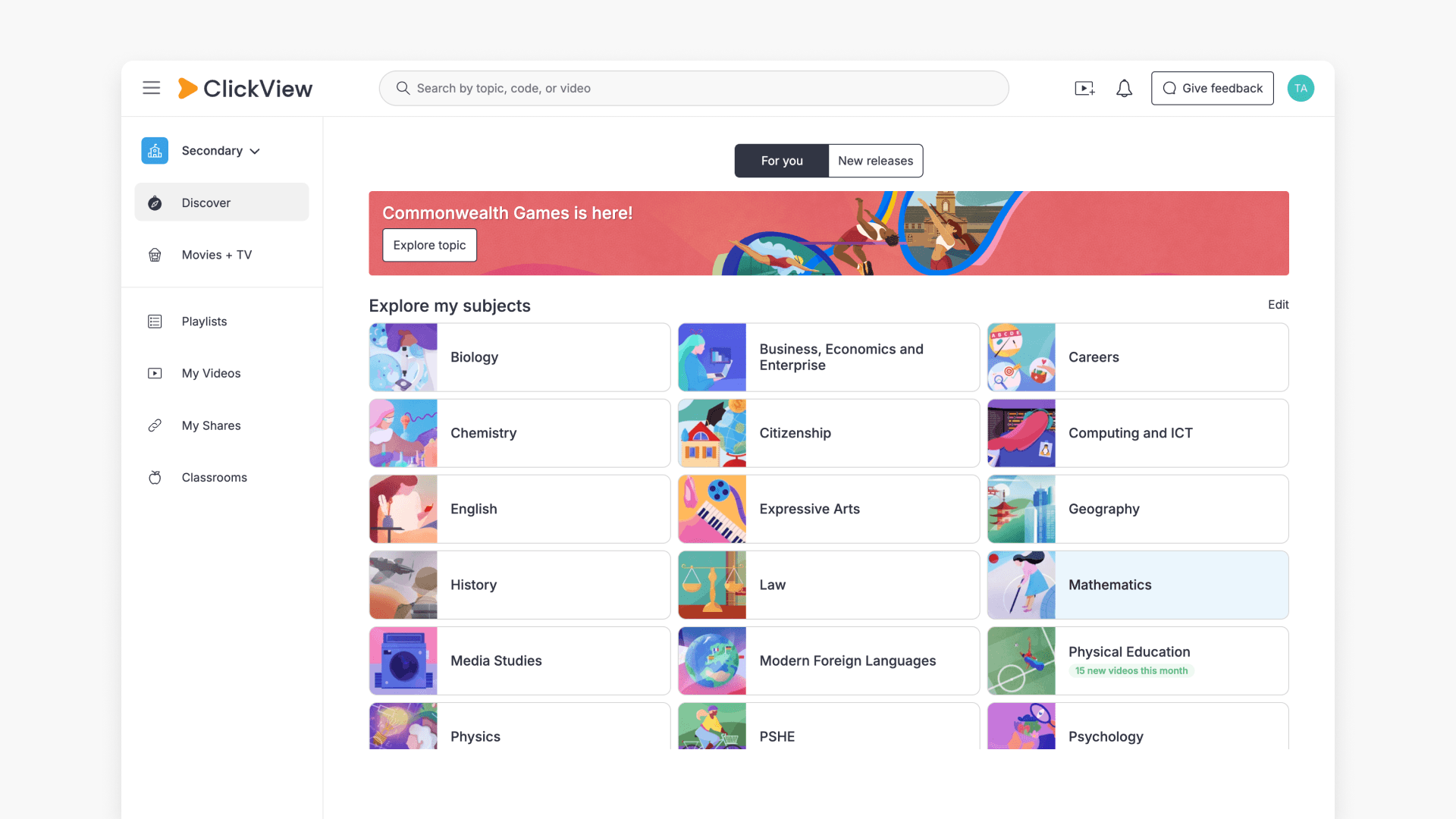
The Discover page is personalised for each user based on preferences. Content is prioritised by your chosen topics, while providing access to all ClickView content. Over time, the dashboard learns your preferences and improves content recommendations.
Navigation shortcuts
Use the Playlists and My Videos options to quickly access your curated content. To quickly find favourited videos or recently viewed videos, refer to My Favourites and Watch History.
Finding new releases
See the latest educational content added to ClickView under the New Releases section on the Discover page.
Accessing libraries
Quickly navigate to your school or Shared Library from the Libraries section on the Discover page.
Uploading your own videos
- Select a video from your device and drag it over the main ClickView screen to begin uploading.
- Alternatively, select the Upload button and search your device for your video file to upload.
Frequently asked questions
Get in touch
If you’re having trouble finding the right topics or videos, just reach out! Our team - 


 Andrew, Nisch, Janice, Pfreya, or any of us at ClickView - will be happy to help you get sorted.
Give feedback
Was this guide helpful?
Up Next
Understanding Featured Channels
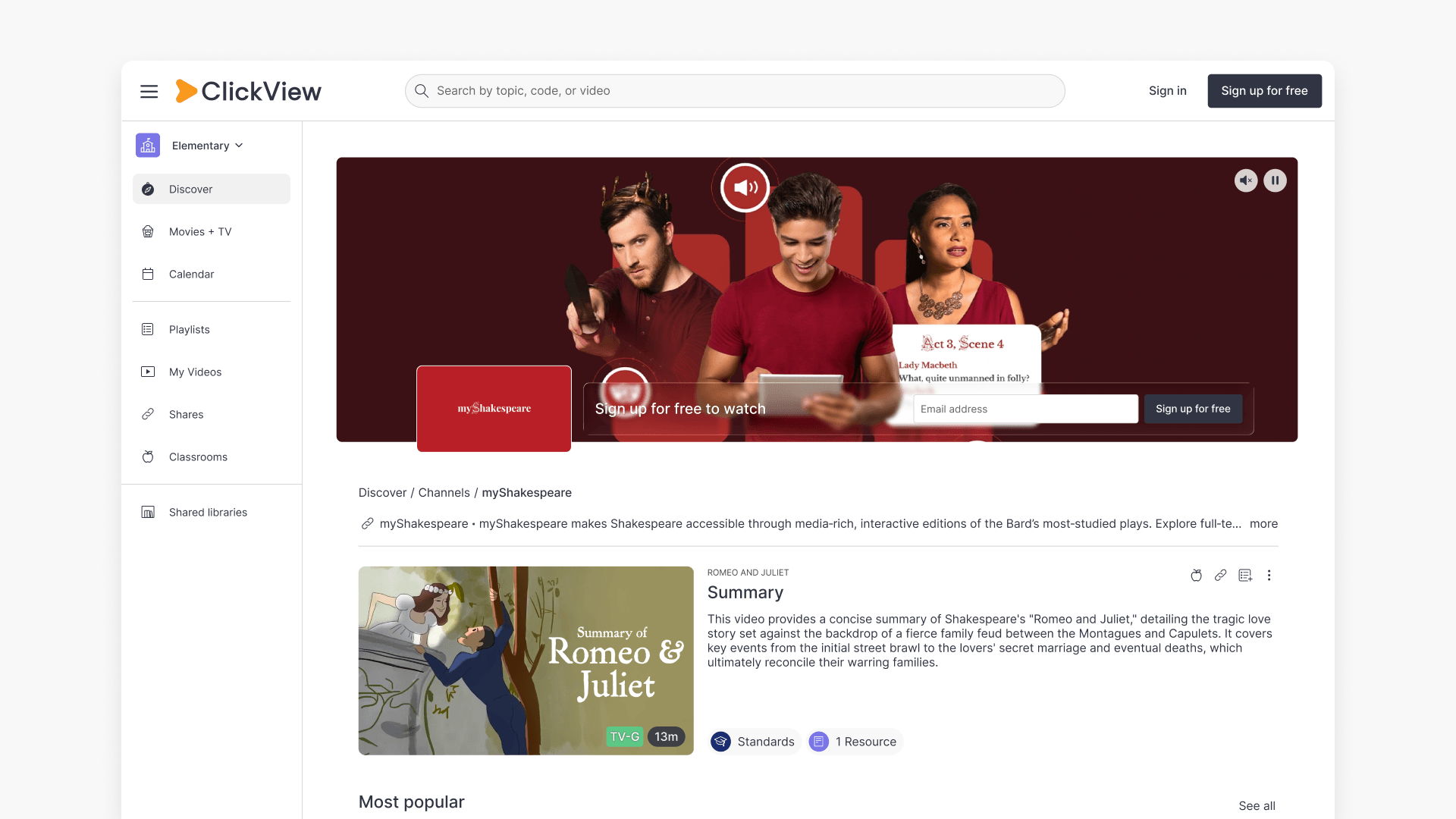
Summary What are Featured Channels in ClickView? Featured Channels bring together every video from one producer in a single place, so you can explore all their videos and resources rather than finding them across topics, series, and search results. Each channel includes a banner introducing the producer, videos organised by recent, popular, and series, and […]