Understanding Featured Channels

Summary
- Featured Channels bring together every video from a single producer in one place, so you can explore their full collection instead of finding videos scattered across topics and search results.
- Each channel opens with a preview banner introducing the producer, followed by their videos organised into recent, popular, and series sections.
- Featured Channels are curated by ClickView’s content team and bring together the work of a single producer, while topics are curated from videos across many different producers.
- Access Featured Channels from the widget on the Discover dashboard, through the Featured Channels directory, or by searching for a channel by name.
- Search within a channel to find specific content from that producer.
- The channels you see depend on your region. A channel available in one region isn’t always available in another.
Understanding Featured Channels
On ClickView, you’ll find videos from many different producers and production companies. You can already browse by topic, such as Science, Geography, or History, or search across the platform. But topics group videos by subject, not by producer, so there’s no single place to see everything one producer has made.
That’s where Featured Channels come in. When you find a video that works well for your class and want to see more from the same producer, a Featured Channel brings all of that producer’s videos together in one place.
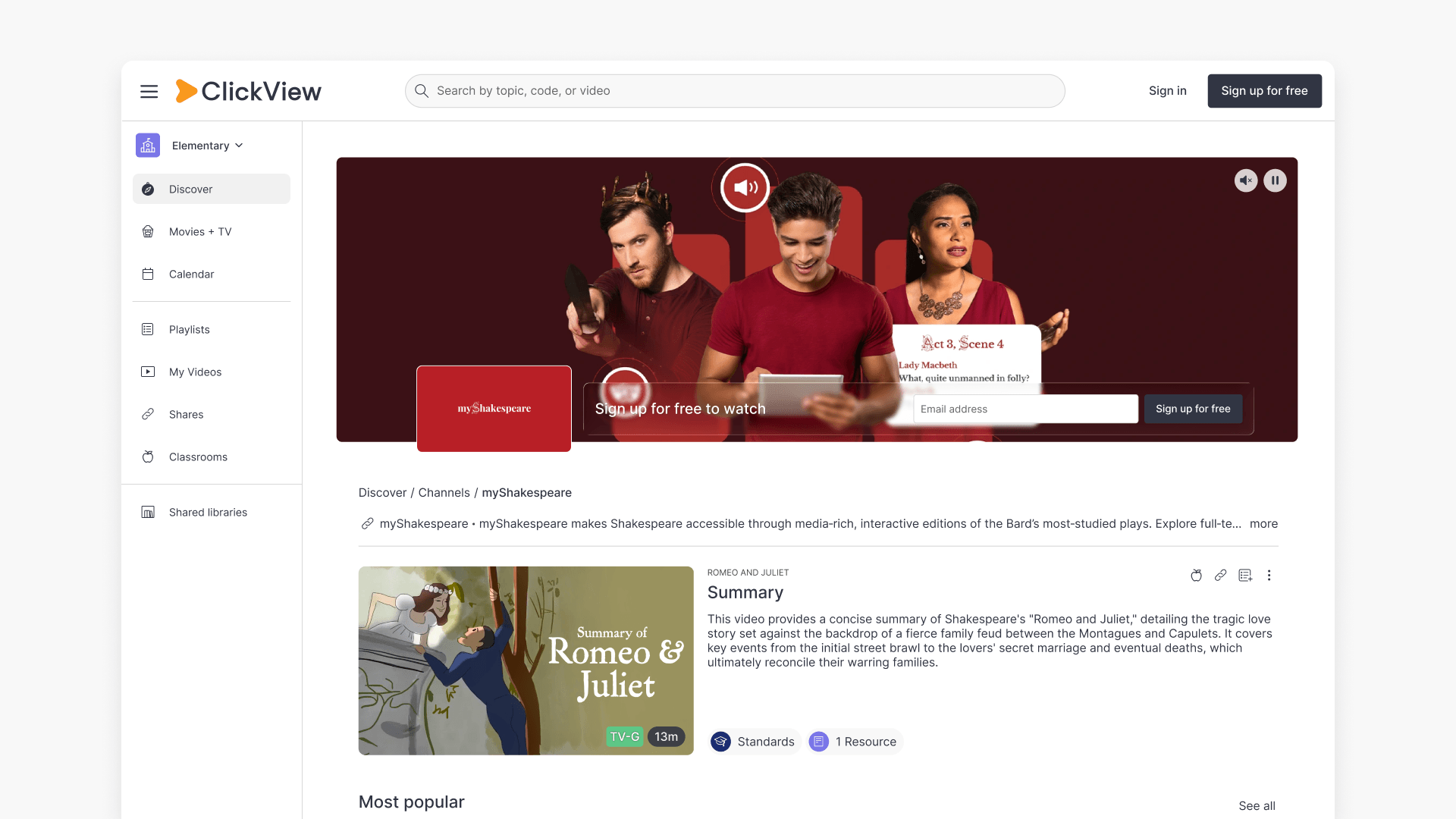
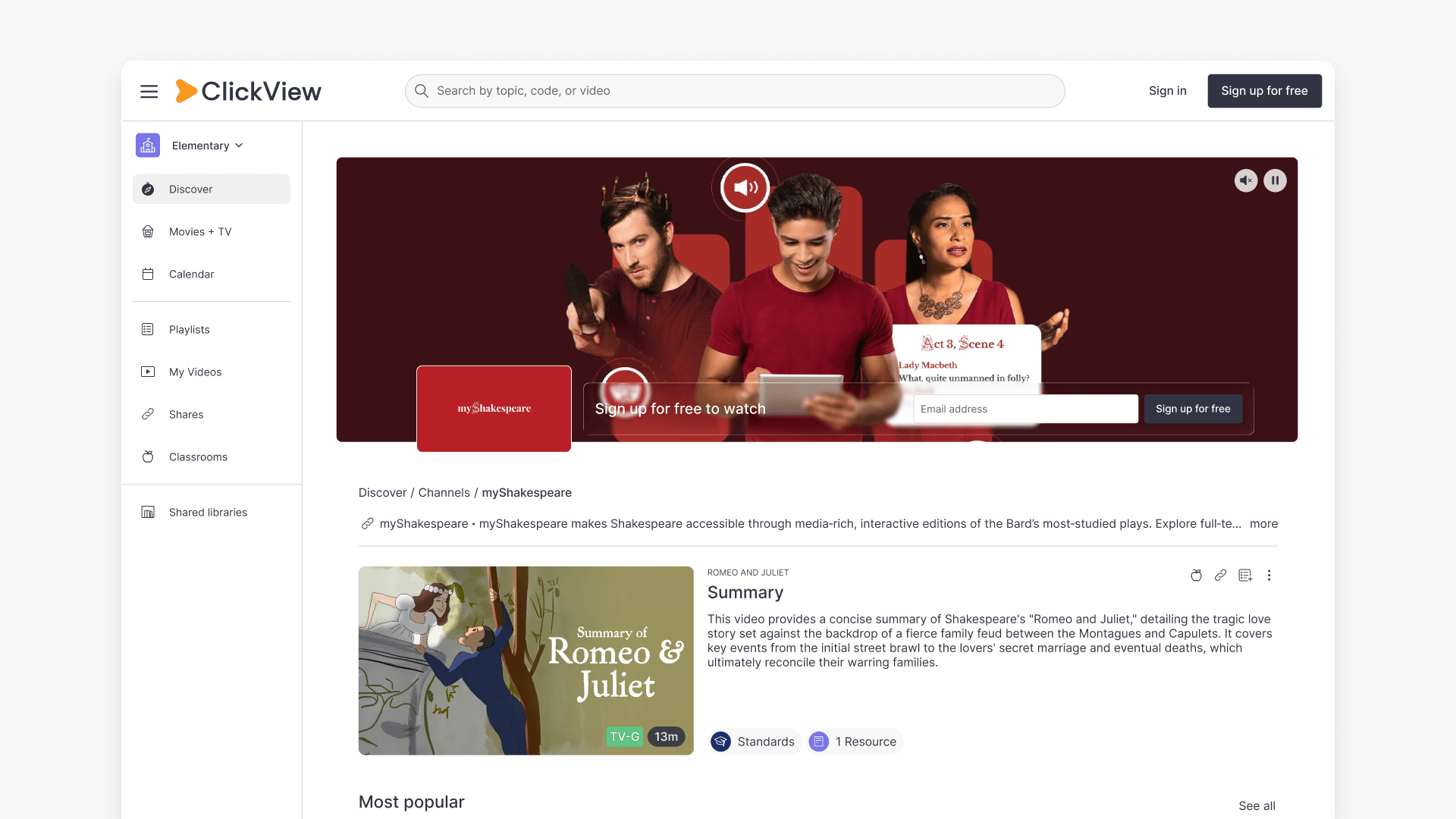
Each Featured Channel opens with a preview banner introducing the producer, followed by their videos organised into sections such as recent, popular, and series, plus custom sections specific to that channel. The myShakespeare channel, for example, includes a dedicated section for The Prologue from Romeo and Juliet. You can also search within a channel to find more of that producer’s content.
How Featured Channels differ from Topics
Both Featured Channels and Topics are curated by ClickView’s Education Team, but they organise content differently:
- Topics gather videos about a particular subject from many different producers.
- Featured Channels gather all the videos from a single producer.
A Topic focuses on one subject, so its videos all relate to that subject. A Featured Channel focuses on one producer, so its videos can span many different subjects and topics.
Where to find Featured Channels
There are four ways to find Featured Channels:
- From the widget on the Discover dashboard
- Through the Featured Channels directory
- By searching for a channel by name
- From a video or series play page
Which channels you see depends on your region. A channel available in one region isn’t always available in another.
On the Discover dashboard
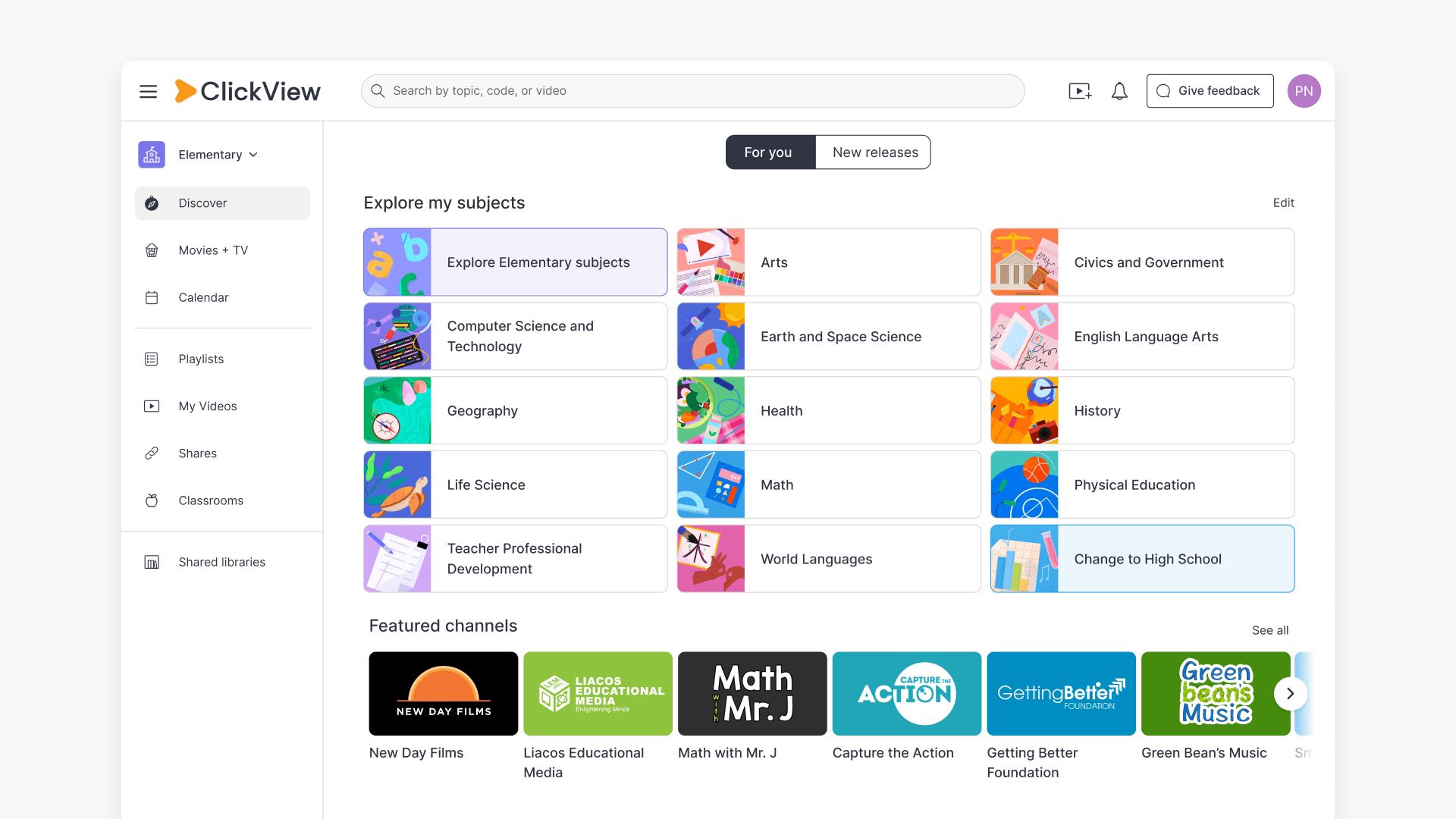
The Featured Channels widget on the Discover dashboard showcases channels highlighted by ClickView’s content team. The widget is horizontally scrollable and shows six channel logos at a time, each with the channel name beneath it.
- Select a channel logo to open that channel’s page.
- Select the widget title or the See all button (top right) to open the Featured Channels directory.
In the Featured Channels directory
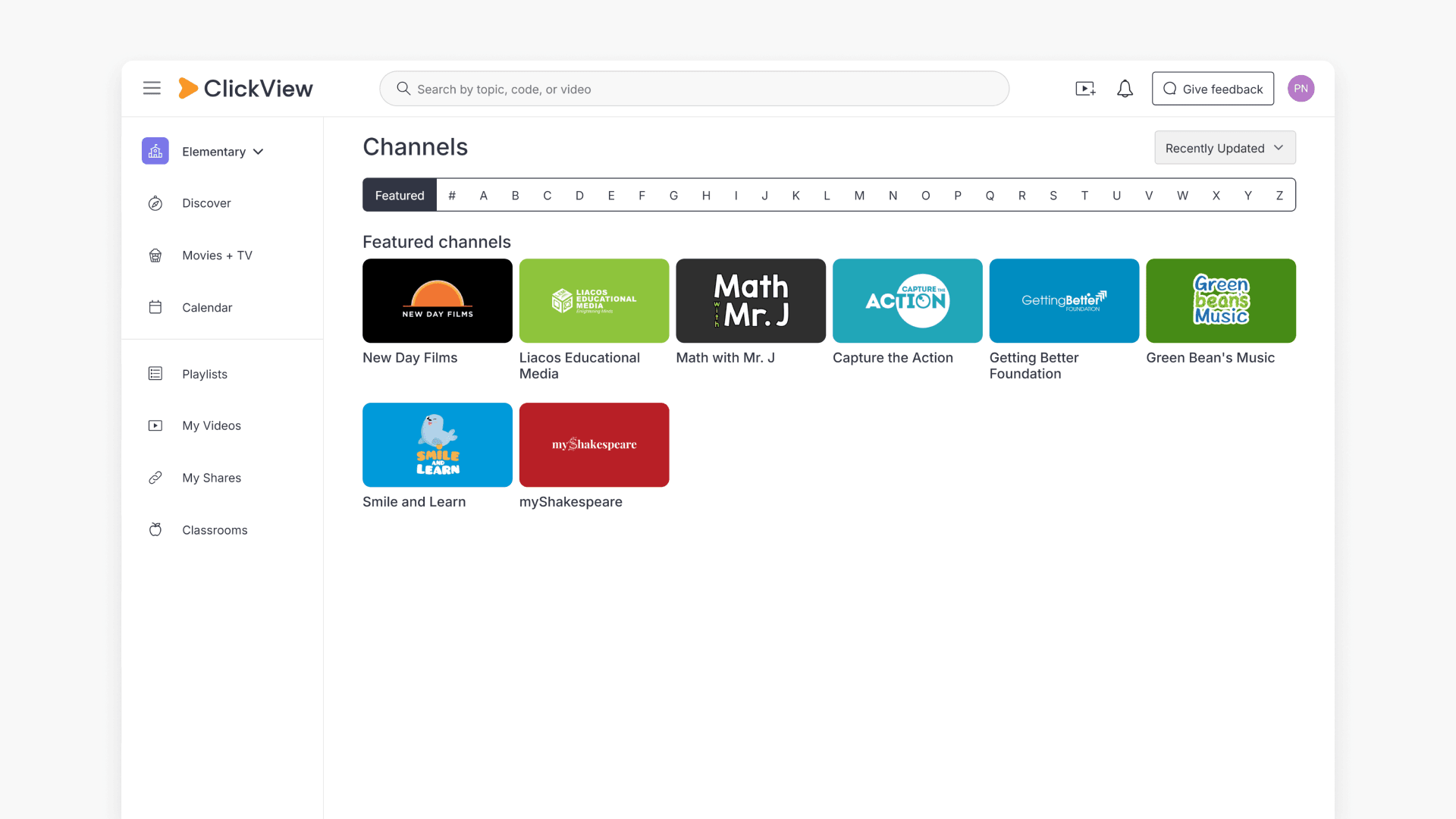
The directory is headed Channels and shows every Featured Channel available to you. At the top of the page is a navigation bar with a Featured tab, a # tab, and the letters A–Z.
- The Featured tab shows the same channels highlighted in the Discover widget, presented as a single list.
- Select a letter to jump to channels whose name begins with that letter. The full list is grouped and sorted alphabetically.
You can reorder the alphabetical list using the sort control at the top right, which offers Recently Updated, A–Z, and Newest. These sort options apply to the alphabetical list only, not the Featured tab.
By searching for a channel
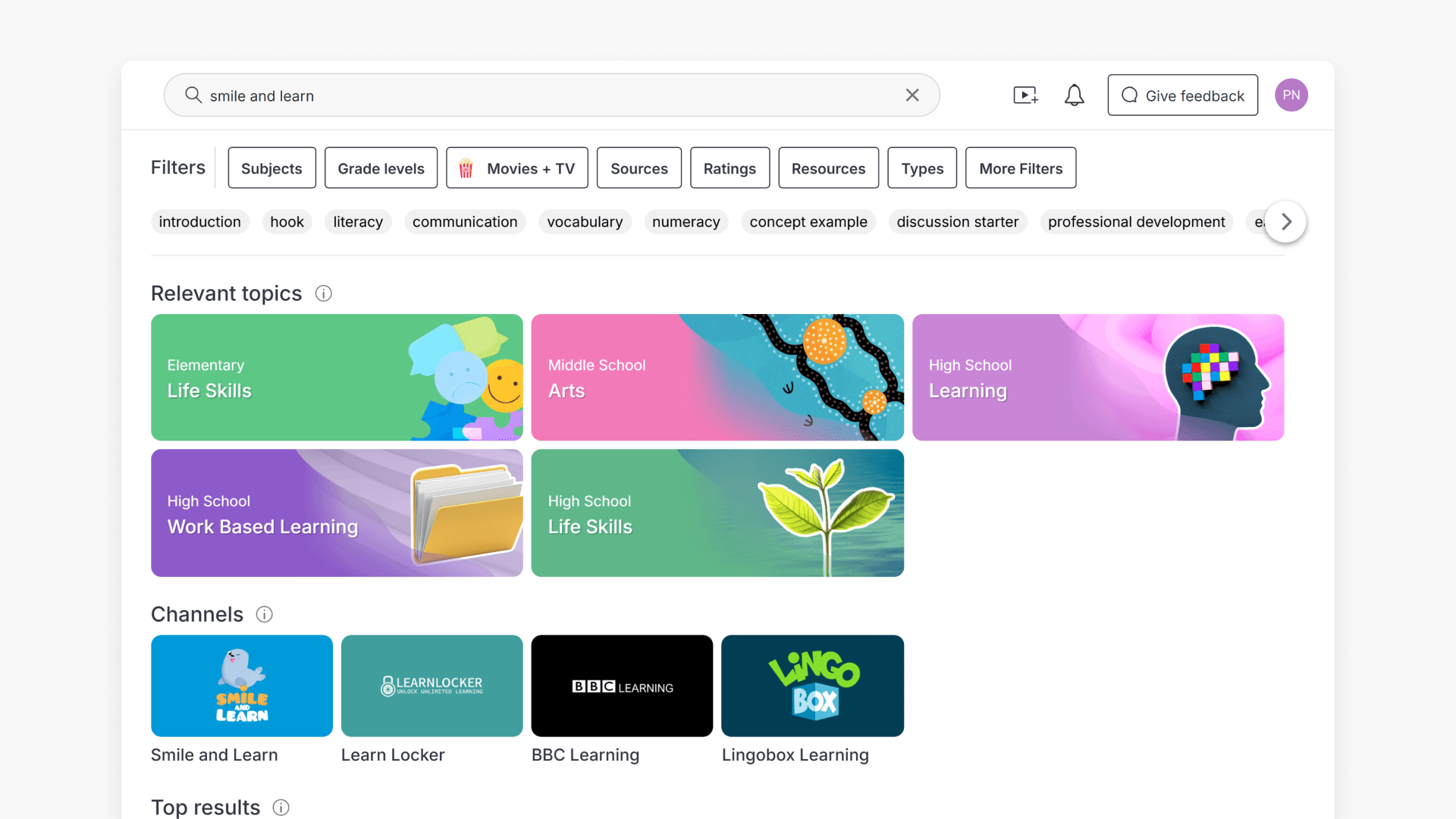
You can find a Featured Channel from the main ClickView search bar, the same one you use to search for videos and Topics. Matching channels appear in a Channels section of your search results, shown as logo tiles with the channel name beneath. Select a channel logo to open its page.
You don’t need to type the exact channel name. A partial match surfaces the channel.
On a video or series play page
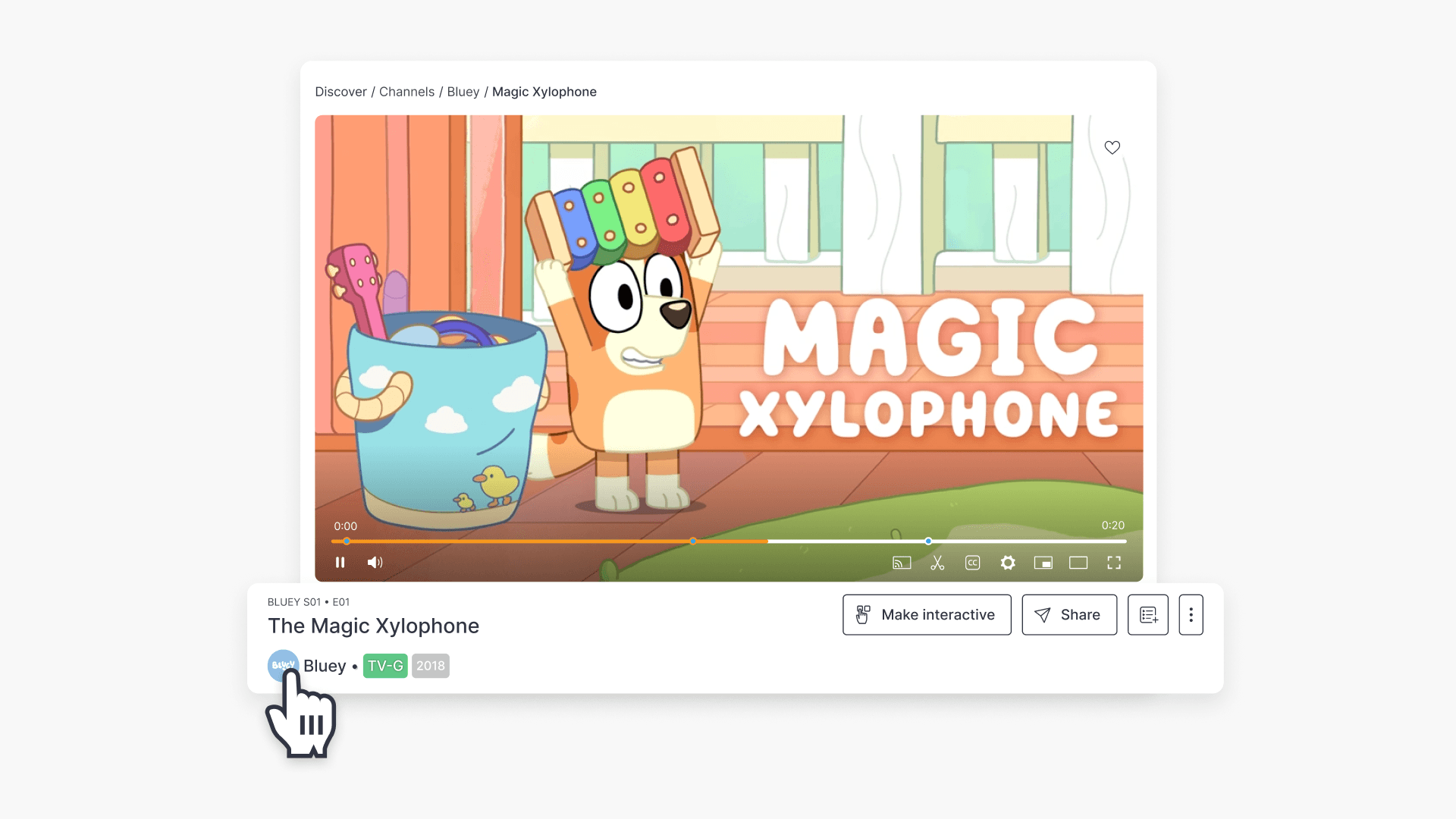
If a video or series is associated with a Featured Channel, the channel’s logo appears directly below the play page. Select the logo, for example, Bluey’s logo, to open that channel’s page.
Searching within a Featured Channel
You can search inside a Featured Channel to find more videos from that producer.
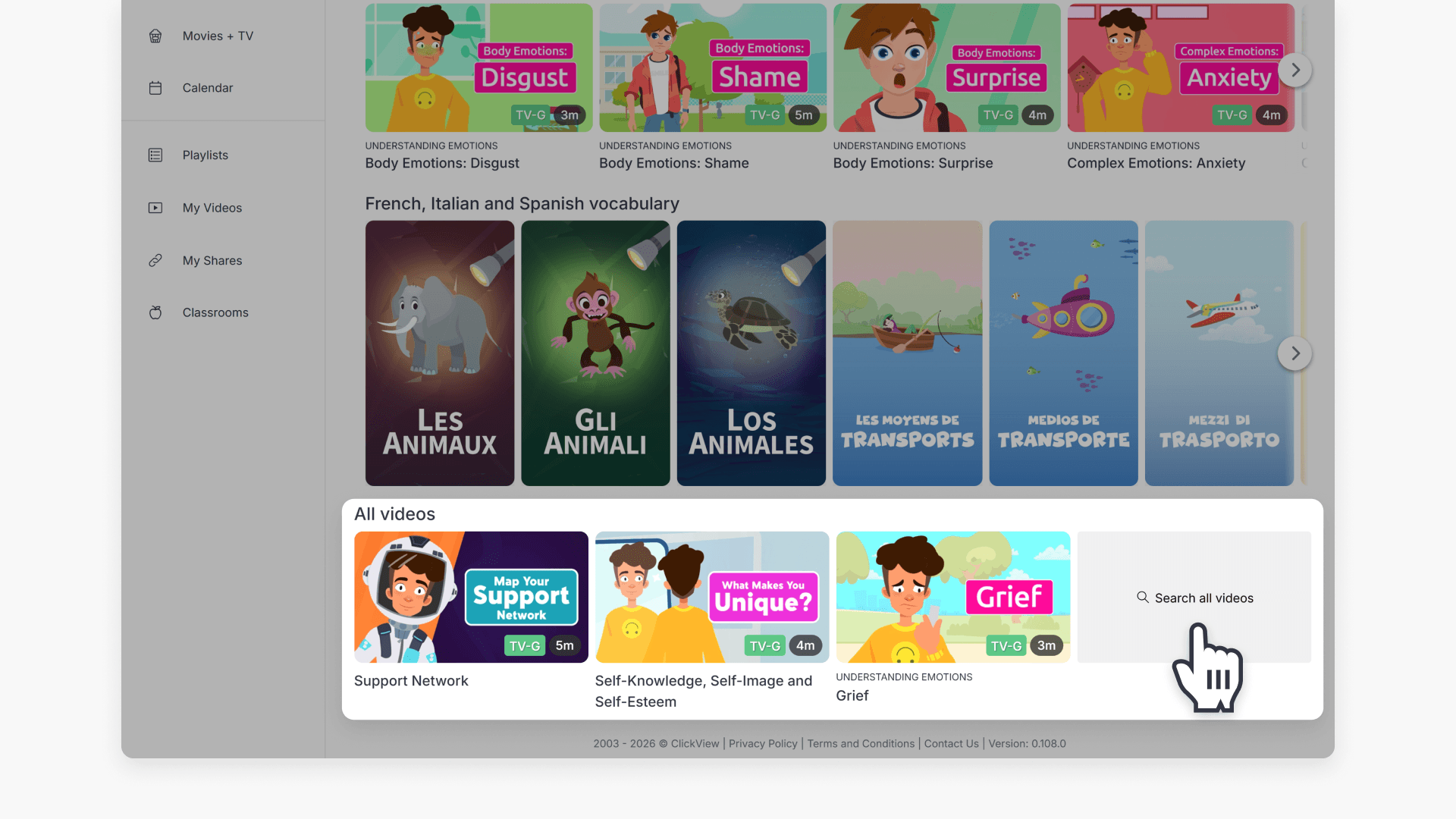
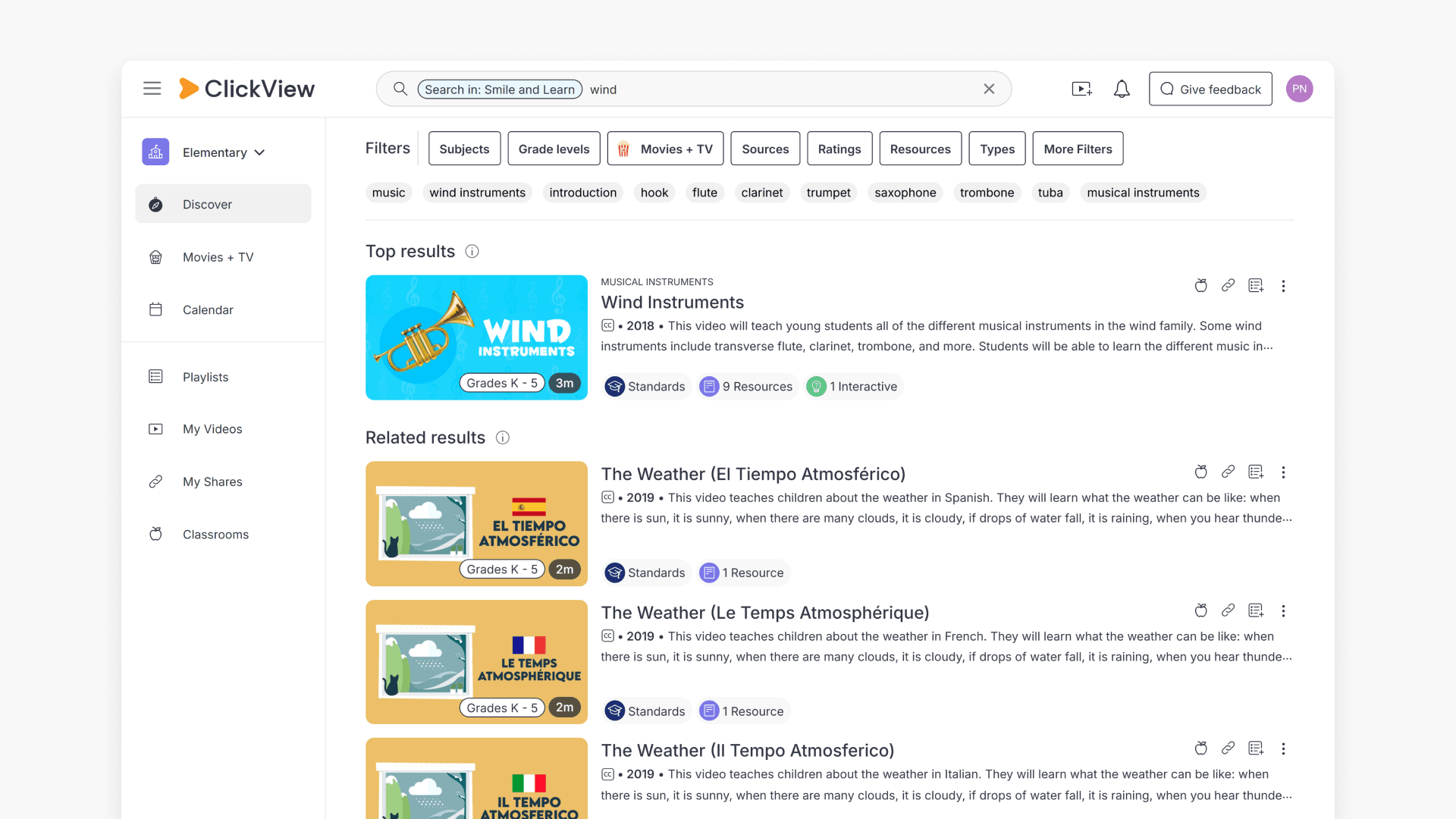
At the bottom of a channel page, find the All videos widget. The last tile is labelled Search all videos. Select it to open a search scoped to that channel. A Search in: [channel name] tag appears in the search bar to show you’re searching inside the channel.
The results are limited to videos from that channel, but otherwise work exactly like a standard ClickView search. Results are grouped into the same sections, such as Series, Top results, and Related results. All the same filters are available too, including Subjects, Year groups, Movies + TV, Sources, Ratings, Resources, Types, and more filters.
In-channel search with “Search in” tag and results
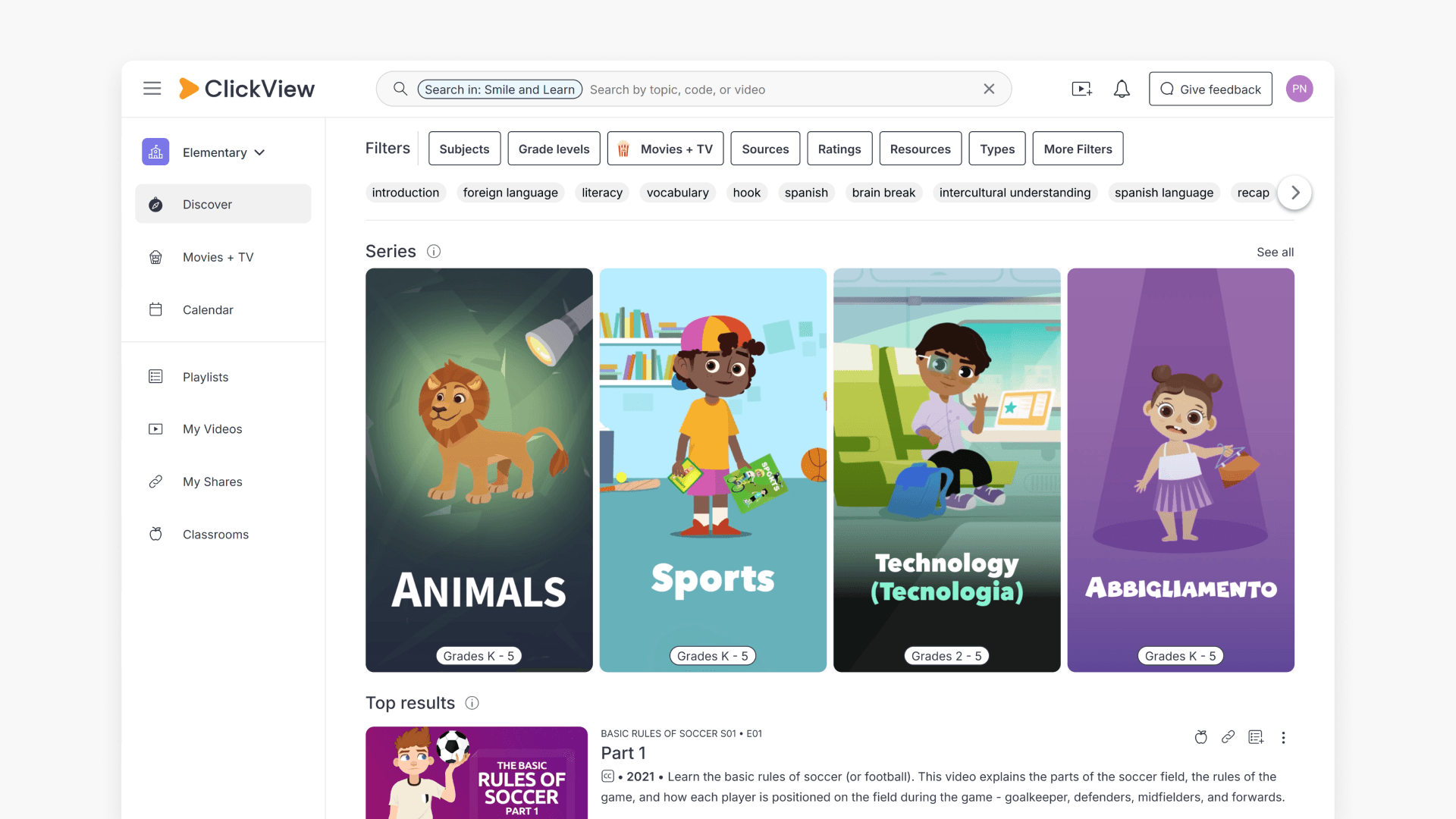
In-channel search results for a keyword (e.g., Wind)
Frequently asked questions
Get in touch
If you’re having trouble finding the right topics or videos, just reach out! Our team - 


 Andrew, Nisch, Janice, Pfreya, or any of us at ClickView - will be happy to help you get sorted.
Give feedback
Was this guide helpful?
Up Next
How to preview videos by hovering
Summary How do I preview a video in ClickView without opening it? It is possible to preview a video without having to click the video title. Hover your cursor over any video tile and a preview screen will appear. The preview screen includes a small video player, captions, a seekable progress bar, a mute/unmute button, […]