How to add or remove a favourite video

Summary
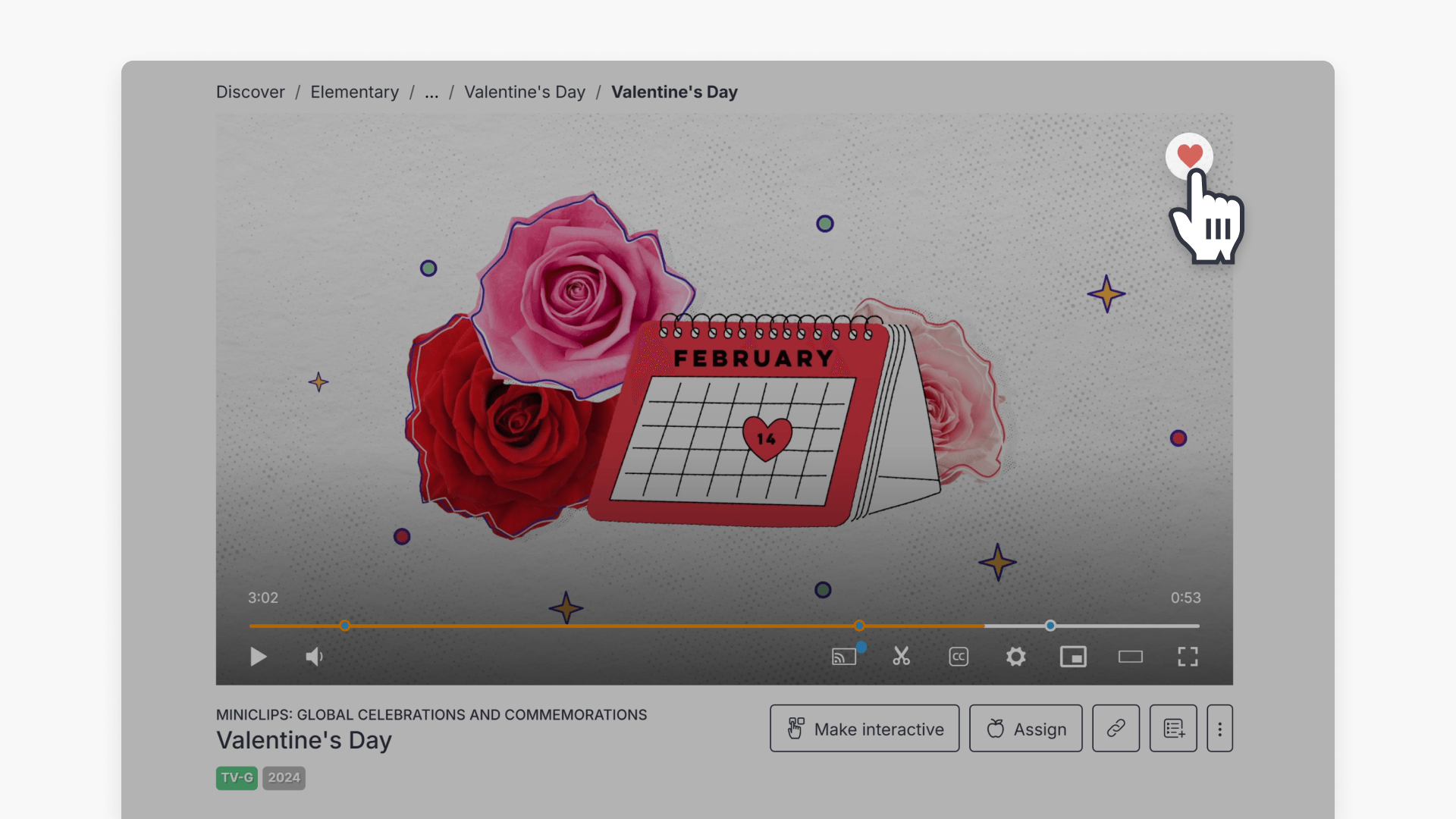
- Click the ‘heart’ icon to mark a video as a favourite.
- A notification appears after you add a favourite.
- The heart icon turns red to indicate a favourite video.
- Access your favourite videos through ‘Playlists’ in the left menu.
- Remove a favourite by clicking the red heart on the video or thumbnail.
What are favourites?
Favourites let you quickly save videos you want to reuse or return to later without needing to organise them into a playlist. When you mark a video as a favourite, it is added to your Favourites list under Playlists, making it easy to find frequently used or high-value content in one place.
How do I mark a video as a favourite?
- Click the ‘heart’ icon in the top right corner of the video.

- After clicking, a confirmation notification will appear.

- The heart icon in the top right of the video will turn red, showing the video is now a favourite.

- To access your marked favourites, select “Playlists” from the left-hand side menu, then choose “Favourites” from the playlists list.

How do I remove a favourite?
- To remove a favourite, click the red heart in the top right of the video or thumbnail.

- The video will be removed from your ‘Favourites’ menu option.
Frequently asked questions
Get in touch
If you’re having trouble finding the right topics or videos, just reach out! Our team - 


 Andrew, Nisch, Janice, Pfreya, or any of us at ClickView - will be happy to help you get sorted.
Give feedback
Was this guide helpful?
Up Next
How citations work in ClickView
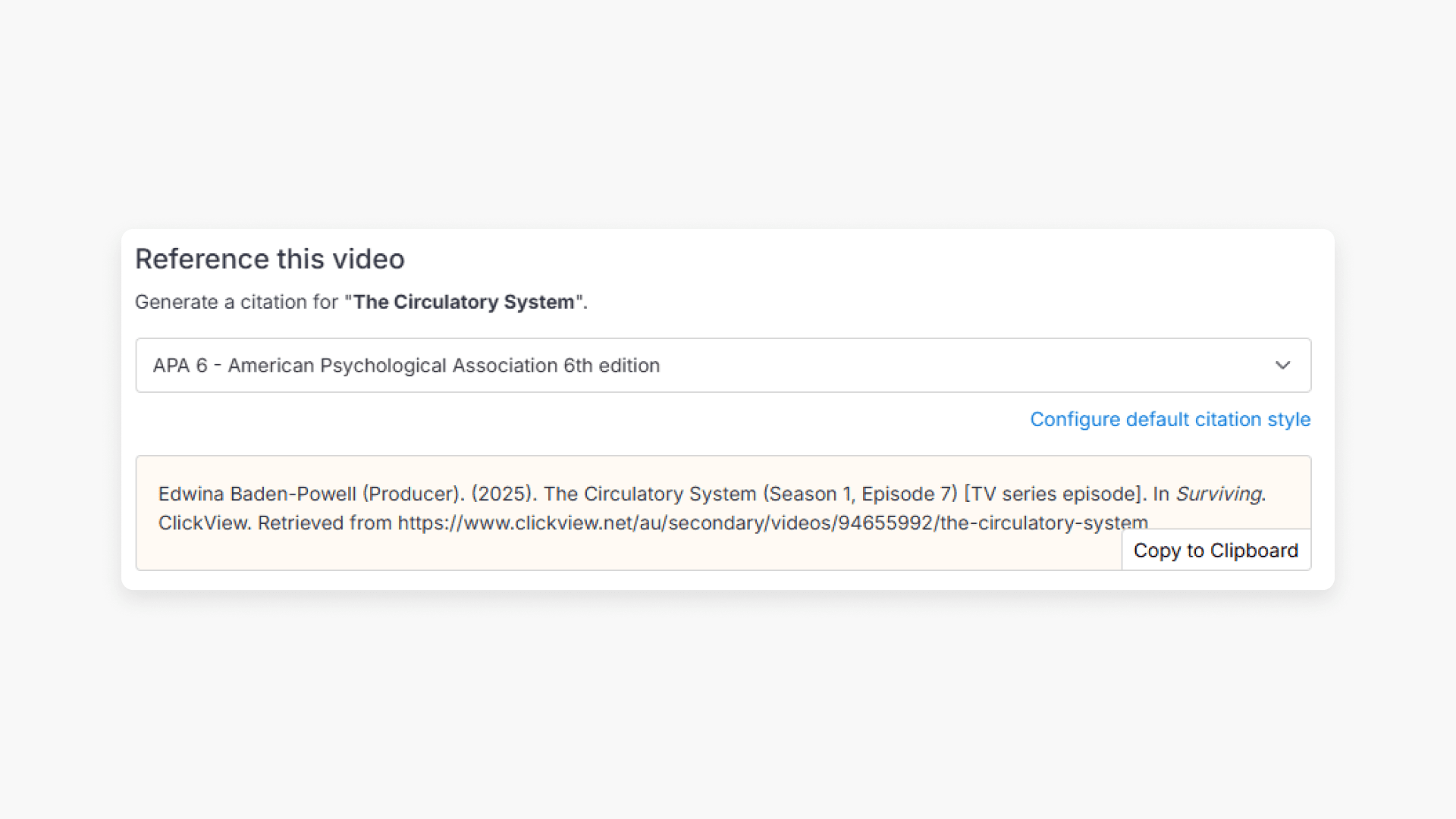
Summary How do I find citations for videos in ClickView? Every video in ClickView includes a citation. Open a video, scroll below the player, and find the Reference this video section. Select a citation style from the dropdown, and ClickView will generate the citation automatically, copy it to your clipboard, and use it anywhere. Every […]