How to review a video using Points of Interest, tags, and Video at a Glance

Summary
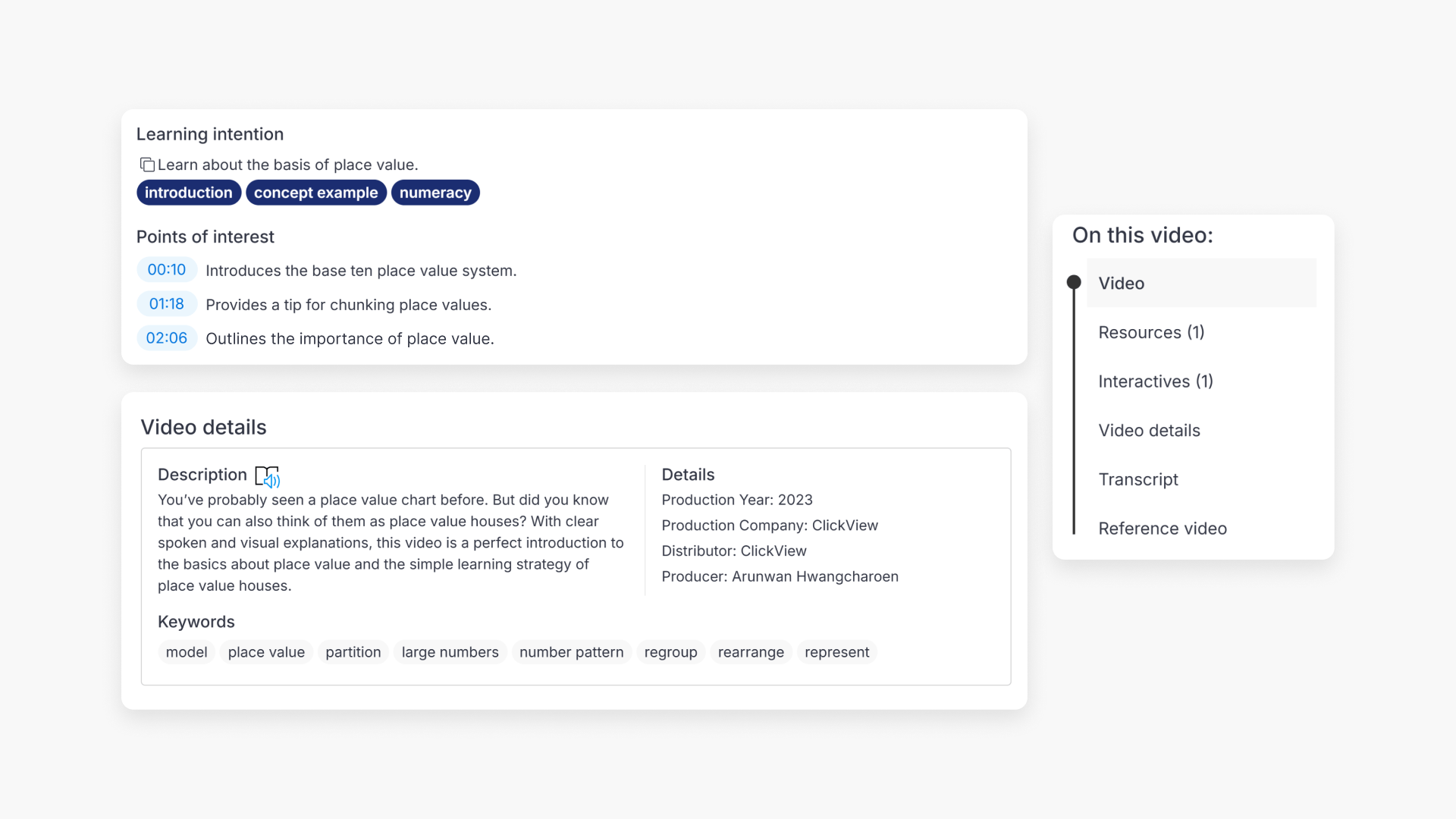
- Points of interest show timestamps with descriptions of what’s covered at each point in the video. Select any timestamp to jump straight to that section.
- Keywords show related search terms for the video. Select any keyword to run a search in ClickView for that term.
- On this video is a navigation panel that lists what’s available for the video, including resources, transcript, learning objectives, and more. Select any item to scroll to that section.
- All three features appear below the video on the video page and are available to all logged-in users.
- The sections visible under On this video depend on what’s available for that specific video — some items may not appear for every video.
What are these features?
Points of interest, Keywords, and On this video (referred to in some contexts as “Video at a glance”) are metadata features that appear below the video on every video page in ClickView. Their purpose is to help teachers quickly assess whether a video is suitable for their class. By showing what’s covered, what resources are available, and how the video relates to other content.
Important notes:
- On this video may not show all sections for every video. Sections such as Resources, Transcript, Curriculum link, and Reference video only appear if that content exists for the specific video.
- Points of interest may not be present on every video — they are added by the ClickView content team and depend on the video.
- Keywords are always present on every video.
Where it’s available
All three features are located below the video on the video page. The teacher does not need any specific account type — they are available to all logged-in users.
On the video page:
- Open any video in ClickView.
- Scroll down past the video player and description.
- Points of interest appear in the main content area, alongside the On this video panel on the right-hand side.
- Continue scrolling to find Keywords further down the page.


Points of interest
Points of interest show a list of timestamps, each with a short description of what’s covered at that point in the video. They are added by the ClickView content team. The number of points of interest varies depending on the video — some videos have many.
Clicking a timestamp jumps the video player to that point in the video.

Keywords
Keywords show a list of terms related to the video. They are added by the ClickView content team and are present on all videos.
Clicking a keyword runs a search in ClickView using that term, making it easy to find related content.

On this video
On this video is a navigation panel that appears on the left-hand side of the page as the teacher scrolls down. It lists the sections available for that video. Selecting any item scrolls the page to that section.
Sections that may appear under On this video include:
- Video
- Curriculum link
- Resources (with a count of available resources shown in brackets)
- Video details
- Transcripts
- Reference video
Not all sections appear for every video. If a video does not have a transcript, for example, that item will not appear in the panel.

Frequently asked questions
Get in touch
If you’re having trouble finding the right topics or videos, just reach out! Our team - 

 Akhil, Daniel, Jalaj, or any of us at ClickView - will be happy to help you get sorted.
Give feedback
Was this guide helpful?
Up Next
Understanding Featured Channels
Summary What are Featured Channels in ClickView? Featured Channels bring together every video from one producer in a single place, so you can explore all their videos and resources rather than finding them across topics, series, and search results. Each channel includes a banner introducing the producer, videos organised by recent, popular, and series, and […]