How to preview videos by hovering

Summary
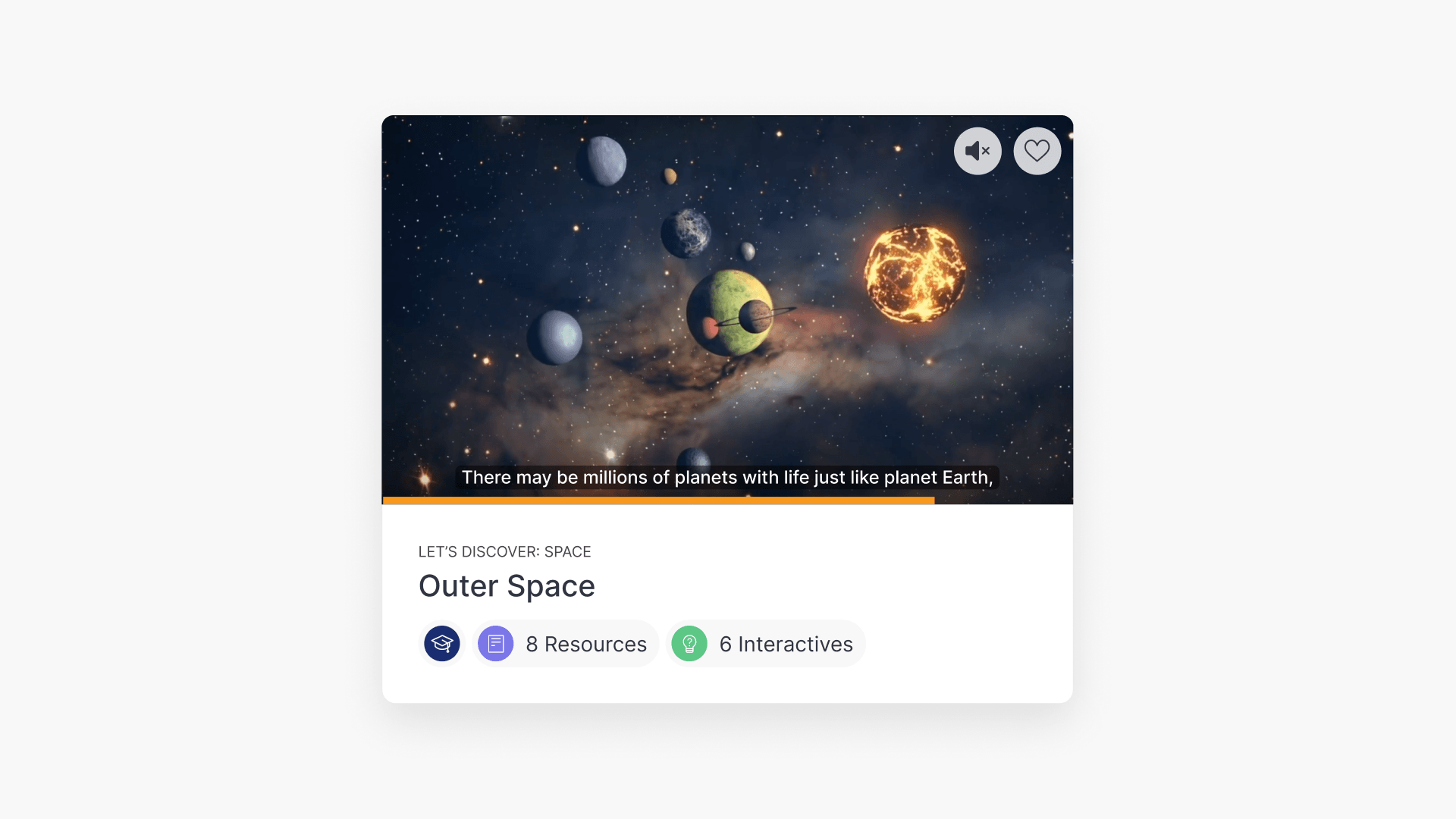
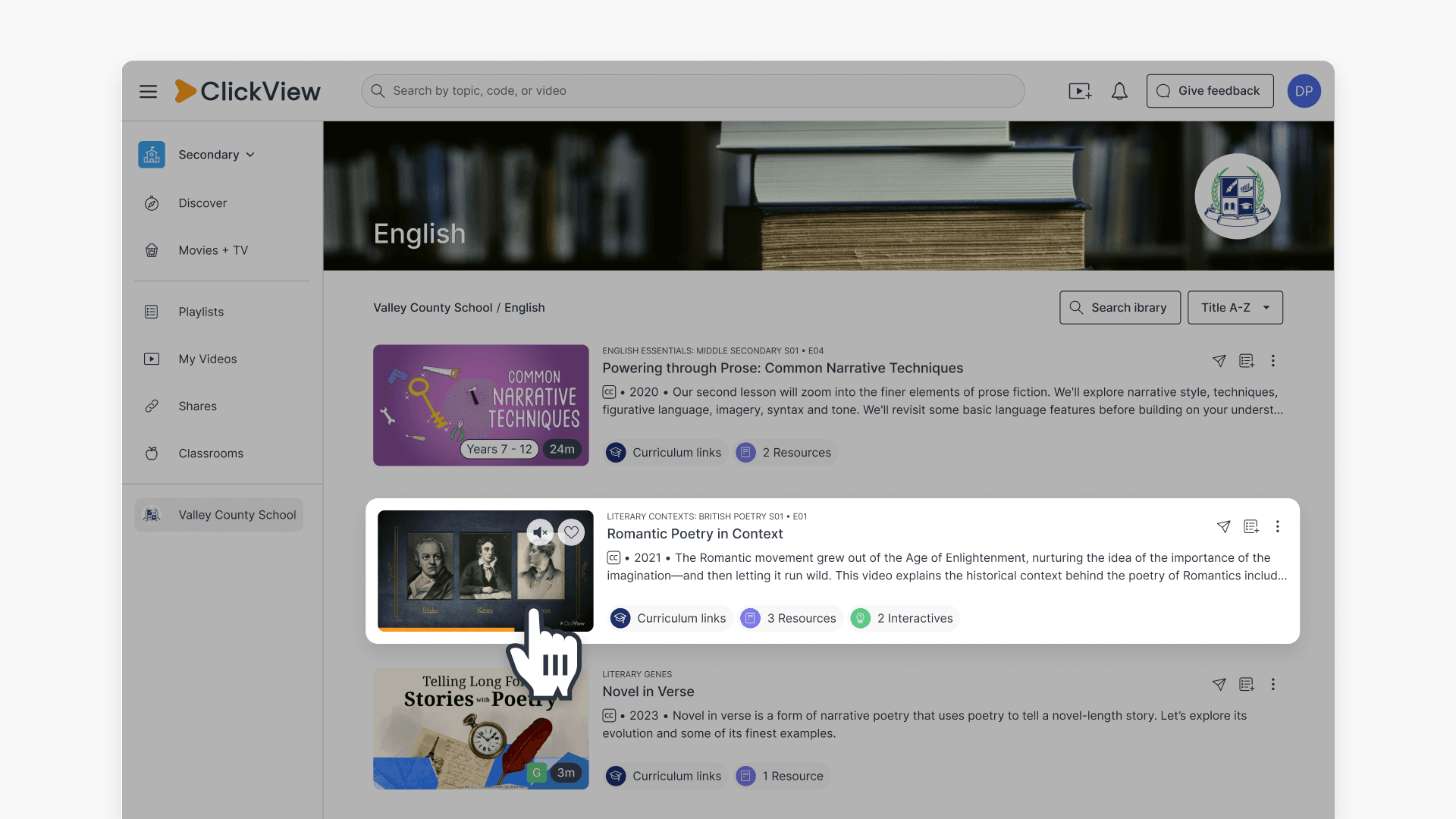
- Hover over any video tile to preview the video in a small player without opening it.
- The preview plays from the start, or from where you left off if you’ve previously watched part of the video.
- Previewed videos are muted by default but can be unmuted using the mute/unmute button.
- Use the seekable progress bar to scrub forwards or backwards through the video during preview.
- Quickly add a video to your favourites directly from the preview player.
What is hover to preview?
When you hover your cursor over a video tile, the preview player replaces the thumbnail image and plays the video automatically. This lets you see more of what a video contains without clicking into it and navigating back to continue browsing.
The preview player is available on desktop only. It does not work in the ClickView mobile app. Interactive videos cannot be previewed using this feature.
Where hover to preview is available
Hover to preview is available in the following sections of ClickView:
- Discover page (including Continue Watching)
- Movies + TV
- Search results
- Playlists
- My Videos
- School Library
Hover to preview is not available in Shares or Classrooms
How the preview player works
Discover page and Movies + TV
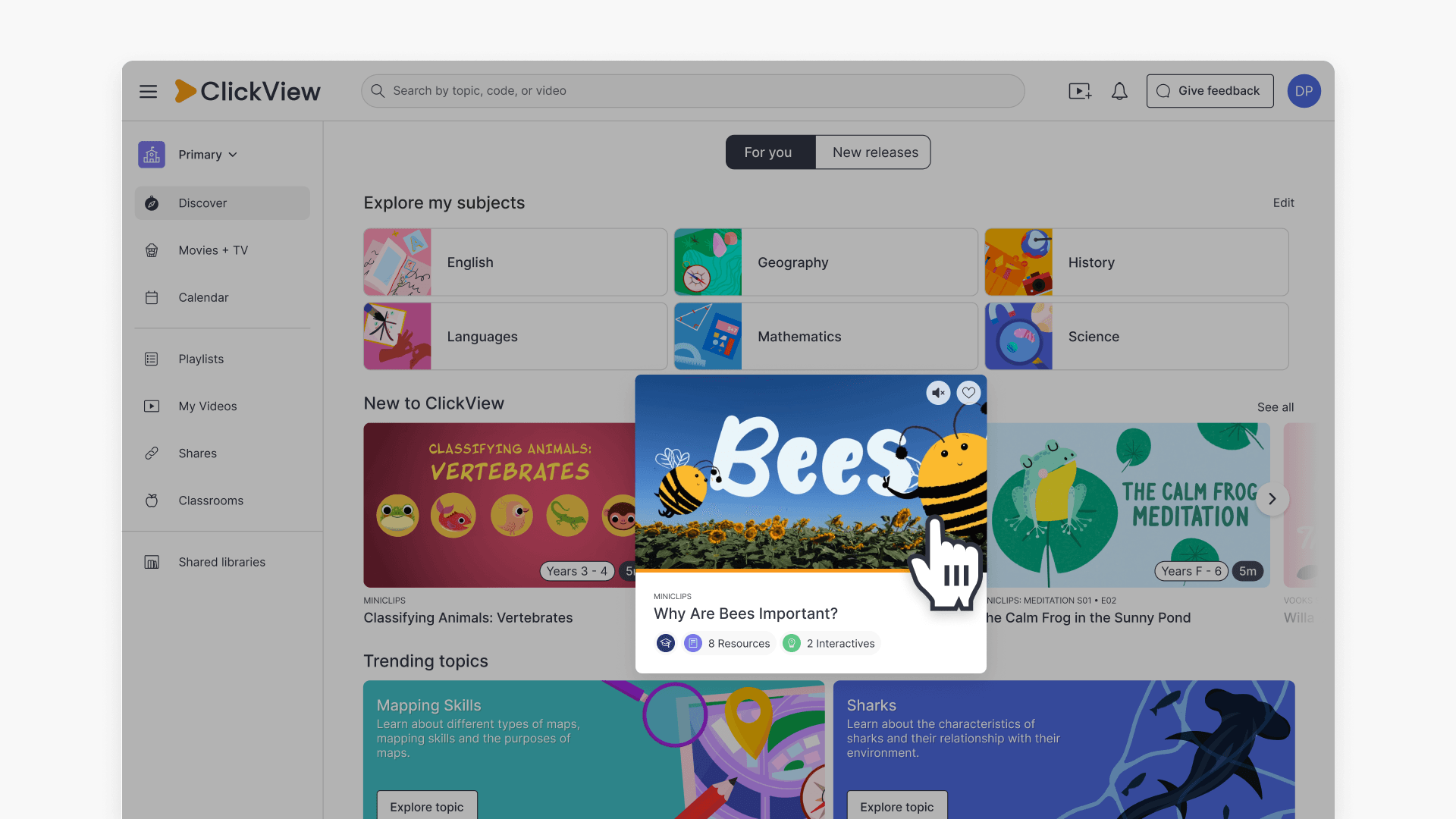
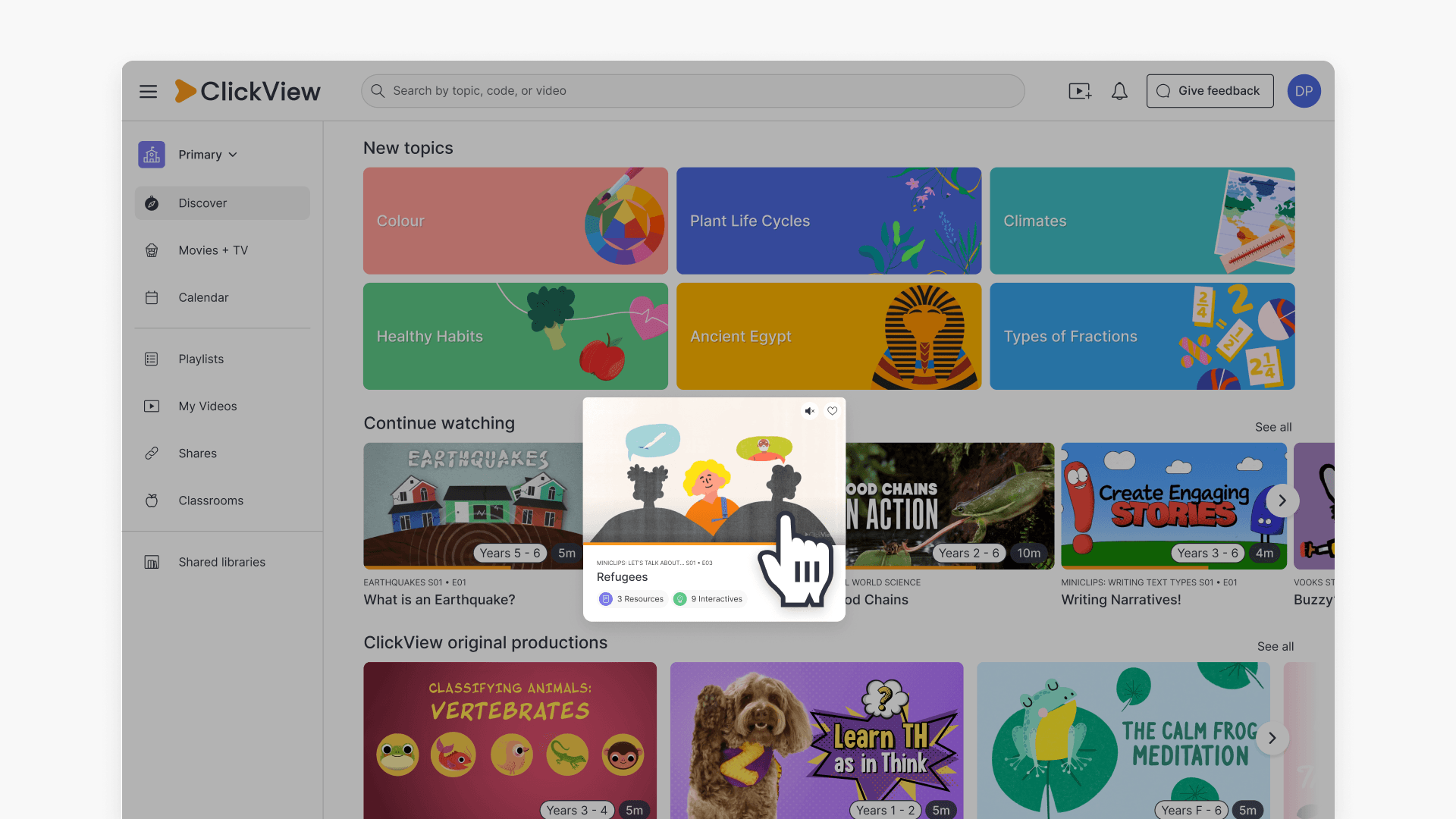
In the Discover page and Movies + TV, hovering over a video tile causes the preview to pop out, enlarging the tile by approximately 5% to create a small raised frame.
The following information appears below the preview player:
- Series title and episode number
- Title of the video
- Curriculum links or resources (if available)
Search results, Playlists, My Videos, and Library
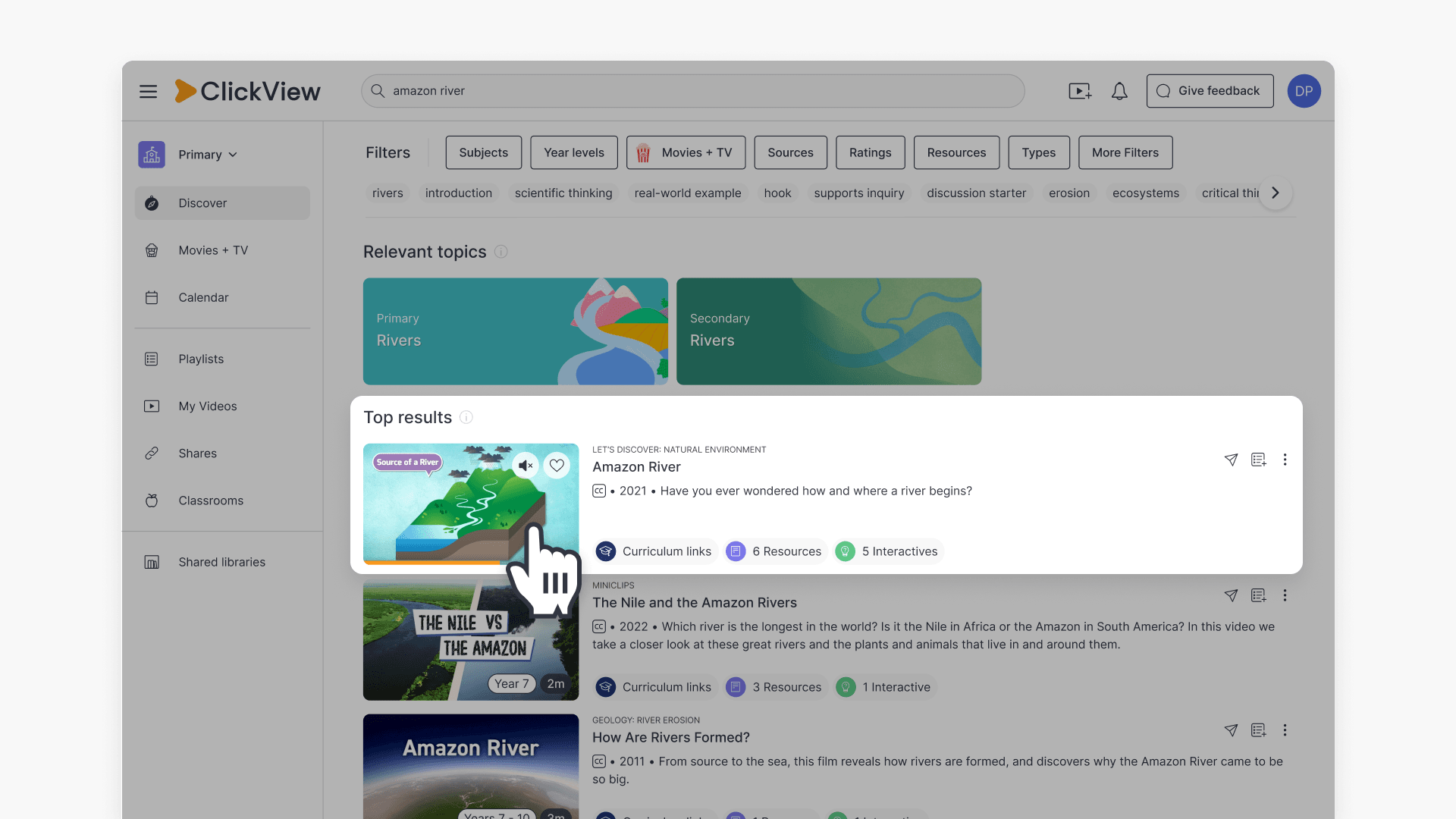
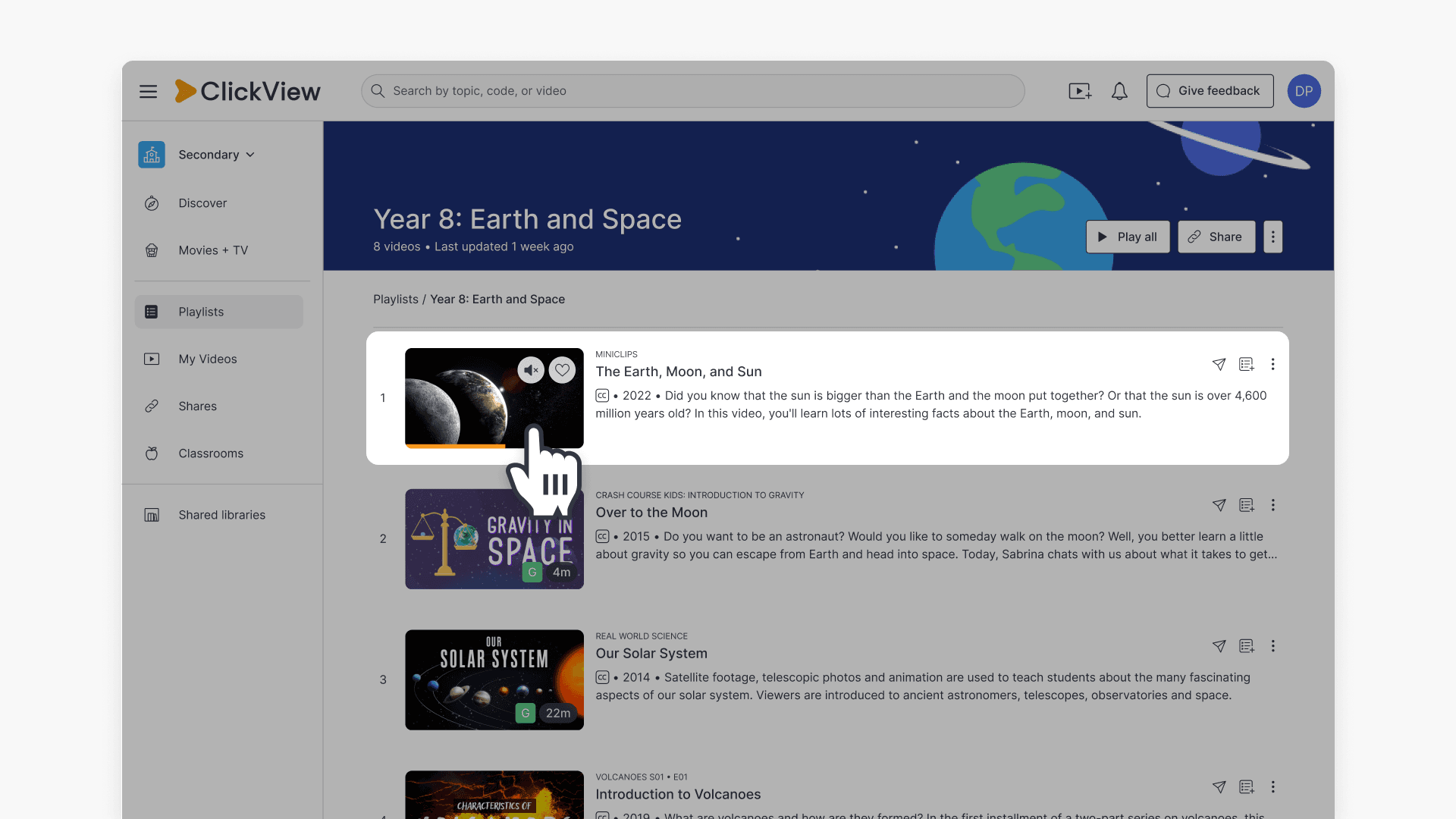
In Search results, Playlists, My Videos, and Library, hovering over a video tile replaces the thumbnail image with the preview player. There is no pop-out enlargement.
Continue watching (Discover page)
In the Continue Watching section of the Discover page, the preview player works the same way as the rest of the Discover page, with one addition: an X button to Remove from Watch History appears alongside the Add to Favourites button.
What appears in the preview player
The preview player includes the following controls across all locations:
- The video is playing automatically
- Captions (requires a subtitles file on user-uploaded content)
- A seekable progress bar
- A mute/unmute button
- An Add to Favourites button (♥)
- ClickView Local Cache logo in the bottom right corner (visible only if local caching is enabled for your school, indicates the video has been cached on your school’s network)

Playback behaviour
- The video plays from the start if you haven’t previously watched it.
- If you’ve watched part of the video before, the preview plays from where you left off. This applies across all sections where ‘hover to preview’ is available.
- Moving your cursor away from the tile dismisses the preview player.
- Hovering over the tile again restarts the preview from the beginning (if unwatched) or from where you left off (if partially watched).
- If you scrub through the progress bar during preview, the video opens at the point you scrubbed to when you click into it.
Frequently asked questions
Get in touch
If you’re having trouble finding the right topics or videos, just reach out! Our team - 


 Andrew, Nisch, Janice, Pfreya, or any of us at ClickView - will be happy to help you get sorted.
Give feedback
Was this guide helpful?
Up Next
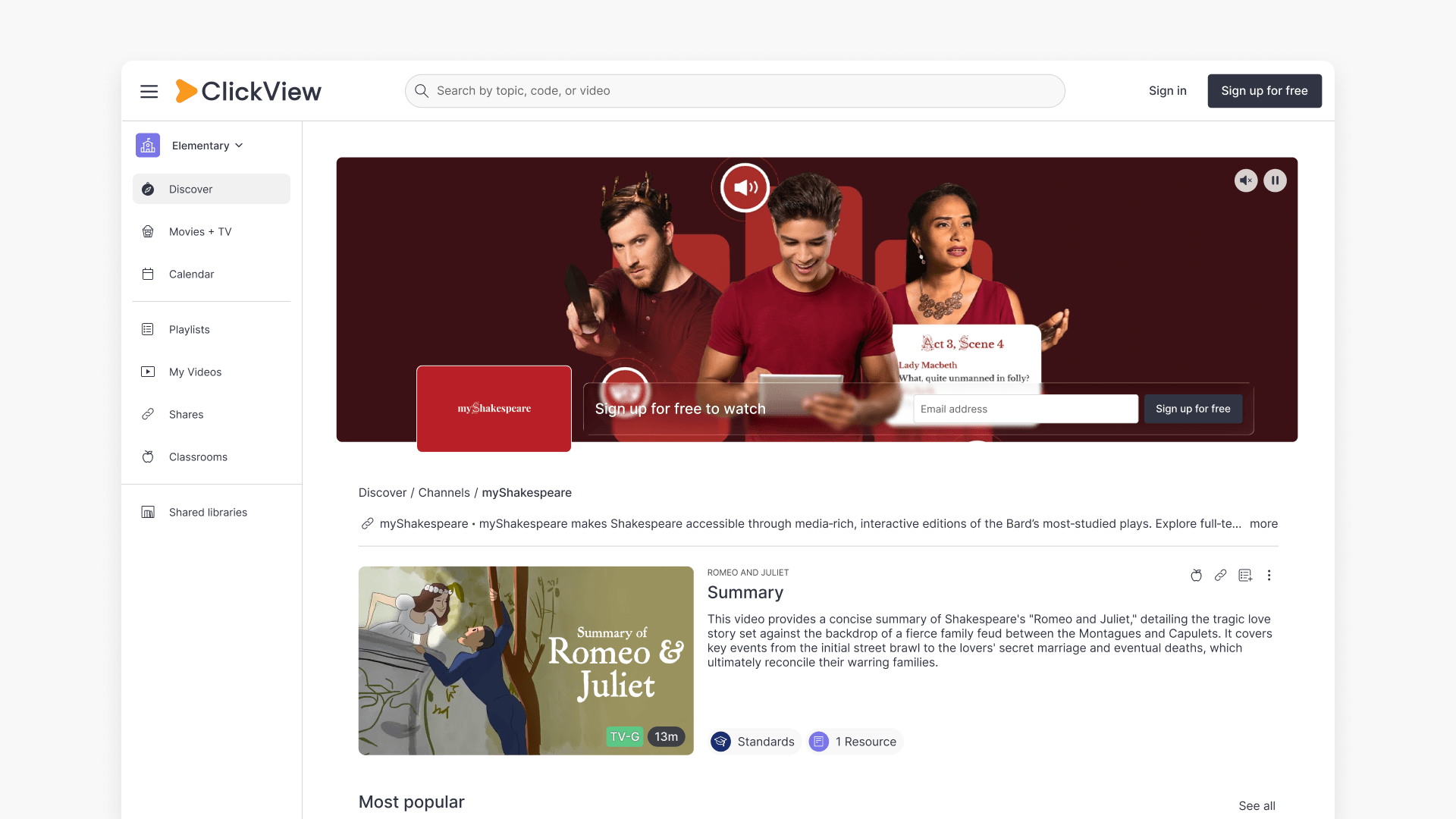
Understanding Featured Channels
Summary What are Featured Channels in ClickView? Featured Channels bring together every video from one producer in a single place, so you can explore all their videos and resources rather than finding them across topics, series, and search results. Each channel includes a banner introducing the producer, videos organised by recent, popular, and series, and […]