How to find videos using subject dashboards and topic directories

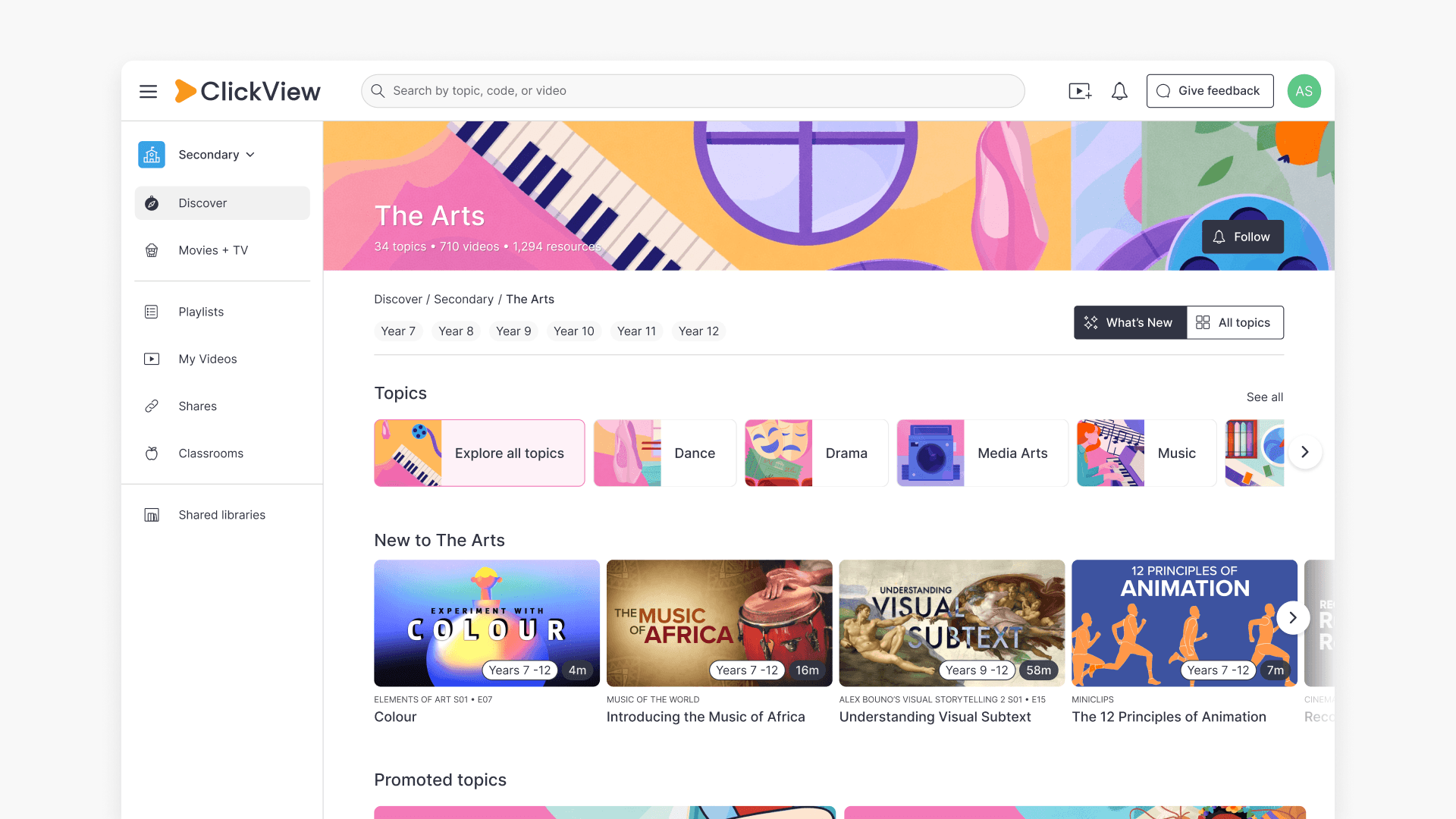
Summary
- Click Discover on the left-hand side to browse videos organised by subject and topic.
- Select a subject to see its topics, then choose a topic to view all related videos.
ClickView’s video library is organised into subjects and topics, so you can browse and discover videos without searching by keyword. This article shows you how to navigate the topic directory from Discover to find videos for your classroom.
- Click Discover on the left-hand side to browse videos organised by subject and topic.
- Select a subject to see its topics, then choose a topic to view all related videos.
Prerequisites: You need to be signed in to ClickView. No specific account type or setup is required.
Browse your subjects
Click Discover on the left-hand side. The Explore my subjects heading appears at the top left, with the full list of subjects available to you.
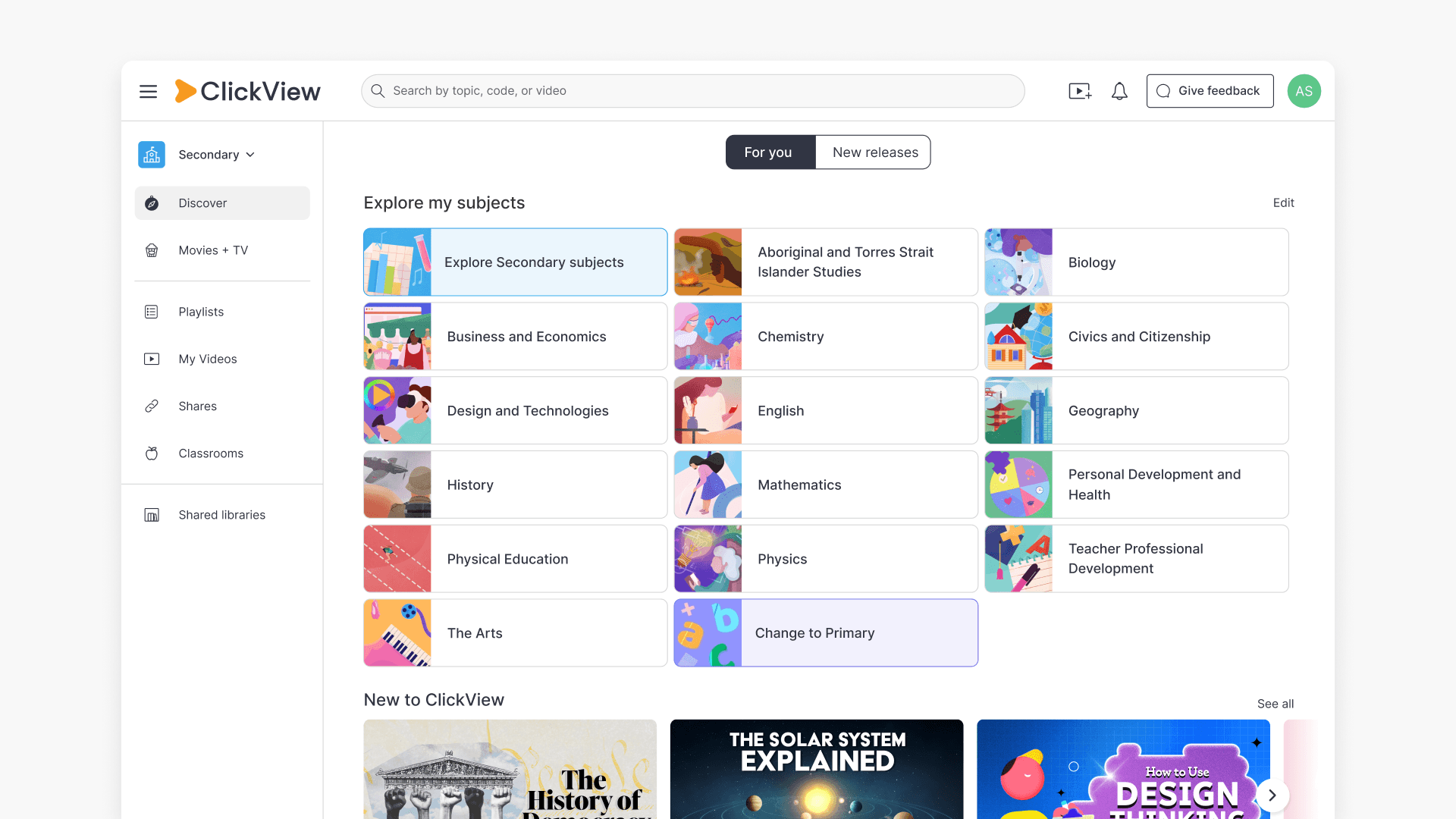
If you have a K-12 account, the subjects list also includes options to switch the school level you’re browsing — for example, Change to Primary School. Selecting a different level changes the subjects and topics shown.
Open a subject
Select a subject to open the subject page. This page brings together topics and recommended videos for that subject, in the following order:
- A Topics heading
- Recently added topics
- Top ClickView Original picks for [Subject]
- [Subject] videos popular right now
- Videos other teachers are using at this time of year
- An Explore all [Subject] topics banner button at the bottom
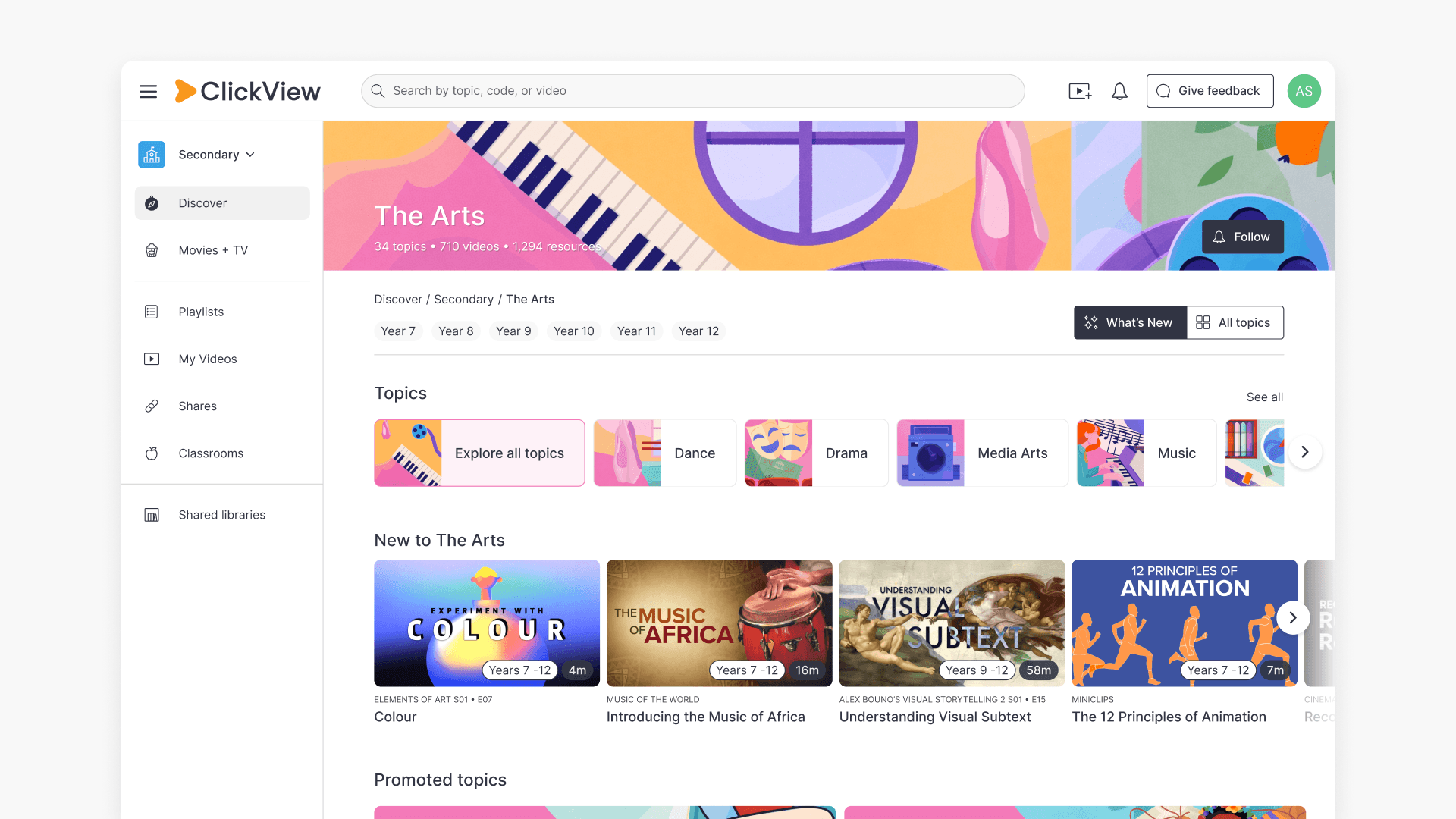
From the subject page, you can:
- Click any video shown in a row
- Click a topic button to open that topic
- Choose a topic from Recently added topics
- Click Explore all topics at the bottom to see every topic in the subject
Each row of videos scrolls horizontally. Use the arrow button on the right of the row to see more videos. Once you scroll right, a second arrow appears on the left so you can scroll back.
Filter by grade level
At the top of the subject page, select a year level (for example, Year 9) to filter the topics and videos to that level. Select Clear beside the year levels to remove the filter.
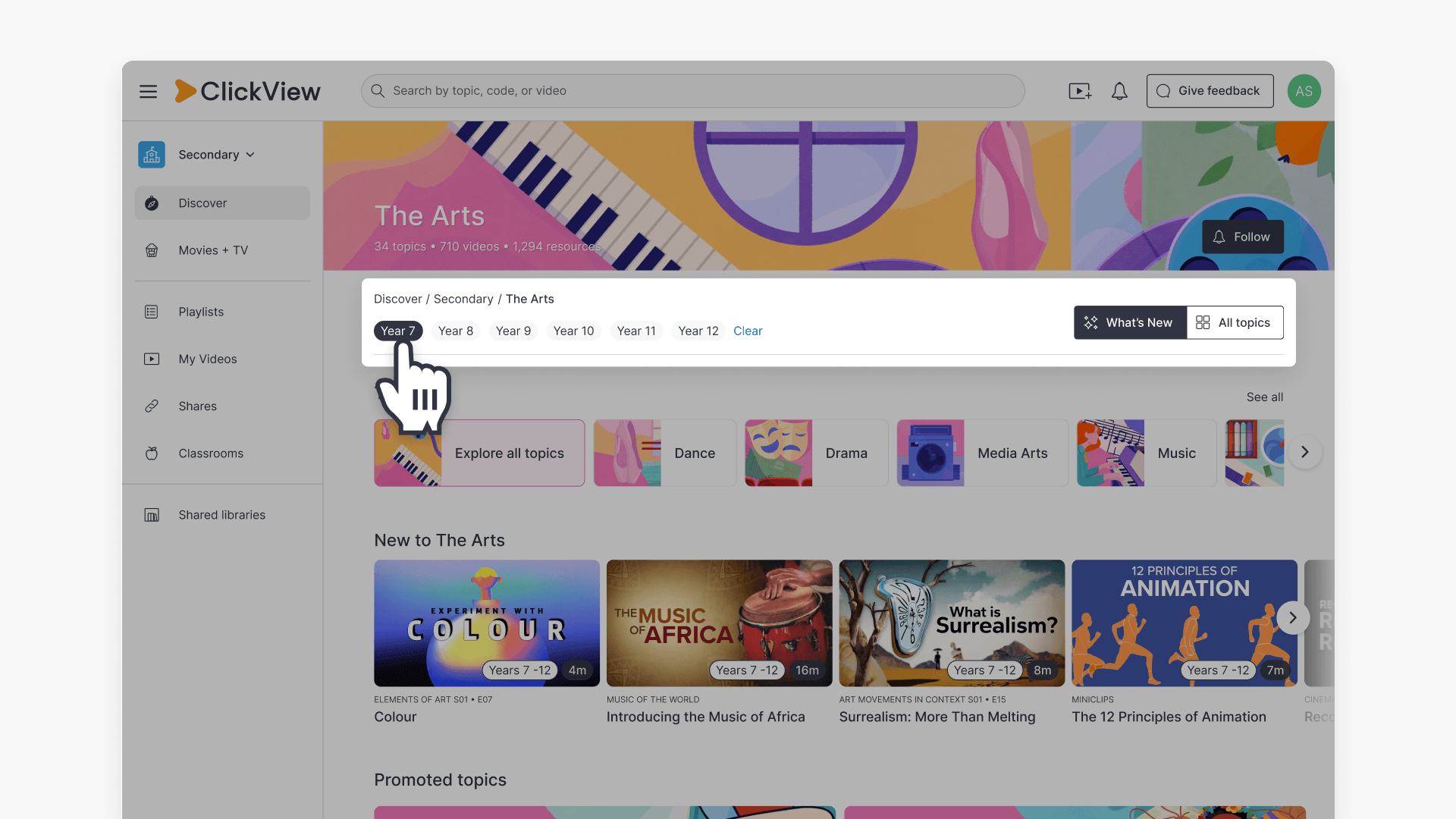
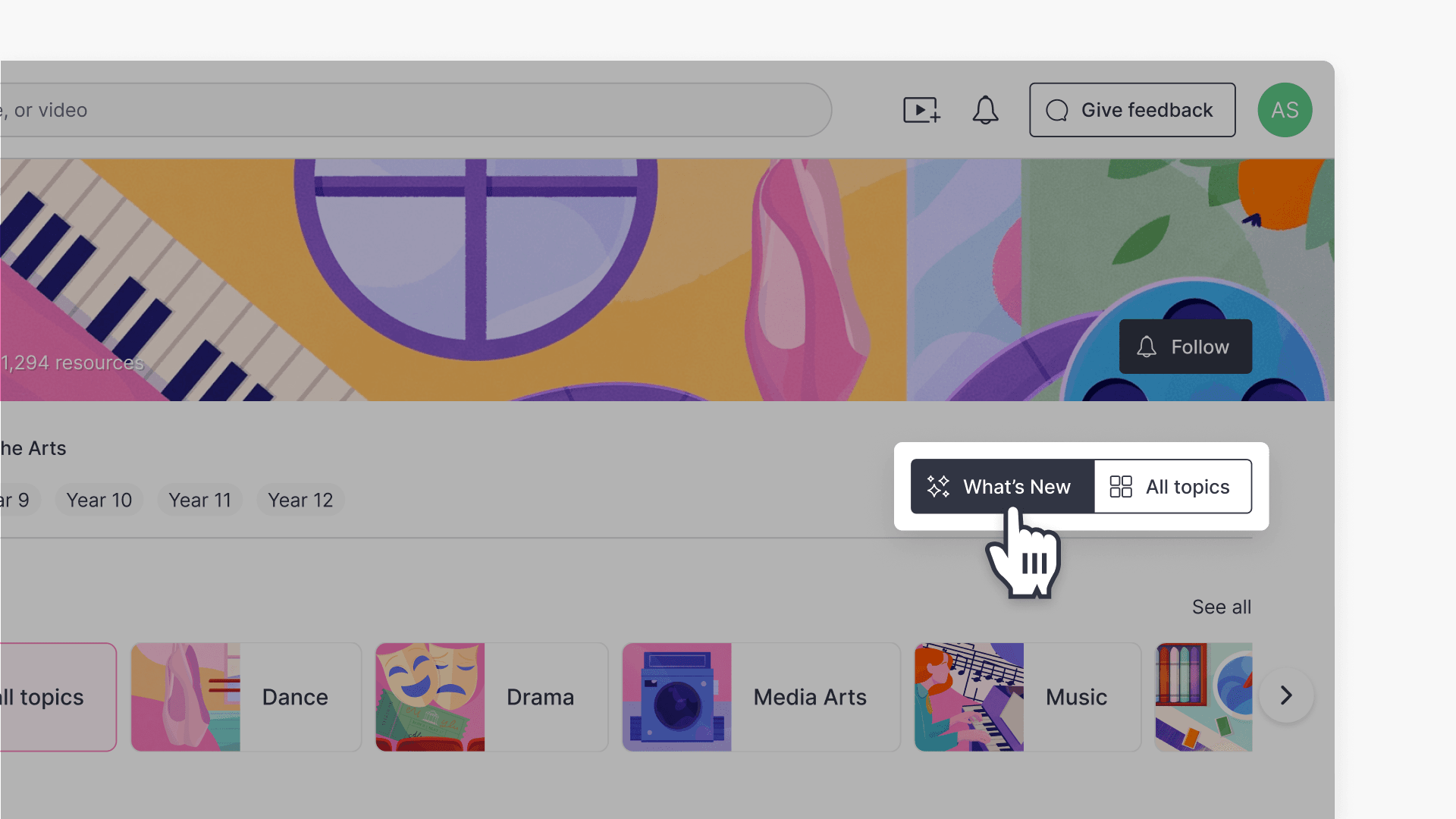
Switch between What’s new and All topics
In the top-right corner of the subject page, you can:
- Select Follow to follow the subject.
- Switch between two views using the toggle below the Follow button. What’s new is selected by default and shows the recommended video rows described above. Select All topics to see every topic in the subject, grouped by heading, with a section navigation on the right-hand side.
Open a topic
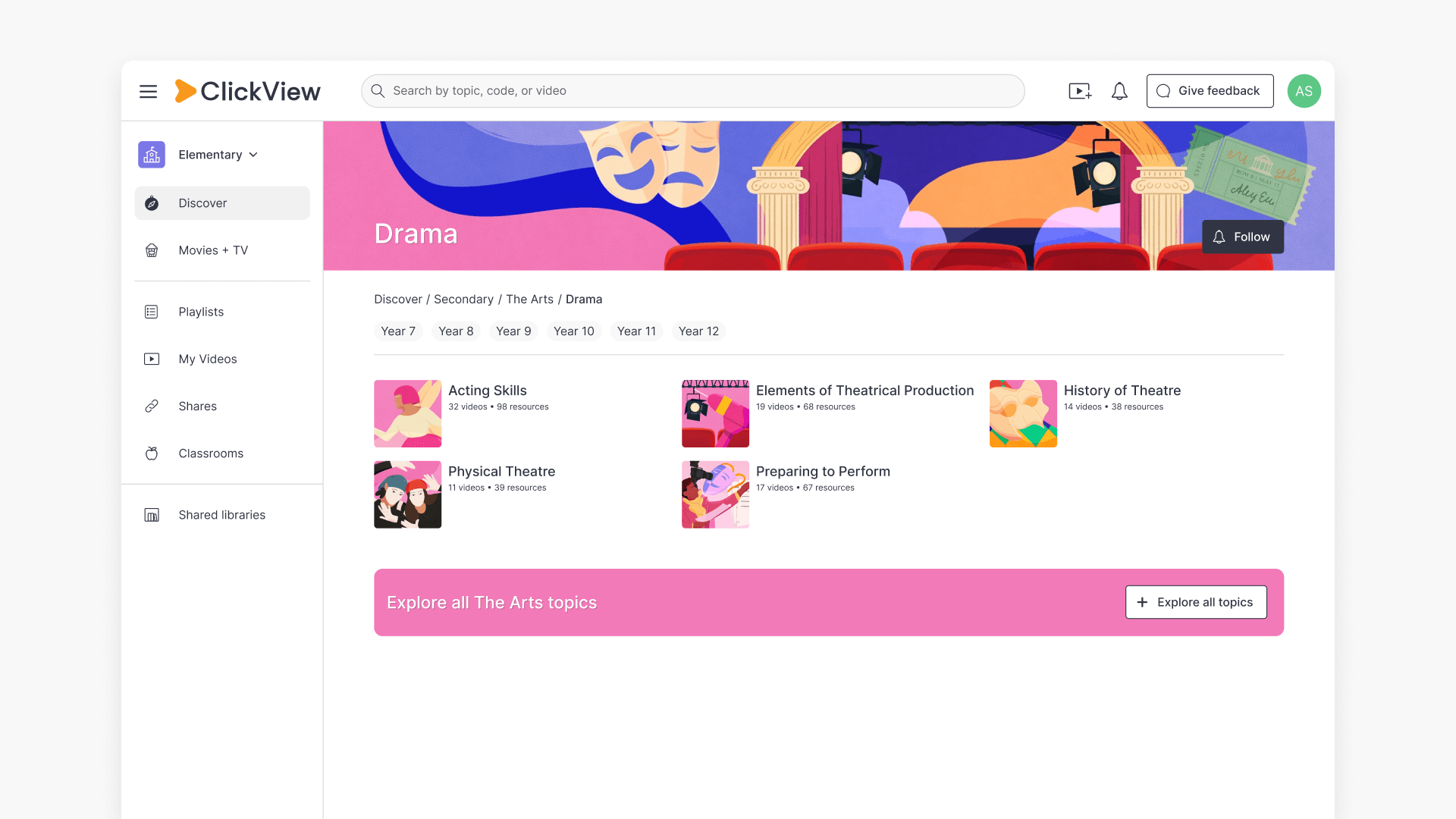
Choose a topic to see its subtopics, shown as buttons. (Sub-topics are also referred to as topics.) The year-level filters are also available on this page to narrow the subtopics and videos to a specific year or grade.
Open a sub-topic
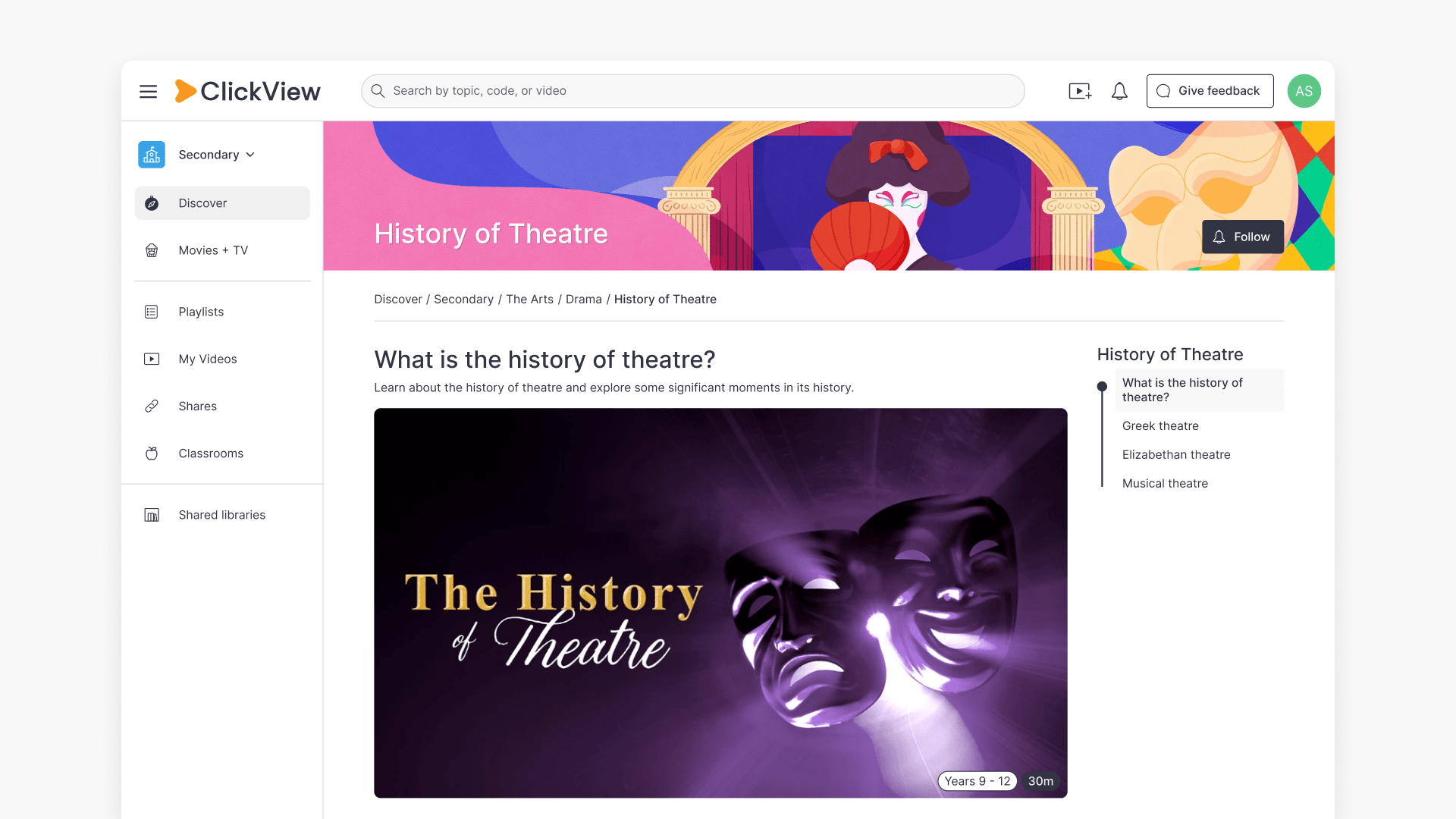
Select a subtopic to open its introduction page. This page is laid out as follows:
- A featured video at the top, shown largest, with series information beneath the thumbnail
- A smaller video is below it
- A grid of smaller video thumbnails for the rest of the videos
On the right-hand side is a list of section anchors. Each anchor matches a heading on the page — click an anchor to jump straight to that section and its videos.
Frequently asked questions
Get in touch
If you’re having trouble finding the right topics or videos, just reach out! Our team - 

 Akhil, Daniel, Jalaj, or any of us at ClickView - will be happy to help you get sorted.
Give feedback
Was this guide helpful?
Up Next
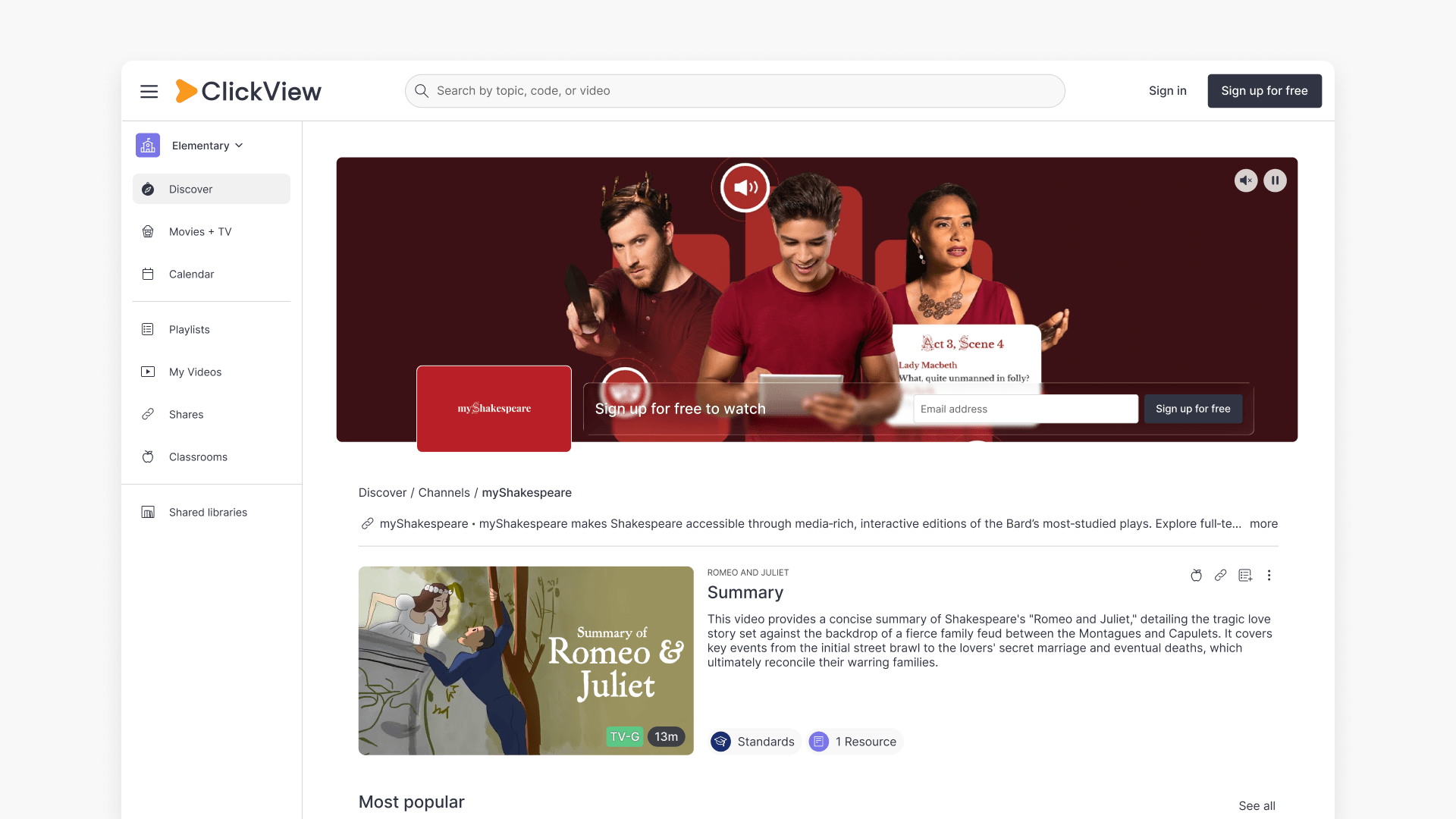
Understanding Featured Channels
Summary What are Featured Channels in ClickView? Featured Channels bring together every video from one producer in a single place, so you can explore all their videos and resources rather than finding them across topics, series, and search results. Each channel includes a banner introducing the producer, videos organised by recent, popular, and series, and […]