Manage Local Cache storage locations
In this article
Last updated by
2 min readClickView30th January, 2026
Summary
- Access the Admin Console
- You may be prompted to sign in with installation credentials
- Use ‘Add Storage Location’ to add new folders for video caching
- Click the 3-dot options icon to remove a storage location
- Select ‘Increase Storage Size’ to expand storage for a location
star icon
Quick tip
Is there a recommended storage limit for laptops?
It is recommended to use no more than 50% of your laptop’s free space for Local Cache storage.
Accessing the Local Cache Admin Console
You can access the Local Cache Admin Console in two ways:
- Click Start, then browse to ClickView > ClickView Local Cache
- Open a browser and go to http://localhost:9054
Signing into the Admin Console
You may be asked to sign in to the Local Cache Admin Console. If so, enter the credentials that you created during installation.
Overview of storage locations
The Overview page displays all storage locations used by Local Cache for video caching. From here, you can add new locations, increase storage size, or remove existing locations.
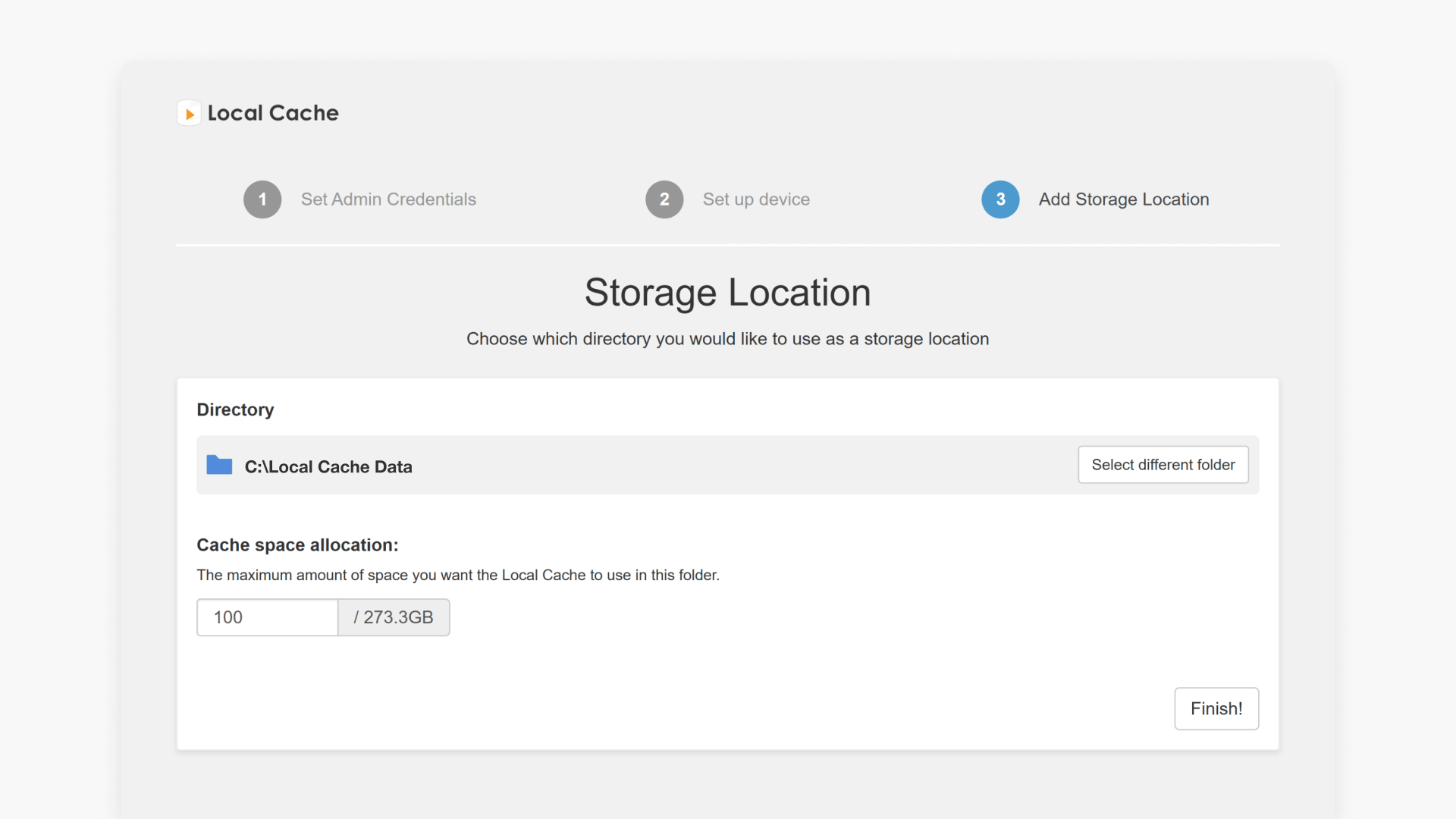
Adding a storage location
- Click the Add Storage Location option in the top right of the page.

- Browse to the folder you want to use. Alternatively, click the folder icon on the right-hand side to create a new folder.

- Enter a folder name and click ‘Create Folder’.

- Enter your preferred storage size limit and click Finish.

Note: For laptops, it’s recommended to use no more than 50% of your free space. - After completing these steps, you’ll return to the Overview page. Your new storage location will appear there.

Removing a storage location
- Click the options icon (three dots) next to the location you want to remove.
- Select Delete.

- Confirm you want to delete the storage location, along with all of its files.

Increasing the storage limit
- Click the 3-dots options icon next to the storage location you wish to expand.
- Select Increase storage size.

- Enter the new storage size for the local cache storage location. Click the ‘Increase Size’ button.

Frequently asked questions
You need to enter the credentials that were set up during the Local Cache installation process.
Yes. Use the options icon next to your storage location and select ‘Increase Storage Size’ to update the limit.
Get in touch
If you’re having trouble finding the right topics or videos, just reach out! Our team - 


 Andrew, Nisch, Janice, Pfreya, or any of us at ClickView - will be happy to help you get sorted.
Give feedback
Was this guide helpful?
Up Next
How to manage Local Cache settings
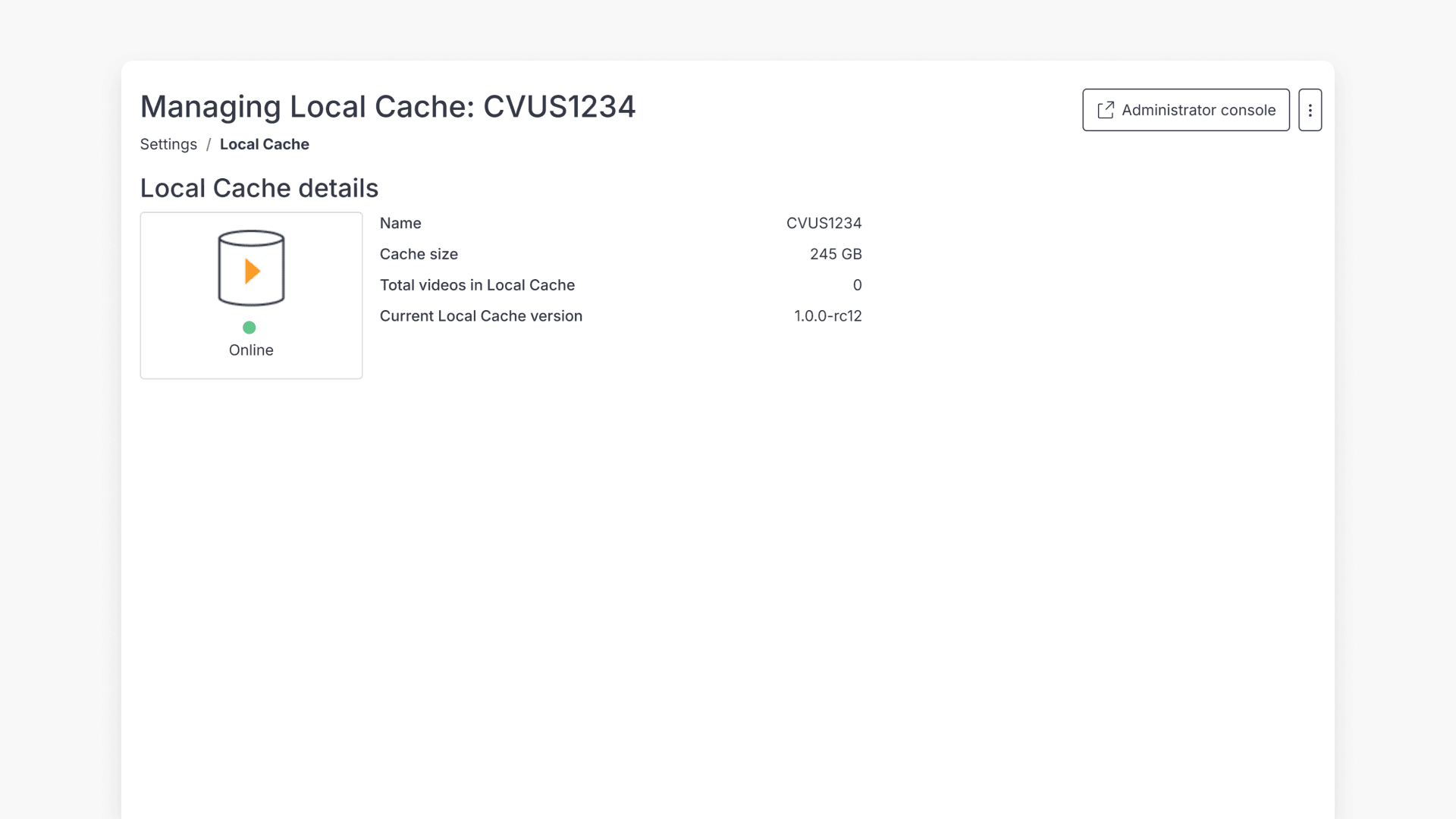
Discover how to access and manage Local Cache settings in ClickView, including storage details, software updates, and video playback settings.