How to set up Microsoft Entra SSO for your school

Summary
- Sign in to the Microsoft Entra admin centre.
- Create a non-gallery Enterprise application named “ClickView”.
- Go to Single Sign-On and select SAML.
- Enter your region Identifier and Reply URL in Basic SAML Configuration.
- Assign your school users or security groups to the ClickView application.
- Review Attributes & Claims, then add required claims and a group claim.
- Submit your App Federation Metadata URL and your school’s security groups for onboarding.
Set up ClickView with Microsoft Entra for schools
Follow these steps to integrate ClickView with Microsoft Entra for Single Sign-On (SSO) at the school level. This setup is intended for school administrators and school IT teams configuring access for one school and its users.
- Sign in to the Entra portal and select Enterprise apps.

- Within Enterprise applications, select +New application.

- Select +Create your own application.

- In What’s the name of your app?, enter ClickView. Select Integrate any other application you don’t find in the gallery (Non-gallery), then select Create.

Configure SAML single sign-on for ClickView
- Under the application’s menu, choose Single sign-on.

- Select the SAML tile.

- In the Basic SAML Configuration tile, select Edit.

Set up basic SAML configuration
In the Basic SAML Configuration window, enter the following region-specific values:
- Identifier:
- Australia: https://saml-in5.clickview.com.au/shibboleth
- New Zealand: https://shibboleth.clickview.co.nz/shibboleth
- Reply URL:
- Australia: https://saml-in5.clickview.com.au/Shibboleth.sso/SAML2/POST
- New Zealand: https://shibboleth.clickview.co.nz/Shibboleth.sso/SAML2/POST


- Logout URL (default for all regions): https://login.windows.net/common/oauth2/logout

- Click Save.
Additional settings:
- Leave Sign on URL blank. This is optional and will be provided after onboarding.
You will then see the updated Basic SAML Configuration:

Assign school users and groups to the ClickView application
This step controls who at your school can sign in to ClickView using Microsoft Entra.
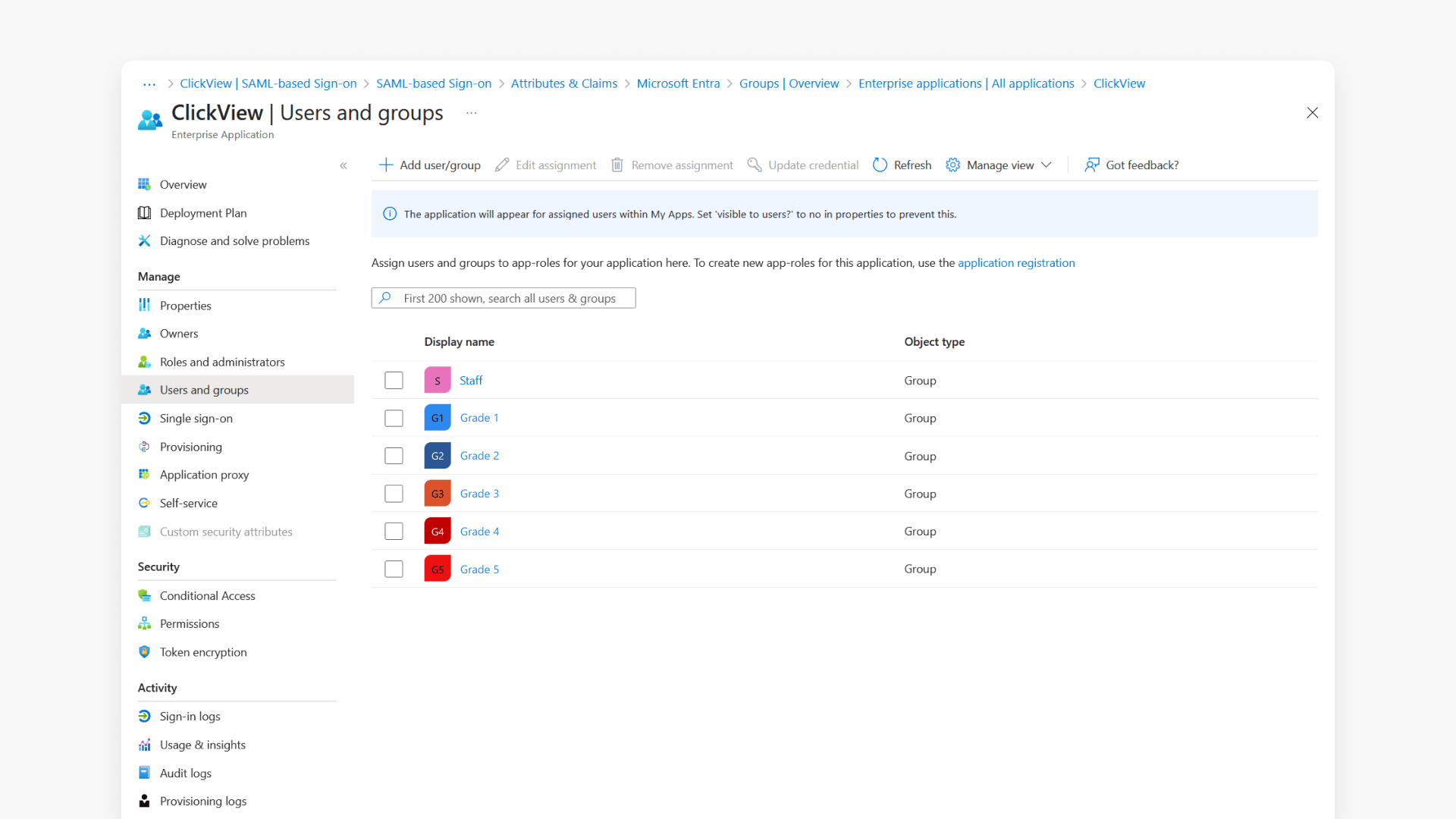
- In Microsoft Entra, open Enterprise applications, then select your ClickView application.
- Go to Users and groups.

- Select +Add user/group.

- Select None selected.

- Search for and select the users or security groups you want to assign.

- Assign them to the ClickView application.

- The assigned groups then appear in the ClickView application.

Set user attributes and claims
- Go to the Attributes & Claims tile and select Edit.

- Confirm the default attributes are present:
- givenname
- surname
- emailaddress
- name
- To add a group claim, select + Add a group claim.

- Select Groups assigned to the application, then select the appropriate Source attribute (for example, Group ID), then select Save.

Complete SSO onboarding with ClickView
To complete onboarding, provide ClickView Product Support with:
- Your App Federation Metadata URL
- A list of your school’s staff and student security groups used for access and (if applicable) year-level mapping
- Test staff and student account details for validation
App Federation Metadata URL
To obtain your App Federation Metadata URL:
- Open your ClickView enterprise application.
- Go to Single sign-on and select SAML.
- In the SAML Certificates (or SAML Signing Certificate) tile, locate App Federation Metadata Url.

- Select the copy icon to copy the URL.

Staff and student security groups
Provide the security group names your school uses to represent staff and students (and any year-level groupings if you use them).
In the Microsoft Entra admin centre:
- Go to Groups.

- Select All groups, then search for the groups you plan to use.

Important points to note
- If your school uses local Active Directory groups, you may need to synchronize them with Microsoft Entra using Entra Connect Sync.
- For group claims setup, configuration steps are available on the Microsoft website.
- Microsoft Entra supports up to 150 user groups in a SAML token. If a user exceeds this limit, ClickView cannot retrieve groups via API. Reduce group assignments for affected users or limit which groups are sent in the claim.
- Keep your school assignment list aligned with your ClickView rollout plan. Only assigned users and groups can sign in.
Start your onboarding process
Once you have completed the steps above, start onboarding by submitting your school details via the onboarding form:
Frequently asked questions
Get in touch
If you’re having trouble finding the right topics or videos, just reach out! Our team - 

 Akhil, Daniel, Jalaj, or any of us at ClickView - will be happy to help you get sorted.
Give feedback
Was this guide helpful?
Up Next
How to set up Google Workspace SSO for your School using the new SAML process
Summary How do I set up Google Workspace SAML SSO for ClickView at my school? To set up SAML SSO for ClickView, create a custom SAML app in your Google Workspace Admin console and send your SSO URL, Entity ID, and certificate to ClickView Support, who will reply with your school-specific ACS URL and Entity […]