How to upload videos to your library
Last updated by
2 min readClickView30th January, 2026
Summary
- Access Library Editor to begin uploading videos.
- Click the ‘Upload’ button at the top right.
- Drag and drop or select video files (up to 20 at a time).
- Supported formats: AVI, MP4, MPEG, MOV, MKV, WEBM, WMV.
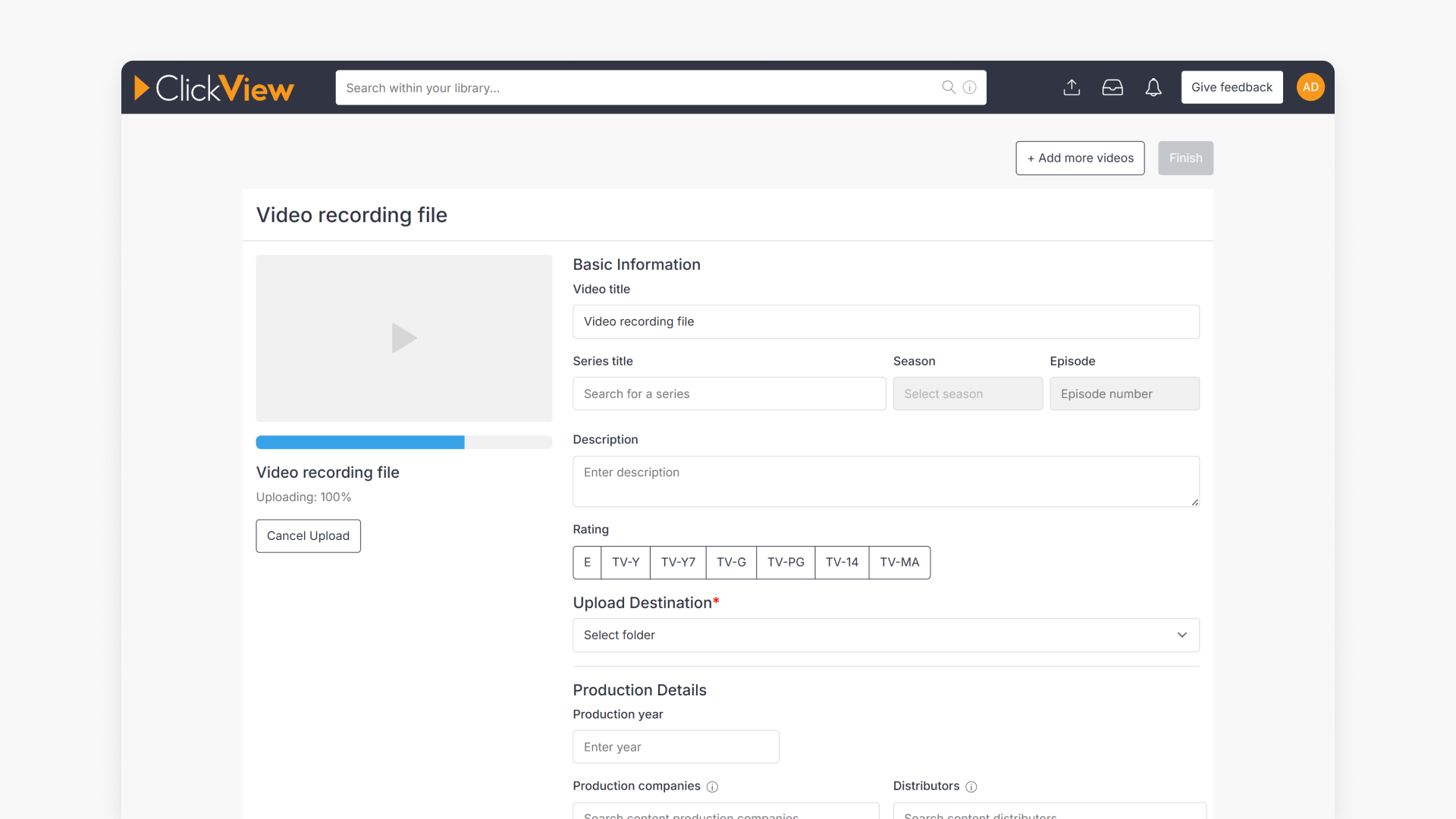
- Enter video details and choose destination folder.
- Optionally, add advanced metadata before clicking ‘Finish’.
- Processing time appears via the notification icon.
star icon
Quick tip
How can adding metadata during upload save time later?
Completing titles, descriptions, and folder placement during upload makes videos easier to find and manage once your library grows. Adding this information upfront reduces the need for re-editing and helps staff locate the right content more quickly.
Upload videos to your library
- Access Library Editor:

- Click the ‘Upload’ button at the top right:

- Drag and drop your video file anywhere into Library Editor, or click the ‘Choose videos to upload’ button to select your video.
You can drag and drop multiple files at once (up to 20 recommended to avoid timeouts).
Supported formats: AVI, MP4, MPEG, MOV, MKV, WEBM, WMV.
- Fill in the video details (metadata) and choose which folder the video will appear in:

- Add advanced metadata (optional):

- Click ‘Finish’:

- The processing time for your upload is displayed when you click the notification icon:

Note: Processing speed depends on your internet connection and file size. There is no limit to the number of videos you can upload, but each video file must not exceed 50GB.
Frequently asked questions
Each video file must not exceed 50GB.
Supported formats: AVI, MP4, MPEG, MOV, MKV, WEBM, and WMV.
You may upload as many as you want, but uploading up to 20 at a time is recommended.
The processing time appears on screen when clicking the notification icon.
Get in touch
If you’re having trouble finding the right topics or videos, just reach out! Our team - 

 Akhil, Daniel, Jalaj, or any of us at ClickView - will be happy to help you get sorted.
Give feedback
Was this guide helpful?
Up Next
How to suggest an edit for video metadata
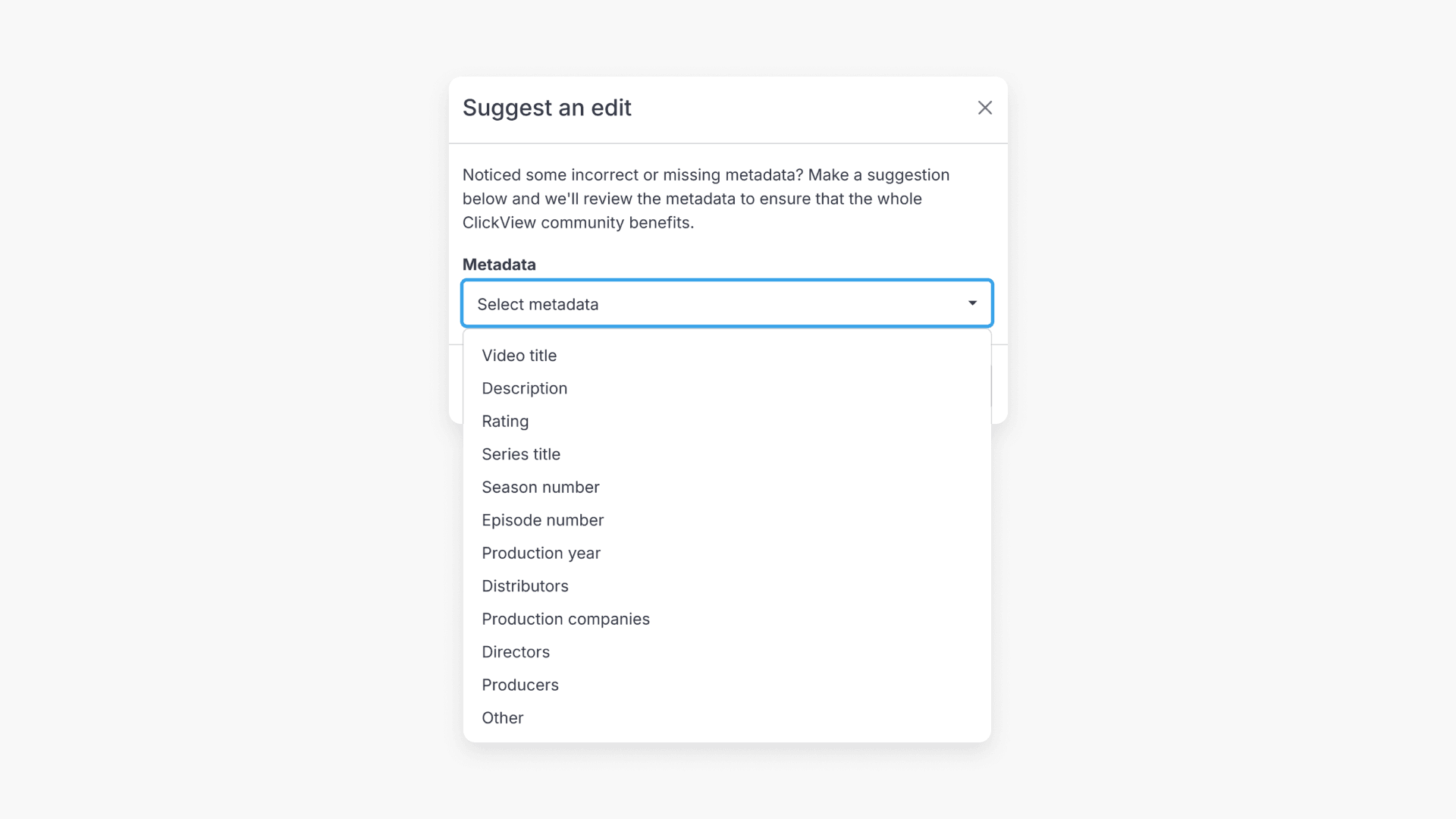
This guide explains how to suggest edits to ClickView video metadata, ensuring information remains accurate for educators and students. Admin users cannot make direct changes but can submit suggestions through Library Editor.