How to manage your notifications

Summary
- ClickView sends notifications for recent account activity.
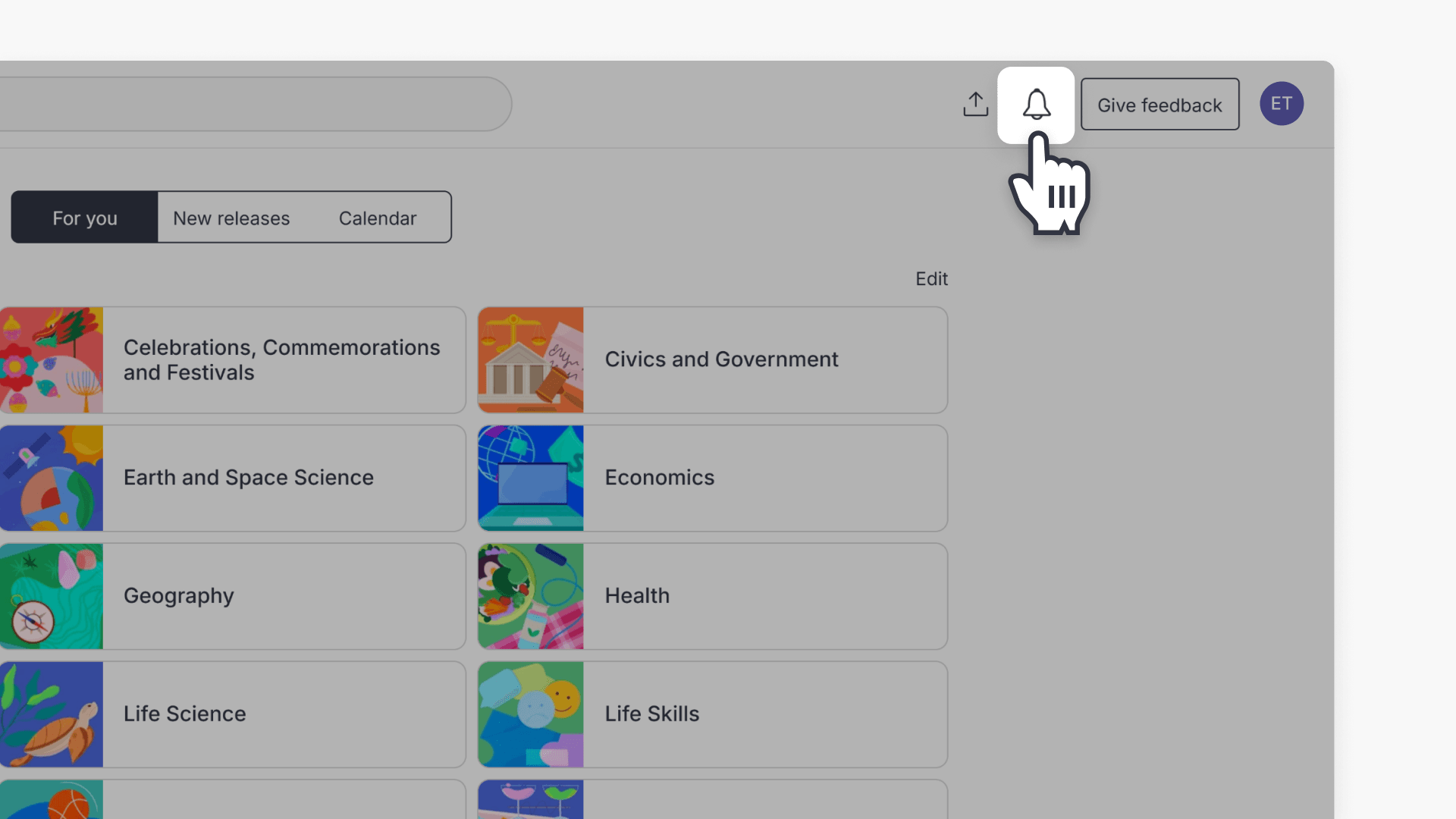
- Find the Notifications icon at the top right of the screen.
- Click on the Notifications icon to view updates.
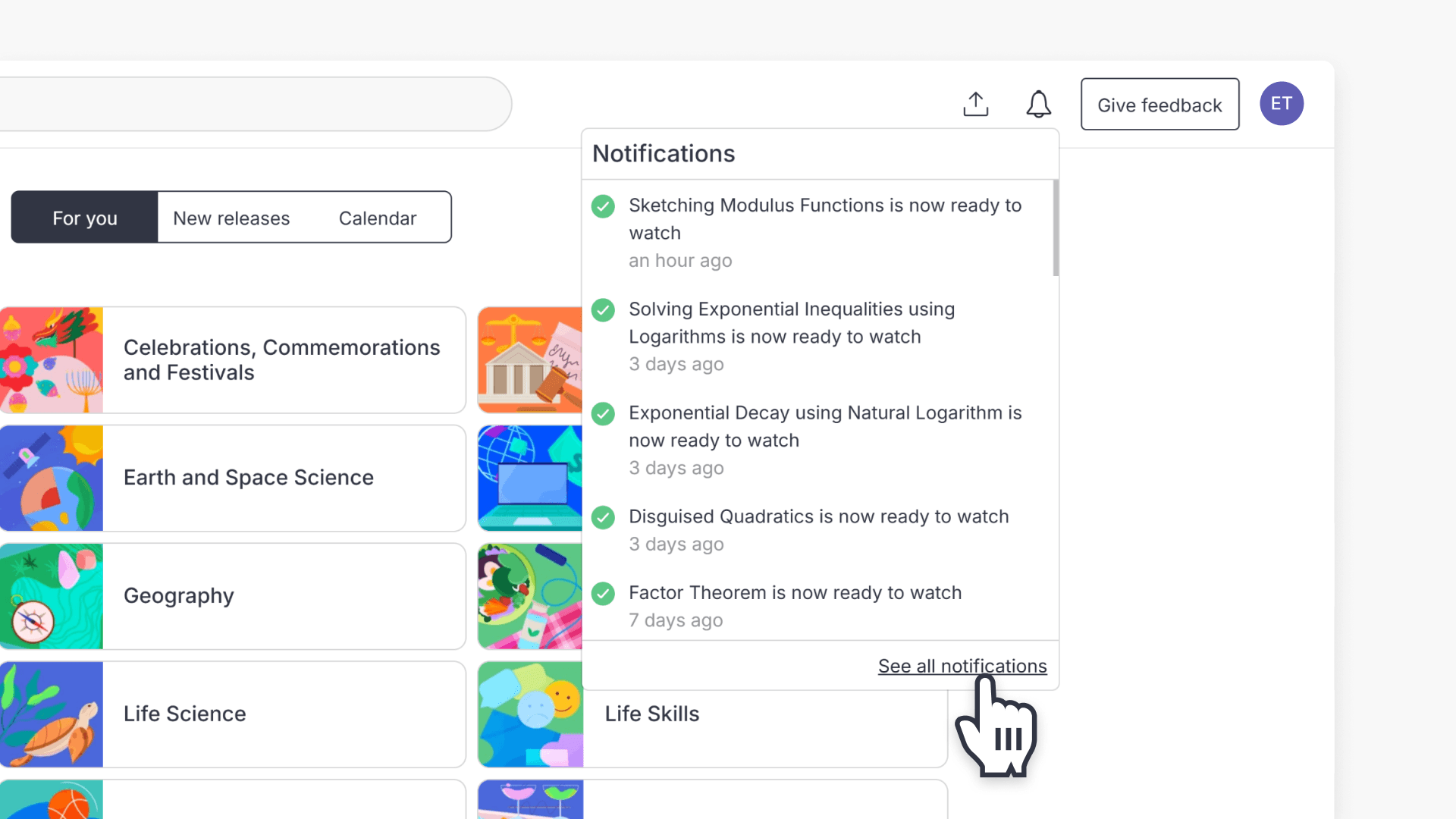
- Click ‘See All Notifications’ for the full list.
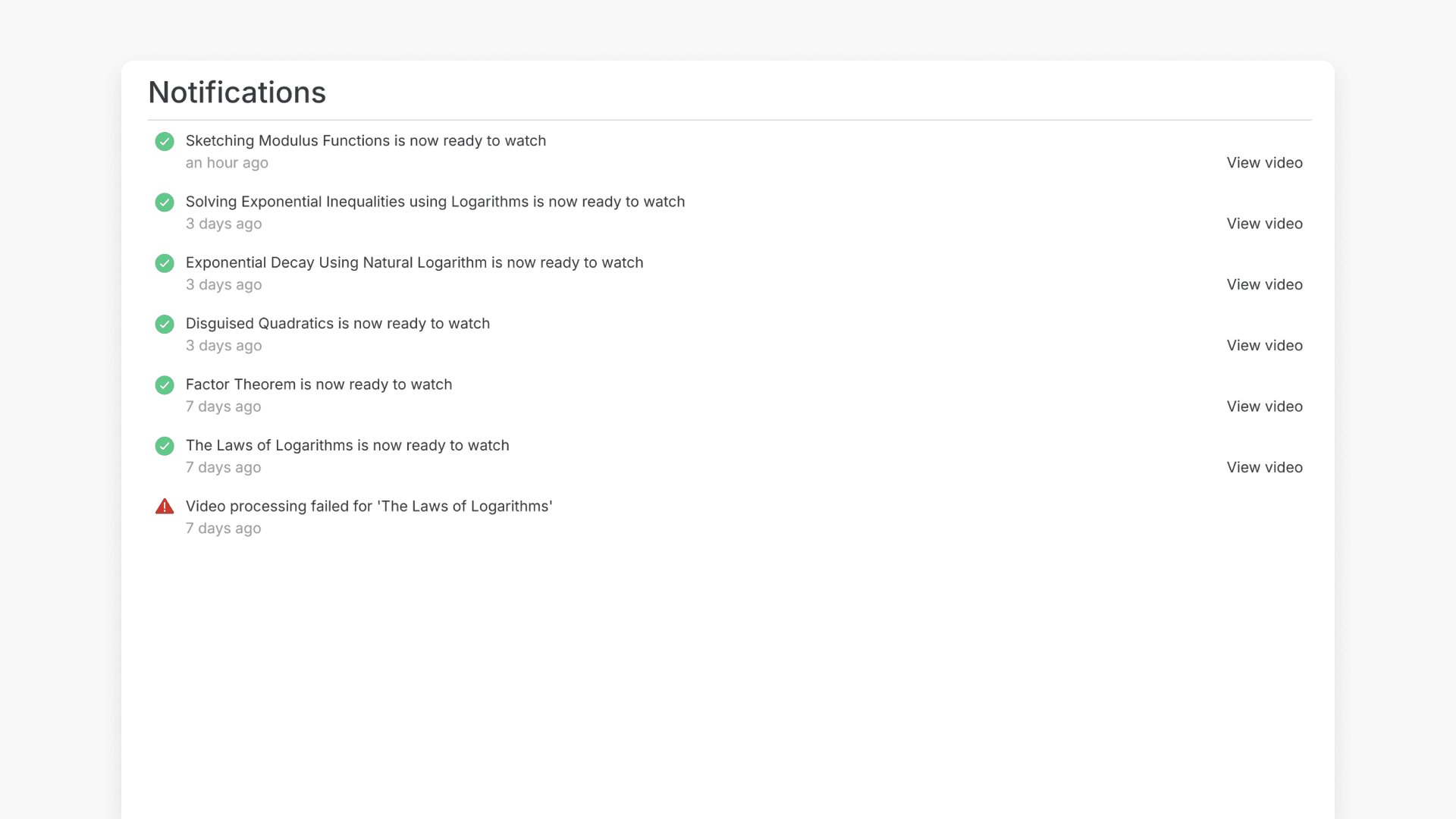
- Notifications are listed in chronological order.
Accessing your notifications
ClickView provides notifications to keep you informed of activity related to your account, such as new videos in your Library, increased Library storage, or upcoming ClickView events.
How to view your notifications
- Click on the Notifications icon located at the top right-hand side of your screen.
- To access a complete list, click on See All Notifications.
- All notifications will appear in chronological order, showing your latest account updates first.
Frequently asked questions
Get in touch
If you’re having trouble finding the right topics or videos, just reach out! Our team - 


 Andrew, Nisch, Janice, Pfreya, or any of us at ClickView - will be happy to help you get sorted.
Give feedback
Was this guide helpful?
Up Next
How to choose a visual theme for subjects
Summary How do I change the visual theme for subjects in ClickView? Sign in to ClickView with an Administrator account, then select your profile avatar and choose Settings. Under the School management section, select Appearance and choose either the Illustration or Photography theme, then click Save changes. What is the subject theme switcher? The subject […]