How to use ClickView search

Summary
- Search using keywords, video titles, or a standards code in the ClickView search bar.
- Review grouped result sections such as “Top Results,” “Series,” and “Playlists” to find the right content faster.
- Use source labels to confirm where each video comes from.
- Linked Academic standards codes on videos are clickable for instant searches.
- Filter your search results by subject, grade level, source, resources, type, and more.
Search by keywords, titles, or standards codes
ClickView supports multiple search approaches, depending on what you know.
Search using keywords or titles
Type a keyword or video title into the ClickView search bar to find related videos and other content.
Search by standards codes
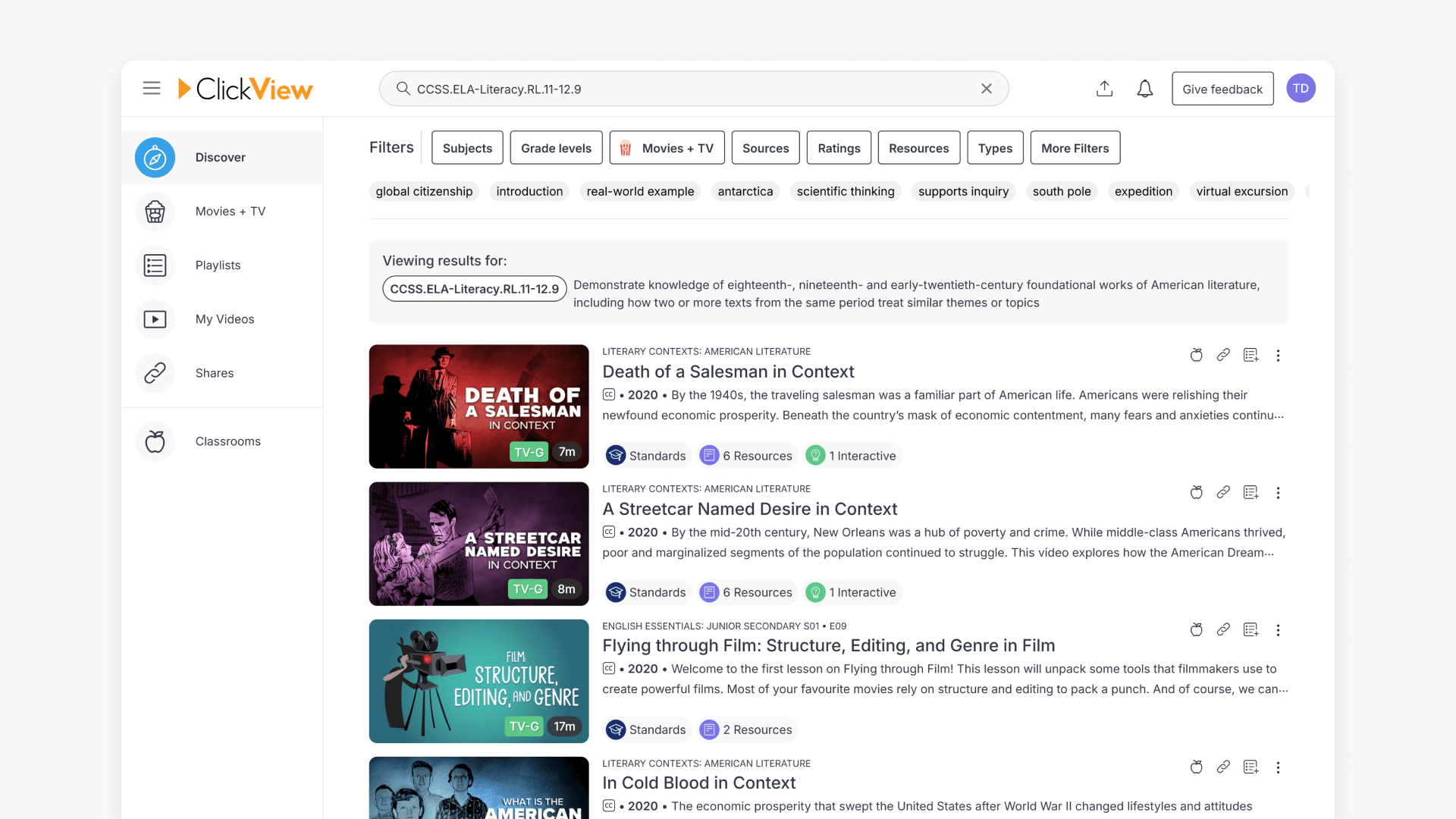
ClickView makes it easy to search for educational videos aligned to state standards. Enter a standards code, such as CCSS.Math.Content.3.G.A.2 or CCSS.ELA-Literacy.RI.8.4, directly into the search bar to find content aligned to that learning outcome.
After you search:
- Videos aligned to that code appear in your results.
- Results include source labels so you can see the origin of each video.
If a standards code search returns limited or no results:
- Check the code formatting for typos.
- Try searching using a shorter portion of the code.
- Try a related keyword (for example, the standard’s topic).
- Use filters such as “Subjects,” “Grade levels,” and “Sources” to broaden or narrow results while staying aligned to the right area.
Use Academic standards links on a video
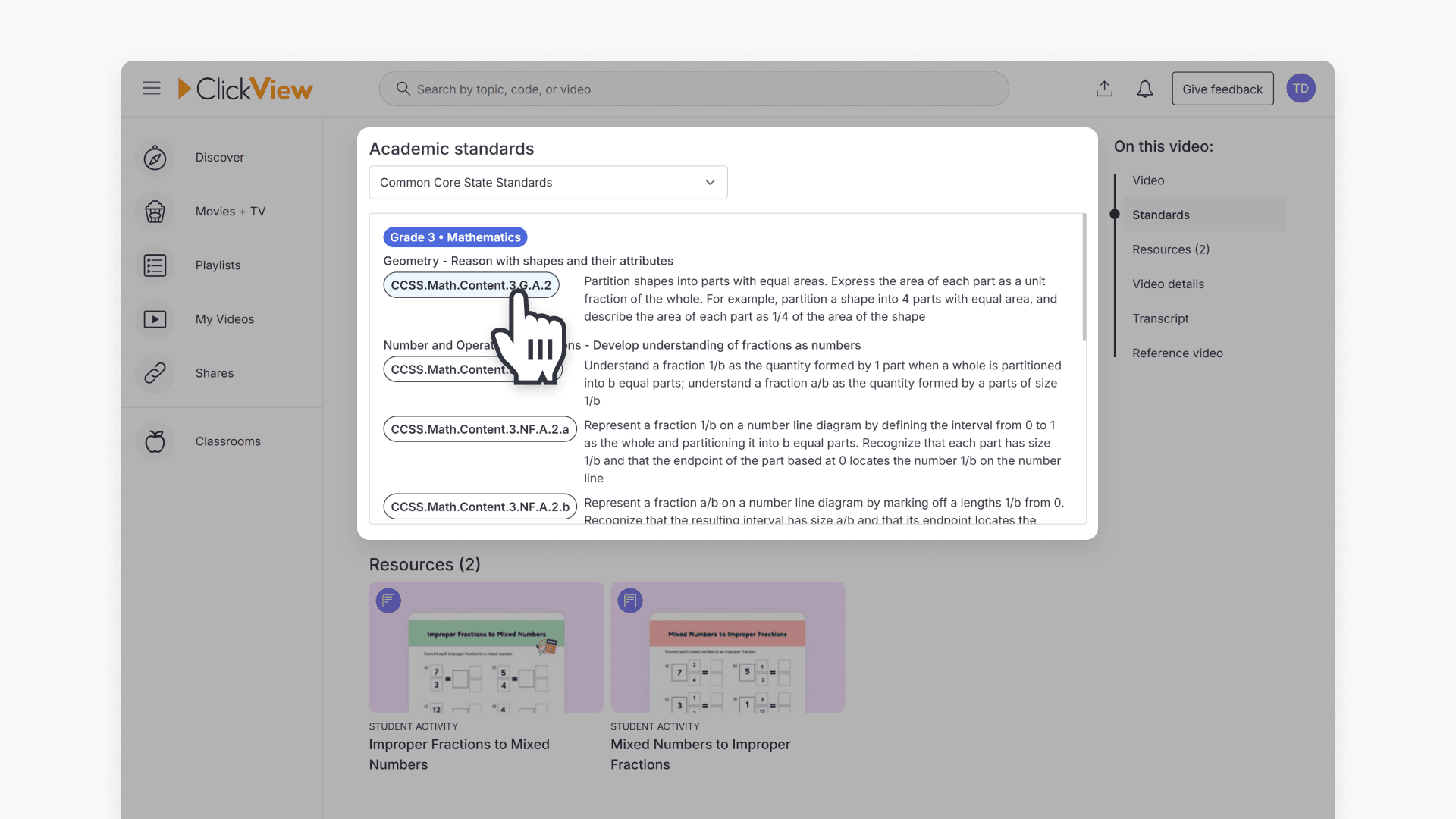
Below the ClickView video player, you will see the Academic standards listed for that video:
- The standards codes listed below a video are clickable.
- Click on the standards codes to open ClickView search and jump straight to related content.
Understanding your search results
ClickView prioritizes exact matches to help surface the most relevant results faster.
Search results are grouped into clearly labelled sections that explain why and where each result is from. These sections can include:
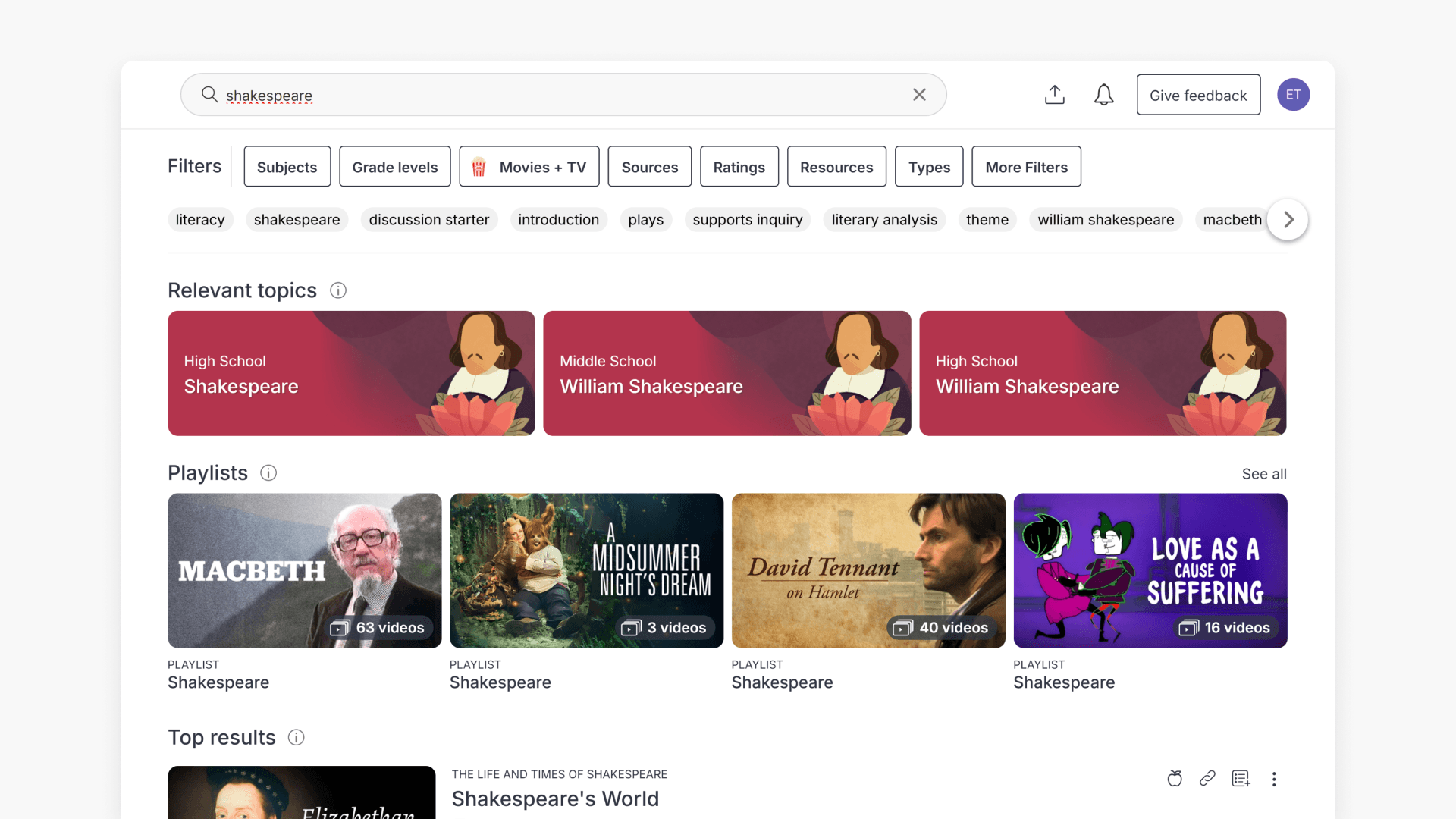
- Relevant Topics – The most relevant topics based on your search
- Content Partners – The most relevant content partners based on your search
- Top Results – The most relevant videos based on your search
- Series – The most relevant series based on your search
- Playlists – The most relevant playlists based on your search
- Folders – The most relevant folders based on your search
- Related Results – Other relevant videos based on your search
Tip: If your search returns a mix of content types, scan the section headings first to jump to the most relevant group.
Filtering your search results
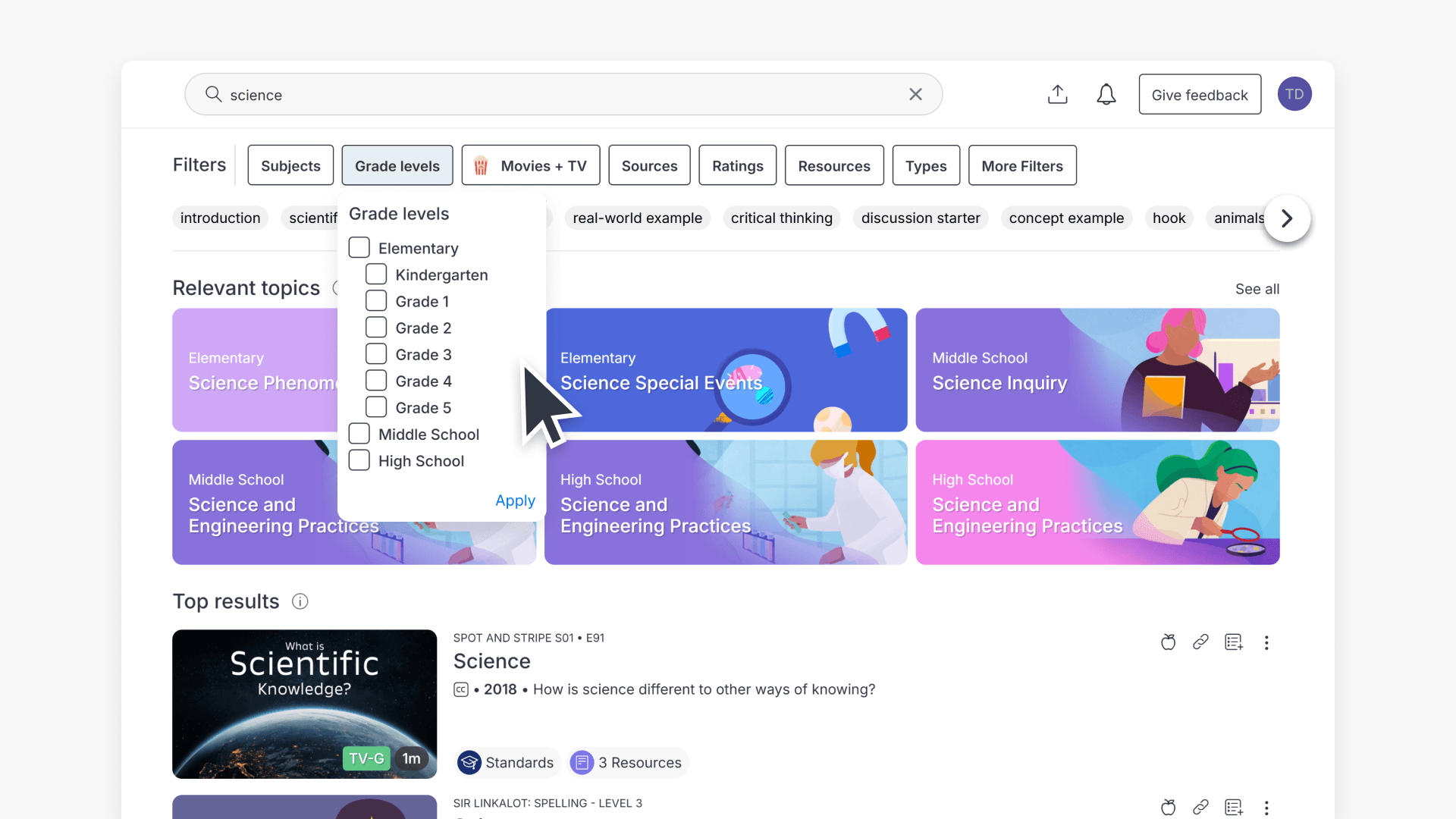
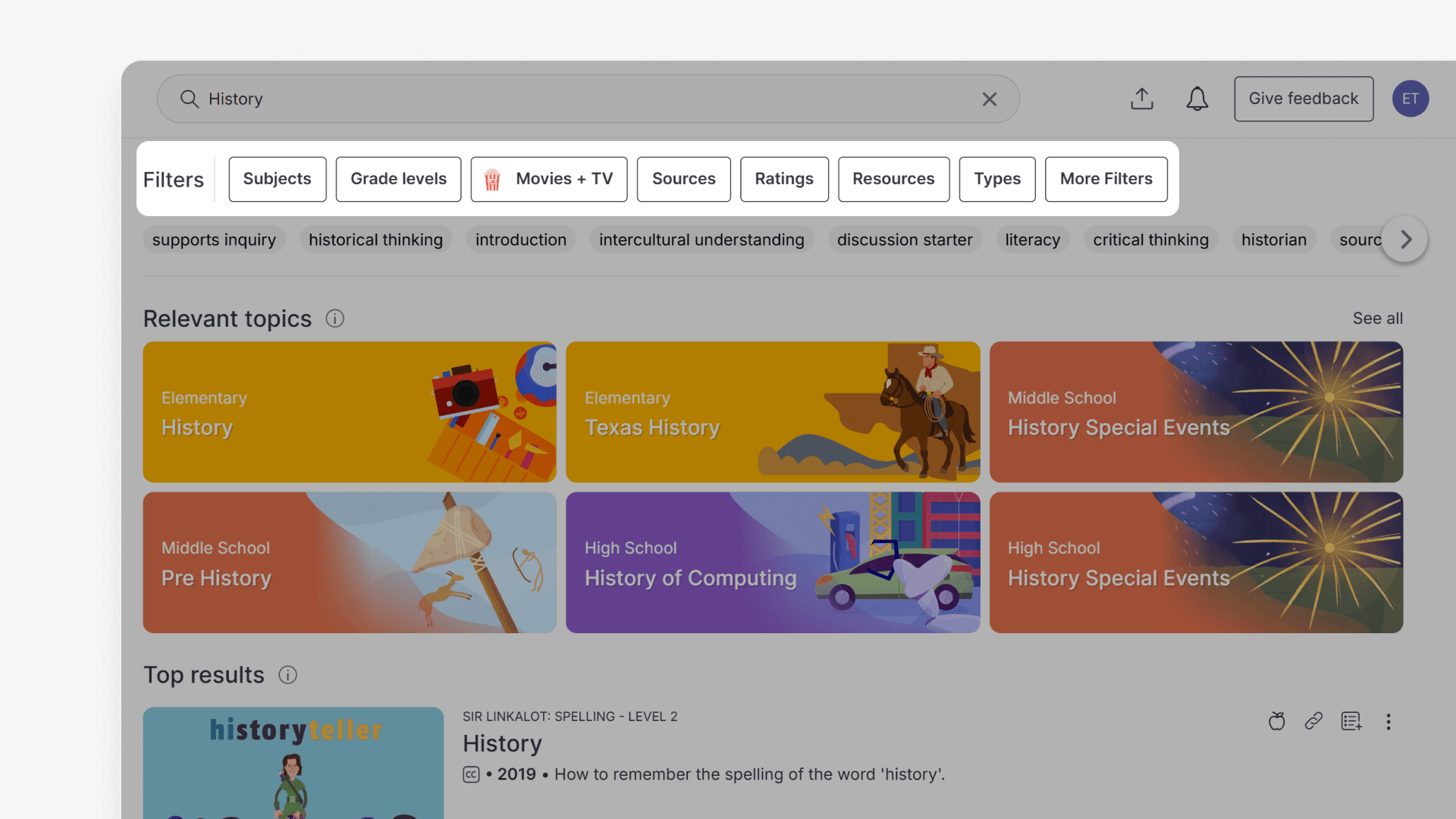
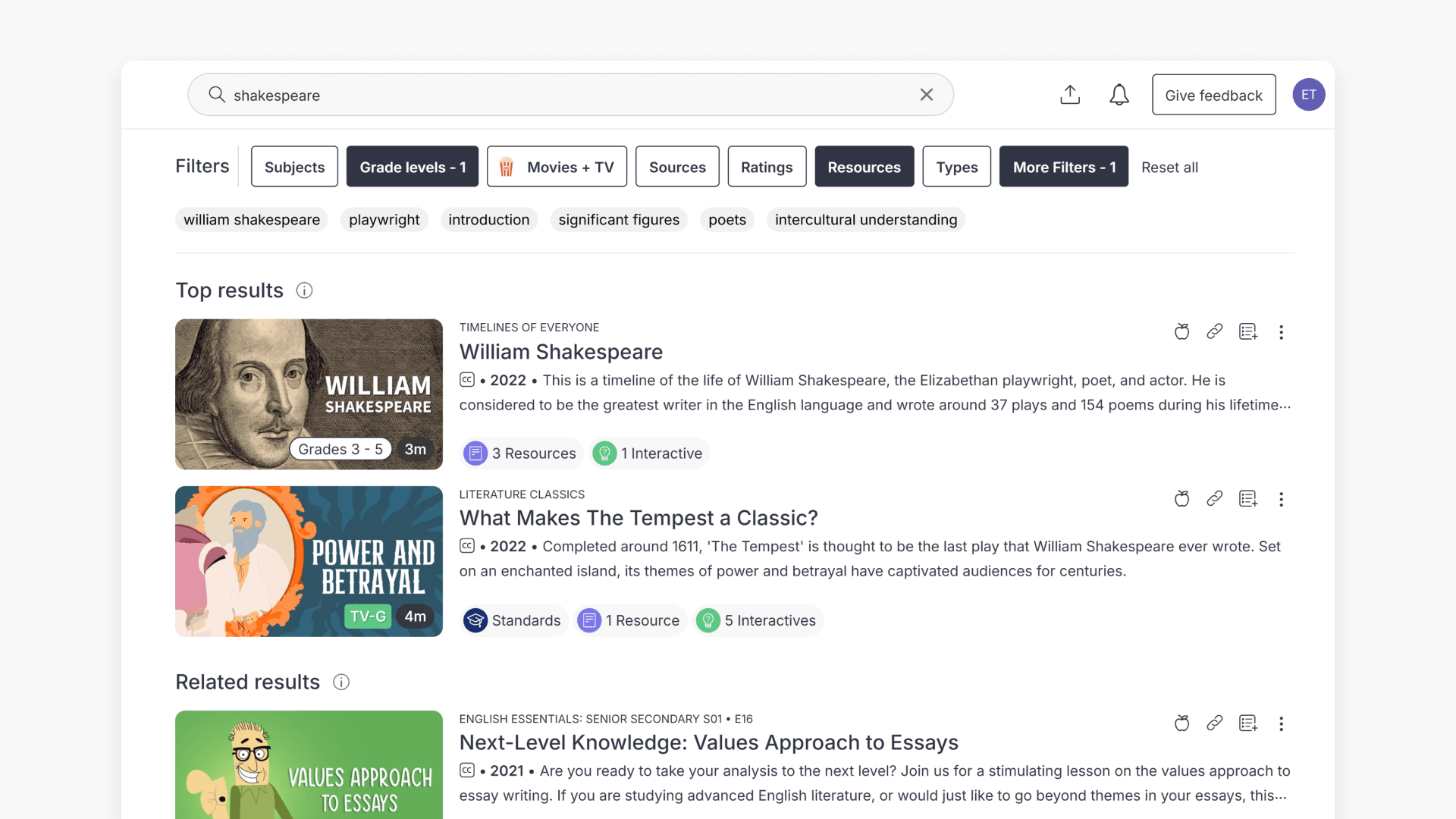
After you run a search, use the filter panel at the top of the results page (below the search bar) to refine what you see. Filters apply across the search results page and help you narrow down videos and other content types.
Filtering your search
- Perform a search in ClickView.
- Locate the filter panel at the top of the results page.
- Tick one or more filters to refine your results.
- Review the updated results and adjust filters as needed.
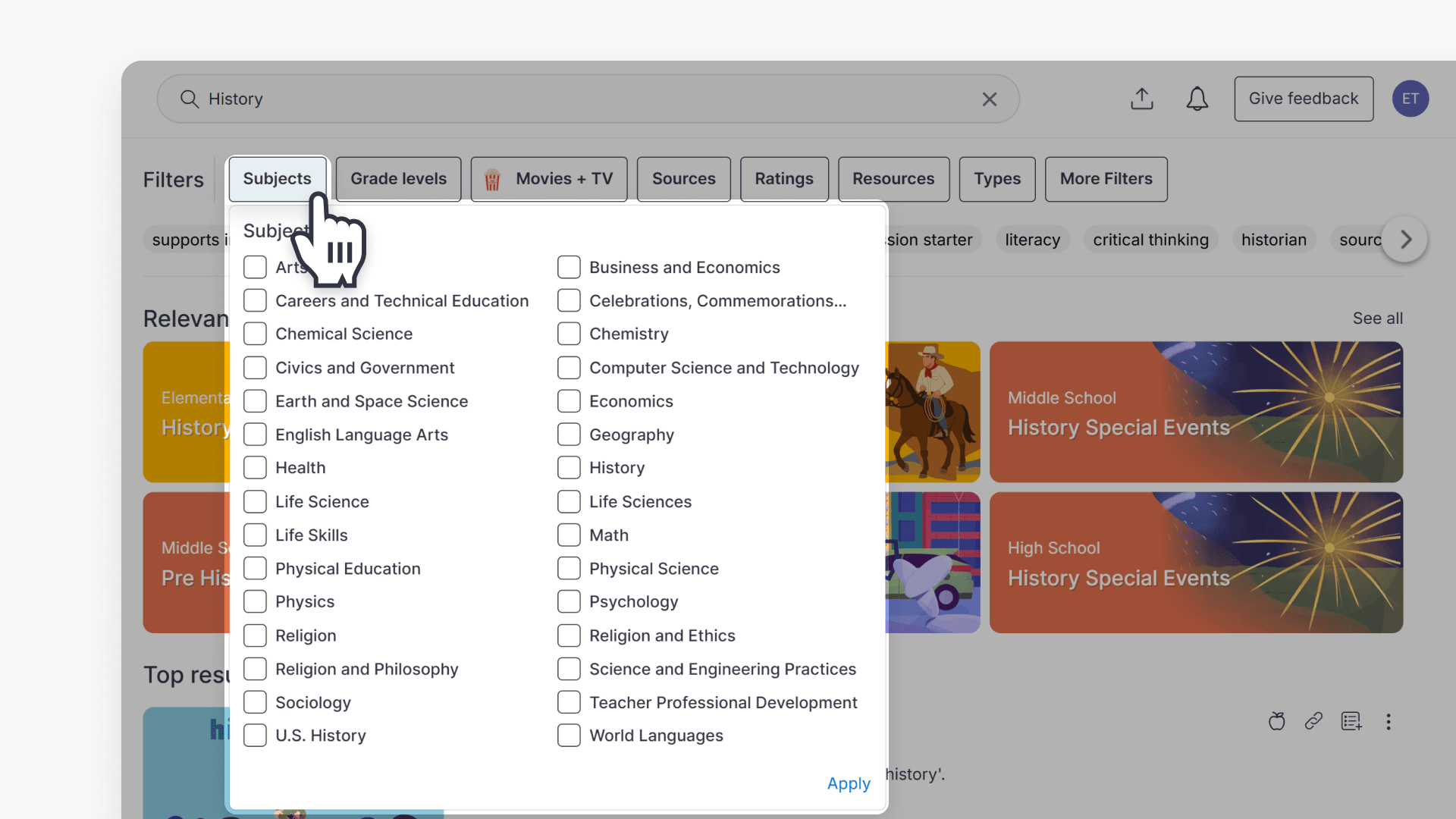
Subjects
Narrow results to videos aligned with a subject area (for example, English Language Arts, Math, Physics, History, Geography, Health, and more).
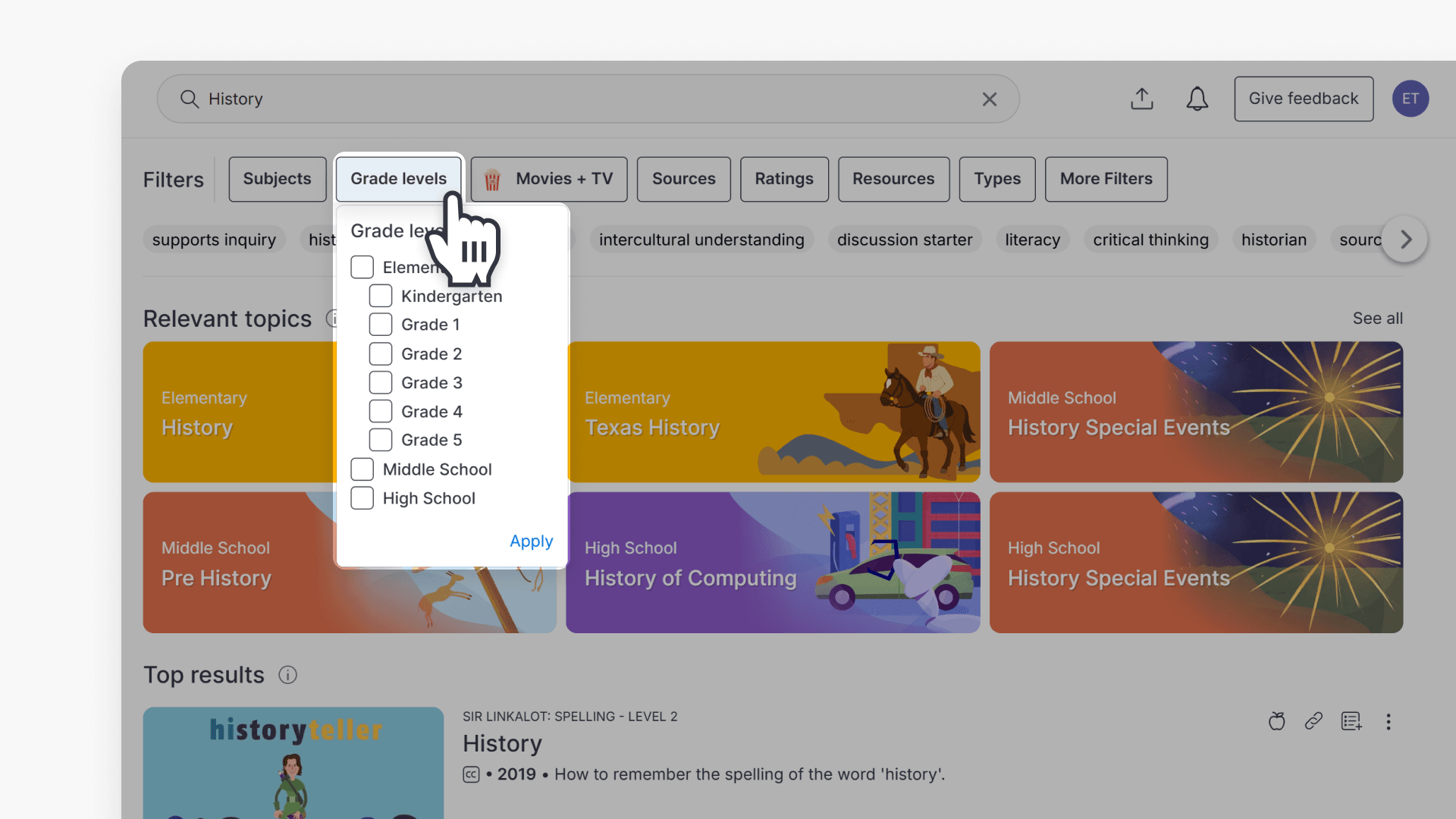
Grade levels
Target videos for elementary, middle, or high school grade levels.
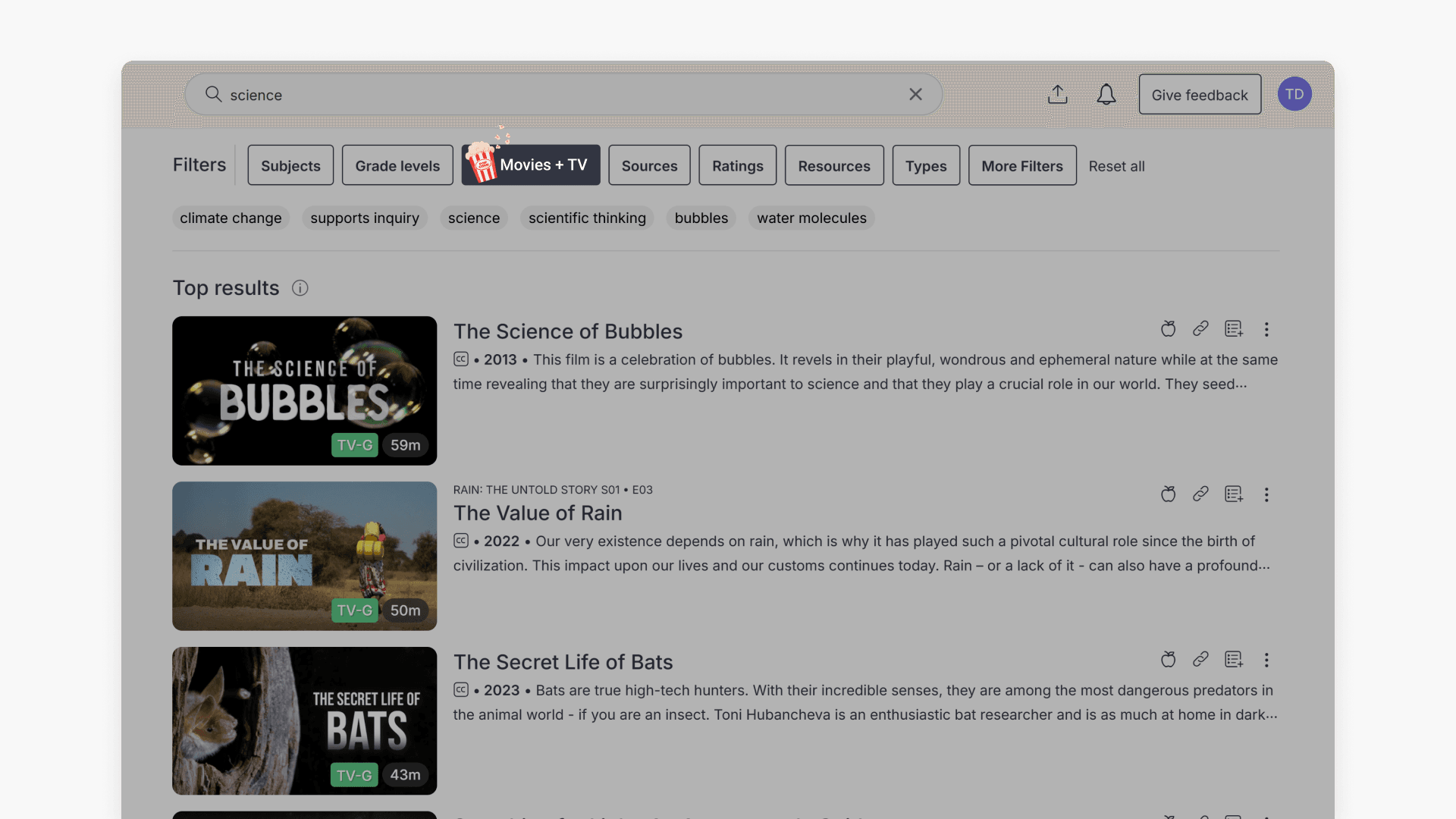
Movies + TV
Discover licensed movies and TV content for classroom use.
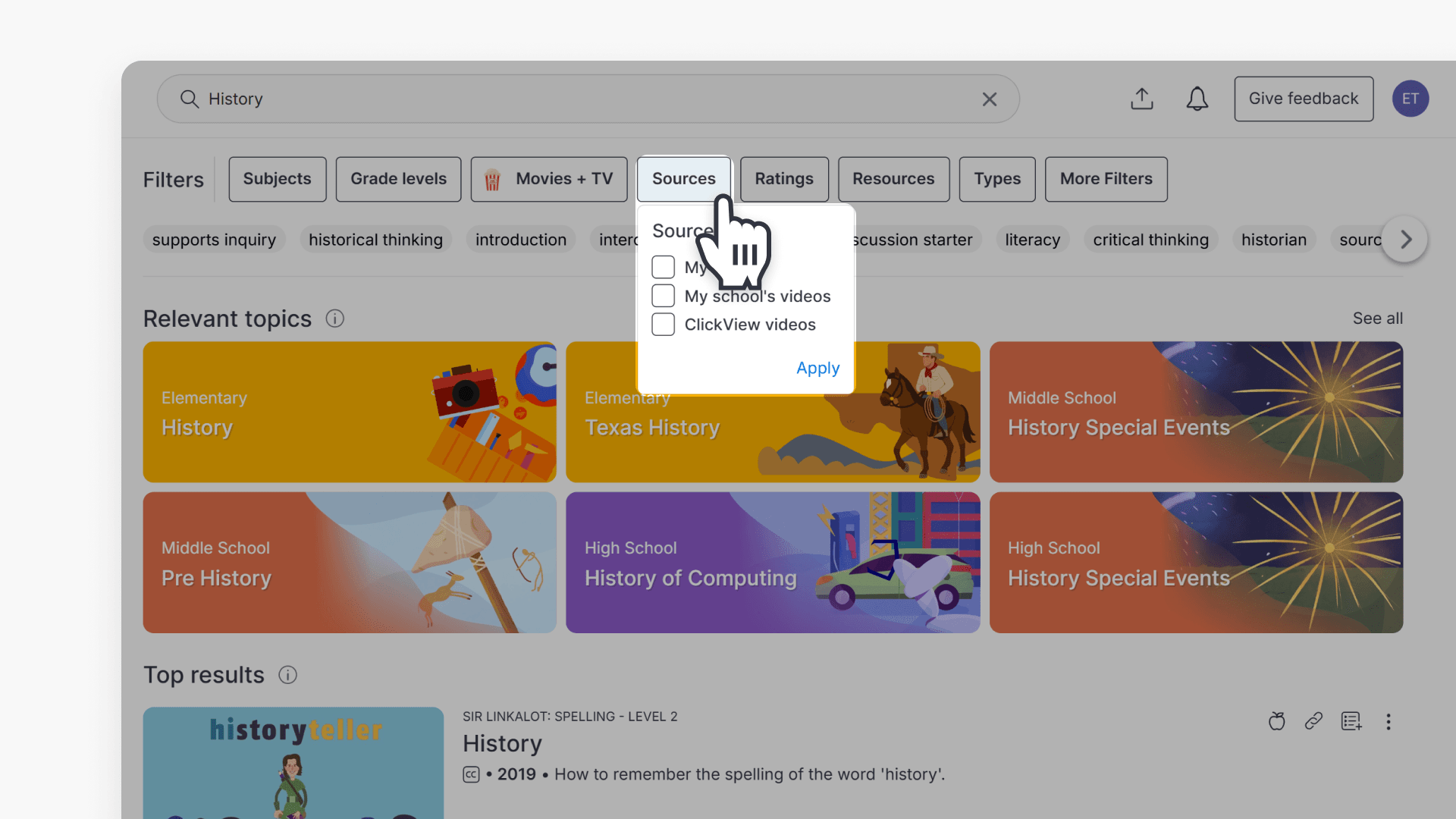
Sources
Specify where the content comes from:
- My Videos – Your uploads and shares
- My school’s videos – Content uploaded by your school
- ClickView videos – Professionally-produced ClickView content
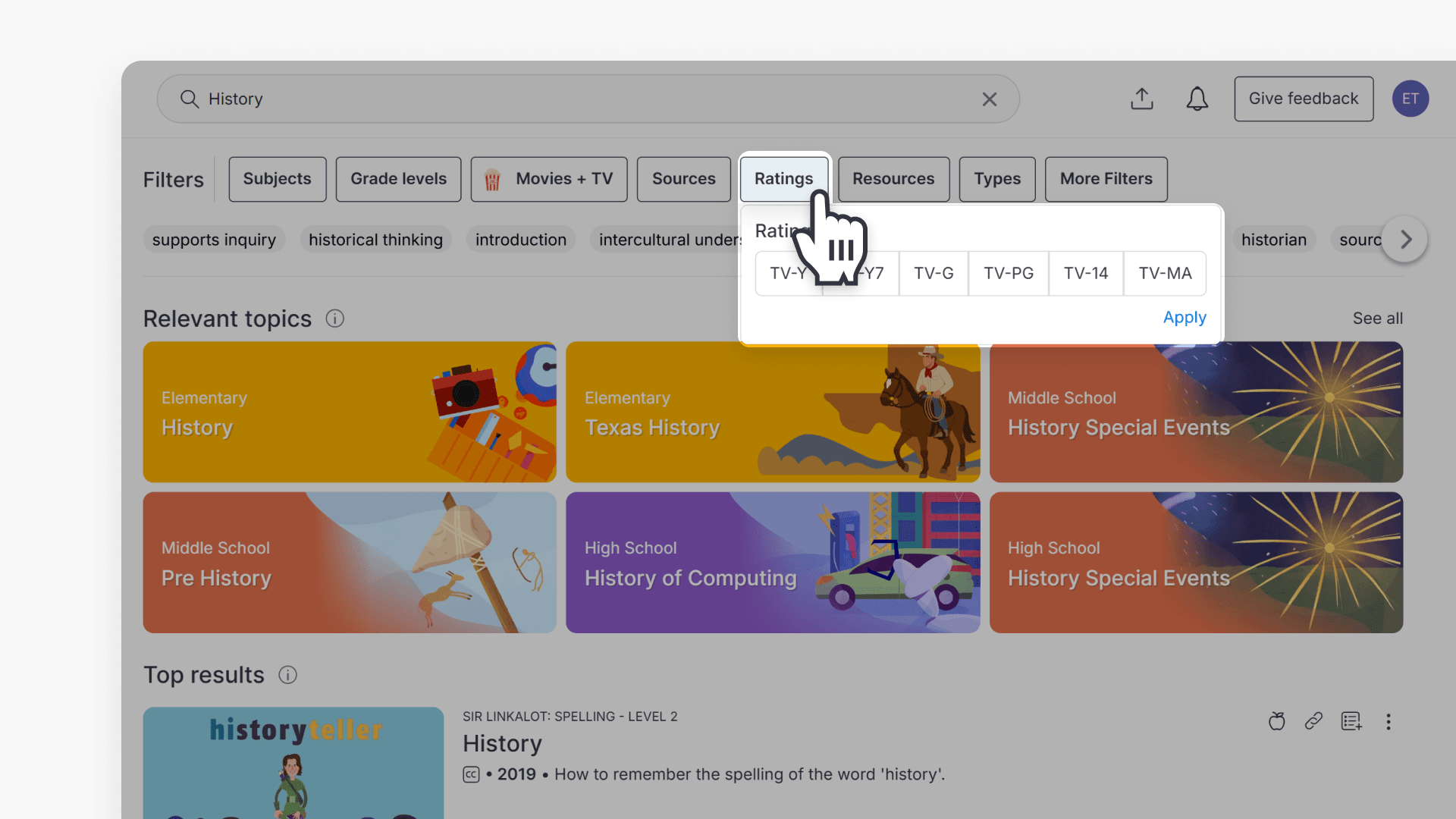
Ratings
Filter by age ratings suitable for different grade levels.
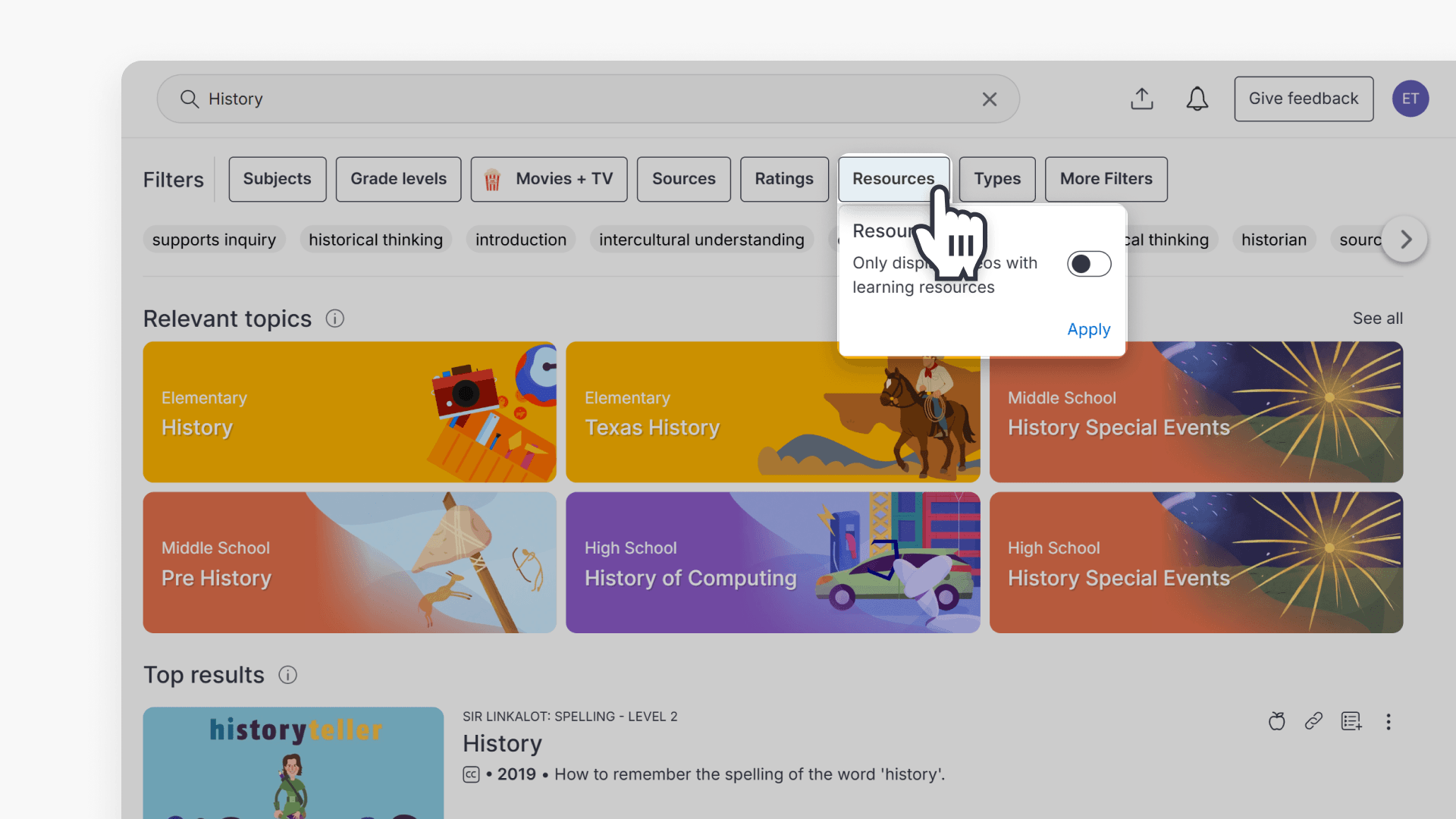
Resources
Show only videos that include teaching resources, such as worksheets and classroom activities.
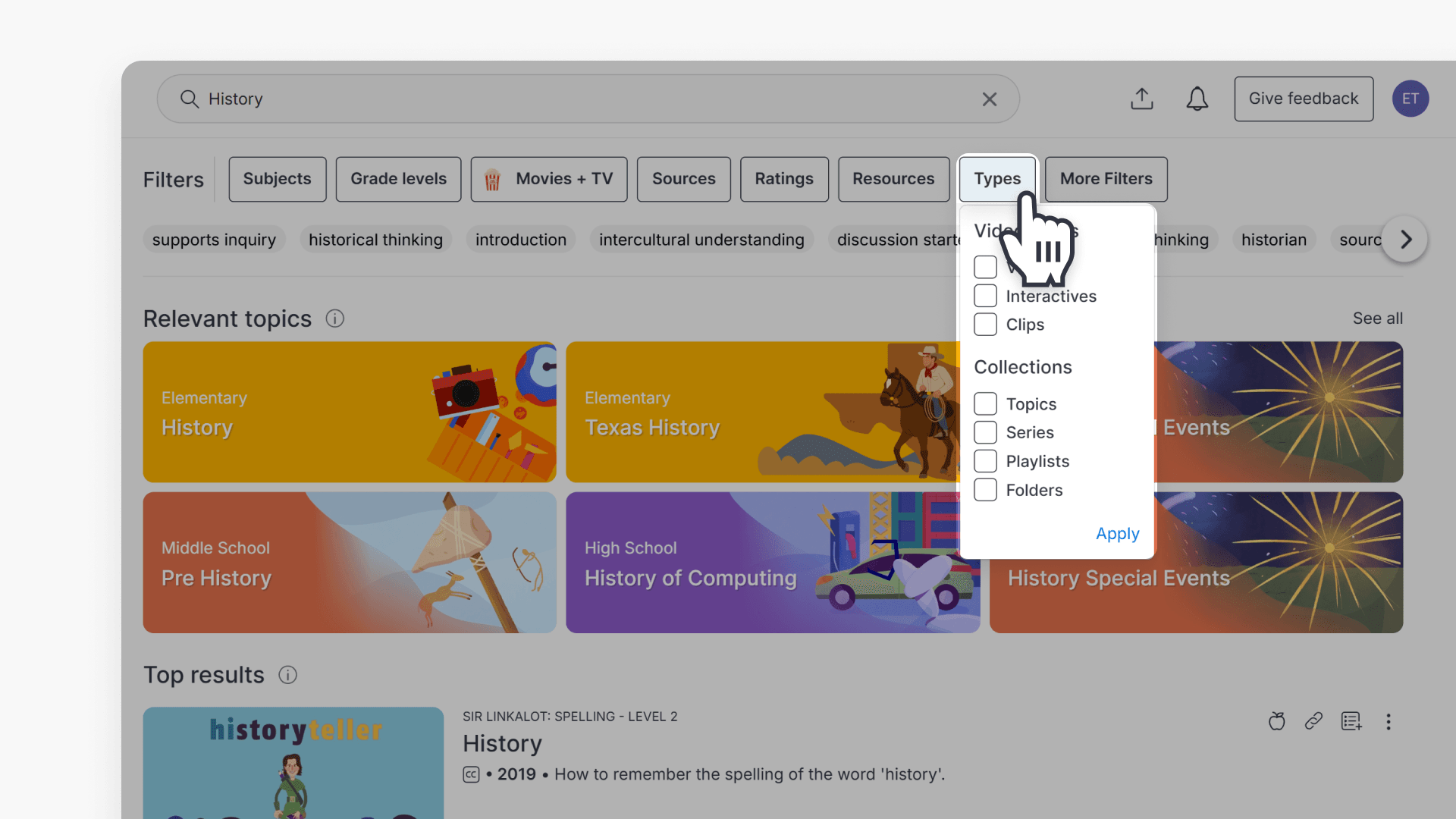
Types
Refine results by format: Videos, Interactives, Clips, Topics, Series, Playlists, or Folders.
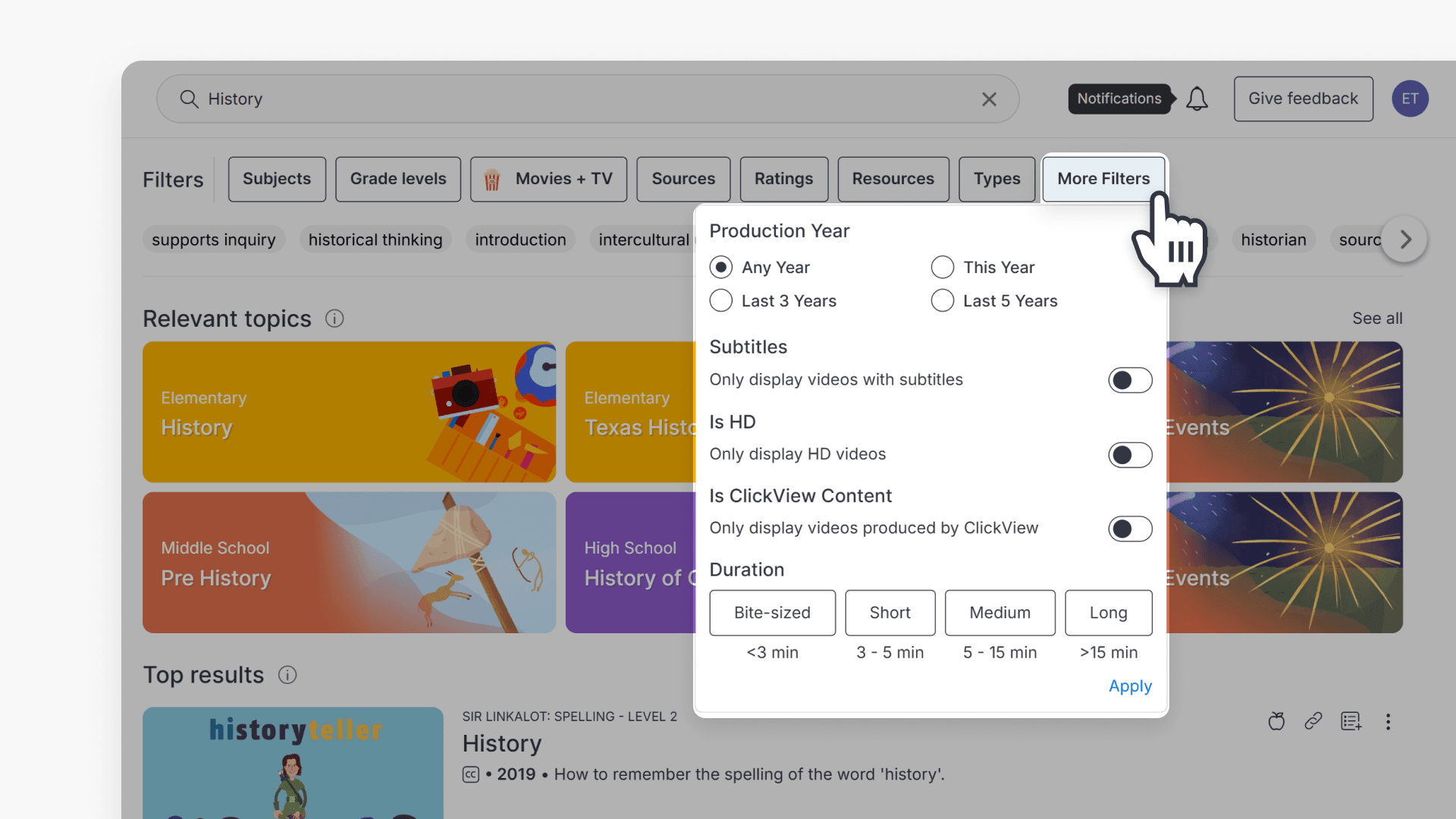
More filters
Use advanced filters to refine further:
- Production Year: Any Year, This Year, Last 3 Years, Last 5 Years
- Subtitles: Only display videos with subtitles
- Is HD: Only display HD videos
- Is ClickView Content: Only display videos produced by ClickView
- Duration: <3 min, 3–5 min, 5–15 min, 15 min
Example: Finding the right video in a large set of results
Search filters are most useful when your keyword is likely to return many different types of results.
For example, a search for ‘Shakespeare’ may surface well-known movie adaptations alongside other video types that better match what you need.

To narrow the results, apply one or more filters. This refines the list so you can find video titles that match your specific topic, and are not buried under the most popular results.
When you compare the results before and after applying filters, you should see a smaller, more targeted set of videos that is easier to review and select from.
Frequently asked questions
Get in touch
If you’re having trouble finding the right topics or videos, just reach out! Our team - 

 Akhil, Daniel, Jalaj, or any of us at ClickView - will be happy to help you get sorted.
Give feedback
Was this guide helpful?
Up Next
Understanding Featured Channels
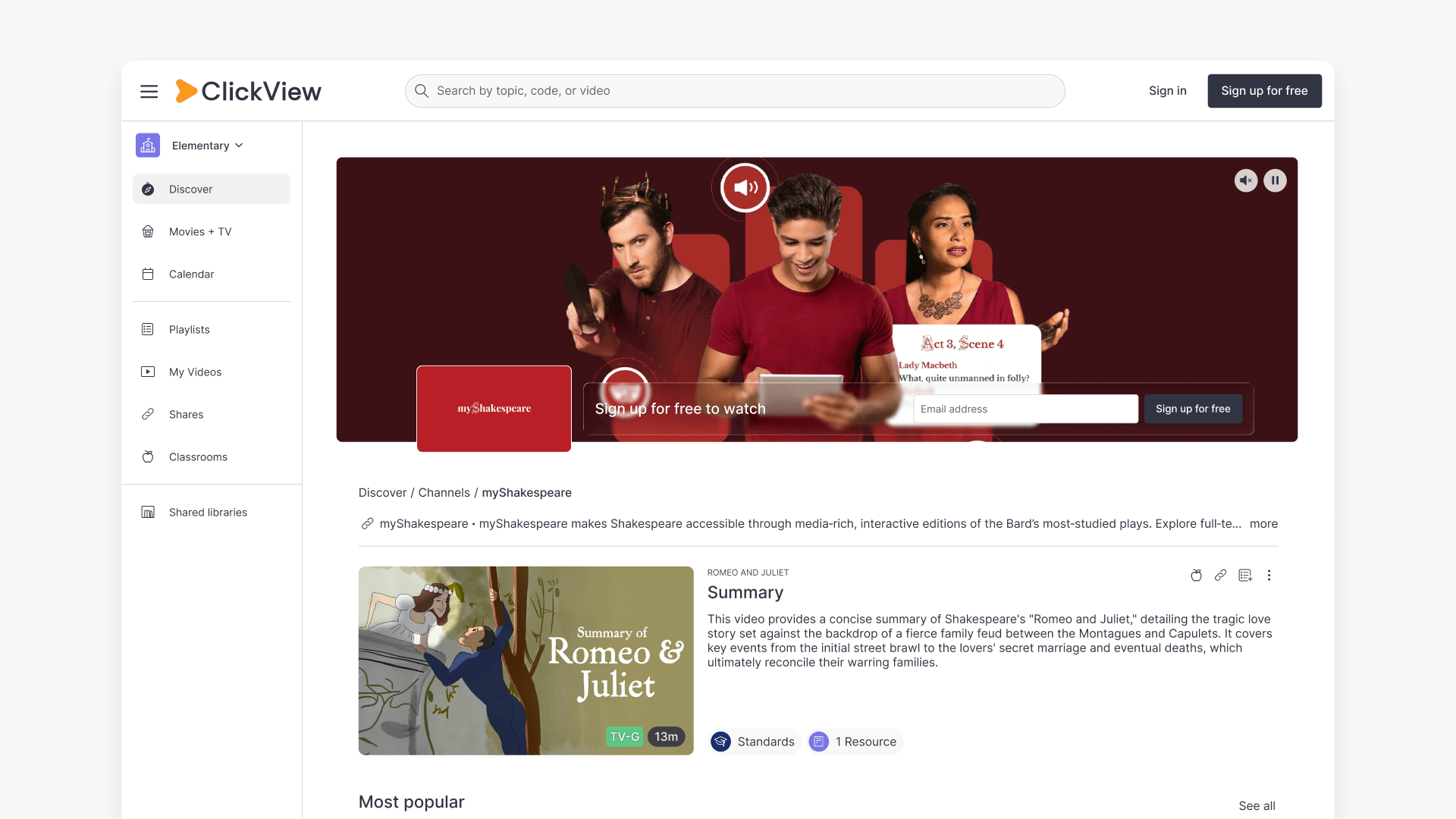
Summary What are Featured Channels in ClickView? Featured Channels bring together every video from one producer in a single place, so you can explore all their videos and resources rather than finding them across topics, series, and search results. Each channel includes a banner introducing the producer, videos organized by recent, popular, and series, and […]