How does rostering work with ClickView?

Summary
- ClickView rostering connects directly to a district’s Student Information System.
- User accounts, classes, and enrollments are maintained automatically.
- Students move to their new grade level automatically when data updates.
- Classes are created and managed centrally through rostering.
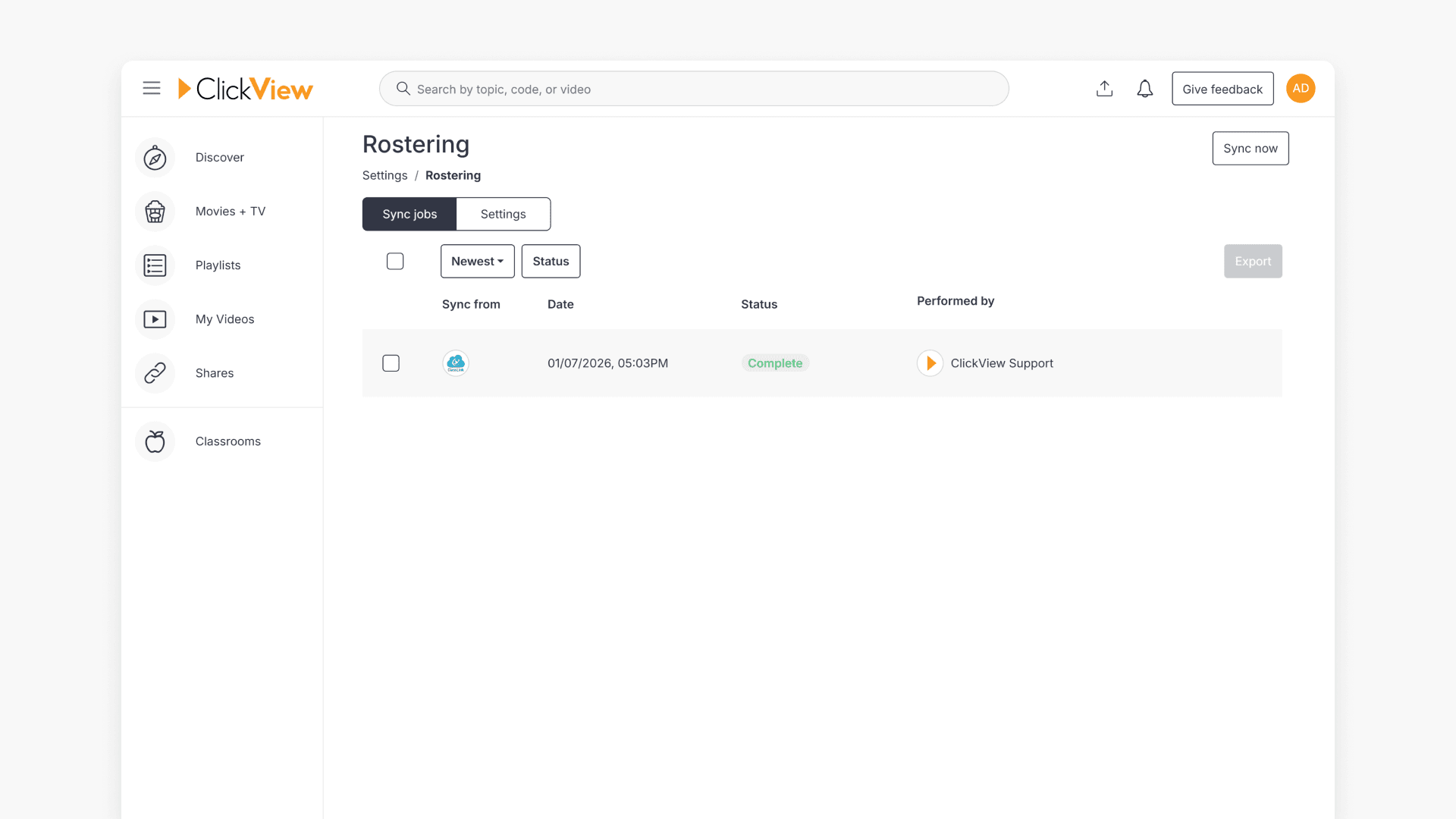
- Rostering status can be viewed under Settings > Integrations > Rostering.
What is rostering?
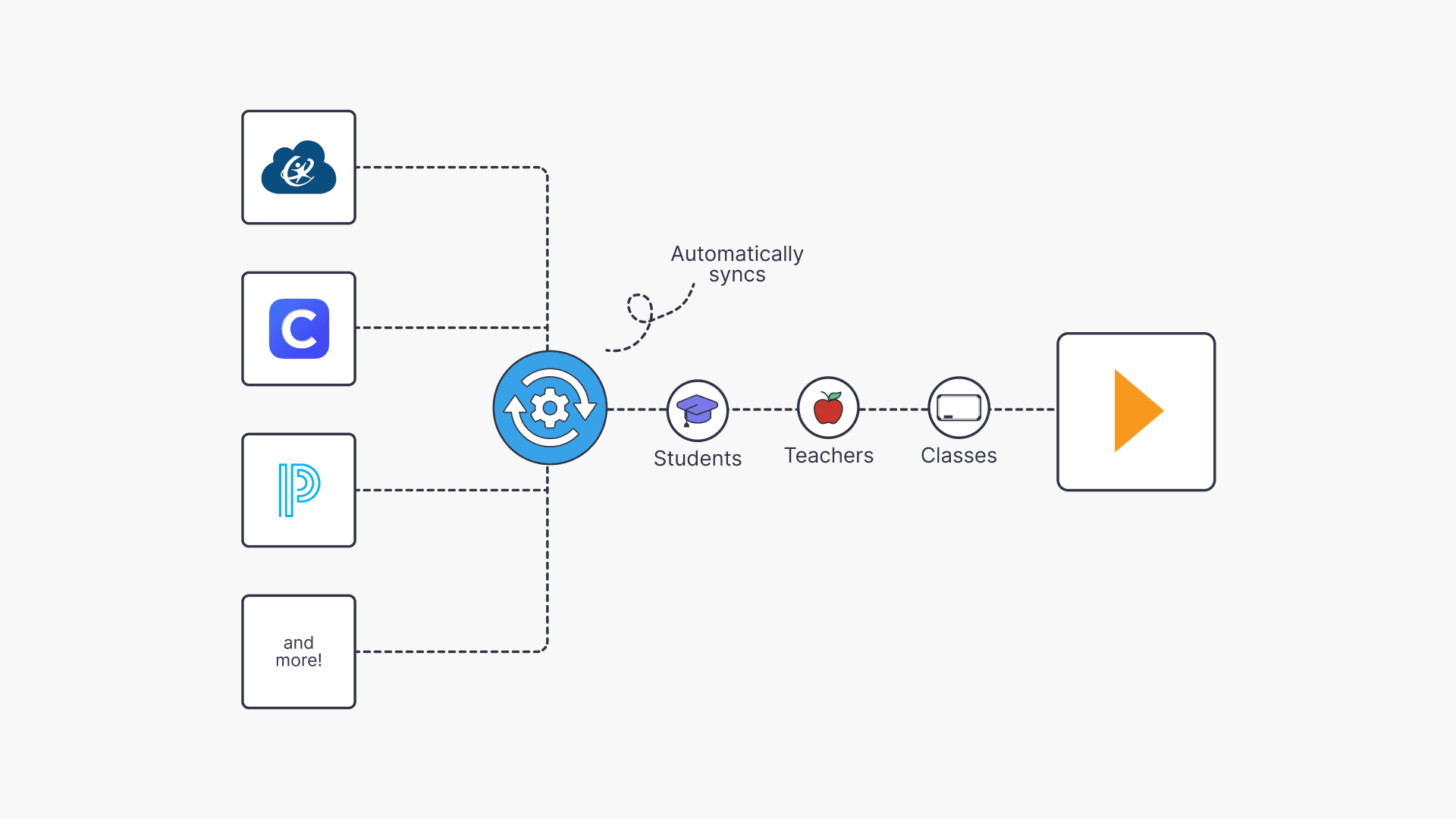
Rostering helps U.S. schools and districts automatically set up and maintain students, staff, and classrooms within ClickView. This process synchronizes information directly from your Student Information System (SIS) or Learning Management System (LMS). This removes the need for manual user and class management inside ClickView.
How rostering works
ClickView integrates directly with your district’s Student Information System to automatically synchronise updates. When information changes in the Student Information System, those changes are reflected in ClickView without requiring manual updates.
What rostering includes
During each sync, the rostering service performs the following actions:
1. User account management
Rostering ensures that staff and student accounts are created and maintained automatically. When students move to a new grade level, their accounts update accordingly.
2. Classroom management
Classes are created automatically through rostering, and students are placed into the correct classes based on the data provided by the Student Information System.
Things to note
- Rostering is managed at a district level.
- Changes made in the Student Information System are reflected in ClickView.
- Manual creation or adjustment of rostered users and classes is not required.
How to enable rostering
If your district or school uses Clever or ClassLink
If your district or school uses Clever or ClassLink, rostering is configured as part of the Single Sign On (SSO) setup. Refer to the relevant setup guide below for detailed instructions:
If you need assistance, contact Product Support to start the rostering setup for Clever or ClassLink.
If your district or school uses another LMS, SIS, or identity provider

If your district or school uses a different Learning Management System (LMS), Student Information System (SIS), or Identity Provider, contact Product Support to discuss enabling rostering.
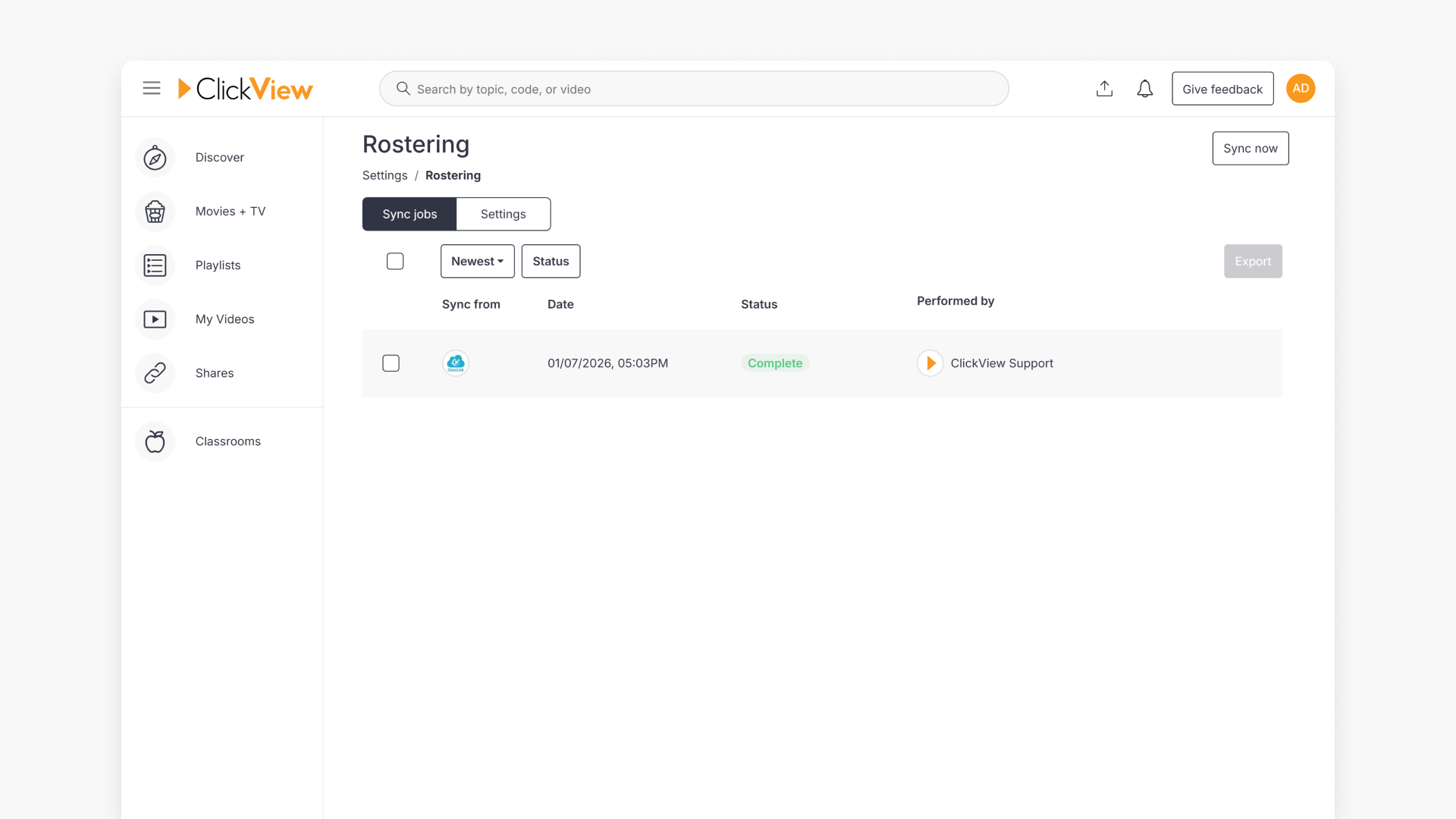
Checking rostering on ClickView
- Sign in to ClickView with your admin account.
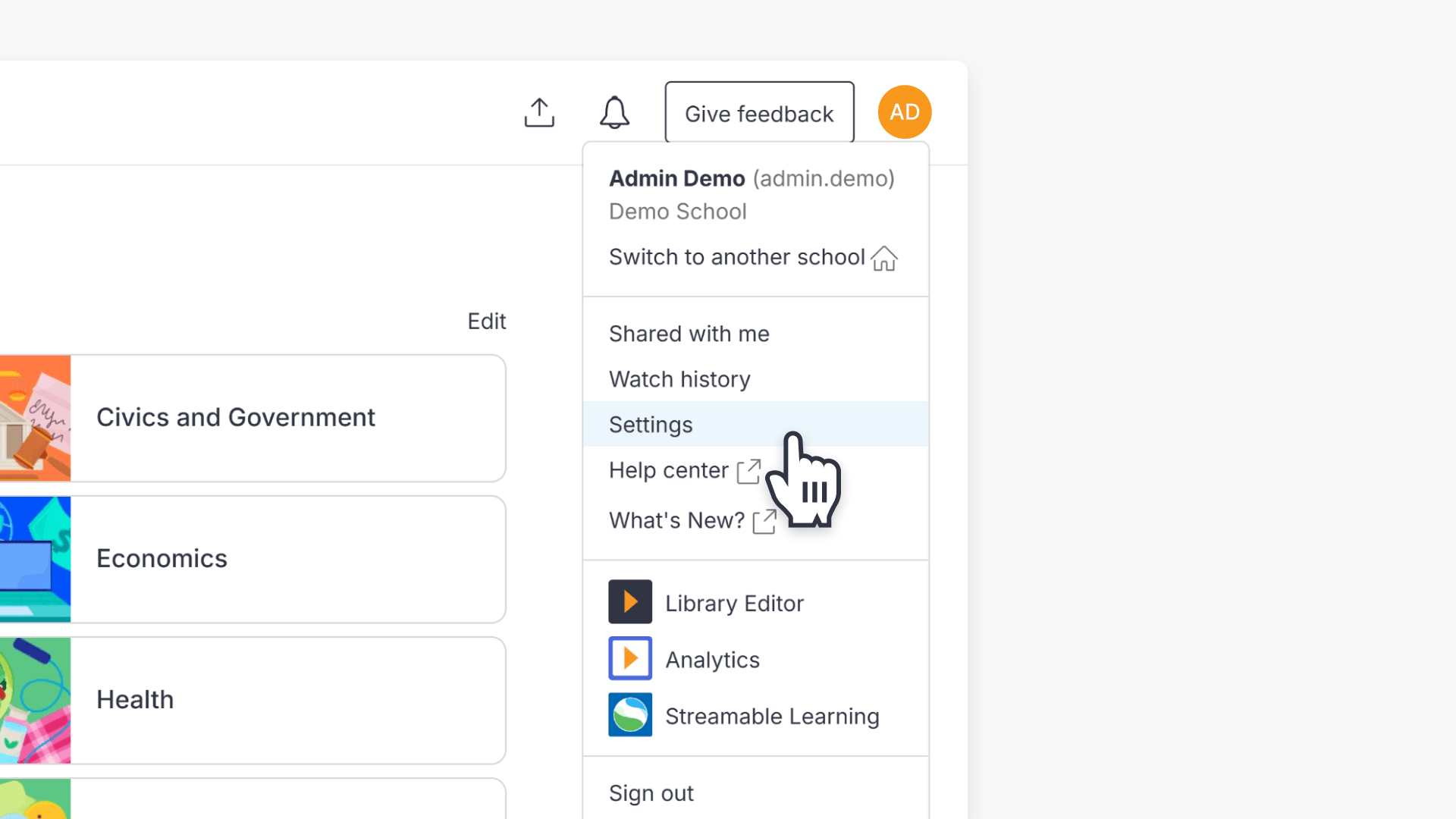
- Click on your initial in the top-right-hand corner and then select Settings.
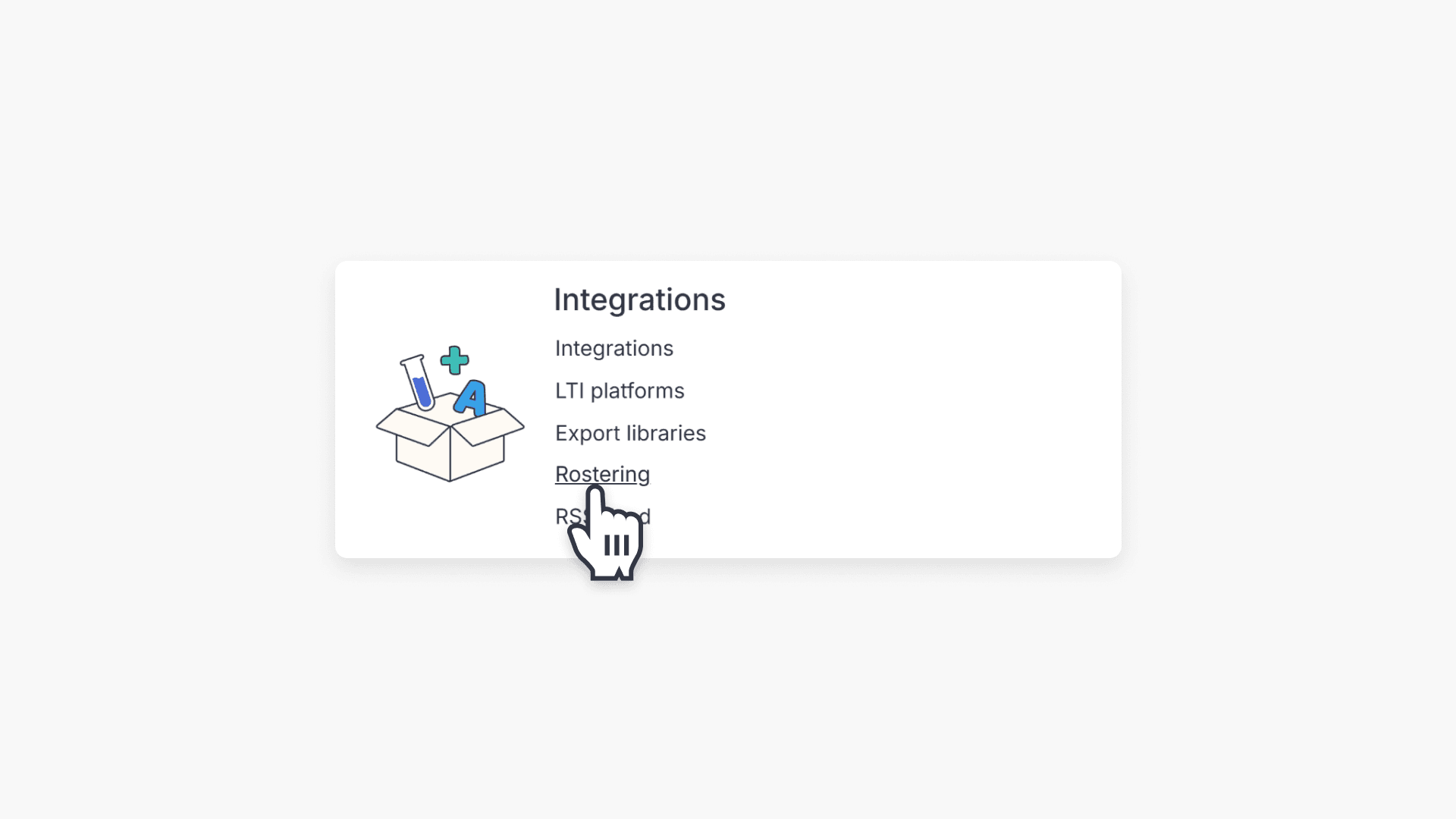
- Within the Integrations section, click on the Rostering option.
- The Rostering page displays all district integration and rostering data.
Frequently asked questions
Get in touch
If you’re having trouble finding the right topics or videos, just reach out! Our team - 


 Andrew, Nisch, Janice, Pfreya, or any of us at ClickView - will be happy to help you get sorted.
Give feedback
Was this guide helpful?
Up Next

How to integrate ClassLink with ClickView
Learn how to connect ClassLink with ClickView in your school, enabling seamless access for teachers and students through secure roster setup and application assignment.