How to integrate Clever with ClickView

Summary
- Go to Clever Dashboard > Applications > Add Applications.
- Use filters to search for ClickView by Type, Subject, or Name.
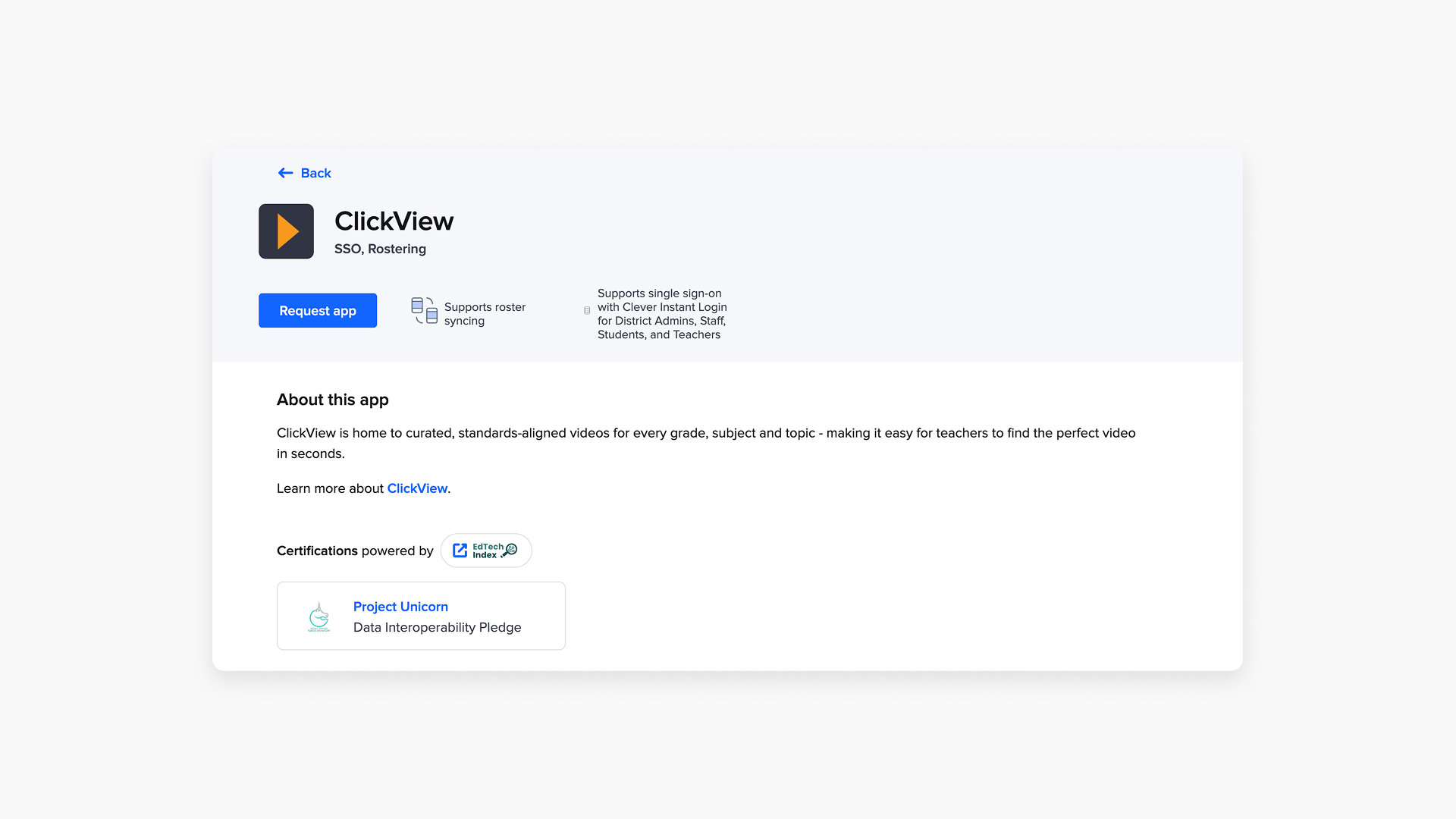
- Select ‘Request App’ for ClickView.
- Provide district purchase status and Launch Date.
- Select ‘Request application’ to submit.
- Configure sharing permissions after approval.
Set up ClickView in Clever
Clever integration for ClickView involves both adding the application and configuring sharing permissions. Follow these steps to streamline the process for your district:
Adding the ClickView application
- Navigate to your Clever Dashboard > Applications > Add Applications.

- Use the filters at the top of the page to search for ClickView by:
- Type (e.g., Rostering, SSO, Free)
- Subject (e.g., Assessment, Communication, Math, Reading)
- Name (e.g., ClickView).
- Once you locate ClickView, select Request App.


- On the Application request screen, provide the following information:
- Select whether your district has already purchased ClickView.
- Select a preferred Launch Date (this is your suggested date; ClickView may adjust it if needed).
- Select Send integration request to submit the request to ClickView.

Configure application sharing permissions
After ClickView approves your connection, follow the Clever guide to set up your sharing permissions. District admins can adjust permissions at any time to control which district data is shared and which users access ClickView in Clever after the Launch Date.
- Share by District: Shares all district data, including admins, schools, teachers, students, staff, and sections.
- Share by Schools: Shares data from only the selected schools.
- Share by Rules: Shares data based on criteria you set; gives flexibility over what is included or excluded.
- School Site Sharing: Lets School Tech Leads configure sharing settings for their schools (if designated in Clever).
- Copy Sharing: Copies sharing permissions from another already-configured application.
Applications cannot access district data in Clever unless sharing permissions are set. Refer to Clever support articles for step-by-step instructions.
If you have questions about adding ClickView or managing sharing permissions, contact Product Support.
Frequently asked questions
Get in touch
If you’re having trouble finding the right topics or videos, just reach out! Our team - 

 Akhil, Daniel, Jalaj, or any of us at ClickView - will be happy to help you get sorted.
Give feedback
Was this guide helpful?
Up Next
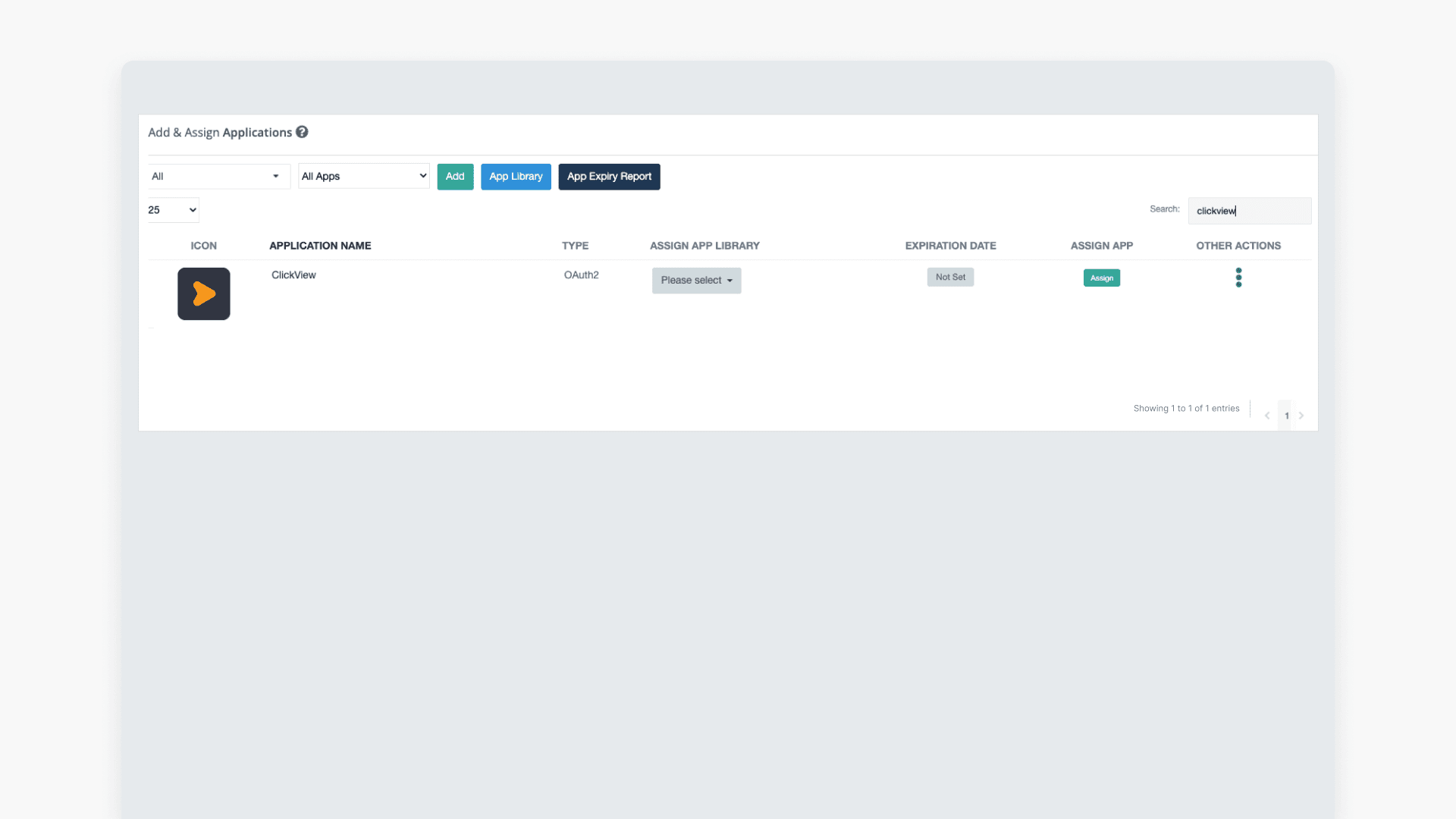
How to integrate ClassLink with ClickView
Learn how to connect ClassLink with ClickView in your school, enabling seamless access for teachers and students through secure roster setup and application assignment.