How to integrate ClassLink with ClickView
In this article
Last updated by
2 min readClickViewJuly 31, 2026
Summary
- Go to ClassLink Launch Pad and open ClassLink Roster Server.
- Select ‘Apps’ and use ‘+ADD’ to search for ClickView.
- Set permissions via rule-based, full, or legacy custom options.
- Copy permissions from another app using ‘COPY PERMISSIONS FROM A DIFFERENT APP.’
- Assign ClickView to users in ClassLink Management Console.
- Choose relevant role types: Student and Teacher.
- Users access ClickView from their ClassLink Launch Pad.
Roster setup and application assignment
Set up your roster in ClassLink
- From your ClassLink Launch Pad, navigate to the ClassLink Roster Server.
- Click on Apps at the top, then +ADD.
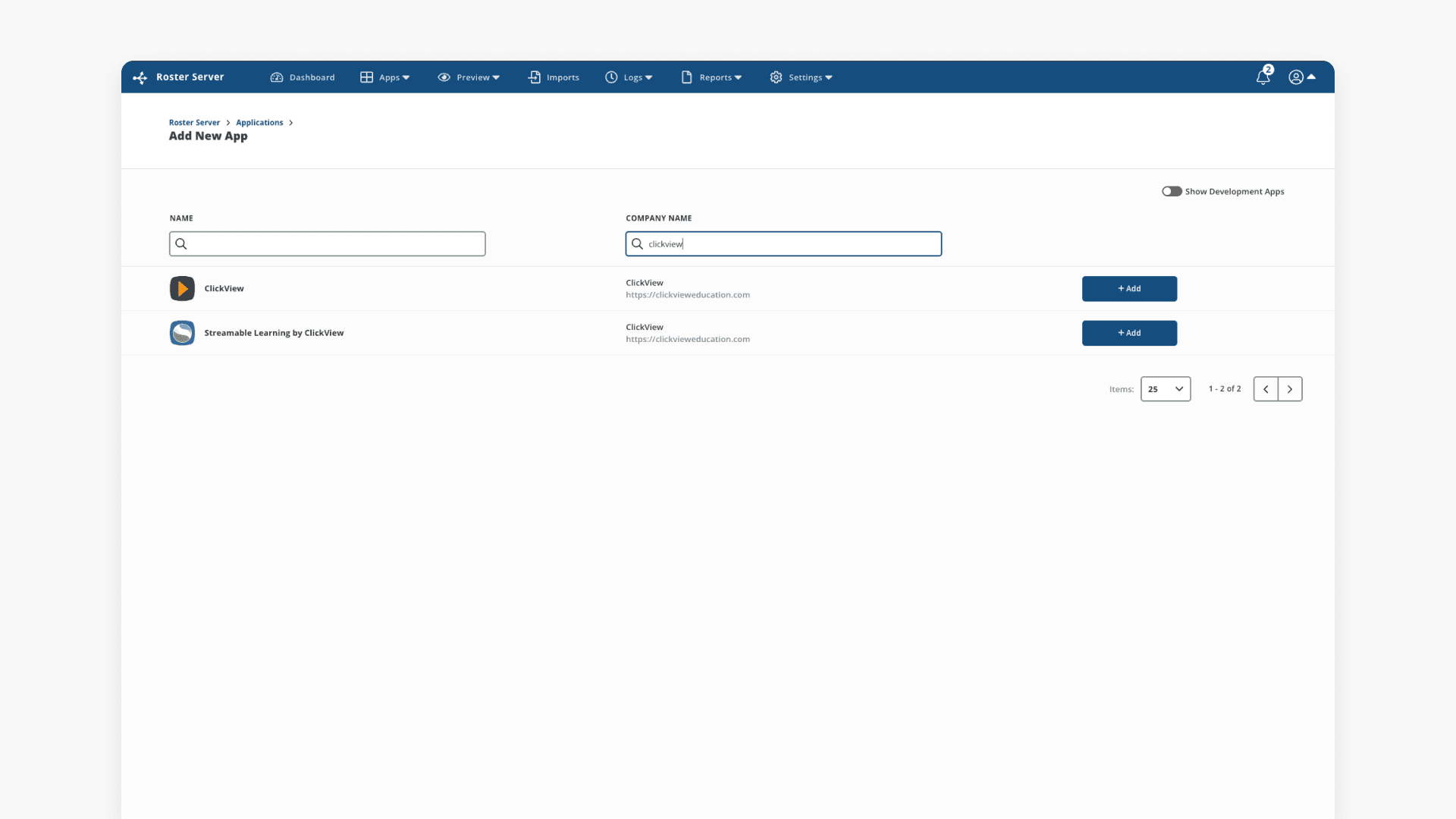
- Search for ClickView and click +Add.
- Upon adding, review the permissions screen.
Copy permissions from another application
If you have an ideal roster setup in another ClassLink app, select COPY PERMISSIONS FROM A DIFFERENT APP at the top of the permissions screen to use the same user list.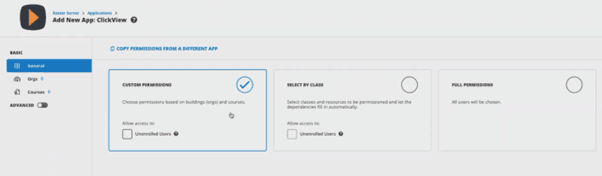
Find the app, click copy, then save.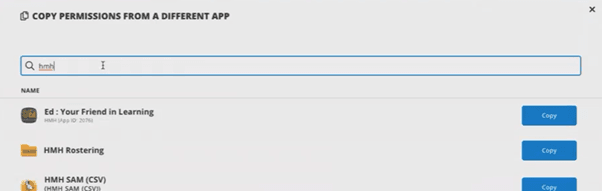
For more information on rosters, contact Product Support.
Assign the ClickView application
- From the ClassLink Launch Pad, open ClassLink Management Console and sign in as an Administrator.

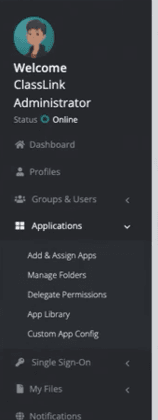
- Choose Application, then Add & Assign Apps in the left menu.
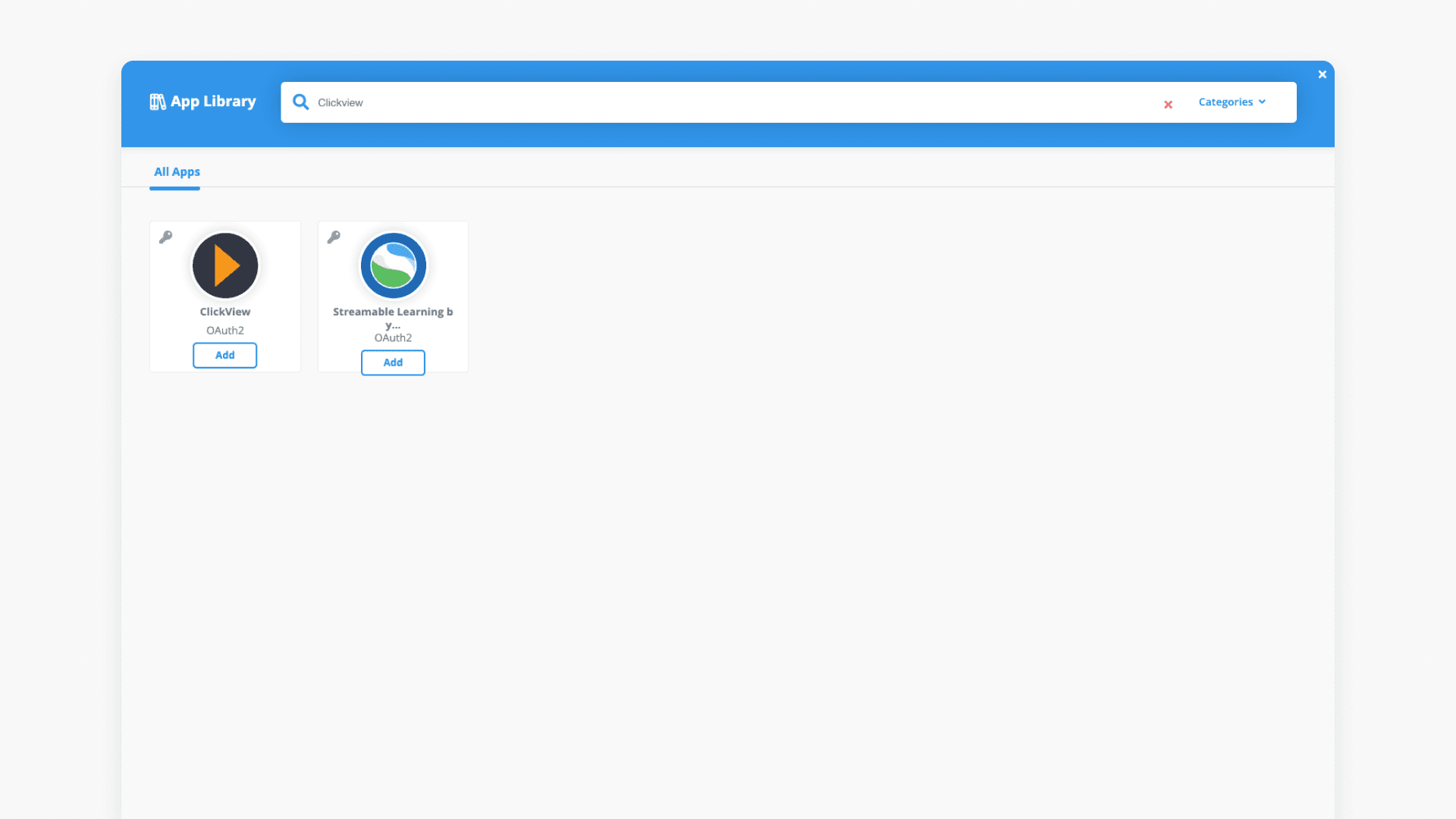
- Click App Library to search for certified applications.
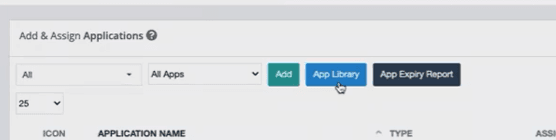
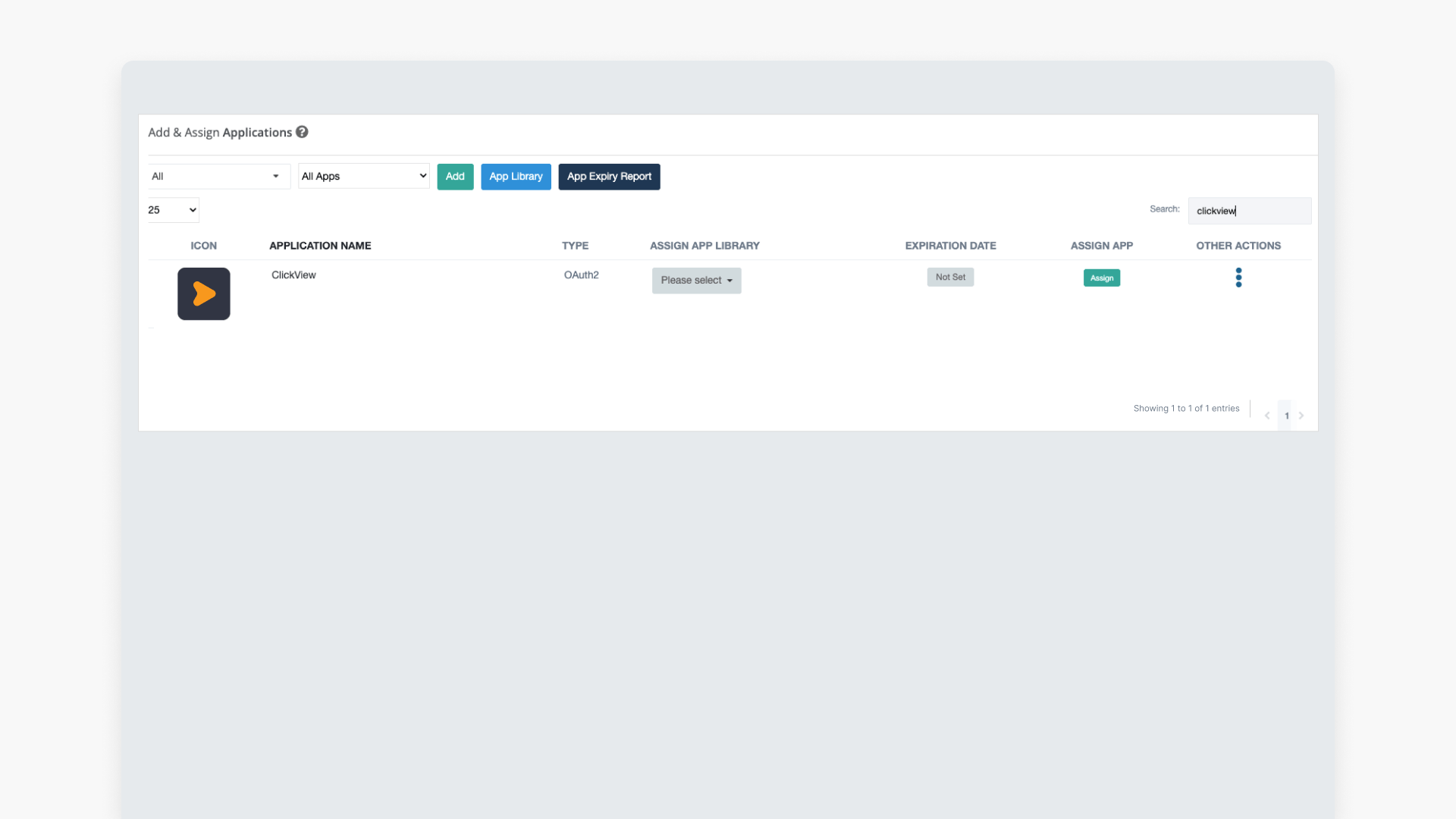
- Search for ClickView and click Add.
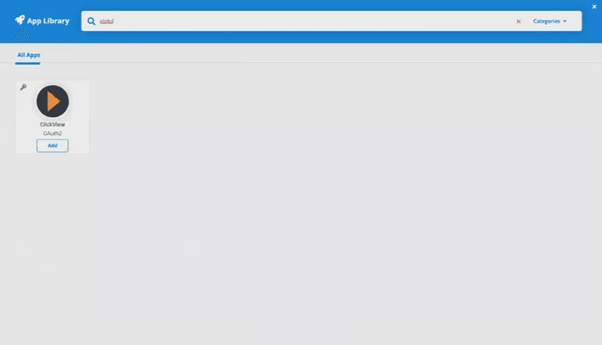
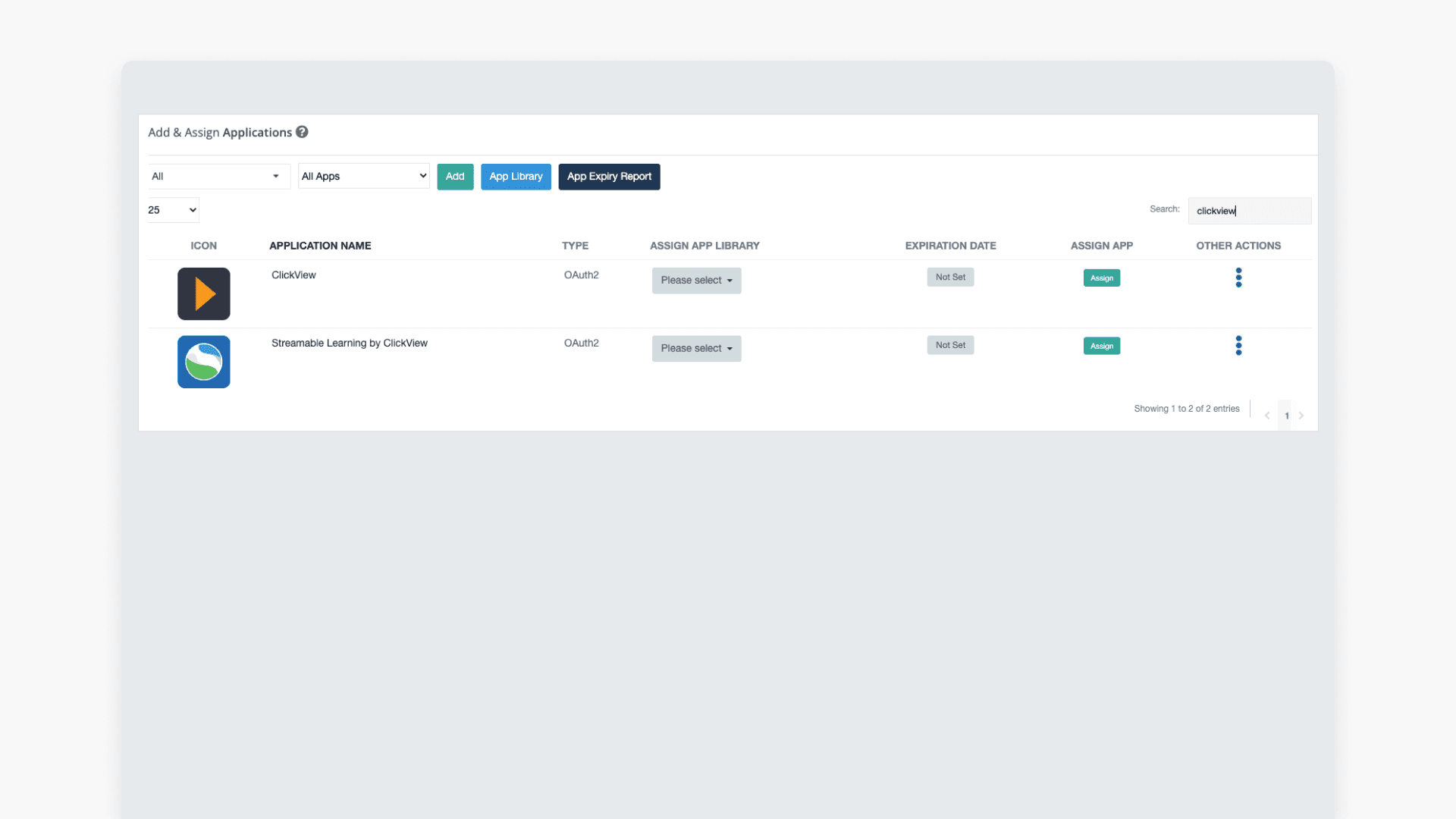
- In Add & Assign Apps, search for ClickView and click Assign.

- Assignment uses the existing roster so user access stays current.
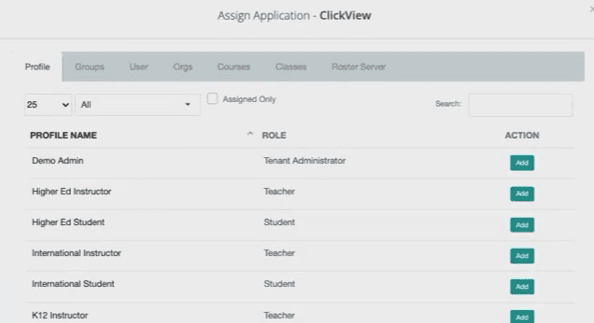
- Select the Roster tab.
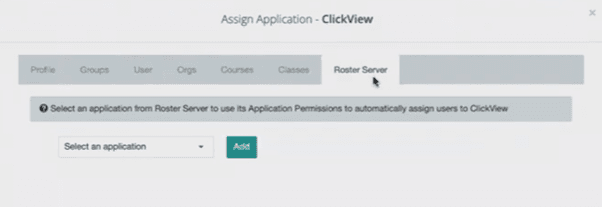
- Search for ClickView in the select application box and pick relevant roles such as Student and Teacher.
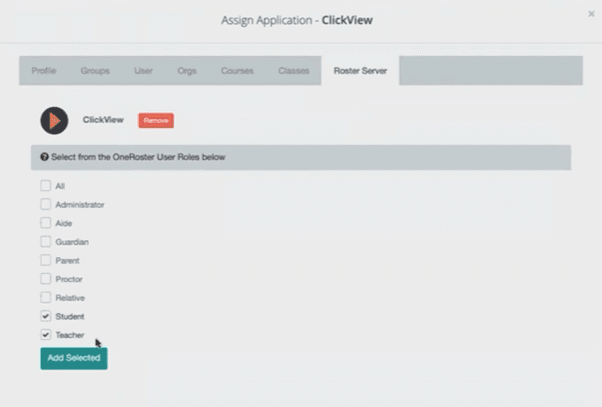
Once complete, users can access ClickView from their ClassLink Launch Pad.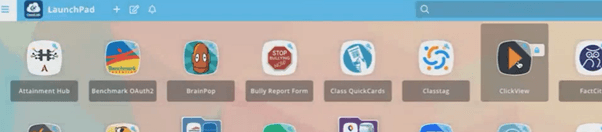
Frequently asked questions
You can use rule-based, full, or legacy custom permissions to control which users can access ClickView.
On the permissions screen, select ‘COPY PERMISSIONS FROM A DIFFERENT APP,’ choose your app, and click copy, then save.
You may assign Student and Teacher role types so users can access ClickView from ClassLink.
Contact Product Support for additional roster setup guidance.
Get in touch
If you’re having trouble finding the right topics or videos, just reach out! Our team - 

 Akhil, Daniel, Jalaj, or any of us at ClickView - will be happy to help you get sorted.
Give feedback
Was this guide helpful?
Up Next
How to integrate Clever with ClickView
This article explains how to integrate ClickView with Clever, including adding the application and configuring sharing permissions for district data access.