How to create and manage your school library

Summary
- Open Library Editor with an Administrator account.
- Create your school library and name it.
- Build the structure with folders and subfolders via the three-dot menu.
- Rearrange or remove folders as your needs change.
- Add a school crest using ‘Add your school crest’.
- Publish your new school library for staff and student access.
How to create your school library
- Sign in to ClickView with an Administrator account.
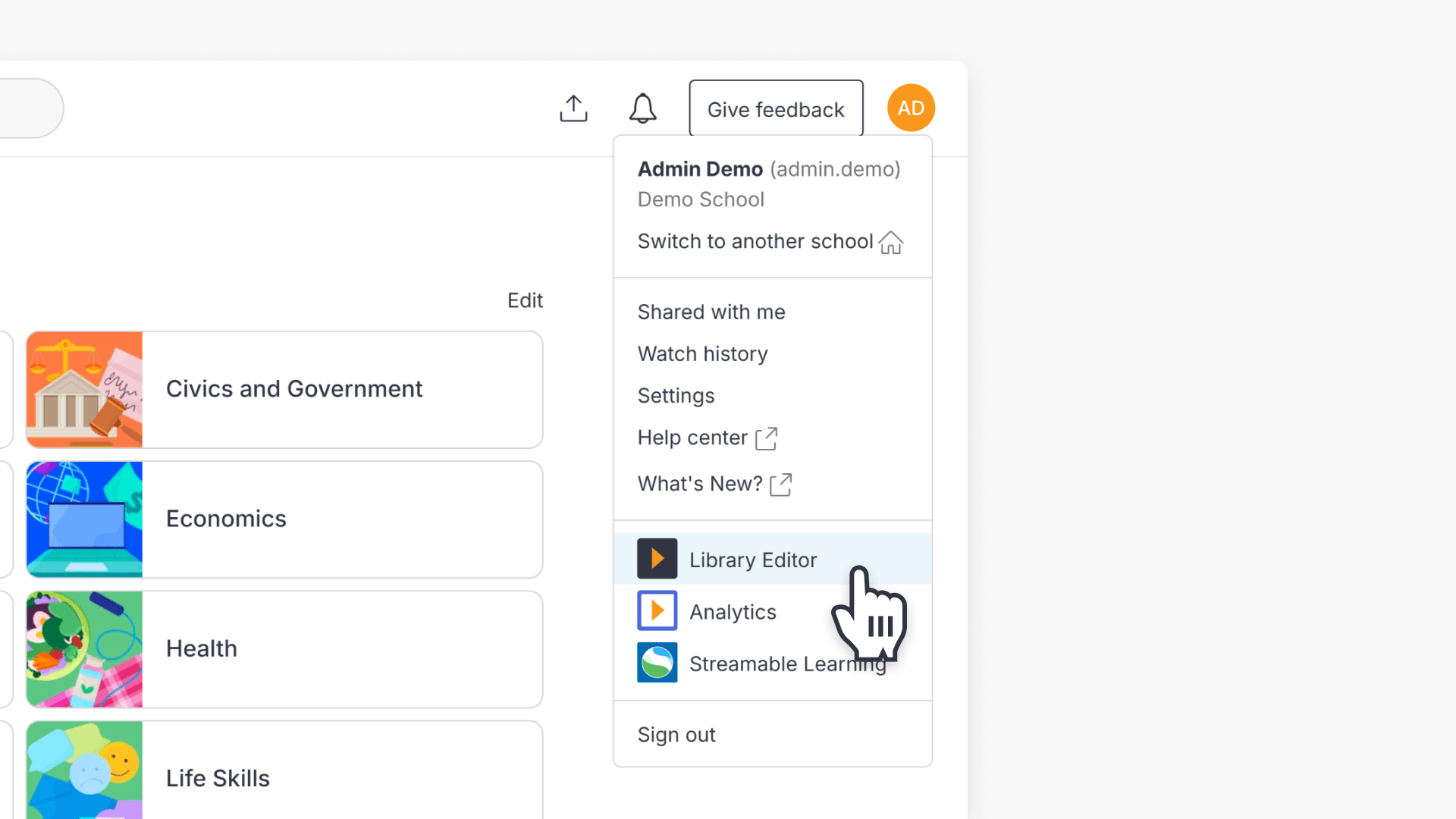
- Open Library Editor by clicking your initials at the top right, then ‘Library Editor’.
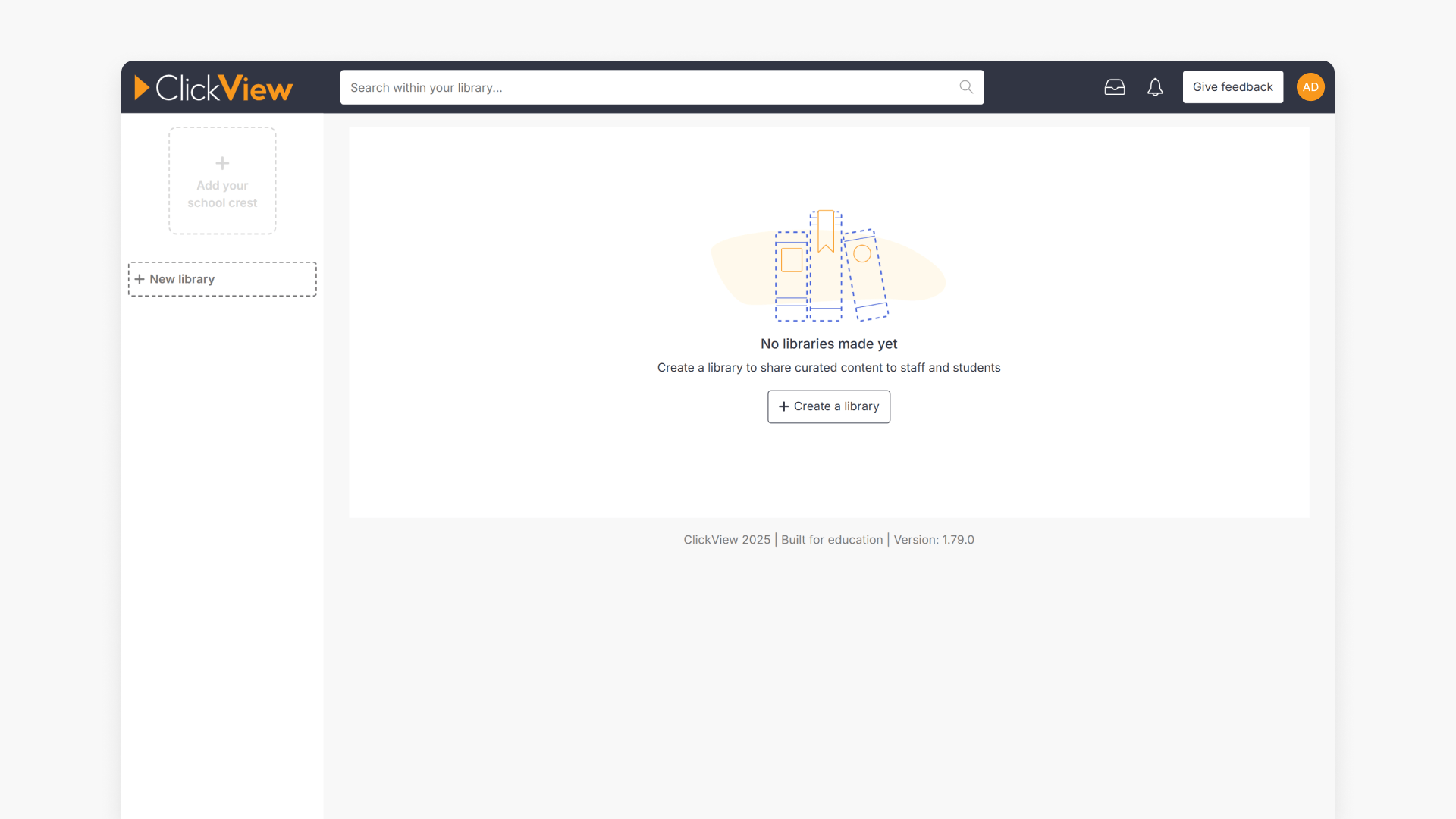
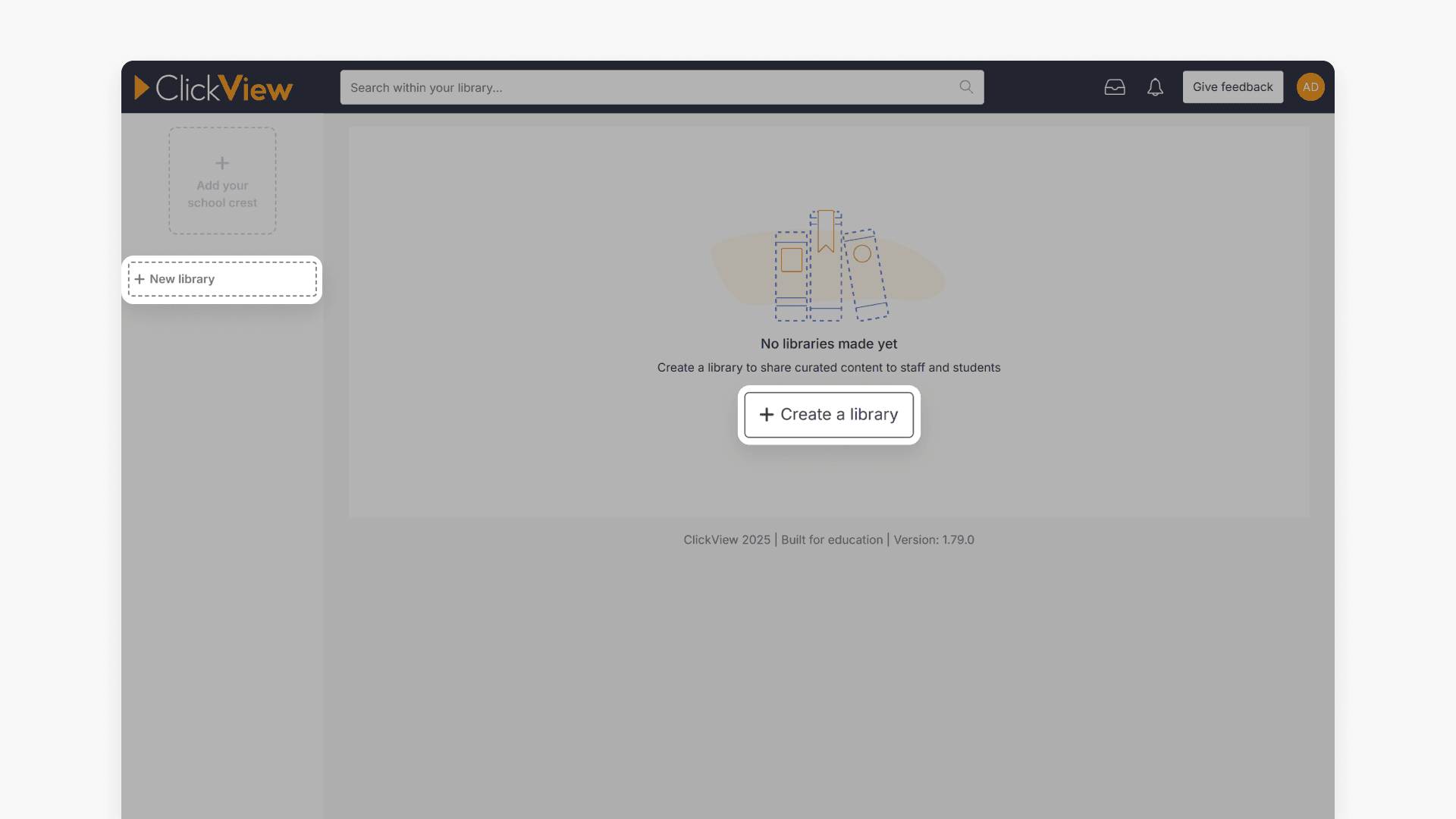
- Create your school library by selecting ‘+ New library’ on the left or ‘+ Create a library’ in the center.
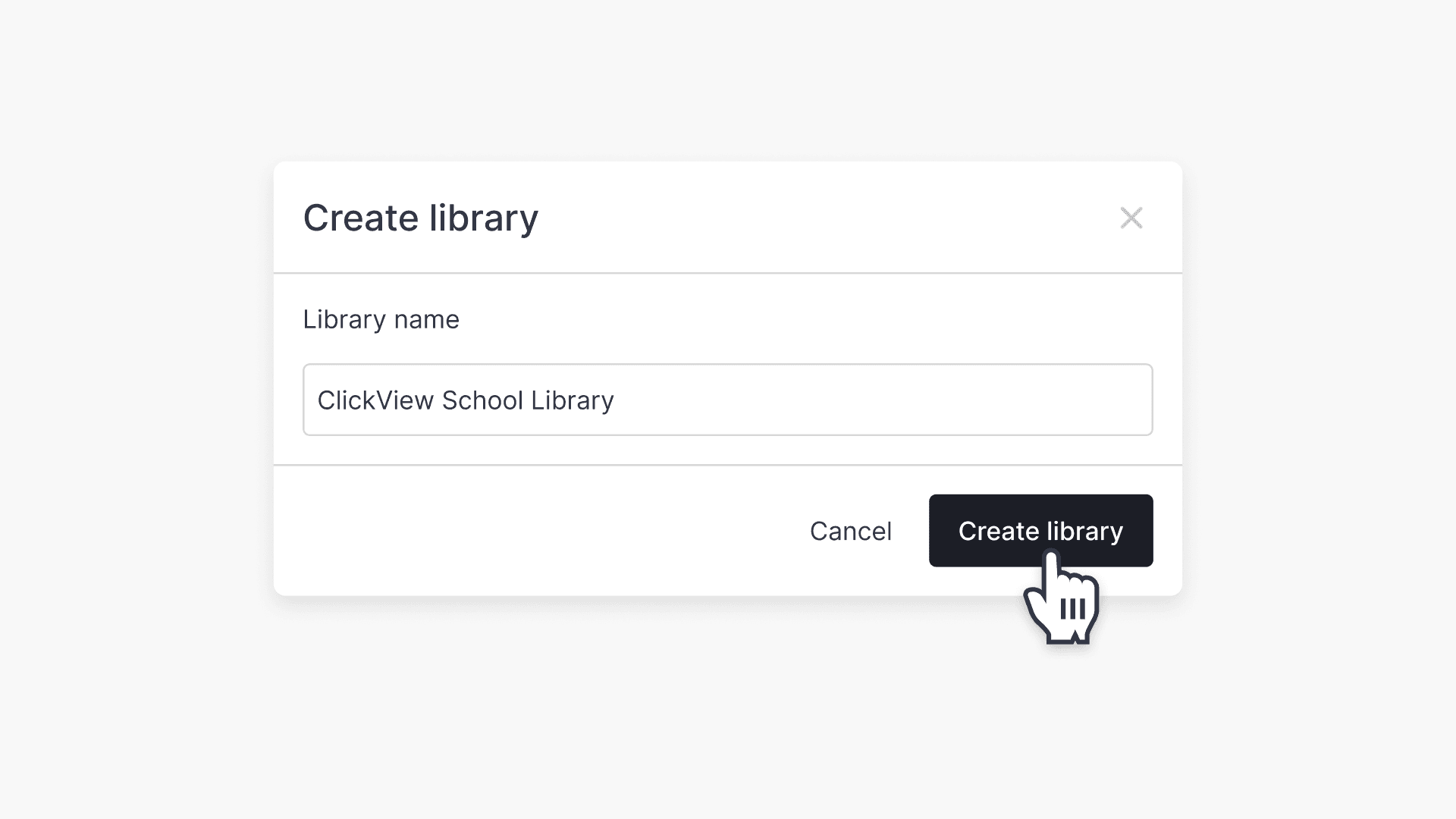
- Enter your library’s name and click ‘Create library’.
- Once confirmed, proceed to set up your folder structure.
Create folders and subfolders
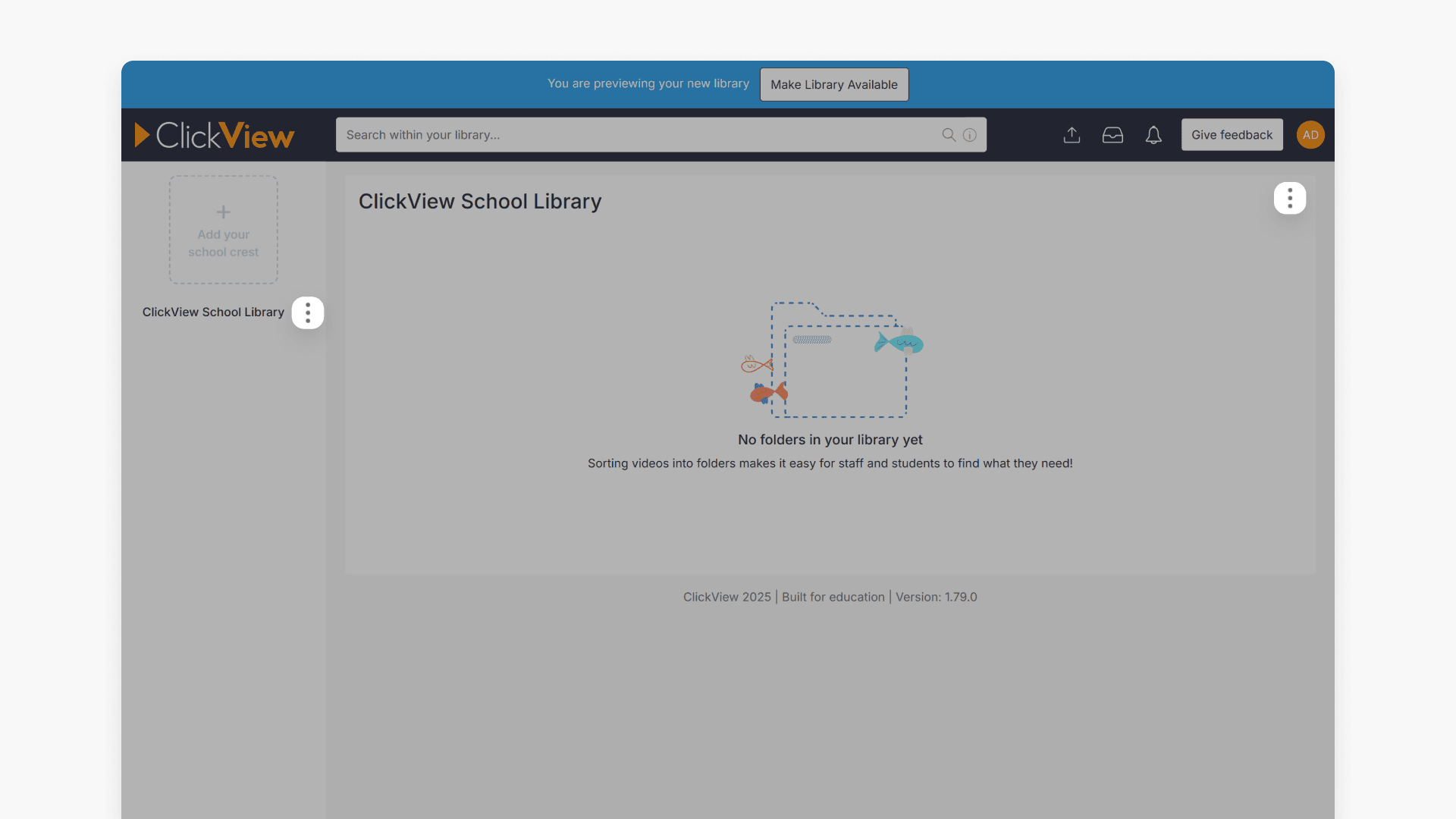
- Click on the three vertical dots next to your school library.
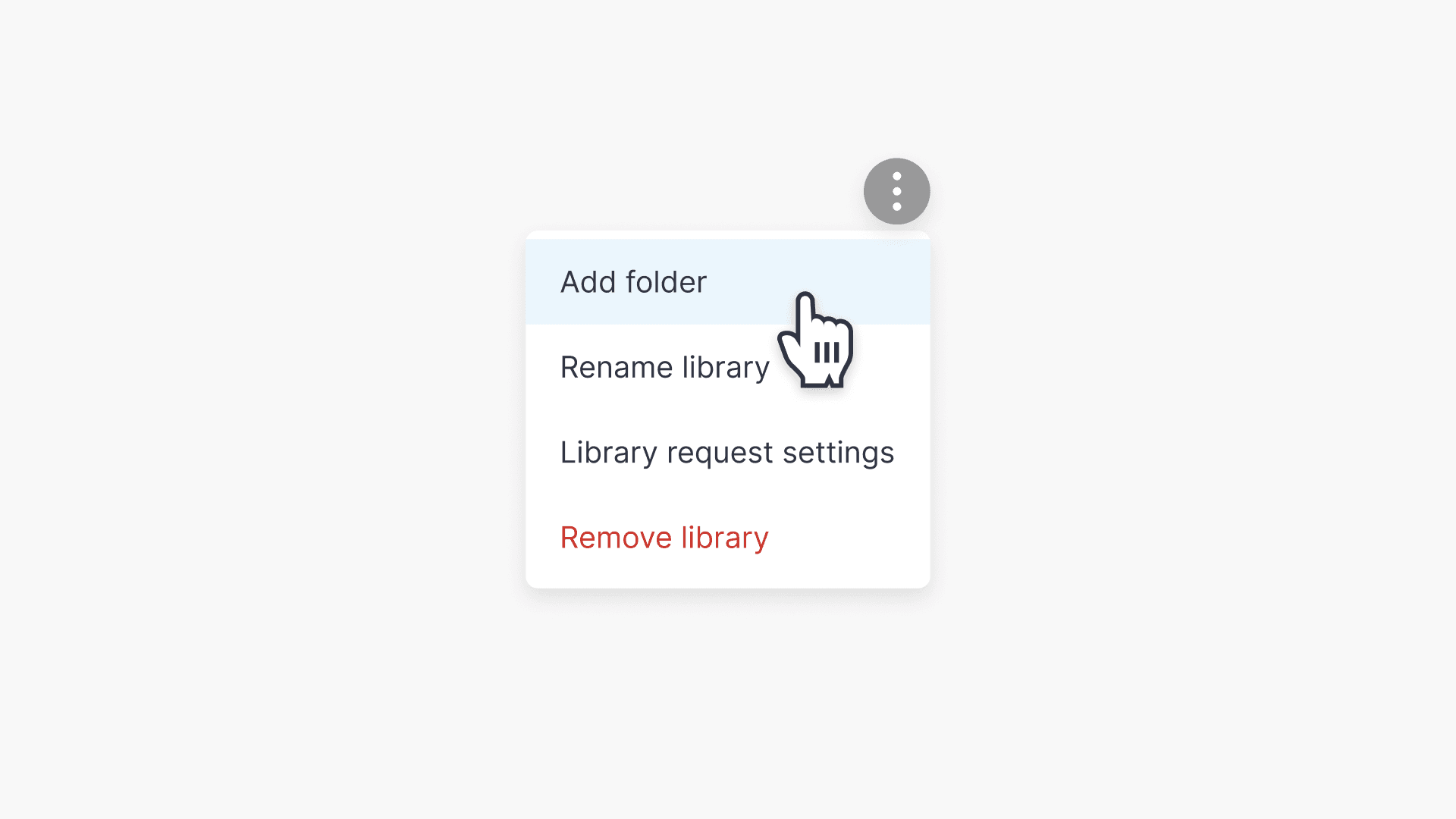
- From the menu, select ‘Add folder’.
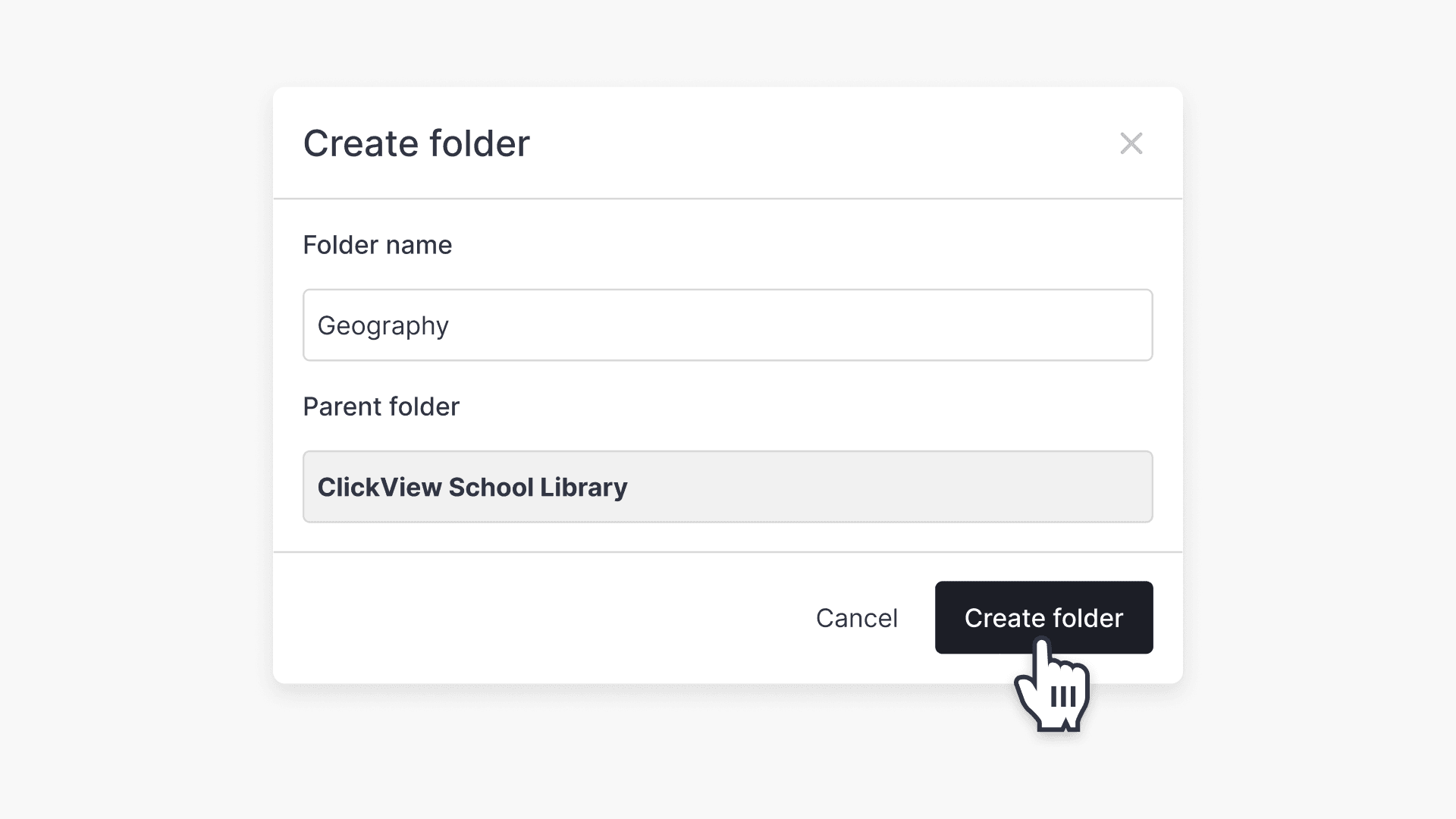
- Enter a name and click ‘Create folder’.
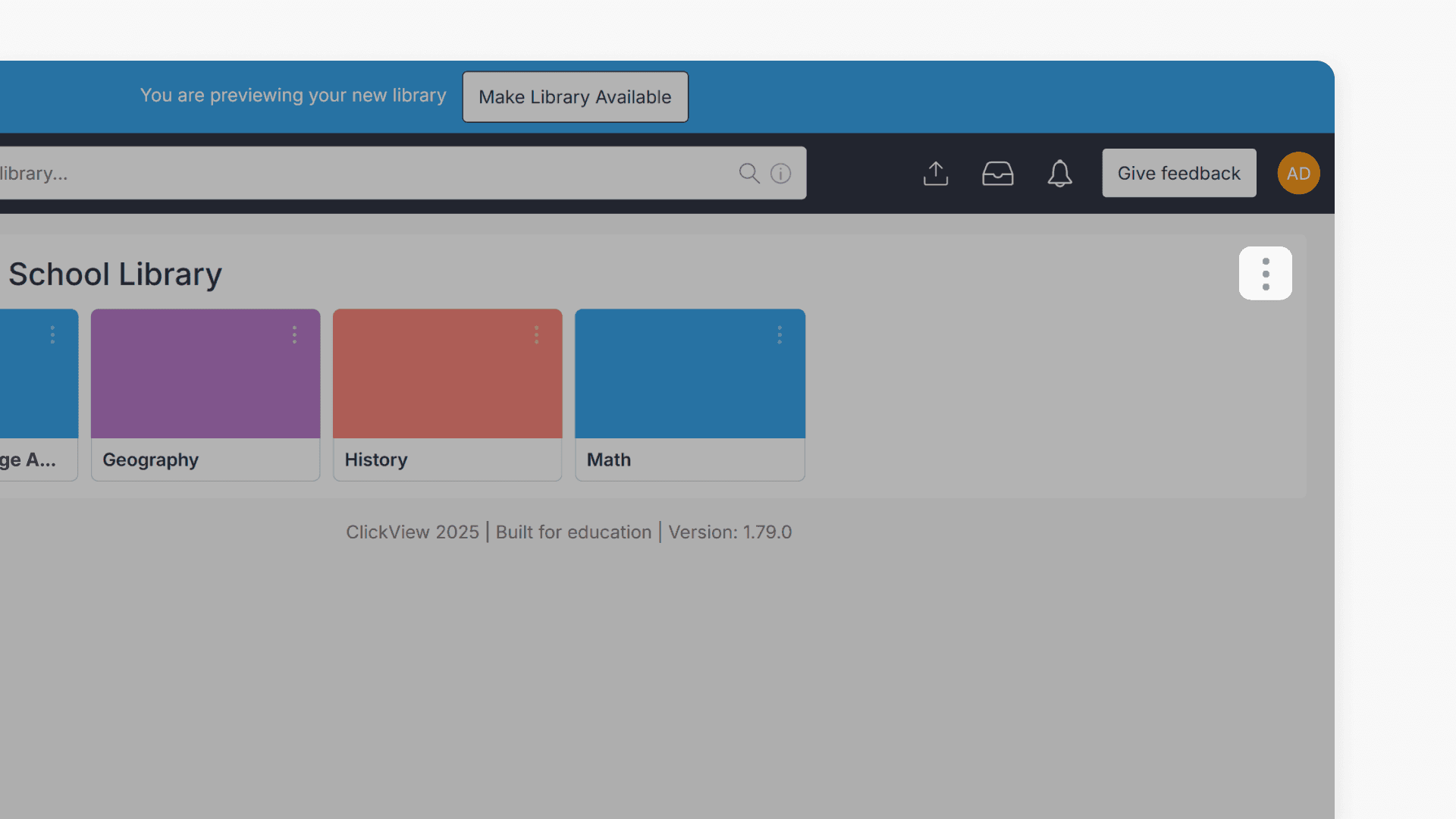
To create subfolders, you have two options:
- Method 1:
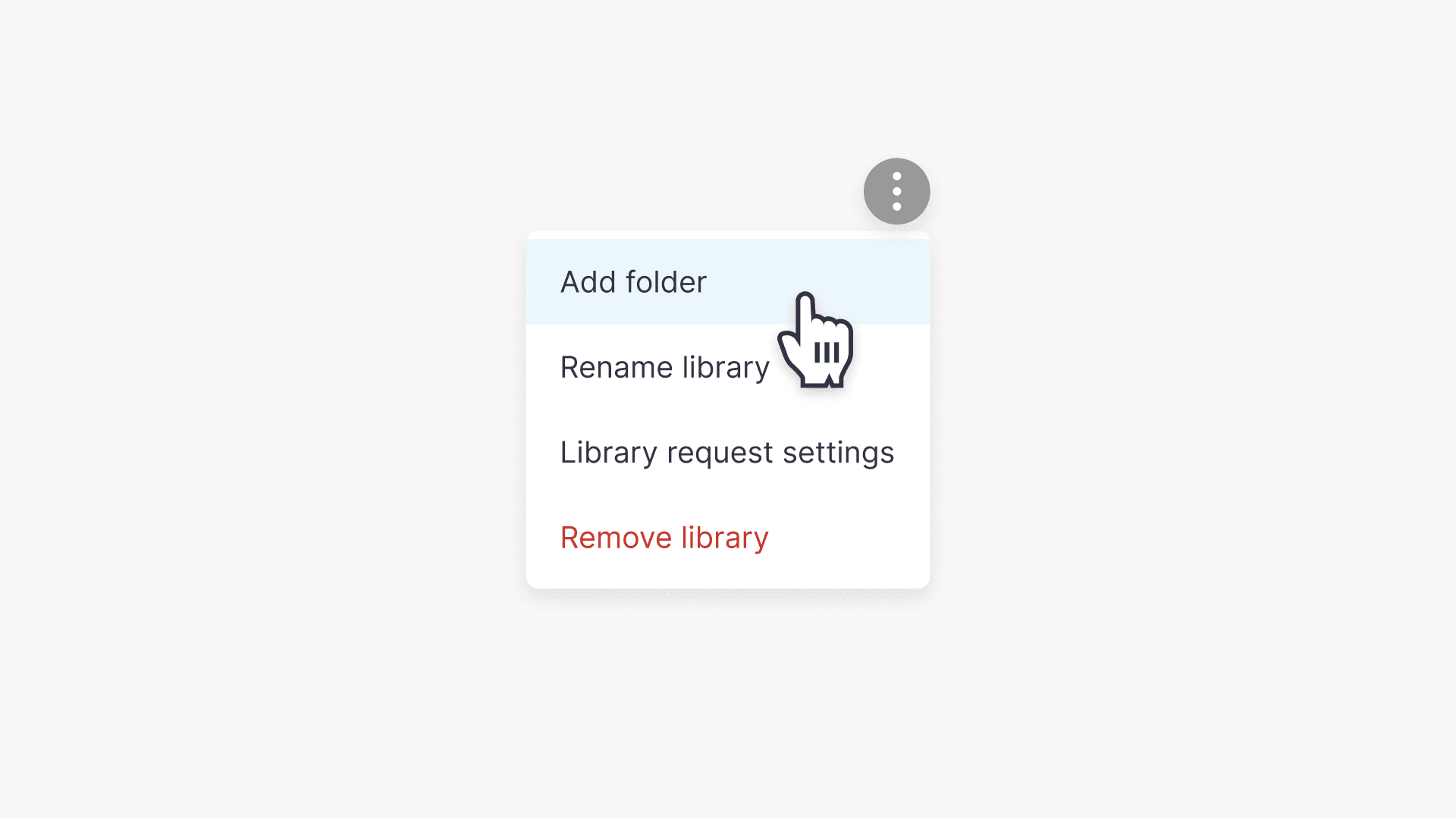
- Select the three dots next to the library name.
- Select ‘Add folder’.
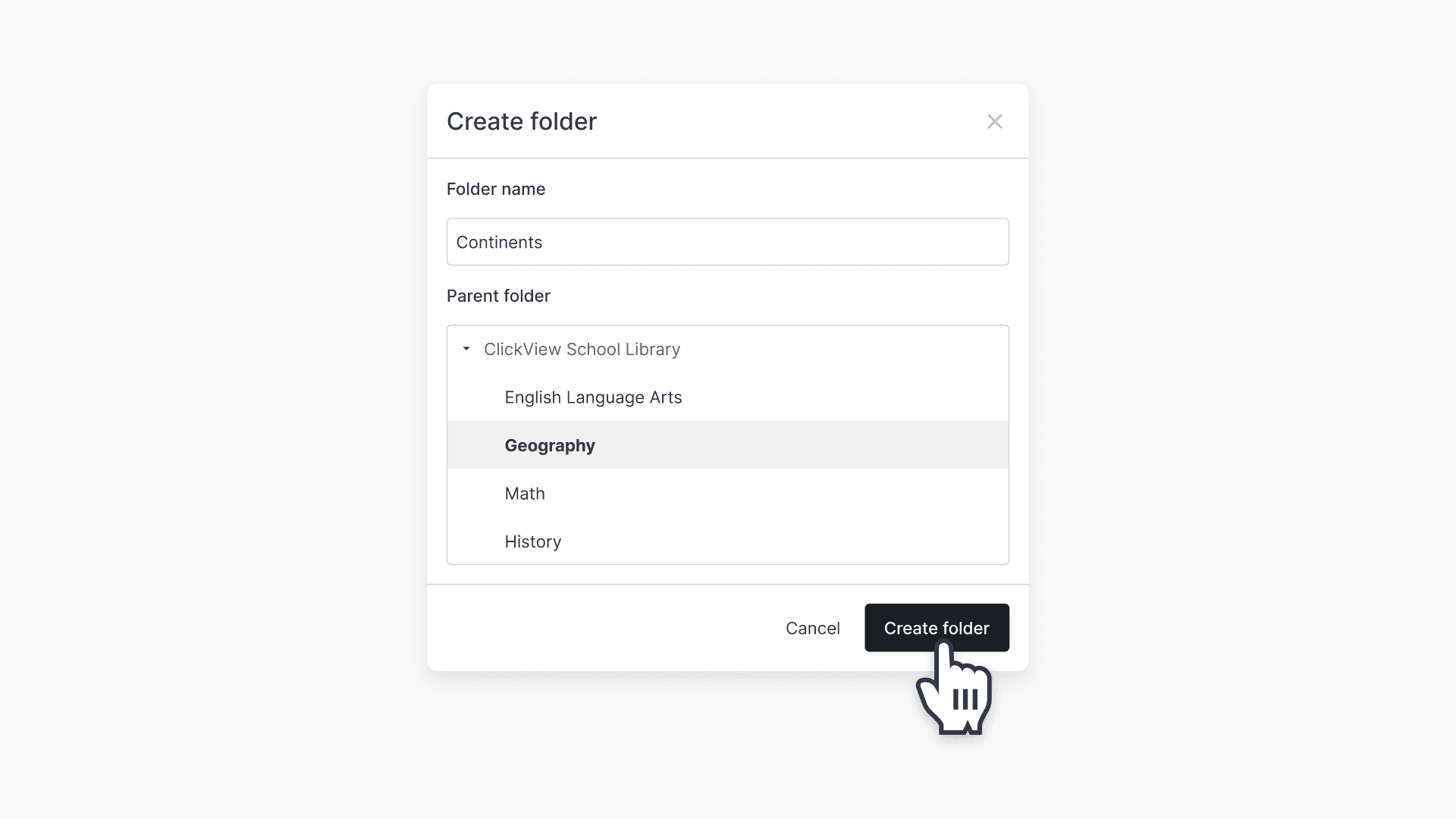
- Enter a name, click ‘Parent folder’, choose the location, and select ‘Create folder’.
- Select the three dots next to the library name.
- Method 2:
- Select the three dots next to a folder name.
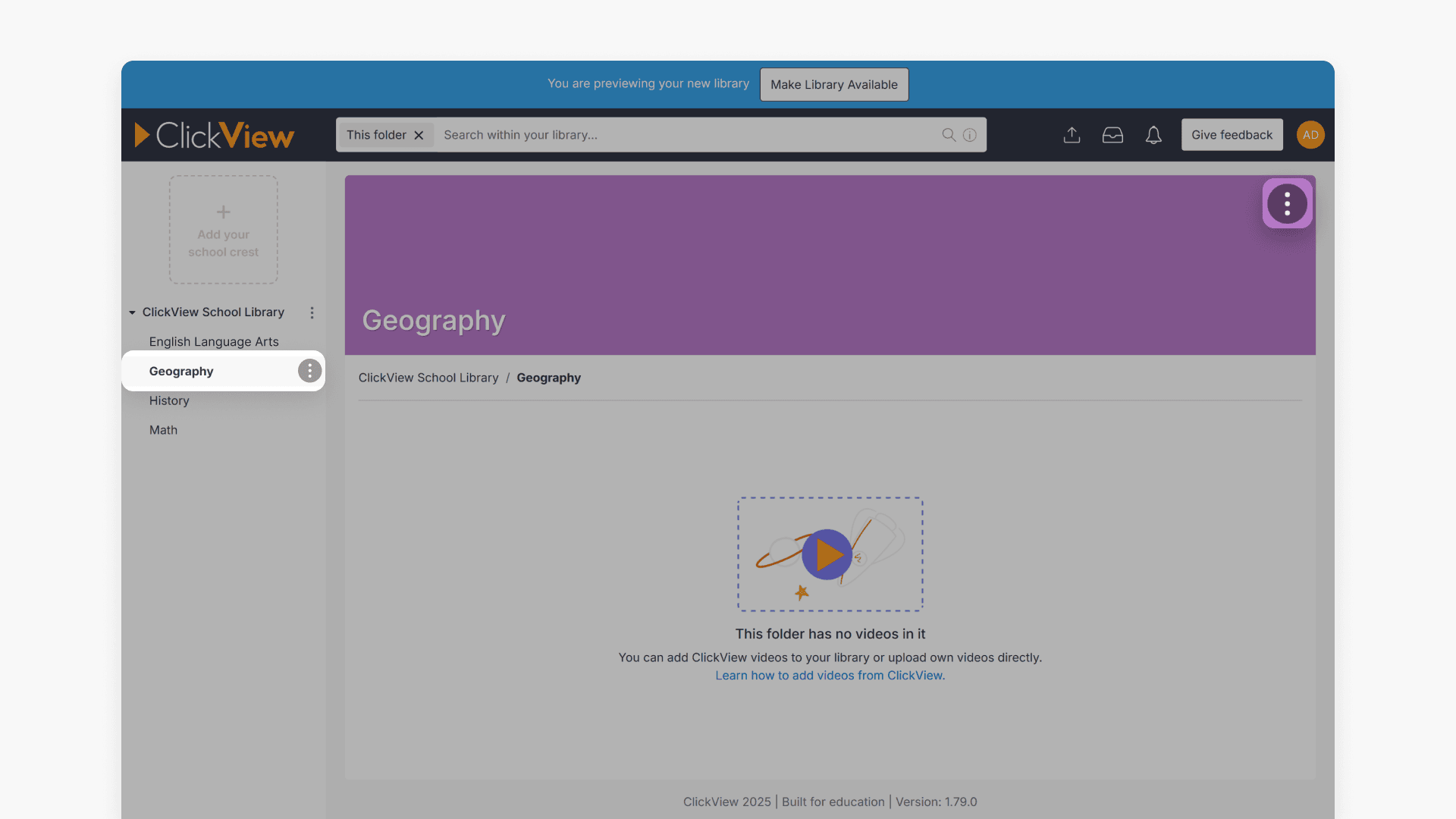
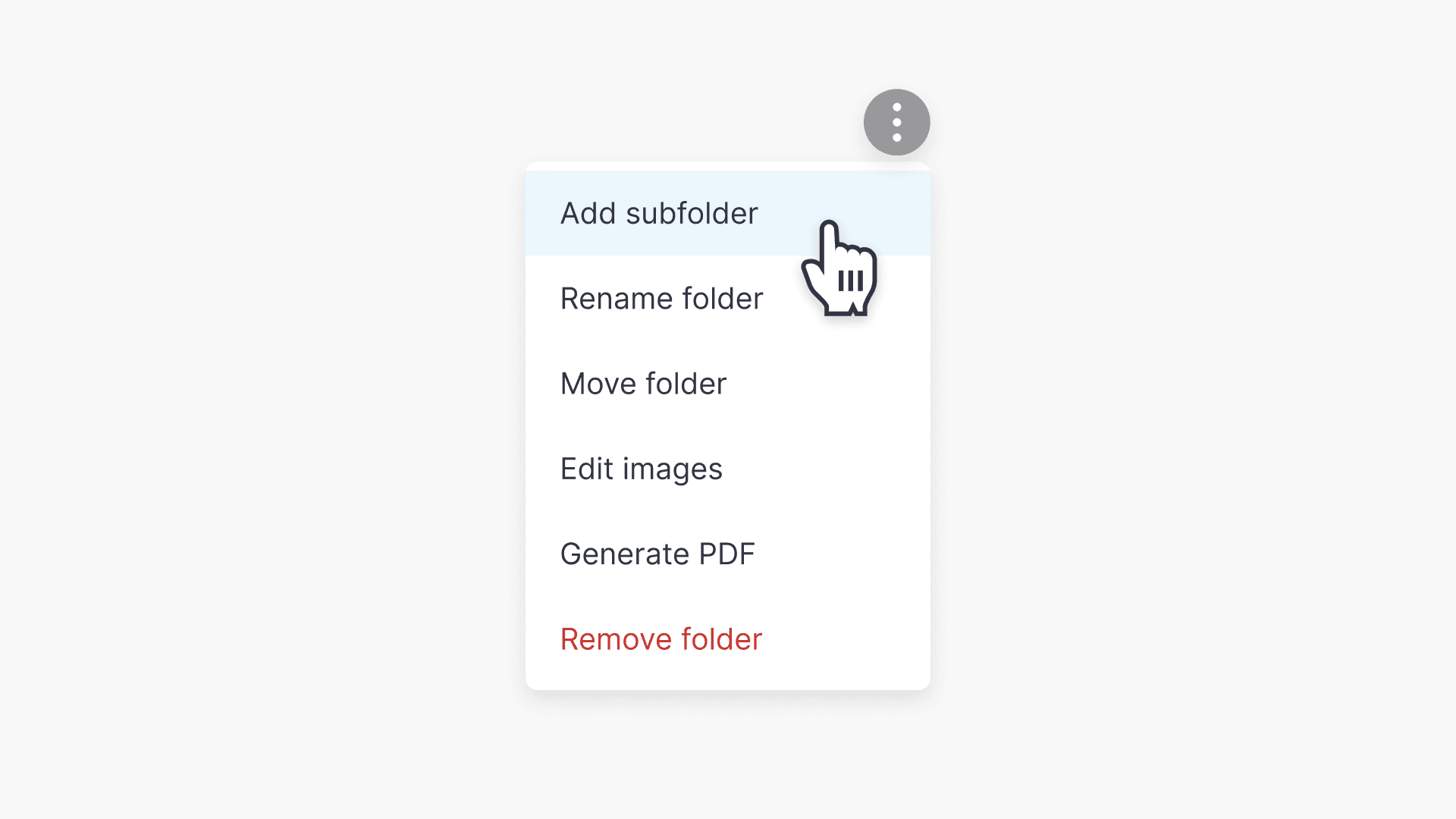
- Select ‘Add subfolder’.
- Enter a name and click ‘Create folder’.
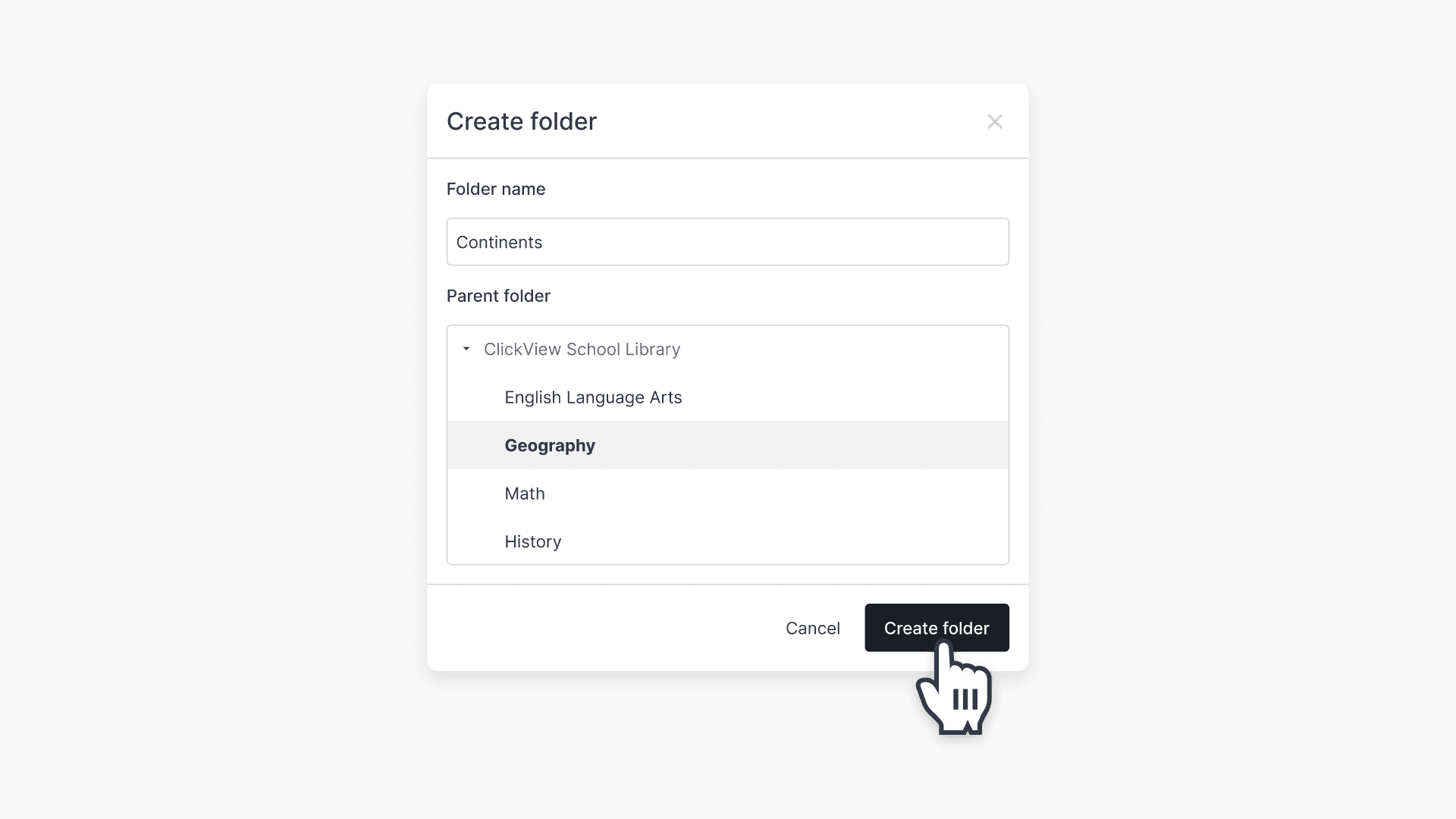
- Select the three dots next to a folder name.
Move folders within your library
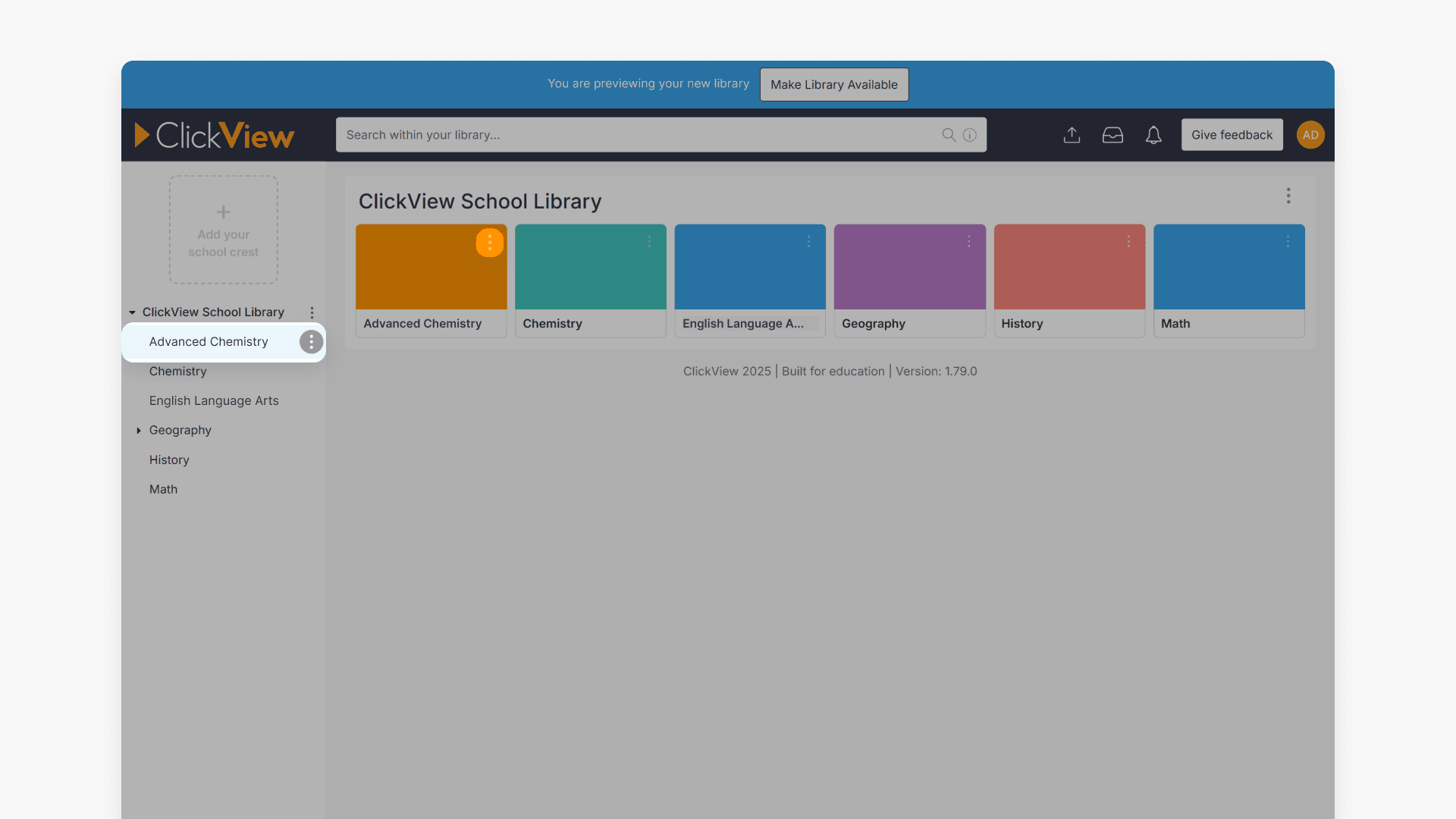
- Locate the folder you want to move and click the three vertical dots.
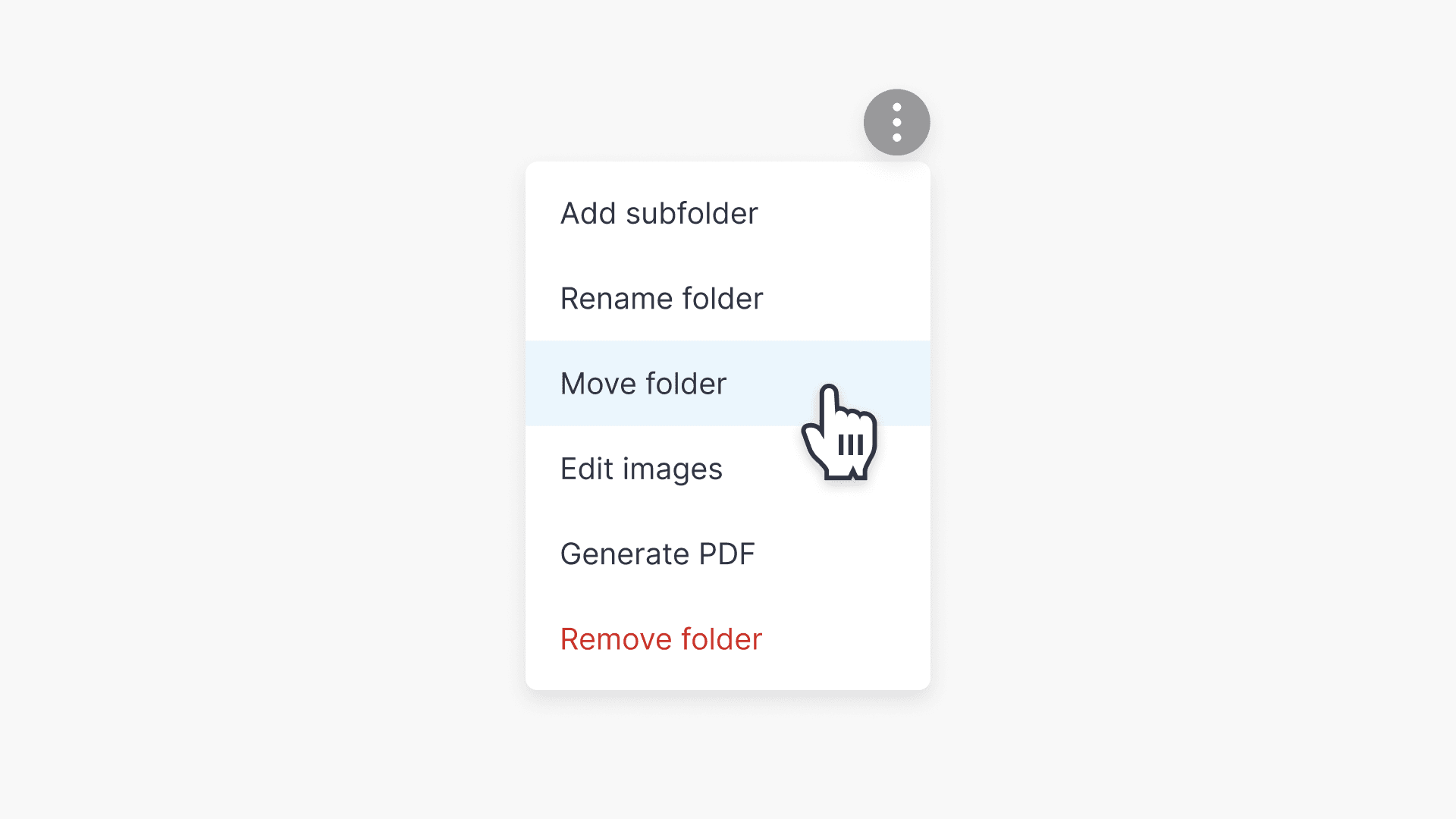
- Select ‘Move folder’.
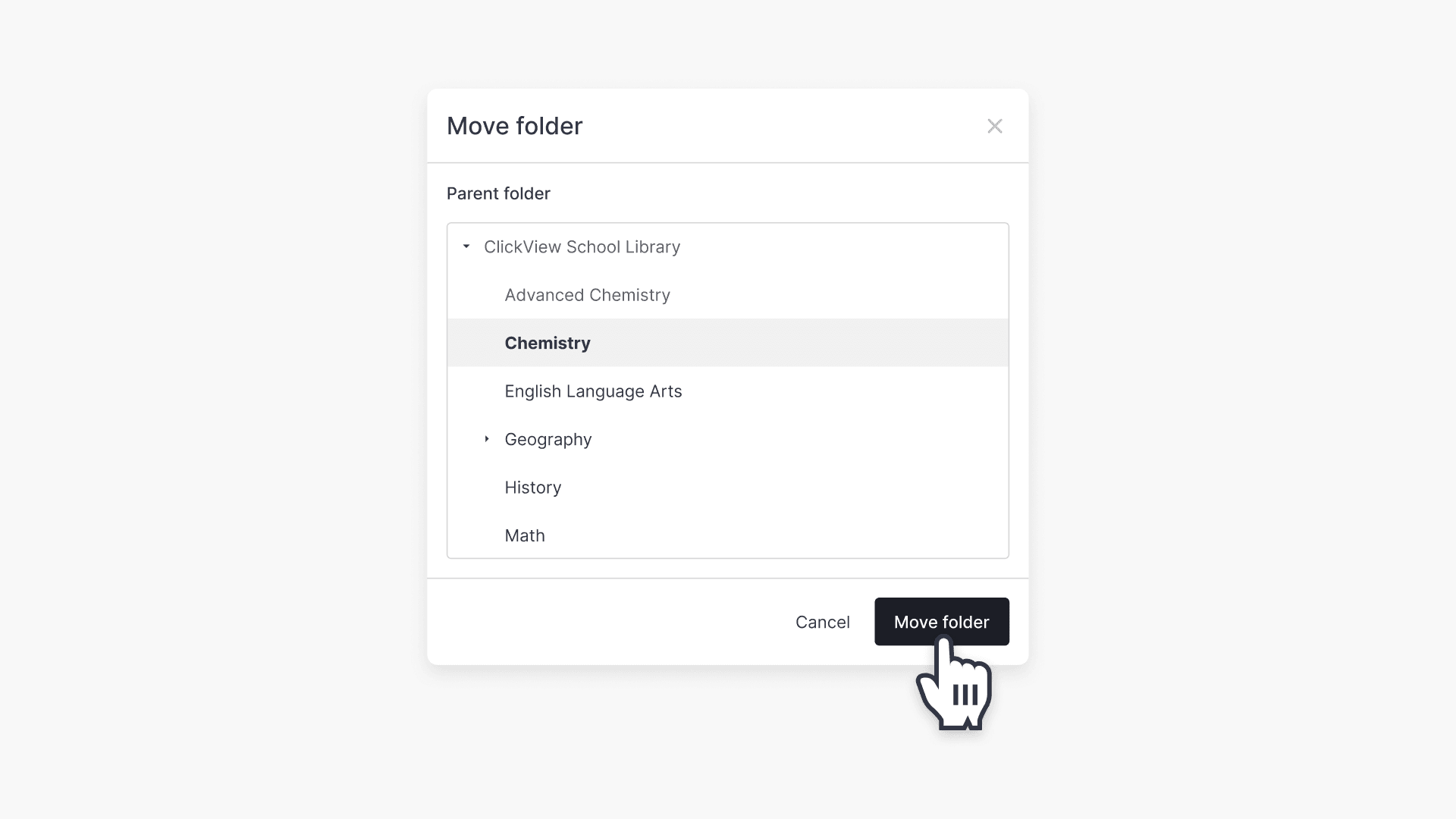
- Choose the desired parent folder, and click on the ‘Move folder’ button.
Remove folders
- Ensure all videos are moved out of the folder before removal.
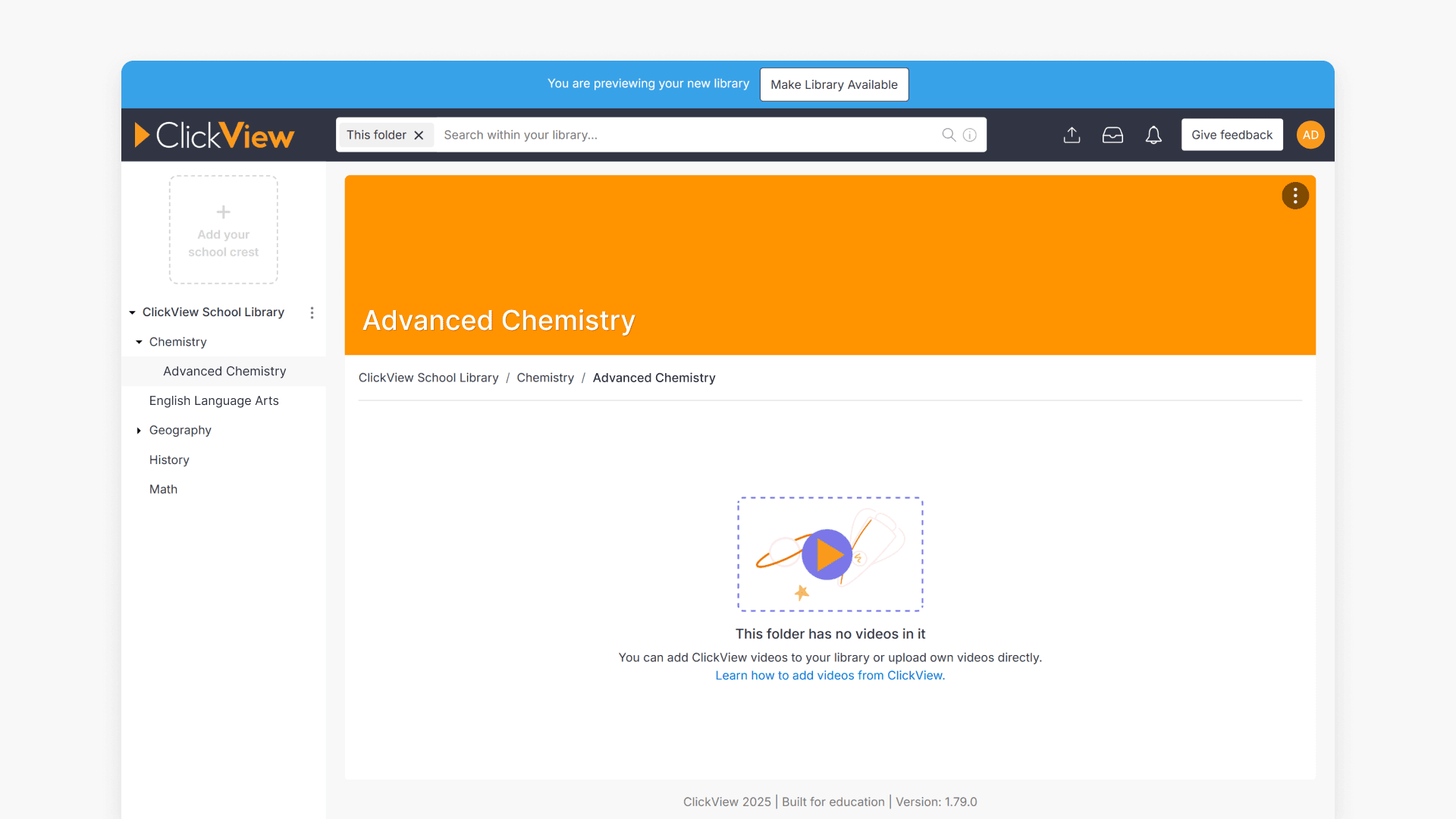
- Locate the folder, click the three vertical dots.
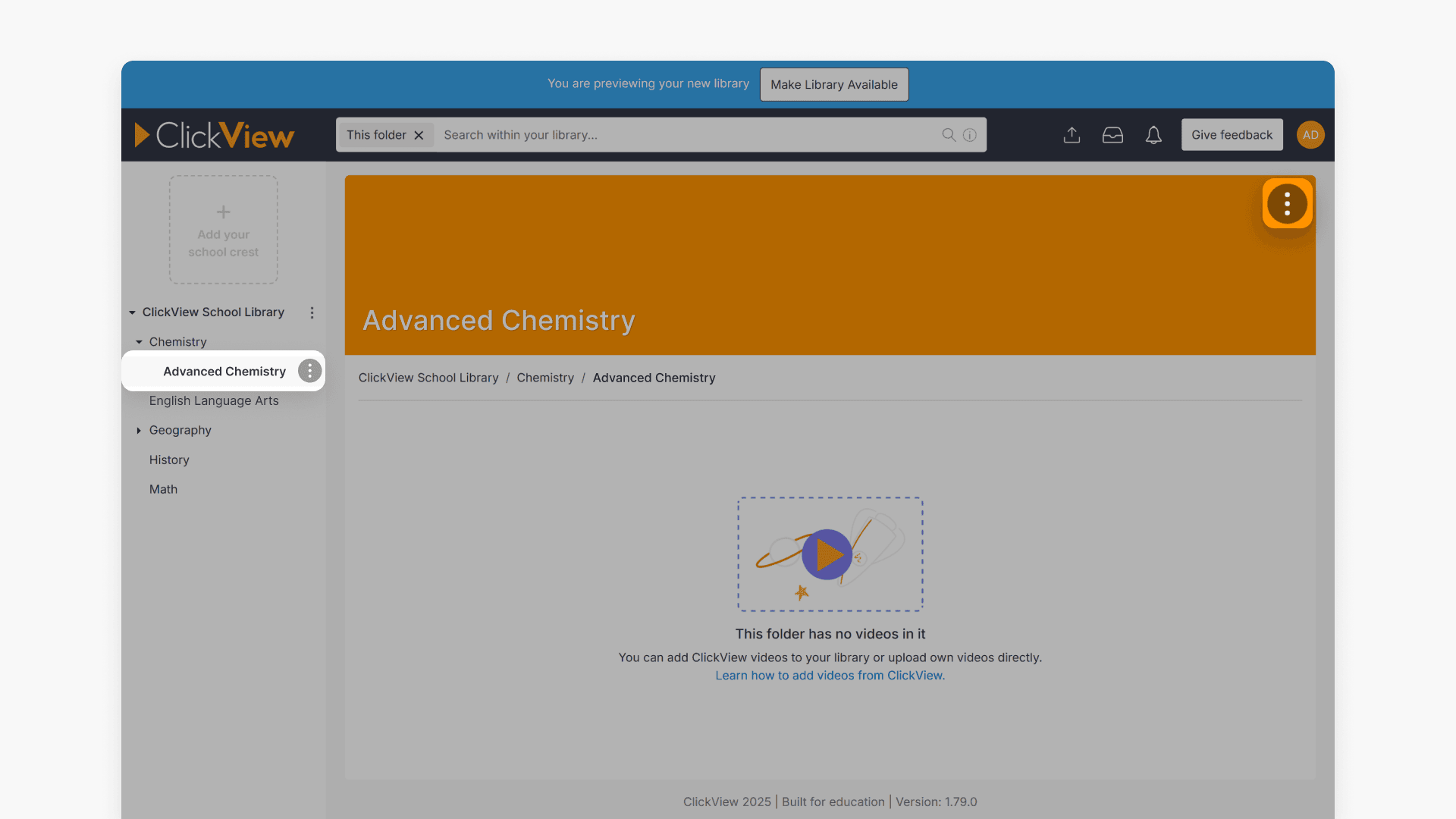
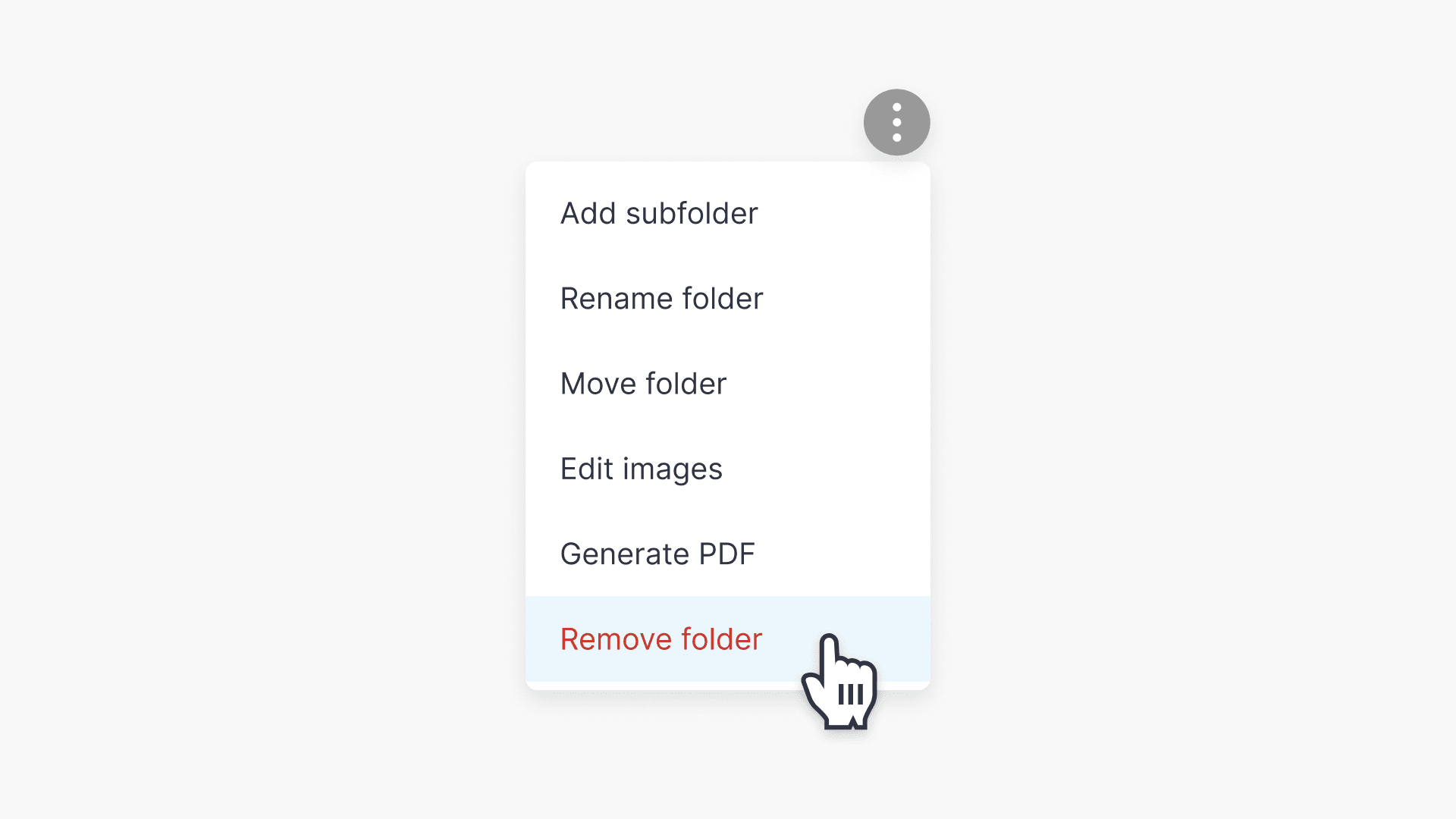
- Select ‘Remove folder’.
- Click on the ‘Remove folder’ button when prompted.
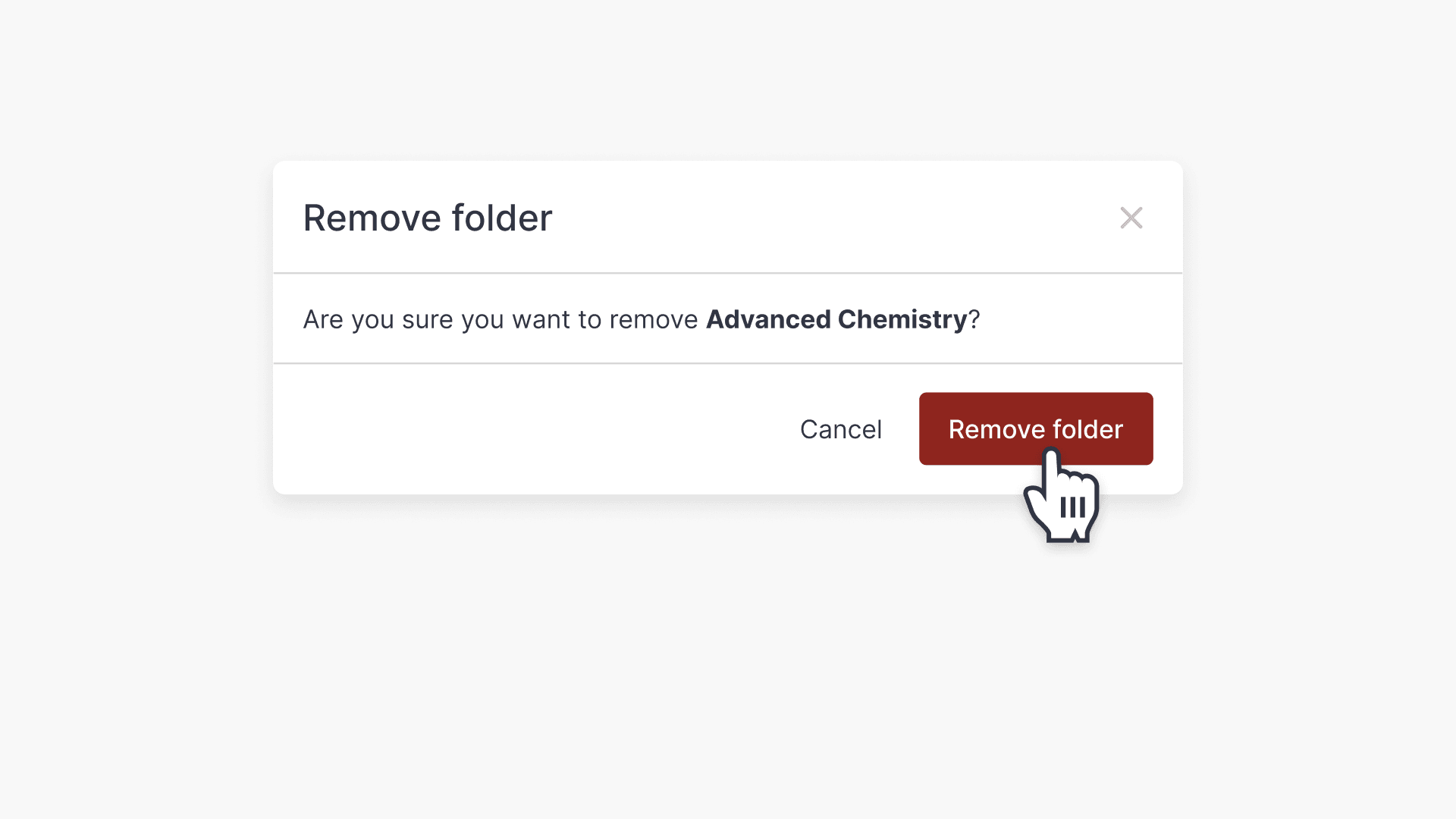
- The folder will be deleted.
Add or change your school crest
- Click ‘Add your school crest’ on the left of the Library Editor screen.
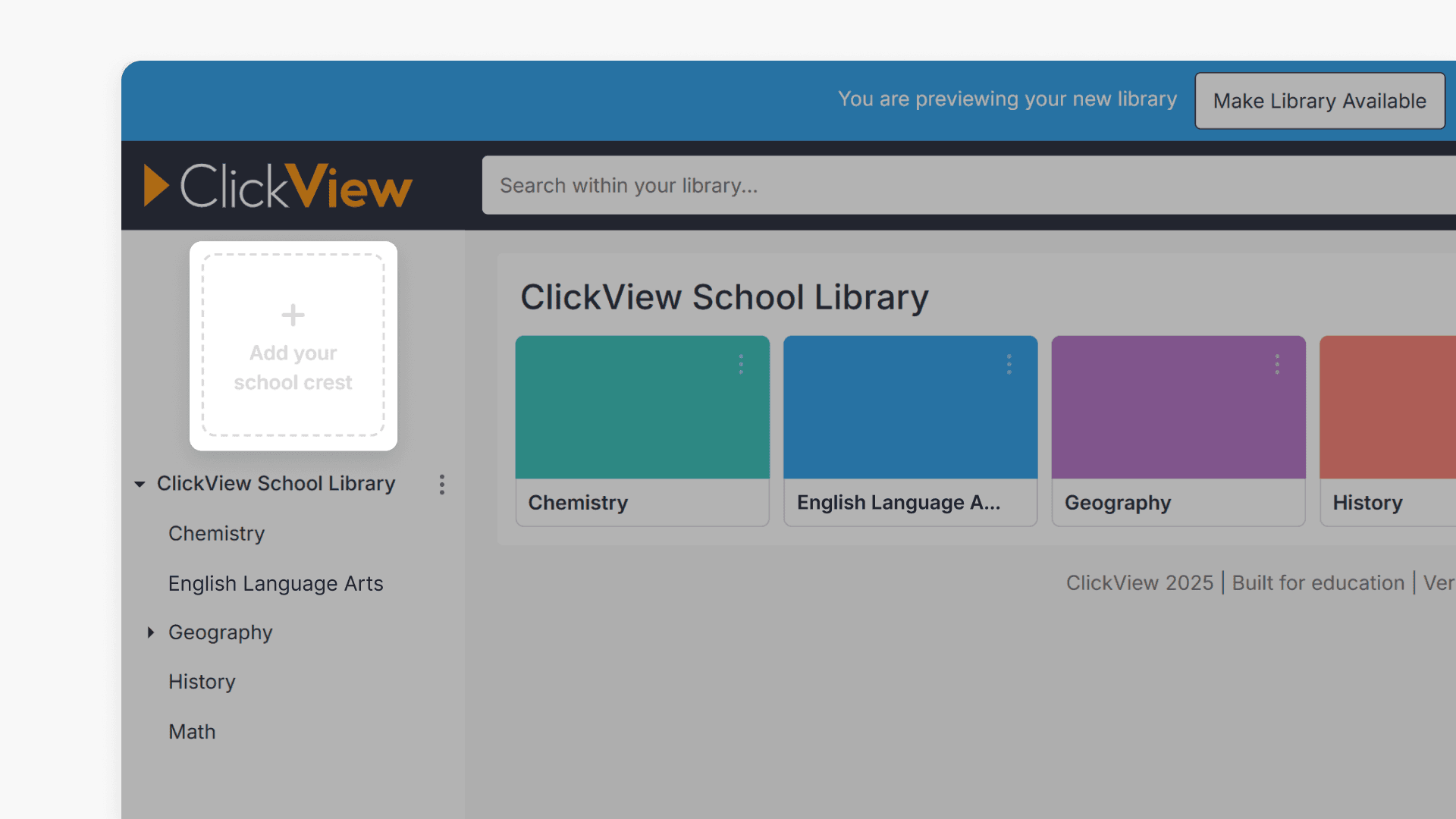
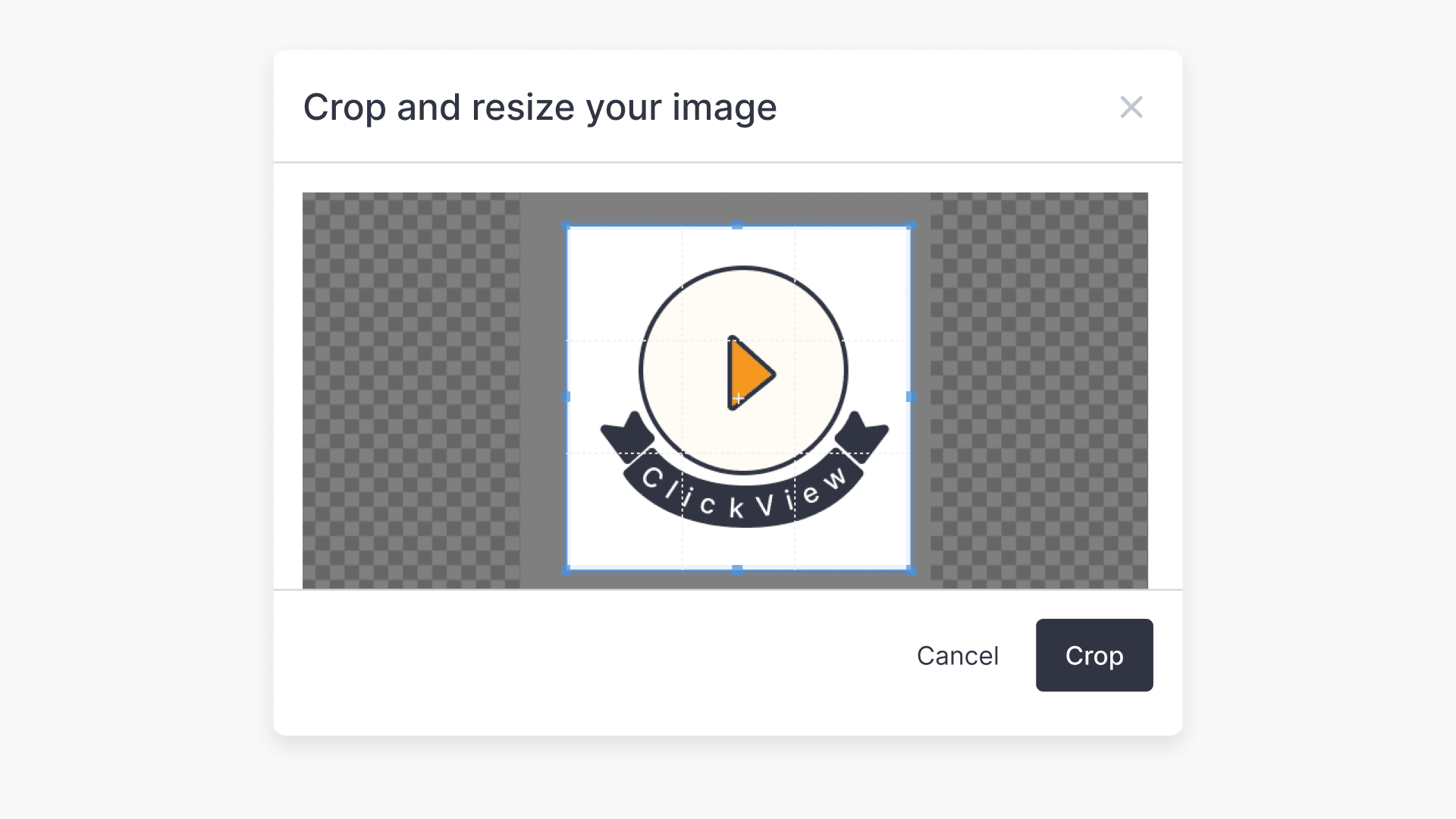
- Browse and select your image. Resize it if prompted.
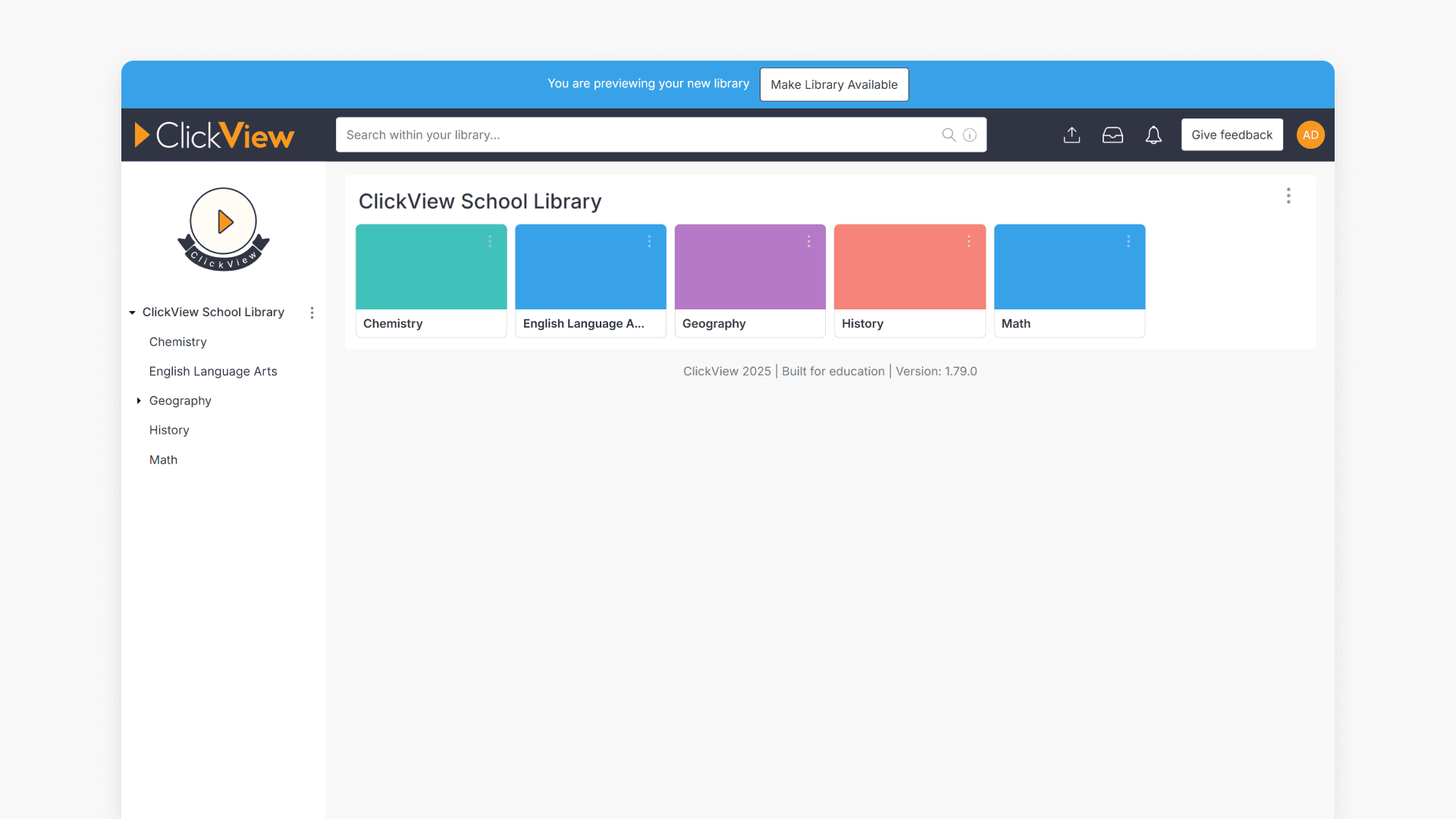
- The cropped image will appear as your library icon.
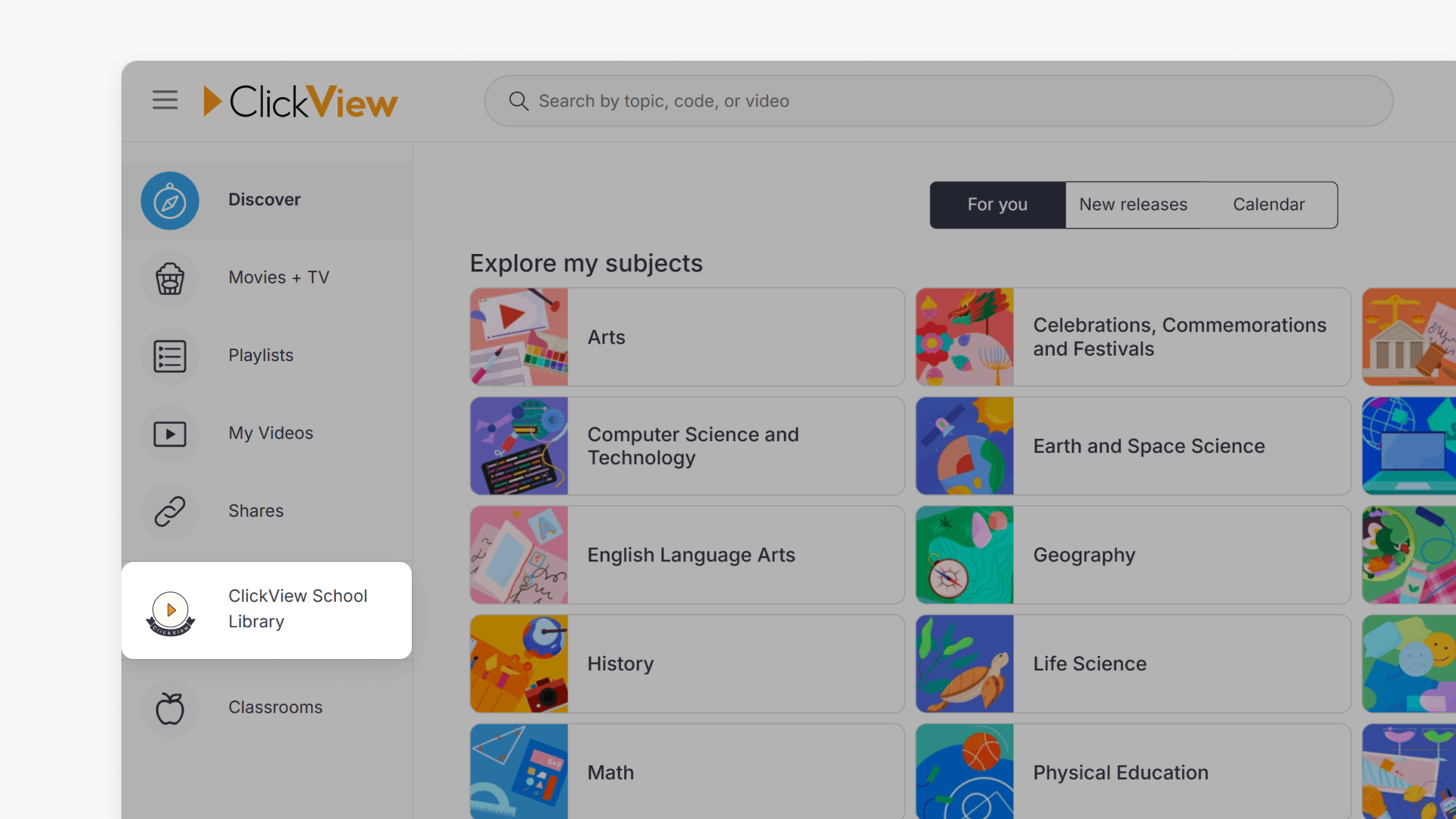
- The crest will be visible to your staff when logged into ClickView.
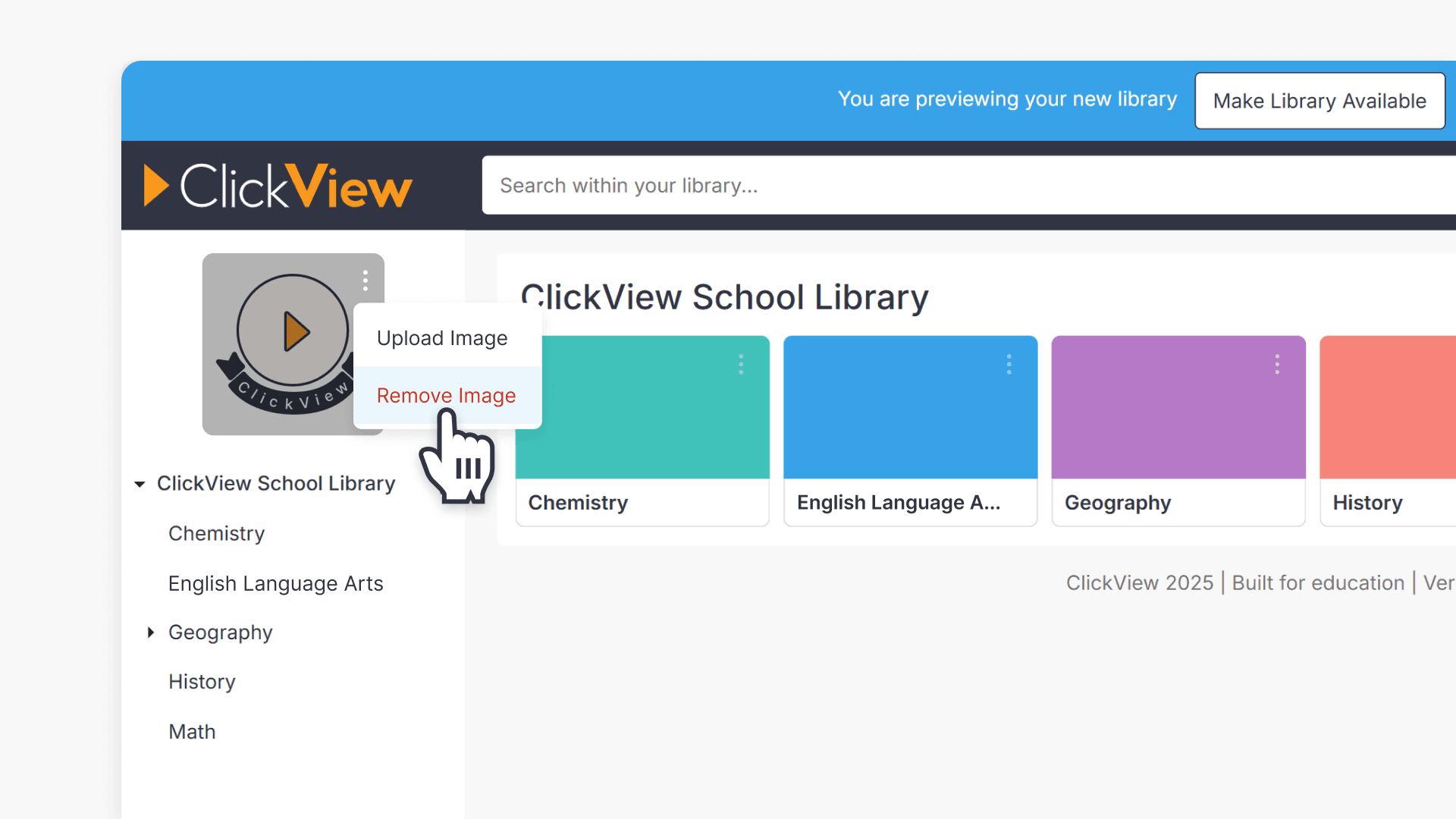
- To change the crest, hover over the image, click the three vertical dots, select ‘Upload Image’, and choose a new file.
Make your library available
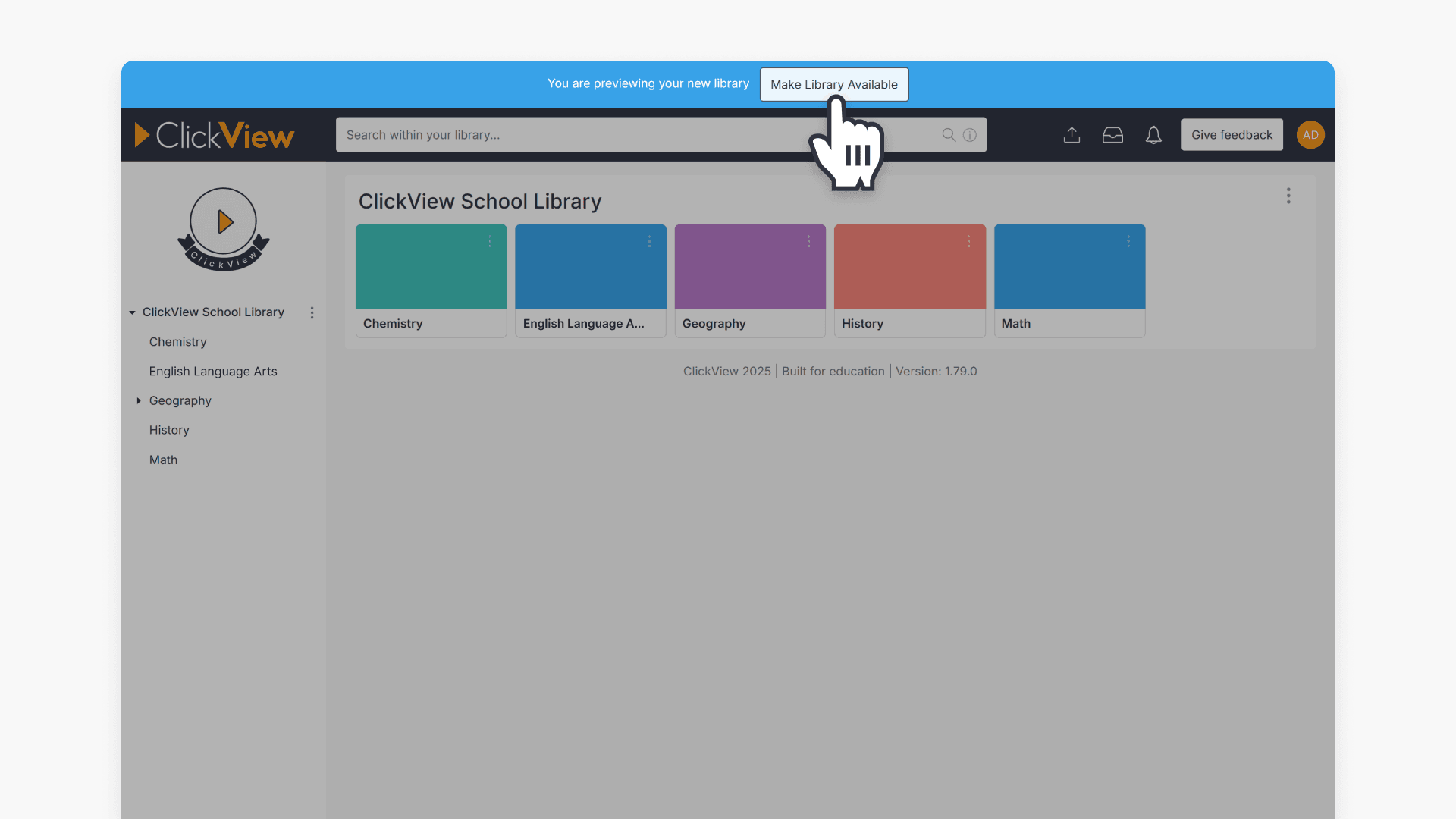
- Click the ‘Make Library Available’ button at the top of the screen.
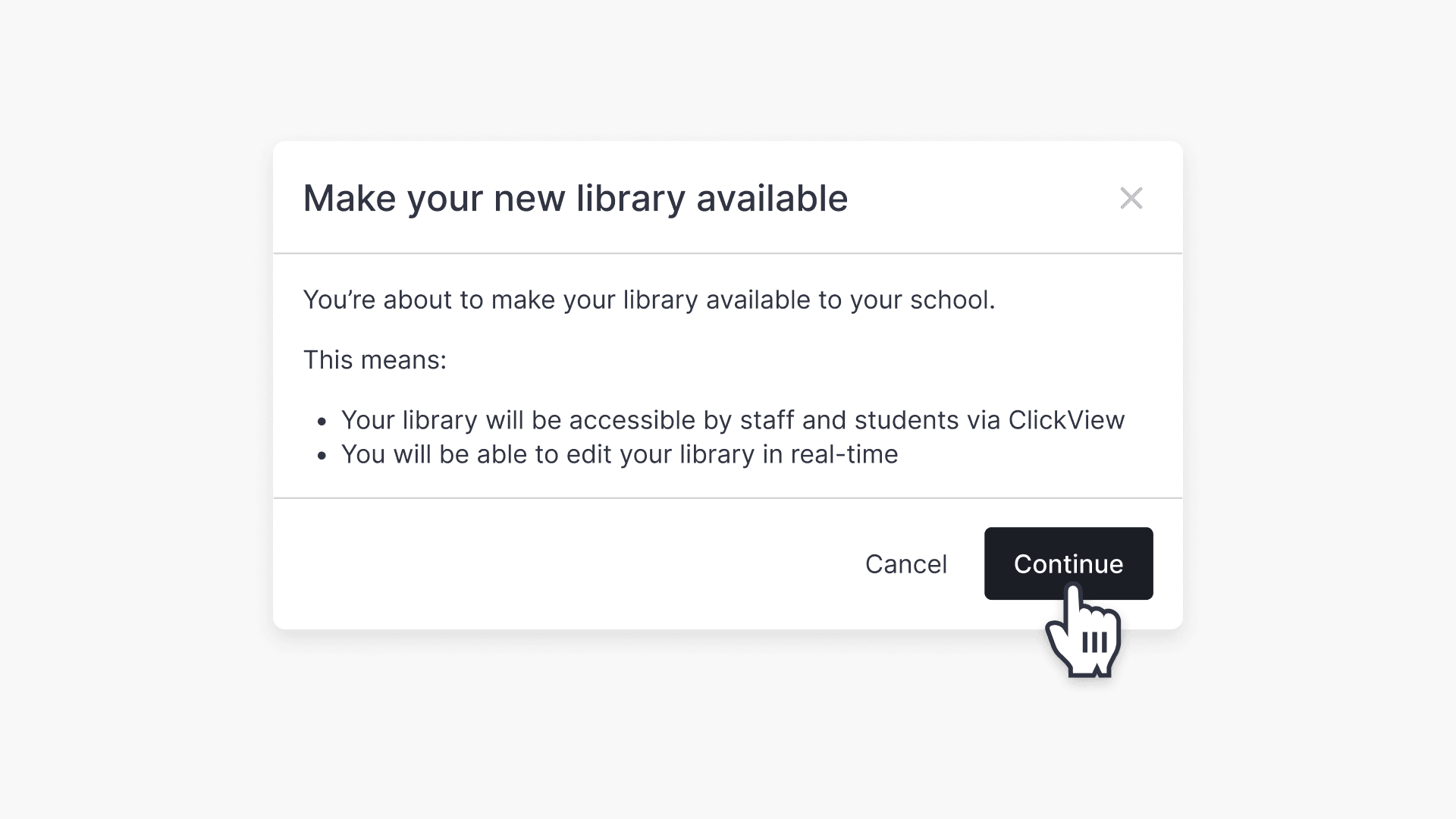
- Select ‘Continue’ in the pop-up to confirm. Your library will then be accessible by both staff and students at your school via ClickView.
Set up a District Library
If you work for a school district, ClickView can help you consolidate and store video content from each of your schools in a centralized District Library. You have full control of your District Library, from customizing the look and feel to managing who can access and contribute.
For further details on setting up a District Library, refer to the article, Introduction to District Libraries.
Frequently asked questions
Get in touch
If you’re having trouble finding the right topics or videos, just reach out! Our team - 


 Andrew, Nisch, Janice, Pfreya, or any of us at ClickView - will be happy to help you get sorted.
Give feedback
Was this guide helpful?
Up Next
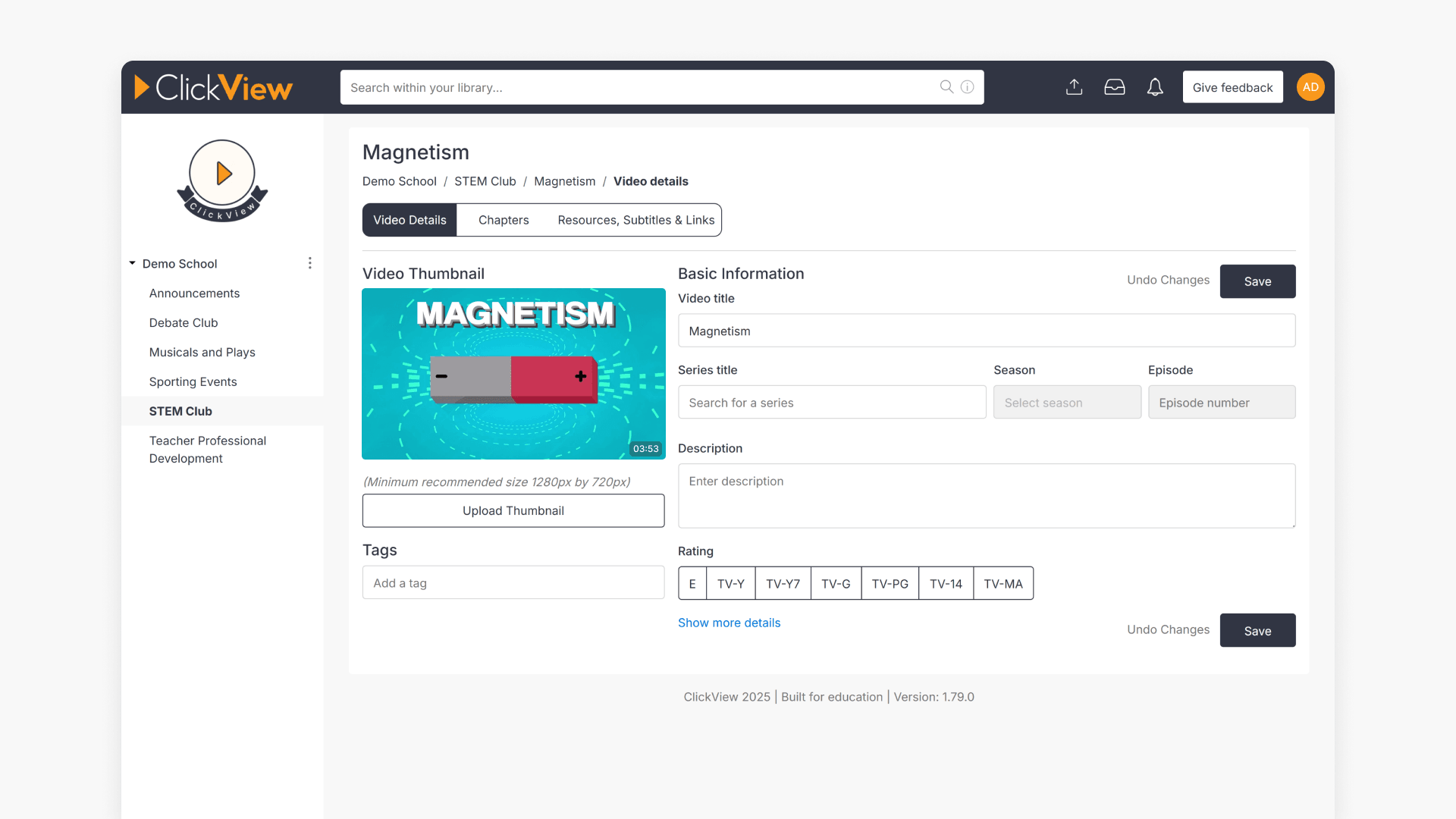
How to edit video metadata
This guide explains how to edit video metadata in ClickView’s Library Editor, covering program titles, advanced fields, and saving changes.