Understanding video classification ratings

Summary
- ClickView follows Australian broadcaster classifications in line with the ‘classify once’ principle.
- Ratings available on ClickView are: E (Exempt), G (General), PG (Parental Guidance), M (Mature), MA15+ (Mature Accompanied), and R18+ (Restricted).
- For content classified under the Classification Act, ClickView applies the rating from the National Classification Database (NCD) and updates ratings when notified of a change.
- School administrators control which ratings each year level can access via Content permissions in Settings.
What is video classification?
Video classification shows which videos suit which year level. Each video on ClickView carries a rating that indicates its suitability for different audiences.
How classifications are decided:
This applies to broadcast content, films, and TV series. It doesn’t cover all content on ClickView.
ClickView follows the same classifications (also known as ratings) on broadcast content as those supplied by the broadcasters, such as Channel 7, Channel 9, Channel 10, Foxtel, the ABC, or the SBS, in line with the ‘classify once’ principle that applies in Australia. Films and TV series that have been classified in Australia aren’t classified again, except in limited circumstances. The broadcasters’ decisions are considered correct and applicable if the film or TV series:
- has an R18+ rating or lower
- hasn’t been classified under the Classification Act, and
- hasn’t been modified post-classification
If the film or TV series has been classified under the Classification Act, ClickView applies the correct rating supplied by the National Classification Database (NCD). ClickView doesn’t actively monitor every classification added to the NCD. However, when notified of a classification change, ClickView implements that change to the relevant broadcast content available on the ClickView Exchange Archive and within Movies+TV. ClickView also employs accredited classifiers, qualified to classify content first made available on ClickView. They place indicative ratings on content that’s exempt from classification.
Important notes:
- School administrators decide the ratings available to each year level and role. See How to set video rating permissions by year level for details.
Available ratings
| E | Exempt | Exempt from classification |
| G | General | Suitable for general audiences |
| PG | Parental Guidance | Parental guidance recommended |
| M | Mature | Recommended for mature audiences |
| MA15+ | Mature Accompanied | Not suitable for viewers under 15 without adult supervision |
| R18+ | Restricted | Restricted to adults 18 and over |
Where classification ratings appear
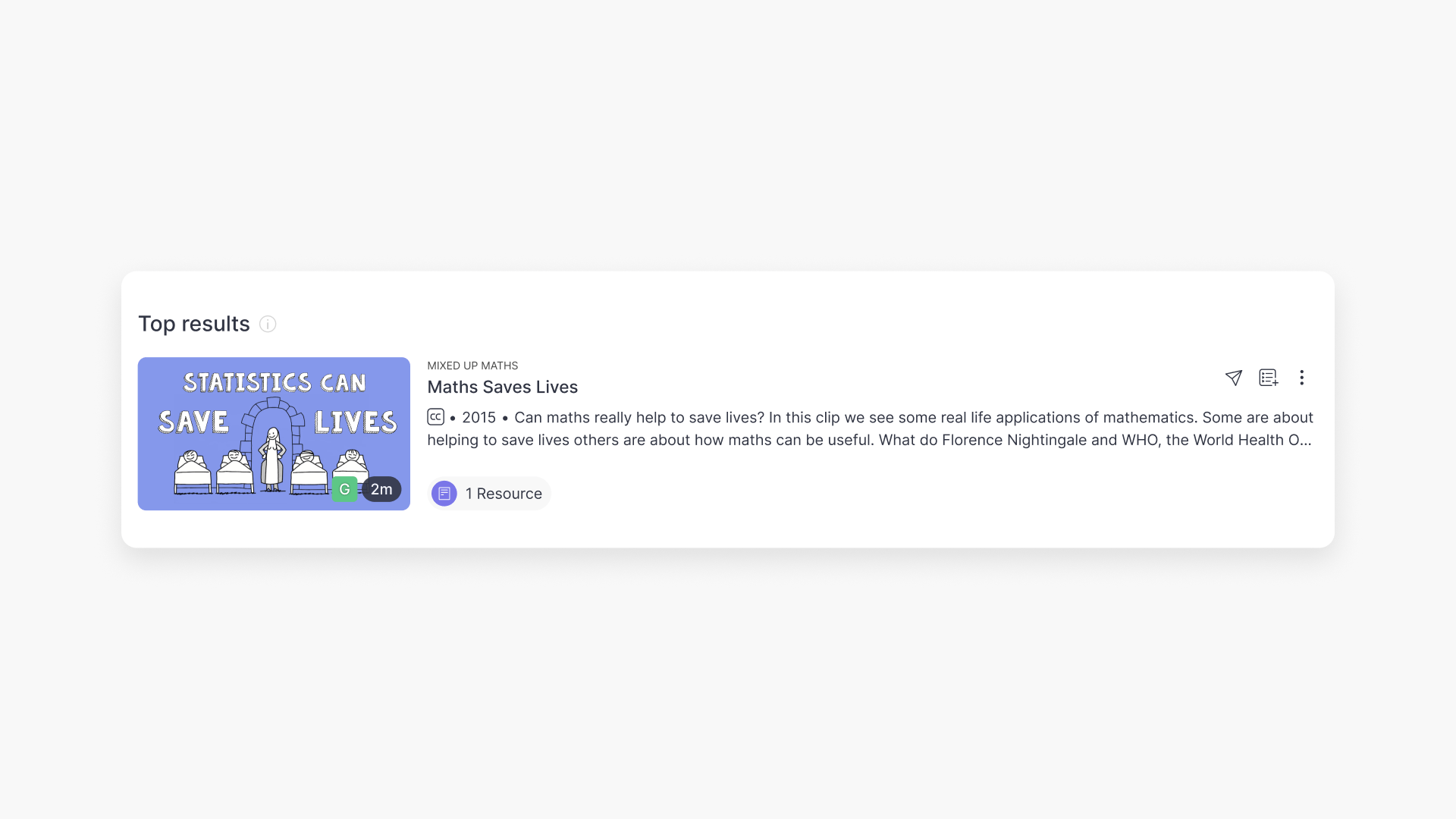
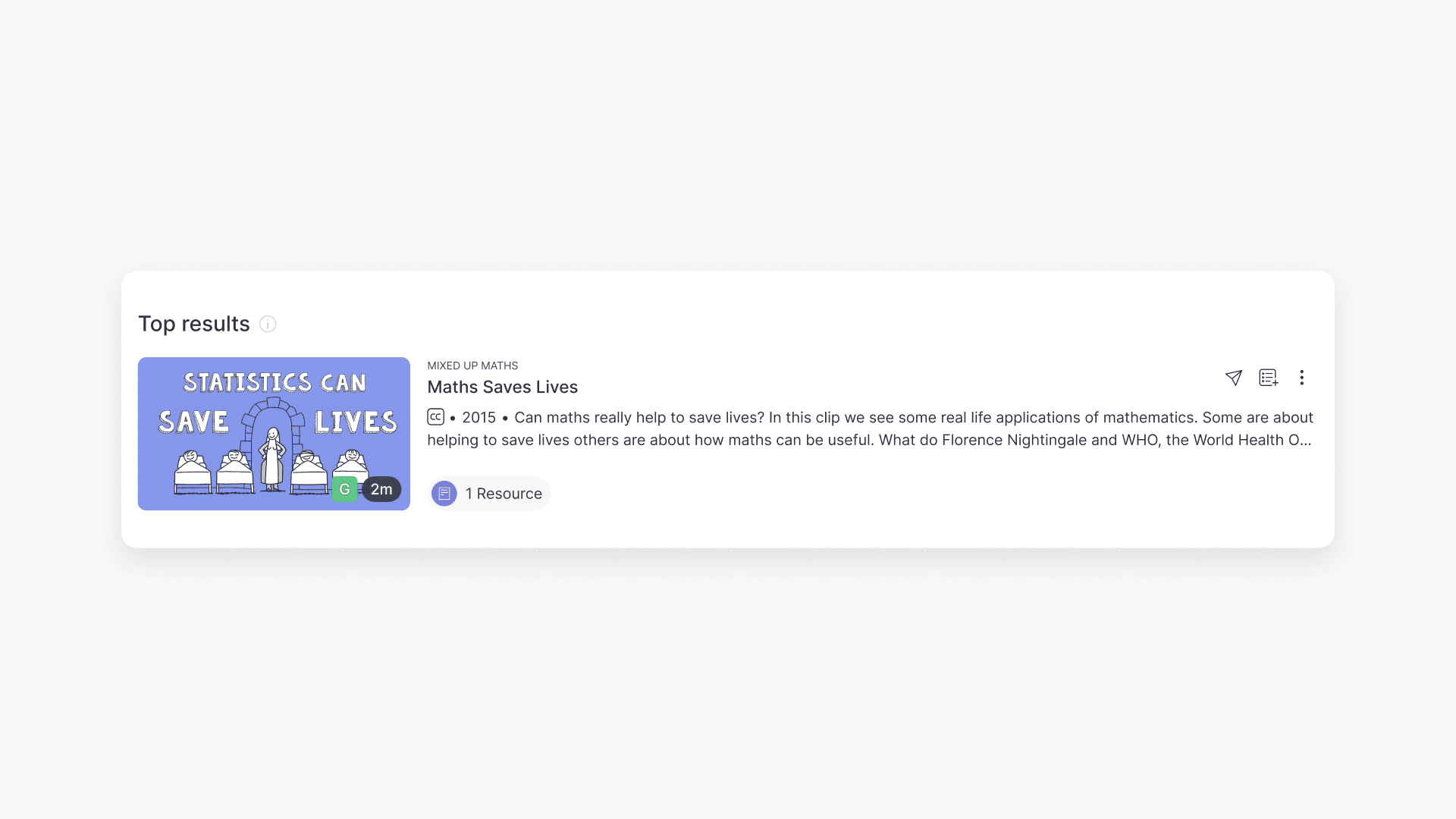
Video thumbnail in search results
When you browse search results, the classification rating appears in the bottom left corner of the video thumbnail
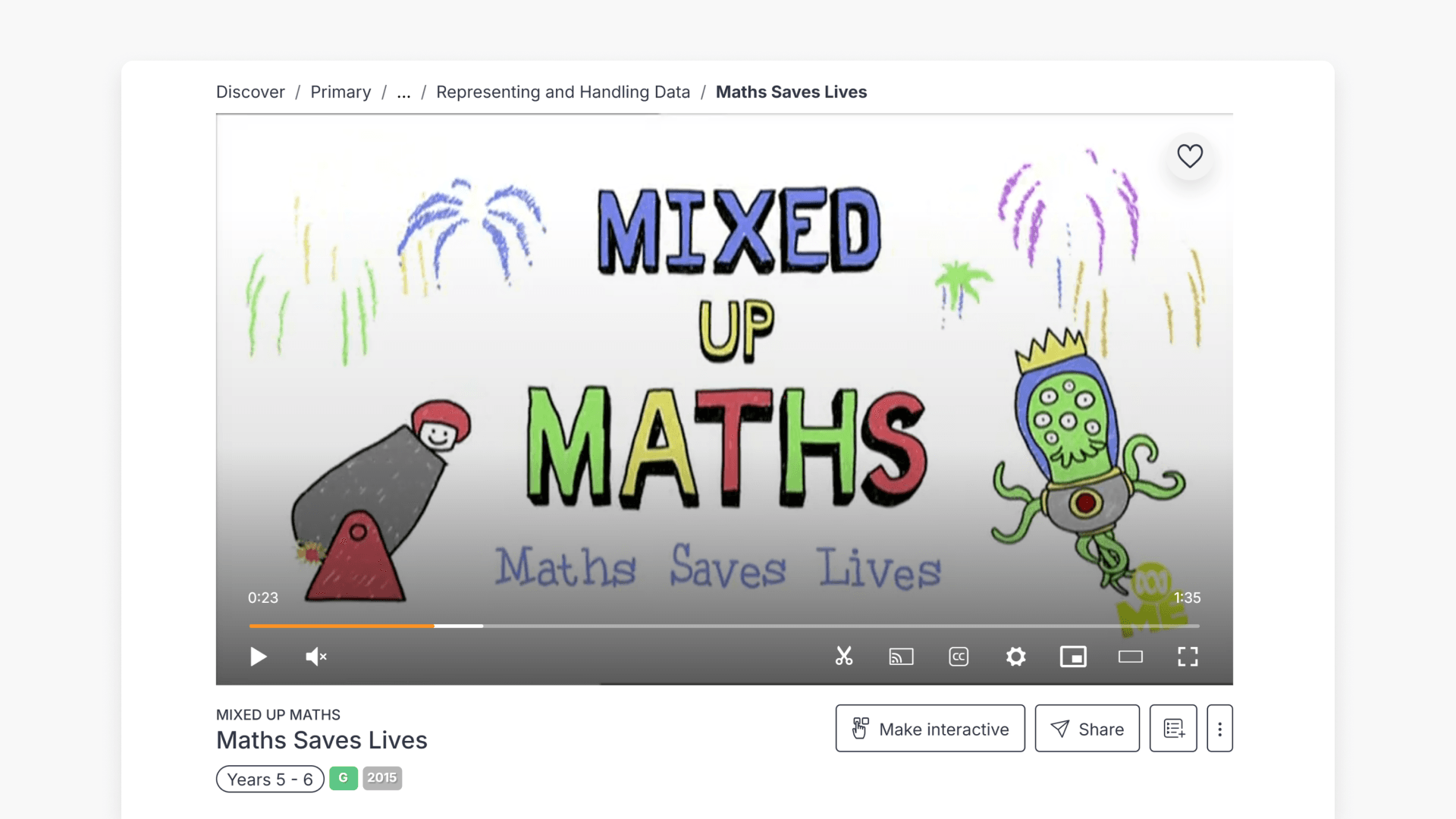
Video page
When you open a video, the classification rating appears below the video title, next to the year level it suits.
Managing rating permissions
School administrators manage which ratings are accessible for each year level and role in Settings > Content permissions. Ratings for each year level must be the same as, or higher than, those set for the year level before it. For full instructions, see How to set video rating permissions by year level.
Frequently asked questions
Get in touch
If you’re having trouble finding the right topics or videos, just reach out! Our team - 


 Andrew, Nisch, Janice, Pfreya, or any of us at ClickView - will be happy to help you get sorted.
Give feedback
Was this guide helpful?
Up Next
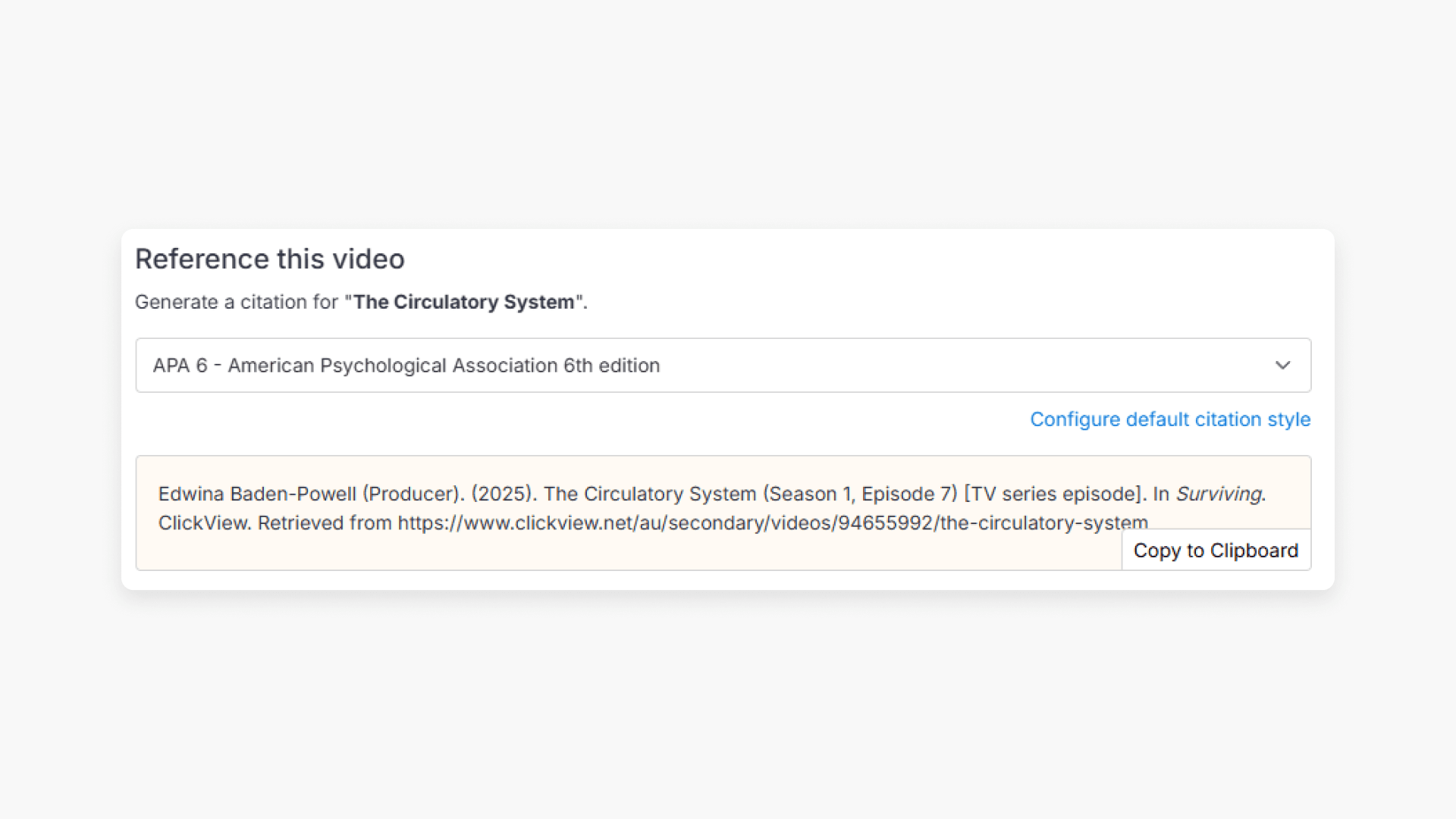
How citations work in ClickView
Summary How do I find citations for videos in ClickView? Every video in ClickView includes a citation. Open a video, scroll below the player, and find the Reference this video section. Select a citation style from the dropdown, and ClickView will generate the citation automatically, copy it to your clipboard, and use it anywhere. Every […]