How citations work in ClickView

Summary
- Every video in ClickView includes a citation you can use to reference it.
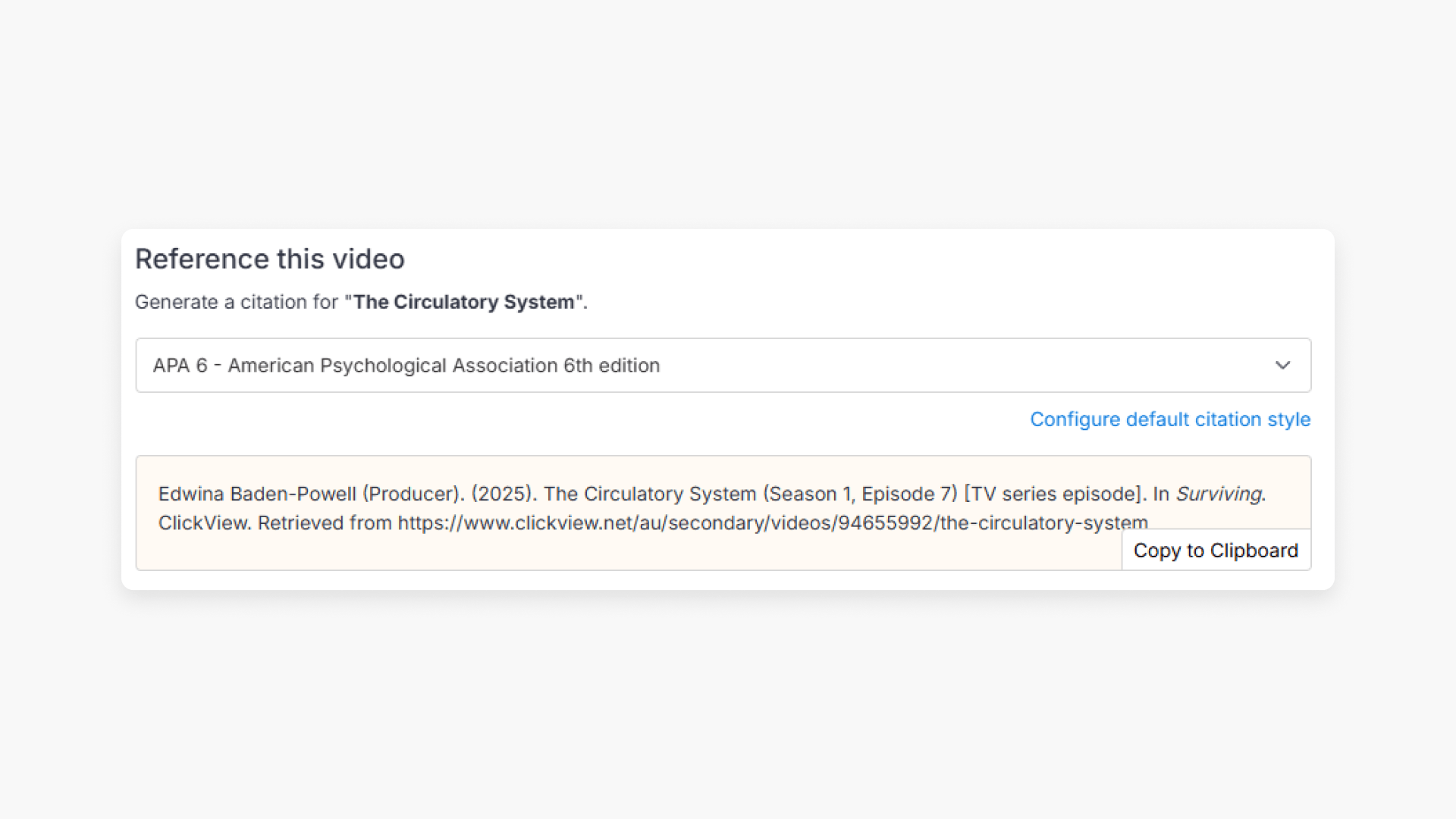
- Scroll below the video player to find the Reference this video section.
- Choose from seven citation styles, including APA, Harvard, MLA, and Chicago.
- ClickView generates the citation automatically; copy it to your clipboard with one click.
- Administrators can set a school-wide default citation style in Settings ➡ Citation style.
Every video in ClickView includes a citation so you can reference it in your work. This article explains what citations are, how to find them, and how to copy and use them. Administrators can also set a school-wide default citation style.
What is a citation?
A citation is a standardised reference to a source of information. It provides key details such as the author, title, and publication date, so readers can verify facts and locate the original work. In ClickView, citations are automatically generated for each video, giving teachers and students a ready-to-use reference in a range of formats.
Citations are available for every video in ClickView. Any user who can open a video can access its citation, and no specific account type is required.
How to find and copy a citation
- Search for a video using the ClickView search bar.
- Select a video from the results. It opens in the video player.
- Scroll below the video player to find the Reference this video section.

- Select a citation style from the dropdown. ClickView generates the citation automatically.

The following citation styles are available:
- APA 6 – American Psychological Association 6th edition
- APA 7 – American Psychological Association 7th edition
- Harvard – International (UK)
- Harvard – Australian
- MLA 8 – Modern Language Association 8th edition
- MLA 9 – Modern Language Association 9th edition
- Chicago (Notes & Bibliography)
- Select Copy to Clipboard to copy the generated citation.

You can now paste the citation into any document, assignment, or reference list.
Setting a default citation style (Administrators only)
Administrators can set a school-wide default citation style. This default applies to all users in the school, though individual users can override it when generating a citation.
- Go to Settings.
- Select Citation style.
- Choose a style from the dropdown.

The selected style becomes the default for all users in your school.
Note: The Configure default citation style link in the Reference this video section is only visible to administrators. Teachers who are not administrators and students will not see this option.
Frequently asked questions
Get in touch
If you’re having trouble finding the right topics or videos, just reach out! Our team - 


 Andrew, Nisch, Janice, Pfreya, or any of us at ClickView - will be happy to help you get sorted.
Give feedback
Was this guide helpful?
Up Next
Understanding video classification ratings
Summary What classification ratings does ClickView use for videos? ClickView follows the classifications supplied by Australian broadcasters (such as Channel 7, ABC, and SBS), in line with the ‘classify once’ principle. Ratings include E (Exempt), G (General), PG (Parental Guidance), M (Mature), MA15+ (Mature Accompanied), and R18+ (Restricted). What is video classification? Video classification shows […]