Understanding video points of interest


Summary
- Points of interest are shown as blue dots on the video timeline.
- The “Points of interest” section lists key moments with time stamps.
- Click on time stamps to revisit specific video segments.
- Hovering over a blue dot shows a brief description of that moment.
What are points of interest?
Points of interest help students and educators identify and access key moments within any ClickView video. These are highlighted visually through blue dots that appear along the video timeline at the bottom of the video player screen.

Points of interest
Directly beneath the video player, the “Points of interest” section lists key moments in the video with time stamps. Each time stamp marks where key content is presented in the video, making it easy for students to find, review, and re-watch specific segments.
To visit a certain part of the video, simply click the time stamps within the “Points of interest” section to resume the video at those exact points.

Using points of interest on the timeline
The blue dots on the video timeline represent each key moment noted in the “Points of interest” section. Hovering the mouse over any blue dot will reveal a brief description, which matches the description found with the relevant time stamp below the video player.

By using the video timeline and “Points of interest” under the video, educators and students can save time and focus on the most important content within every ClickView video.
Frequently asked questions
Get in touch
If you’re having trouble finding the right topics or videos, just reach out! Our team - 

 Akhil, Daniel, Jalaj, or any of us at ClickView - will be happy to help you get sorted.
Give feedback
Was this guide helpful?
Up Next
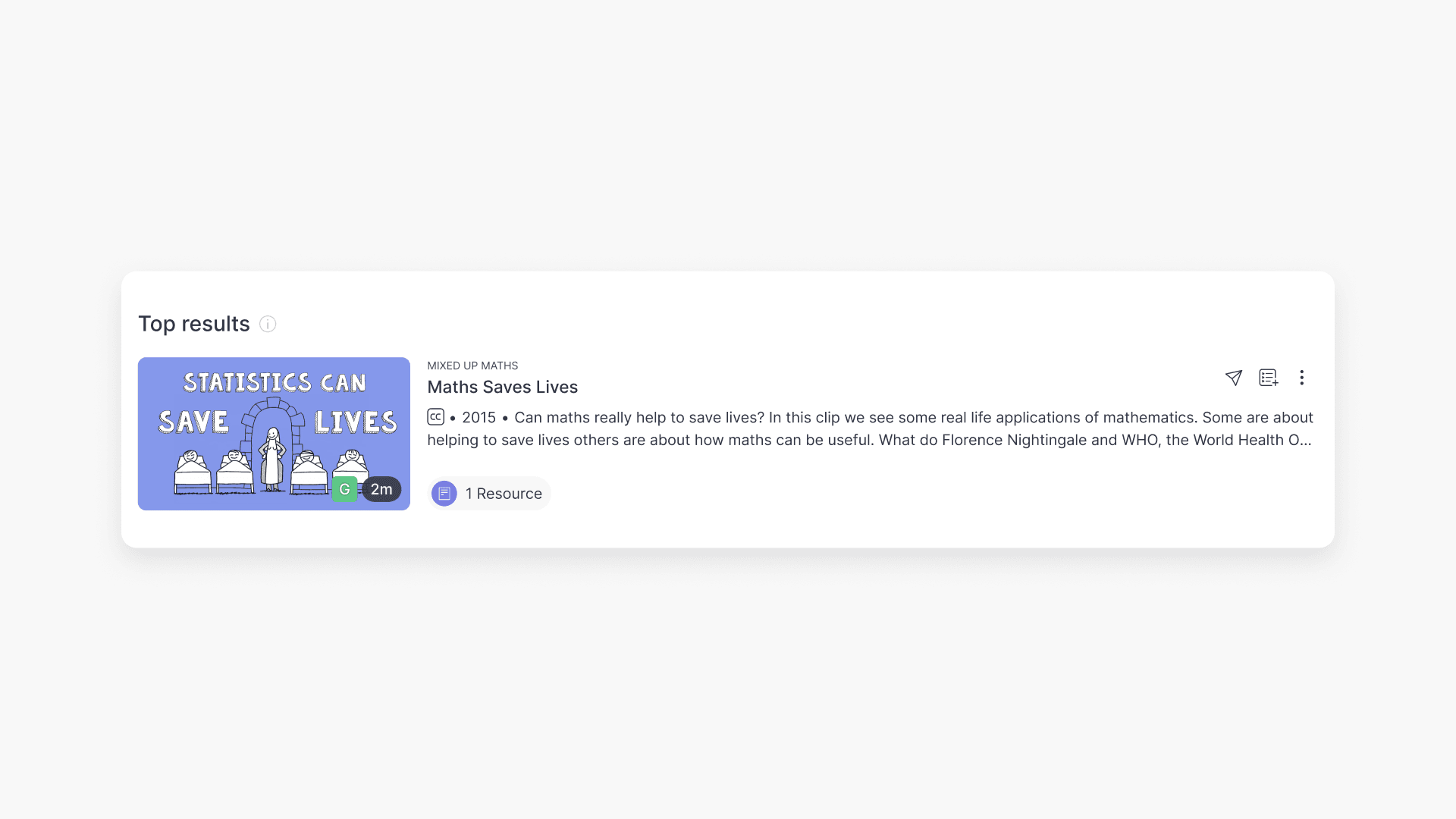
Understanding video classification ratings
Summary What classification ratings does ClickView use for videos? ClickView follows the classifications supplied by Australian broadcasters (such as Channel 7, ABC, and SBS), in line with the ‘classify once’ principle. Ratings include E (Exempt), G (General), PG (Parental Guidance), M (Mature), MA15+ (Mature Accompanied), and R18+ (Restricted). What is video classification? Video classification shows […]