How to share videos
In this article
Last updated by
2 min readClickView29th June, 2026
Summary
- Find a video in Discover or Movies + TV.
- Use the Assign icon to share to an existing classroom or an Open classroom.
- Use the Link icon to generate and copy a share link to send to students or staff.
- In the share dialog, you can also copy embed code or delete the link to stop sharing.
- ClickView Administrators can share videos from Library Editor using the Share icon.
star icon
Quick tip
What’s the difference between assigning a video and copying a share link?
Assigning shares a video to a classroom for students to access in that space, while a share link lets you send the video directly to students or staff. You can also use embed code for LMS sharing or delete the link to disable access.
How to share a video
- Sign in to ClickView.

- Browse videos using the menu on the left under Discover or Movies + TV, then filter by subjects and topics.

- Once you’ve found a video, select the Share icon (✈️) on the right side of the card.

Copy the share link
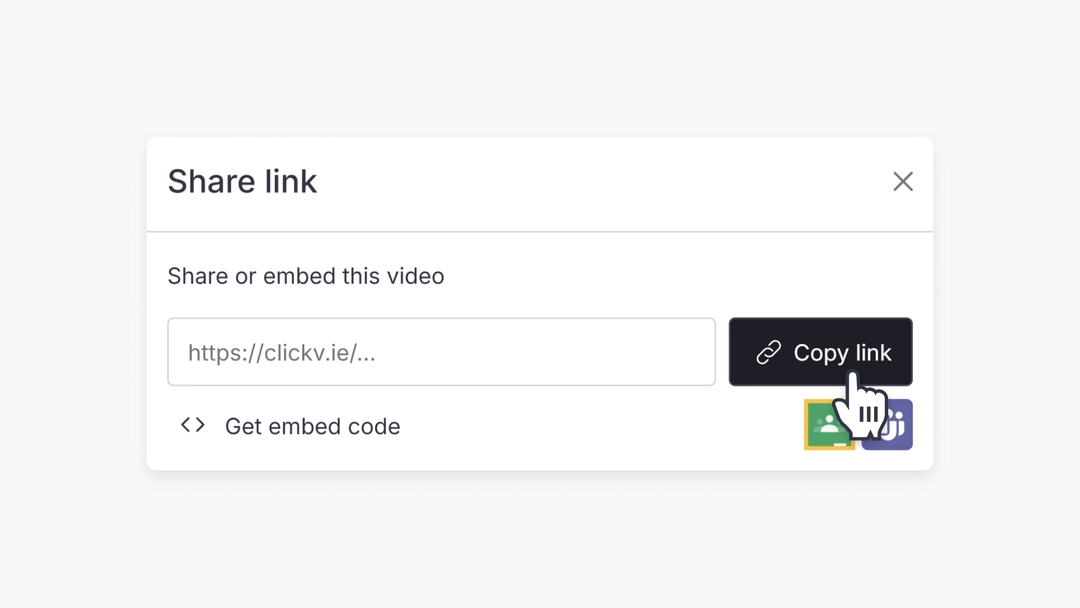
- Click the ‘Link’ icon to the right of the video. The ‘Share link’ pop-up will then open.
- Click the black Copy link button. This will create a share link that you can send to your students.

- Next, click the white ‘Copy link’ button to copy the share link to your clipboard, and share with your staff or students.

Additional sharing options
- Embed code: Click to embed the video into a website, LMS, or blog. Learn more about embedding videos in this article.

- Delete link: If you wish to stop sharing the video, click the bin icon to remove the share link.
How can administrators share videos from Library Editor?
ClickView Administrators can share videos from Library Editor by following the steps below:
- Sign in to ClickView, click on your avatar, and select ‘Library Editor’.

- Browse folders to locate the video you wish to share.

- Click the Share icon to the right of the video title.

- Click the ‘Copy link’ button to generate a video share link and share with students or staff.

Frequently asked questions
Use the ‘Get embed code’ option in the share dialog to copy the embed code, then paste it into your LMS or website.
Yes. In the share window, adjust the access permissions using the dropdown to set the viewing audience.
Click the bin icon in the share dialog to delete the share link and stop sharing the video.
Get in touch
If you’re having trouble finding the right topics or videos, just reach out! Our team - 

 Akhil, Daniel, Jalaj, or any of us at ClickView - will be happy to help you get sorted.
Give feedback
Was this guide helpful?
Up Next
How to assign a video
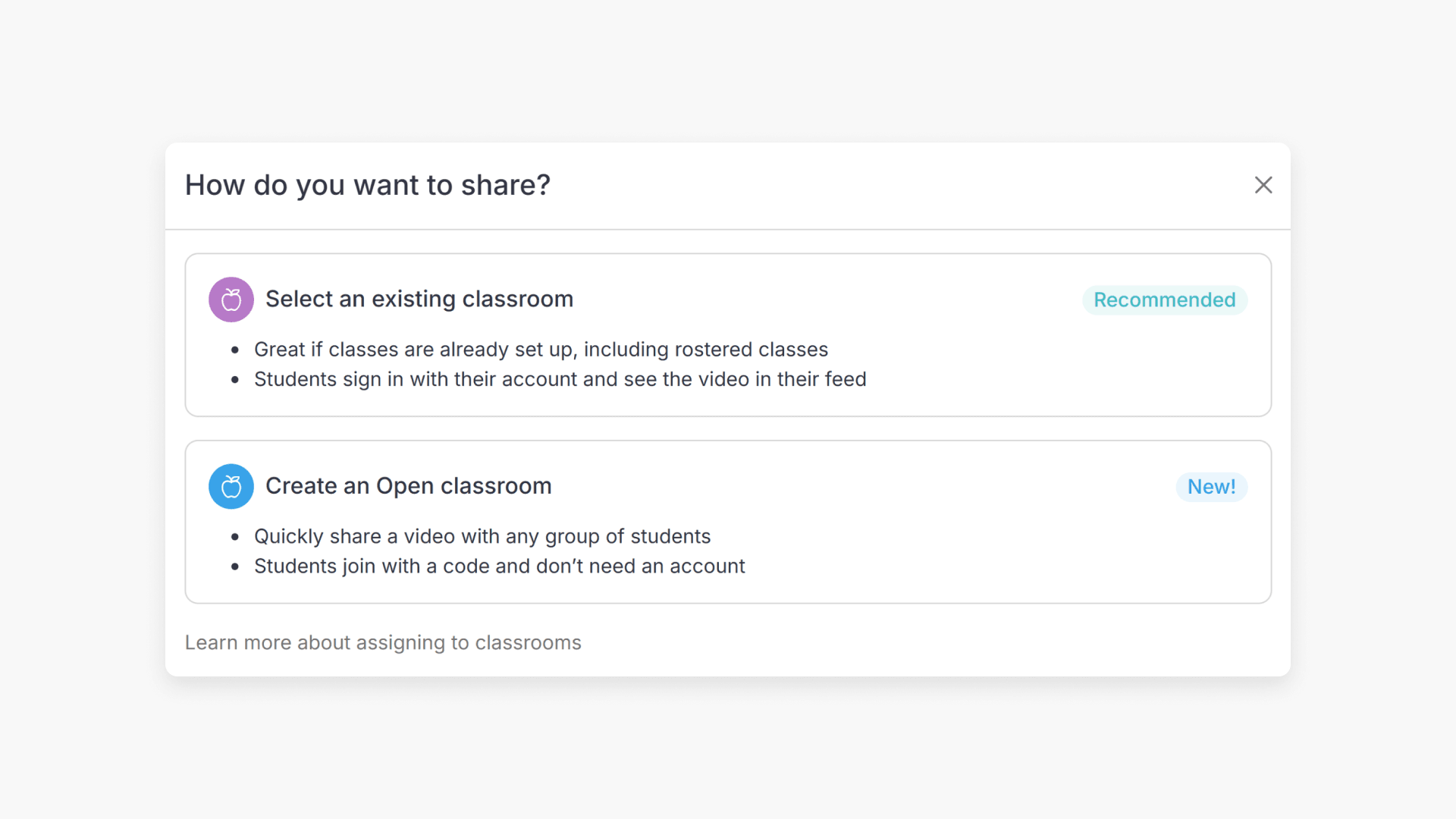
Summary How do I assign a video to a classroom in ClickView? Depending on how your school is set up, you can assign a video to an existing classroom or create an Open Classroom. If your school has rostering or classrooms already set up, select an existing classroom, and students sign in and see the […]