How to set your preferences

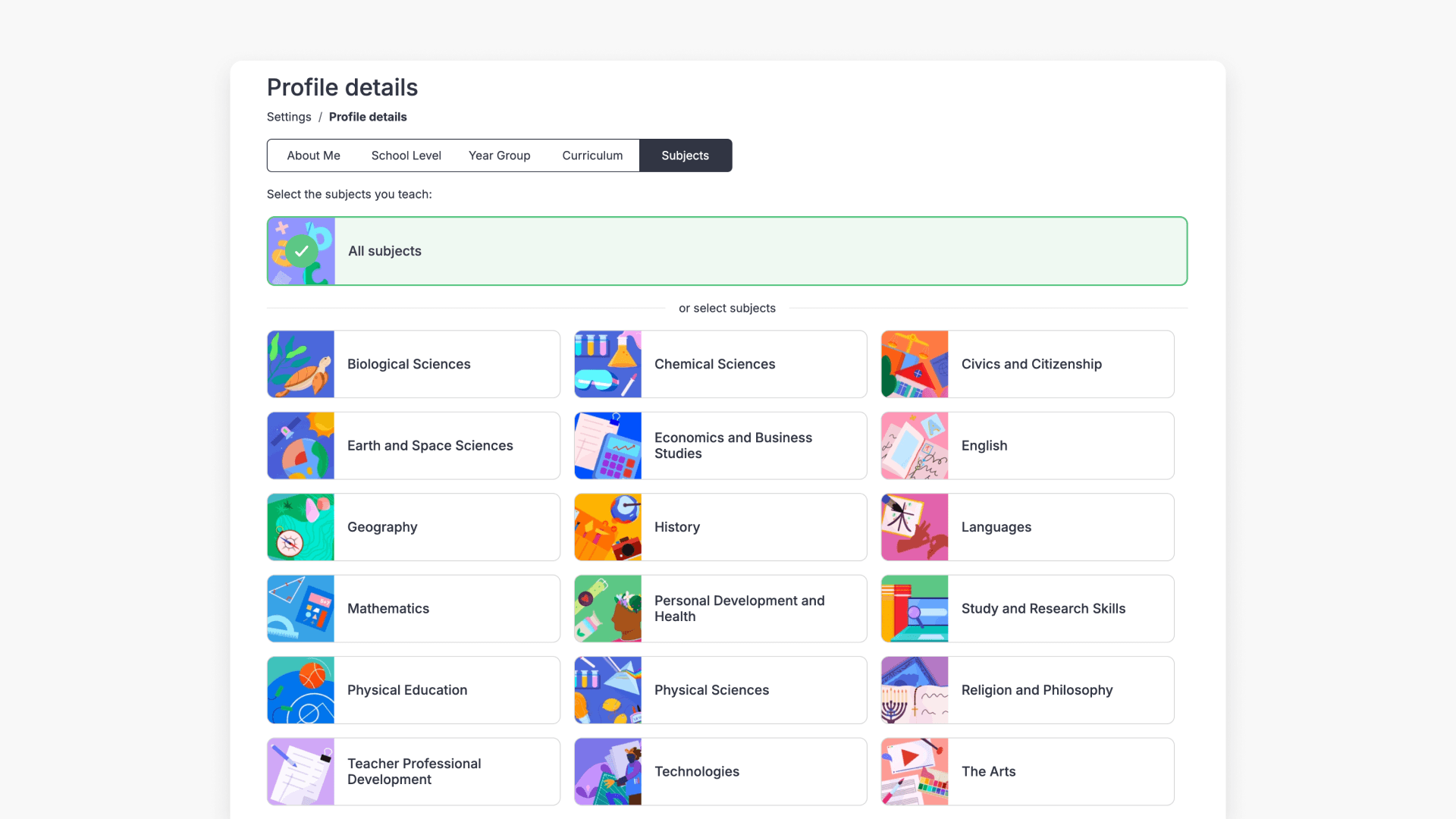
Summary
- New users complete their preferences when they log in for the first time.
- Existing users select Settings > Profile details at any time.
- Choose your role, usage purpose, year levels, and relevant topics.
- Select the curriculum your school follows.
- Customise content by choosing relevant videos and creating playlists.
- Preferences can be updated at any time for a personalised experience.
Setting preferences for new and existing users
ClickView allows each user to set preferences for year levels, topics, and academic curriculum, ensuring a tailored browsing experience. Personalising your settings ensures that recommended content aligns with your teaching or administrative needs.
Preferences for new users
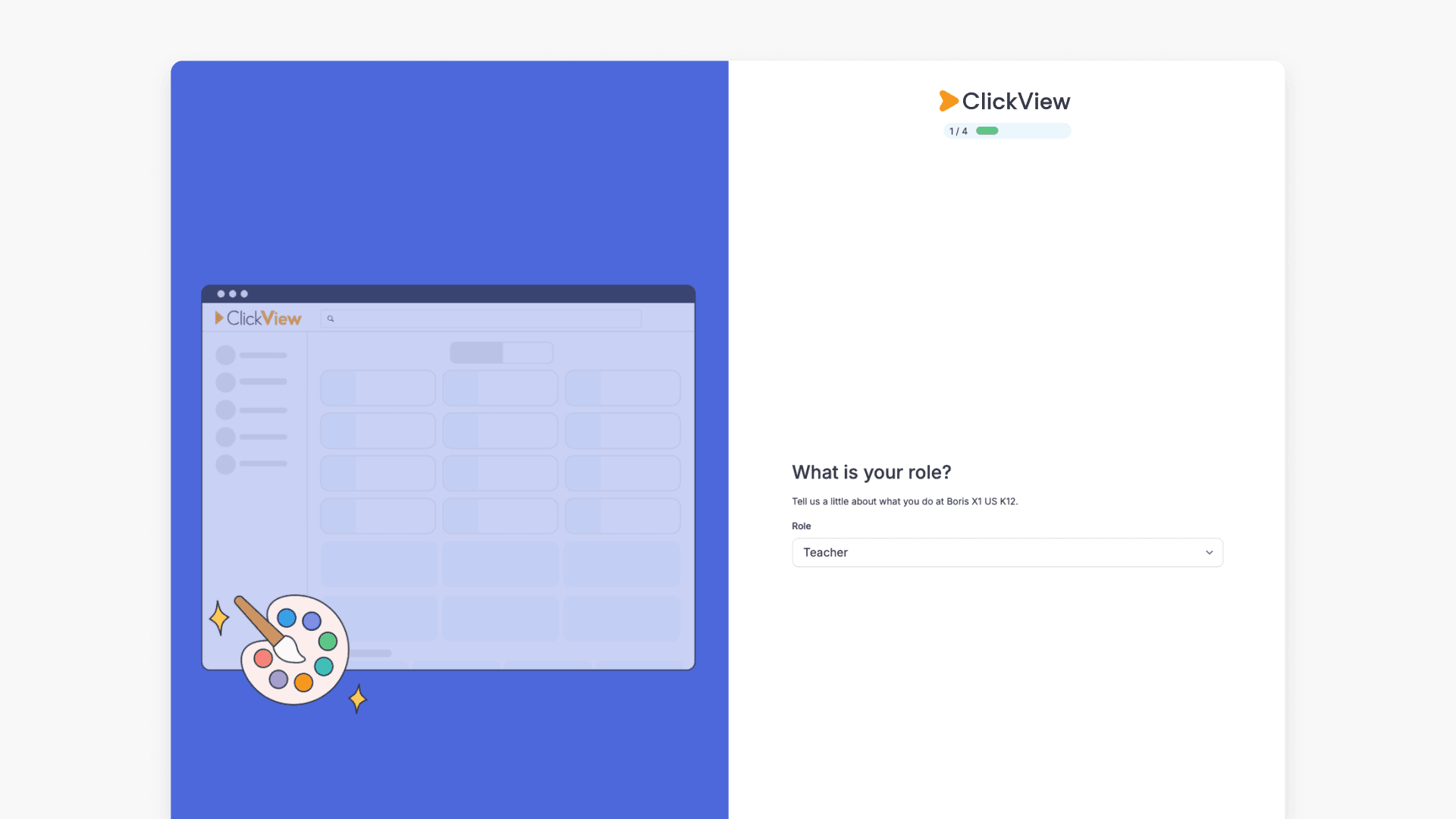
- After you sign in for the first time, ClickView prompts you to begin personalisation. Start by selecting the role appropriate to you from the presented options.
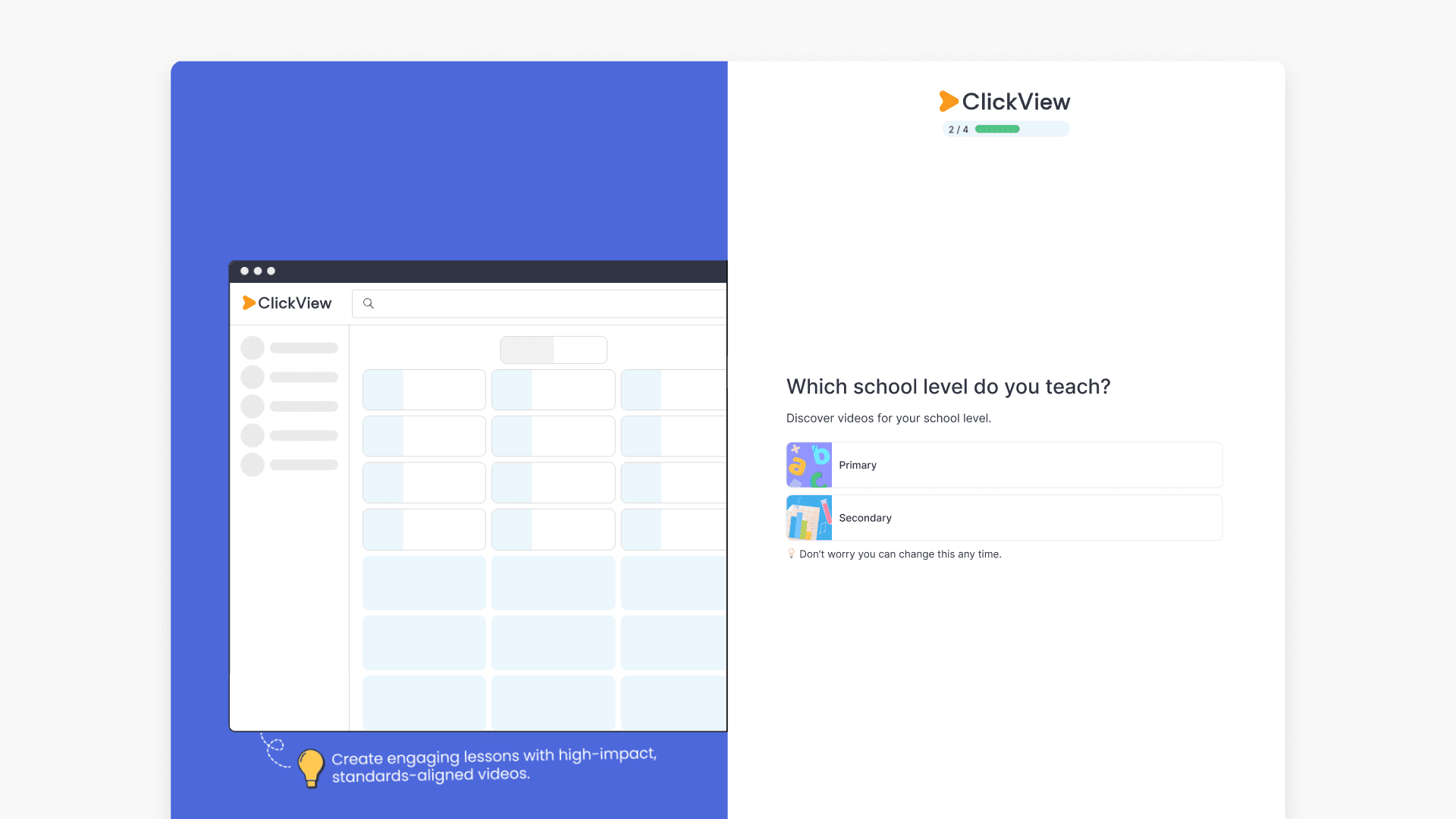
- Pick the school level most relevant to you. Options may vary depending on your institution.
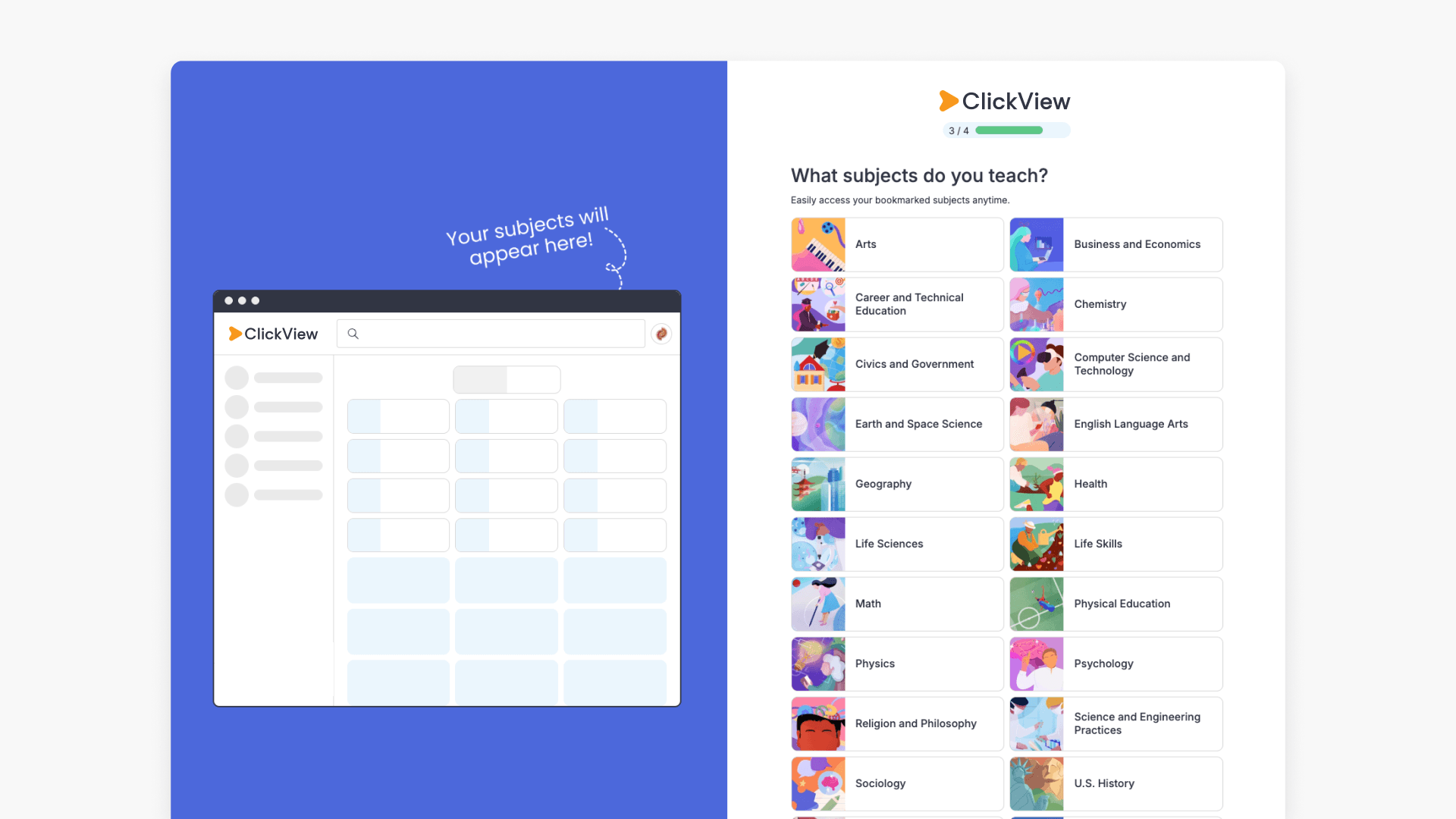
- Customise your content by choosing relevant teaching areas. You may select multiple or use the All subjects option for broader access.
- Select the curriculum or academic standard that your school follows.
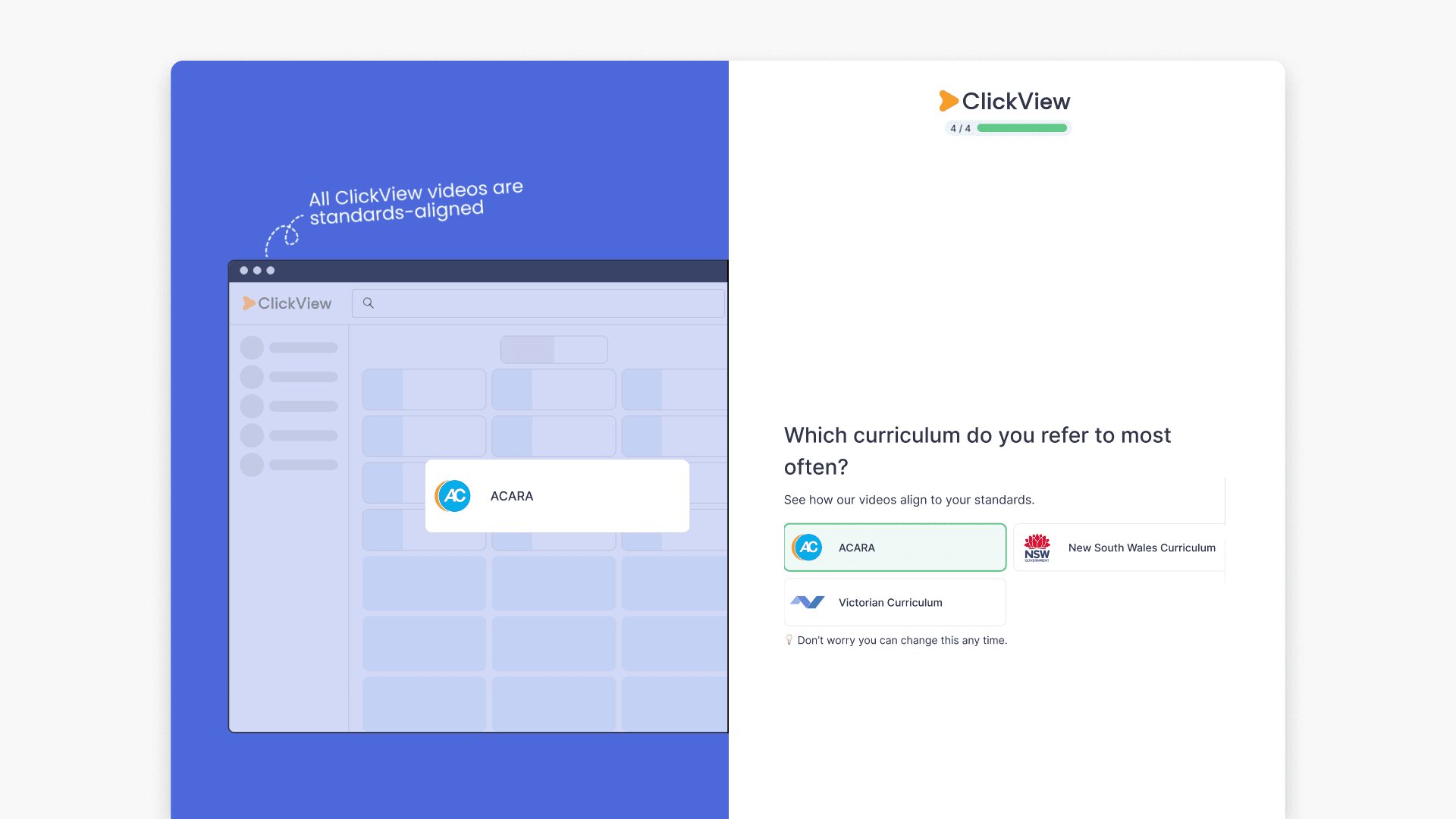
Your selections will help ClickView recommend and promote relevant topics and videos to you. You can still browse all available topics and materials.
How to update your preferences
- First click on your avatar and then select Settings.
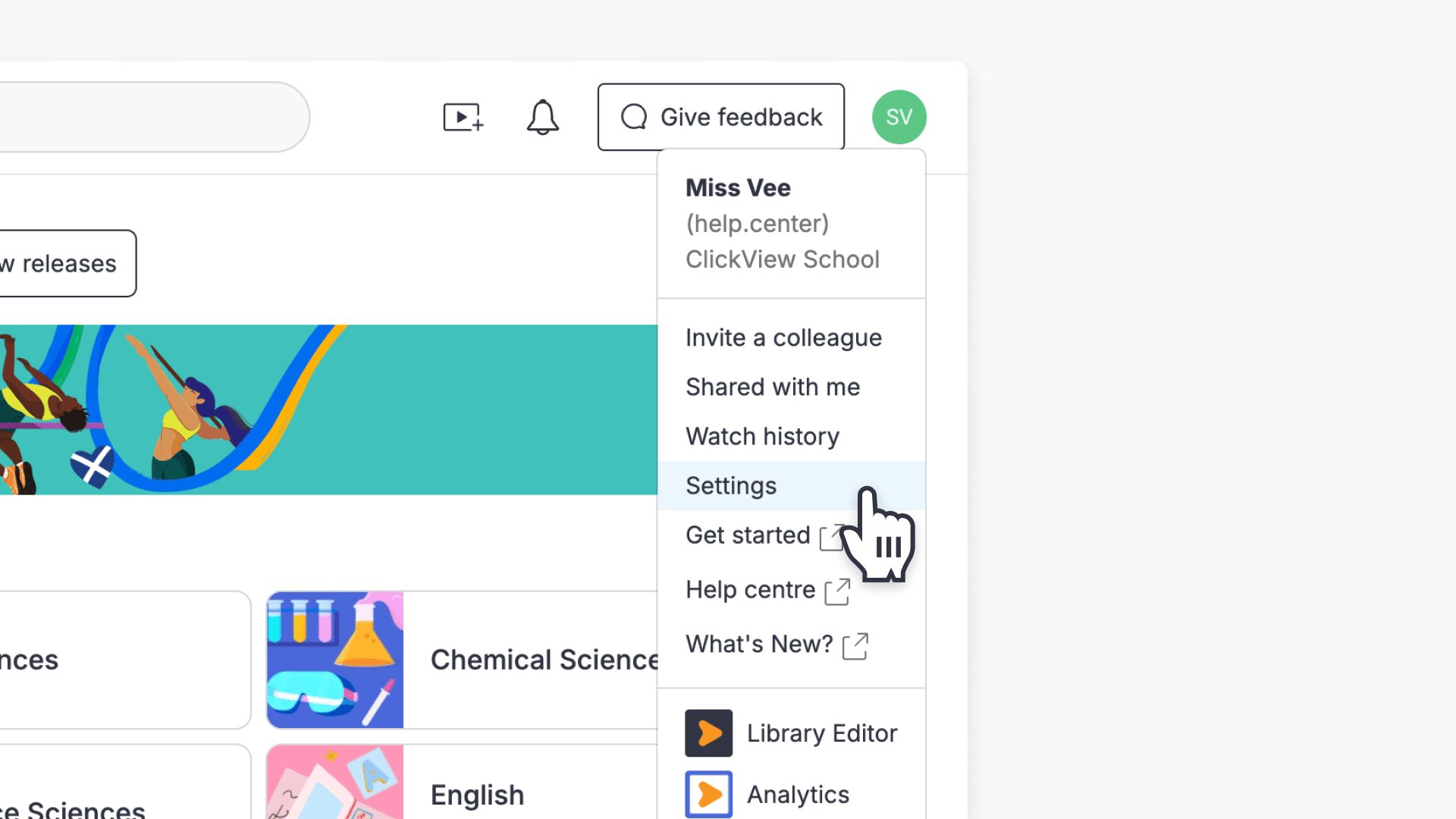
- Select Profile details under My account

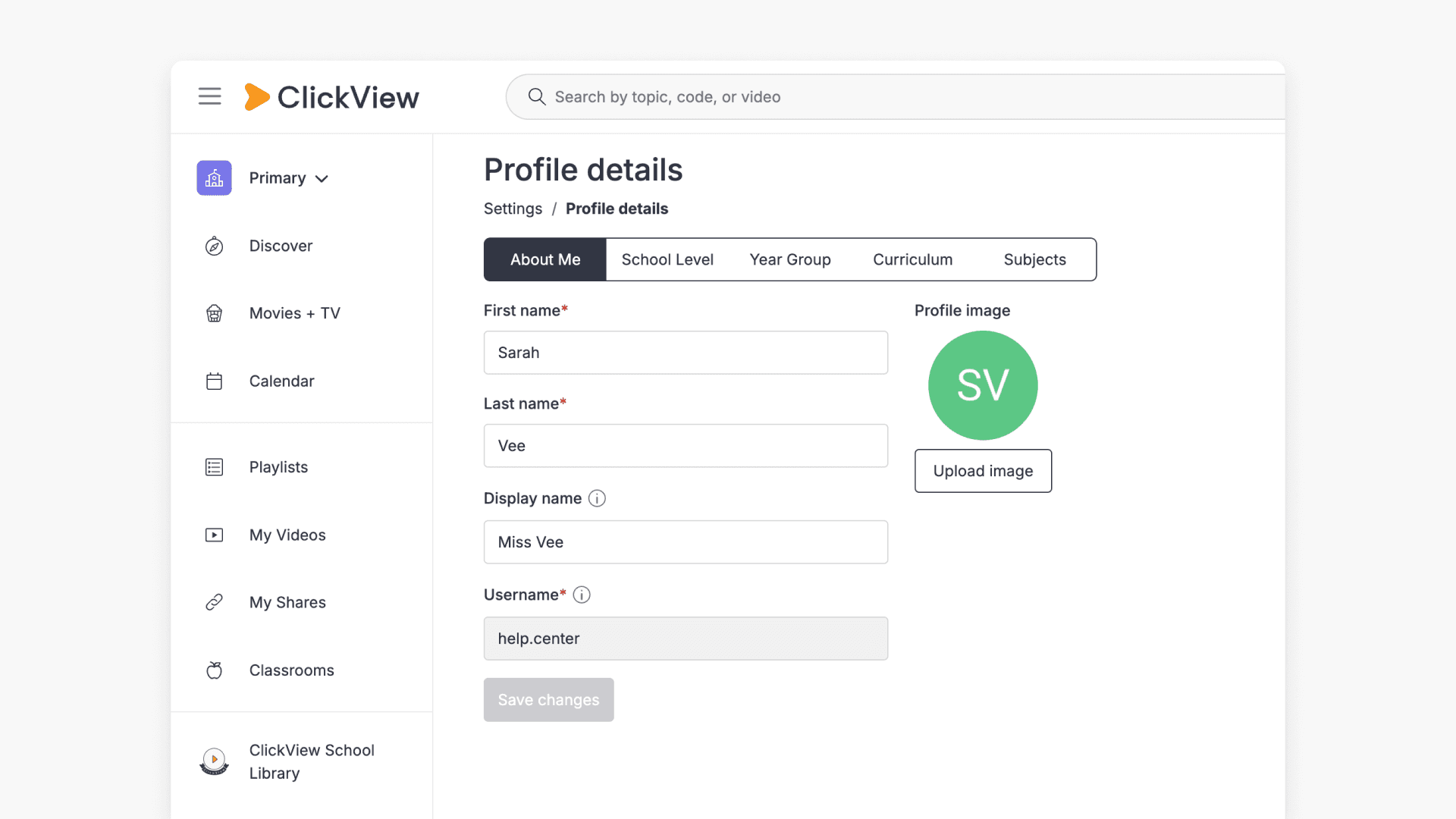
- Update your name, display name and profile images from the About Me tab.
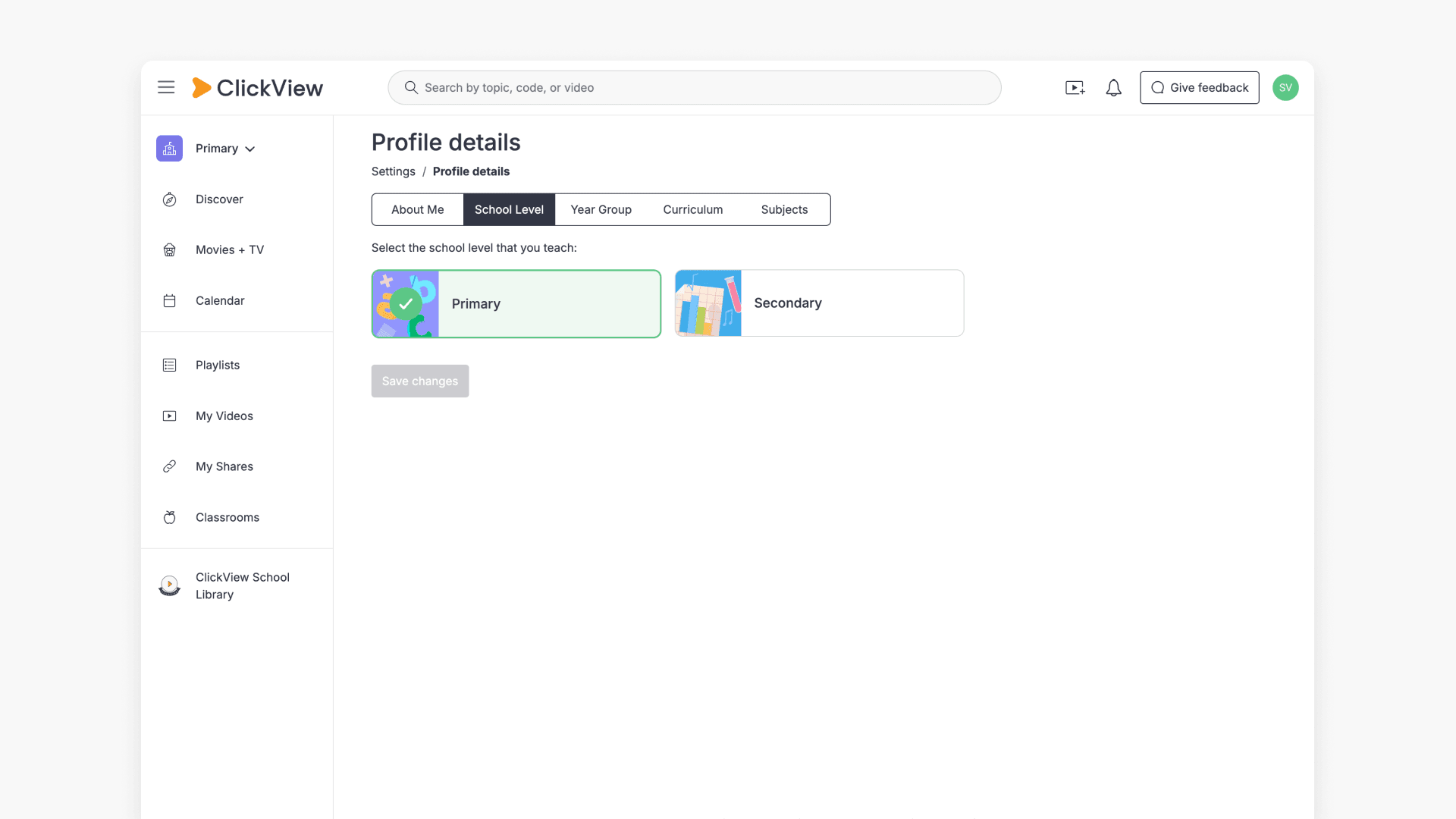
- Select the school level that you teach. Options may vary depending on your institution.
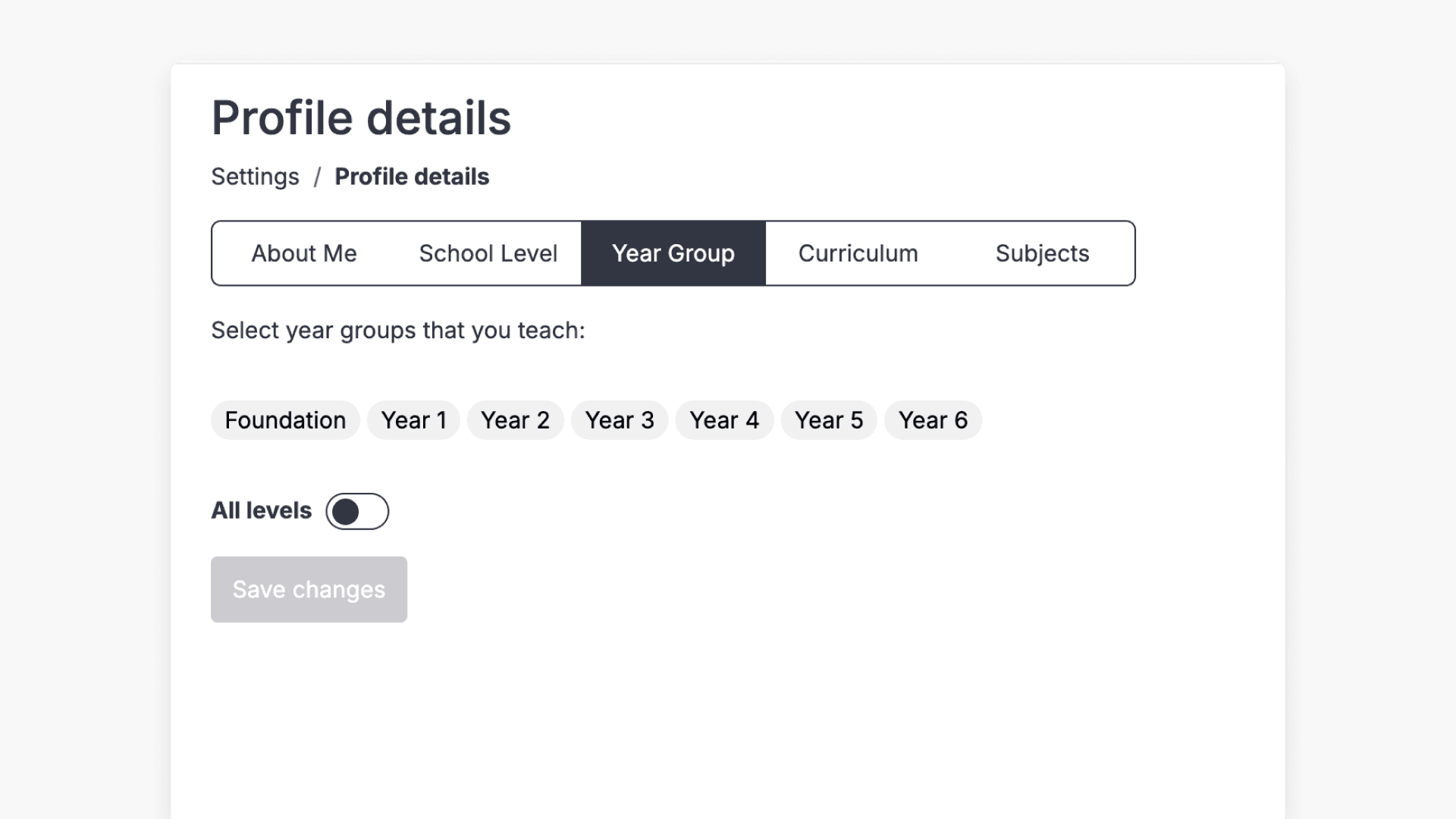
- Select the year levels relevant to your teaching or administrative role. You can choose one or multiple years, or select All levels.
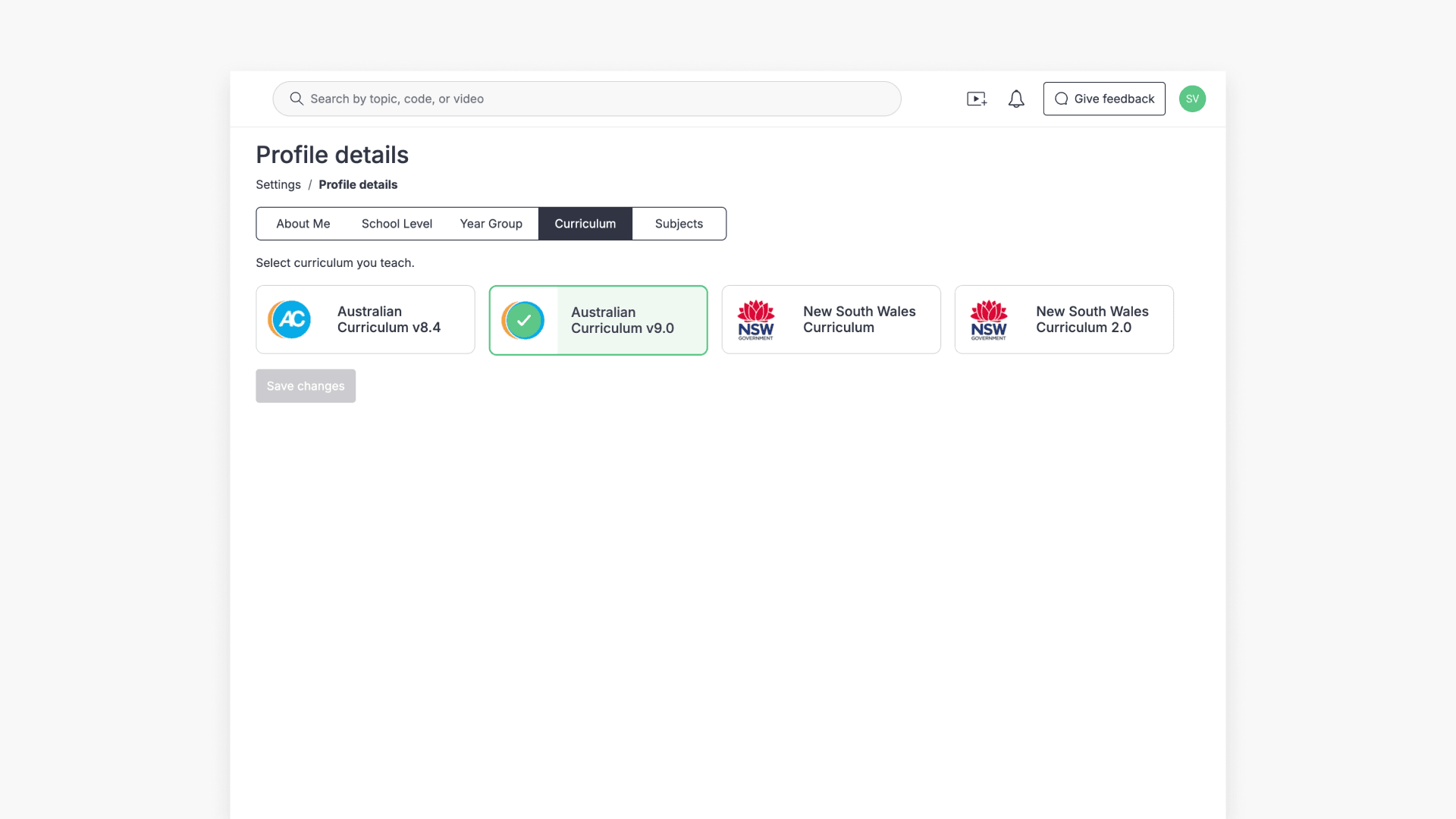
- Confirm your preferred curriculum or academic standards from the available options.
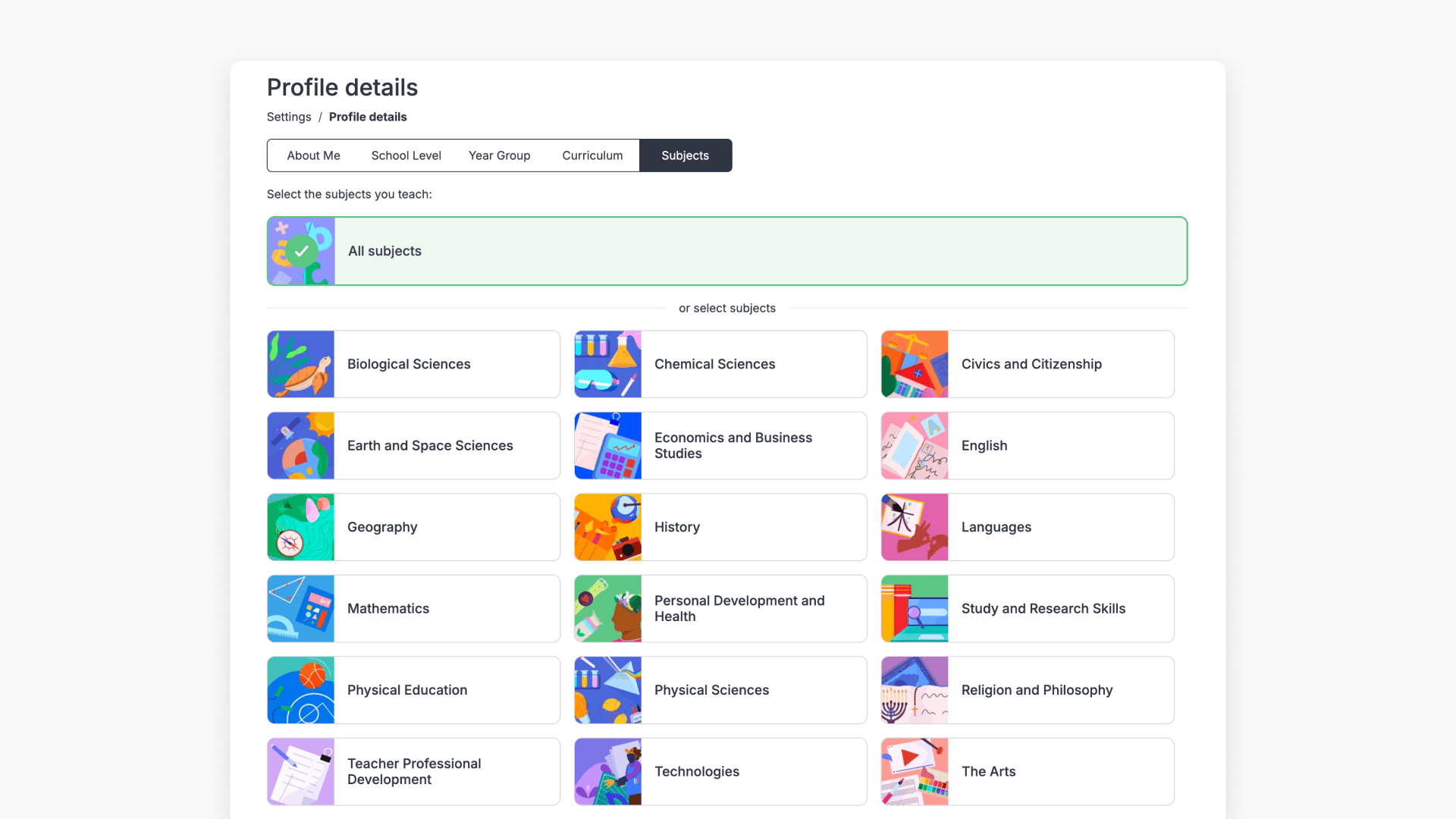
- Choose the subject most relevant to you or toggle All subjects for broader recommendations.
Your choices will prioritise content from your selected topics and grade levels. All other materials remain accessible.
Updating your school level and preferences
When you are browsing content outside your chosen school level, ClickView will display a prompt on the Discover page to help you navigate back to your selected school level, or update your preferences.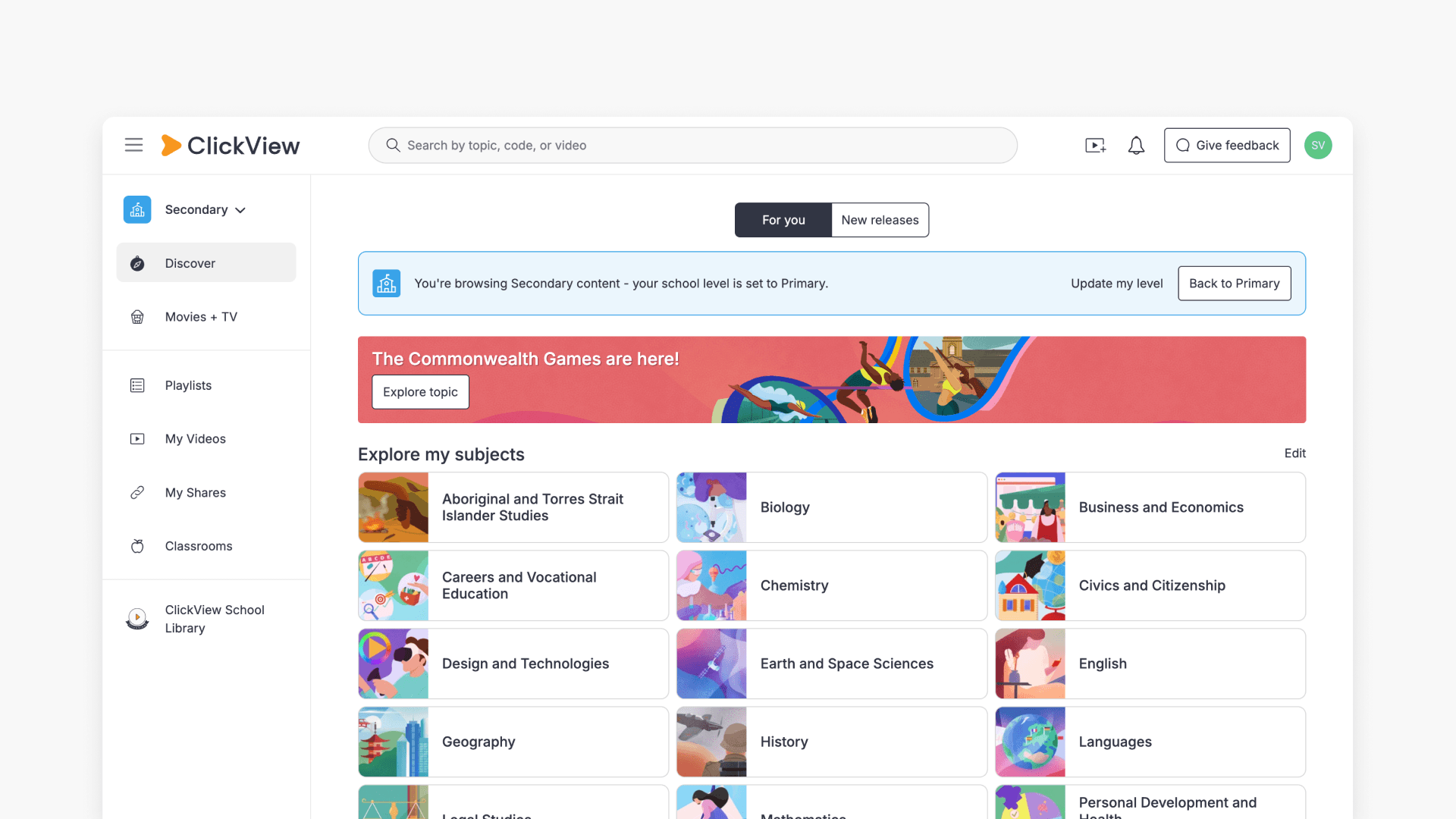
Frequently asked questions
Get in touch
If you’re having trouble finding the right topics or videos, just reach out! Our team - 


 Andrew, Nisch, Janice, Pfreya, or any of us at ClickView - will be happy to help you get sorted.
Give feedback
Was this guide helpful?
Up Next

How to manage your notifications
Find out how to access and review notifications in your ClickView account, including recent updates, activity alerts, and important changes related to your videos and account.