How to manage your notifications
Last updated by
1 min readClickView30th January, 2026
Summary
- ClickView sends notifications for recent account activity.
- Find the Notifications icon at the top right of the screen.
- Click on the Notifications icon to view updates.
- Click ‘See All Notifications’ for the full list.
- Notifications are listed in chronological order.
Accessing your notifications
ClickView provides notifications to keep you informed of activity related to your account, such as new videos in your Library, increased Library storage, or upcoming ClickView events.
How to view your notifications
- Click on the Notifications icon located at the top right-hand side of your screen.

- To access a complete list, click on See All Notifications.

- All notifications will appear in chronological order, showing your latest account updates first.

Frequently asked questions
Notifications can alert you to new videos added to your Library, changes in your Library storage, or updates about upcoming ClickView events.
Notifications appear at the top right of your screen and can be viewed by clicking the Notifications icon.
Notifications are shown in chronological order, with the latest updates appearing first.
Get in touch
If you’re having trouble finding the right topics or videos, just reach out! Our team - 

 Akhil, Daniel, Jalaj, or any of us at ClickView - will be happy to help you get sorted.
Give feedback
Was this guide helpful?
Up Next
How to set your preferences
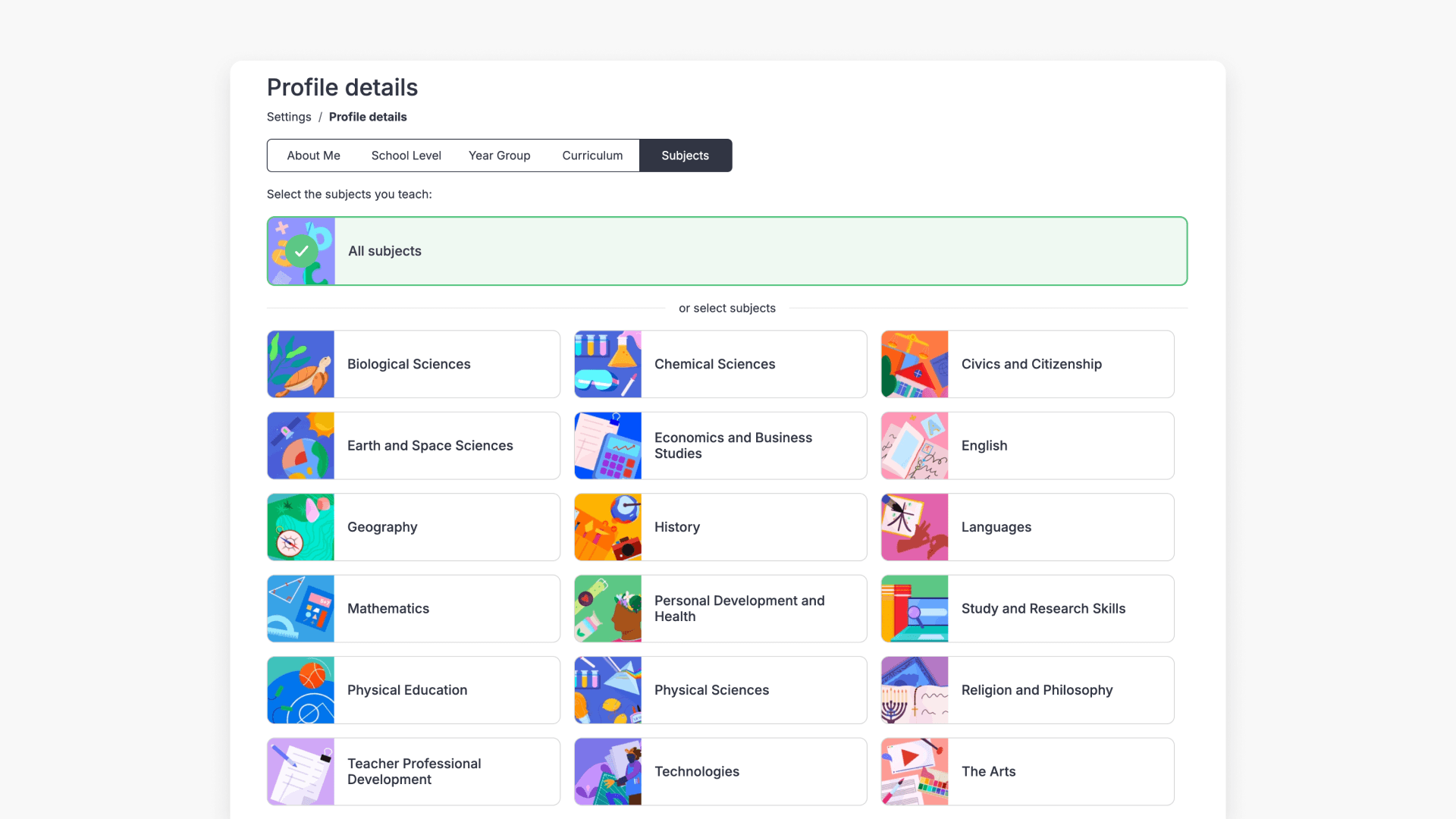
This article explains how to set up and update your preferences in ClickView, including year levels, topics, and curriculum.