How to create interactive videos
Last updated by
3 min readClickView11th April, 2026
Summary
- Locate and select any video within ClickView.
- Click the ‘Make interactive’ button below the video.
- Choose ‘Instant feedback’ or ‘Classic quiz’ for your interactive style.
- Add questions, annotations, or images at chosen time points.
- Use the timeline and ‘3-dot’ icon to adjust question timing.
- Delete questions with the Bin icon as needed.
- Publish your interactive by clicking ‘Publish’ and reviewing options.
star icon
Quick tip
In ClickView, how do I keep students focused during an interactive video?
When you publish your interactive video, enable ‘Prevent skipping ahead’ so students watch in sequence. If you also enable ‘Instant feedback’, students can confirm understanding before moving on.
Step-by-step guide to creating an interactive video
Follow these steps to create an interactive video in ClickView that engages students and enhances learning outcomes:
- Locate and select the video
Find the video or clip in ClickView that you plan to make interactive. - Select the ‘Make interactive’ button
This button appears below your selected video.
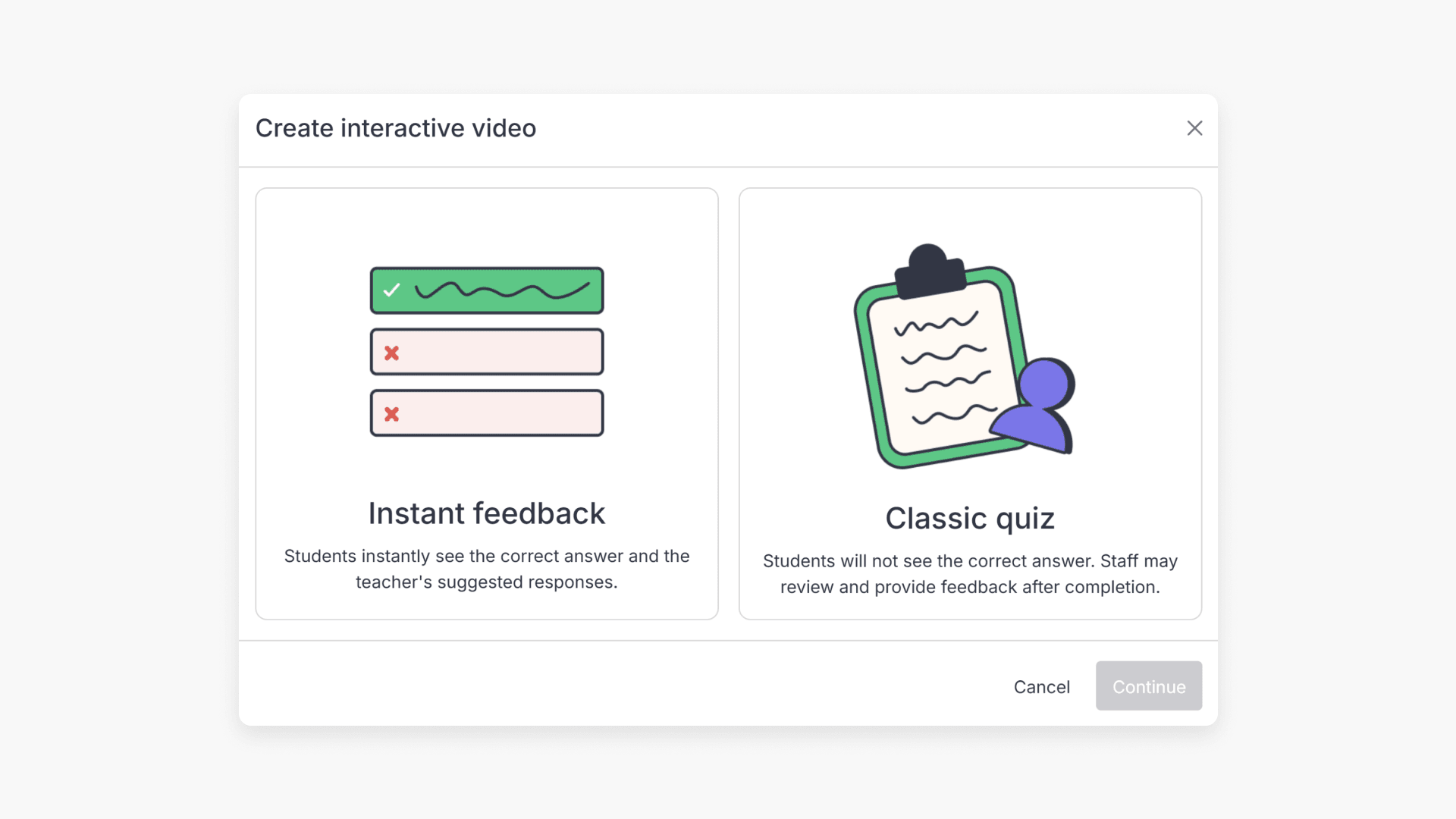
- Choose your interactive type
Pick your preferred format:
‘Instant feedback’ allows students to view answers immediately.
‘Classic quiz’ reveals results after review.
- Set question timing
Use the timeline at the bottom of the video to set when questions will appear.
- Add interactive elements
Select and add any of the following question types:
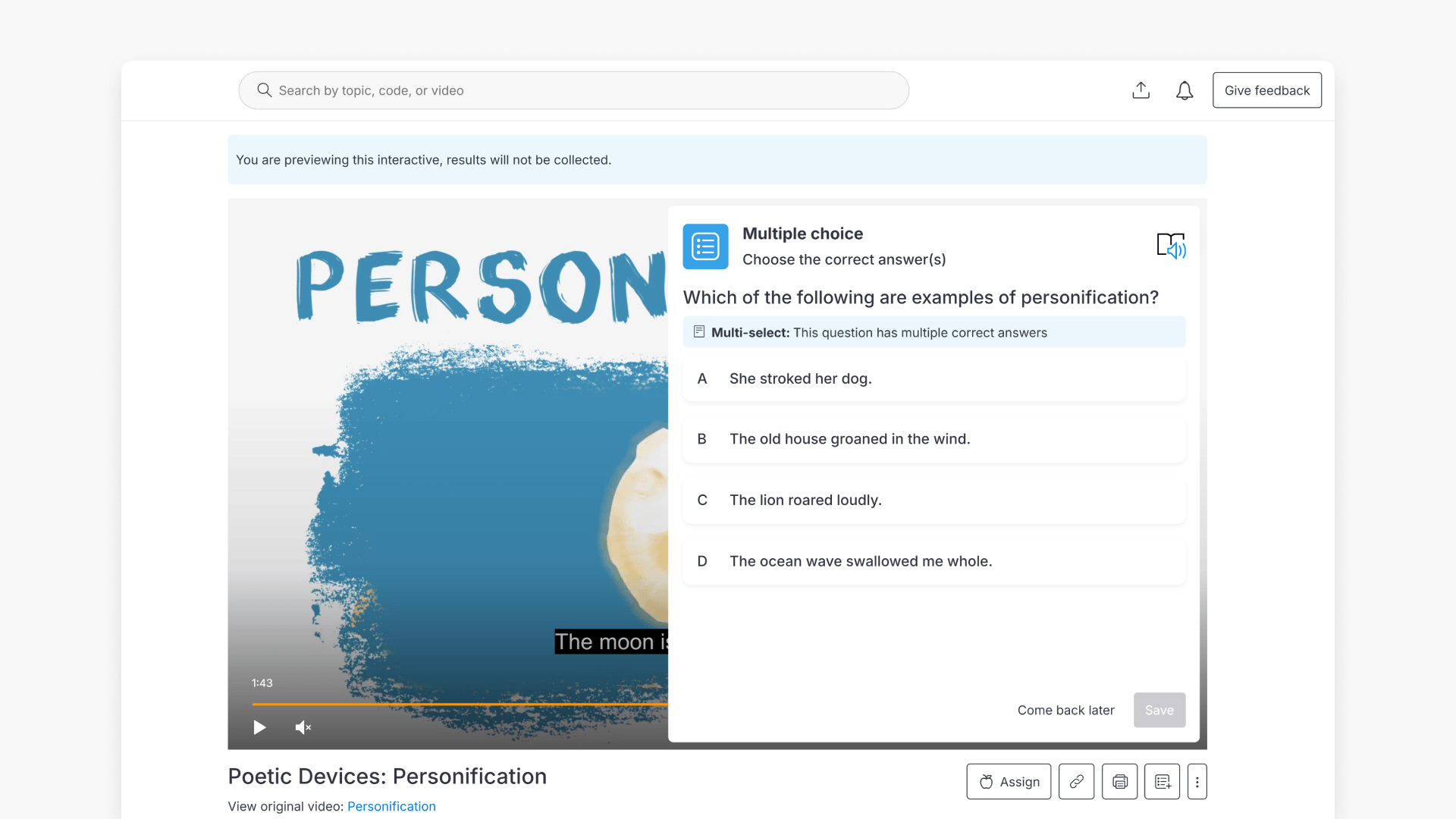
- Multiple choice: Students select the correct answer from a list of options.
- When to use: To quickly assess understanding of key facts or concepts.
- Example: Choosing the correct answer to “Which planet is known as the Red Planet?”

- Short answer: Students type a brief written response in their own words.
- When to use: To check recall, understanding, or simple explanations.
- Example: “Name the process plants use to make food.”

- True or false: Students decide whether a statement is correct or incorrect.
- When to use: To test basic knowledge or identify misconceptions.
- Example: “True or false: The Earth orbits the Sun.”

- Annotation: Add labels, notes, or highlight key ideas to students directly onto an image or document.
- When to use: To provide additional context, links to external resources or asking open ended questions to prompt the student to think.
Example: “Here is a link to some additional reading.”
- When to use: To provide additional context, links to external resources or asking open ended questions to prompt the student to think.
- Image: ClickView will display your uploaded image to students.
- When to use: To support image-based analysis or when you want to provide a graph or diagram.
- Example: Charts, Data tables, graphs and diagrams.

- Add an optional caption and click ‘Save’.

- Missing word: Students complete a sentence by filling in missing words.
- When to use: To reinforce vocabulary, grammar, or key facts.
- Example: “Water freezes at ___ degrees.”

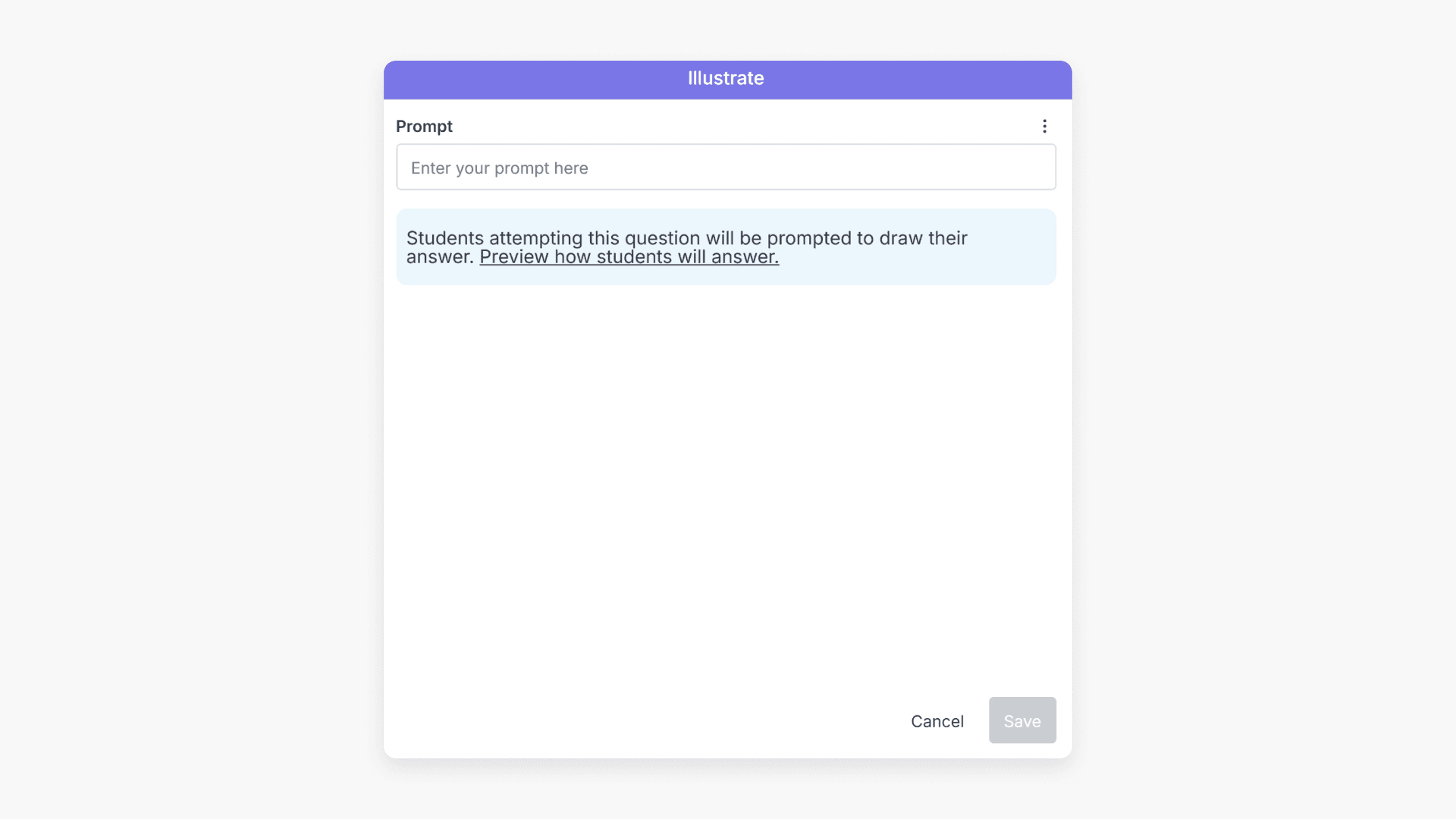
- Illustrate: Students answer by submitting a drawing. When students attempt this question, they will be prompted to draw their answer.
- When to use: To check understanding through diagrams, labelling, or visual representations.
- Example: “Draw and label the water cycle.”
- Multiple choice: Students select the correct answer from a list of options.
- Adjust interactive time points
Refine when each question appears by clicking the 3-dot icon and selecting ‘Move time point’. Then enter the time or use arrows to adjust.

- Delete an interactive element
To remove a question, hover over it at the bottom of the screen and click the Bin icon.
- Publish your interactive video
Click ‘Publish’ on the top right.
- Review
Review and change the interactive name or description if desired. Optionally enable Instant feedback or Prevent skipping ahead.
- Click ‘Publish interactive’ on the bottom right to finish.
You have now successfully created an interactive video.
Frequently asked questions
You can add Multiple choice, Short answer, True or false, Annotation, Image, Missing word, and Illustrate questions to interactive videos.
Yes, use the 3-dot icon to move the time point of any interactive element on the video timeline.
Hover over the question at the bottom of the screen and click the Bin Icon to delete it.
Click ‘Publish’ in the top right, review your settings, then click ‘Publish interactive’ to finish.
Get in touch
If you’re having trouble finding the right topics or videos, just reach out! Our team - 

 Akhil, Daniel, Jalaj, or any of us at ClickView - will be happy to help you get sorted.
Give feedback
Was this guide helpful?
Up Next
Interactive videos: Instant Feedback vs. Classic Quiz
Explore how Instant Feedback and Classic Quiz work for interactive videos in ClickView. Learn when students see answers and feedback, plus key differences between the two options.