Introduction to the Exchange Archive

Summary
- Click your avatar and select Exchange Archive + TV
- Select Exchange Archive from the top of the Exchange and TV screen
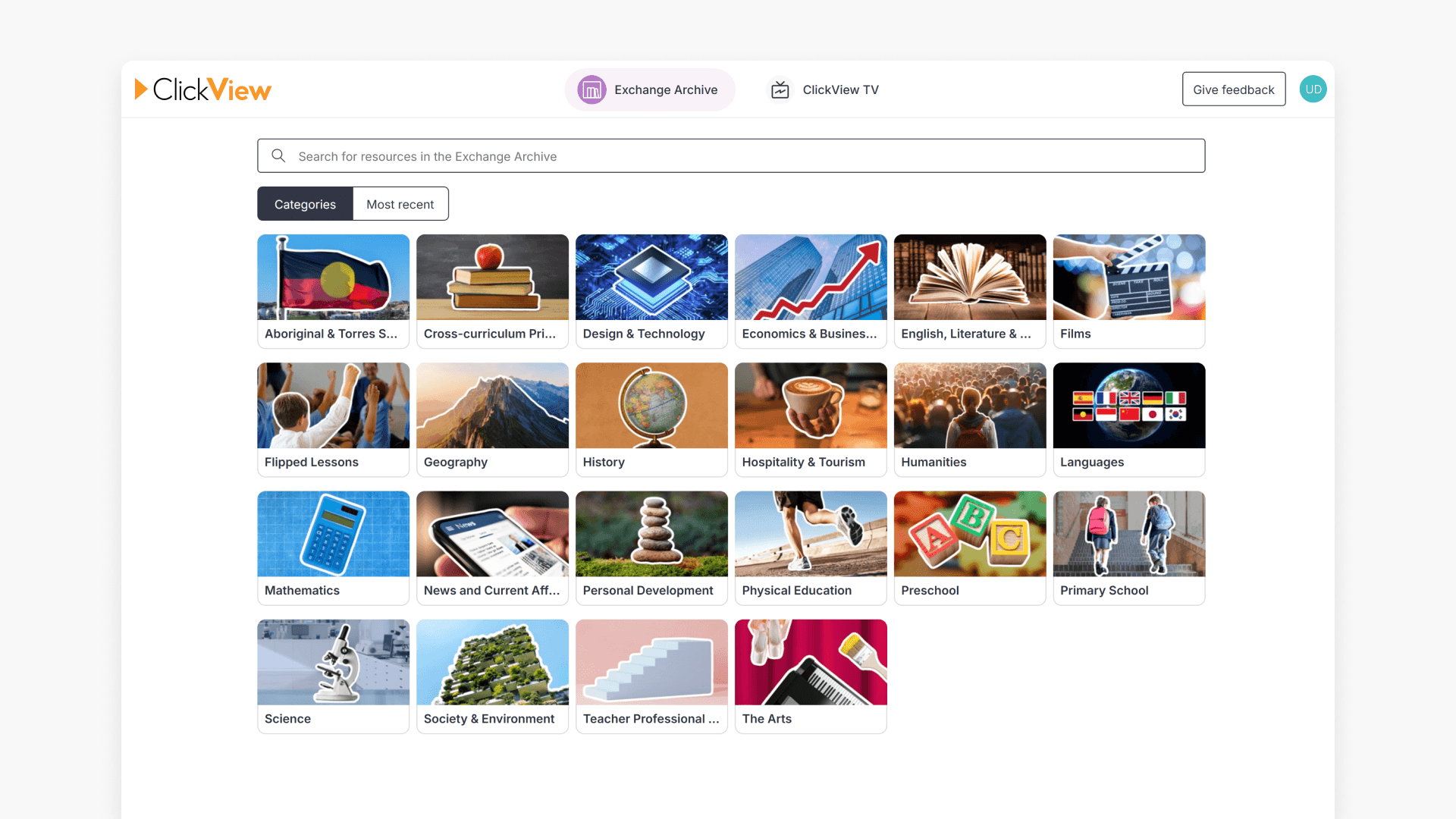
- Browse videos by category (and subfolders where available) or Most Recent
- Use the search bar to find videos and refine results with filters
- Add videos to My Videos, download them, or suggest an edit if something needs correcting
What is the Exchange Archive?
The Exchange Archive is an area where teachers can browse videos uploaded by educators and ClickView staff. Content may include free-to-air TV or self-published recordings. Many videos include attached resources and interactives to support lessons.
You can add Exchange Archive videos to your own collection in My Videos or your School Library
Who can add content to the Exchange Archive?
Content in Exchange Archive can be uploaded by teachers and ClickView staff. Additions and edits must be approved by the ClickView content team before appearing in the Archive.
Access the Exchange Archive
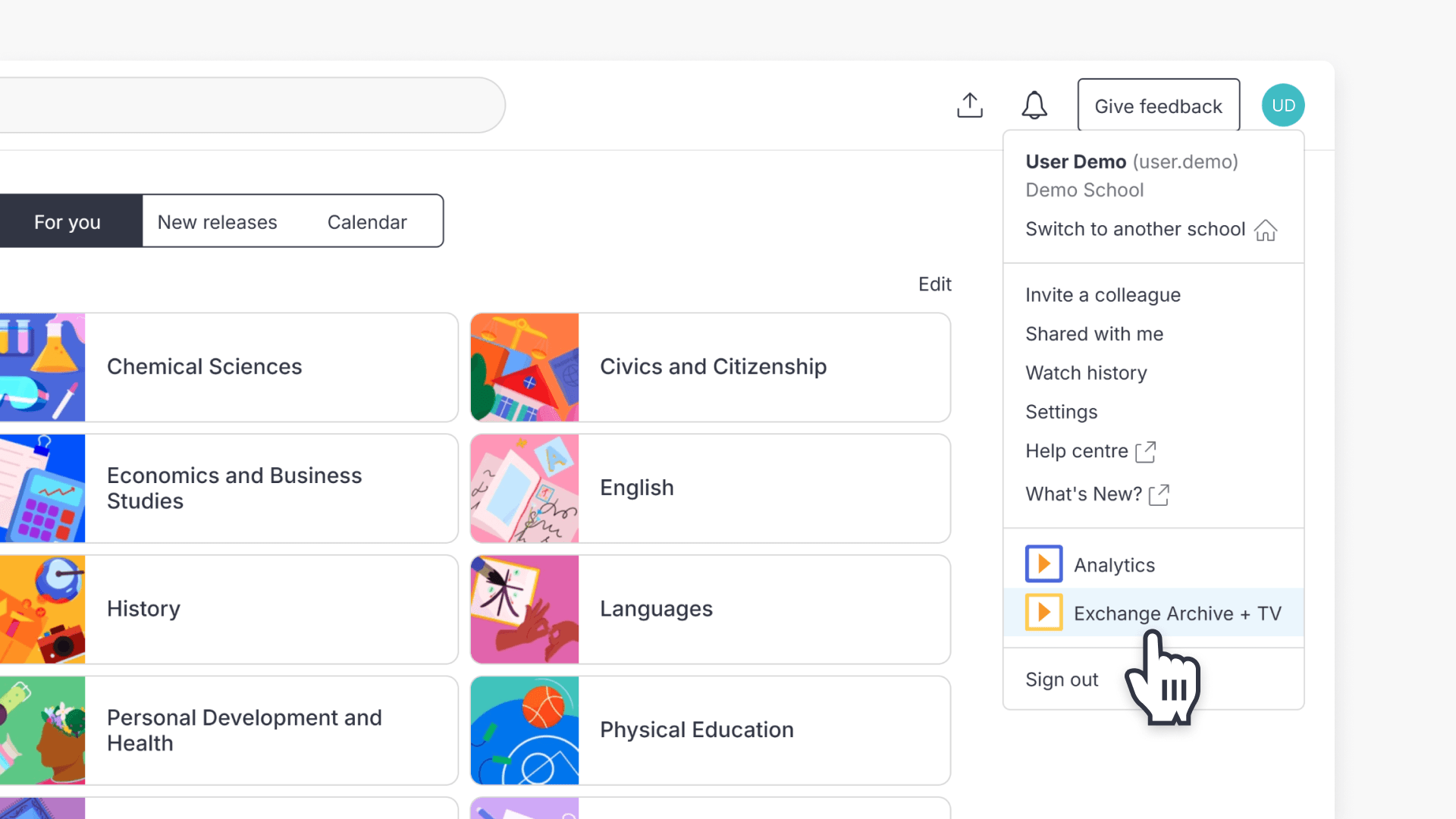
- In ClickView, click your avatar in the top right corner of the screen.
- Select Exchange Archive + TV from the dropdown menu.
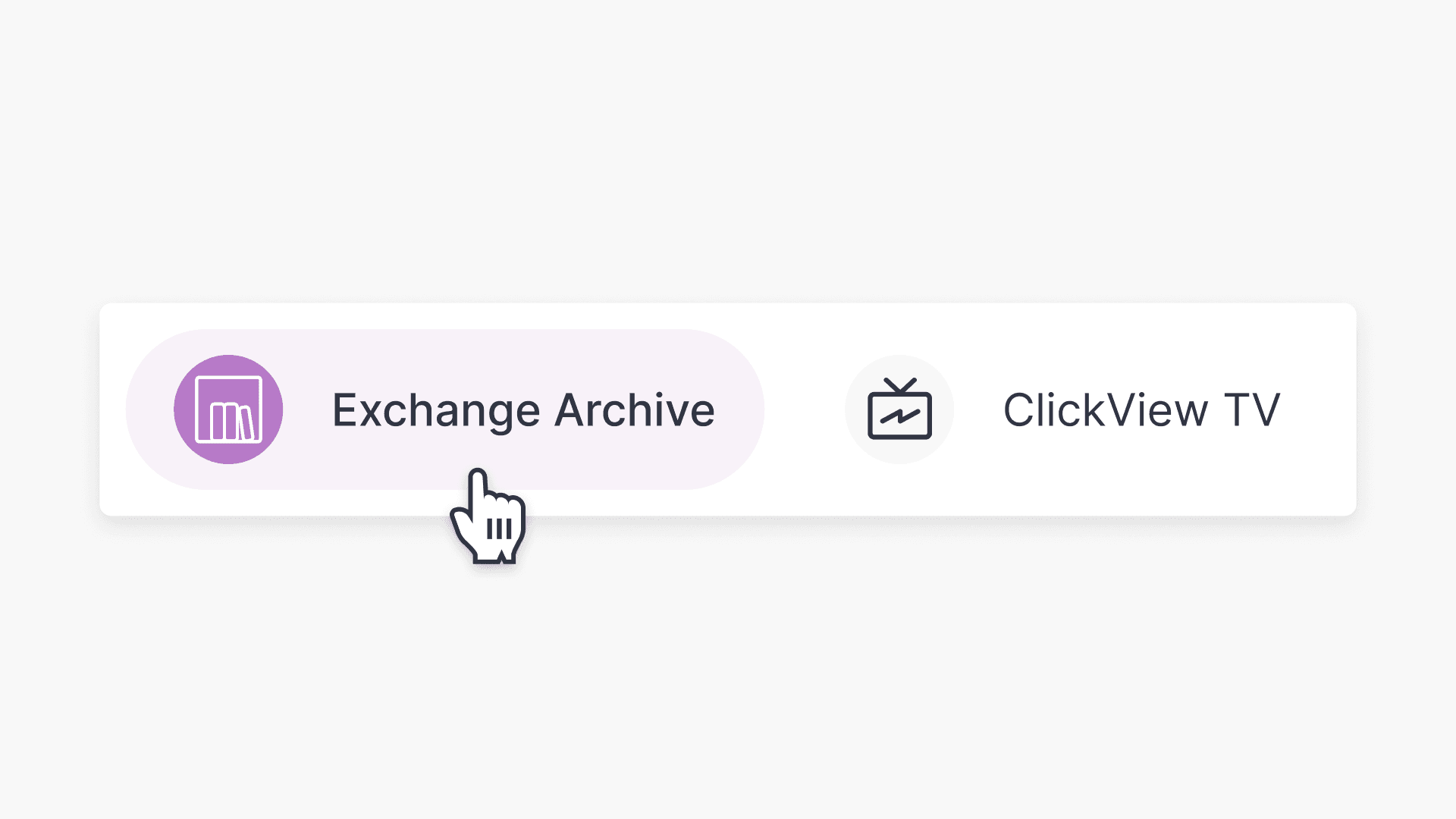
- On the Exchange and TV screen, select Exchange Archive from the top of the screen.
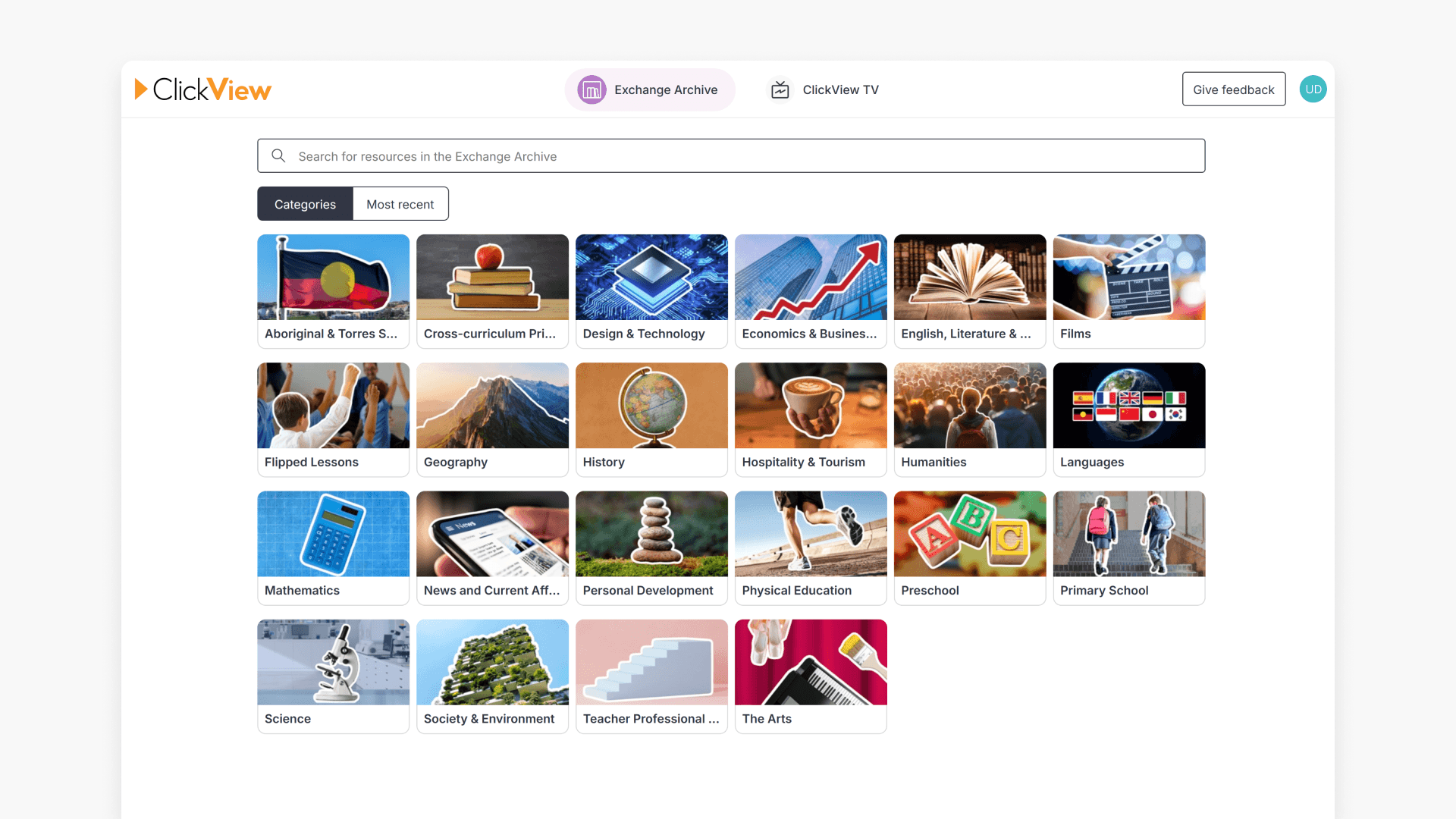
- You will now be on the Exchange Archive home page, where you can begin browsing content.
Browse the Exchange Archive
Browse by category and subfolder
- Select a category to reveal related content.
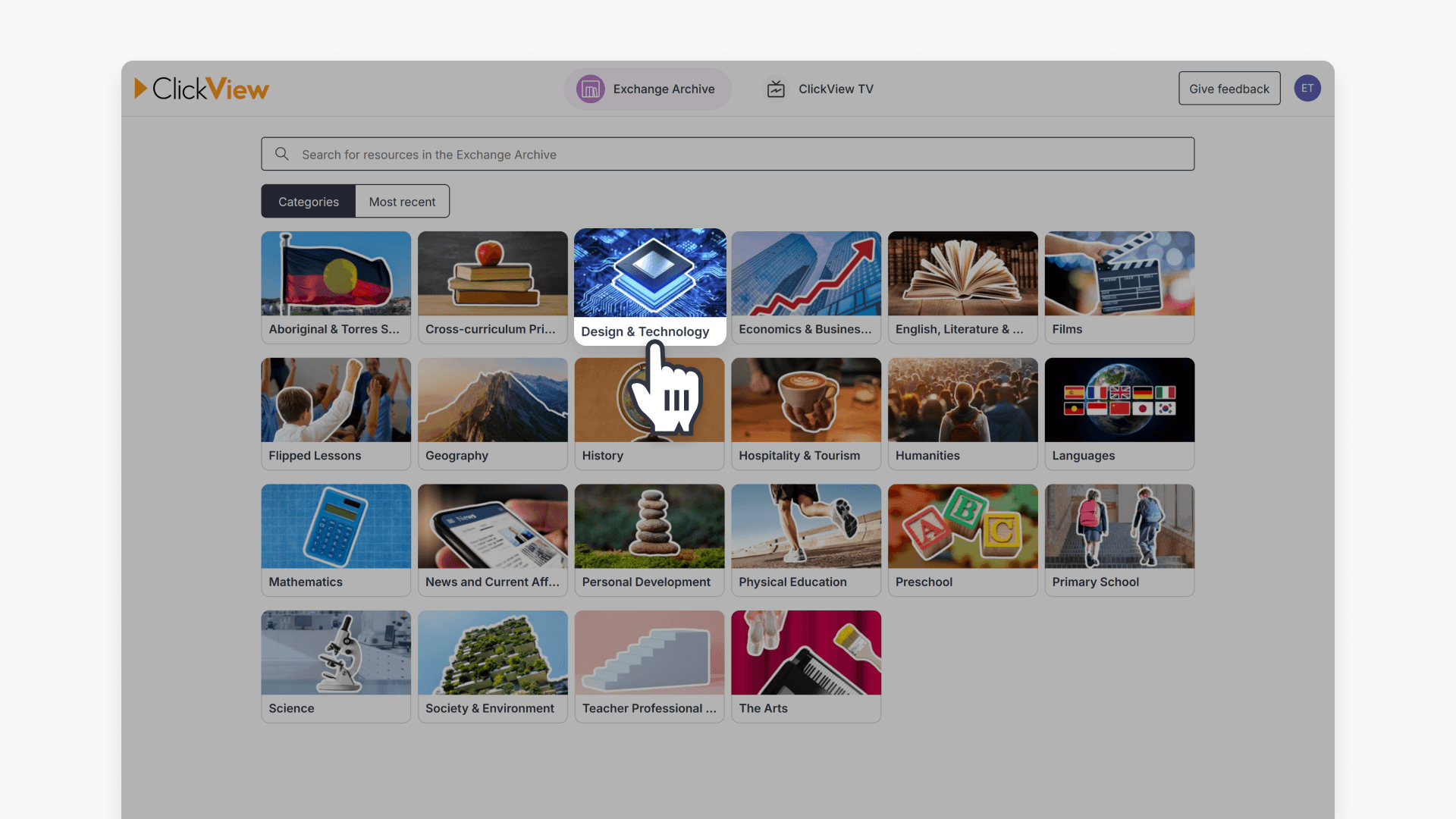
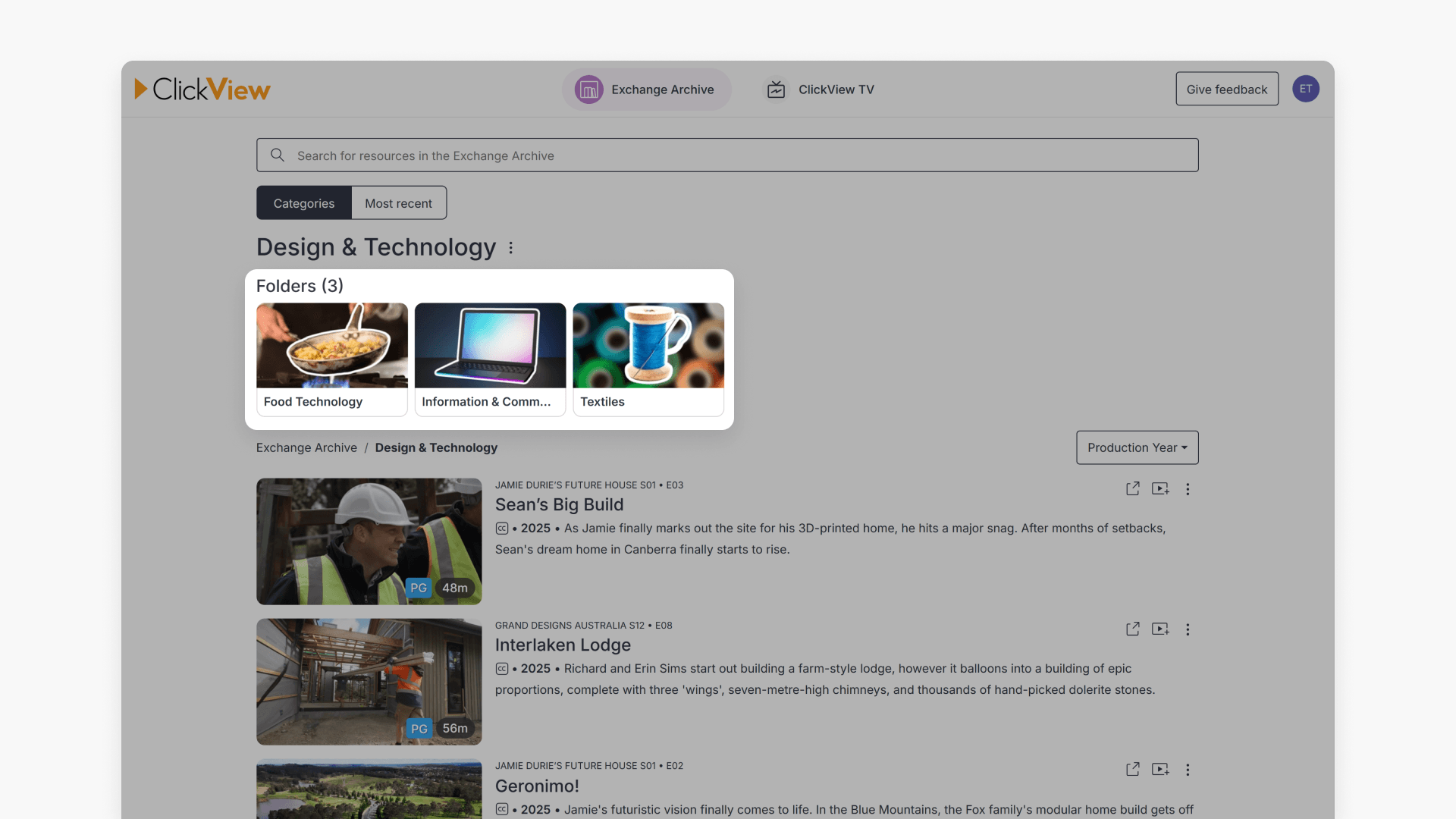
- If the category contains subfolders, select a subfolder to view more specific content.
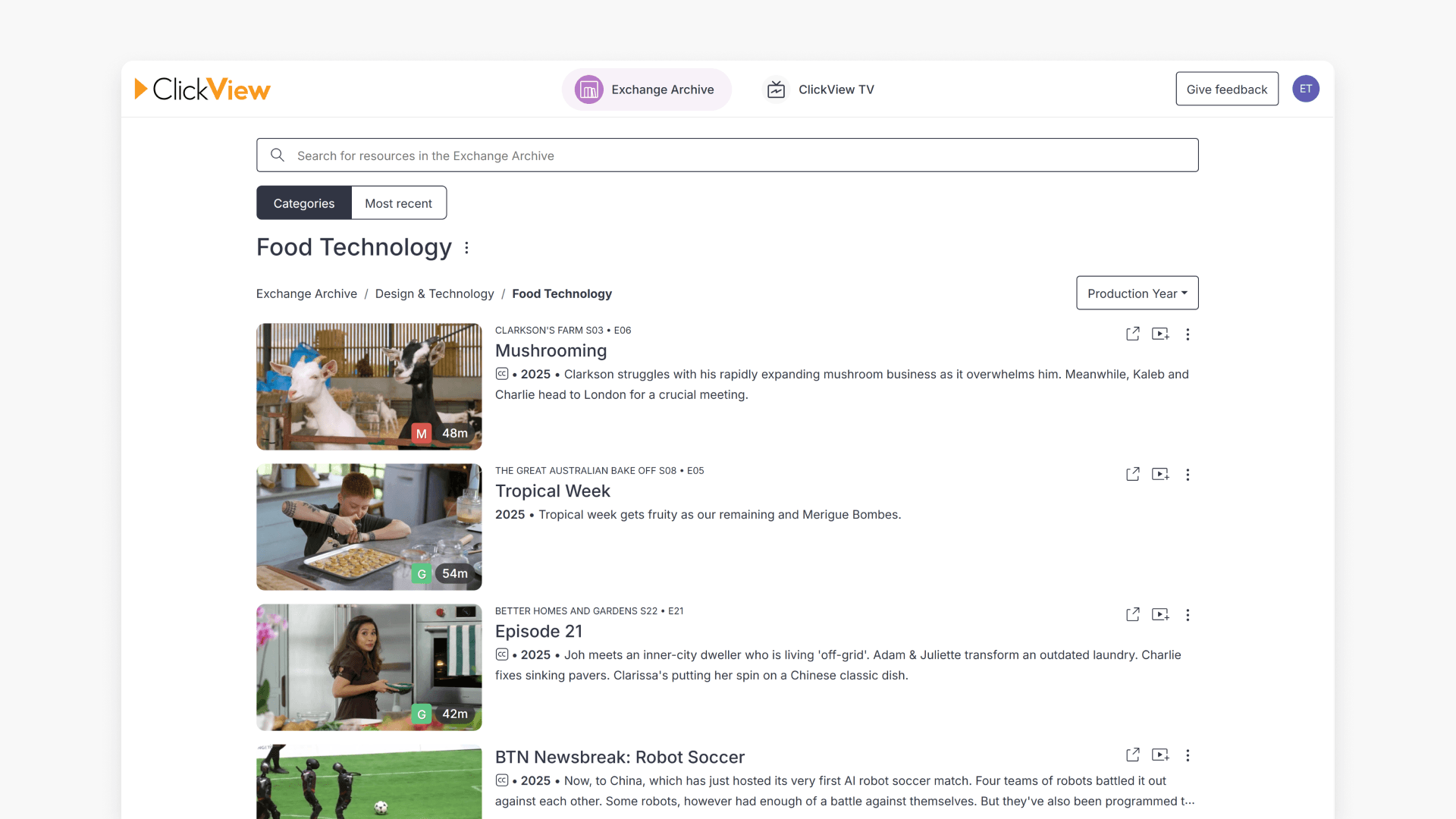
- If there are no subfolders, you will see a list of content within that category.
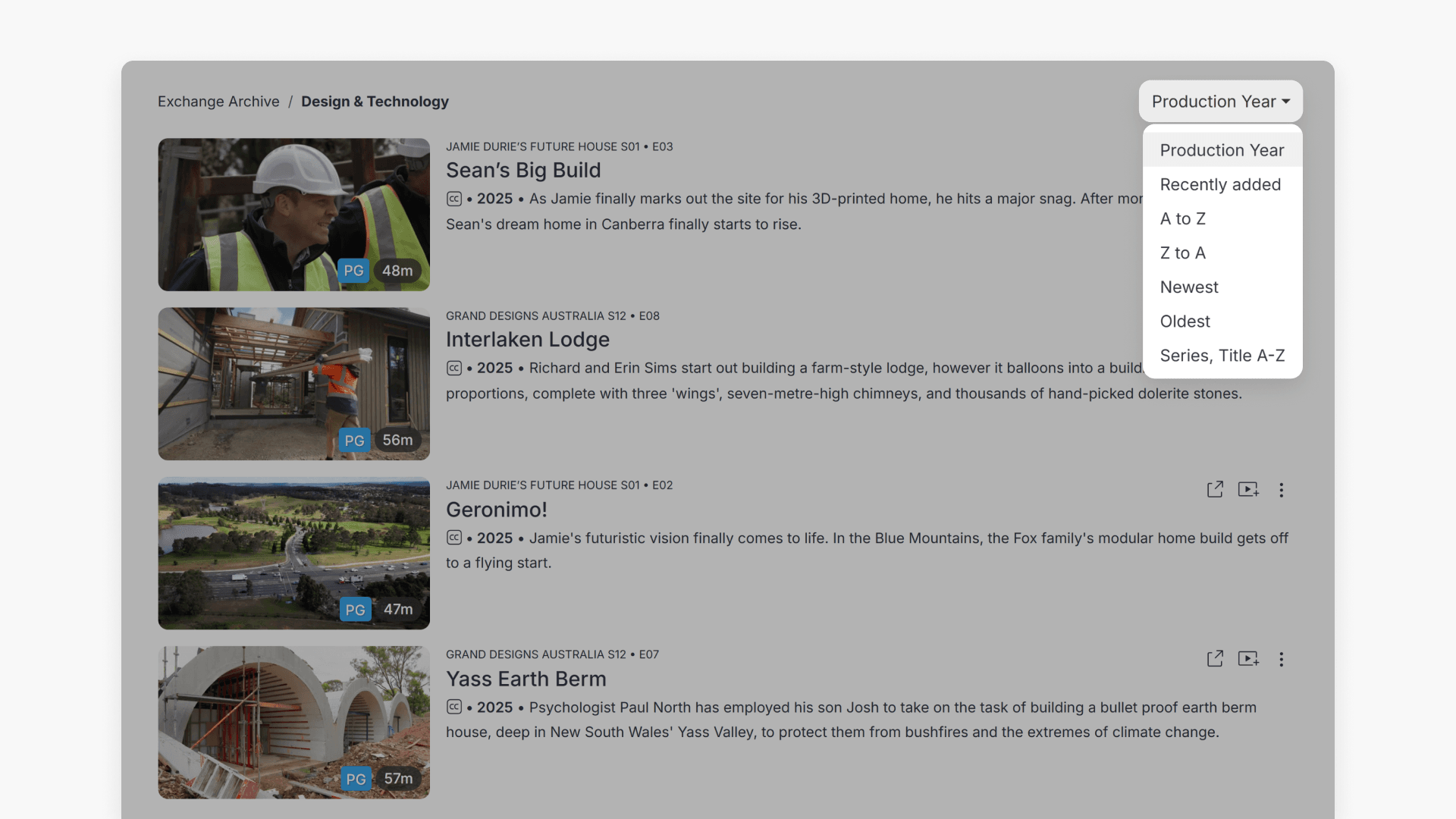
Change the order of videos
Within a category, use the order filter button to choose an order such as:
- Recently added
- A to Z
- Z to A
- Newest
- Oldest
- Series, Title A-Z
View the most recent videos
Select Most Recent to find the latest content added to Exchange Archive. Use the scroll bar on the right side of the screen to look through the available videos.
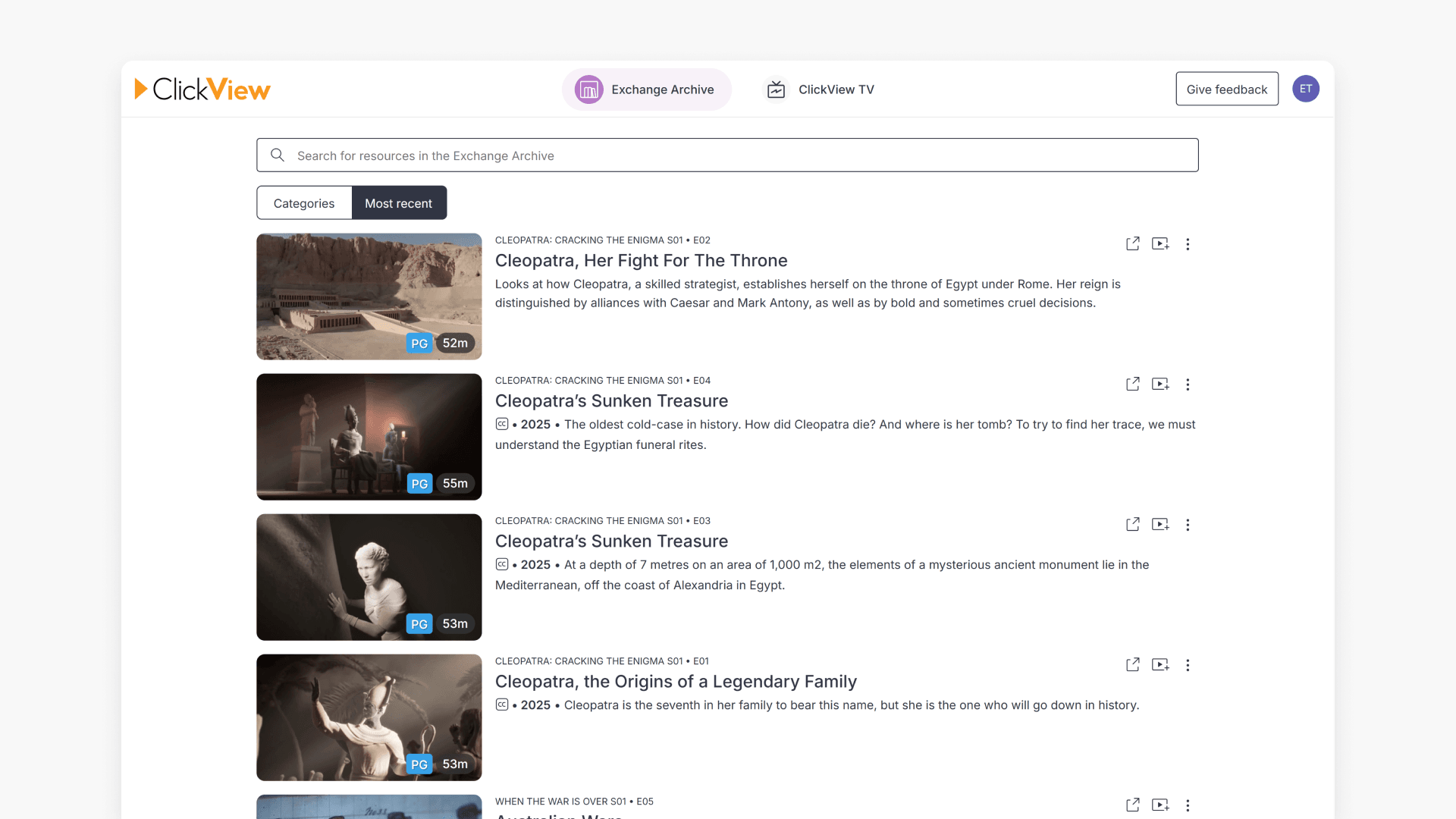
How to search for videos in Exchange Archive
Search using keywords
If browsing by category is not effective, use the search bar at the top of the screen. Enter keywords to display matching videos in Exchange Archive.
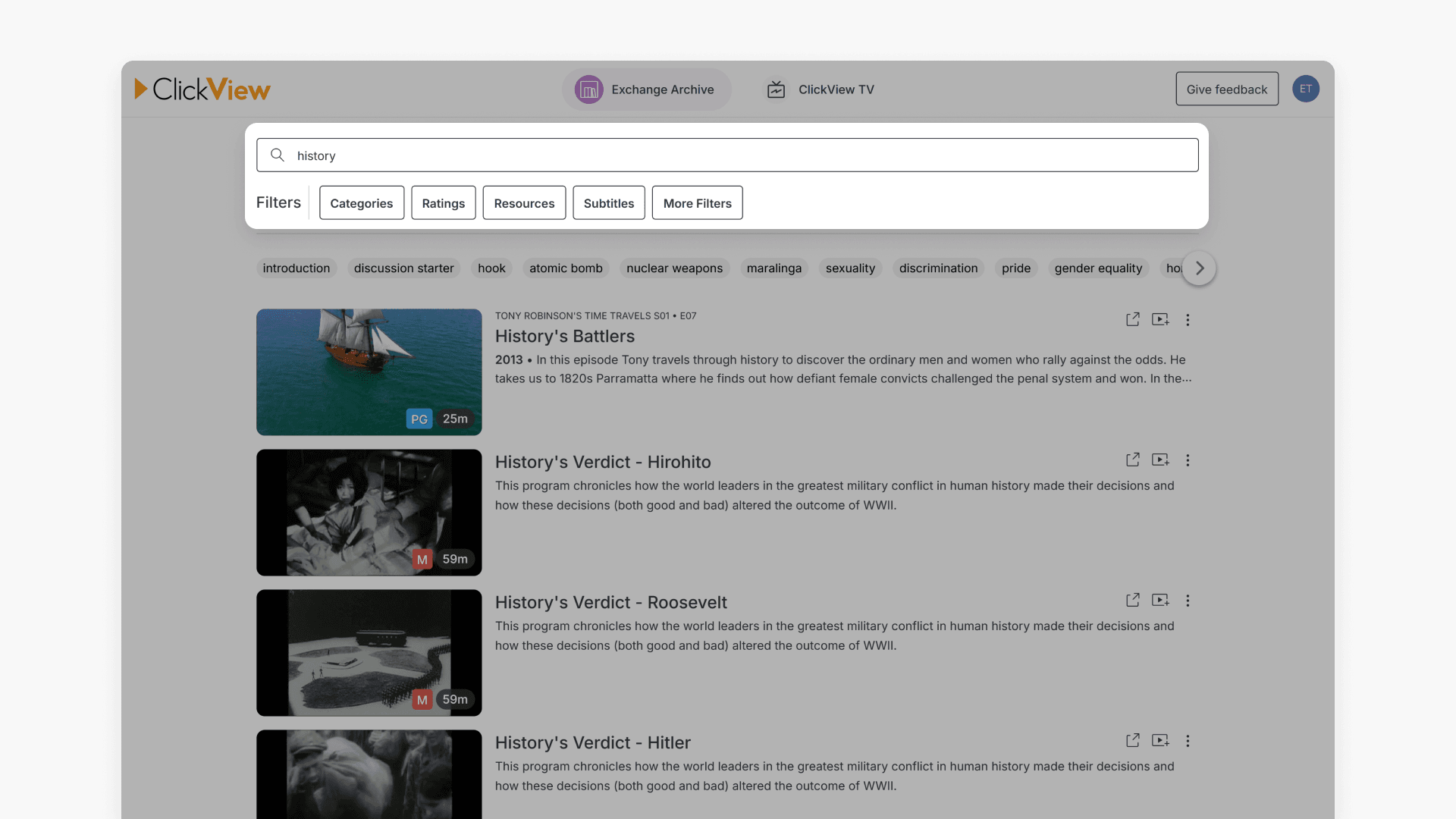
Refine results with filters
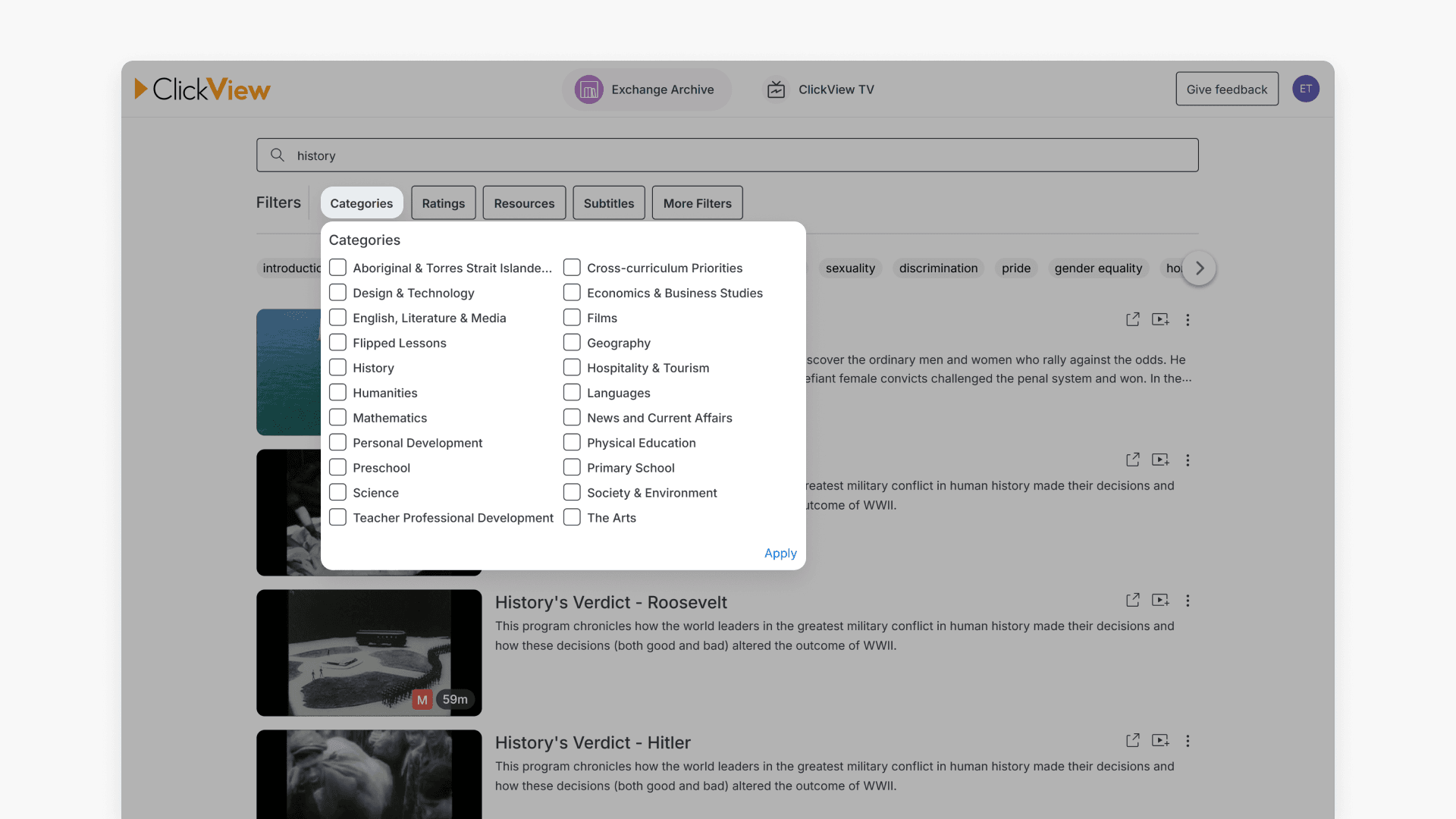
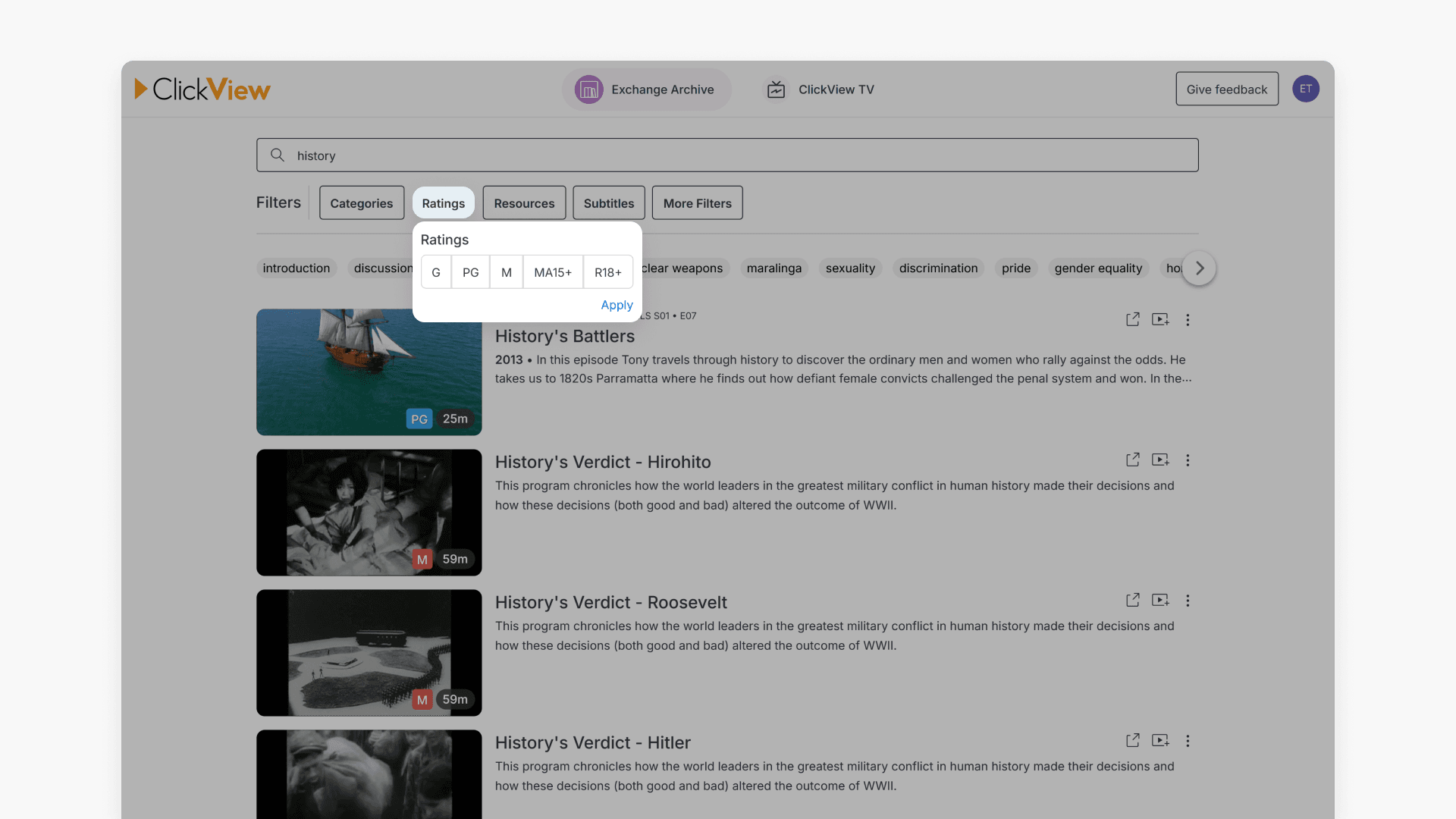
After searching, narrow results by applying one or more filters beneath the search bar, including:
- Category: Use predefined categories to limit the results relevant to your needs.
- Rating: Filter for videos using age ratings suitable for your audience.
- Resources: Show only videos that include learning resources, such as lesson plans or guides.
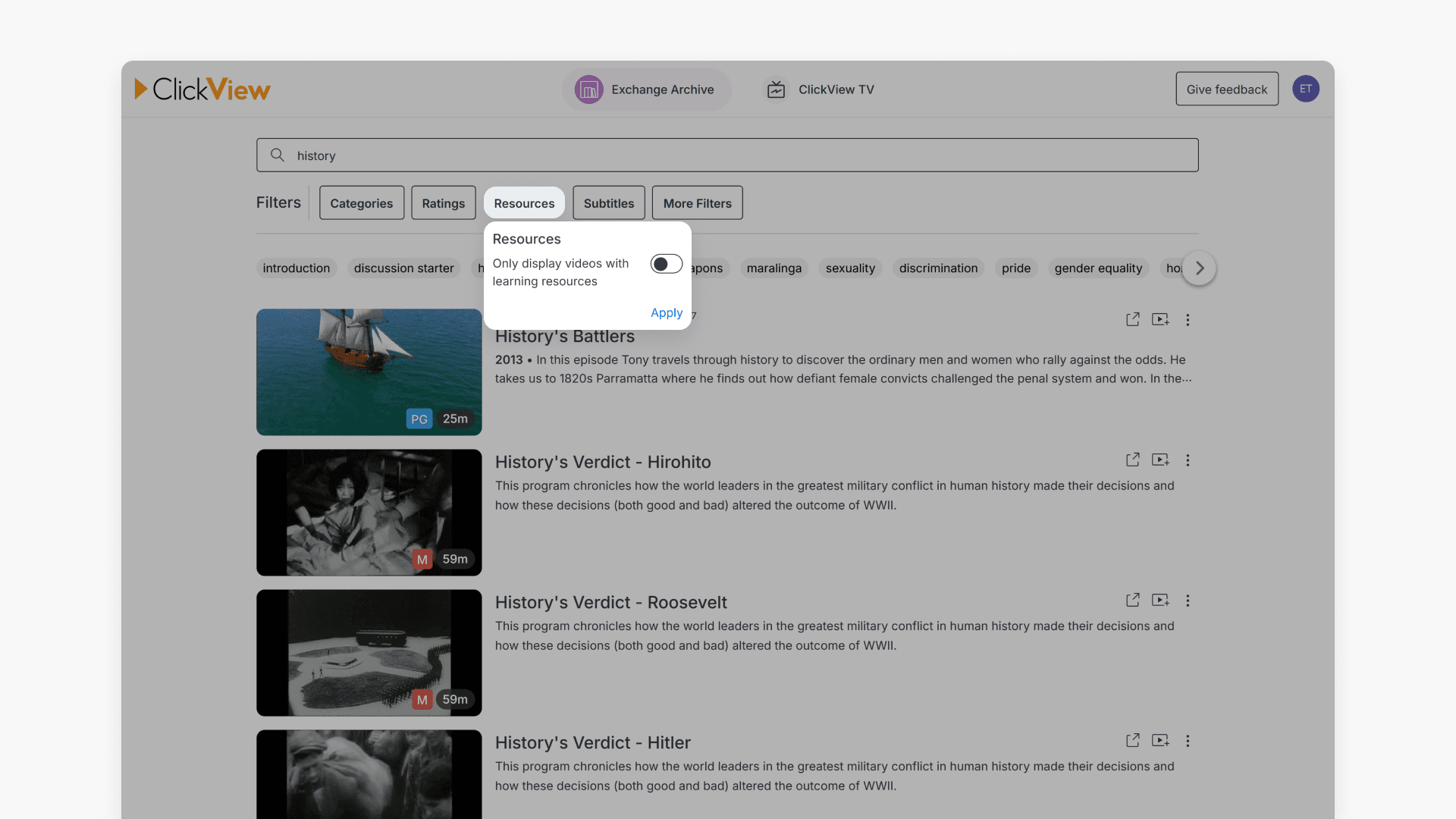
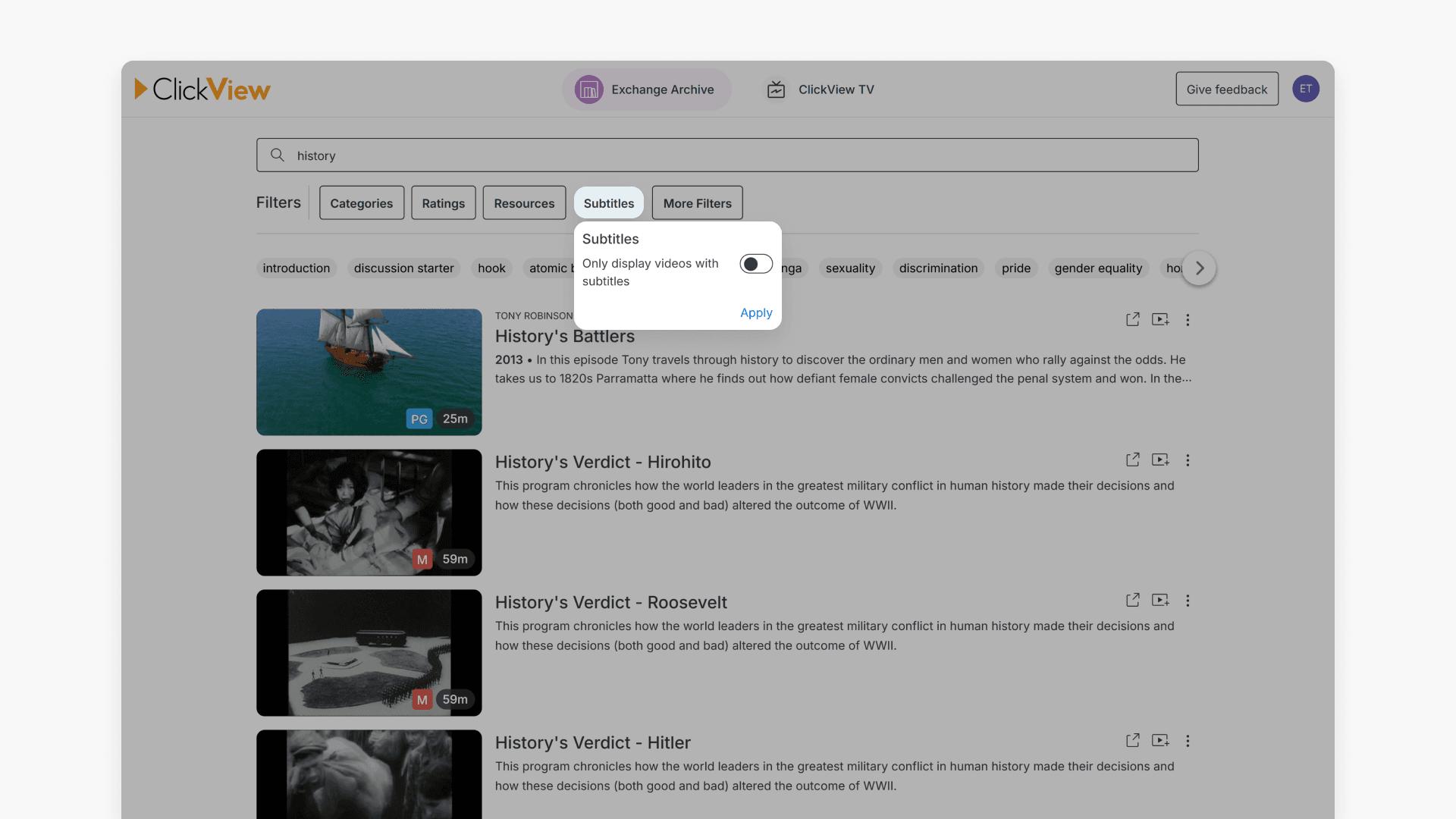
- Subtitles: Find videos that provide subtitles for accessibility.
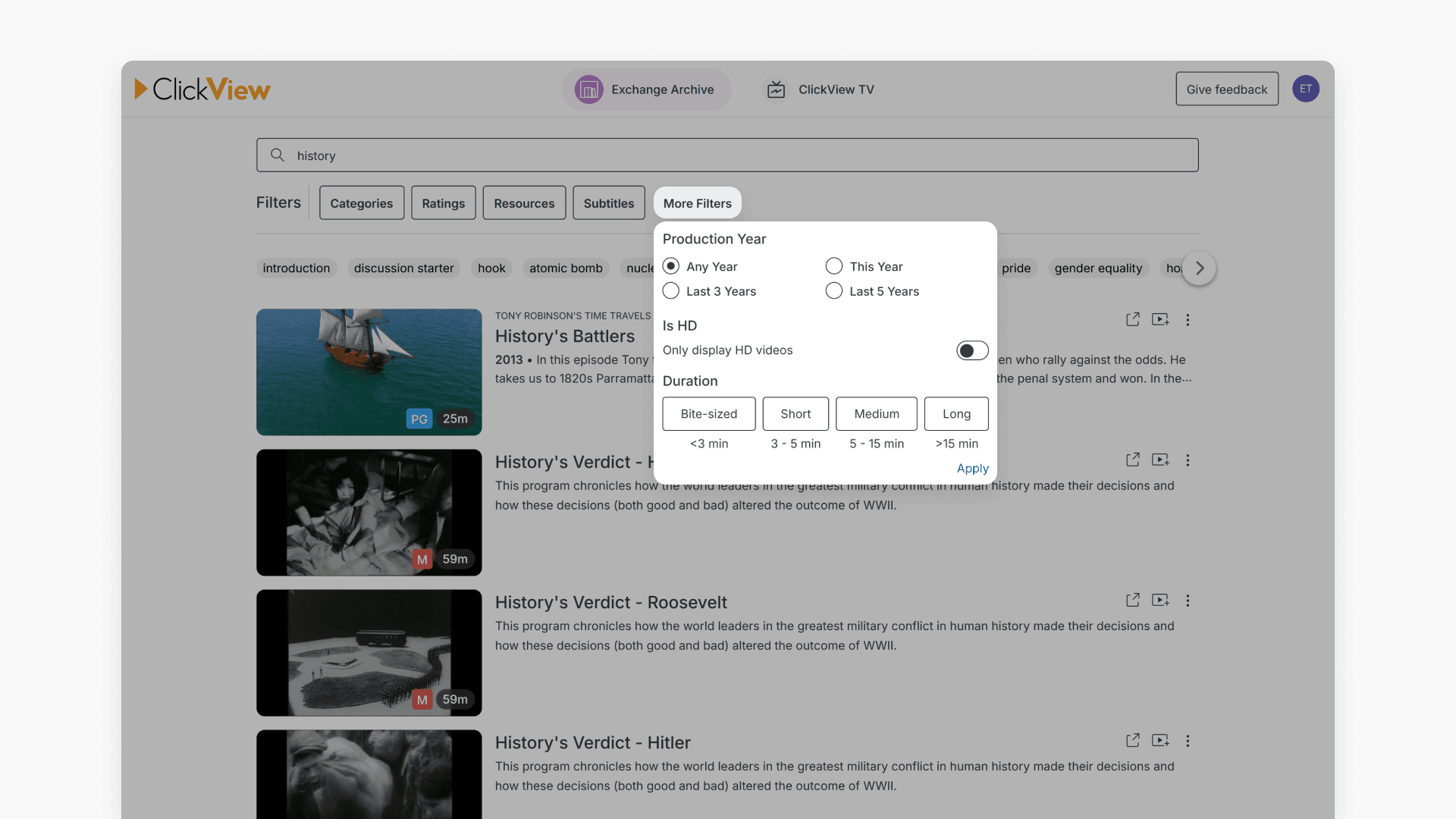
- Further refine results using filters for production year, HD content, and duration.
How to manage Exchange Archive videos
Add a video to My Videos
You can add a video to My Videos in one of two ways:
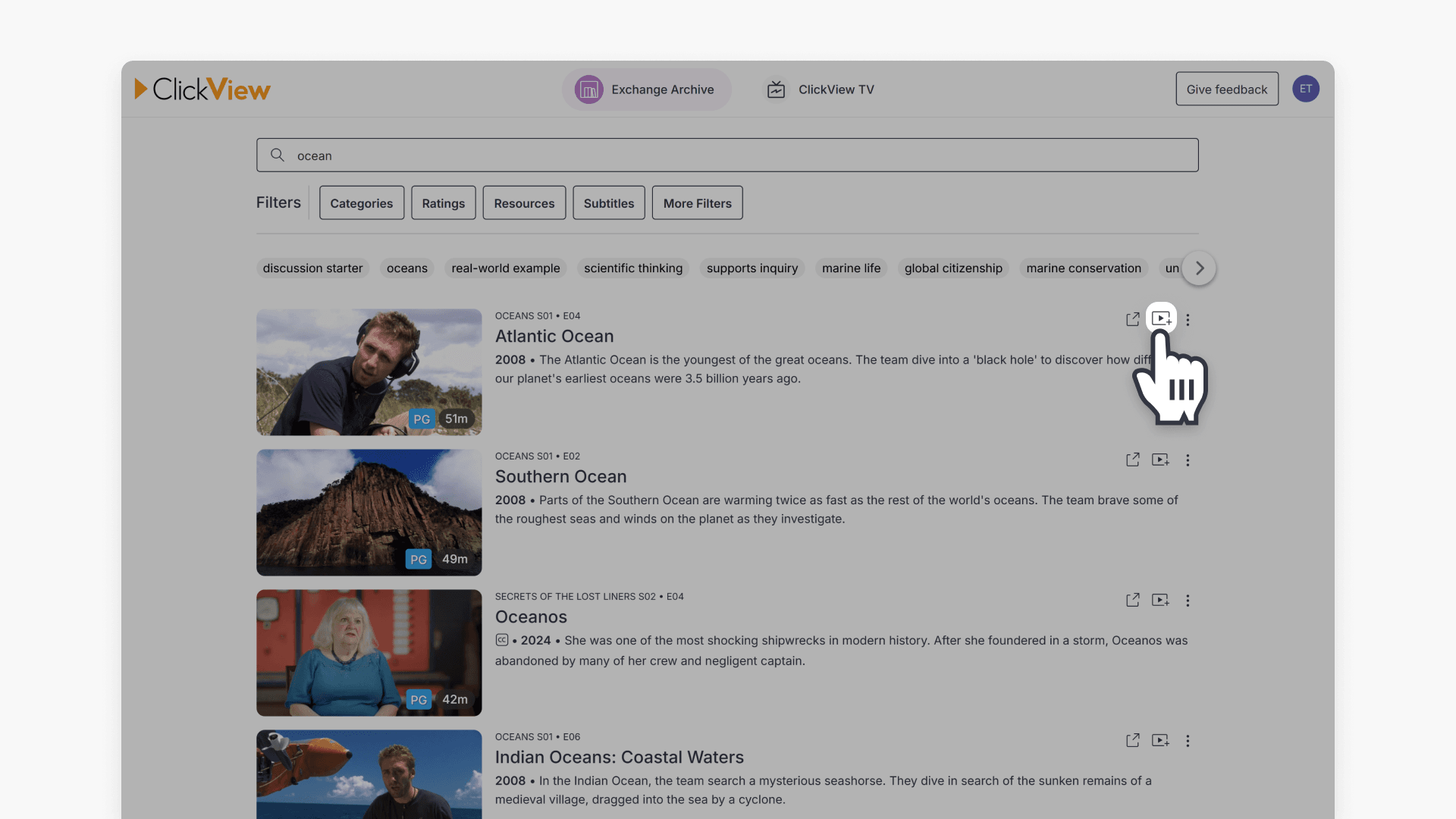
- From a list of content, click the Add video icon.
- From the video page, click the Add to My Videos button.
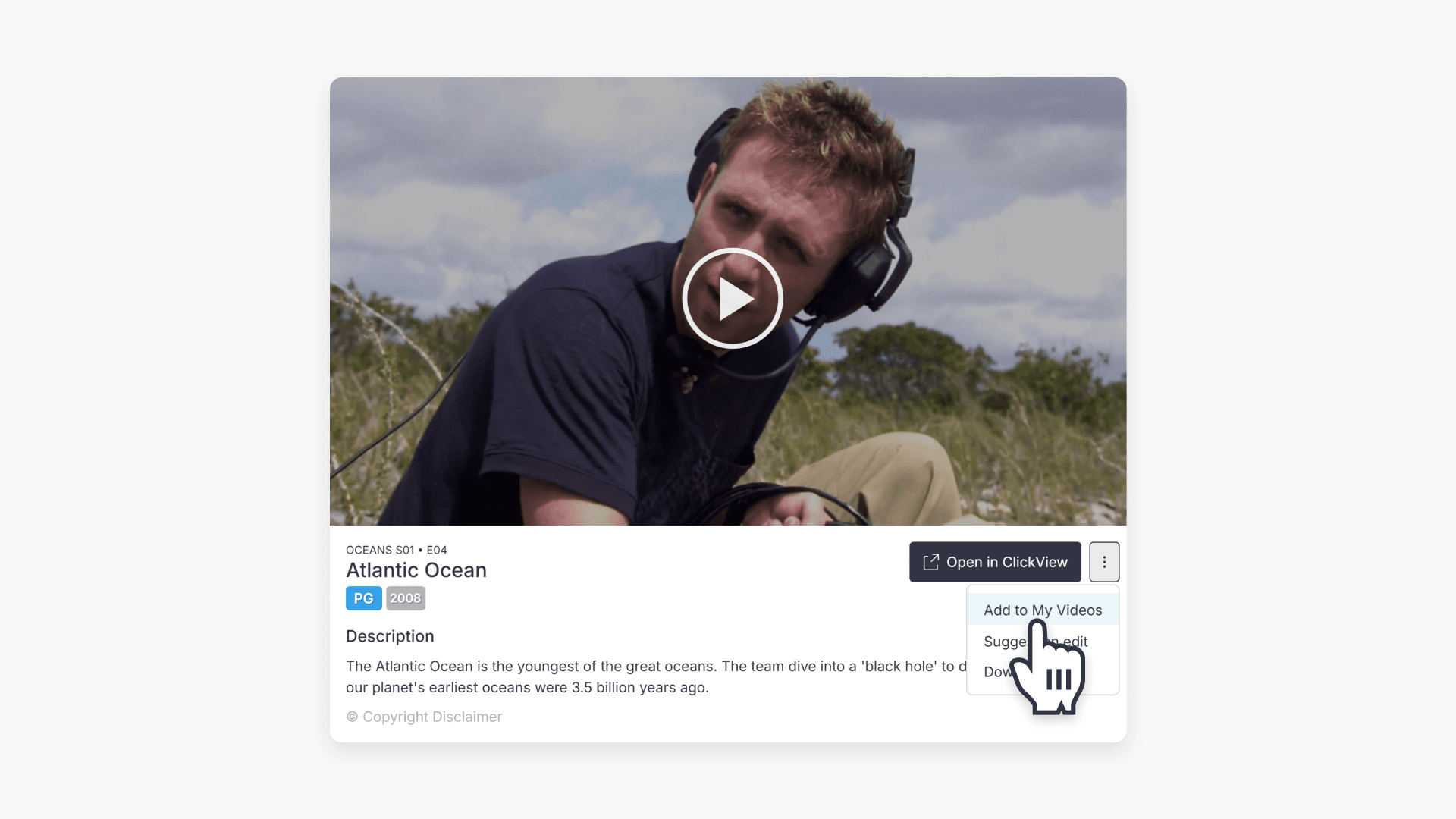
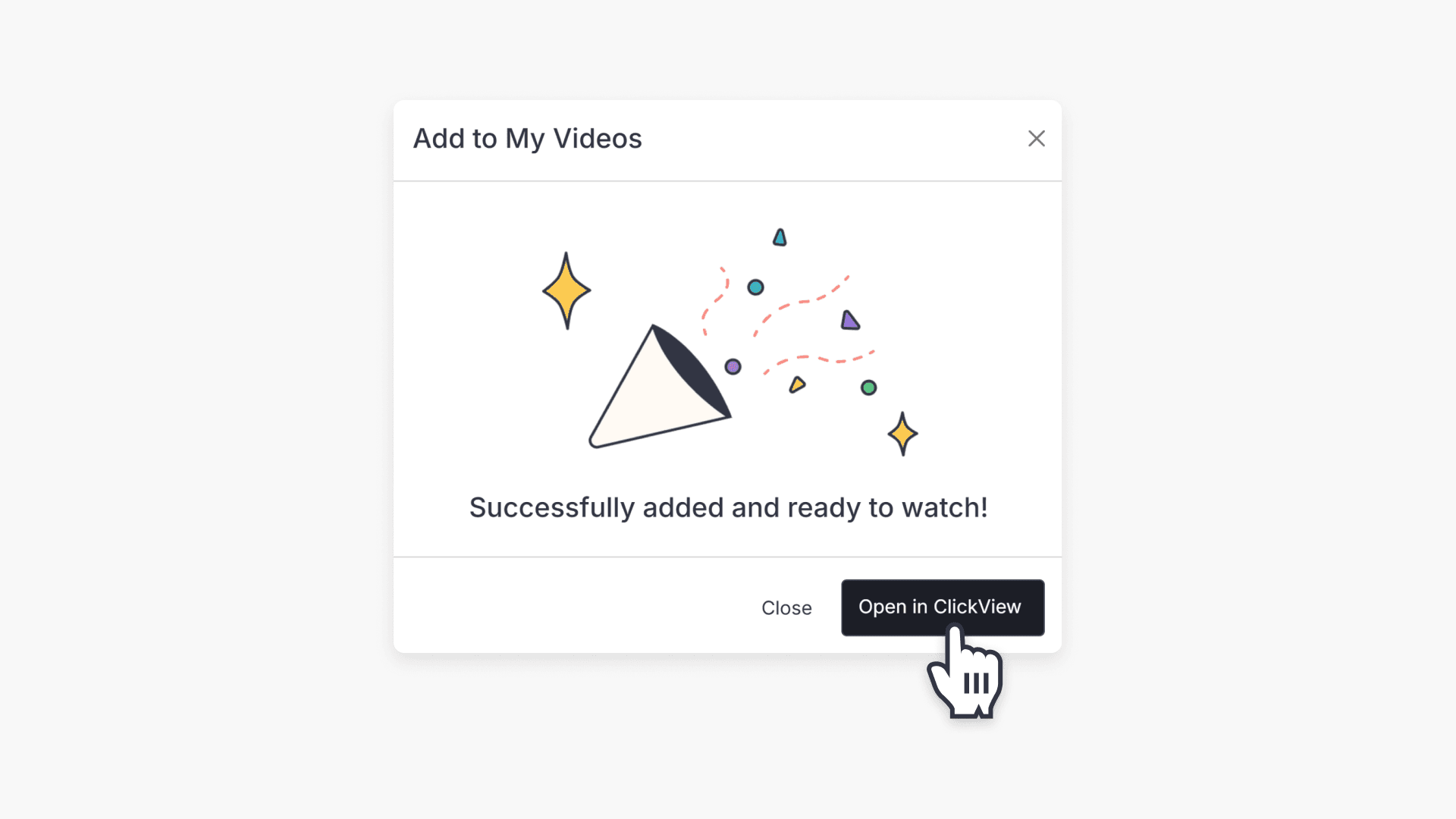
After selecting Add, you will receive a pop-up notification. The video will appear in My Videos after processing. Select the Open in ClickView button to view the video in My Videos.
Download a video
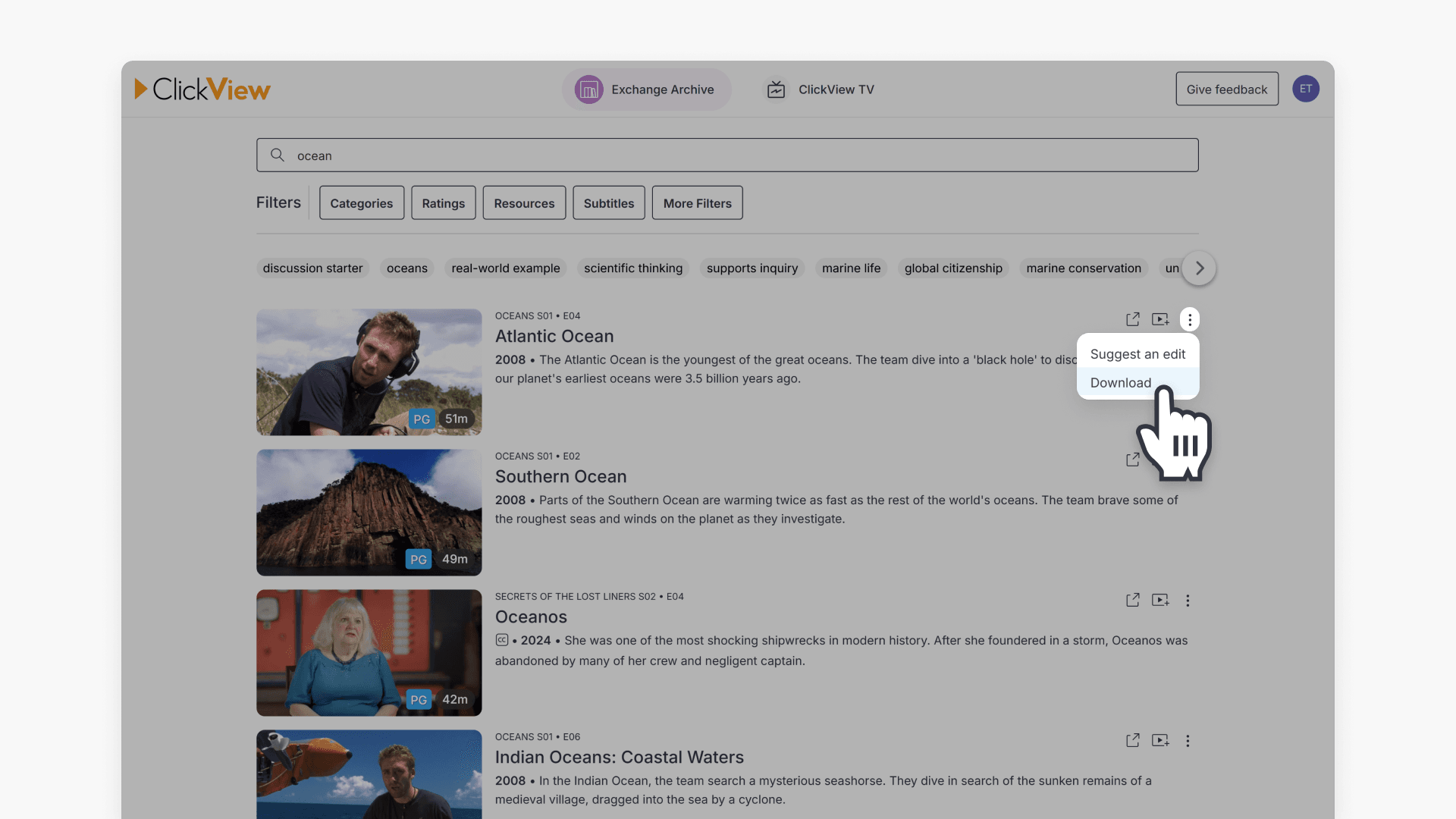
To download a video from Exchange Archive, click the three dots beside the video and select Download from the pop-up menu.
Suggest an edit to a video
If you find a video that requires improvement or correction, use the suggesting an edit option to notify the ClickView team. The request will be processed by the team for review and updates as needed.
Frequently asked questions
Get in touch
If you’re having trouble finding the right topics or videos, just reach out! Our team - 


 Andrew, Nisch, Janice, Pfreya, or any of us at ClickView - will be happy to help you get sorted.
Give feedback
Was this guide helpful?
Up Next
Understanding Featured Channels
Summary What are Featured Channels in ClickView? Featured Channels bring together every video from one producer in a single place, so you can explore all their videos and resources rather than finding them across topics, series, and search results. Each channel includes a banner introducing the producer, videos organised by recent, popular, and series, and […]