Contribute a video to the Exchange Archive

Summary
- Check your video is educational, high quality, and copyright compliant
- In My Videos, open the video menu (three dots icon) and select Contribute to Exchange Archive
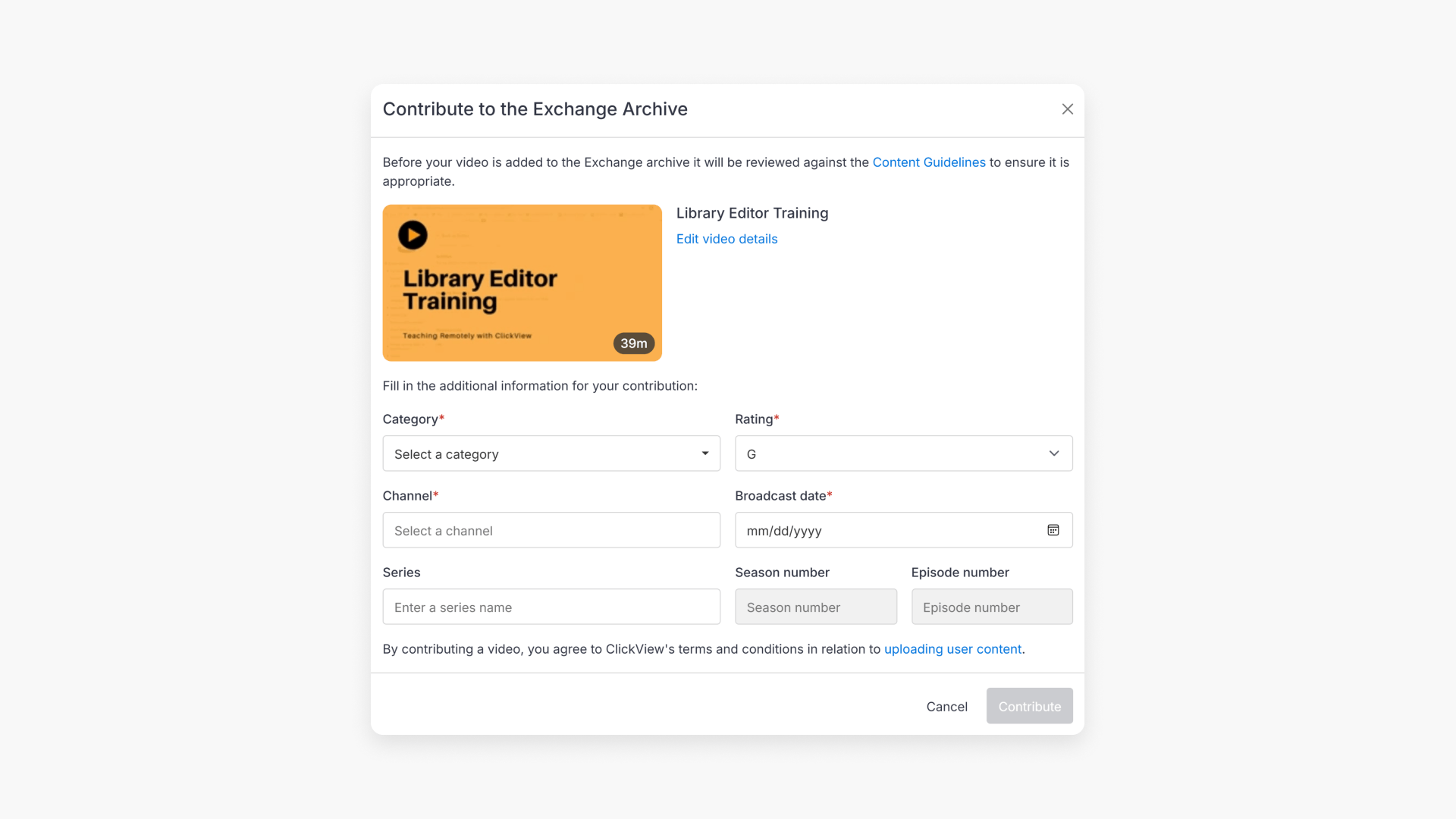
- Complete the required metadata, including Category, Channel, and rating and broadcast details
- Select Other in Channel when sharing your own original content
- Select Contribute, then wait for the content team review and notification
Before you start
Exchange Archive is designed for classroom-ready content created or selected by educators. Before contributing, check the following:
Educational value
Contribute content that supports learning outcomes or classroom engagement.
Quality check
Ensure audio, video, and metadata are clear, accurate, and complete.
Copyright compliance
You may only upload content that comes from:
- ClickView TV
- Original content you created
- Content from another owner, but only with express consent
Contributing a video to the Exchange Archive
Sharing educational resources enhances learning across schools. If you have a video that could benefit other educators, you can contribute it to the Exchange Archive in ClickView.
Steps to contribute your video
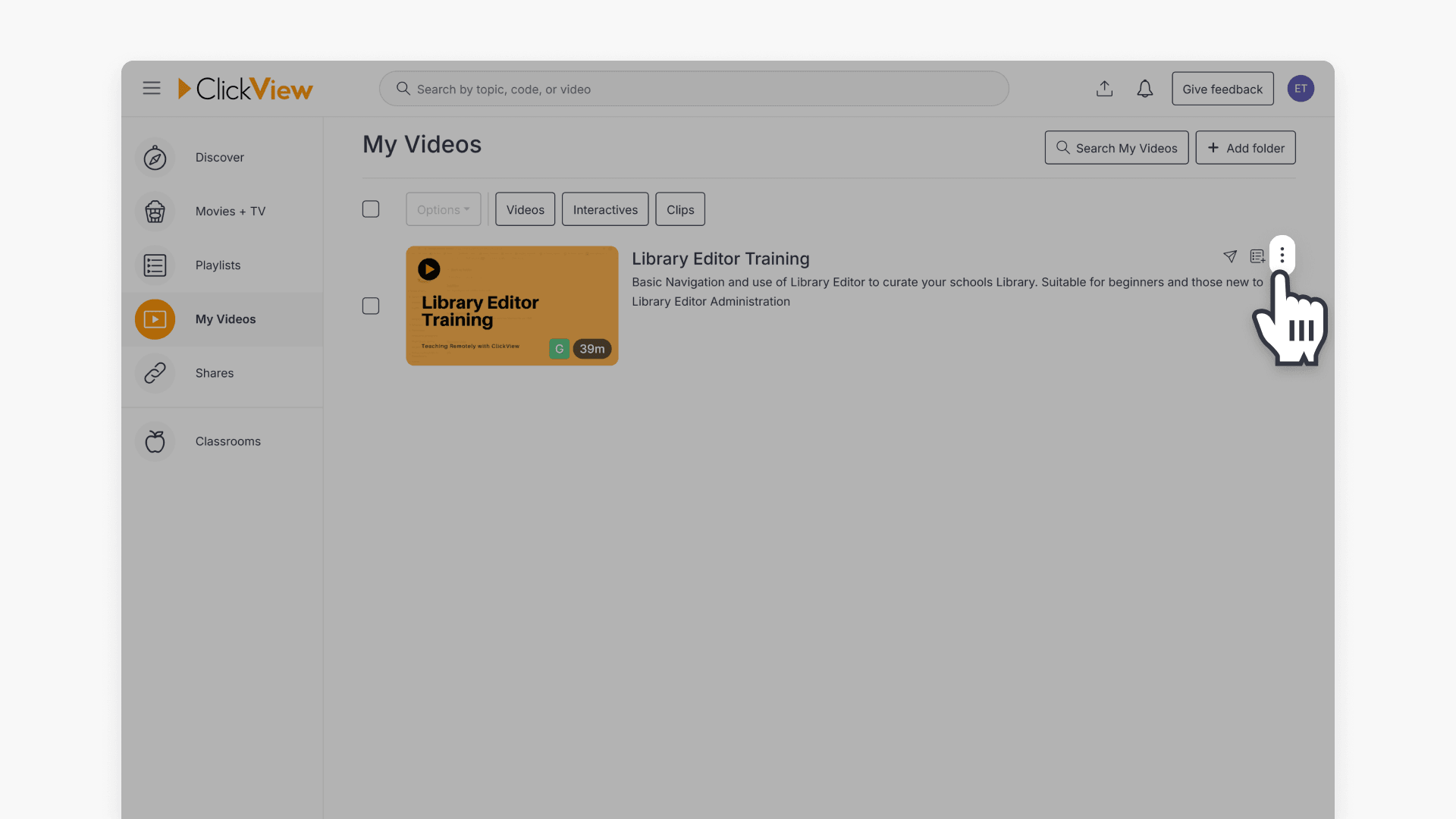
- Go to My Videos.
- Select the video you want to contribute, then click the three dots icon.
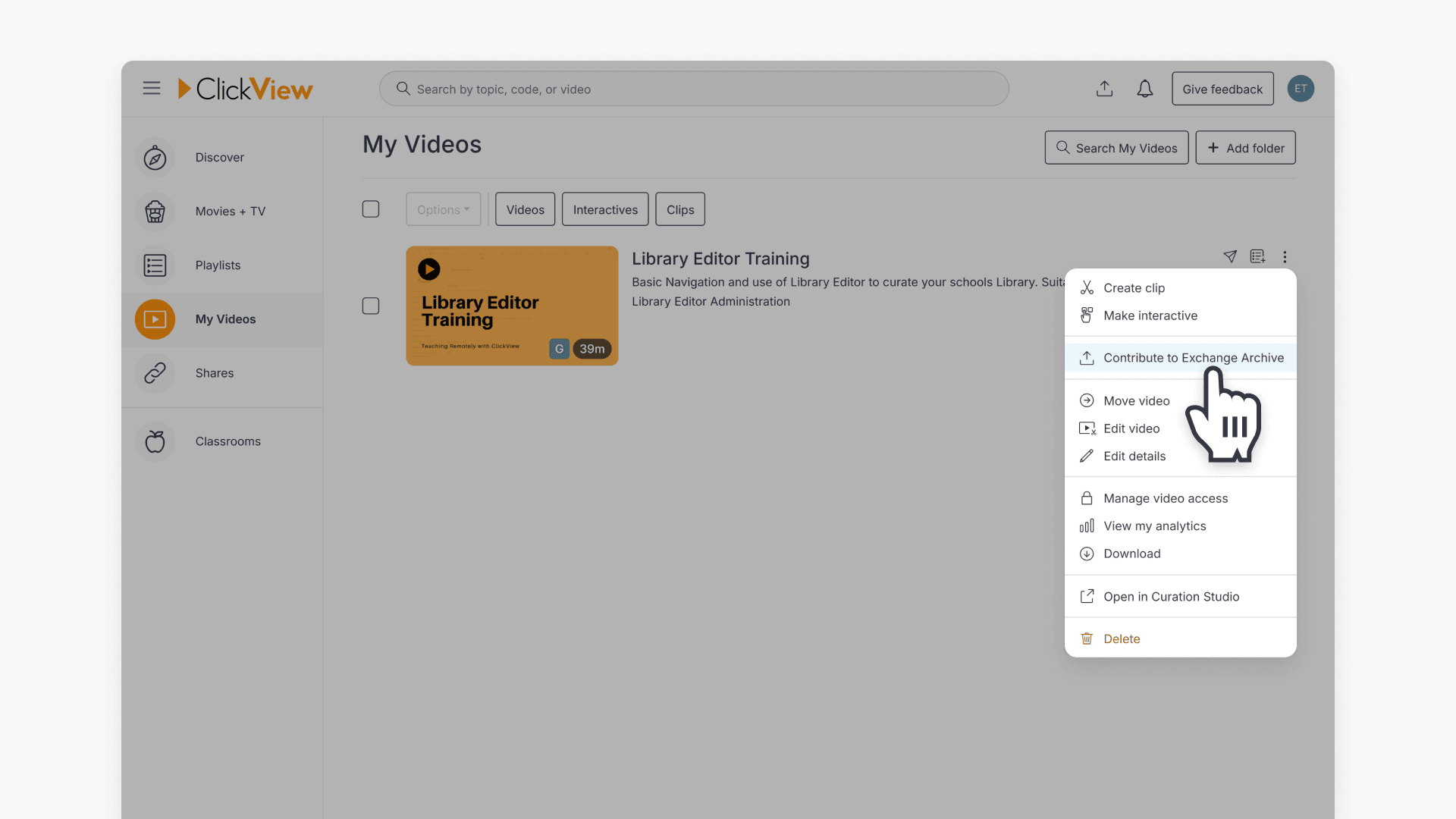
- Select Contribute to Exchange Archive.
- On the contribute screen, enter the video metadata, including:
- A rating
- Broadcast or creation date
- The channel the video was broadcast on
- Season and episode numbers (if relevant)
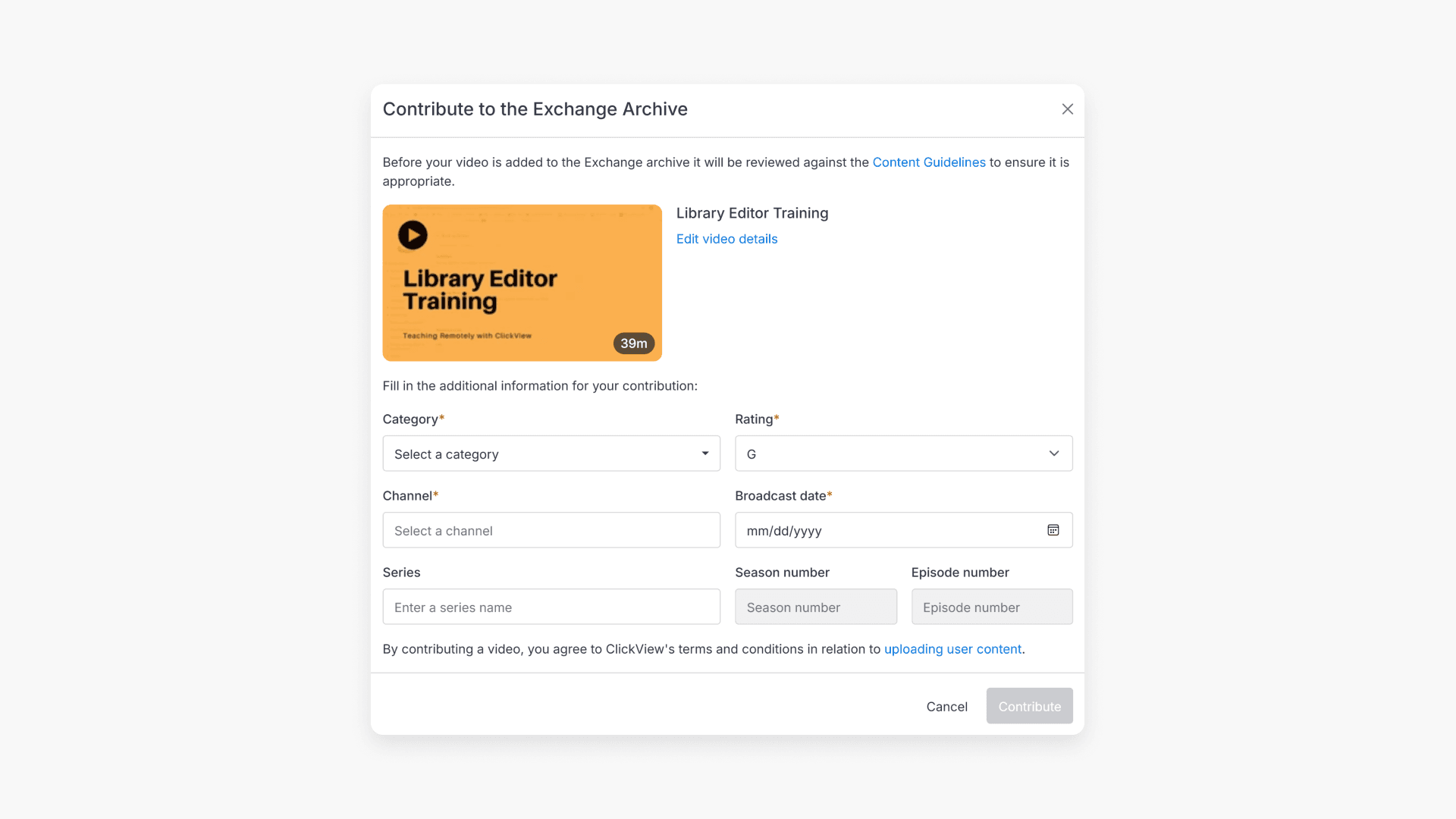
- Select the appropriate Category. This determines where your video appears in the Exchange Archive.
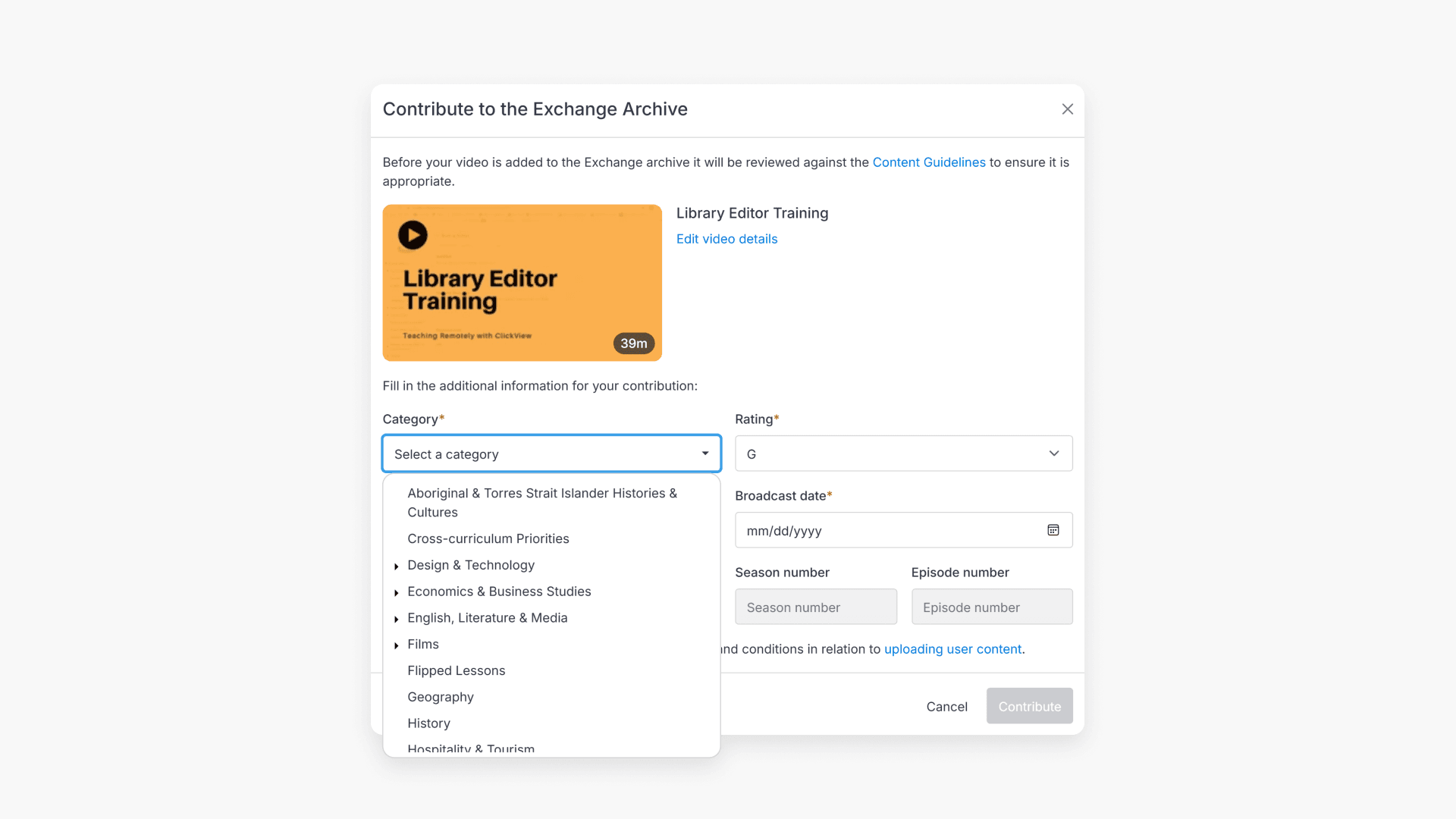
- If you are sharing your own content, set Channel to Other.
- When you have completed all required fields, select Contribute.
Note: You cannot contribute videos already in the Exchange, or videos linked to a ClickView Video. If you find something that needs changing, you can suggest an edit instead.
What happens after you contribute
After you submit a video using Contribute to Exchange Archive, the content team will review it. You will be notified if and when your video is made available to other educators.
Reviewing and flagging content
If you notice content in Exchange that lacks educational value, is poor quality, or has questionable copyright, you should flag it. The ClickView team reviews flagged items for compliance.
Need help
If you are unsure whether your content is appropriate to share, or you want advice before contributing, contact Product Support.
Frequently asked questions
Get in touch
If you’re having trouble finding the right topics or videos, just reach out! Our team - 


 Andrew, Nisch, Janice, Pfreya, or any of us at ClickView - will be happy to help you get sorted.
Give feedback
Was this guide helpful?
Up Next
Understanding Featured Channels
Summary What are Featured Channels in ClickView? Featured Channels bring together every video from one producer in a single place, so you can explore all their videos and resources rather than finding them across topics, series, and search results. Each channel includes a banner introducing the producer, videos organised by recent, popular, and series, and […]