How to upload your own videos
In this article
Last updated by
2 min readClickView30th January, 2026
Summary
- Click the upload video icon at the top right of the screen
- Drag and drop video files on to any ClickView page
- Uploaded videos are saved in My Videos
- Edit video details in My Videos using the pencil icon
- Supported formats: AVI, MP4, MPEG, MOV, MKV, WEBM, WMV
- Each video file must not exceed 50 GB
star icon
Quick tip
What should I do before uploading a large video file?
Before uploading, check that your video is in a supported format and under the 50 GB limit, and consider using a stable internet connection. For very large files, uploading during off-peak hours can help reduce interruptions and ensure the video processes smoothly in My Videos.
How to upload a video
There are two methods for uploading your own videos to ClickView: using the upload video icon or drag and drop your file(s) on to ClickView.
Uploading with the upload video icon
- Click the upload video icon at the top right of the screen.
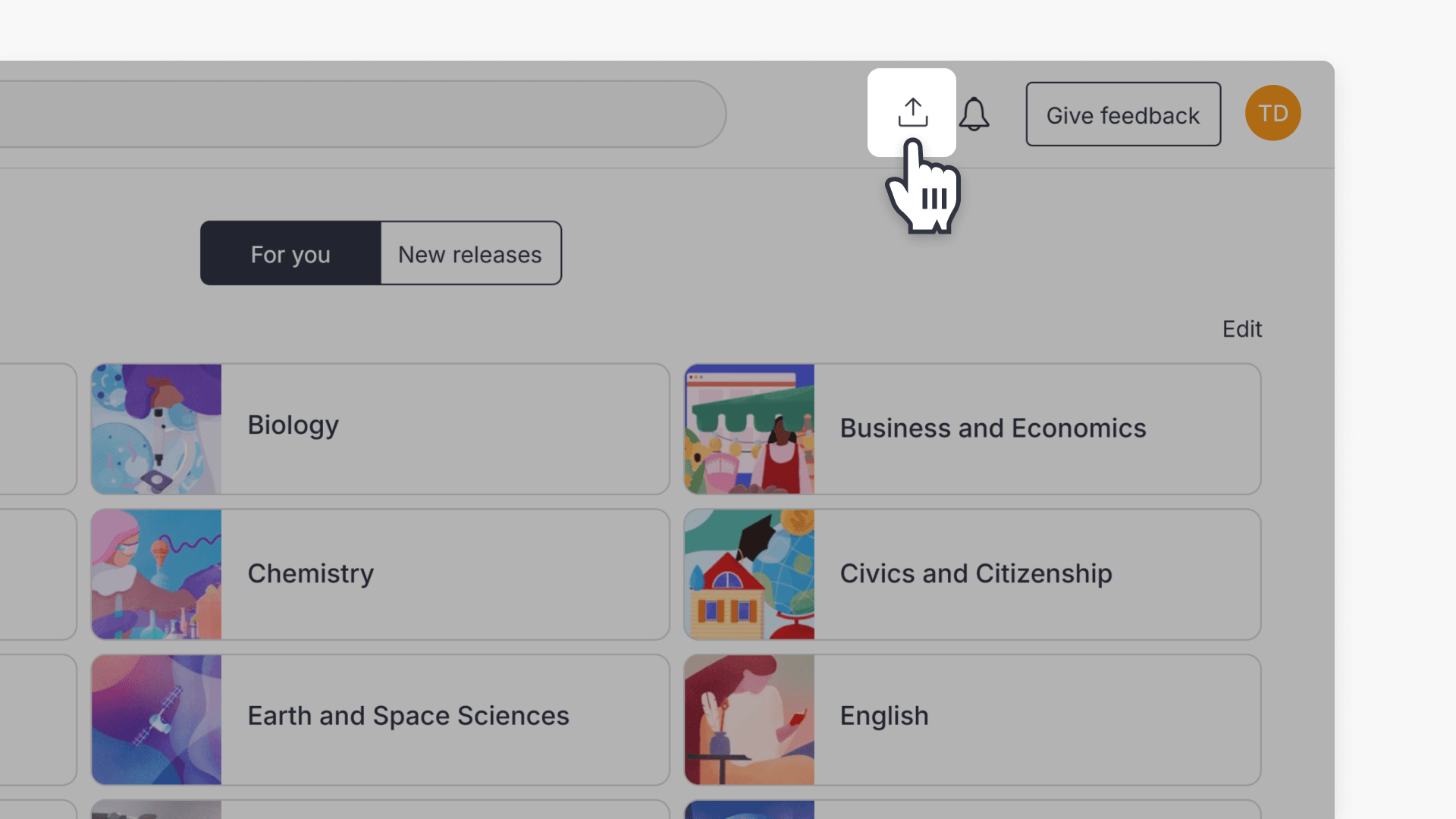
- Find the video stored on your computer and select Open.

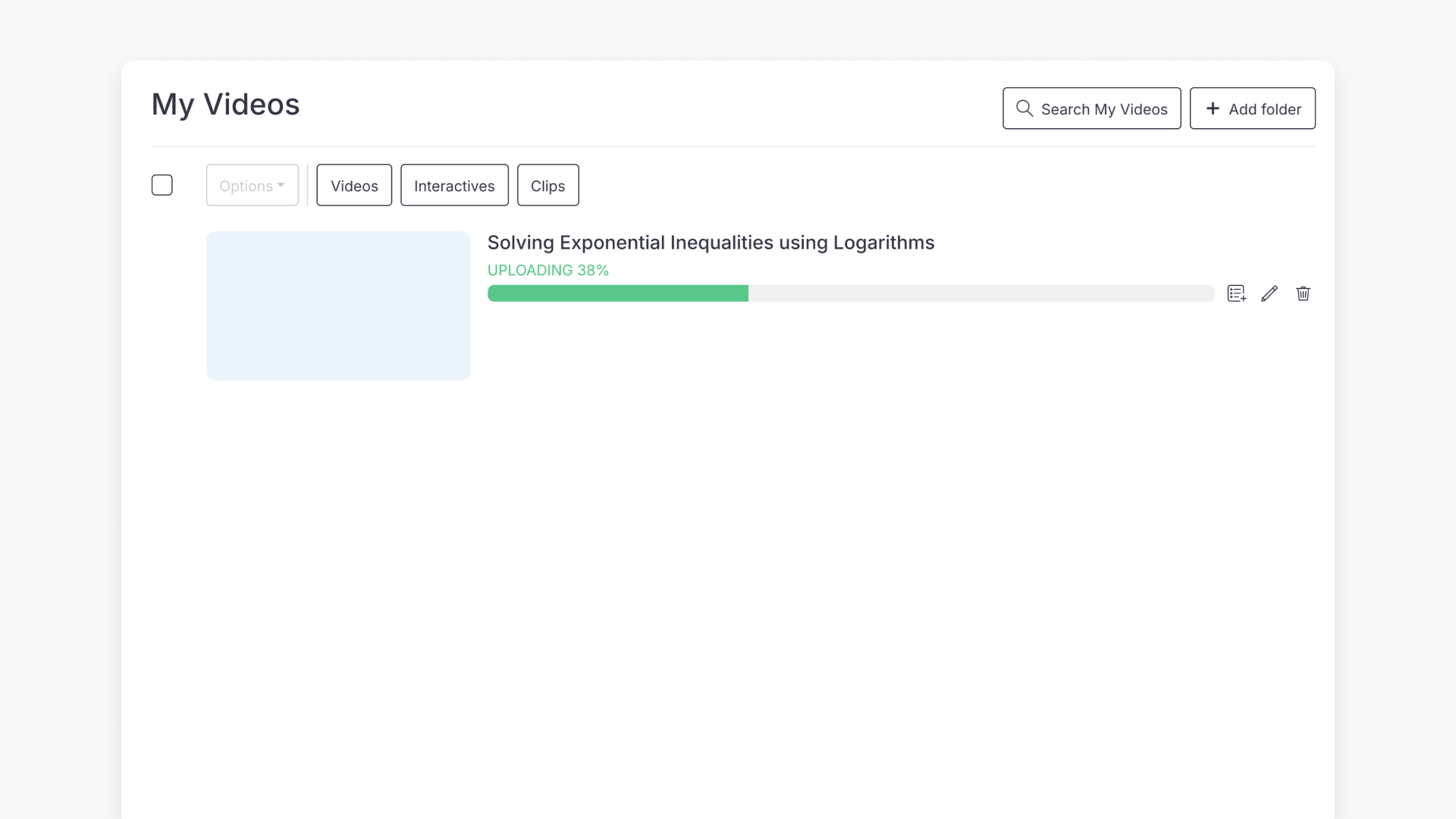
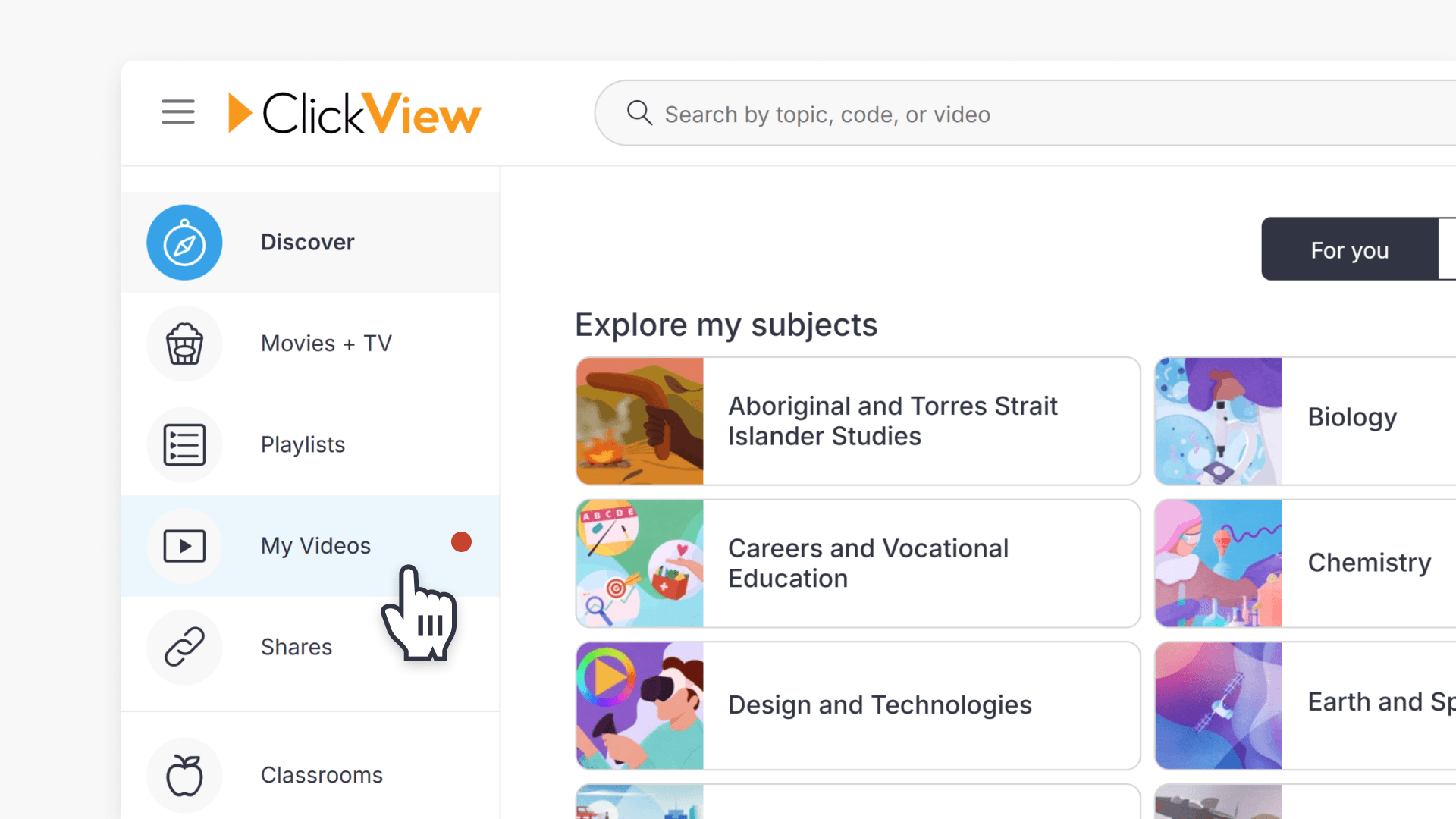
- Check upload progress or make changes by clicking the My Videos heading on the left menu.
- To edit metadata, click the pencil icon.

- Enter new details and click Save changes at the top right.

- If you want to cancel the upload, click the trash can icon.

- Confirm by selecting Yes.

- Once uploaded, play your video by clicking the thumbnail or title. Use the 3 dot icon to edit, make interactive, or create a clip.

Uploading by drag and drop
- Drag and drop your video file(s) from your device on to any ClickView page.
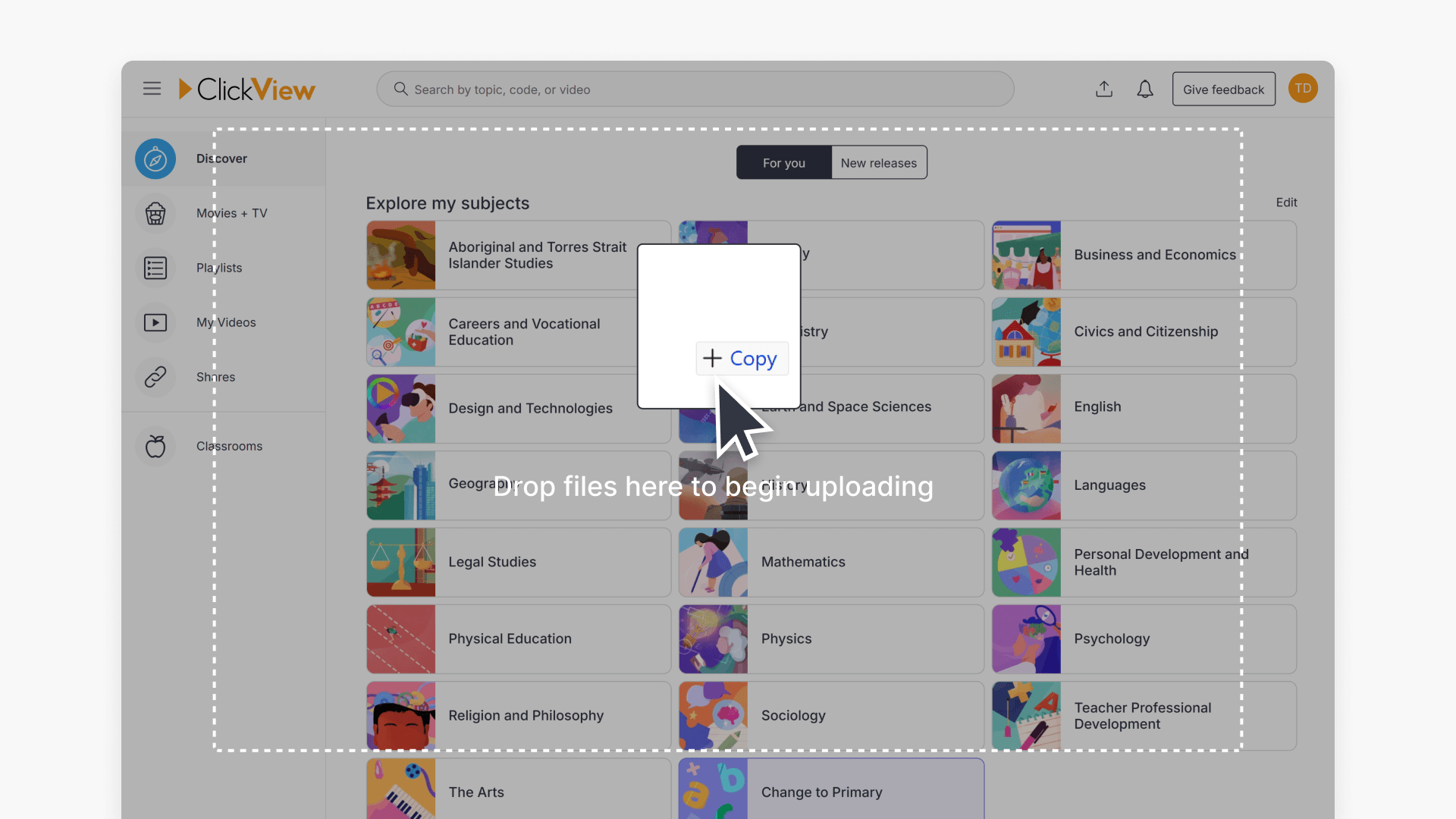
- You can upload more than one video at a time.
- Your uploaded videos will be saved in My Videos.
Supported video formats and file size
The following formats are supported: AVI, MP4, MPEG, MOV, MKV, WEBM, WMV. There is no limit to how many videos you can upload, but each video file must not exceed 50 GB.
Frequently asked questions
ClickView supports AVI, MP4, MPEG, MOV, MKV, WEBM, and WMV video formats.
There is no limit to the number of videos you can upload to ClickView.
Each video file must not exceed 50 GB in size.
Uploaded videos are saved in “My Videos.”
Get in touch
If you’re having trouble finding the right topics or videos, just reach out! Our team - 

 Akhil, Daniel, Jalaj, or any of us at ClickView - will be happy to help you get sorted.
Give feedback
Was this guide helpful?
Up Next
How to share video clips
This article explains how ClickView users can share video clips with educators and students using My Videos. Includes step-by-step instructions and screenshots.