How to download a video from My Videos
Last updated by
1 min readClickView30th January, 2026
Summary
- Sign in to ClickView and select the My Videos tab.
- Find your desired video in My Videos.
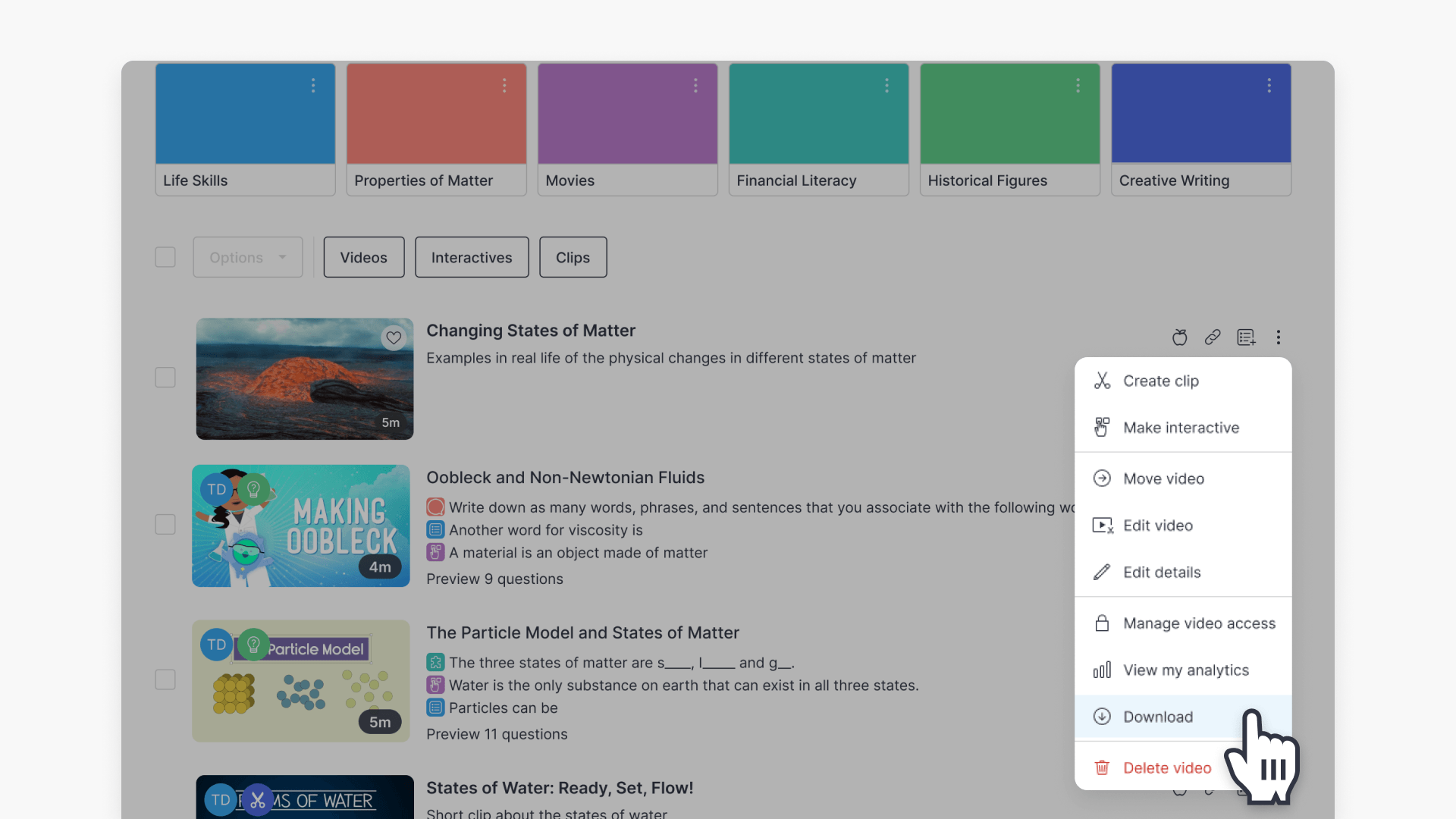
- Click the 3 dots button for more options.
- Select Download from the dropdown menu.
- Your video downloads as a MP4 in a zip file to your computer.
star icon
Quick tip
Why is my downloaded video saved as a zip file instead of playing immediately?
Downloaded videos are packaged in a zip file to ensure the MP4 downloads completely and without errors. After downloading, unzip the file on your computer to access and play the video normally in any supported media player.
Steps to download a video file
- Sign in to ClickView and click the My Videos tab located on the left side of the screen.
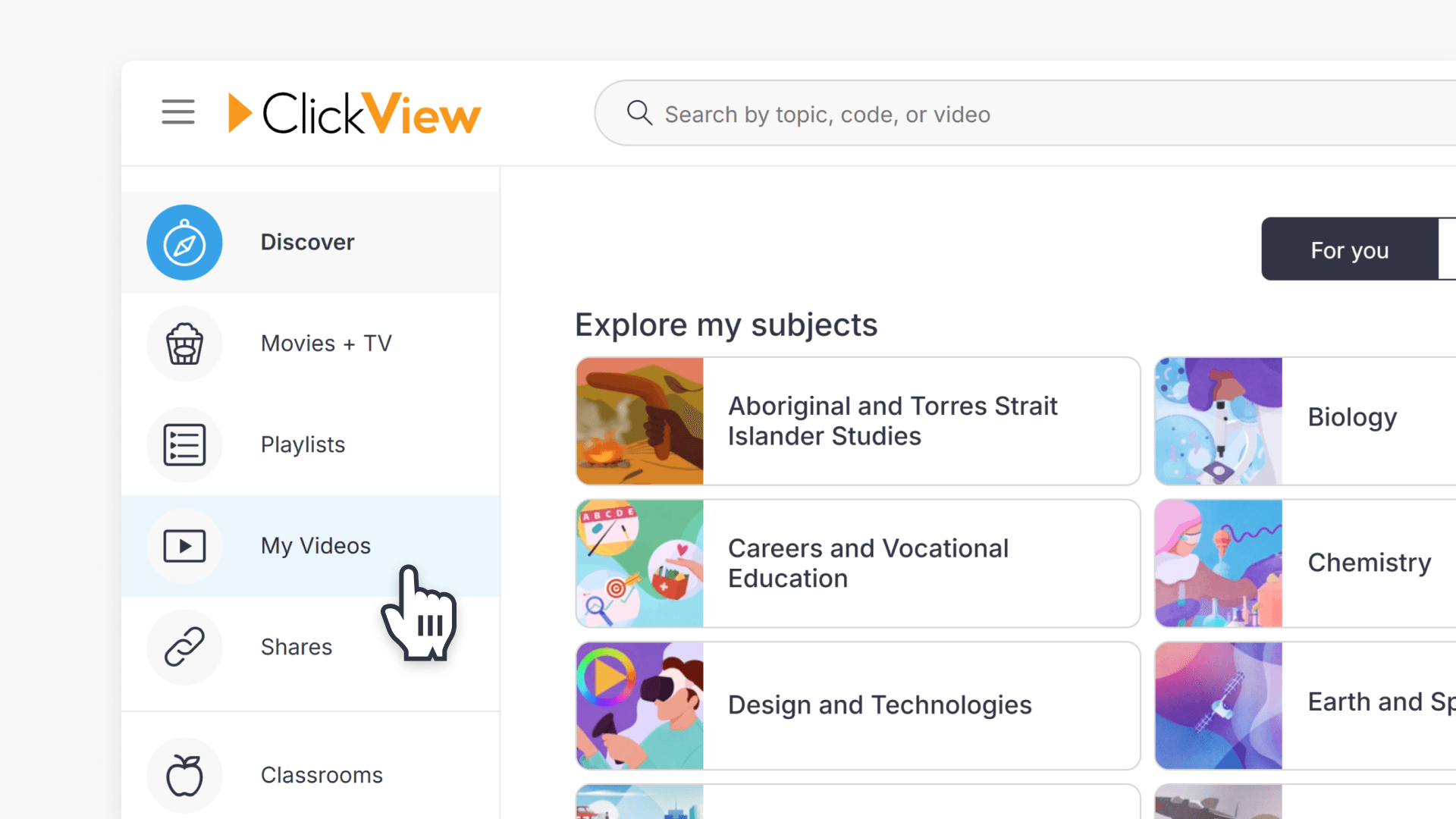
- Find the video you wish to download.

- Click the 3 dots button beside the video.

- Select Download from the dropdown menu.

- The video will be saved as a MP4 file within a zip file in your computer’s Downloads folder.
Frequently asked questions
The downloaded video is in MP4 format within a zip file.
Your video is saved in your computer’s Downloads folder as a zip file containing an MP4.
You can only download videos that are present in your My Videos section.
Get in touch
If you’re having trouble finding the right topics or videos, just reach out! Our team - 


 Andrew, Nisch, Janice, Pfreya, or any of us at ClickView - will be happy to help you get sorted.
Give feedback
Was this guide helpful?
Up Next
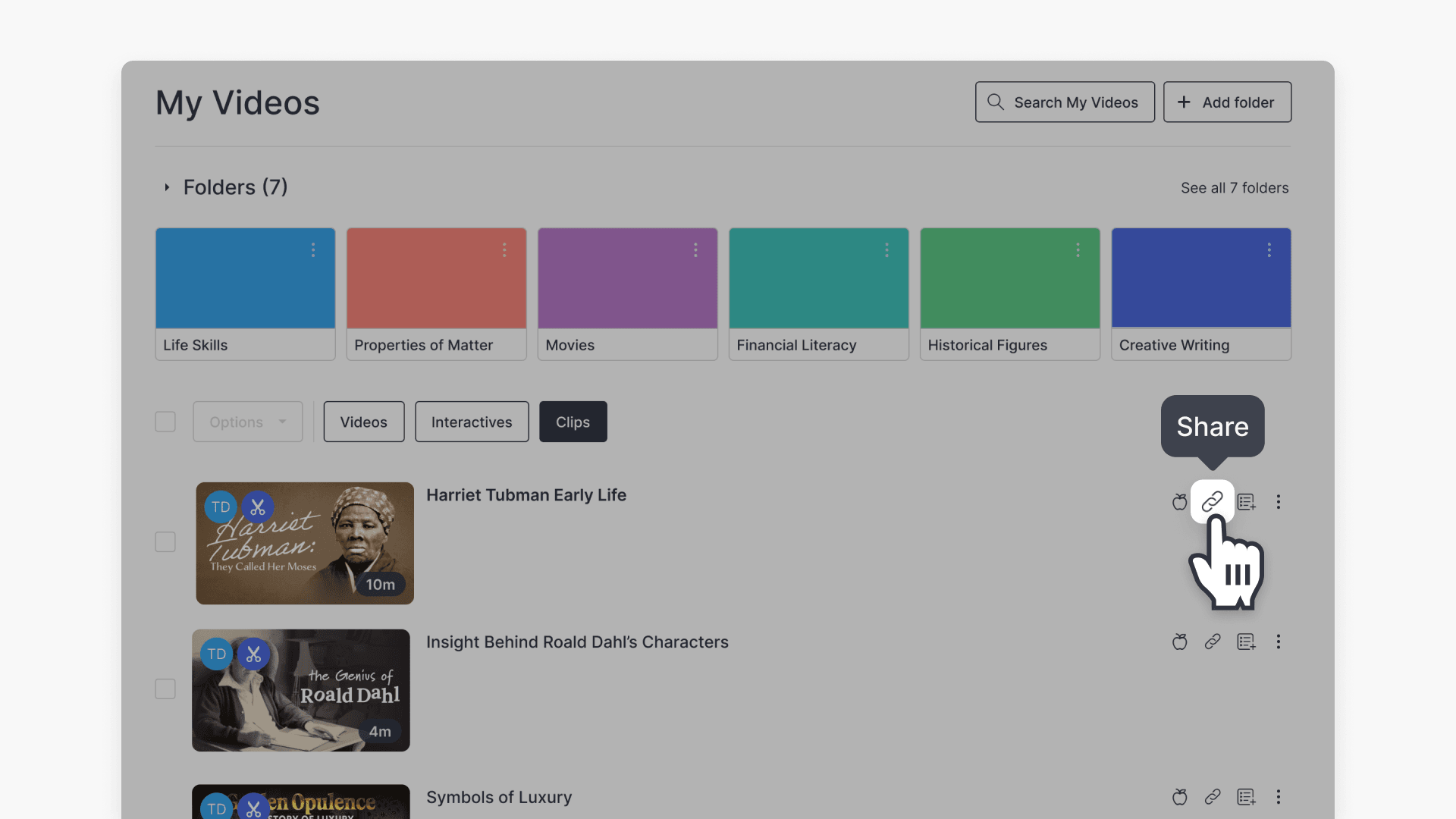
How to share video clips
This article explains how ClickView users can share video clips with educators and students using My Videos. Includes step-by-step instructions and screenshots.