Edit videos with Cloud Editor

Summary
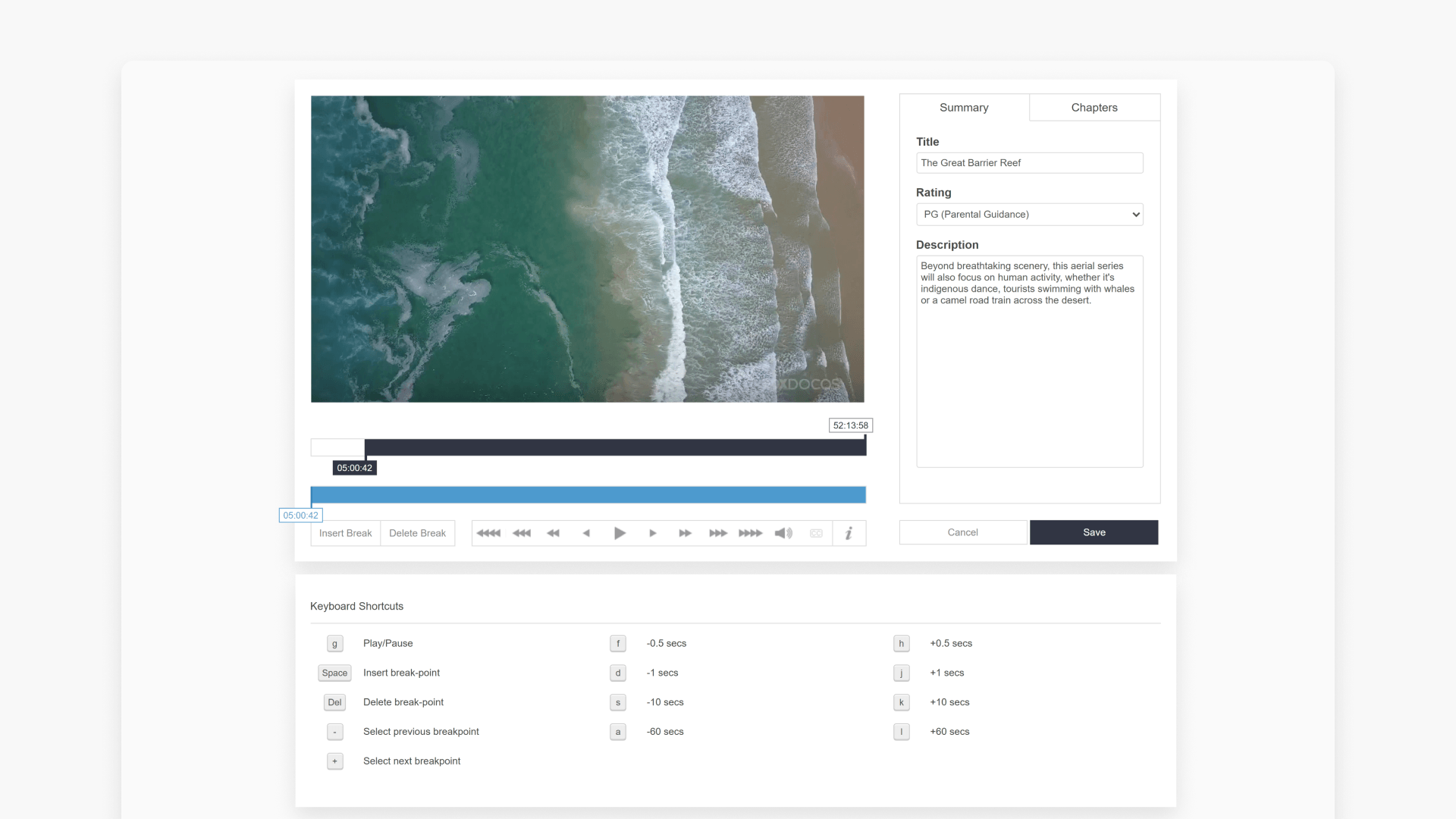
- Use the Player preview screen to watch your video as you edit.
- Place chapter breaks using the ‘Insert break’ button on the editing bar.
- Delete chapter breaks with the ‘Delete break’ button on the editing bar.
- Rename chapters in the Chapters tab by changing the chapter name.
- Remove commercials by adding breaks at the start and end and deleting the chapter.
- Click the ‘Save’ button to save your edited program to My Videos.
Getting started with Cloud Editor controls
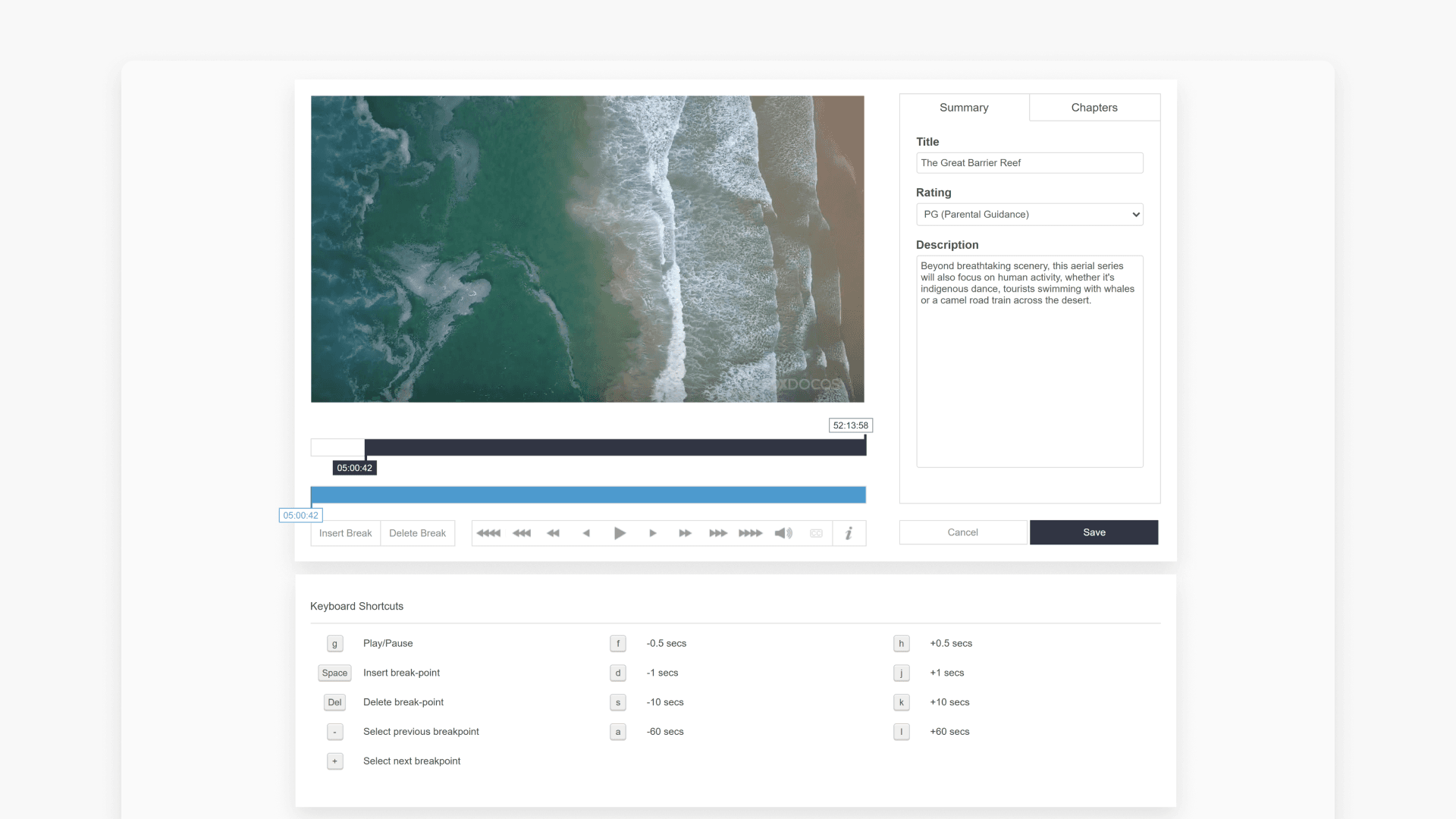
The Cloud Video Editor provides a comprehensive set of tools for editing your program:
- Player preview screen: Play and view your video as you make edits.
- Trimming bar: See the full video timeline; previously trimmed segments show as removed.
- Editing bar: Place or remove breaks to create chapters.

- Time bar: Displays your position within the video.
- Insert break/Delete break buttons: Add or remove chapter breaks as needed.
- Fast Forward/Rewind/Play/Pause buttons: Move through your video in preset increments.
- Volume control: Adjust the audio level as required.
- Keystroke editing shortcuts: Use mapped keyboard shortcuts for efficient editing.

- Description: View or edit program details and ratings.
- Rating: Update the program rating.
- Title: Update the program title.
- Chapter tab: View the number of chapters in your program.
- Save: Store your edited program in My Videos.

Understanding chapter breaks
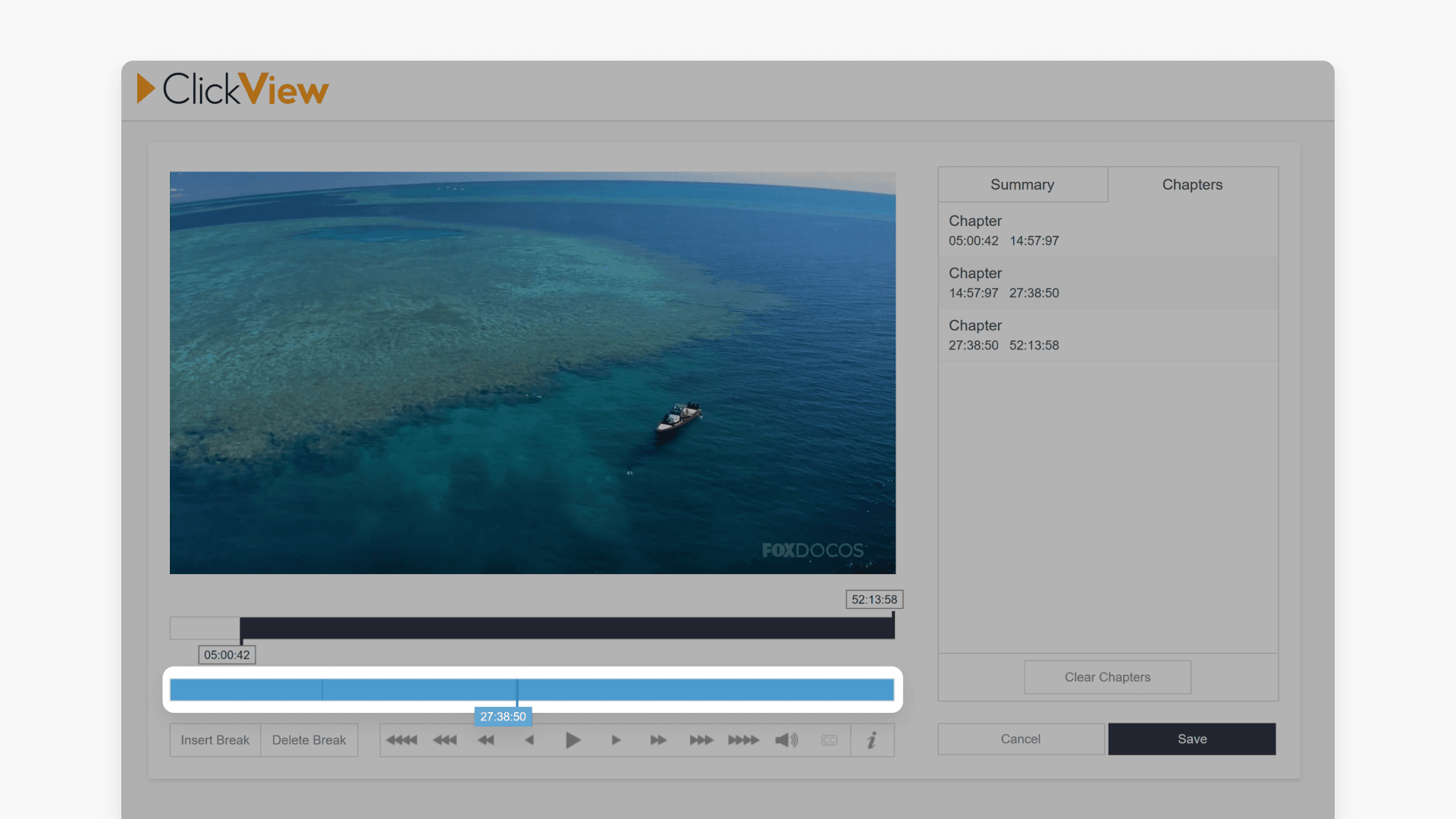
A chapter break splits the video into segments, making it easier to organise and access specific parts. Breaks appear as thin vertical lines on the editing bar, creating chapters you can manage throughout the program.
How to insert a break
- Move your time indicator on the editing bar to the desired point in the video.
- Press Insert Break. The new segment will appear as a chapter in the Chapters tab.
How to delete a break
- Click on the break in the editing bar you wish to remove.
- Press Delete Break. The corresponding chapter is removed from the Chapters tab.
How to rename a chapter
- Go to the Chapters tab.
- Click on the chapter name.
- Enter a new chapter name. The name will be saved with your program.
How to delete a chapter
- Select the chapter within the Chapters tab.
- Click the ‘X’ in the chapter box to remove the chapter and its break point.
- You can also double-click on the chapter in the Time Bar to remove it.
How to remove commercials from a program
- Add breaks at the start and end of each commercial segment in the editing bar.
- Delete the resulting chapter by double-clicking it or clicking the ‘X‘ in the Chapters tab. The chapter text will be crossed out.

- Repeat for any additional commercials.
- Rename remaining chapters to indicate their content.
- Click Save to store your edited program.

Saving and accessing your edited program
After saving, your edited video will appear in My Videos after processing. Processing time depends on the length of the video.
From My Videos, you can watch, edit, create links, embed, download, or add your program to playlists.
Frequently asked questions
Get in touch
If you’re having trouble finding the right topics or videos, just reach out! Our team - 


 Andrew, Nisch, Janice, Pfreya, or any of us at ClickView - will be happy to help you get sorted.
Give feedback
Was this guide helpful?
Up Next
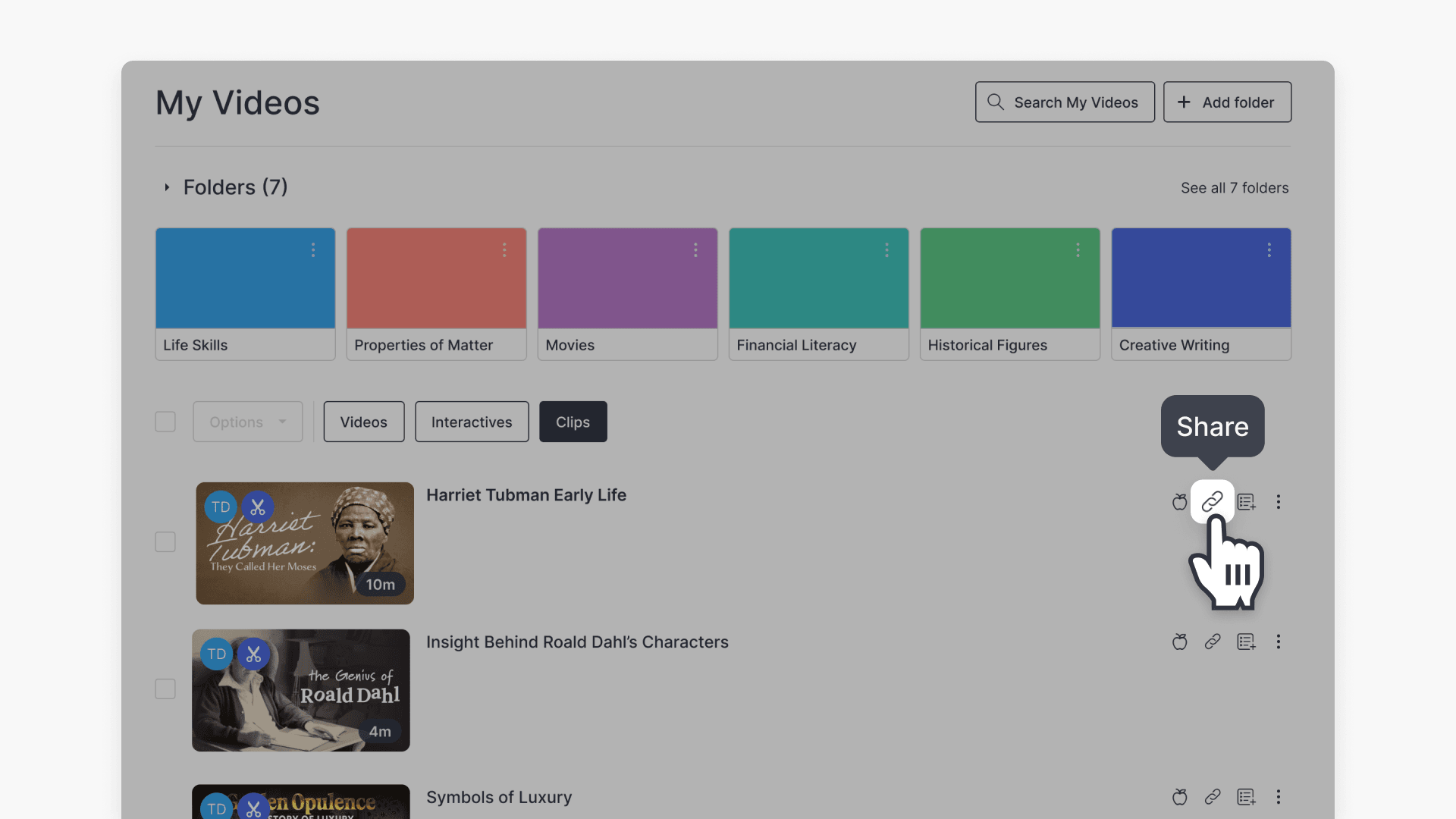
How to share video clips
This article explains how ClickView users can share video clips with educators and students using My Videos. Includes step-by-step instructions and screenshots.