How to add resources, subtitles and links to your videos

Summary
- Sign in to ClickView and open My Videos.
- Upload a new video or choose an existing video.
- Select Edit details by clicking the three dots.
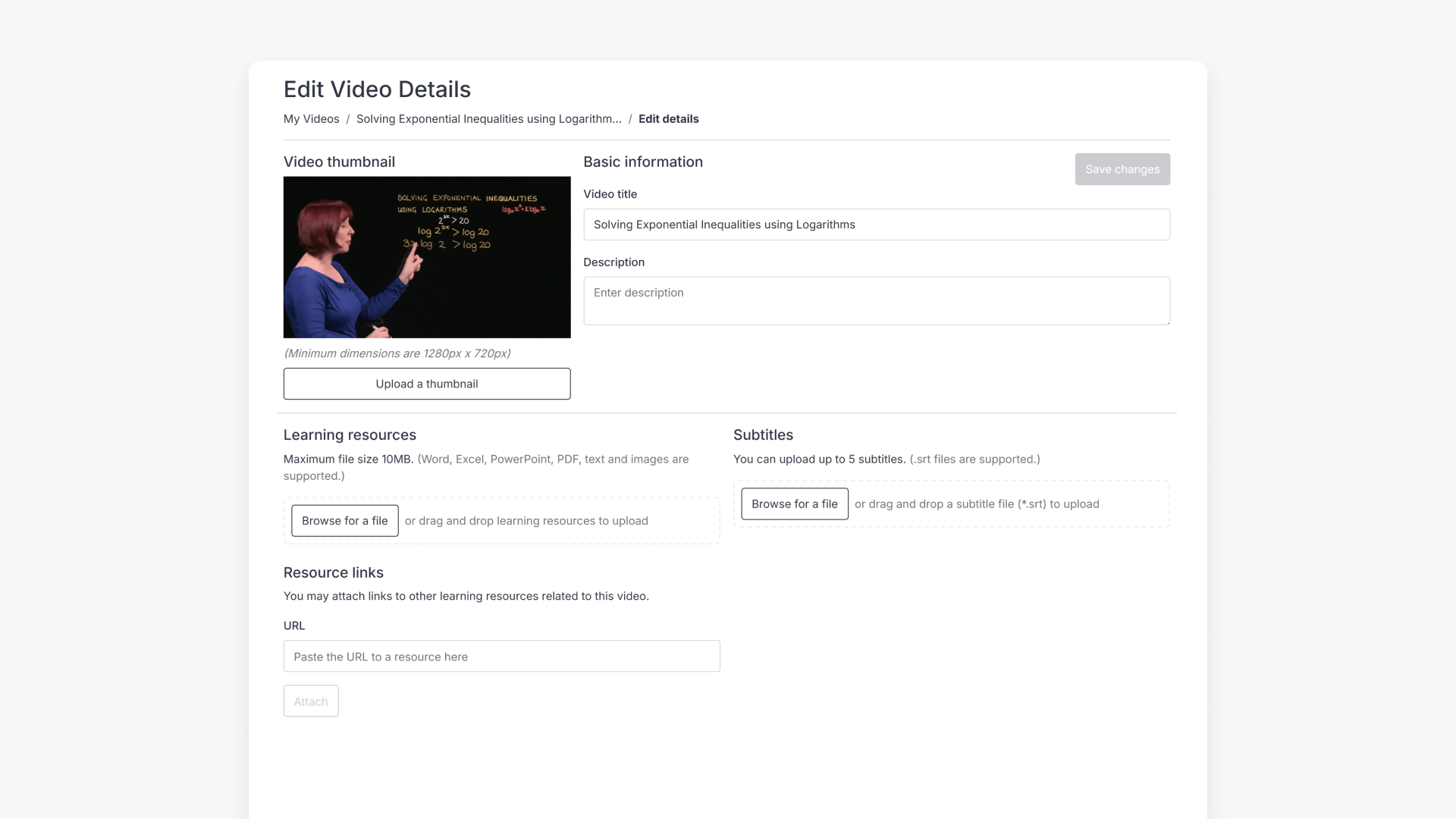
- Add documents or files to the video.
- Click Save changes to keep resources.
What types of resources can you add to a video?
You can attach supporting documents, subtitle files, and external links directly to videos in My Videos. These resources appear alongside the video, allowing students to access additional materials, captions, or references without leaving the video page.
How to add resources, subtitles, and links
Follow these steps to attach resources to a video you have uploaded:
- Sign in to ClickView and go to My Videos in the menu on the left side of the screen.
- Upload a new video, or select an existing video.
- Click the three vertical dots, then choose Edit details.

- Add the desired resources, subtitle files, and links to the relevant sections.

- When finished, click Save changes. Your documents will remain attached to the video.

The benefit for students
By adding documents and links directly to a video, students can access supporting materials while they watch. This keeps everything in one place, helps students answer questions independently, and reduces the need for additional follow-up from the teacher.
Frequently asked questions
Get in touch
If you’re having trouble finding the right topics or videos, just reach out! Our team - 

 Akhil, Daniel, Jalaj, or any of us at ClickView - will be happy to help you get sorted.
Give feedback
Was this guide helpful?
Up Next
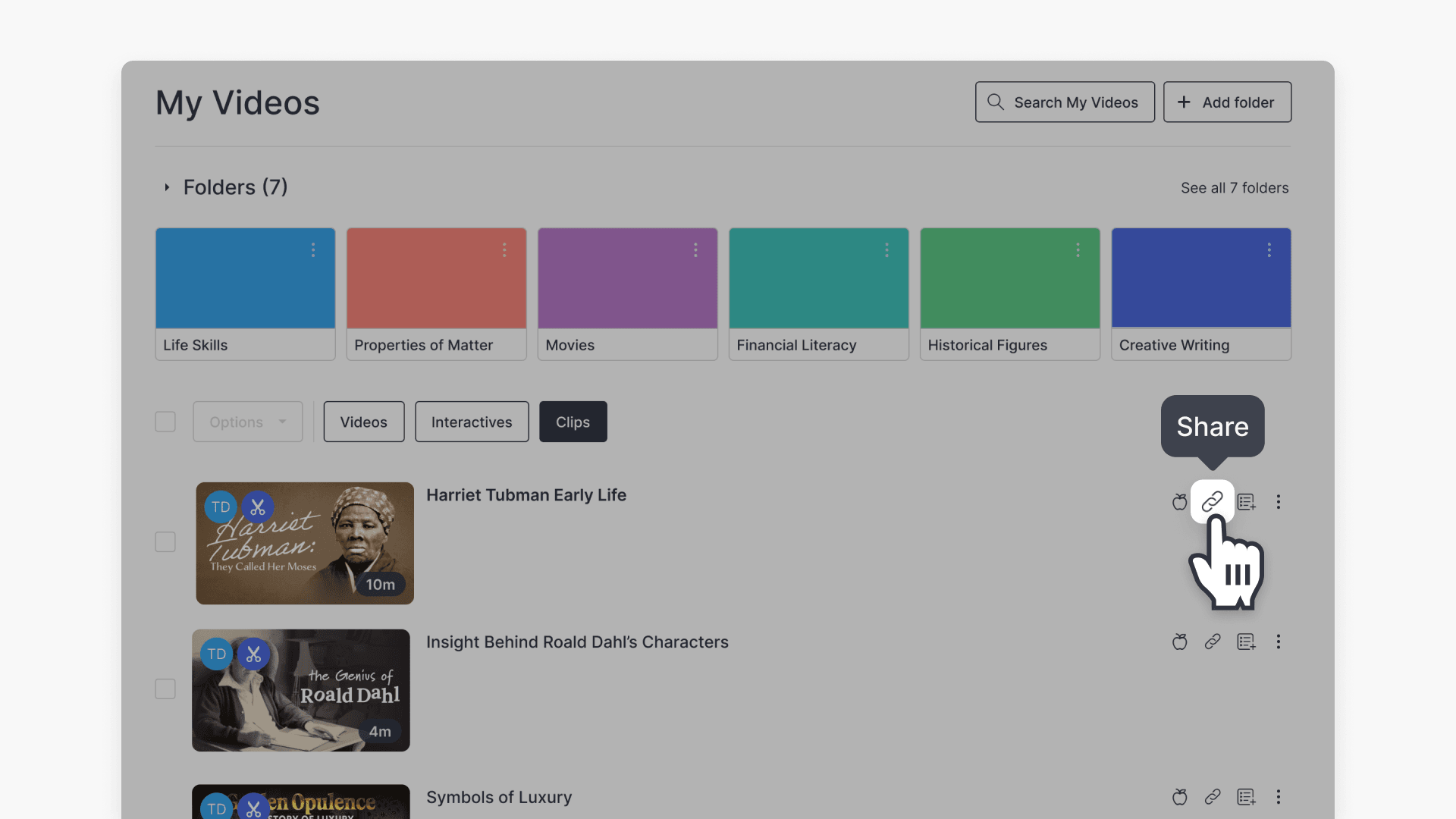
How to share video clips
This article explains how ClickView users can share video clips with educators and students using My Videos. Includes step-by-step instructions and screenshots.