Record and upload a video in the Android app
In this article
Last updated by
2 min readClickView13th March, 2026
Summary
- Select your profile from the bottom menu
- Tap the camera button in the top right corner
- Choose to record or select video from gallery
- Enter video title, description, and rating
- Select ‘Upload’ and then ‘Complete’
- Your video appears in ‘My Videos’ once processed
star icon
Quick tip
Which video details must you enter before uploading?
You must enter the title, description, and rating for each video before selecting ‘Upload’ in the ClickView Android app. These details help organise and identify your videos in My Videos.
Recording a video using the ClickView app
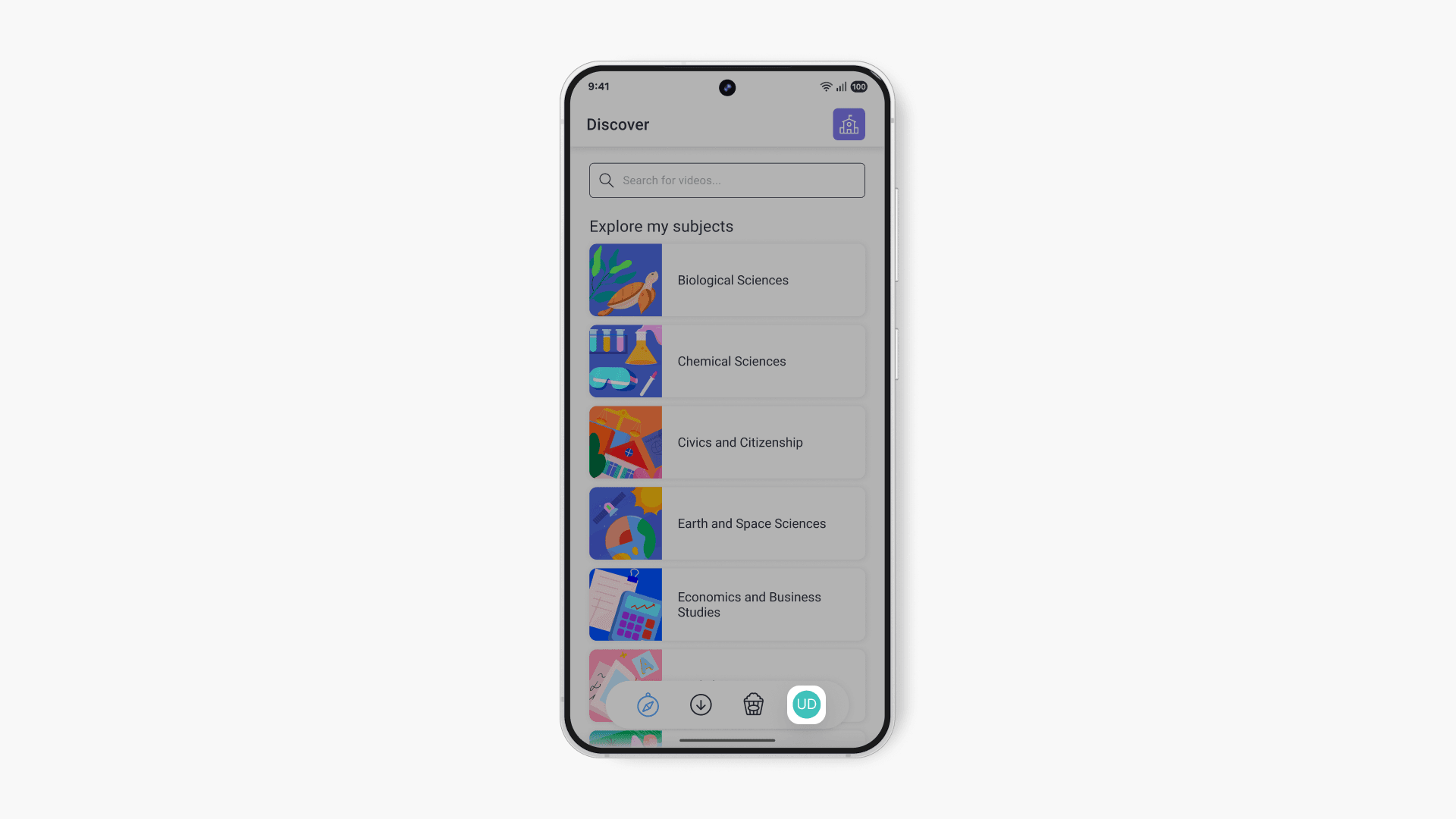
- Select your profile from the menu at the bottom of the screen.
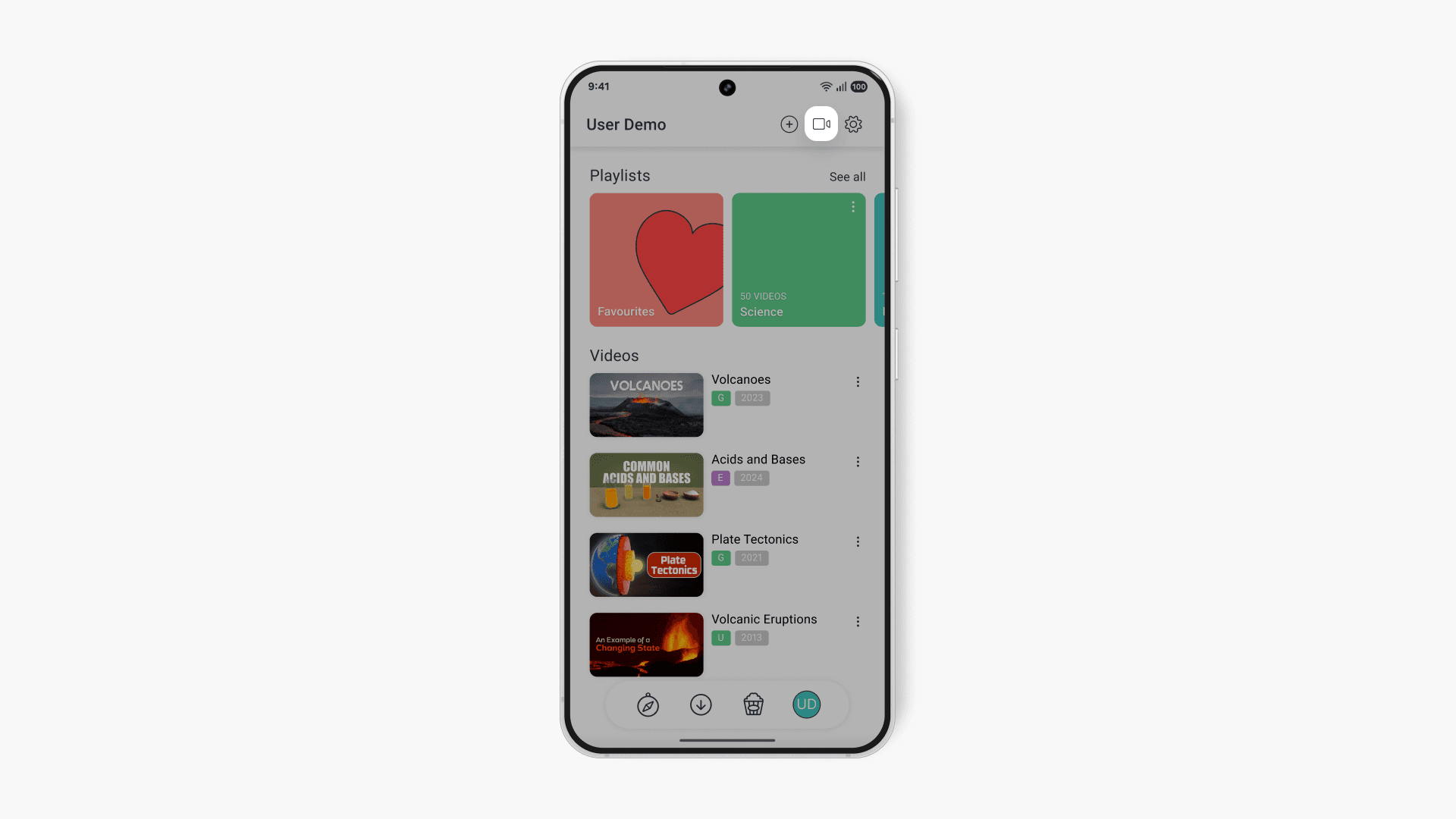
- Tap the camera button on the top right corner.
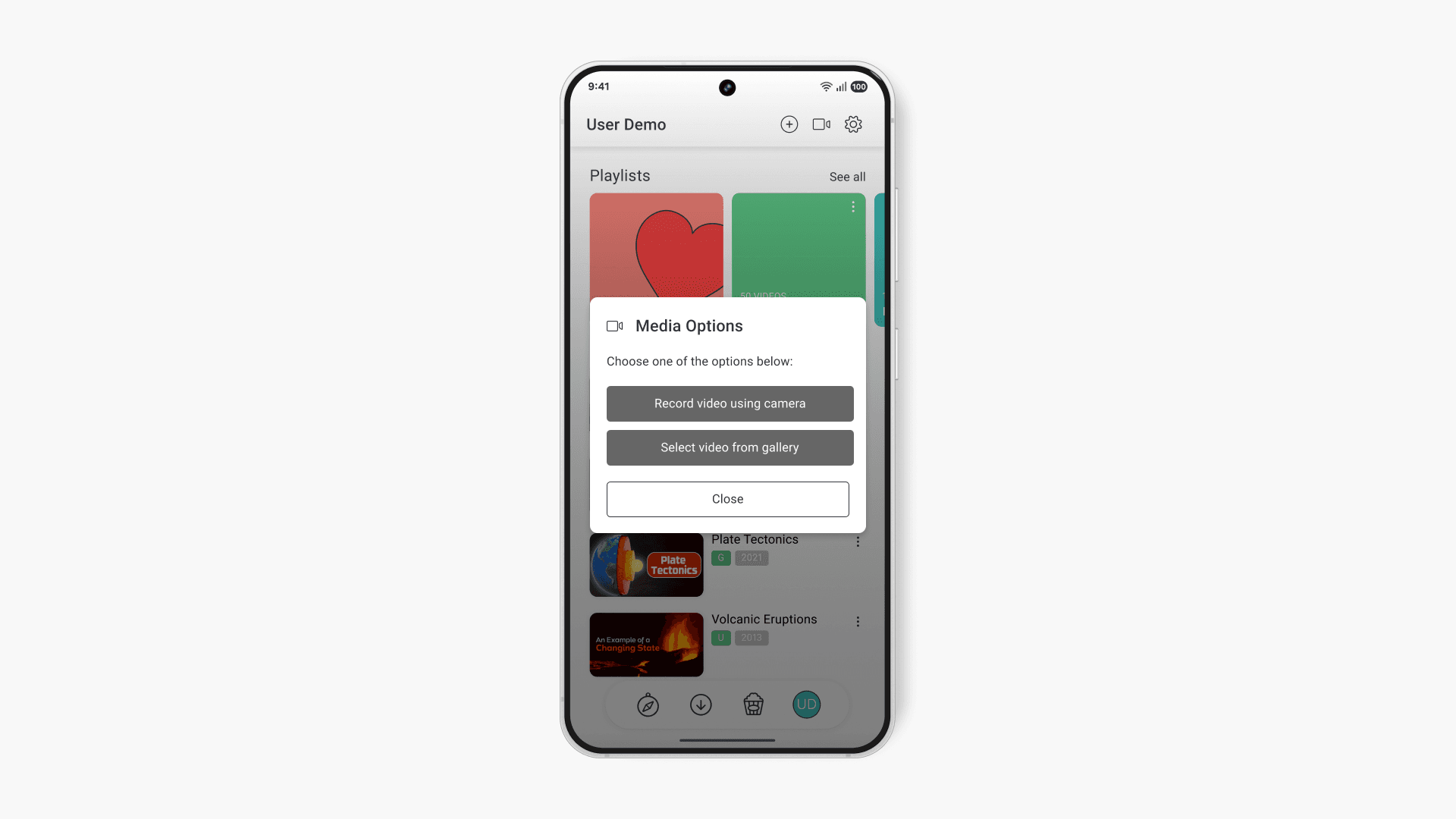
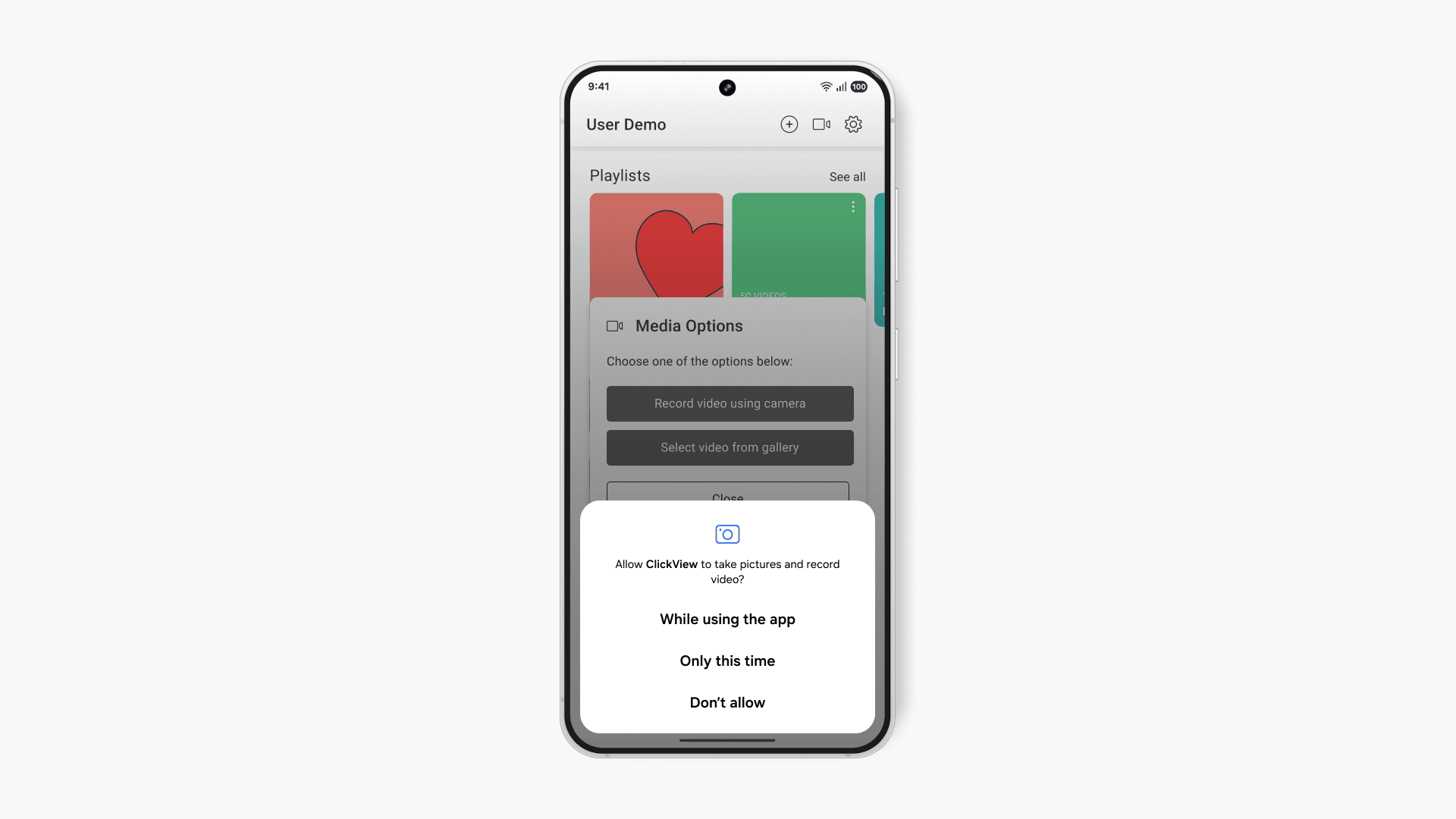
- Select ‘Record video using camera’.
- If prompted, allow the ClickView app to take pictures and record video by choosing ‘While using the app.’.
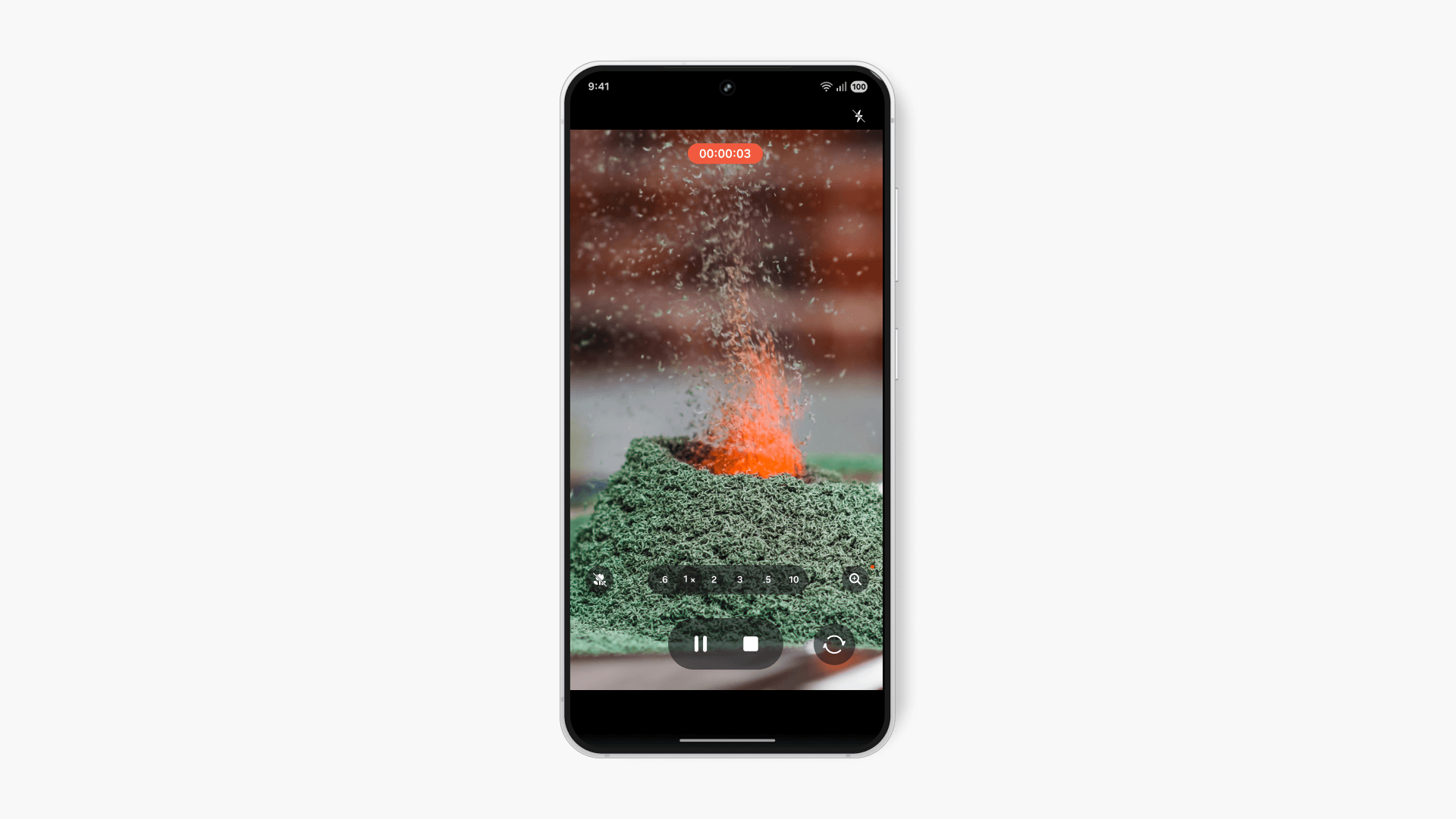
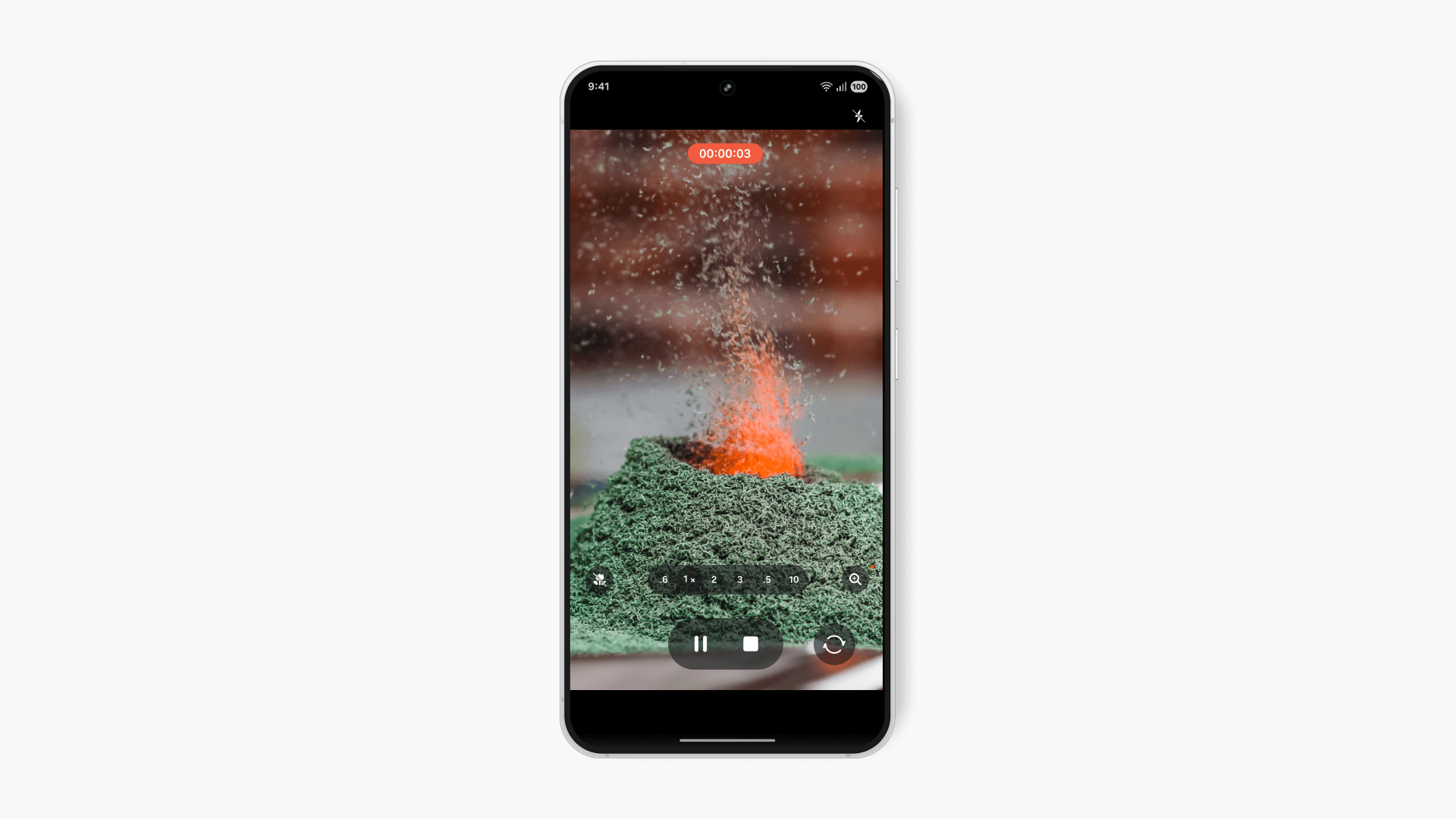
- Press the record button to start capturing your video.
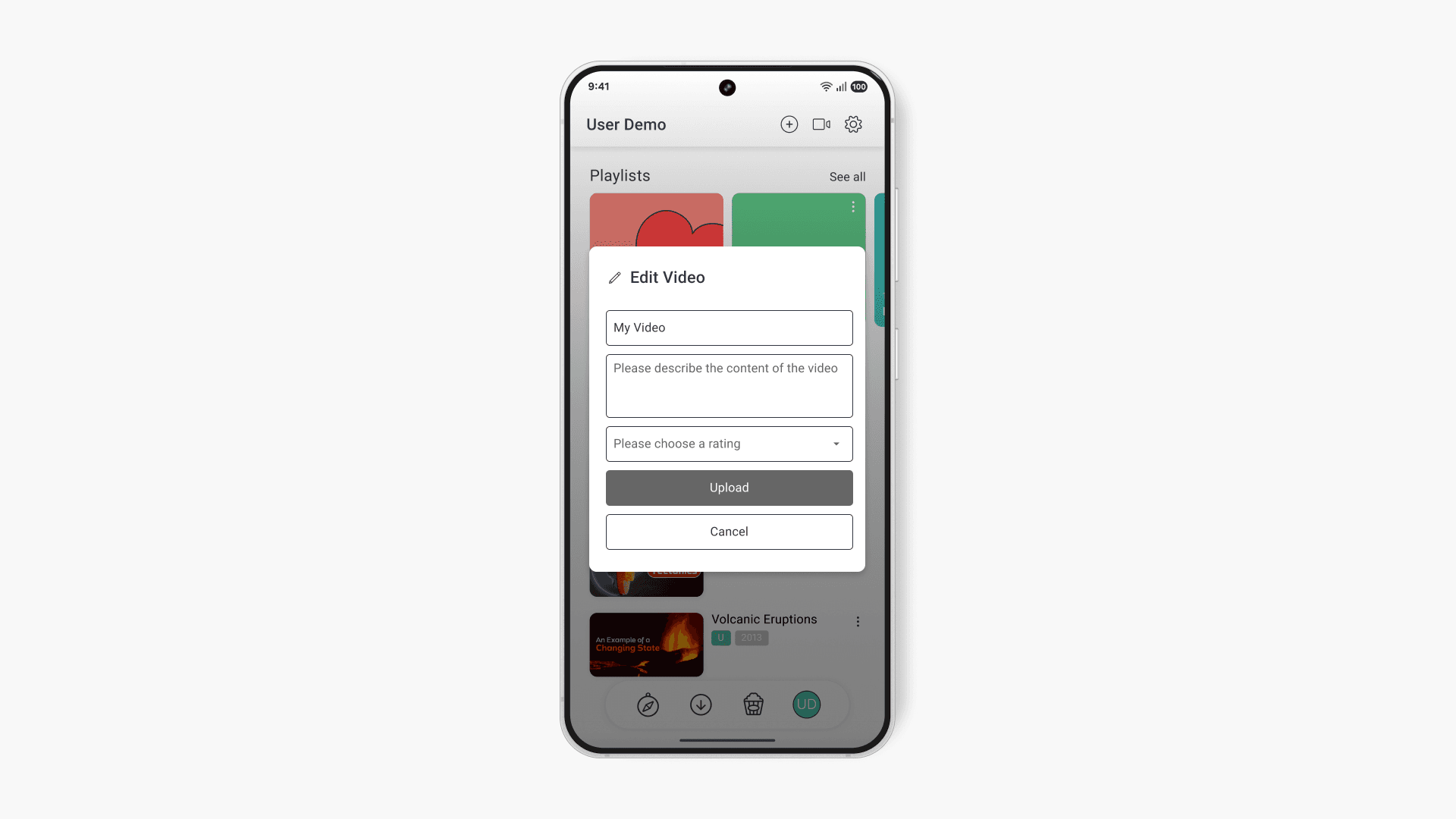
- Once finished, enter the video title, description, and rating. Select ‘Upload’ to begin uploading.
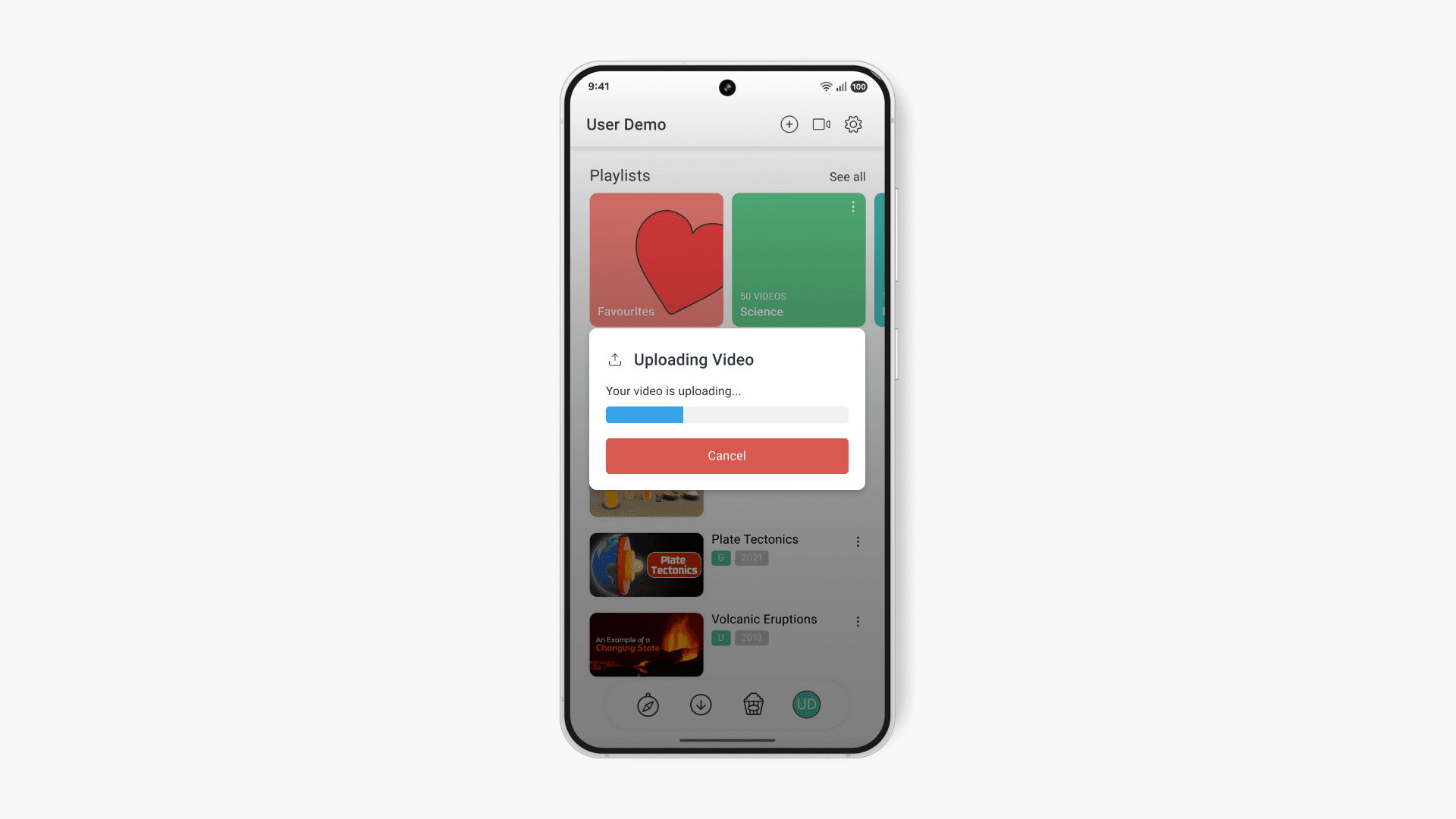
- Your video will upload. This may take several minutes depending on the video length and your network.
- Select the ‘Complete’ button when the process finishes.
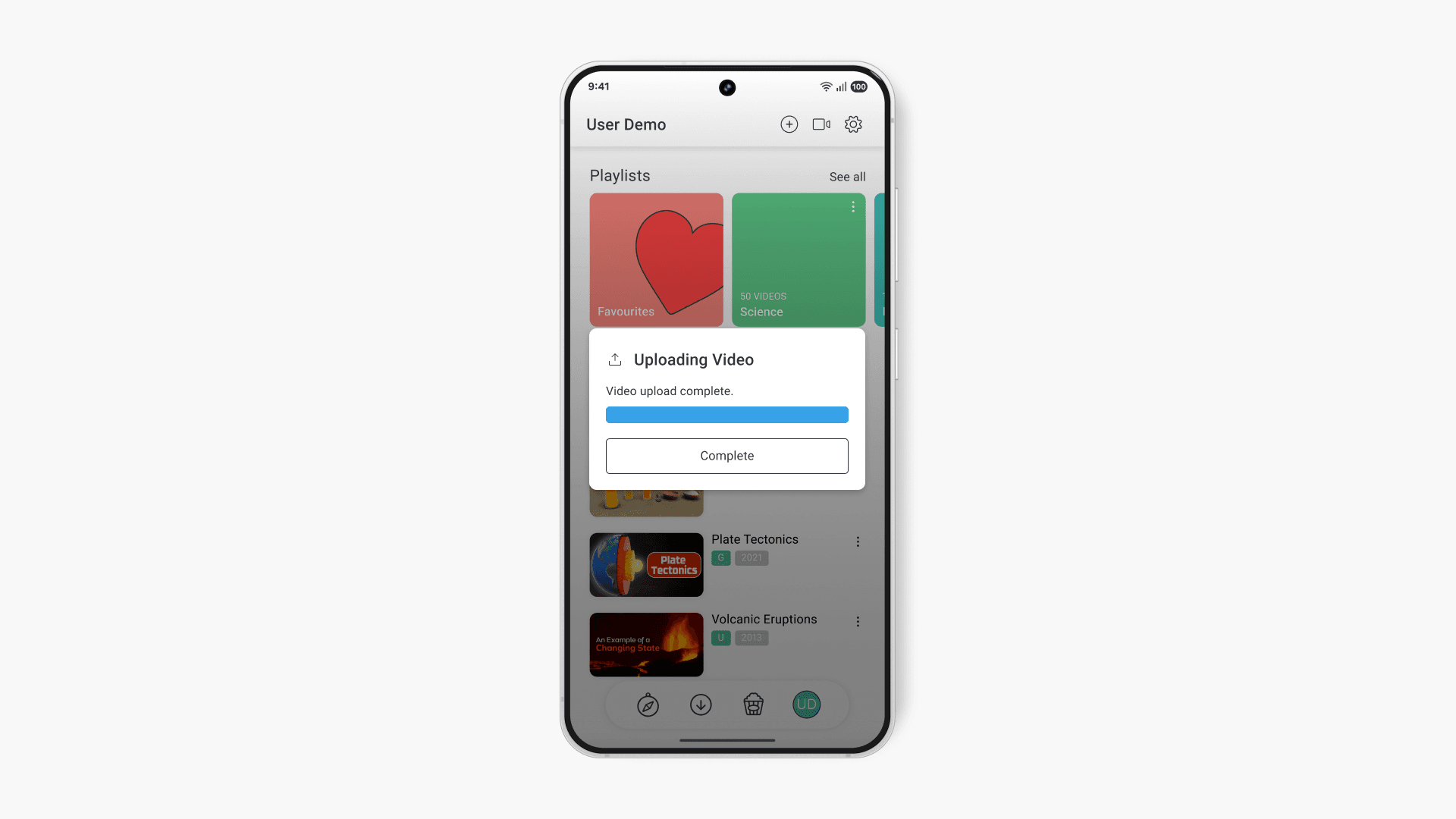
- Once processed, your video will appear in ‘My Videos’.
Uploading an existing video using the ClickView app
- If you have already recorded a video, select your profile from the bottom menu.
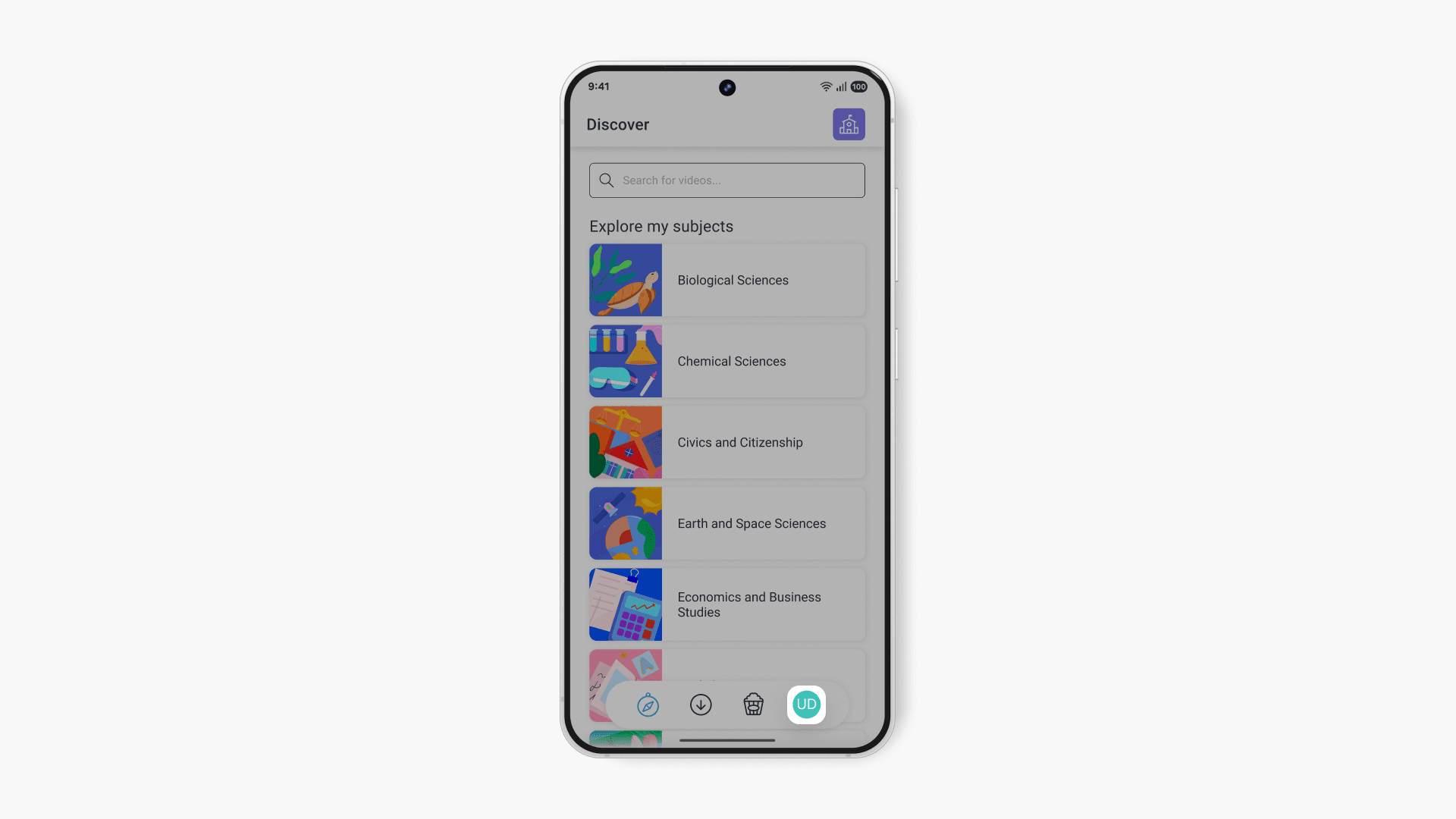
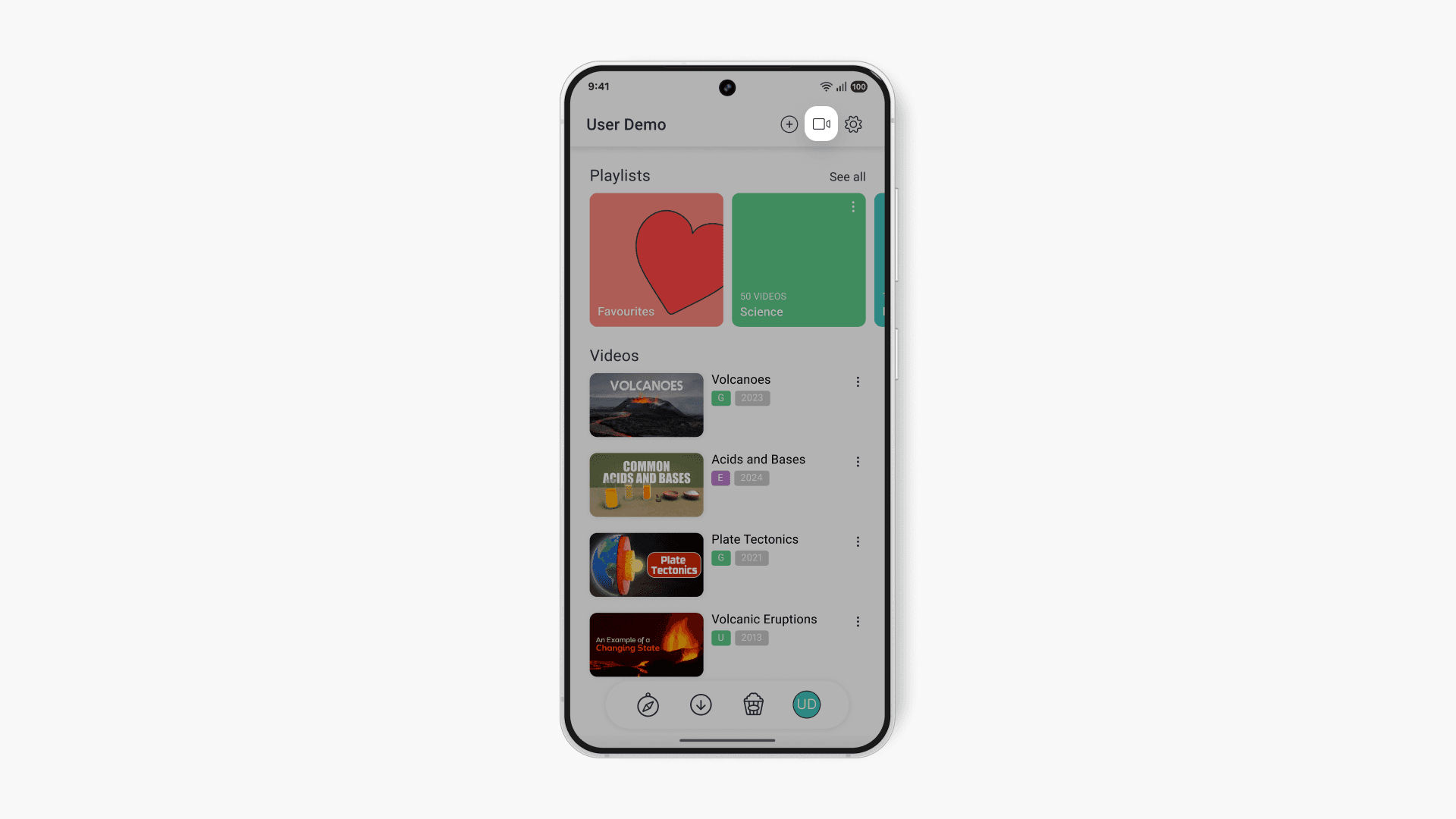
- Tap the camera button on the top right corner.
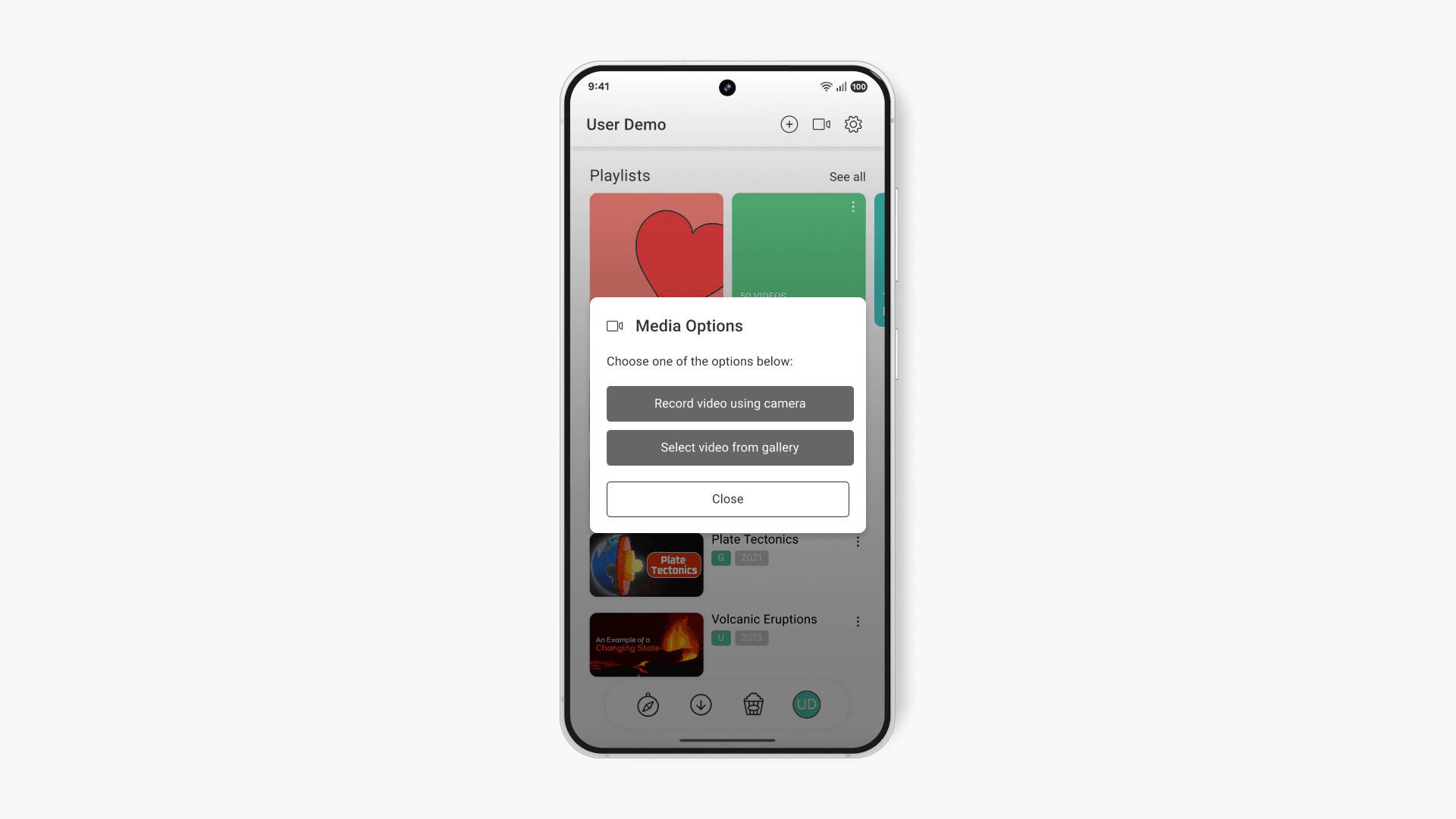
- Choose ‘Select video from gallery’.
- If prompted, allow the ClickView app to access media and files by selecting ‘Allow’.
- Select your desired video from the gallery.
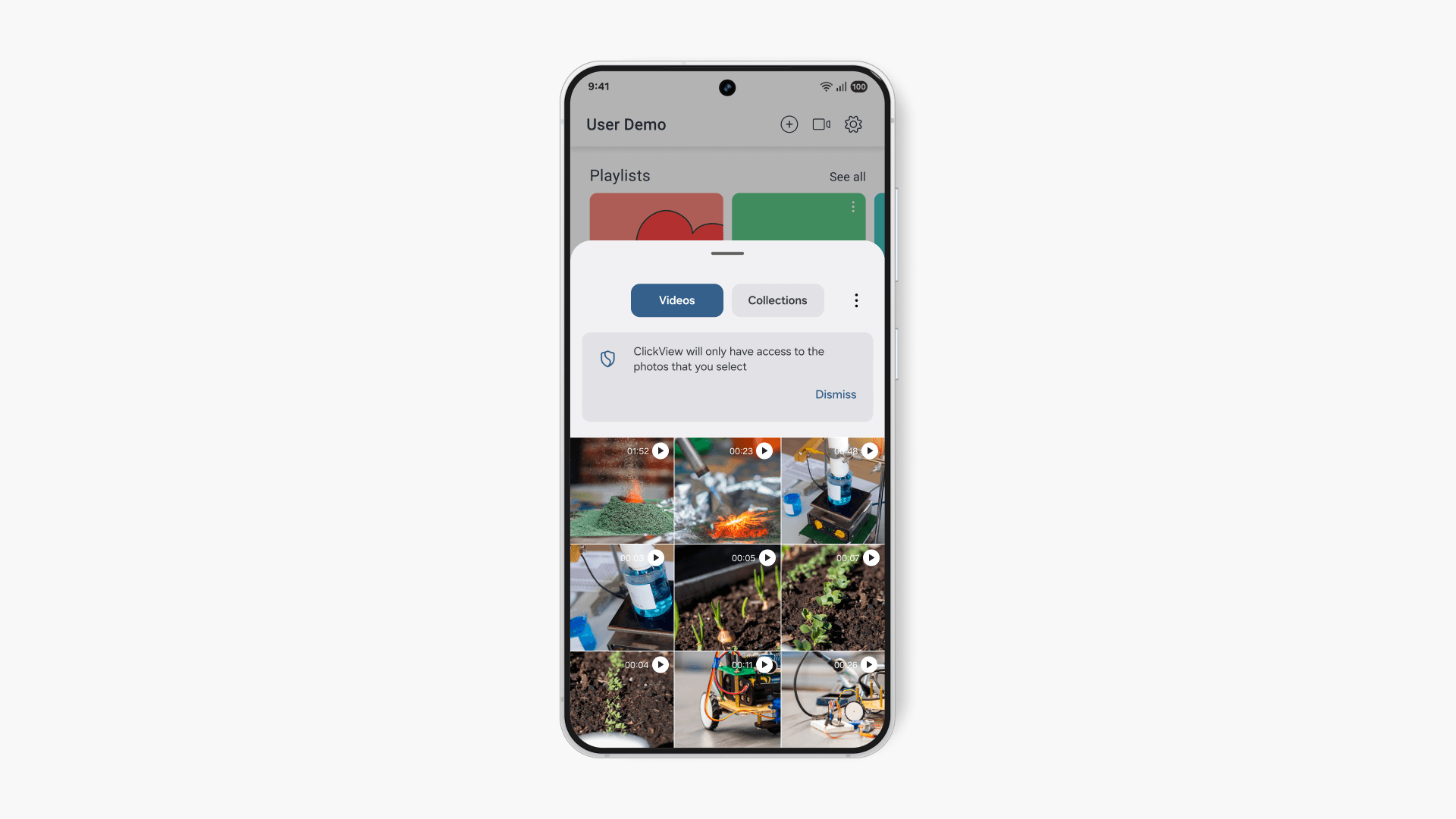
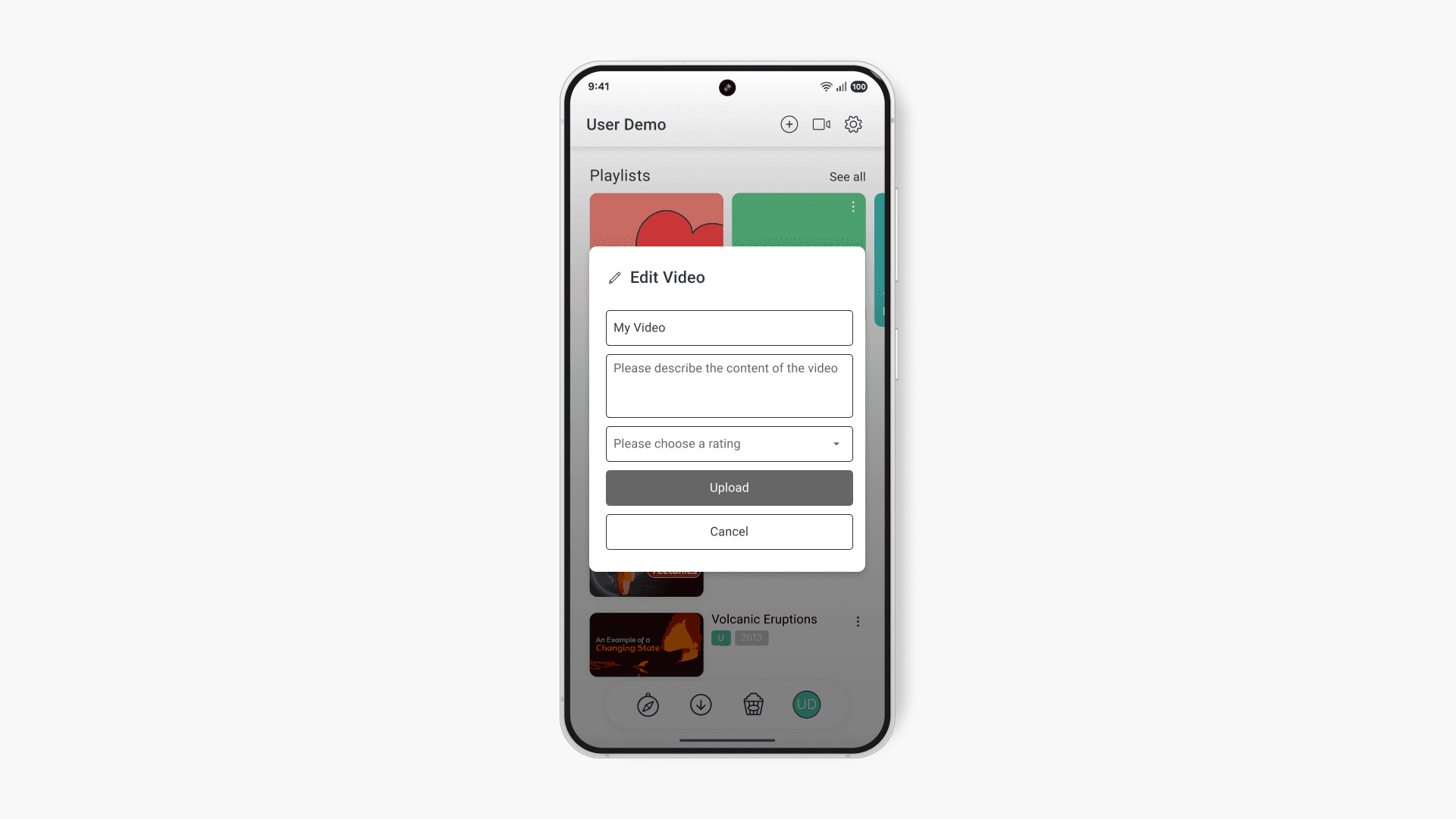
- Enter the video title, description, and rating. Select ‘Upload’.
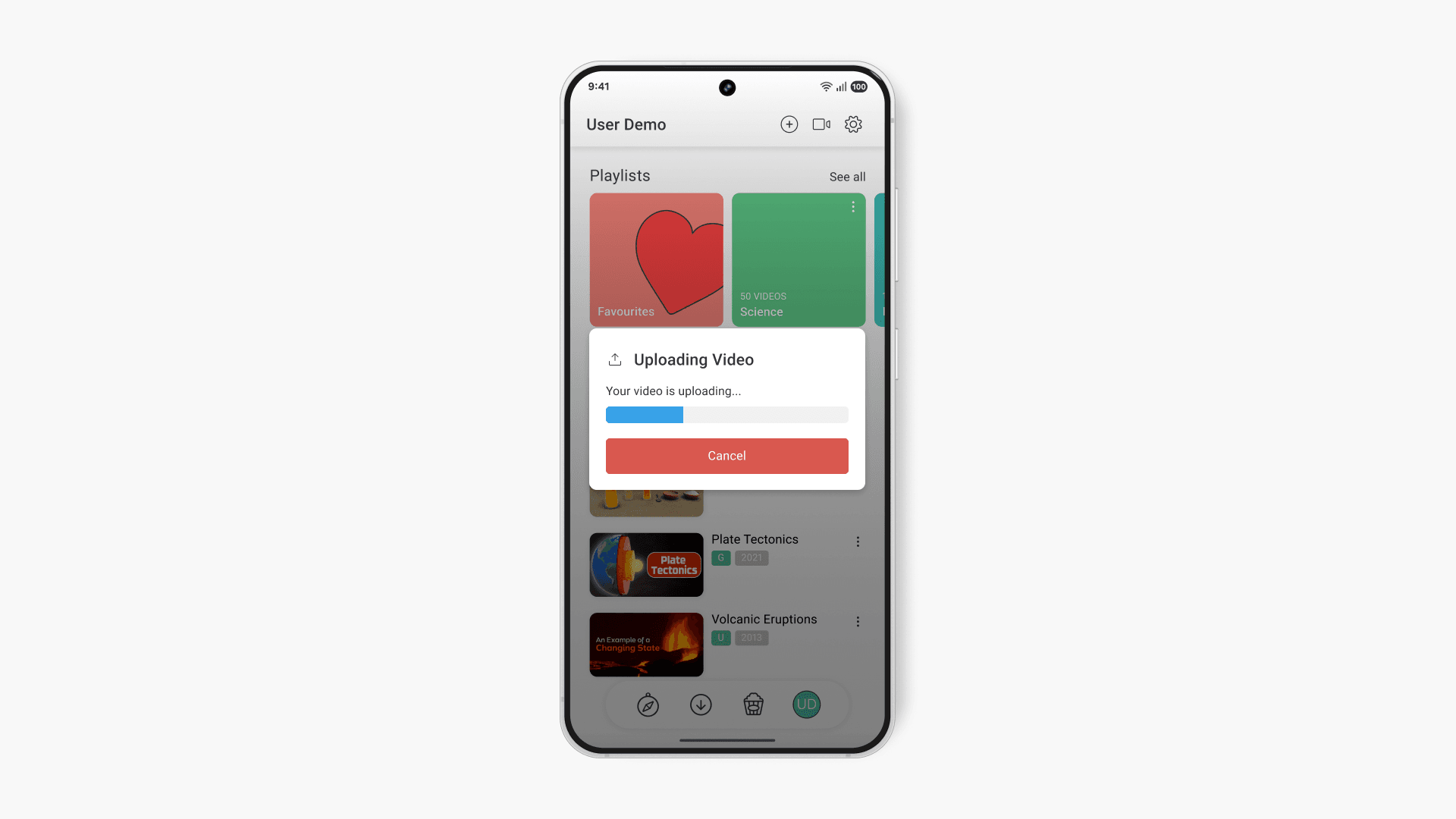
- Your video will upload. This can take several minutes depending on video length and network speed.
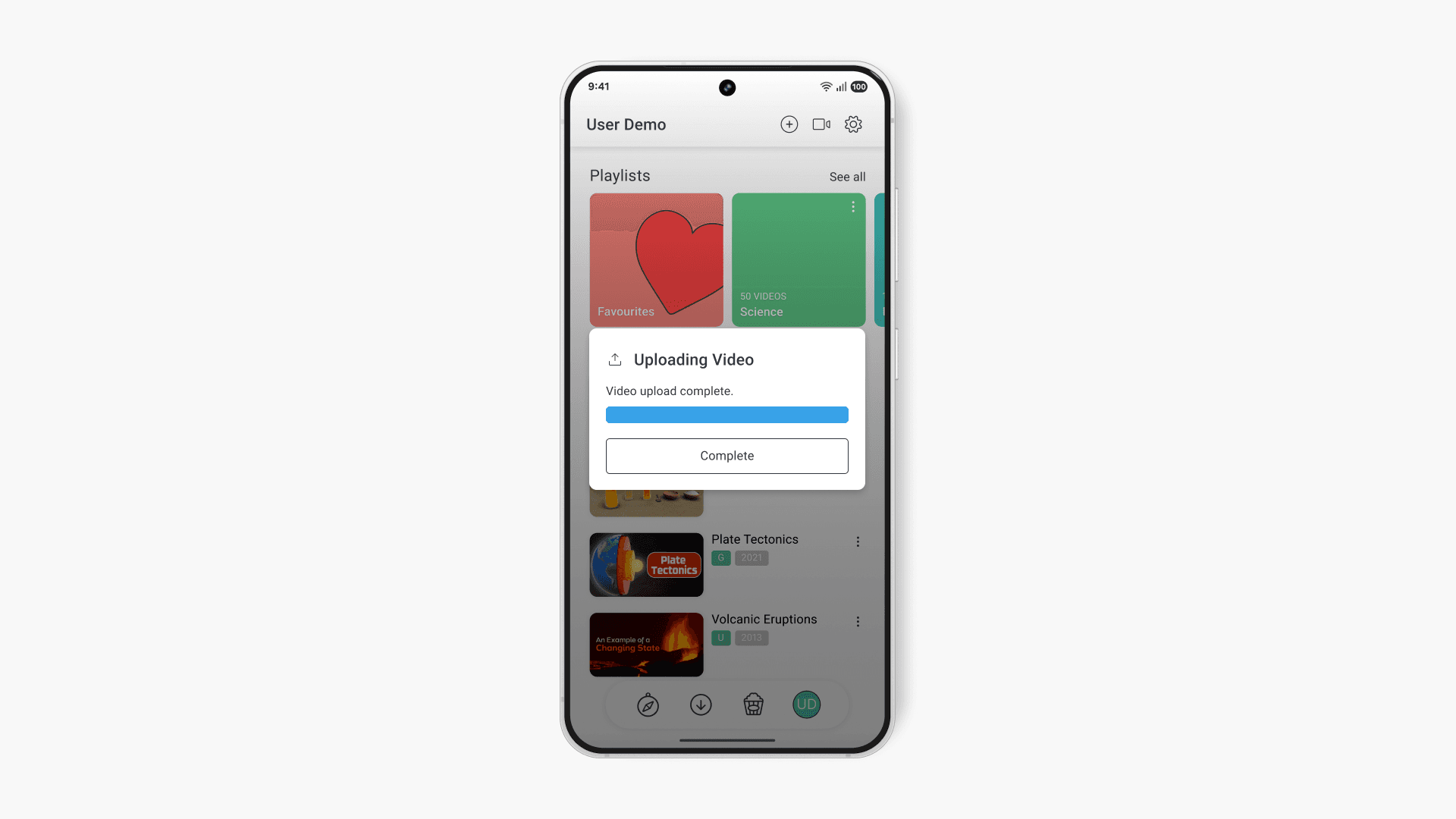
- Select the ‘Complete’ button once the upload finishes.
- Once processed, your video will appear in ‘My Videos’.
Frequently asked questions
Uploaded videos appear in the ‘My Videos’ section in the ClickView app, ready to be managed or shared.
Yes, after uploading a video to ‘My Videos’, you can share it with others in your school community directly from ClickView.
Get in touch
If you’re having trouble finding the right topics or videos, just reach out! Our team - 

 Akhil, Daniel, Jalaj, or any of us at ClickView - will be happy to help you get sorted.
Give feedback
Was this guide helpful?
Up Next
How to use the ClickView iOS app
This article explains how to sign in, explore content, filter searches, and use video controls within the ClickView iOS app on iPhone and iPad devices.