Download videos and watch offline

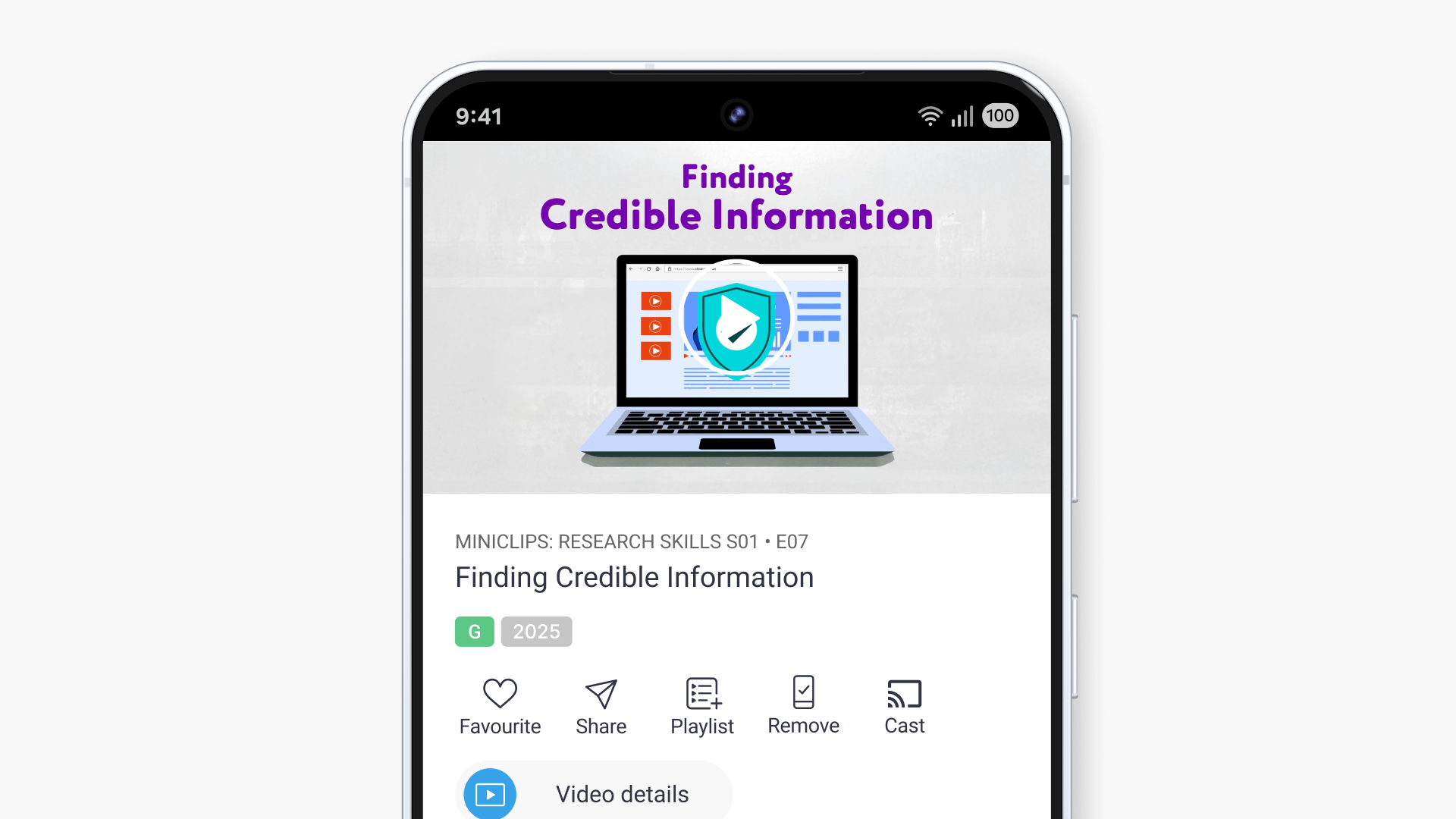
Summary
- Sign in to the ClickView app on your device.
- Choose ‘Download’ to save to local storage.
- Access downloaded videos in the ‘Downloads’ folder or icon.
- Remove videos from local storage using ‘Remove Download’ or ‘Remove’.
Downloading and playing videos offline
ClickView’s local storage feature enables educators and students to download videos for offline viewing on iOS and Android devices. This improves reliability and bandwidth usage, especially where internet access is limited.
Download a video on iOS
- Sign in to the ClickView app on your iOS device.
- Navigate to the video you wish to download.
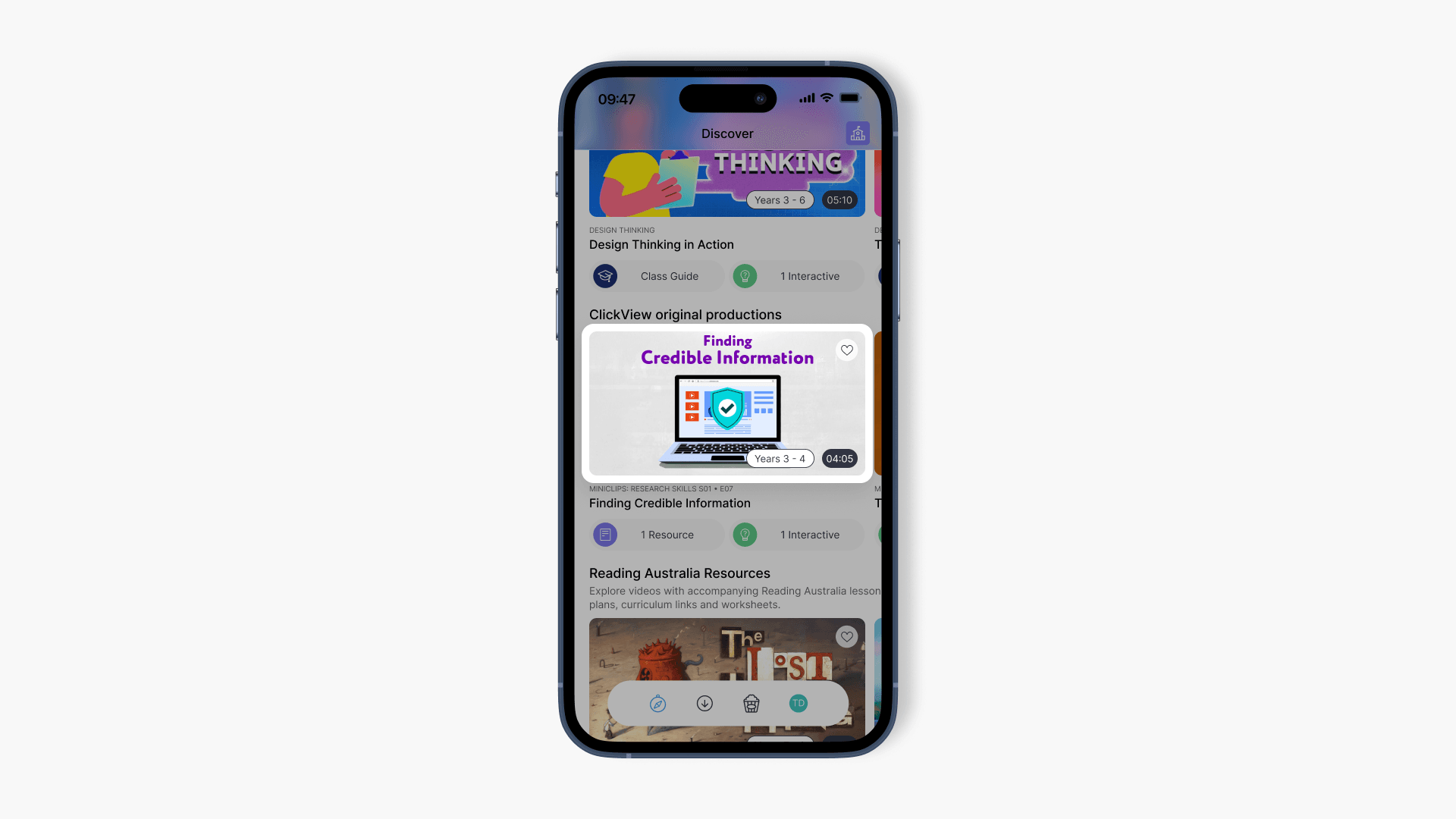
- Tap the ‘Download’ icon under the video.
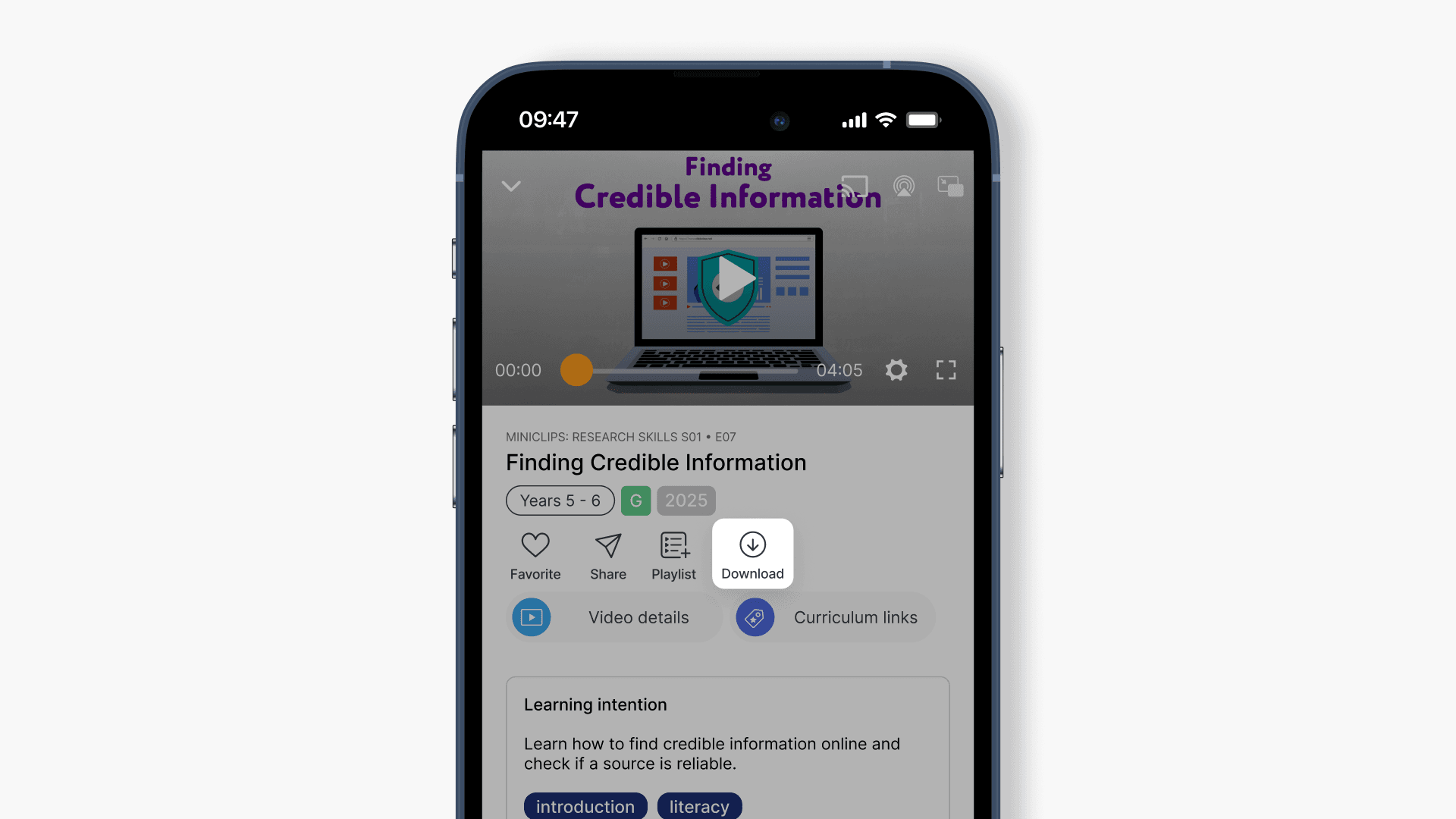
- The video will download to your local storage.
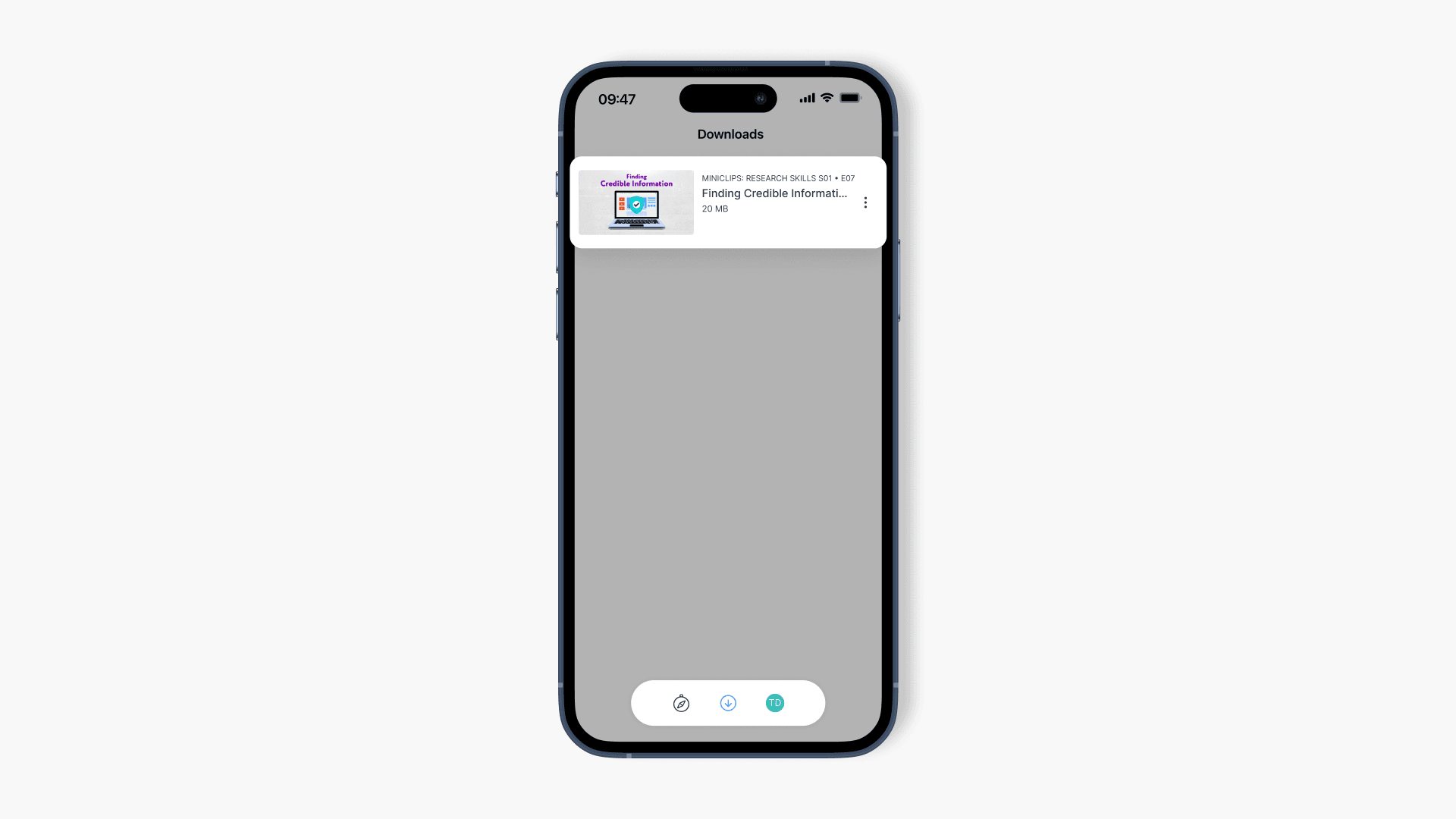
- Once the download is complete, find the video in the ‘Downloads’ folder at the bottom right of the app.
Play a video on iOS
The steps below will walk you through how to play a video from local storage on your iOS device.
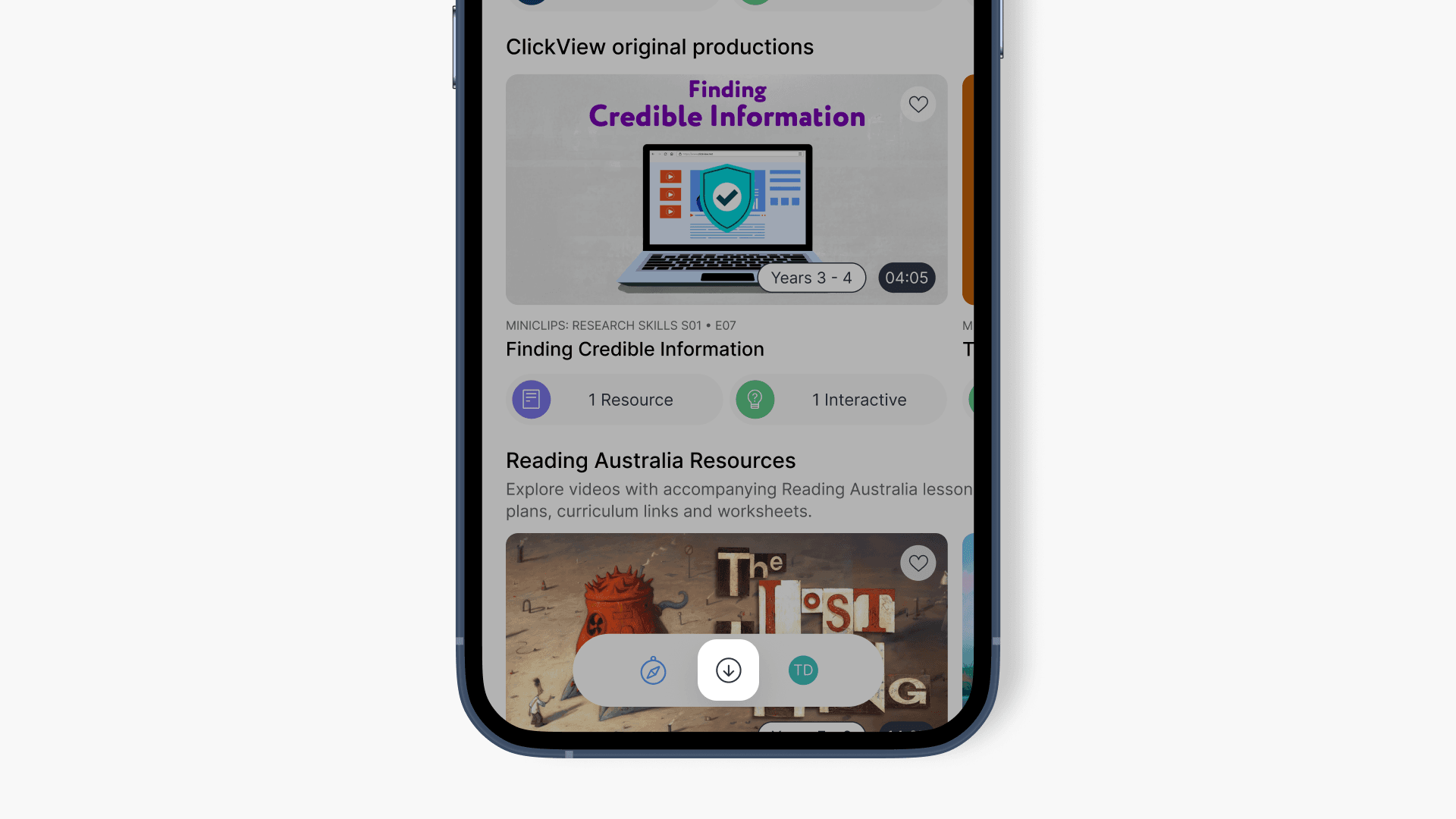
- Open the ClickView app and tap the ‘Downloads’ symbol.
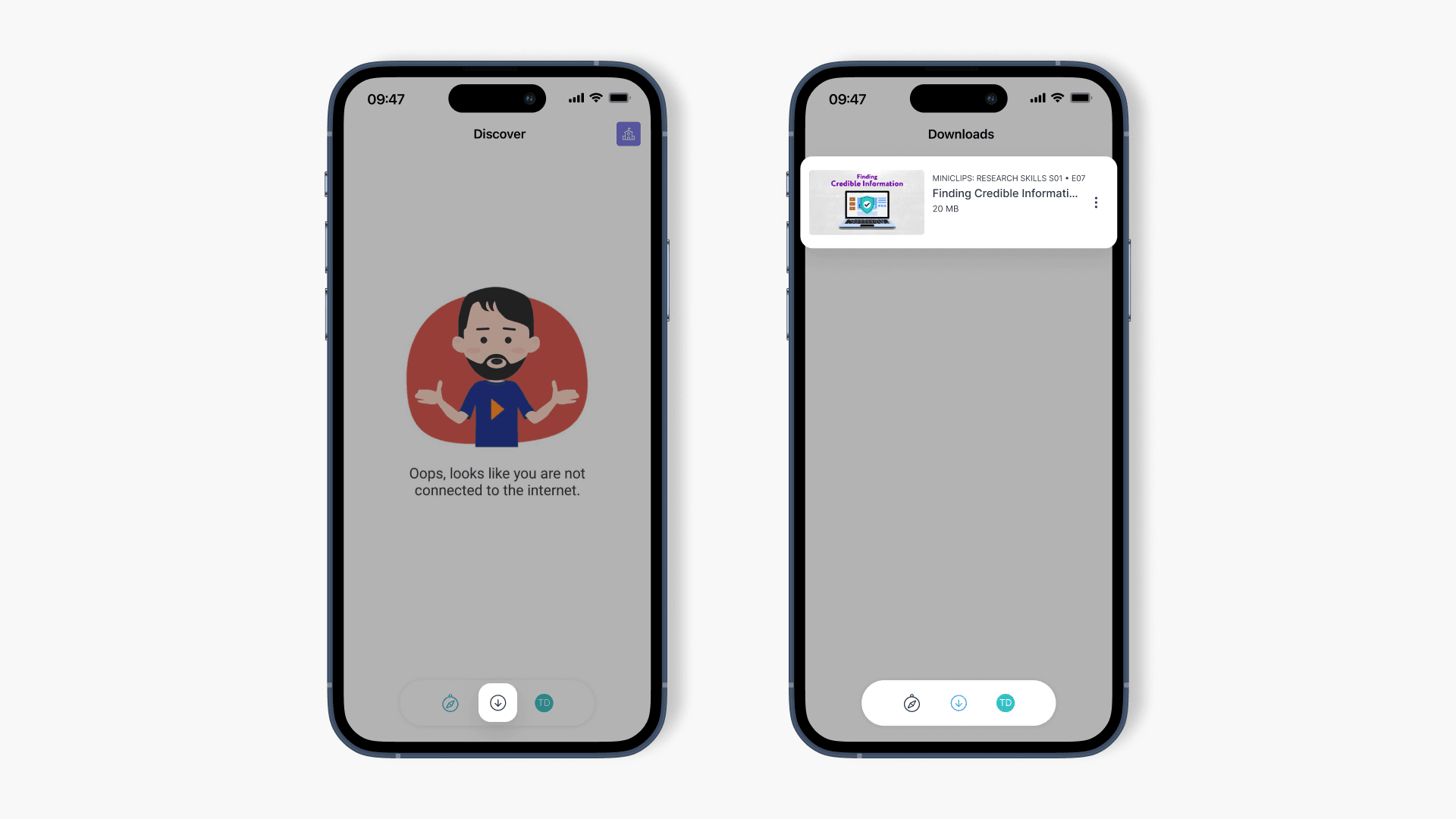
- Select the ‘Downloads’ icon to view videos saved offline.
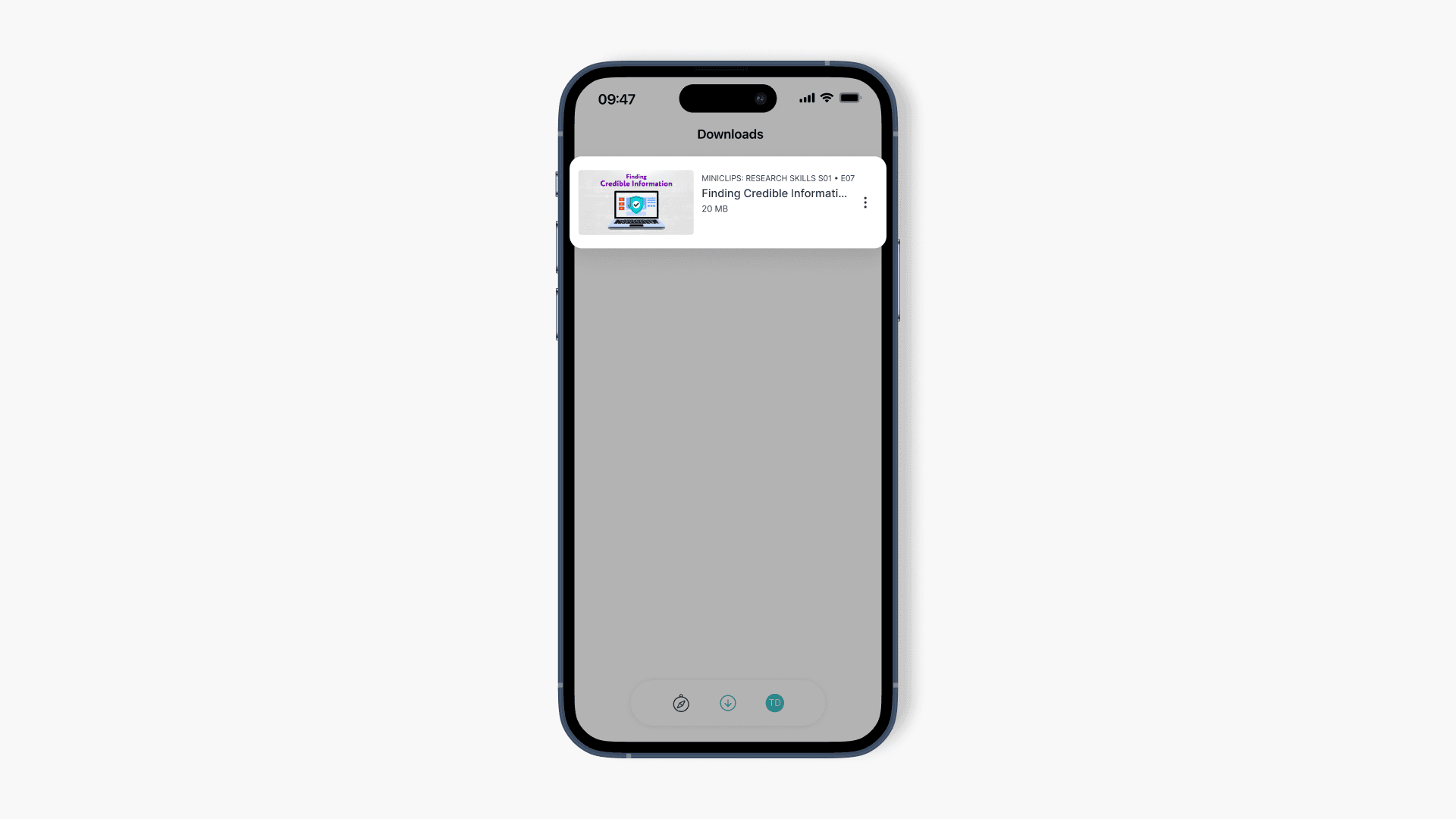
- Tap the video title to play. The device icon below the player indicates it is being played from local storage.
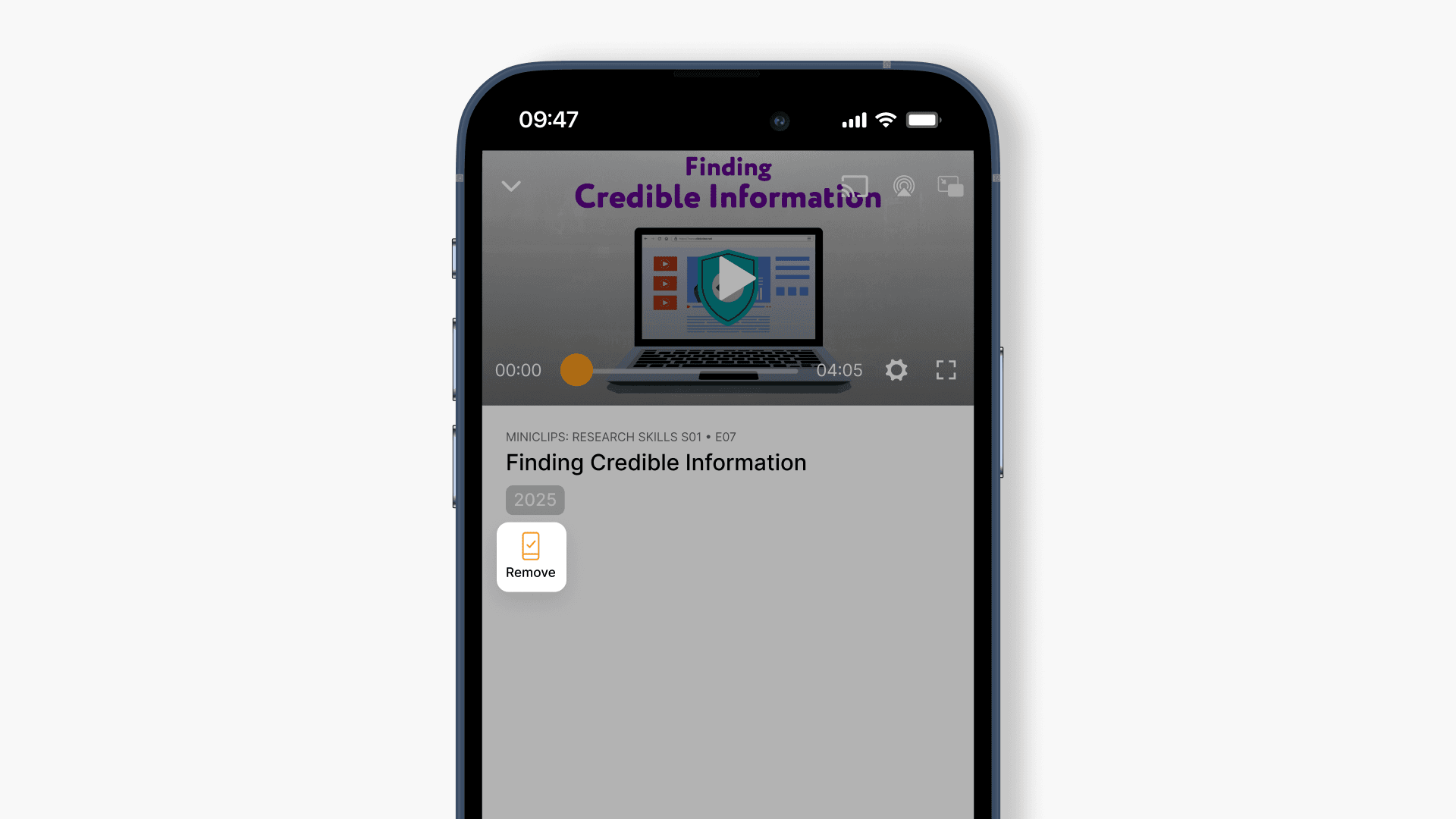
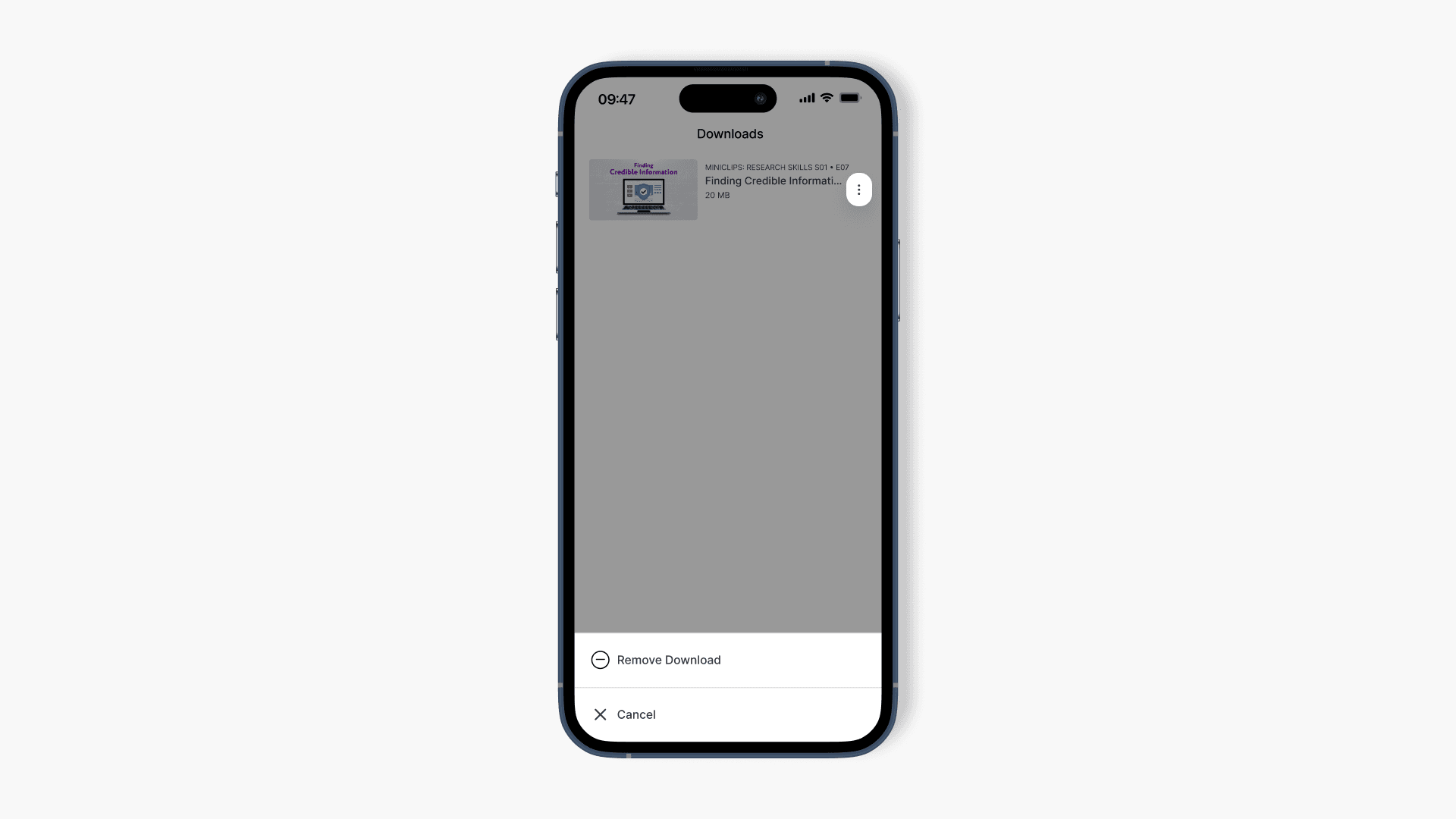
- To remove a downloaded video, tap the three dots next to the title and select ‘Remove Download’.
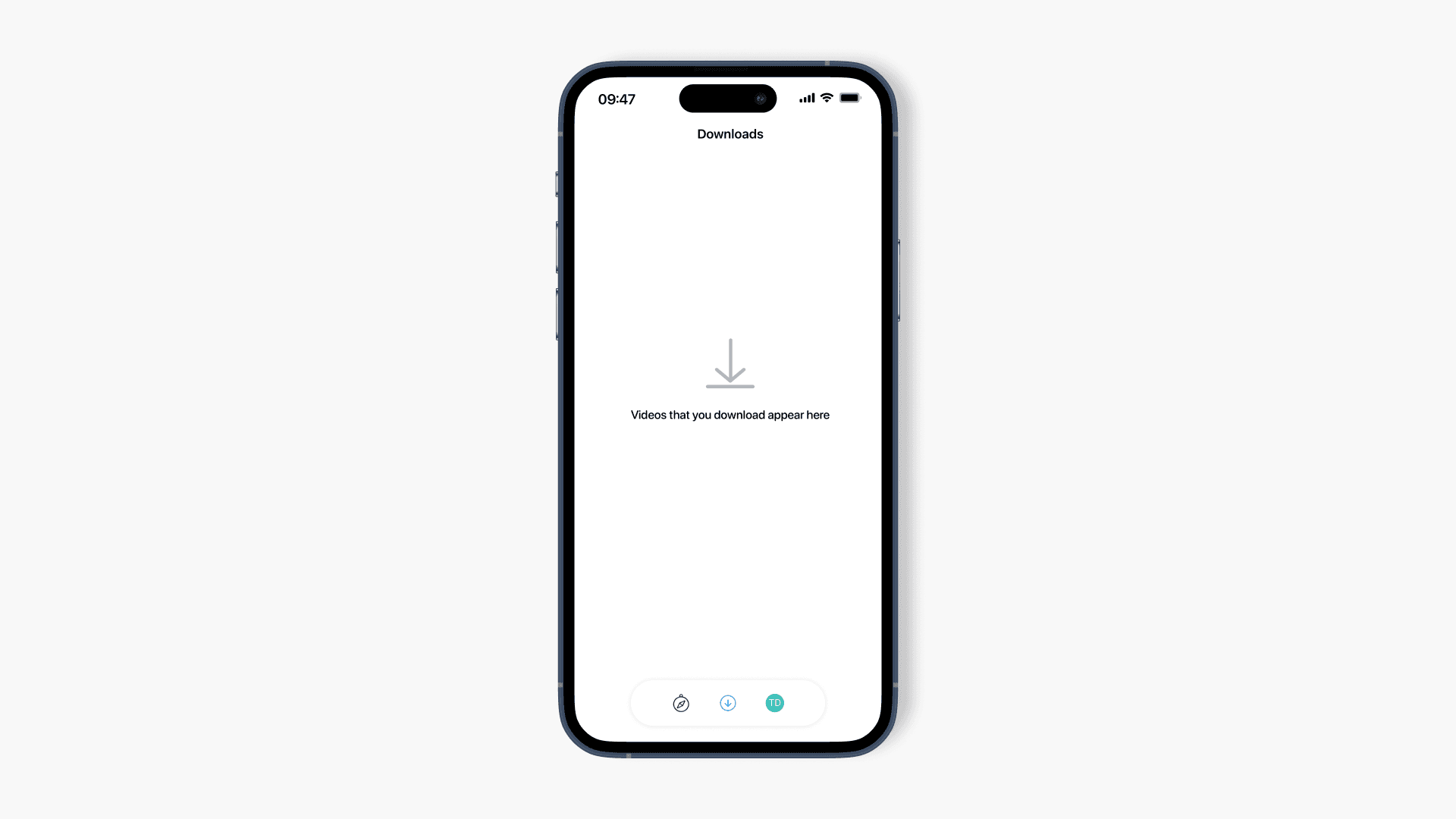
- If no videos are downloaded, a message will appear.
Download a video on Android
- Sign in to the ClickView app on your Android device.
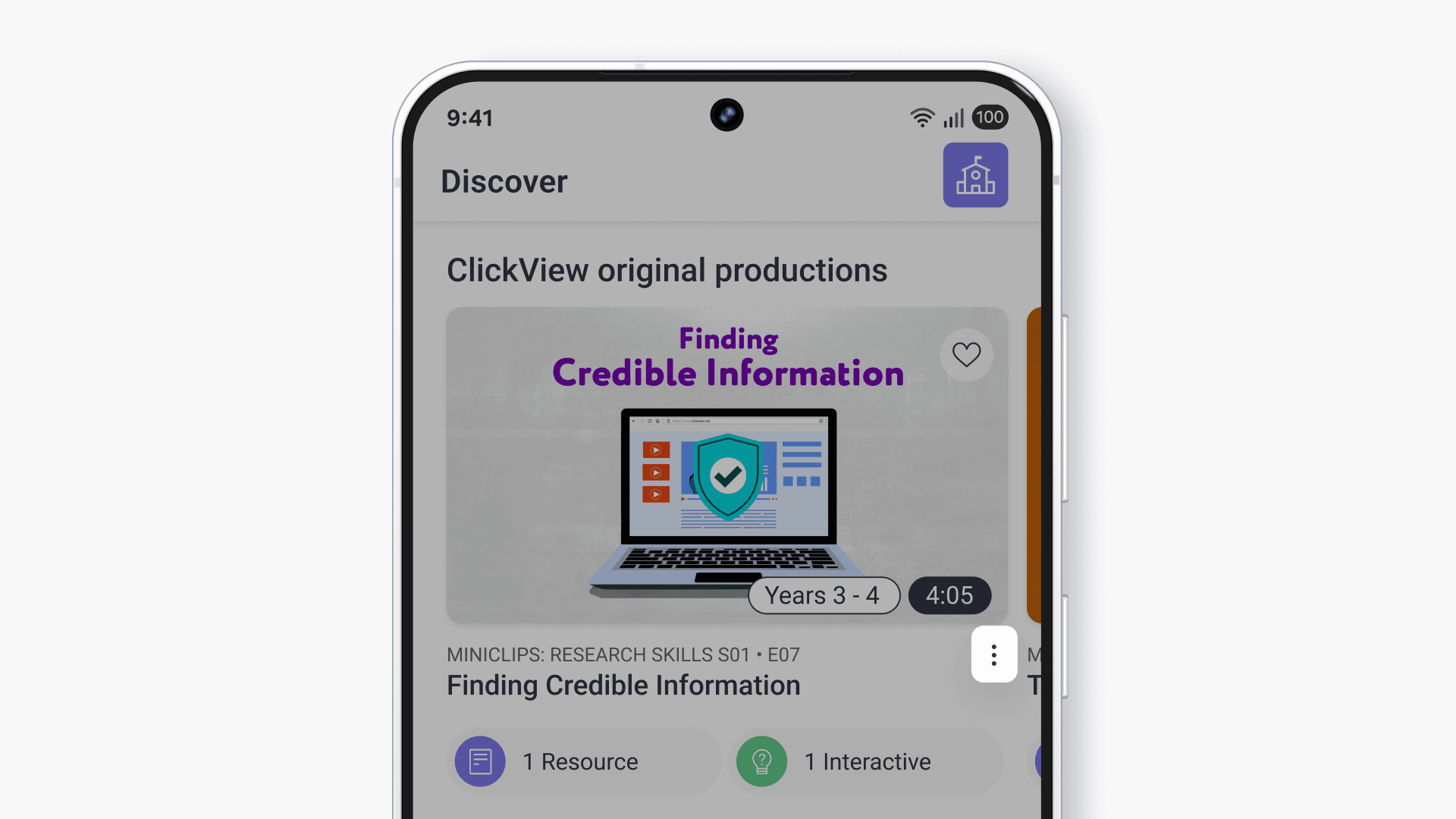
- Find the video you wish to download and tap the 3-dot icon.
- Tap ‘Download’.
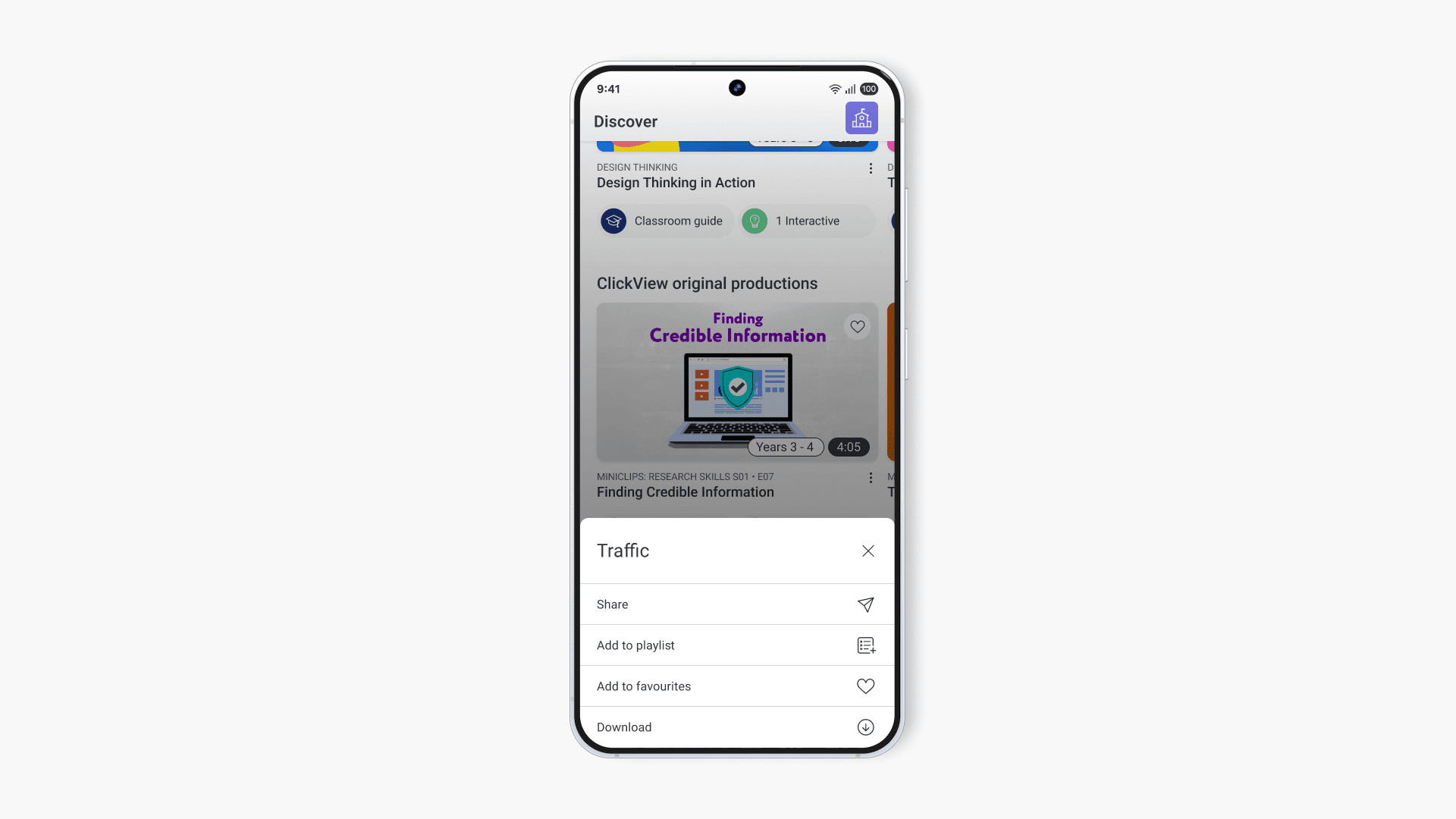
- Monitor download progress by tapping on the video. To stop downloading, select ‘Cancel’.
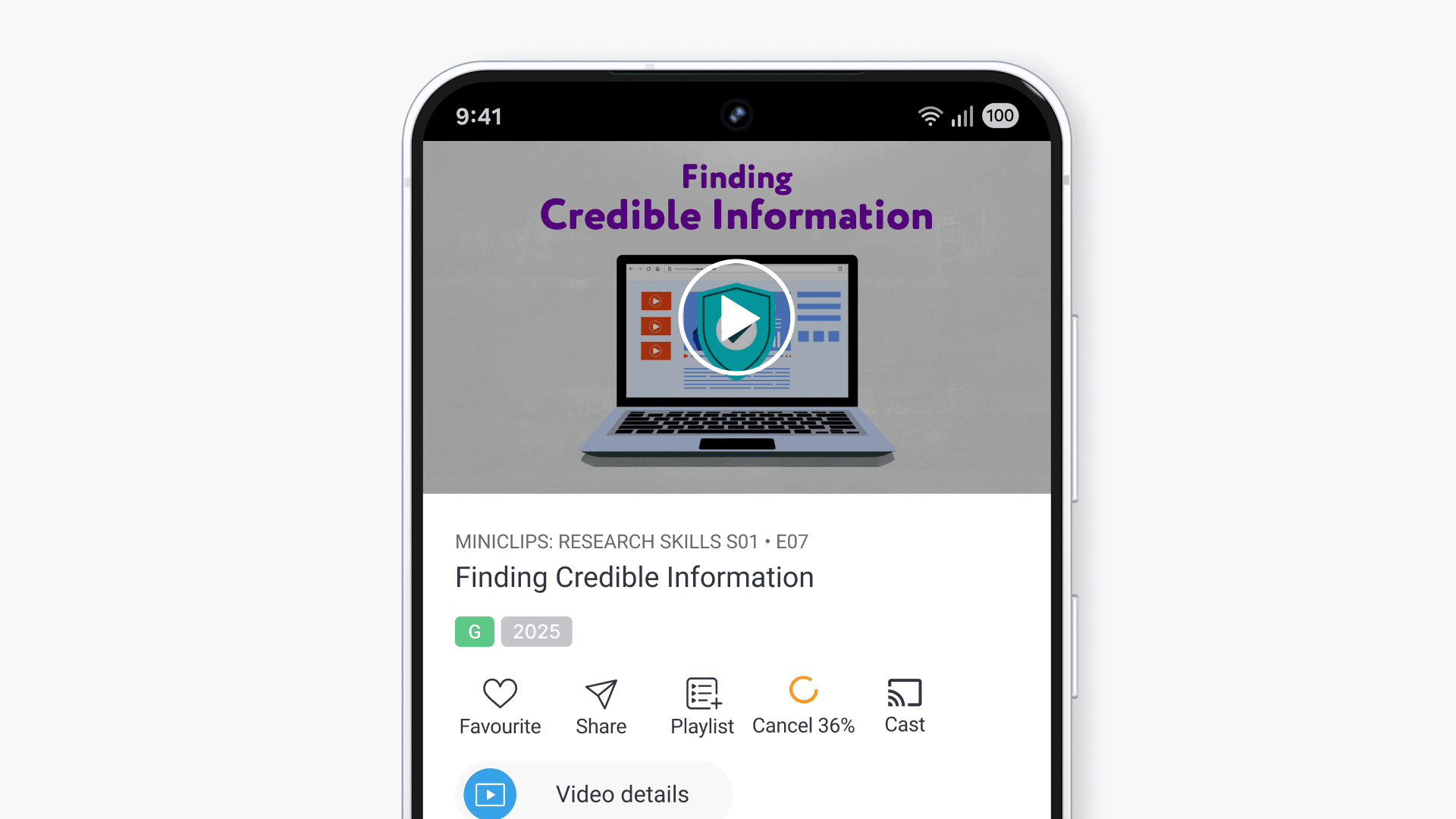
- Tap the download icon below to view downloaded videos.
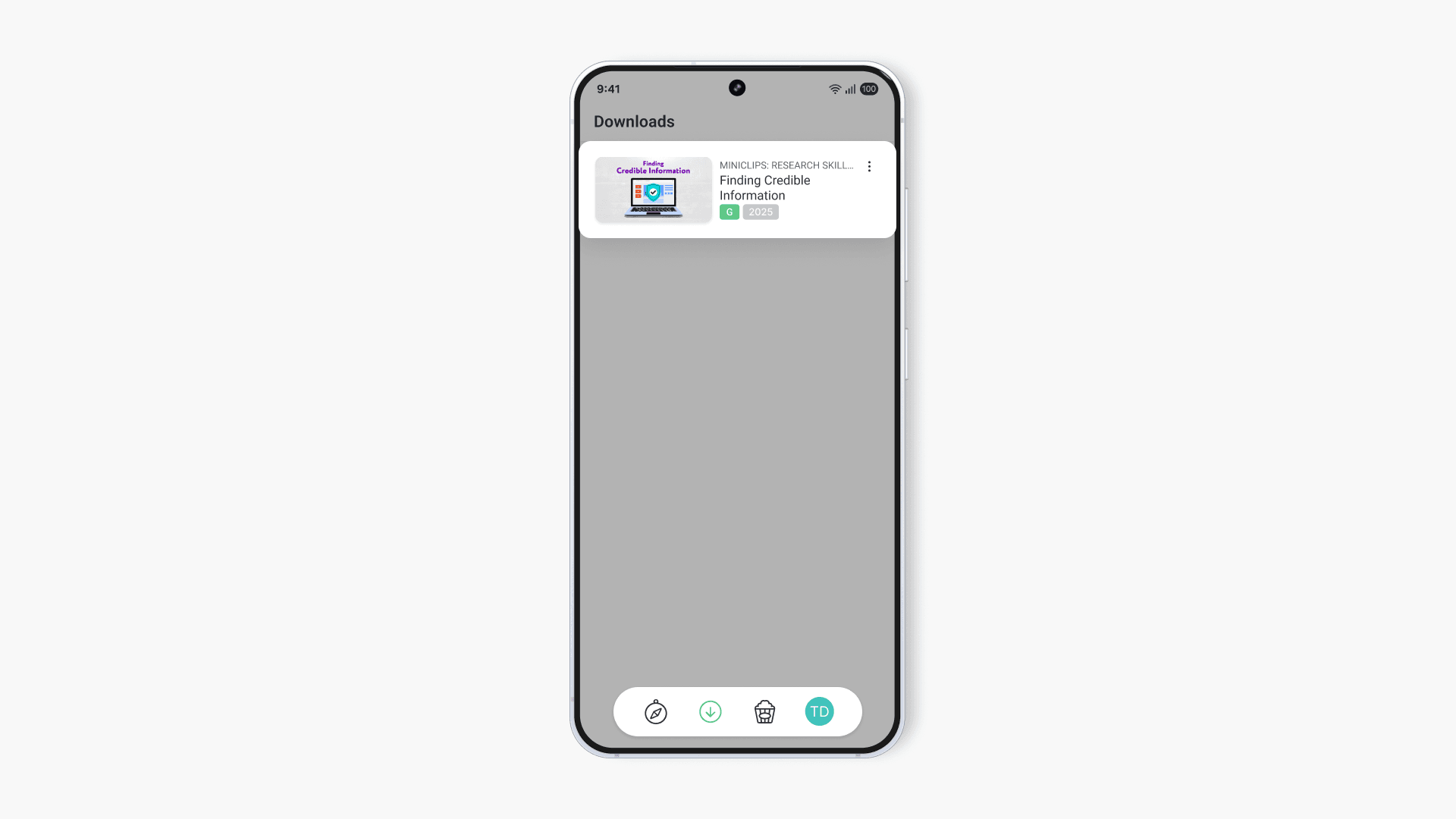
Play a video on Android
The steps below will walk you through how to play a video from local storage on your Android device.
- Open the ClickView app and tap the ‘Downloads’ symbol.
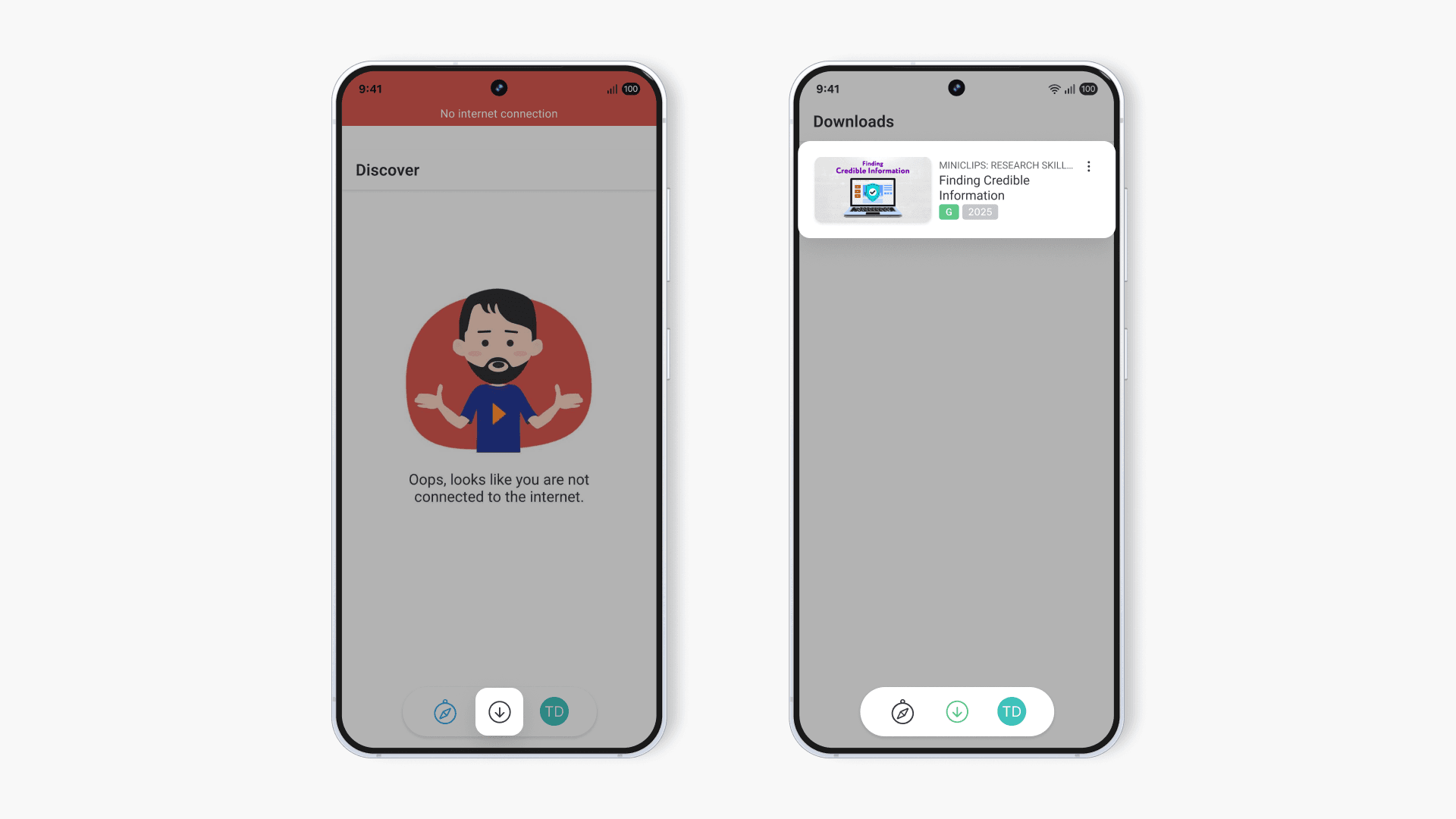
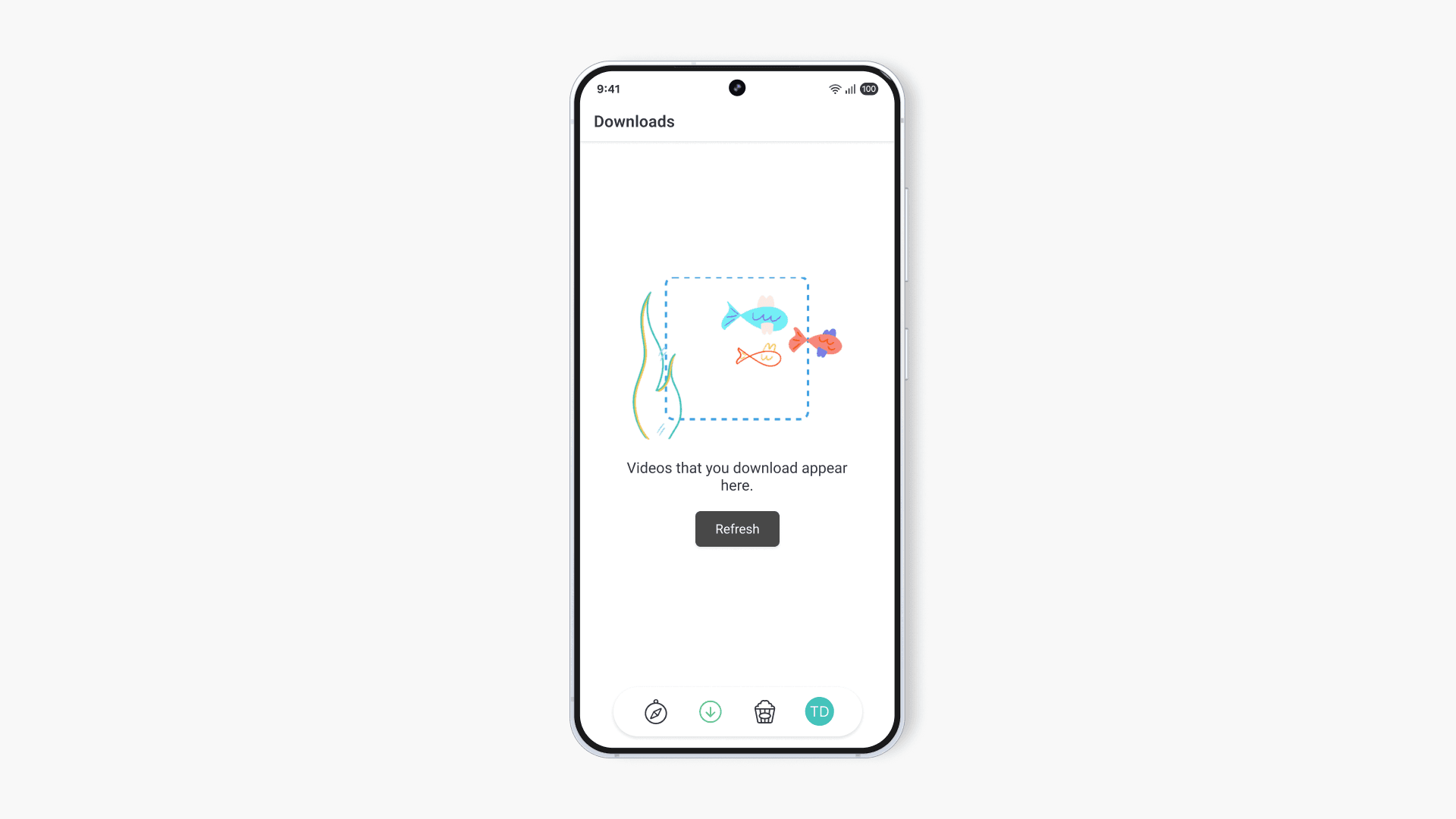
- Select the ‘Downloads’ icon to see saved offline videos.
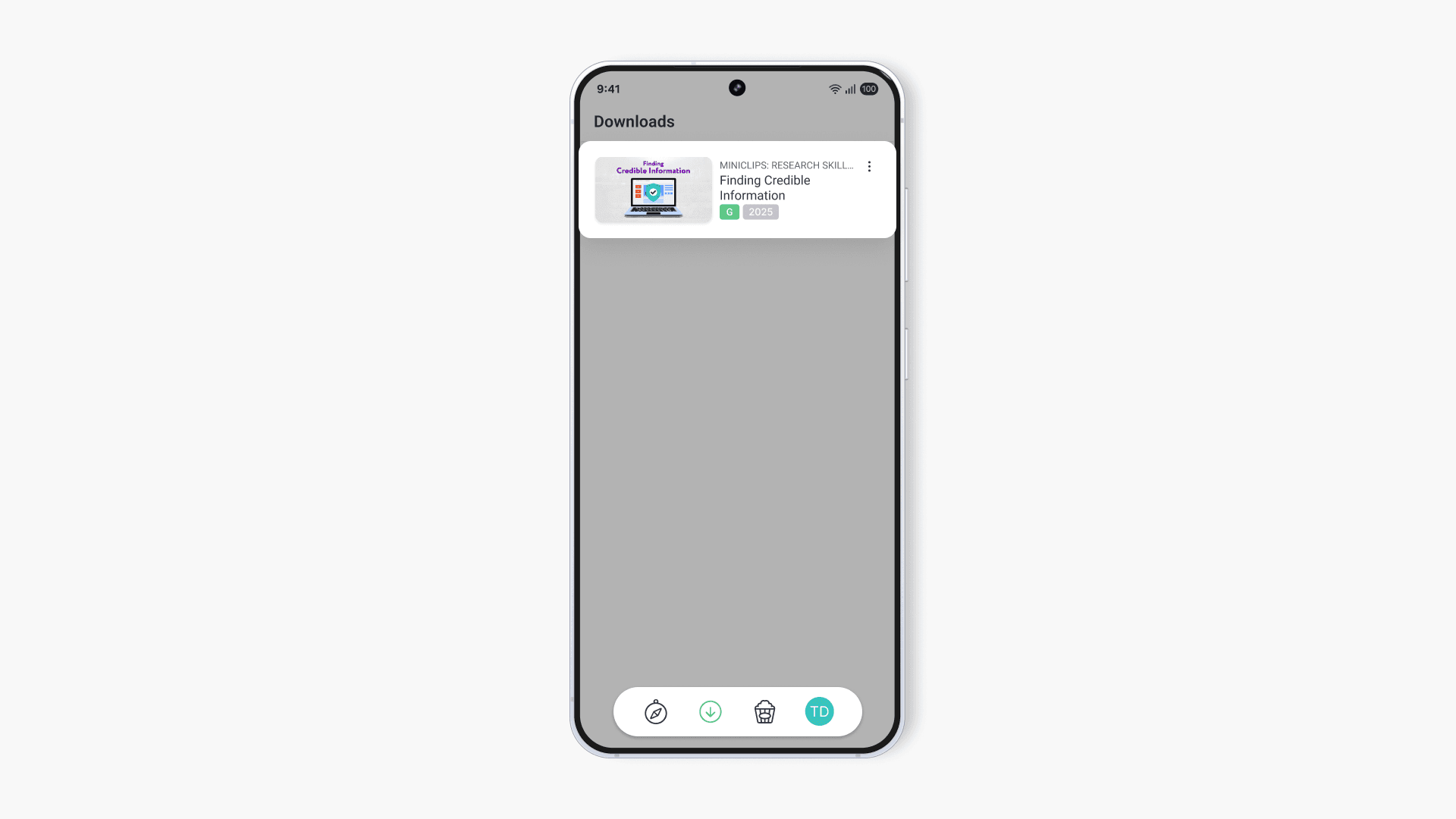
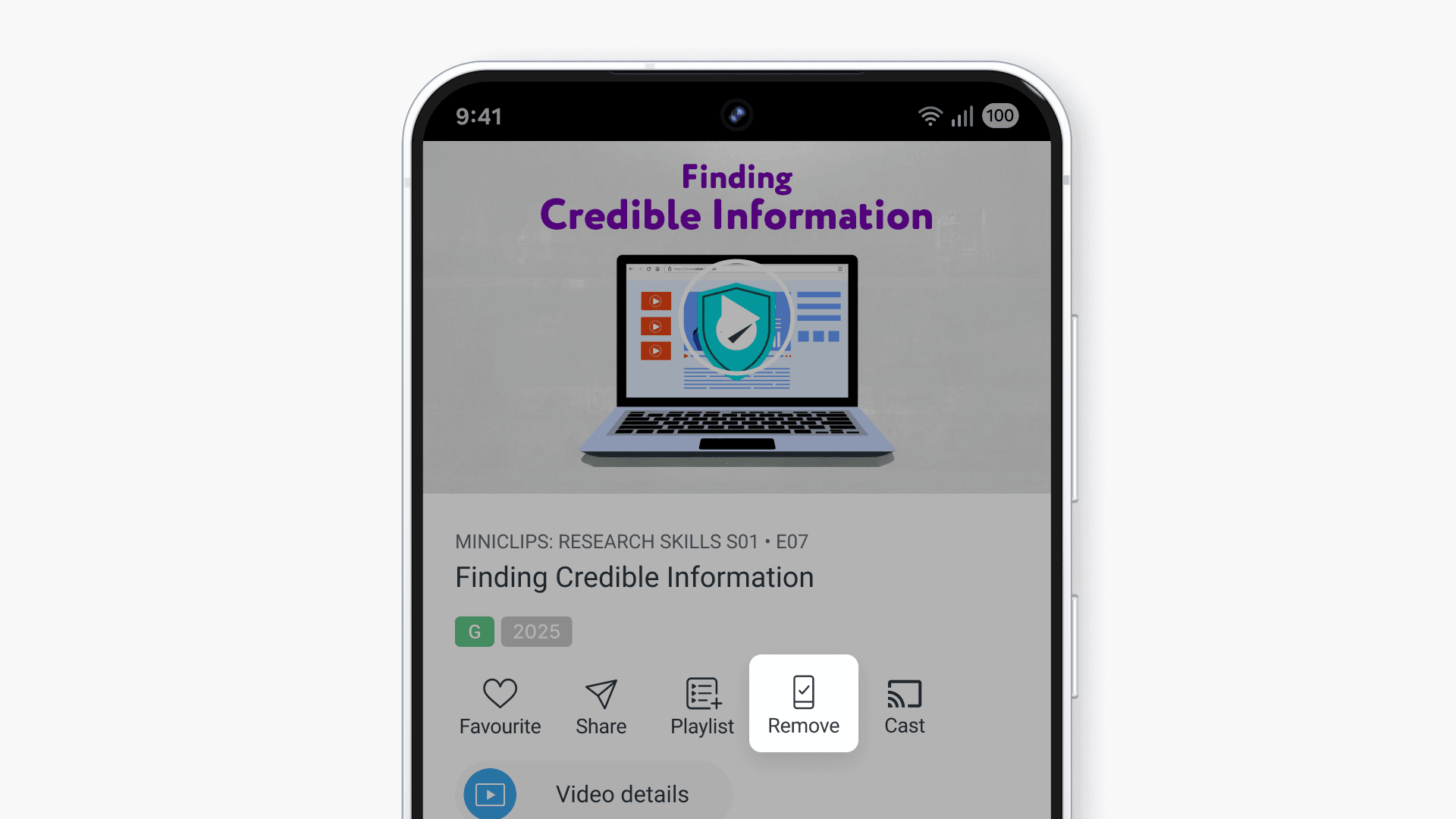
- To remove a downloaded video, tap ‘Remove’ under the video player.
- If there are no downloaded videos, a message will appear.
Note: An internet connection is required to download videos. After downloading, videos remain accessible offline as long as you stay signed in to the ClickView app.
Frequently asked questions
Get in touch
If you’re having trouble finding the right topics or videos, just reach out! Our team - 

 Akhil, Daniel, Jalaj, or any of us at ClickView - will be happy to help you get sorted.
Give feedback
Was this guide helpful?
Up Next
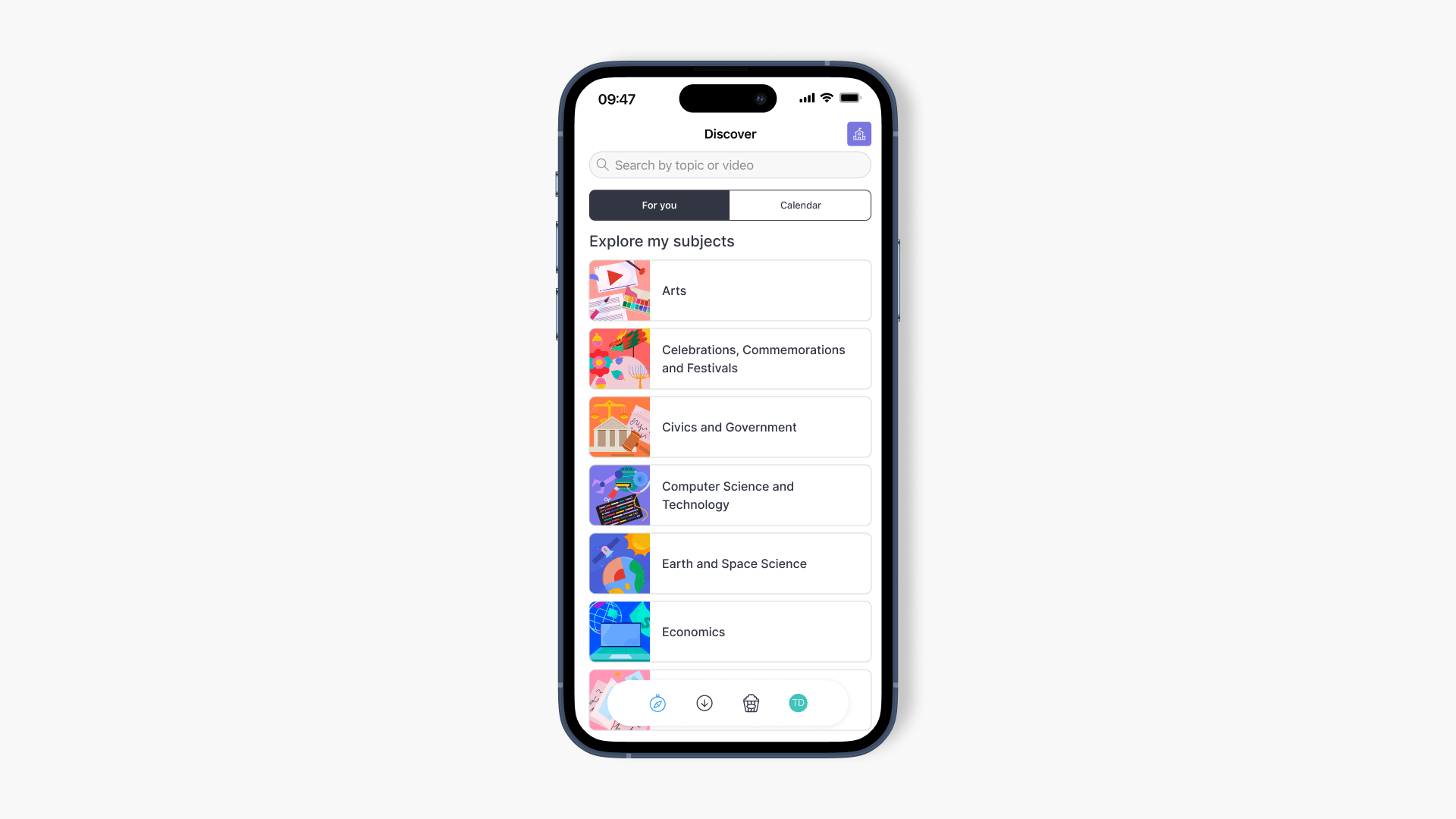
How to use the ClickView iOS app
This article explains how to sign in, explore content, filter searches, and use video controls within the ClickView iOS app on iPhone and iPad devices.